SeamlessIntegration.EffortlessSetup.
Enable automatic updates in just a few taps. Connect your calendar to your wallpaper and never miss a beat.

Start in Calendarly
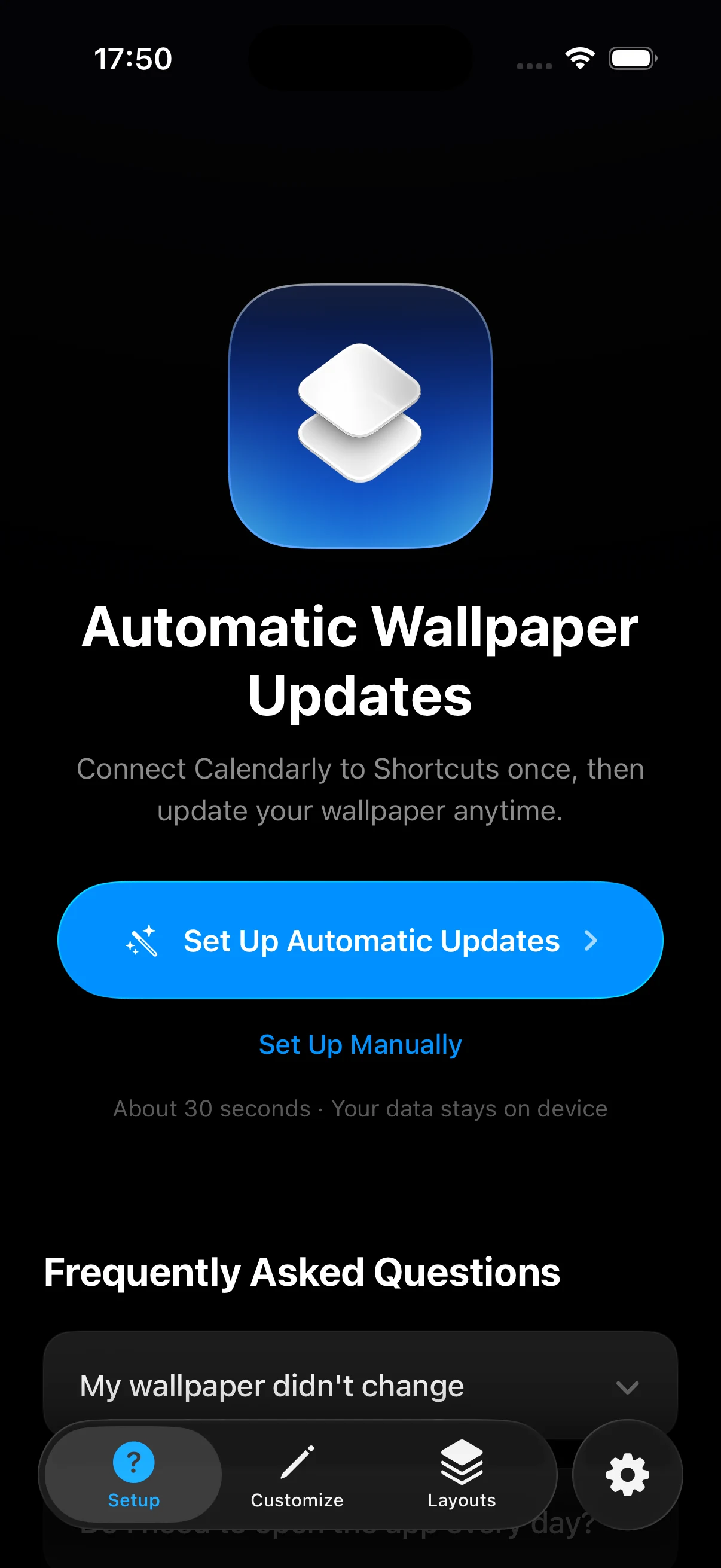
Open the Setup tab and tap Set Up Automatic Updates. The app asks for calendar access, adds the shortcut and runs it once. Nothing to build by hand.
Always Allow. Answer every iOS prompt with Allow or Always Allow. One refusal stops the whole run.
Open Automation
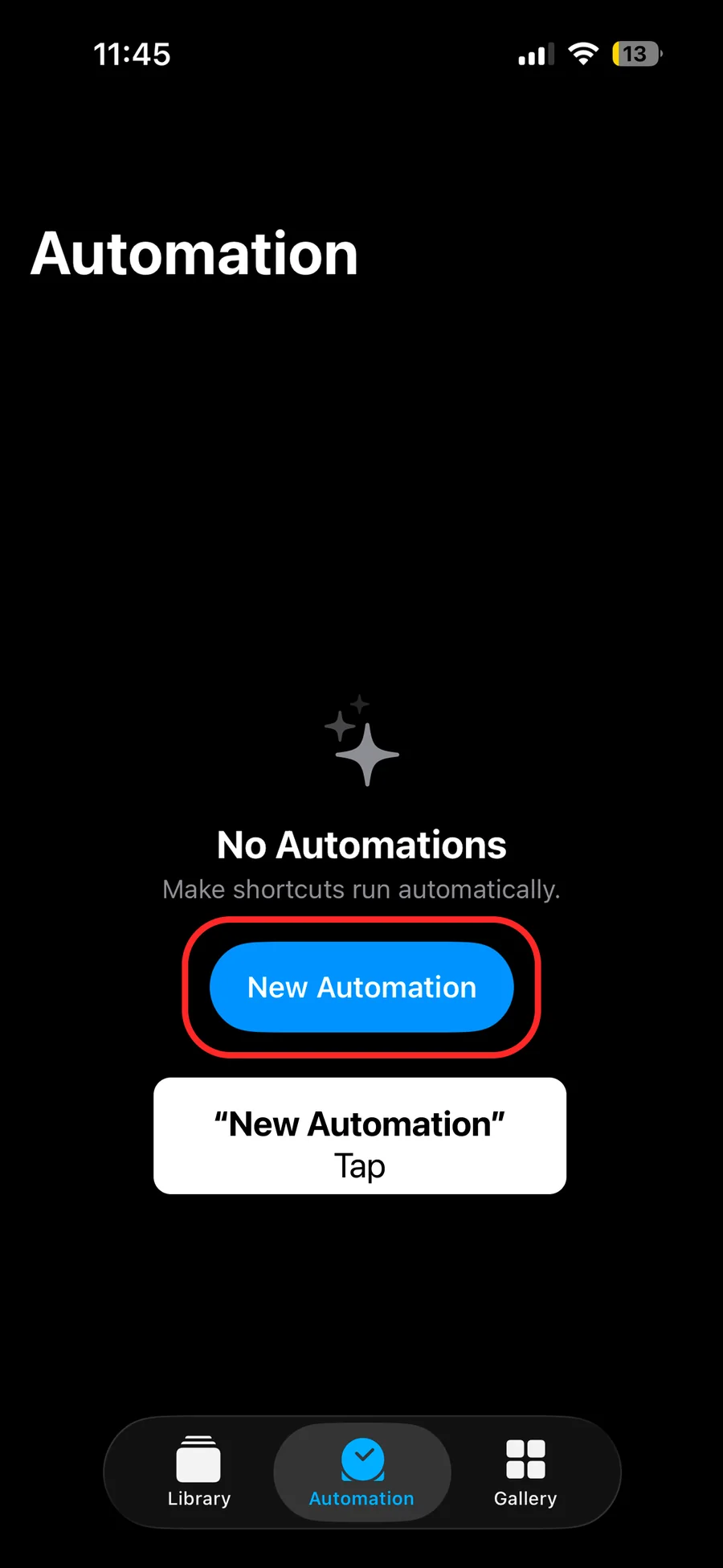
The rest happens in Shortcuts — only an automation can change the Lock Screen. Open the Automation tab and tap New Automation.
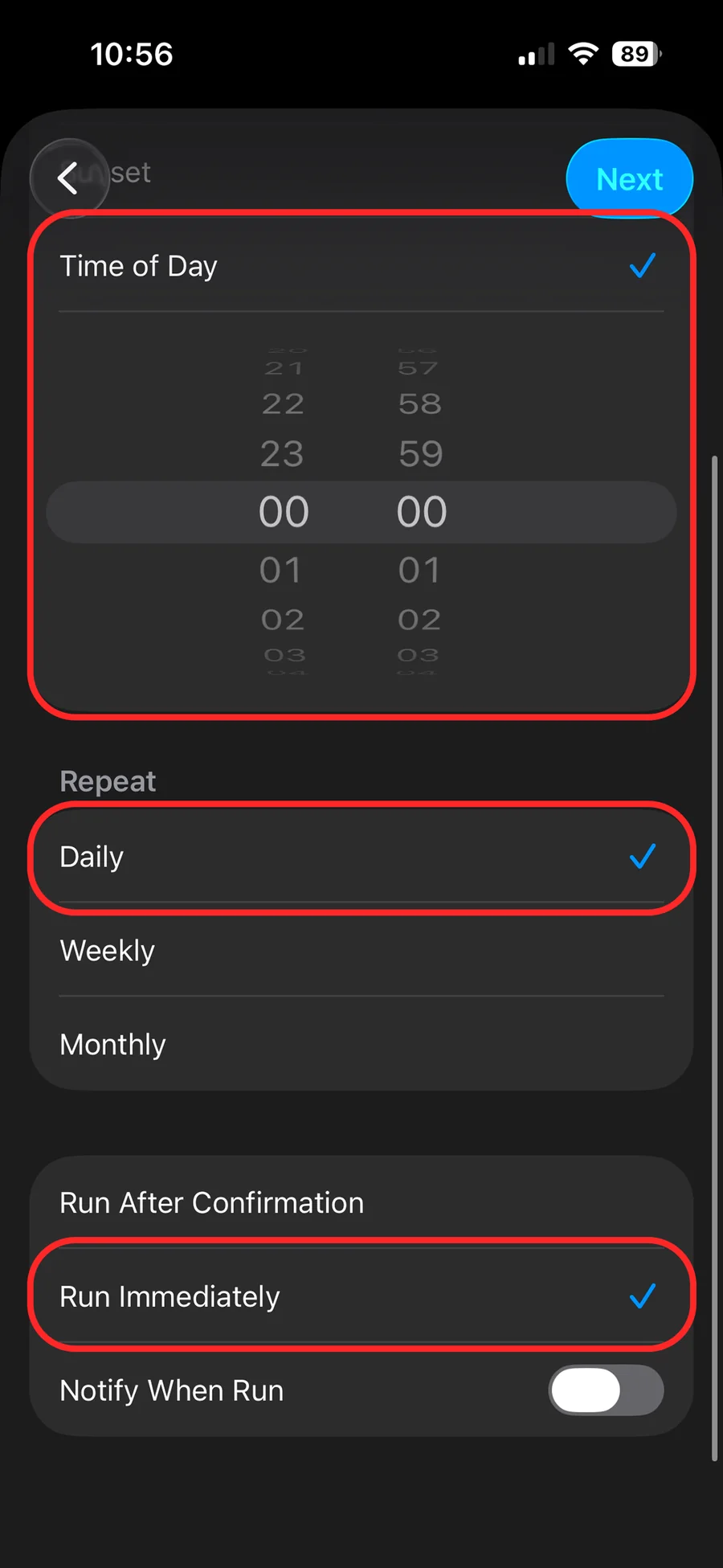
Choose Time of Day
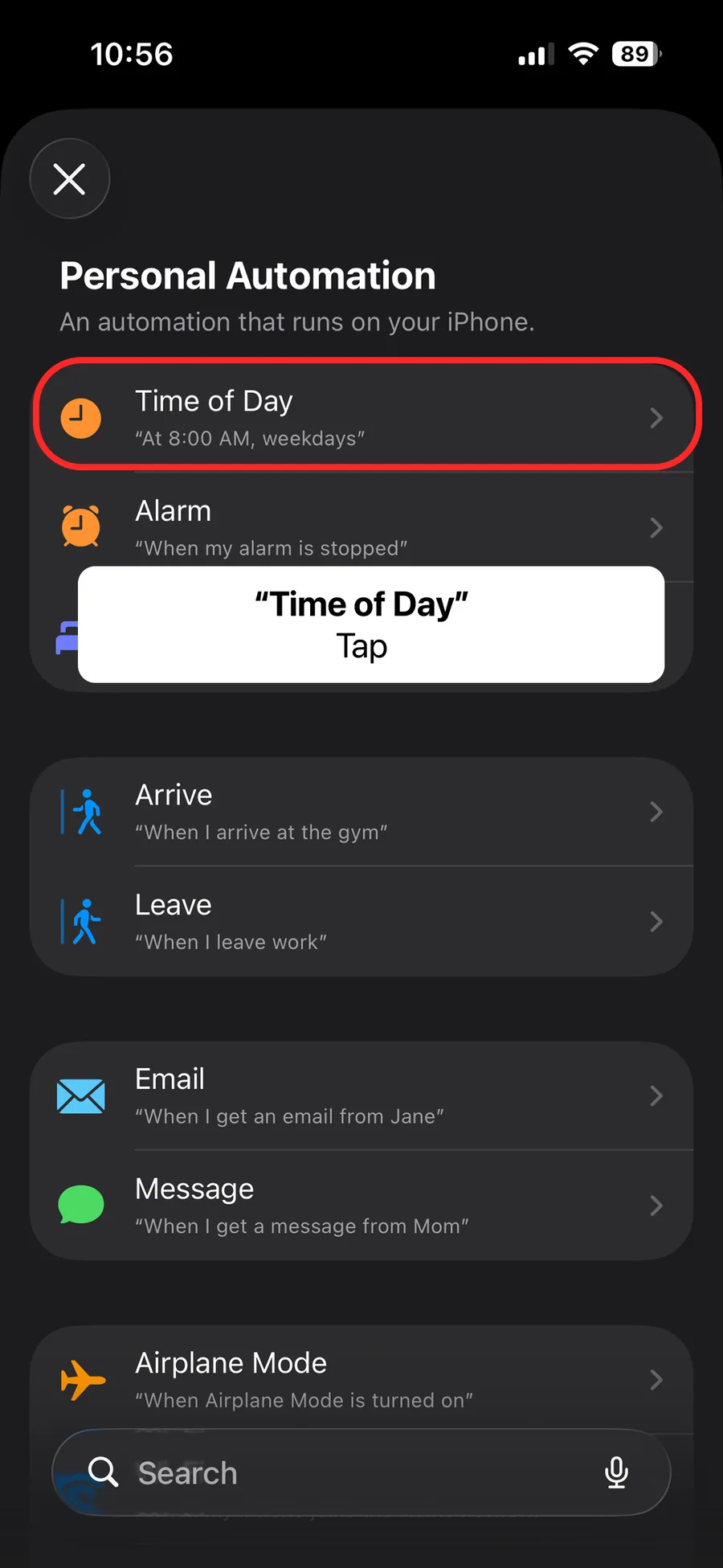
Pick Time of Day from the list of triggers.
Set the time
Pick your time and set it to repeat Daily. Seven in the morning is the usual answer.
Run Immediately. Turn it on and Notify When Run off, or the wallpaper waits behind a notification every day.
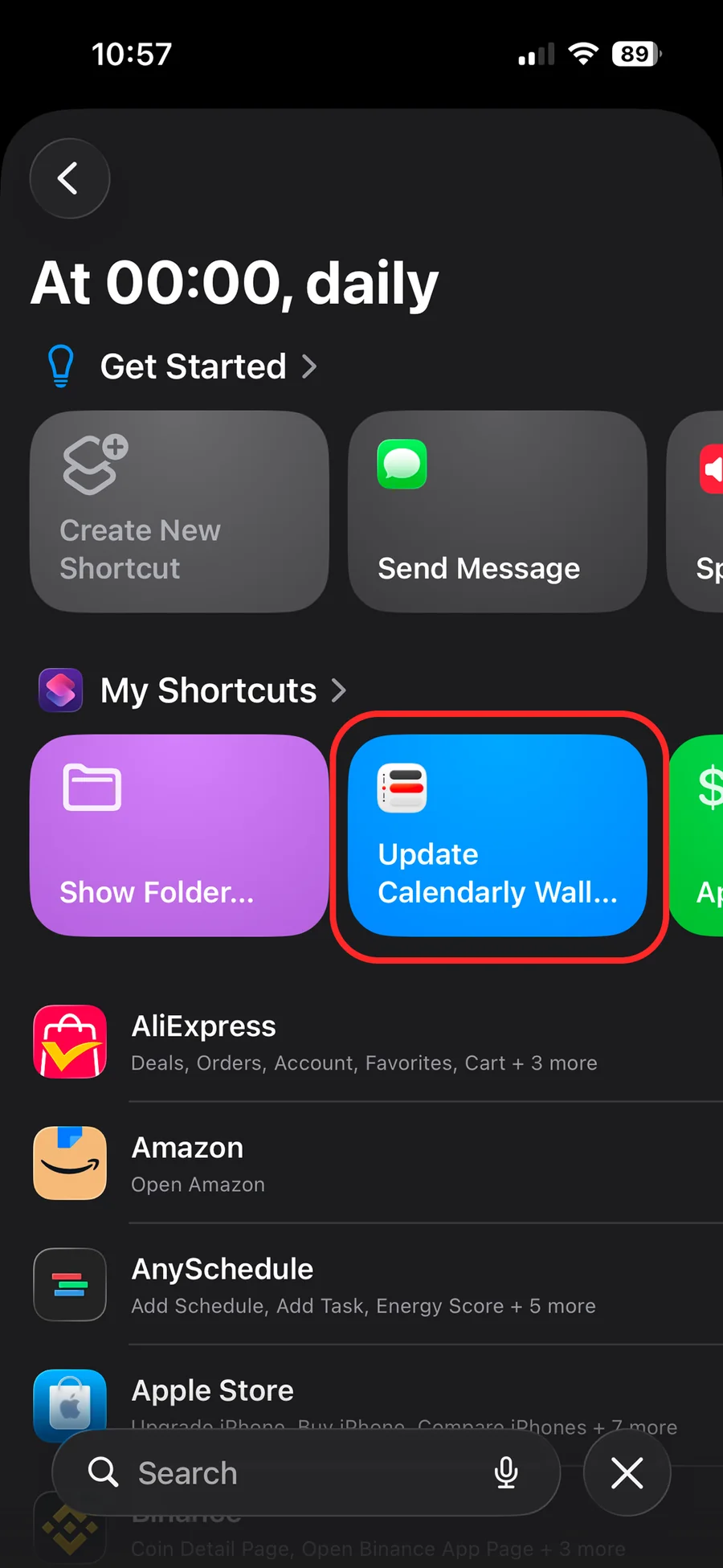
Pick the shortcut
Under My Shortcuts, choose Update Calendarly Wallpaper. Long library? Type the name in the search field.
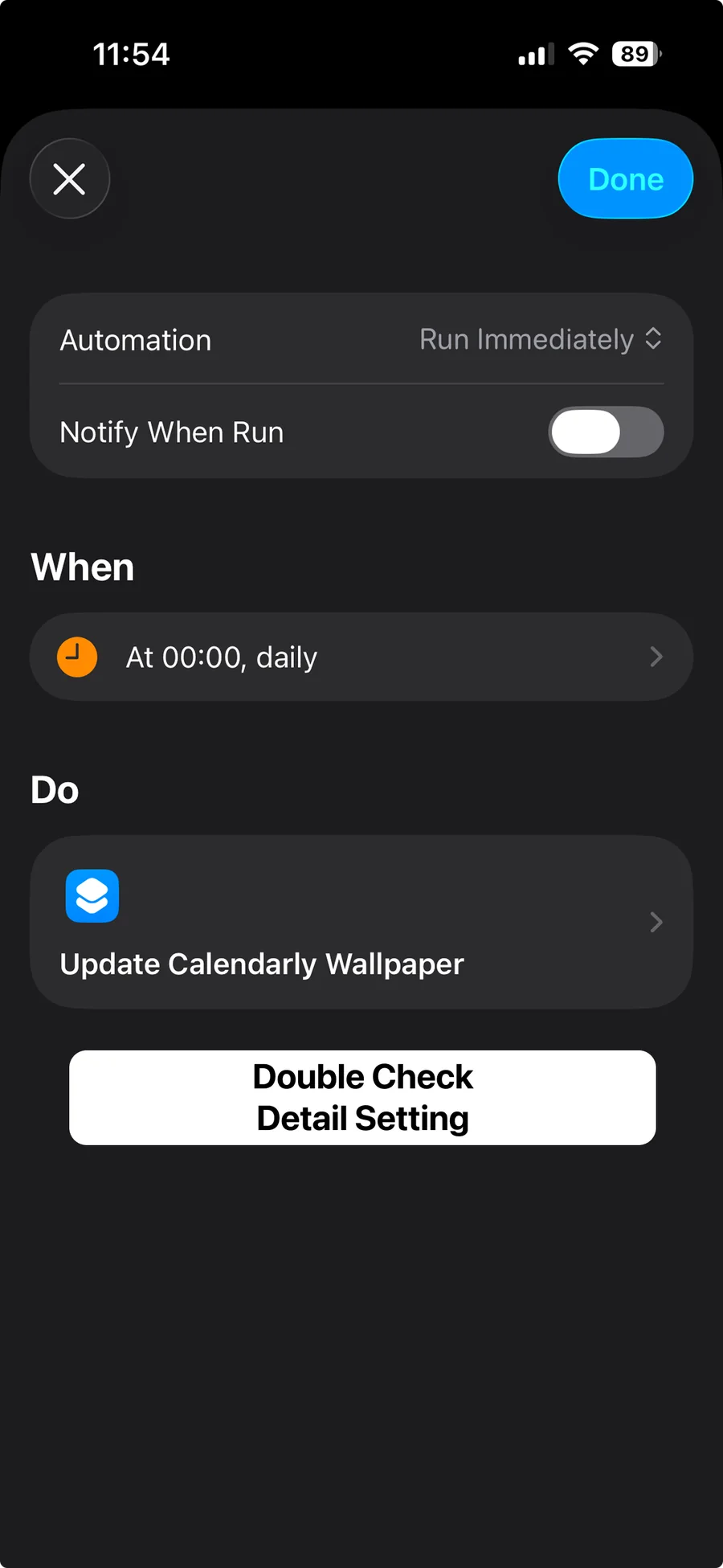
Check and confirm
Your time under When, Calendarly under Do. Tap Done.
All set.
Redrawn every day at that time, app open or not. Lock the phone to see the first one.
All set.
All set.
Enjoy your new automated wallpaper.
Four things it usually is.
The wallpaper did not change
Use a photo Lock Screen. Astronomy, Weather and the other live styles draw themselves and cannot be handed a new image.
It asked and I tapped Don't Allow
Run the shortcut again and answer Allow or Always Allow. One declined prompt stops the whole run.
I still see the old picture
Lock the phone and look at it. The Lock Screen only redraws once it is locked.
The shortcut is not in the list
Go back to the Setup tab in Calendarly and add it again. If it never got added, there is nothing for the automation to run.