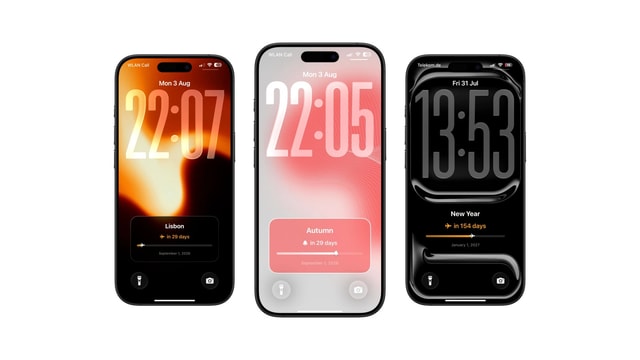
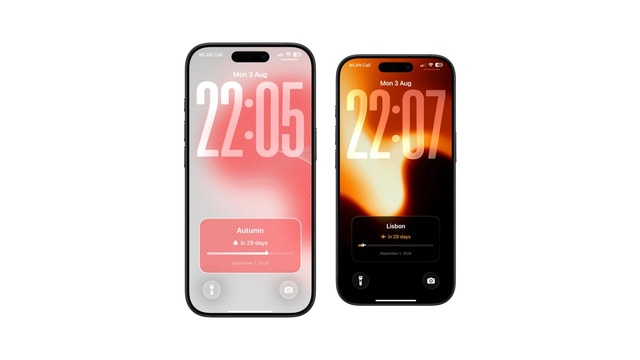
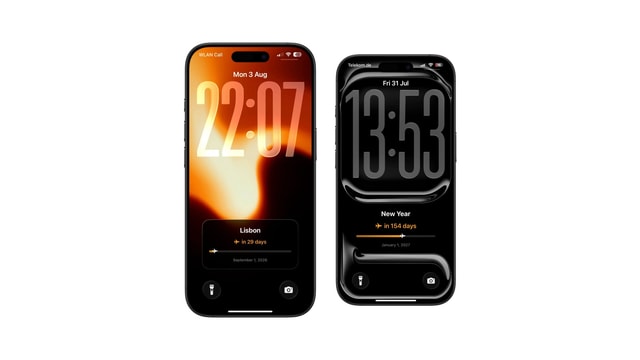
Exam Countdown on iPhone Lock Screen
Days until the exam, visible every time you pick up the phone. The number doubles as a study budget.
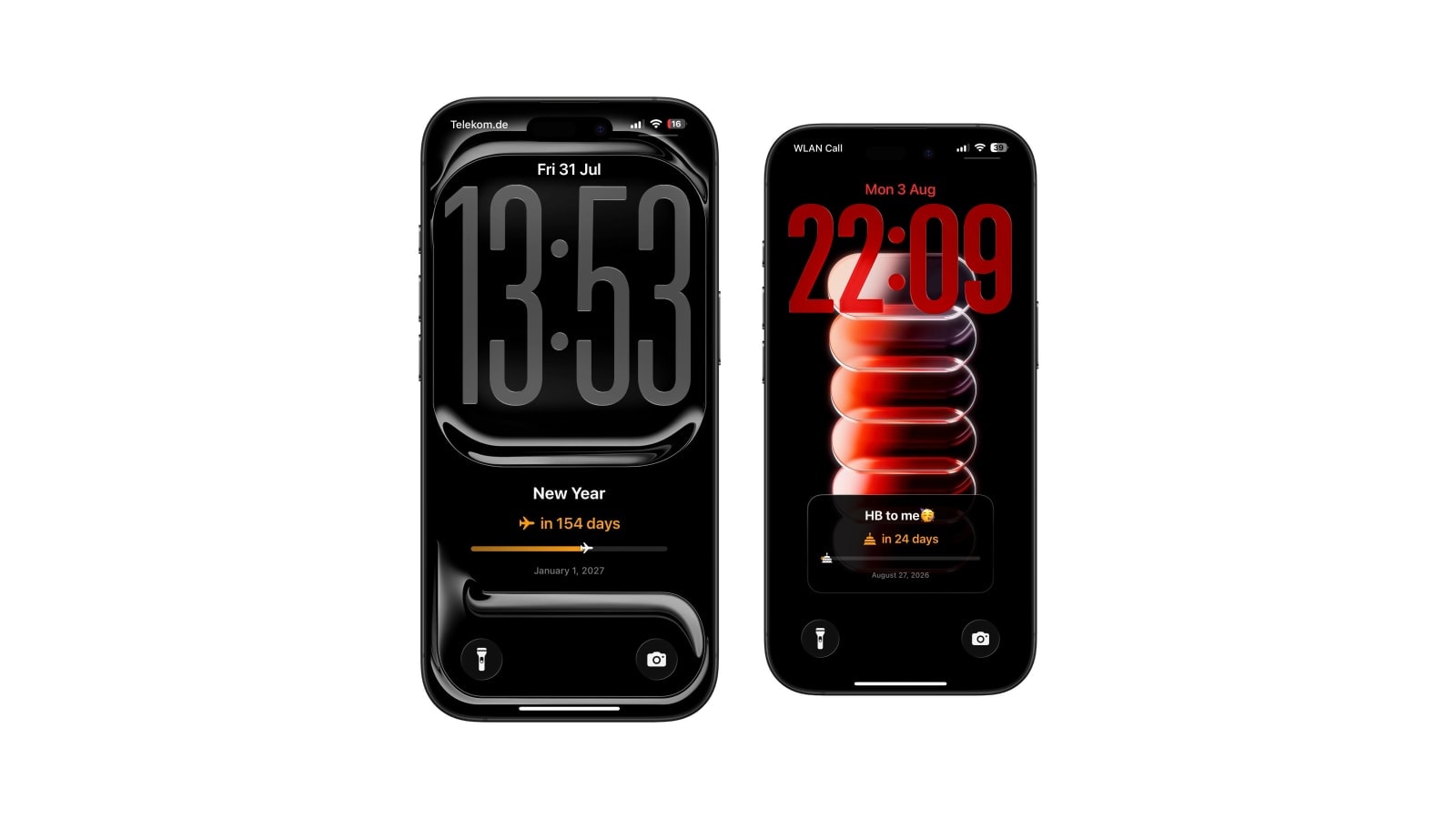
An exam countdown is useful for exactly one thing: turning a date that has felt abstract for two months into a number you cannot argue with. It will not build a study plan, and treating it as though it might is how it becomes a source of low-grade dread instead of a tool.
The version that helps pairs the number with one concrete next action and leaves the rest of the schedule in a calendar or a task app. “Twelve days · finish chapter four” gives you something to do this afternoon; a large red twelve on its own gives you a feeling.
Count down to the exam that is currently changing your decisions, not to all of them at once.
One date, not the whole exam period
Four simultaneous countdowns compete for the same attention and each one gets a quarter of it, which is worse than having none, because the effect of a countdown depends entirely on being able to read it without thinking. Put the first paper on the screen and keep the rest of the period in a weekly calendar view where the sequence is visible.
When that exam is done, replace it with the next one. It takes fifteen seconds and it is the small maintenance habit that keeps the whole setup connected to the actual term rather than to the term as it looked in week one.
An honest progress window
If your layout shows progress rather than just days, the start date decides whether it means anything. Anchor it to the day you began preparing, or to the day the material became available, and the bar tells you how far through the preparation period you are. Anchor it to 1 January and it tells you how far through the year you are, dressed up as revision progress.
There is a second thing worth saying about progress bars in this context. Time elapsed is not knowledge acquired, and a bar at seventy per cent does not mean you know seventy per cent of the syllabus. Use it for calendar distance and let a checklist or a past-paper count measure the actual work, because those two numbers can differ enormously and only one of them affects the result.
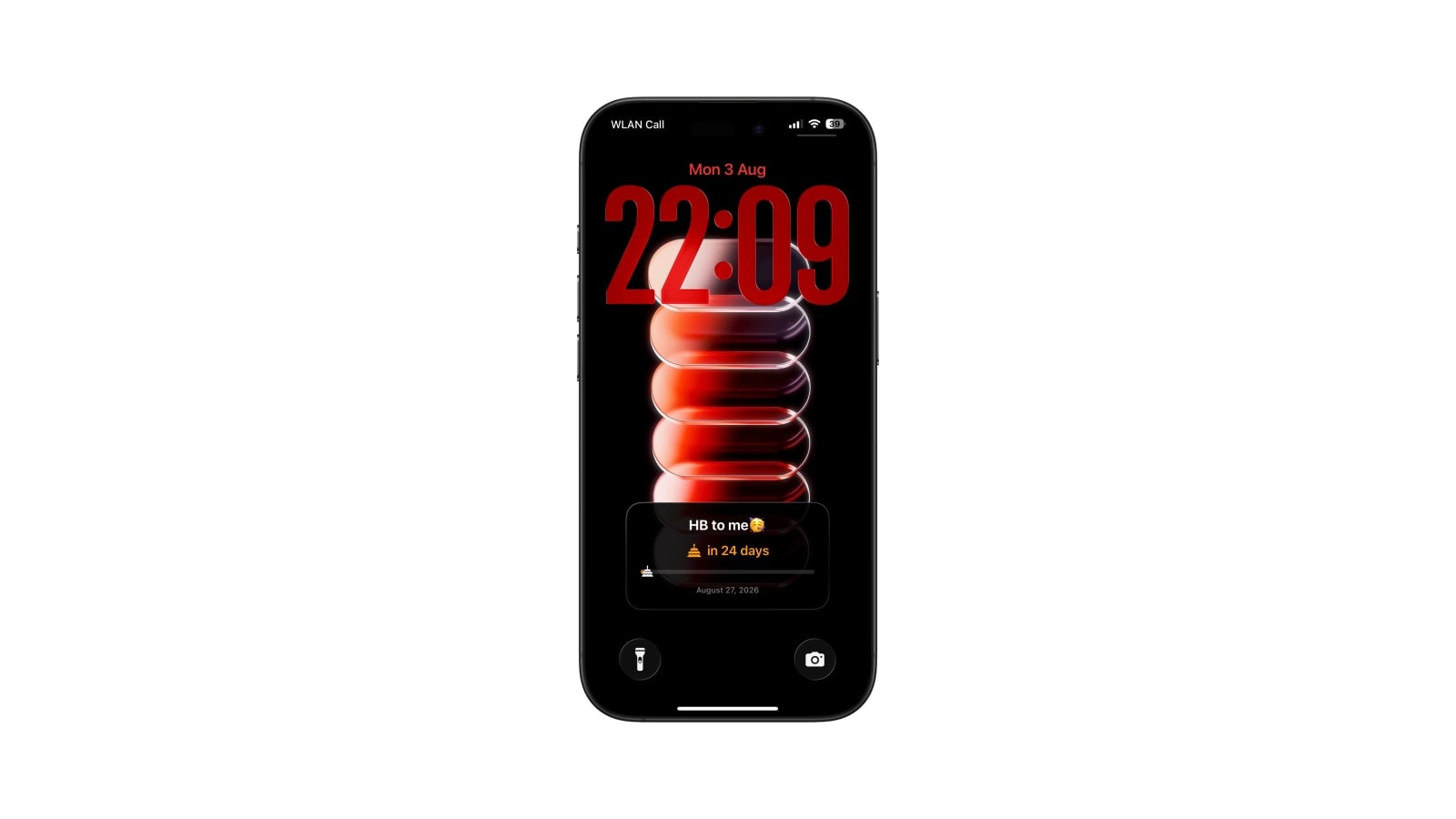
A calm setup
- 1Enter the exam date
The date of the paper itself. Add the start time to the title only if being late is a realistic risk.
- 2Set a real start date
The day preparation genuinely began, so that any progress display describes this exam rather than the calendar year.
- 3Add one next action
Concrete and finishable. Replace it the moment it is done, or it becomes furniture within three days.
- 4Schedule the daily render
Set up the Calendarly shortcut once and the number moves on its own each morning.
If the shrinking number is making things worse, use the date. A plain exam date or a weekly study schedule carries the same information without the pressure. The Lock Screen is meant to support the way you work, not to supervise it.
A compass, not a coach
Let the number show the distance and let your calendar decide the route. Take it down as soon as it stops being helpful, which for a lot of people is somewhere in the last week when the date has stopped being news.
Questions people ask
Create a countdown wallpaper in Calendarly with the exam date as the target, or use a countdown app’s widget. Calendarly draws the whole wallpaper rather than providing a widget.
Usually not. Show the next one and keep the full exam period in Calendar, where the sequence is visible.
It makes time concrete, which helps some people plan and makes others anxious. It does not replace a study plan either way.
Yes, and it is the version that works best. Keep it short and update it when it is done.
Change the target, switch layouts, or take the countdown down. An expired number on the screen trains you to ignore it.