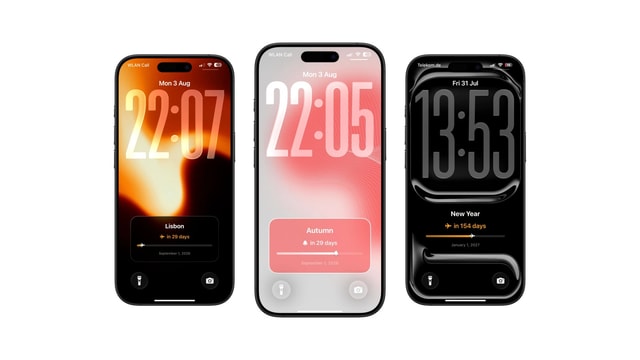
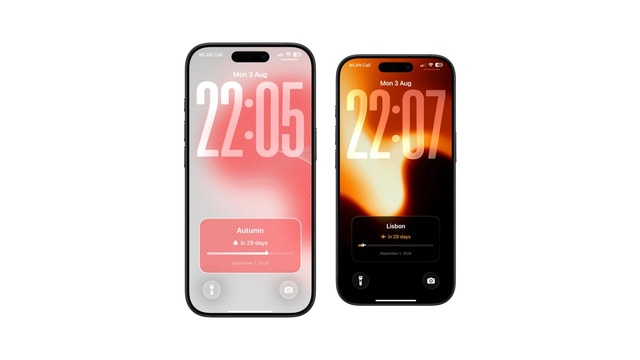
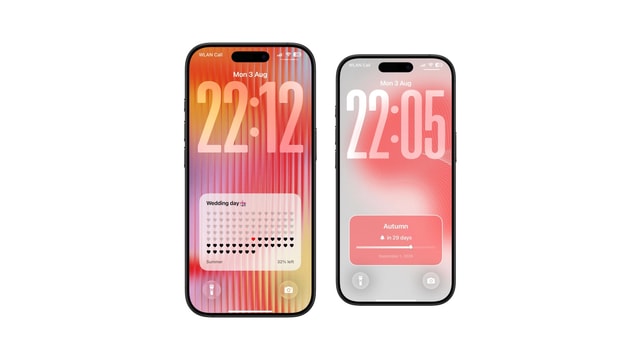
Vacation Countdown on iPhone Lock Screen
The trip is booked. Put the days left where you will see them, and let the number do the looking forward for you.
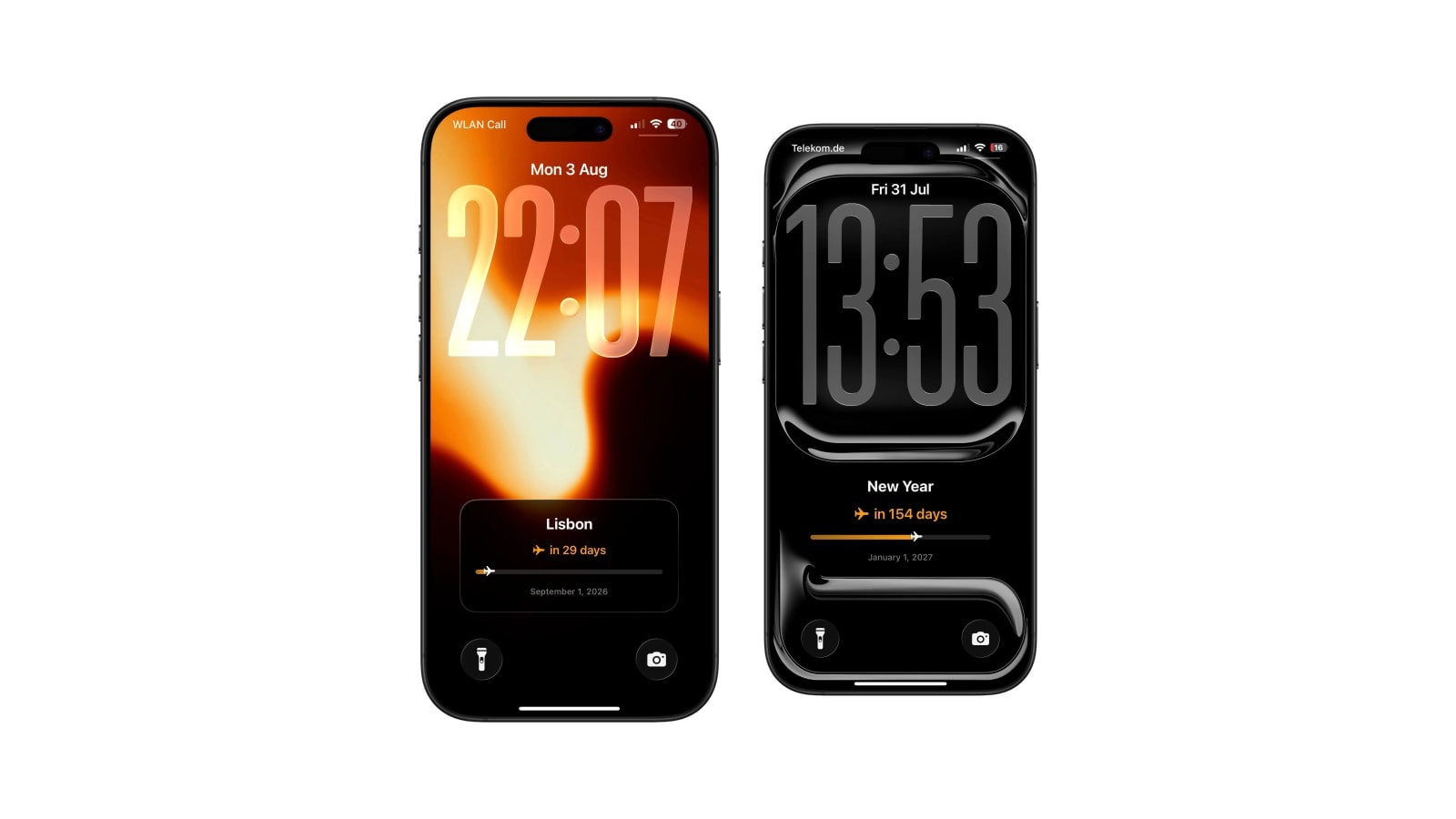
A holiday countdown belongs on the Lock Screen for the simple reason that the anticipation is half the point. Set the departure date, pick a photograph with somewhere for the number to sit, and let the daily refresh do the arithmetic.
Count to the moment the trip starts for you, which is usually leaving the house or the flight rather than the first hotel night. It sounds like a detail and it is the difference between the number matching your feeling about the trip and being a day out from it the whole time.
One practical advantage over an app-based countdown: the finished wallpaper is an ordinary image on your phone, so it keeps working perfectly in a place with no signal.
Choosing a start that makes progress mean something
If your layout shows a progress bar or a filling path rather than only a number, the start date turns it into a story. Use the day you booked, or the day planning genuinely began, and the graphic describes this trip: booked in March, leaving in August, currently two thirds of the way through the wait.
If you only care about days remaining, the start date is invisible and you can ignore it entirely. Only the target has to be right.
Using the destination photo without losing the number
A beach, a skyline or a mountain works beautifully as long as it has an open region for the type. Sky and water are the two most reliable, because they are large, smooth and usually at the top or the bottom where the count is not. A photo that is interesting edge to edge is a bad photo for this, however good it is as a photo.
When it is nearly right, darken or lighten a panel behind the number rather than filtering the whole image, which flattens exactly the thing that made you choose it. And keep the travel documents out of it: booking references, seat numbers and anything with your surname on it should not be readable on a locked phone in an airport.
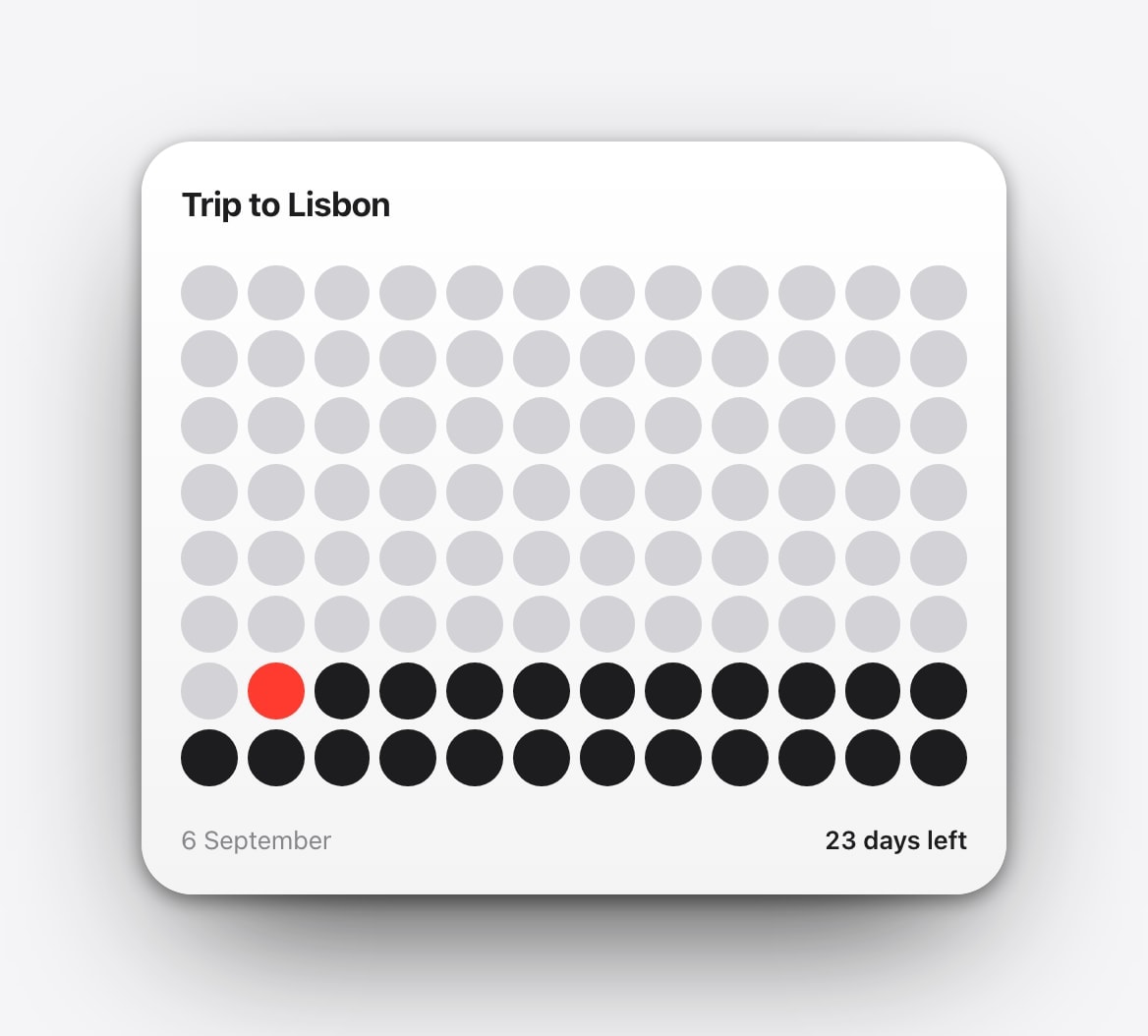
Set it up and let it travel
- 1Use the departure day
The day the trip starts for you, in your current calendar. Not the hotel booking, not the return.
- 2Pick the look
Tiles, a progress path, a large number or a quiet date, in Calendarly.
- 3Check it against the clock
Look at the finished Lock Screen with the real clock and a notification before you commit to it.
- 4Add the daily automation
The number is recalculated at each render. The last wallpaper stays on the screen regardless of signal.
Crossing time zones does not confuse it. The count works in whole local calendar days, so flying east does not knock a day off and a clock change does not add one.
Questions people ask
Add a countdown app’s widget, or choose a countdown layout in Calendarly, which draws the count into the wallpaper itself.
The date the trip begins for you, which is usually the local departure date rather than the first night away.
Yes. Pick one with an open area for the number, and keep booking references and identity details off the screen.
Yes. The wallpaper is already on the phone, and the date arithmetic happens on the device without a connection.
No. The Calendarly version is part of the wallpaper.