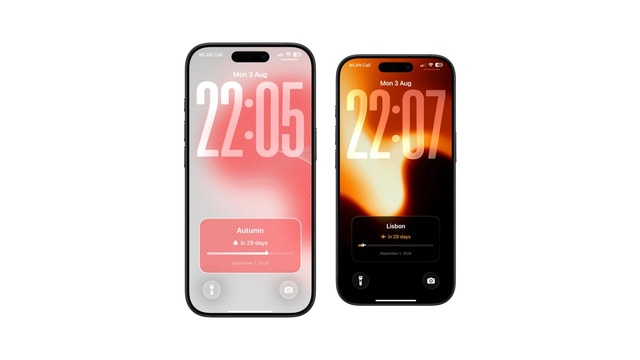
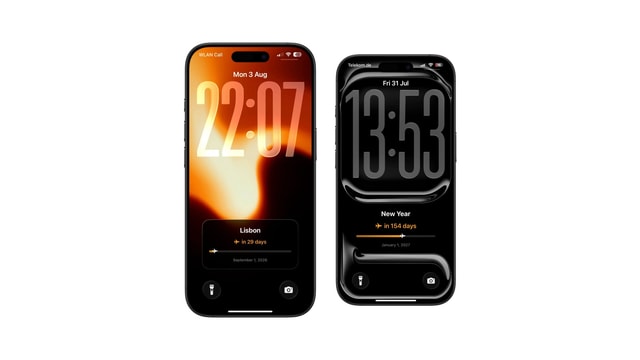
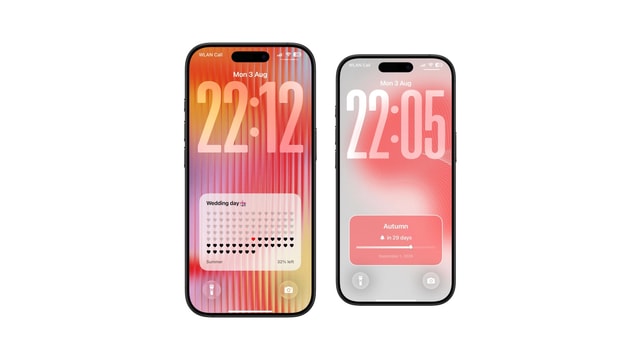
How to Add a Countdown to Your iPhone Lock Screen
Days until a trip, an exam or a birthday, on the wallpaper itself. And why the number is still right tomorrow.
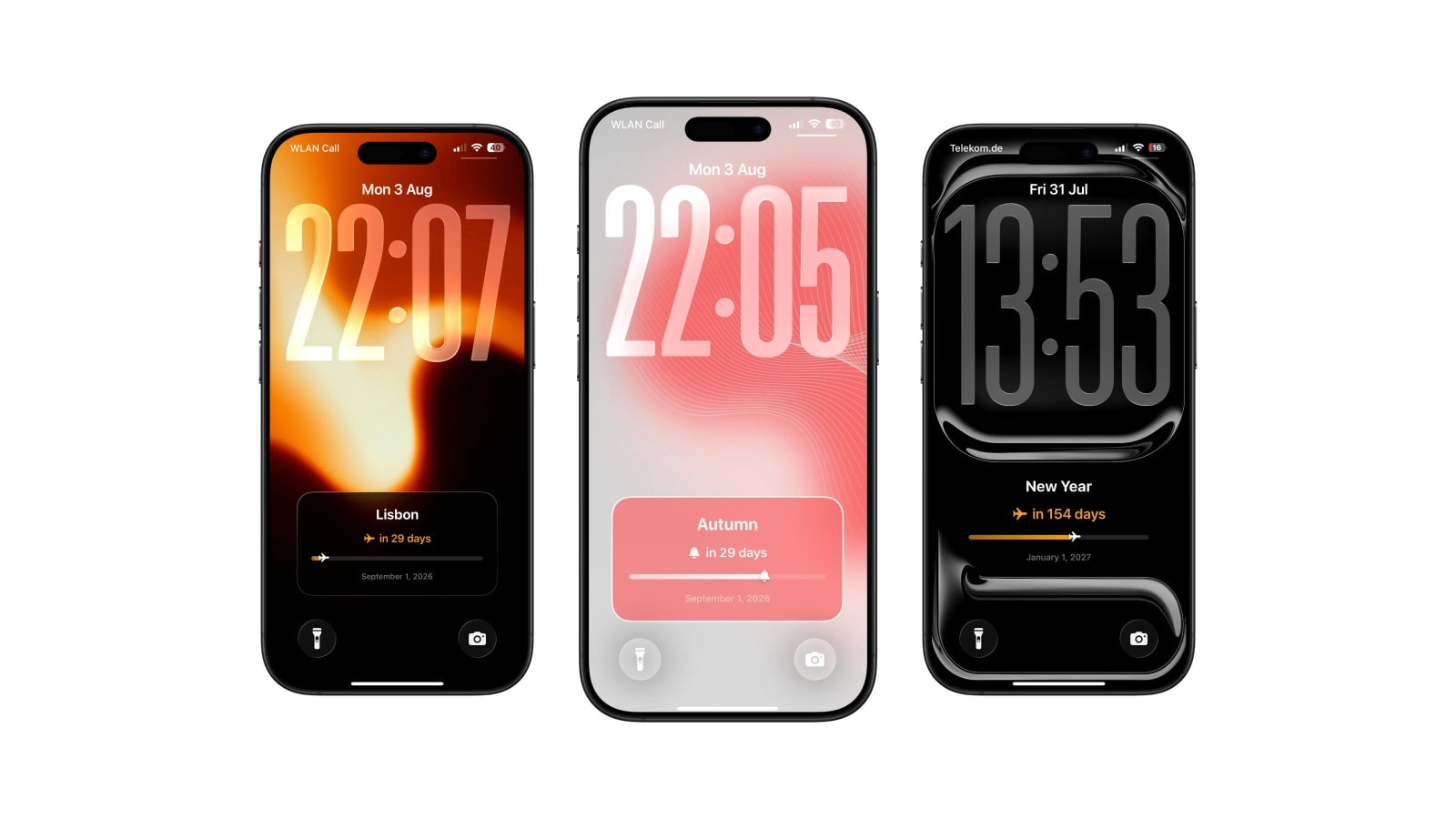
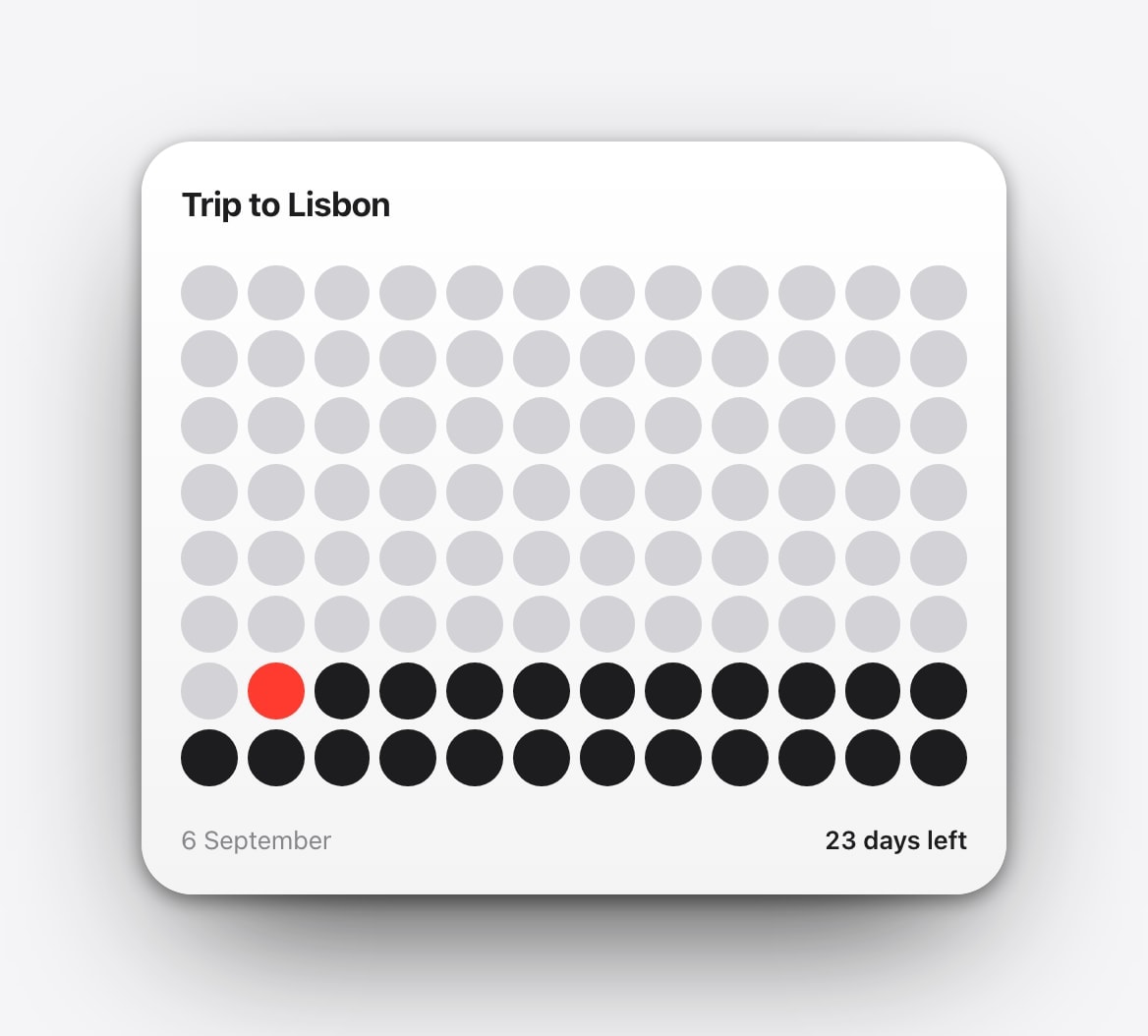
A countdown can live on the Lock Screen three ways: as a widget from a countdown app, as an image you made with the number written into it, or as a wallpaper that recalculates the number every time it is generated.
The third is the one people are usually looking for, because the other two both have an obvious flaw. A widget is live but tiny, and a static image is exactly right for one day and wrong on every day after it.
Before any of that, though, pick one event. A Lock Screen carrying six countdowns has turned anticipation into background noise, and each individual number means less than it would have on its own.
The three routes, and who each one is for
A countdown app’s widget is the fastest to set up and the easiest to change, and it will always be small, because the Lock Screen widget row is small. It suits people who want the number available rather than prominent, and who like being able to tap through to a list of upcoming dates.
A static image is worth defending against the assumption that it is amateurish. If the date is a week away and you want something beautiful, making one image is honest work with a predictable result. It only becomes silly at forty days, when you are editing the same picture every morning.
A generated wallpaper sits between them: the size and the design freedom of the image, with the arithmetic done for you. The cost is a couple of minutes of setup and the fact that the number changes at the next render rather than at midnight.
Best when you want a tap into the countdown app and only need a small number in the corner.
Best when the event deserves the screen and a daily refresh is close enough to live.
Day zero, and why the number sometimes looks wrong
Every countdown has to decide whether the target day counts as zero or as one, and different apps decide differently, which is why two countdowns to the same wedding can disagree by a day and both be defensible. It matters less which convention you use than that it stays the same, because a number that shifts convention halfway through stops being trustworthy.
The related question is time zones. Calendarly counts whole local calendar days, so a trip to Tokyo does not make the number jump around while you are in the air, and a clock change does not quietly add or remove a day. That is deliberately less precise than counting hours, and it is the behaviour people actually want: “nine days” should stay nine days for the whole of today.
Setting up the version that stays correct
- 1Choose the target properly
The moment the thing actually begins for you: the departure time rather than the hotel check-in, the exam rather than the results, the ceremony rather than the reception.
- 2Choose an honest start
If the layout shows progress, anchor it to the day preparation genuinely began. Backdating to 1 January produces a fuller bar and a meaningless one.
- 3Choose the voice
Days remaining for urgency, a progress line for shape, one tile per day for rhythm, or a plain date when you want the least pressure.
- 4Add the daily run
Save the layout in Calendarly and add the short morning automation. Each new image uses the current day.
What a number can and cannot do
A countdown makes distance concrete, and that is genuinely useful when a date has been sitting vaguely in the future for months. What it cannot do is plan the work between now and then, and pairing a big deadline with an entire project board on the Lock Screen usually produces something you stop looking at within days.
One next action beside the number is the most that works. Beyond that, the countdown has become a dashboard and lost the thing that made it effective, which was that you could take it in without thinking.
Give the layout an ending. Replace the target, switch it to a days-since view, or go back to your usual wallpaper. An expired number is the fastest way to teach yourself to ignore the screen.
Questions people ask
Yes. Use a countdown app’s widget, make a static image by hand, or generate a countdown wallpaper that recalculates itself.
Yes. Calendarly recalculates from the target date each time its Shortcuts automation generates the next wallpaper.
No. It is part of the wallpaper and changes at the next scheduled or manual render.
No. The date arithmetic happens on the iPhone, and the finished wallpaper is an ordinary image.
Yes. Use a count-up layout with a start date in the past.