Birthday Countdown on iPhone Lock Screen
Days until the birthday, on the wallpaper, correct every morning. Yours or someone else's.
A birthday is one of the best things to put a countdown on, because the date is fixed, the anticipation is pleasant, and nobody is going to feel worse for seeing the number go down.
The setup decision that matters is whether the countdown repeats. An annual birthday should roll forward to next year the day after it passes; a milestone like a thirtieth, or a party with a date attached, should stay on the exact year and then be replaced.
Everything else is taste, and the taste that works is restrained: a name, a date, a number, and nothing competing with them.
Annual or one-time
An annual target is right for the birthdays you want to keep in view year after year, since the alternative is remembering to update a date every twelve months, which is exactly the kind of maintenance that ends with the countdown being deleted in March. After the day passes, the target moves to next year’s occurrence on its own.
A fixed year is right when the thing being counted to only happens once: an age milestone, a party, a trip built around a birthday. When it is over, replace it rather than letting it sit there, because a countdown that has arrived is no longer telling you anything.
If you are travelling near the date, the count works on whole local calendar days, so crossing time zones does not make the number jump. The day the birthday falls on is the day it falls on, wherever you happen to be standing.
You probably already have the birthdays
Before setting anything up, it is worth knowing that iOS already keeps a Birthdays calendar, built automatically from the birthday fields in your Contacts. Open the Calendar app, tap Calendars, and switch it on, and every birthday you have ever saved against a contact appears on the correct day without you entering a single date.
That calendar is excellent for not forgetting and useless for anticipation, because it tells you about a birthday on the morning of it. A countdown is the opposite: it is for the one or two birthdays where the run-up matters and you are doing something about it. Use both, and let the Birthdays calendar handle the long tail so that your countdown only has to carry the one that needs planning.
Personal without being busy
The instinct with a birthday layout is to decorate it, and the version that people actually keep is almost always plainer than the first draft. The reason is simple: the meaning is already in the name and the date, so anything added is competing with content that was doing fine on its own.
- Use the person’s name
“Maya’s birthday” is warmer and instantly clearer than “Big day”, and it costs nothing in space.
- One photograph, not a collage
A single portrait or a shared place leaves room for the type. Six small images behind a number is a screen you cannot read at arm’s length.
- Let the count be secondary
The person is the reason. The number is only the distance, and sizing it accordingly usually makes the whole thing look better.
Setting it up
- 1Pick a countdown layout
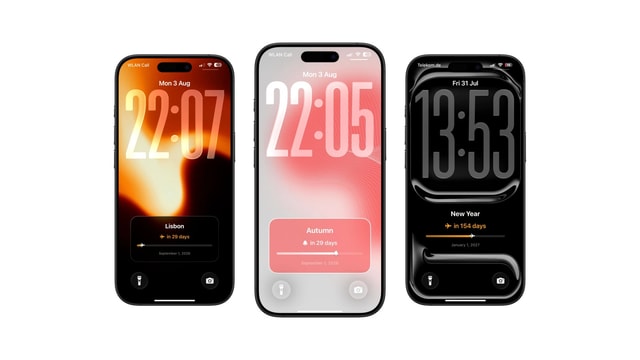
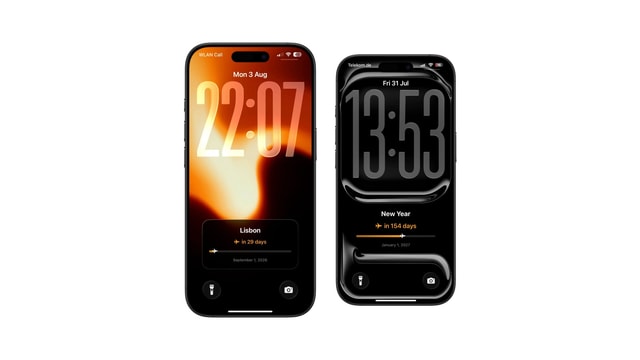
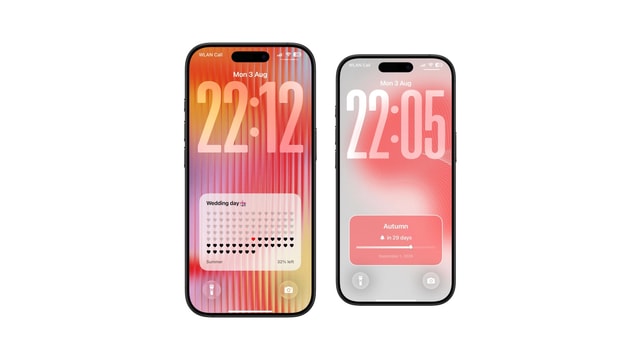
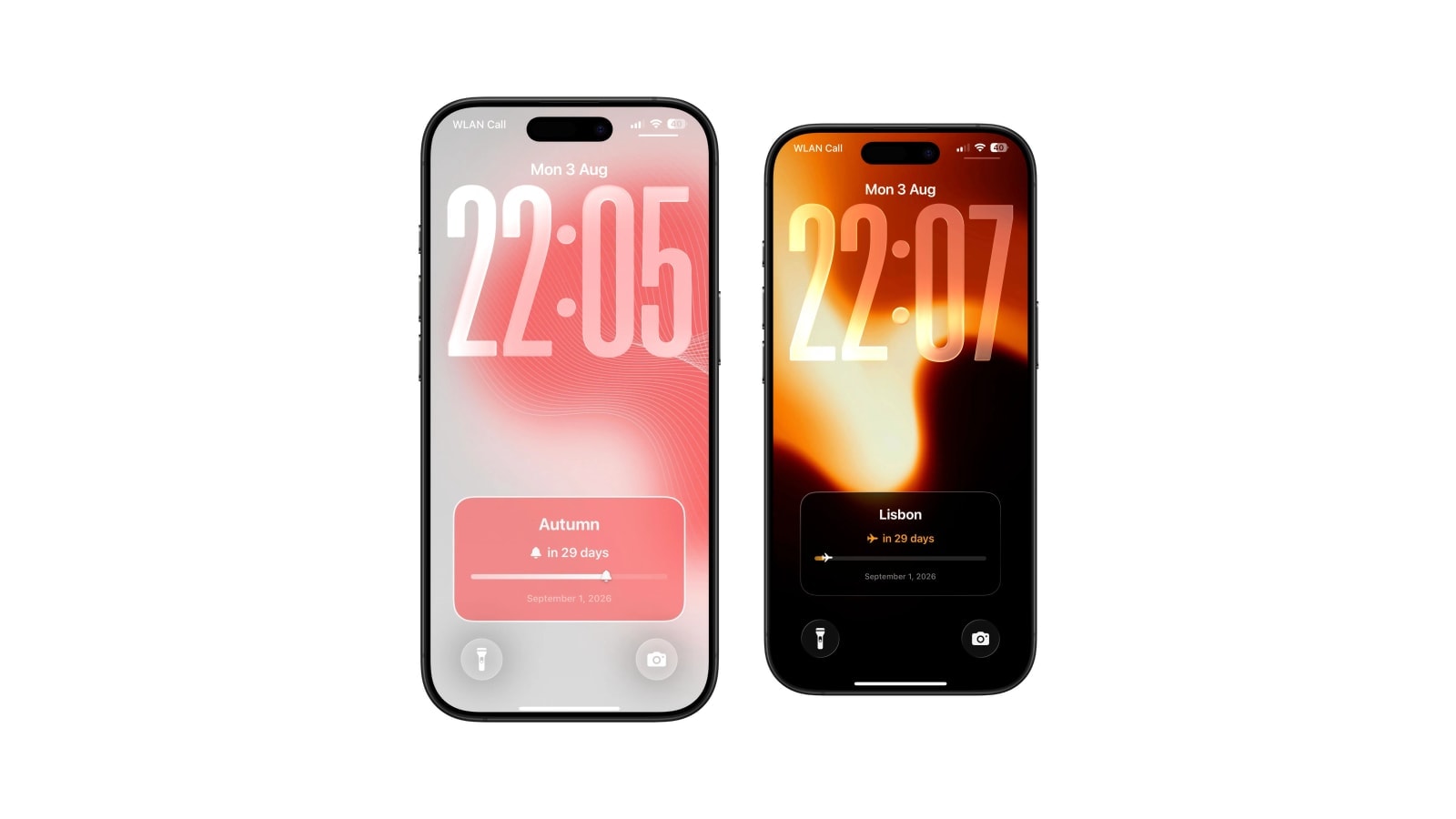
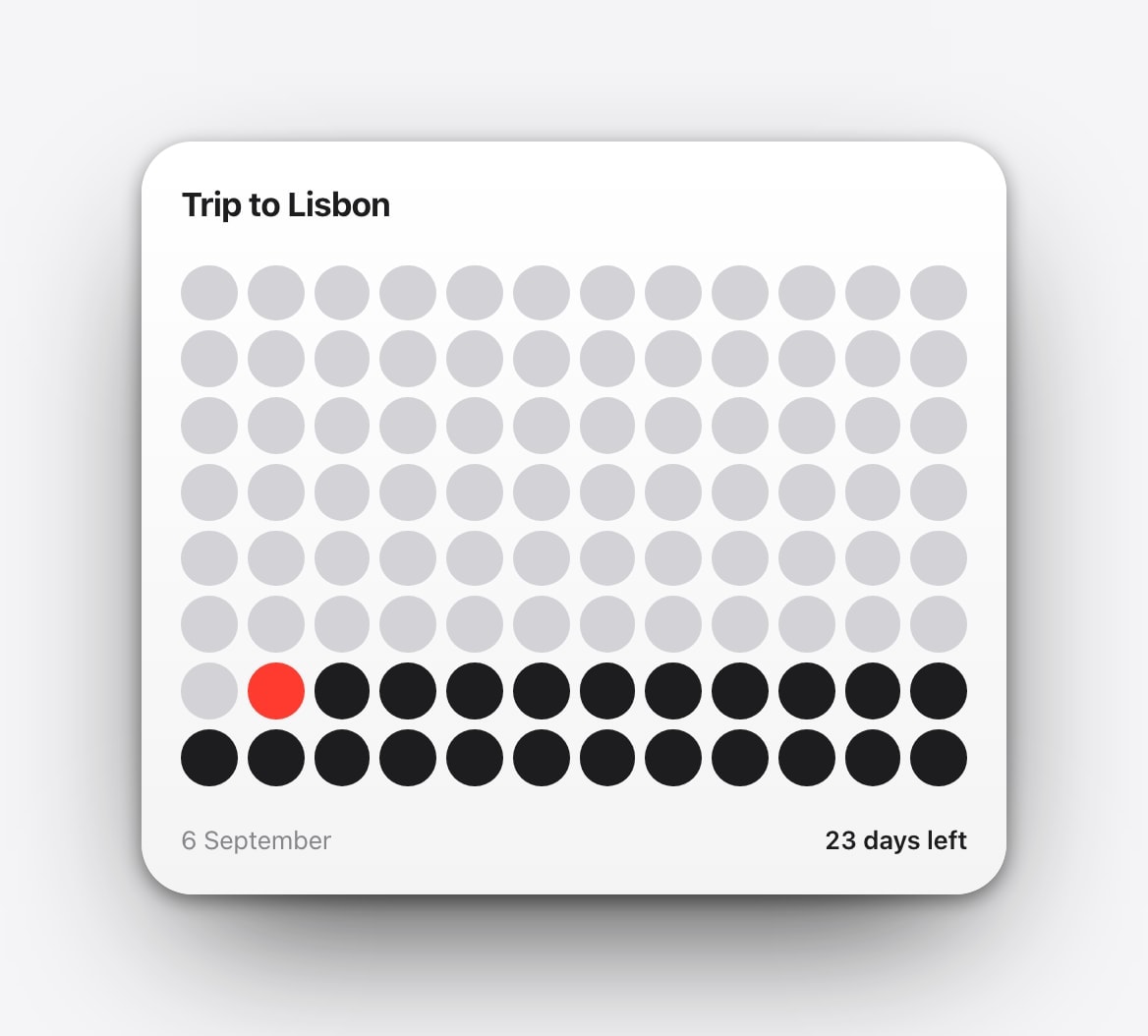
Open Calendarly and choose a quiet card, a progress line, one tile per day, or a large number.
- 2Enter the birthday
Choose annual repetition, or the exact year if it is a milestone.
- 3Add a background if you want one
Use a photo only if the name and number stay clear in the Lock Screen preview, with the clock visible.
- 4Add the morning refresh
The guided automation takes about two minutes and keeps the number current without you touching it.
Let the screen move on afterwards. Roll an annual countdown forward, turn a milestone into a days-since memory, or go back to your usual layout the following morning.
Questions people ask
Use a countdown app’s widget, or create a date-based wallpaper in Calendarly and add a daily Shortcuts refresh.
Yes. Choose an annual target and the countdown rolls forward to next year’s occurrence once the date passes.
Yes. Enter any date, and choose a name and photo you are comfortable having visible on a locked screen.
The image lives on your phone, but anyone looking at the locked screen can see it.
No. The Calendarly version is drawn into the wallpaper and updates when its shortcut runs.