Wedding Countdown on iPhone Lock Screen
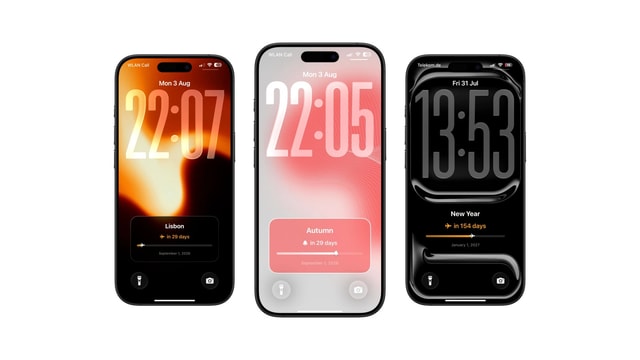
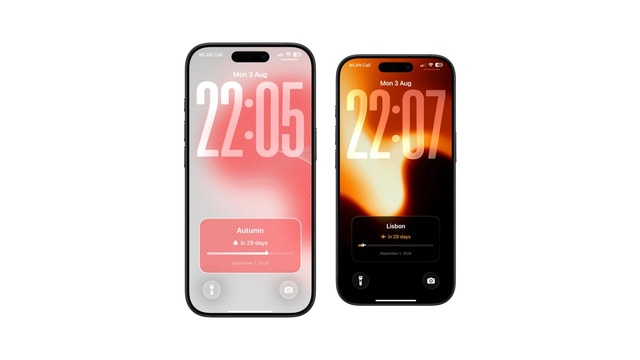
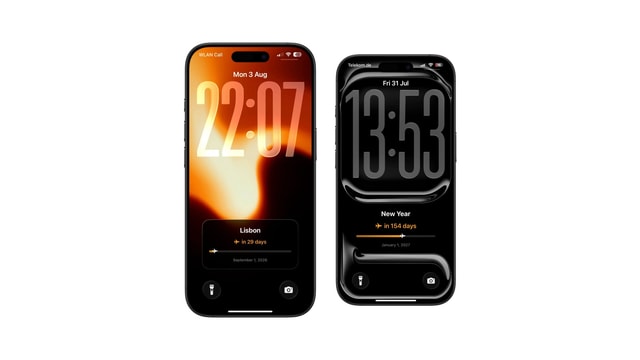
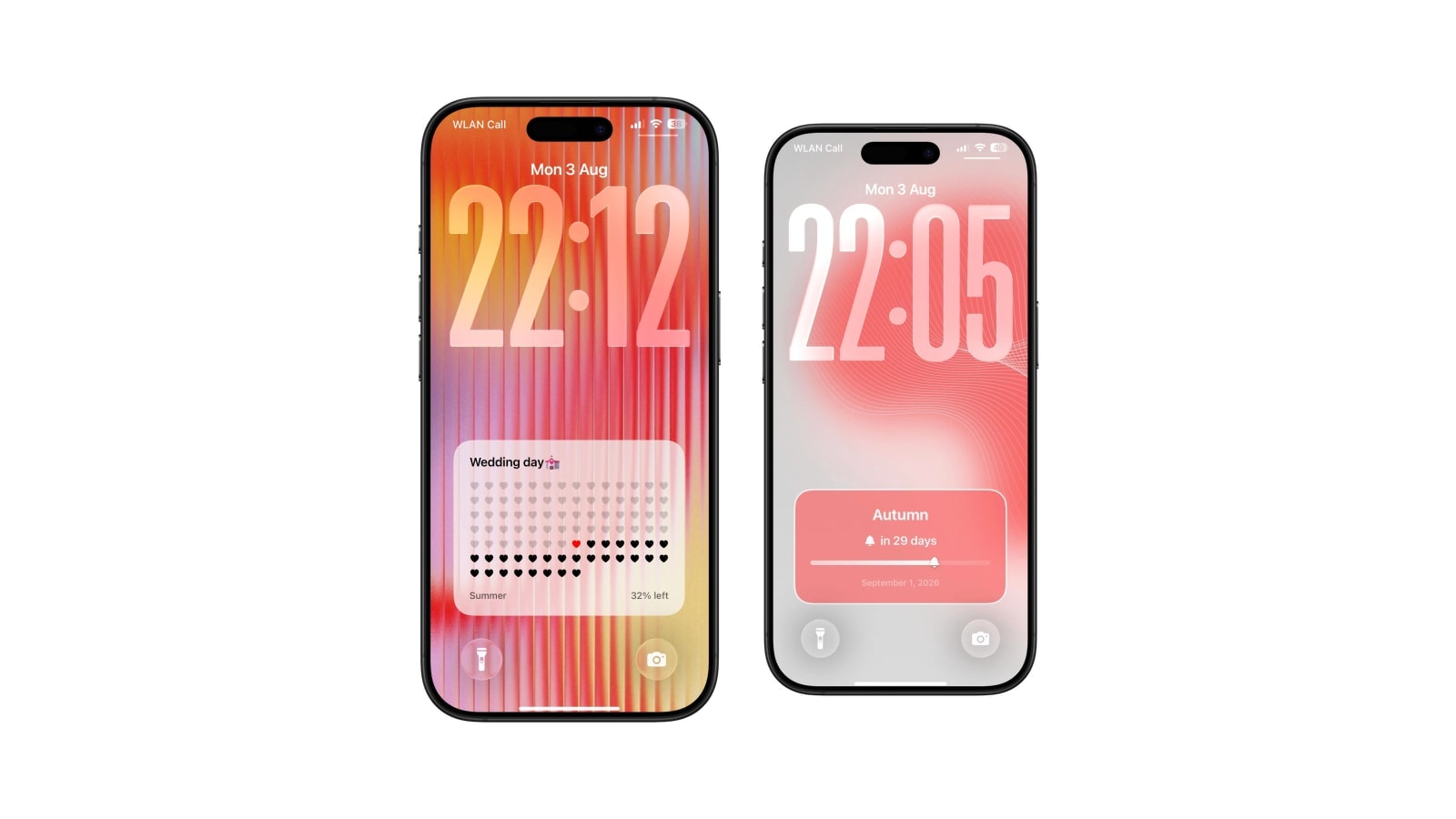
Days until the wedding with milestones along the way, drawn into the wallpaper. Works on two phones at once.
A wedding countdown works best as a private marker rather than as a planning tool: one photograph, one date, and the months quietly becoming weeks. The planning itself has better homes, and putting any of it on a Lock Screen is a genuinely bad idea for reasons that have nothing to do with design.
Both partners can run the same count. Use the same target date and the same convention on both phones, and let each person choose their own background, since matching numbers matter and matching wallpapers do not.
Calendarly recalculates the count each time the wallpaper is generated, on the phone, without publishing or sharing the date anywhere.
Counting to the right moment
Pick the moment the day emotionally begins for you, which for most people is the ceremony rather than the reception, and for a destination wedding is often the flight instead. If the celebration spans a weekend, choose one primary target and keep the surrounding events in Calendar where they can have times and locations attached.
Then settle the day-zero question and leave it settled. Whether the wedding day itself reads as zero days remaining or as one is a matter of taste; changing your mind about it in month four is how you end up with two phones showing different numbers and a small argument about which is right.
Milestones, used sparingly
A milestone layout can mark the dates that actually change what you do: the deposit deadline, the day invitations have to go out, the final fitting, the day itself. Four of those is a useful screen. Twenty is a project plan, and a project plan on a Lock Screen is both unreadable and, in this particular case, an invitation for anyone glancing at your phone to learn your address and your suppliers.
Keep vendors, contacts, guest details and anything with a payment attached in whatever you are actually planning with. The Lock Screen gets the date and, at most, the next milestone.
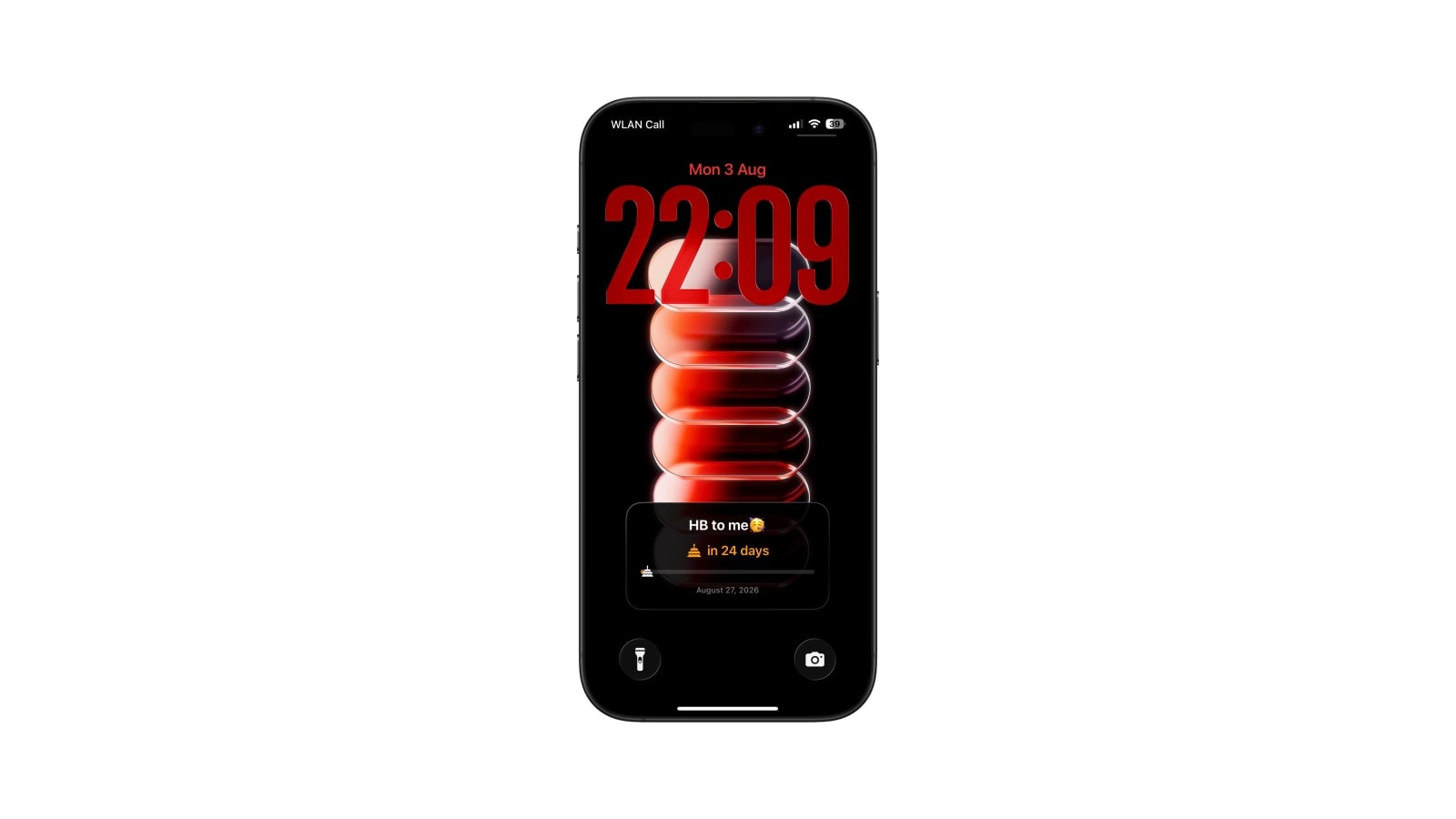
A number that means something at four hundred days
Most engagements are long, and a plain day count is a poor unit for most of that time. Four hundred and twelve days is a number you cannot feel, and watching it tick down one at a time through an entire year is a slow way to make the wedding feel further away rather than closer.
The layouts that hold up over a long run-up show shape instead of quantity: a progress path, a field of tiles, a bar filling between the day you got engaged and the day itself. Those read well at ten months out because you can see movement without doing arithmetic. Somewhere around the last month the day count becomes genuinely useful again, and that is a good moment to switch the layout rather than a reason to have used it all along.
If you want one thing that works throughout, use a plain date with the month named. It carries no pressure at all and is still the piece of information you were checking for.
Setting up both phones
- 1Agree the target
Same calendar date, same convention for the day itself. Write it down somewhere so the second phone is set from the same note.
- 2Choose backgrounds separately
A shared photograph is optional and the matching numbers are what count.
- 3Save the layout
Build it in Calendarly and check the finished Lock Screen with the real clock over it.
- 4Add each automation
Personal automations belong to a device, so the morning refresh has to be added on both phones.
Decide now what happens the day after. Switch it to a days-since count, put a photograph from the day up, or go back to your usual Lock Screen. It is a nicer decision to make in advance than to stumble into.
Questions people ask
Use a countdown app’s widget, or create a wedding-date wallpaper in Calendarly and refresh it daily with Shortcuts.
Yes. Use the same target date on both phones. Each device needs its own personal automation.
A milestone layout can show a few selected dates. Keep addresses, contacts, suppliers and guest details off a screen strangers can read.
No. The wallpaper is generated on the iPhone and there is no Calendarly account.
Switch to a days-since count, use a photograph from the day, or return to your usual layout.