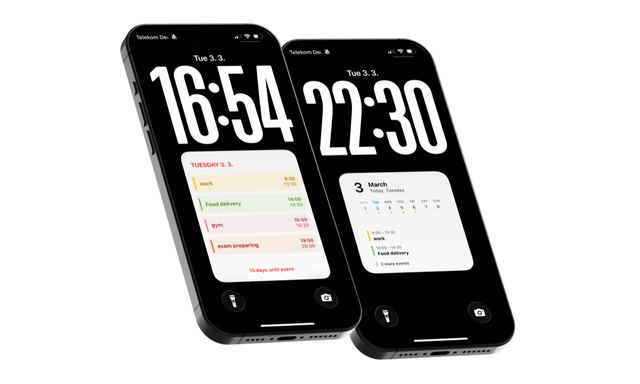
How to Show Your Calendar on the iPhone Lock Screen
Learn how to put your full daily schedule on the lock screen and stay focused throughout the day.
If you use your phone to manage your day, you probably open the Calendar app dozens of times without even noticing it. Just to check one event. Then maybe another. And somehow that quick check turns into unlocking the phone, opening another app, and getting distracted.
That’s why many people are now looking for ways to put a calendar on the iPhone Lock Screen.
When your schedule is visible the moment you pick up your phone, you don’t need to open the calendar app at all. You simply glance at your screen and instantly know what’s next.
In this guide we’ll show how to show your calendar on the iPhone lock screen, what options iOS currently allows, and which approach works best if you want to see your full daily schedule without unlocking your phone.
Why Put Your Calendar on the iPhone Lock Screen
For many people the calendar is one of the most frequently opened apps on their phone. Meetings, classes, deadlines, workouts and reminders — everything eventually ends up there.
The problem is that the default workflow requires unlocking the phone every time you want to check something.
You open your phone just to see the next event, and before you know it you’re inside another app or scrolling through notifications.
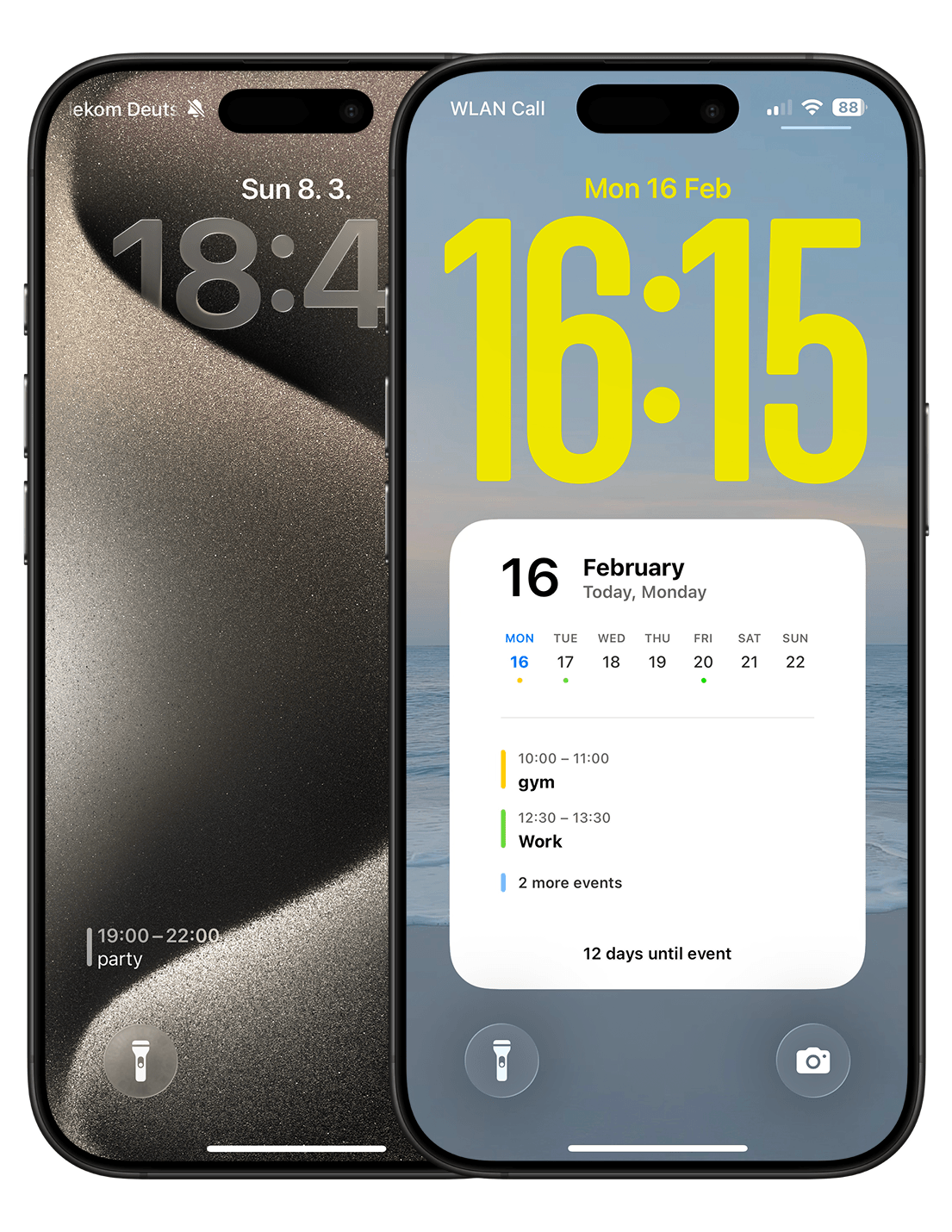
When the calendar is visible directly on the lock screen, the interaction changes completely. Instead of opening the calendar app, you simply glance at your phone and instantly know what your day looks like.
A lock screen calendar works especially well if you:
- want to see your schedule without unlocking your phone
- check your calendar multiple times a day
- want to reduce how often you open apps
Many people notice something interesting after switching to a lock screen calendar: they check their plans more often, but spend less time on the phone overall.
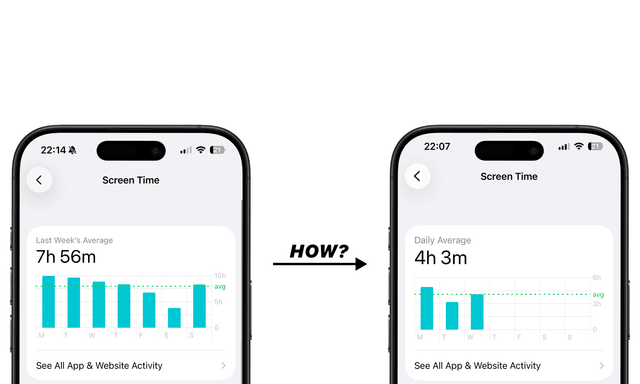
If you’re trying to make your phone less distracting, this small change can actually help. We talk more about that in our article How to Reduce Screen Time Without Deleting Apps, where lock screen setups are one of the easiest ways to reduce unnecessary phone usage.
Method 1: Using Lock Screen Calendar Widgets
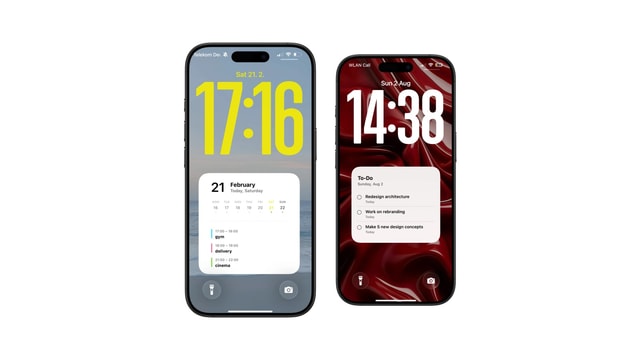
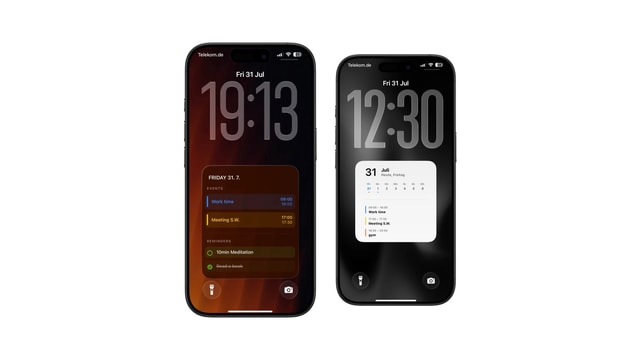
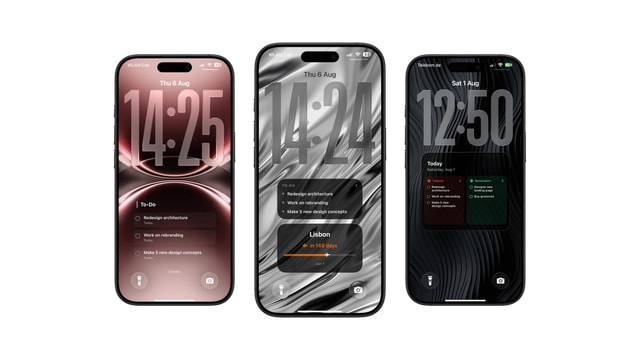
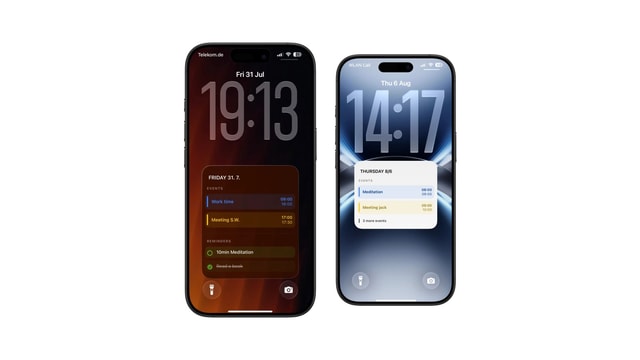
Since iOS 16, Apple allows users to add widgets directly to the lock screen. The Calendar widget can show your next upcoming event or a small overview of the day.
To add a calendar widget:
- Long press your lock screen
- Tap Customize
- Select Lock Screen
- Tap the widget area below the clock
- Add the Calendar widget
Apple explains the process in more detail in their official guide: https://support.apple.com/en-us/HT207122
Widgets work well if you only want to see the next event.
But there is a limitation: the space available on the lock screen is very small. In most cases the widget shows only one or two items, which means you still need to open the Calendar app to see the rest of your day.
For people who want a full overview of their schedule, this limitation becomes noticeable very quickly.
Method 2: Using a Calendar Wallpaper
Another approach is using a calendar wallpaper.
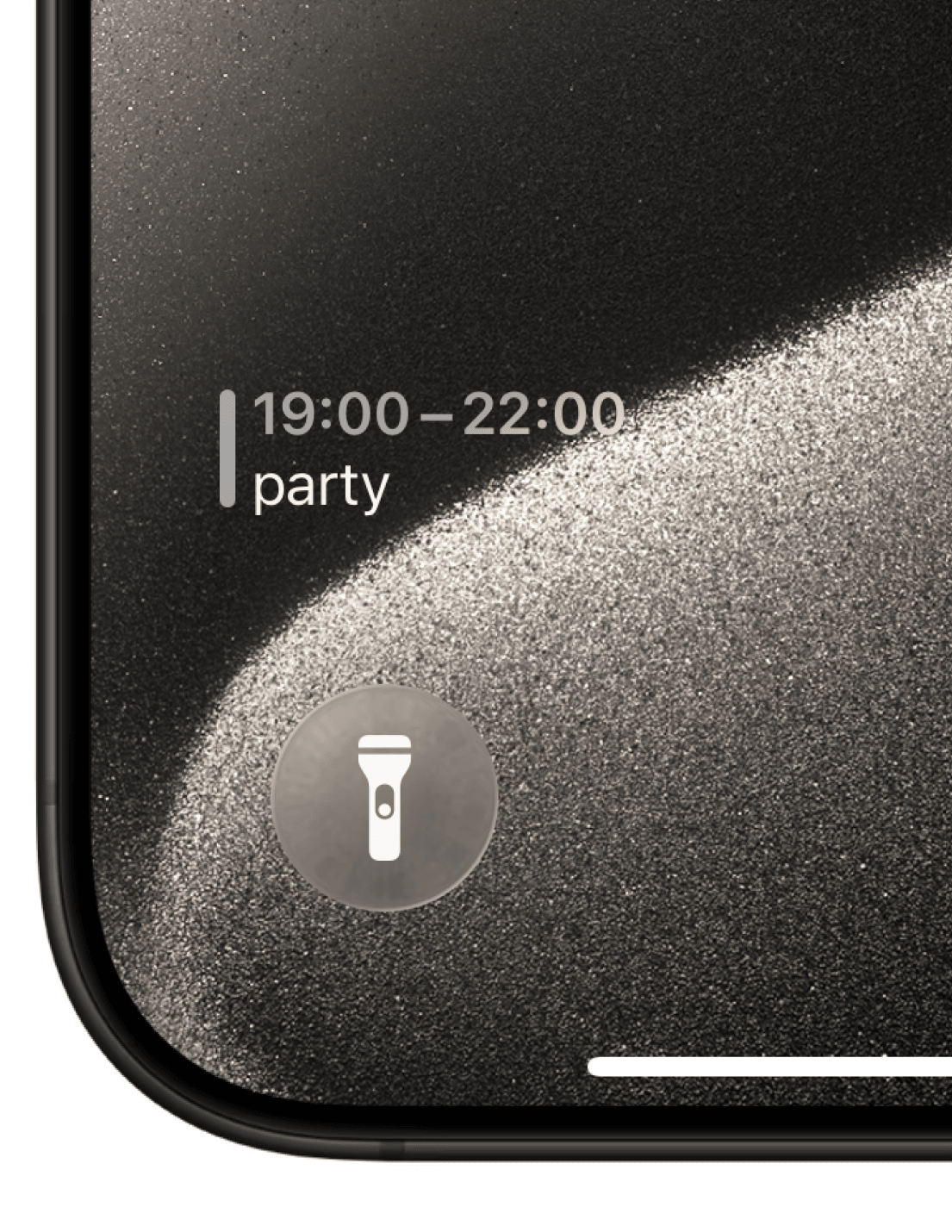
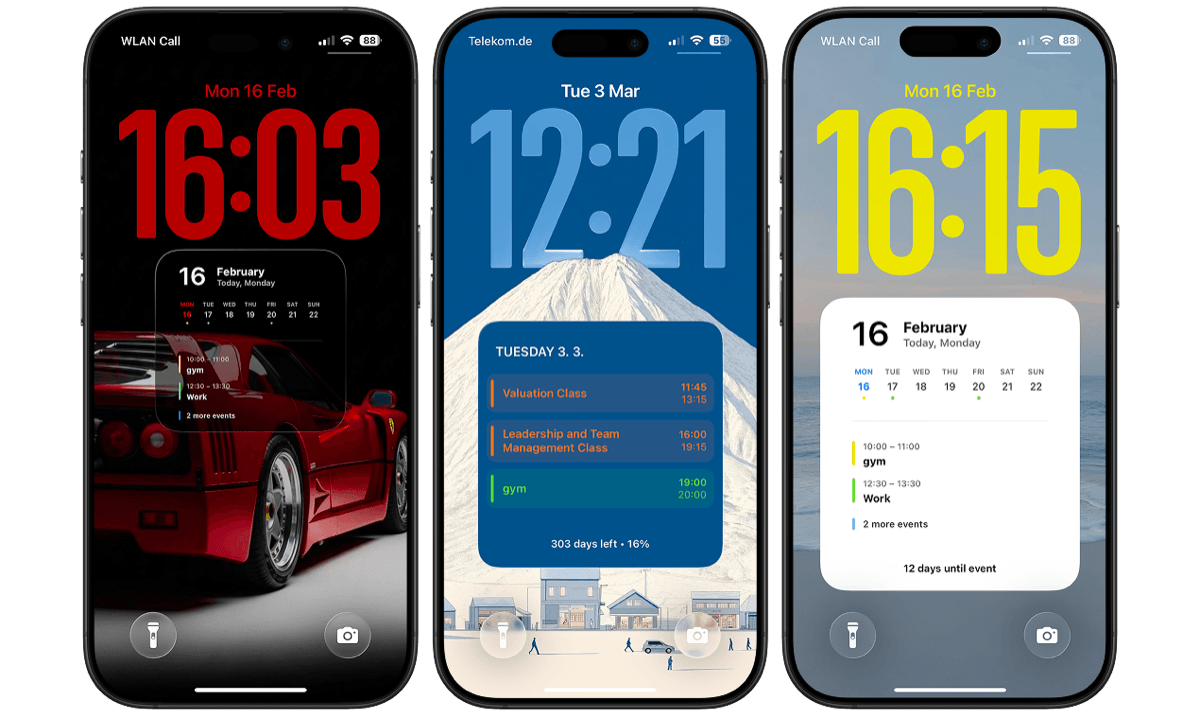
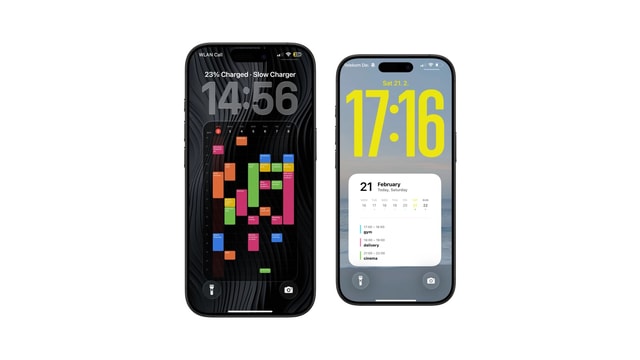
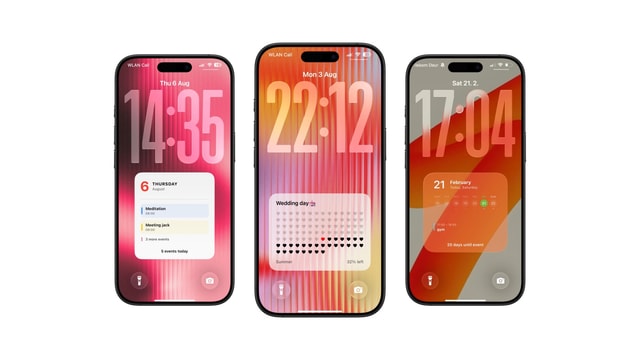
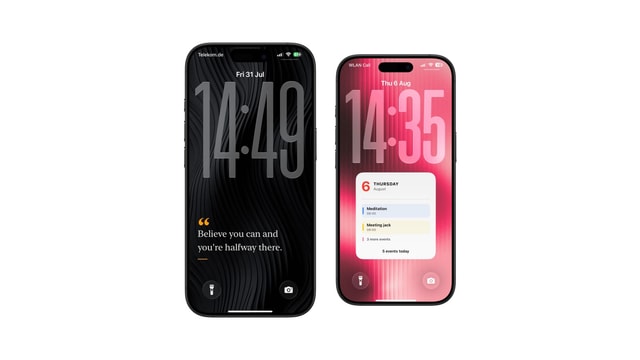
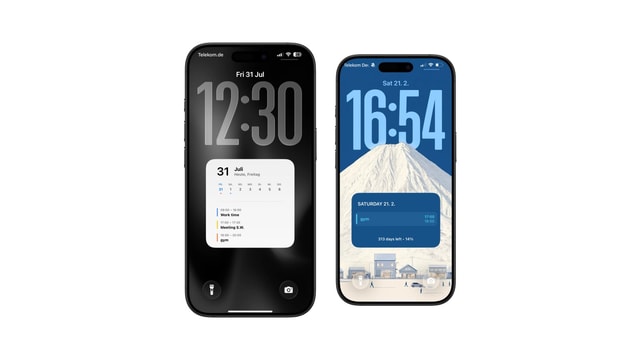
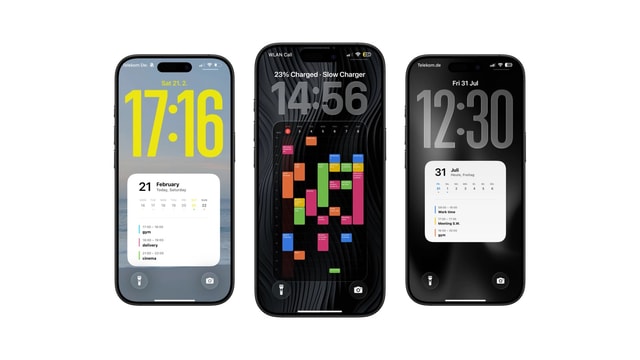
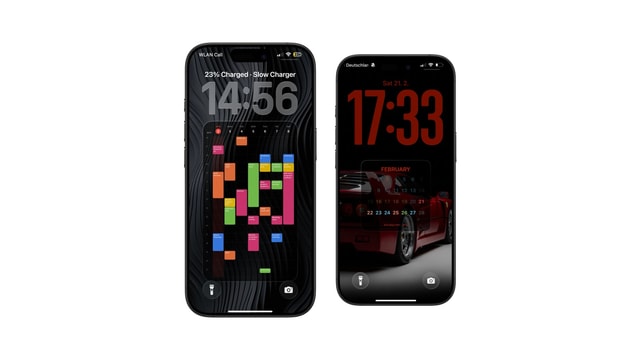
Instead of relying on a small widget area, the calendar becomes part of the lock screen background itself. This allows much more space for displaying information.
With this approach you can show things like:
- your full daily schedule
- multiple upcoming events
- a clear timeline of the day
For many people this feels more natural. When you pick up the phone, the entire schedule is already visible — similar to a daily planner.
How to Automatically Update Your Lock Screen Calendar
One common question is how the lock screen calendar stays updated.
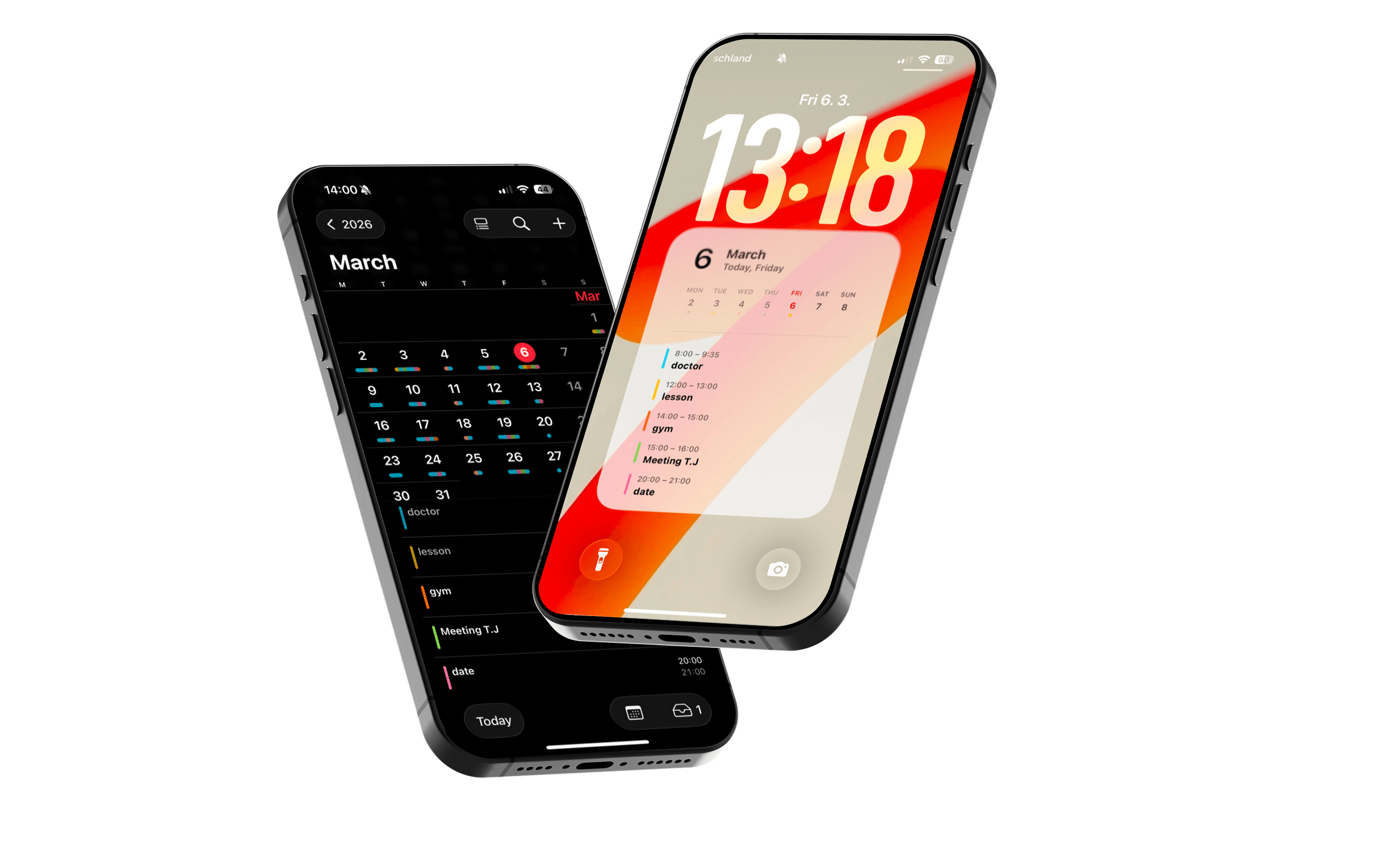
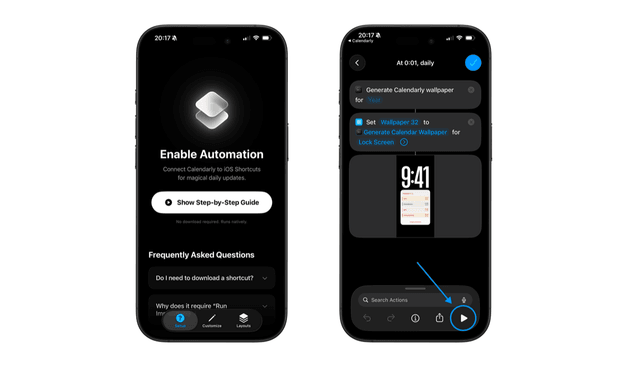
Since iOS does not allow apps to directly change your wallpaper, most solutions rely on Shortcuts automation.
The automation typically works like this:
- Your calendar events are read from your calendar
- A lock screen layout is generated
- The wallpaper updates automatically
Once the setup is complete, the process runs quietly in the background. As events change, the lock screen layout updates as well.
This means your iPhone lock screen calendar always reflects your current schedule, without needing manual updates.
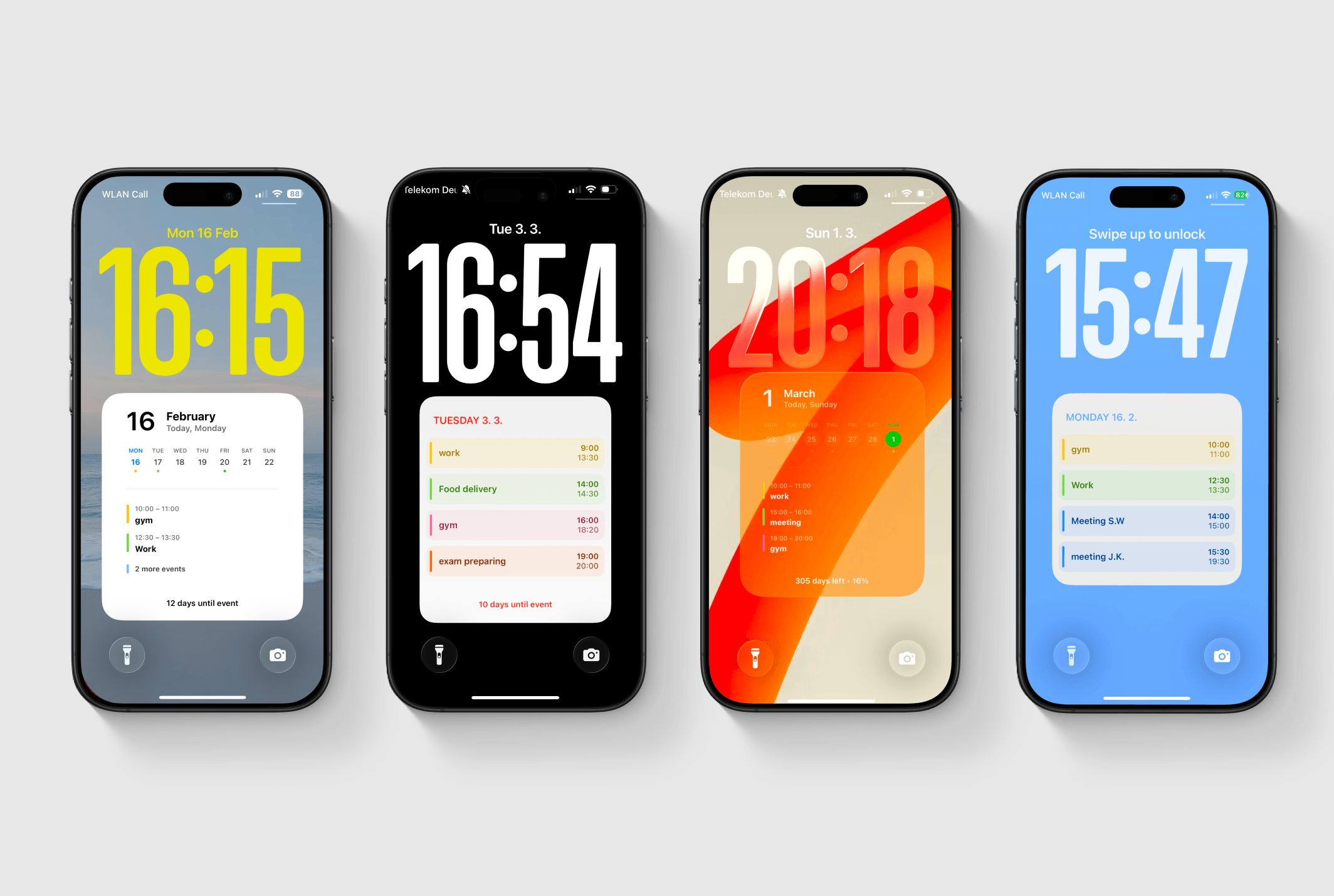
Best Way to See Your Daily Schedule on the Lock Screen
If you only need to see the next upcoming event, widgets are usually enough.
But if your goal is to see your entire schedule at a glance, many people prefer a lock screen layout that shows the whole day.
Instead of opening the Calendar app repeatedly, your schedule is already visible when you check your phone.
This small change can noticeably reduce the number of times you unlock your phone during the day.
Lock Screen Calendar Ideas
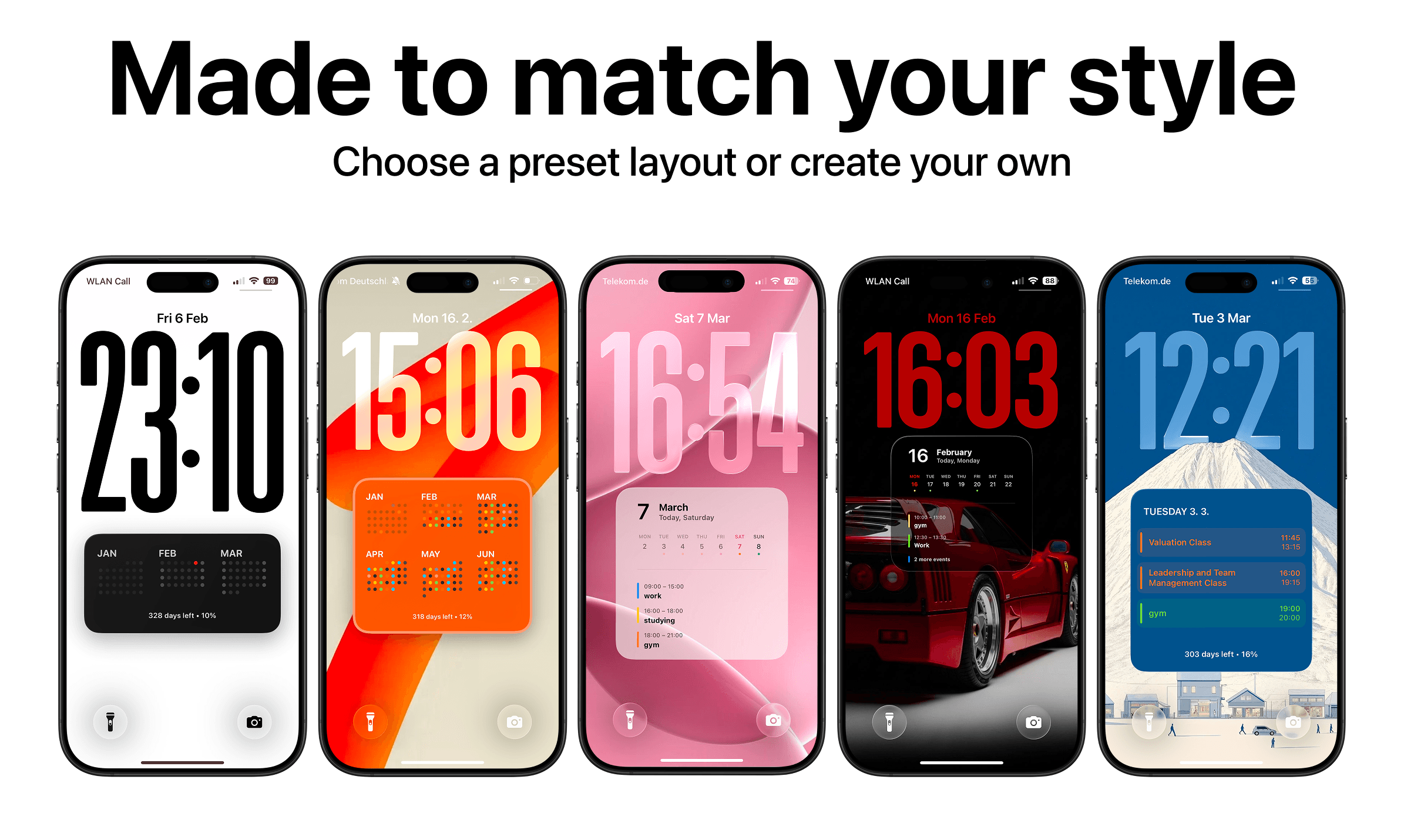
Once you start using a calendar on the lock screen, the layout can be customized in many different ways depending on how you plan your day.
Some people prefer a minimal layout that shows only the most important events. Others want a full timeline of the entire day.
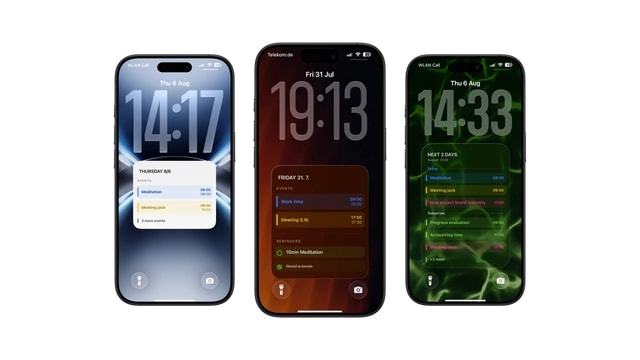
Apps like Calendarly make this process much easier by offering ready-made presets that you can start using immediately and then customize.
Instead of designing a layout from scratch, you can adjust almost everything about how the calendar appears on your lock screen.
For example, you can:
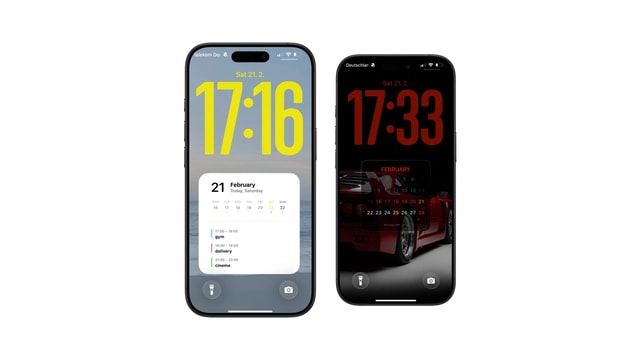
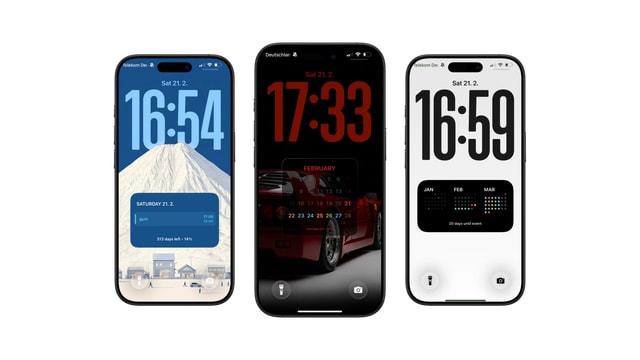
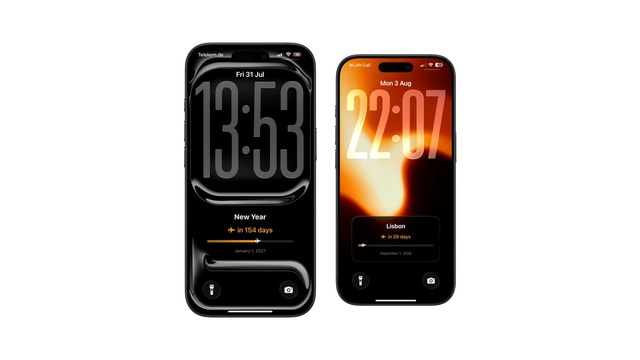
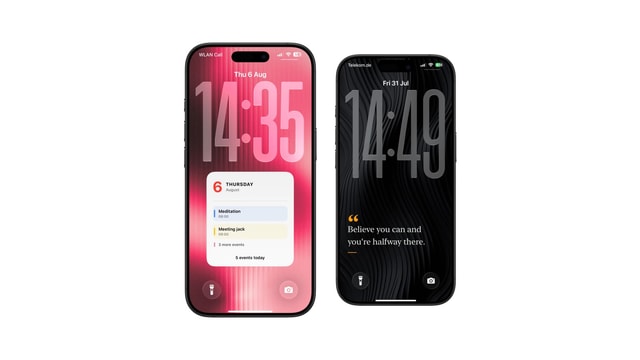
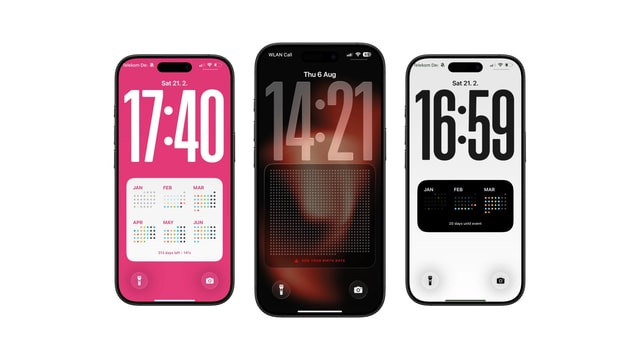
- display a year calendar, month view, or a detailed daily schedule
- show only key events or a full timeline of the day
- choose which calendars are visible and which ones stay hidden
- highlight events with priorities or different colors
- add your own photo as the lock screen background
Because of this flexibility, the lock screen calendar can be adapted to almost any planning style — whether you prefer a simple overview or a detailed schedule.
The goal is simple: your entire day becomes visible the moment you pick up your phone.
FAQ
Yes. iOS allows calendar widgets on the lock screen, but they only display a small amount of information. Many people prefer a calendar wallpaper because it allows the full daily schedule to be visible.
You can either add a calendar widget or use a lock screen layout that places your schedule directly on the wallpaper.
Yes. If your calendar is displayed on the lock screen, you can instantly see upcoming events without unlocking the device.
Yes. iOS supports calendar widgets on the lock screen, but they typically show only the next event or a small portion of your schedule.
Final Thoughts
Putting a calendar on the iPhone lock screen is one of the simplest ways to make your phone more useful during the day.
Instead of opening the Calendar app just to check what’s next, your schedule is already visible the moment you pick up the phone.
Widgets can work well for quick reminders. But for many people, seeing the entire schedule directly on the lock screen provides a much clearer overview of the day.
Once your plans are always visible, you may find yourself opening the calendar app far less often.
Keep reading
How to Show Todoist Tasks on Your iPhone Lock Screen
How to Put Apple Reminders on Your iPhone Lock Screen
How to Put a To-Do List on Your iPhone Lock Screen
The Best iOS 27 Lock Screen Setup for Your Calendar
Todoist Lock Screen Widget vs Full Todoist Lock Screen
How to Put Your Class Schedule on Your iPhone Lock Screen
iPhone Calendar Wallpaper That Updates Automatically
Best iPhone Lock Screen Setup for College Students
Calendar and Reminders on One iPhone Lock Screen
Aesthetic Calendar Wallpaper for iPhone: Ideas That Stay Current
How to Put Notes on Your iPhone Lock Screen
Daily Schedule Wallpaper for iPhone: Today, Hour by Hour
Year Progress Wallpaper for iPhone That Updates Automatically
How to Add a Countdown to Your iPhone Lock Screen
Best Todoist Lock Screen Setup for iPhone
Life Calendar Wallpaper for iPhone: See Your Life in Weeks
How to See Today's Todoist Tasks Without Opening Todoist
How to Put Your Weekly Schedule on Your iPhone Lock Screen
Todoist Lock Screen Ideas for a Minimal Productivity Setup
iPhone Lock Screen Calendar Widget Not Showing Events? Here's Why
Apple Reminders Lock Screen Widget: What It Can and Cannot Show
Can iPhone Wallpaper Change Automatically? Every Way That Works
Best Way to Keep Your To-Do List Always Visible on iPhone
How to Put a Sticky Note on Your iPhone Lock Screen
How to Put Text on Your iPhone Lock Screen
7 Useful Things to Keep as a Note on Your Lock Screen
Birthday Countdown on iPhone Lock Screen
Vacation Countdown on iPhone Lock Screen
Wedding Countdown on iPhone Lock Screen
Exam Countdown on iPhone Lock Screen
Days Since Counter on iPhone Lock Screen
Life Calendar Wallpaper: Free Download vs One That Updates Itself
What Is a Life Calendar? The Chart of Weeks, Explained
How Many Weeks Are in a Life?
Life Calendar Wallpaper Not Updating? Here Is Why
Memento Mori Wallpaper for iPhone
Life Calendar App for iPhone: What to Look For
How to Set Up a Life Calendar on Your iPhone
How to Make a Life Calendar: Printable, Spreadsheet or Phone
Lock Screen Calendar vs Lock Screen Widgets: What’s Better?
5 Simple Tricks to Reduce Social Media Distractions
How to Reduce Screen Time Without Deleting Apps