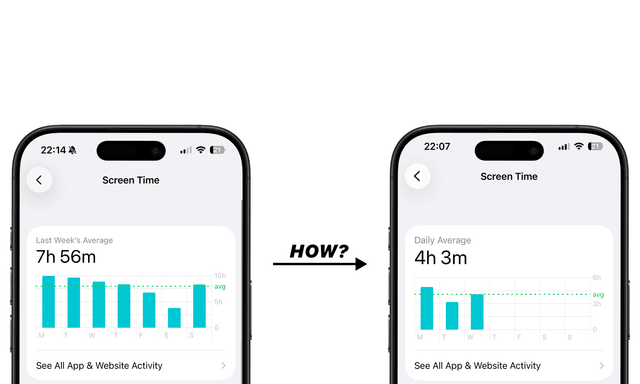
Lock Screen Calendar Guide: How to Put Your Schedule on iPhone
Stay focused and reduce screen time by automating your Lock Screen Calendar.
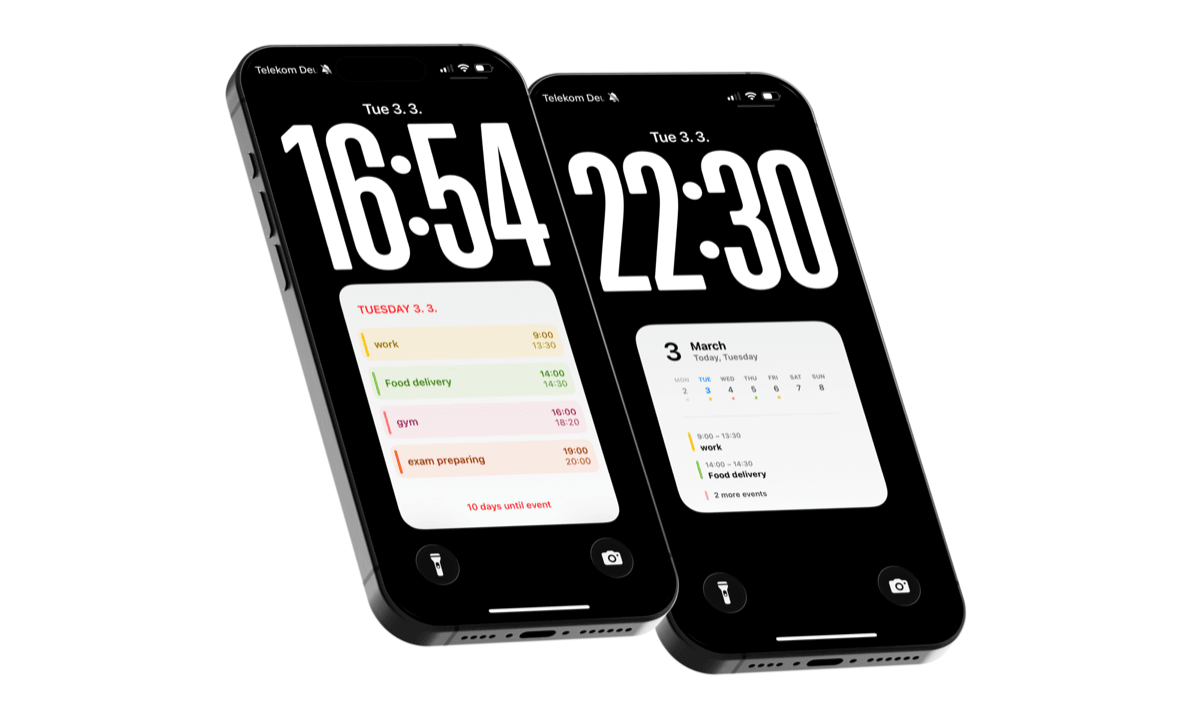
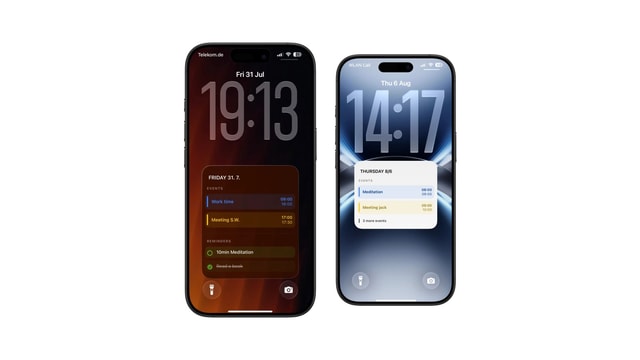
A calendar on your iPhone lock screen means your schedule is right there the moment you pick up your phone. This guide is for iPhone users who want a simple lock screen calendar without opening apps or getting pulled into notifications. If you unlock your phone just to check one event and somehow end up scrolling, this will probably make sense to you.
When your day is already visible, you don’t have to tap through apps just to see what’s next. This is a core pillar of digital minimalism and effective time management.
Apple allows lock screen customization and widgets (you can read the official guide from Apple Support). Widgets are useful, but they only show limited information. If you want a full overview of your schedule, a calendar wallpaper gives you much more space and flexibility.
Here’s how to set it up.
Step-by-Step: Create a Calendar Lock Screen with Calendarly
Step 1: Download Calendarly
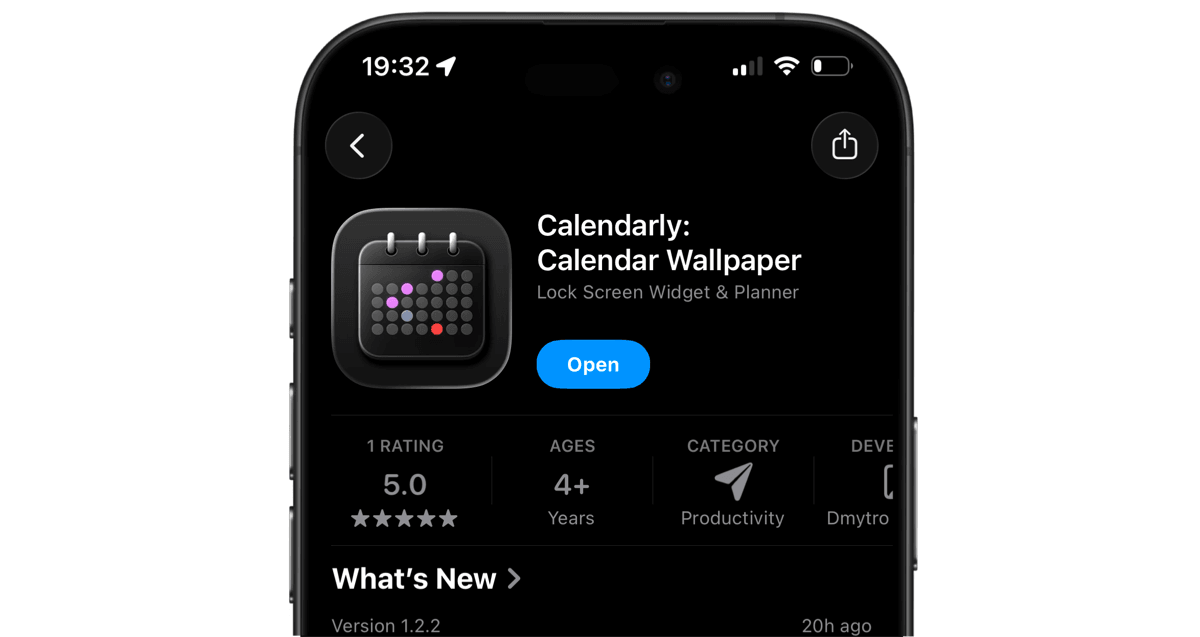
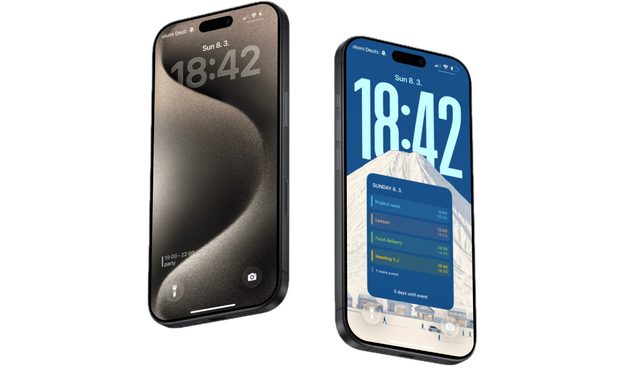
Download Calendarly from the App Store and open the app. You’ll see different layouts designed specifically for lock screen use.
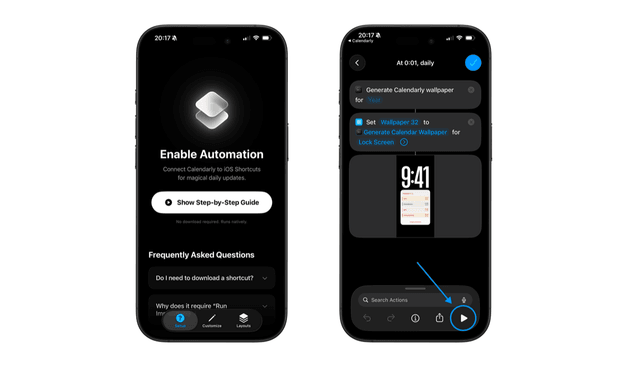
Step 2: Complete the Setup & Enable the Shortcut
The app takes it from here. It plays a short walkthrough that shows where the automatic Shortcut lives and switches it on with you, so there is nothing to read first and nothing to configure by hand.
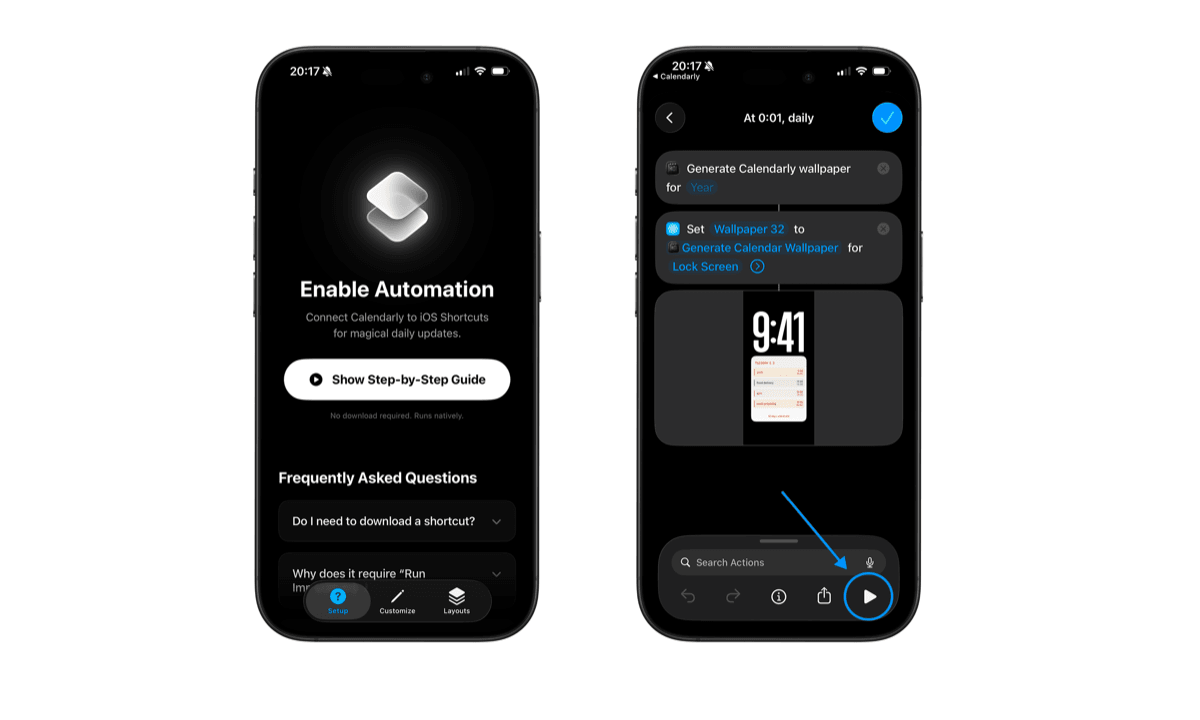
This Shortcut updates your wallpaper using Apple’s automation system (official Shortcuts documentation).
Once it’s enabled, your wallpaper updates automatically in the background. Unlike standard lock screen widgets, this method covers the entire background for better visibility.
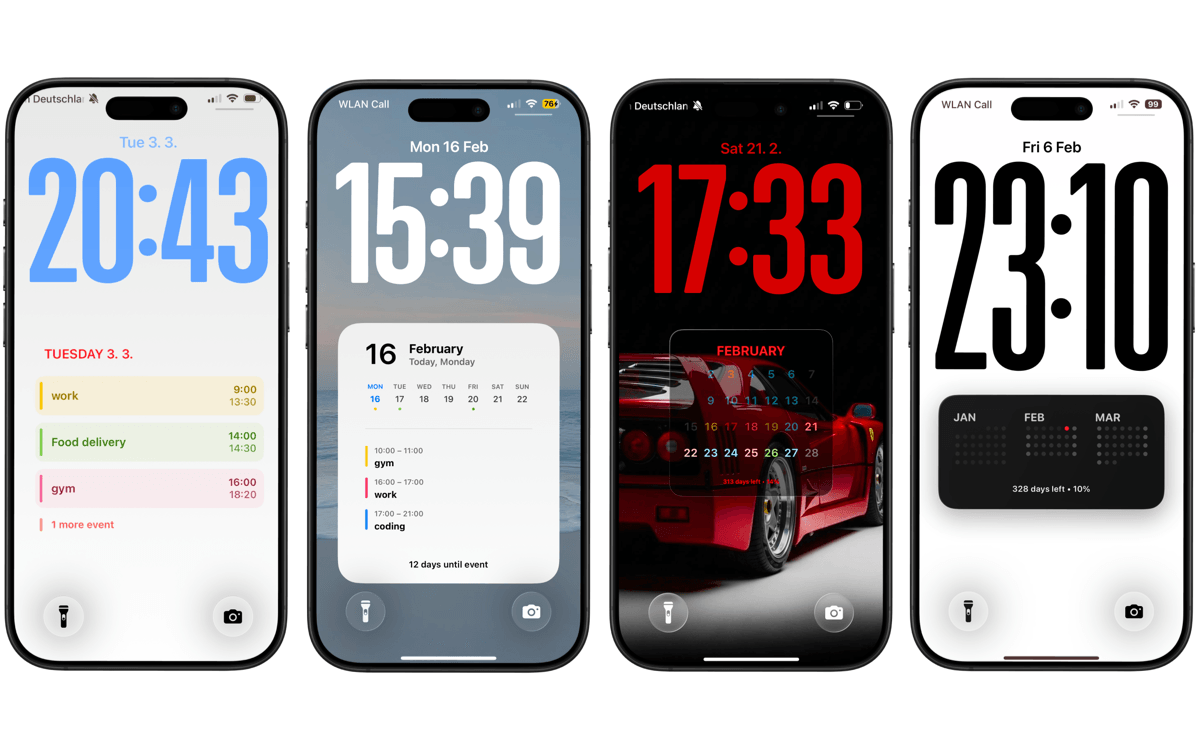
Step 3: Choose Your Template
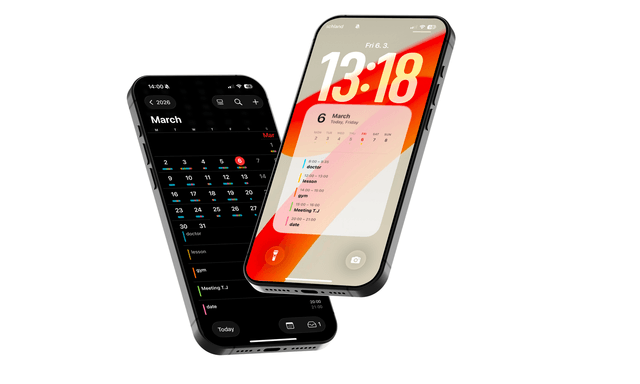
Choose the view that works best for you — daily, weekly, monthly, multi-month, or even yearly. Pick what feels most natural for how you plan, then move to customization.
Step 4: Customize It
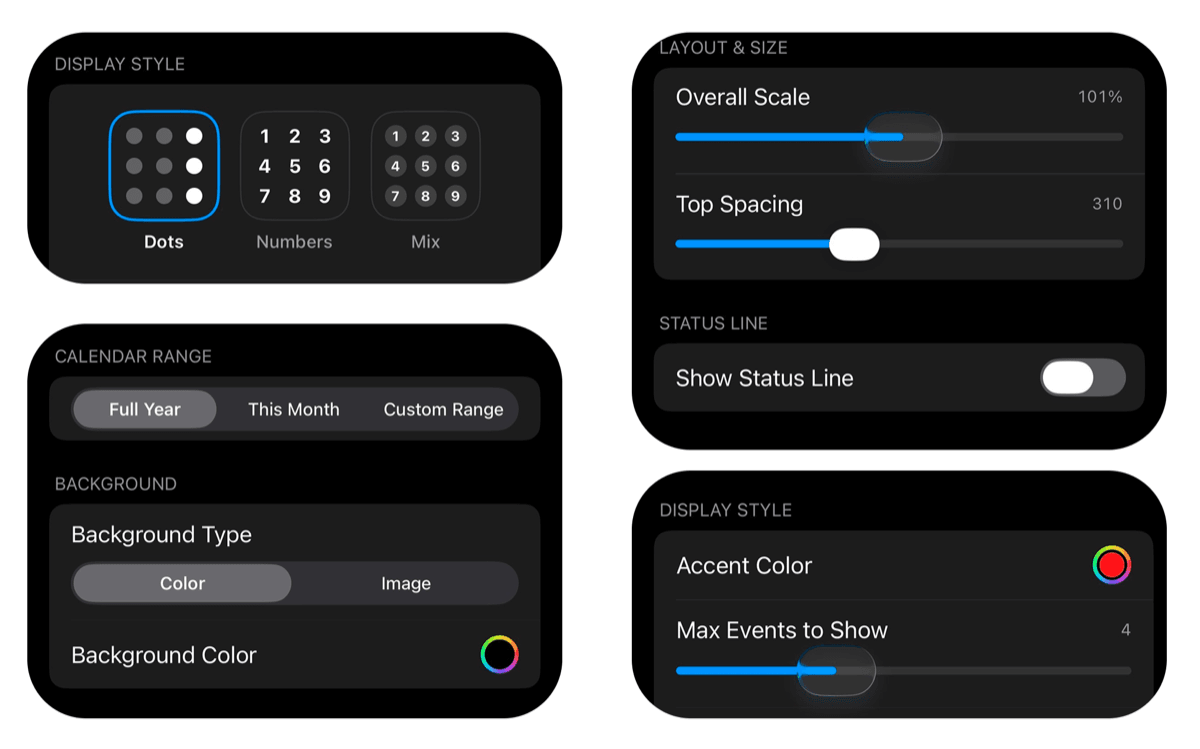
Adjust the layout so it fits you:
• Colors
• Spacing
• Background
• Layout density
You can keep it minimal or make it more detailed, it’s up to you. Customizing your iPhone lock screen background has never been more functional.
Step 5: Lock Your Phone
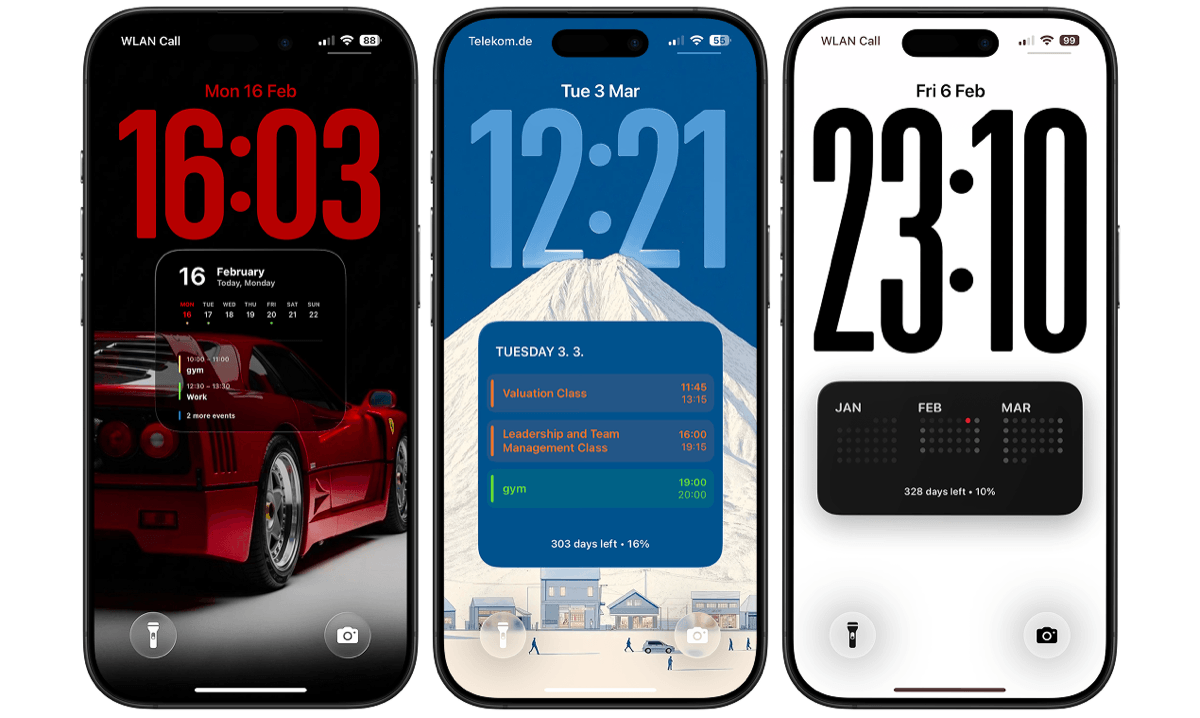
Your calendar is now visible every time you pick up your phone. No extra steps.
Why This Helps With Focus
Research from Stanford University shows that frequent task switching reduces attention and performance.
When your schedule is already visible, you’re less likely to open something else just to check what’s next. That naturally helps reduce screen time and makes it easier to stay focused.
FAQ
Does the calendar update automatically?
Yes. Once the Shortcut is enabled, your wallpaper updates automatically via the native iOS Shortcuts automation system.
Do I need to use widgets?
No. This setup replaces widgets with a full-screen calendar layout, which is less cluttered and more aesthetic.
Can I customize the design?
Yes. You can change fonts, spacing, layout style, and colors to match your lock screen aesthetic.
Is this better than the default Calendar widget?
If you only need your next event, the widget works. If you want to see your full day at a glance, a calendar lock screen gives you more visibility and less distraction.
Conclusion
A calendar on your iPhone lock screen is a small change, but it can have a real impact on your daily productivity.
When your schedule is already there, you don’t need to open anything just to check it. That alone makes your phone less distracting and even saving 10–15 minutes a day adds up to hours over time.
Small shift. Better productivity. Less screen time.
If you are weighing this up against the built-in options first, here is every way an iPhone wallpaper can change automatically and what each one can and cannot do.
Keep reading
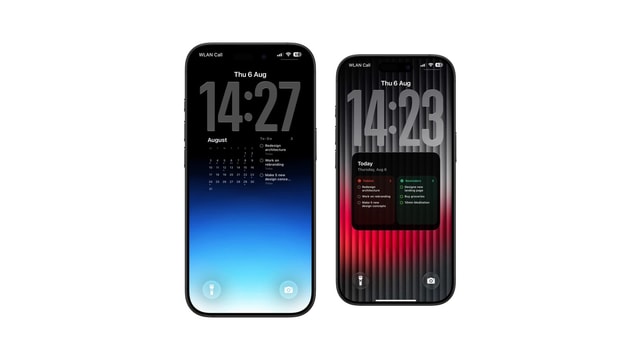
How to Show Todoist Tasks on Your iPhone Lock Screen
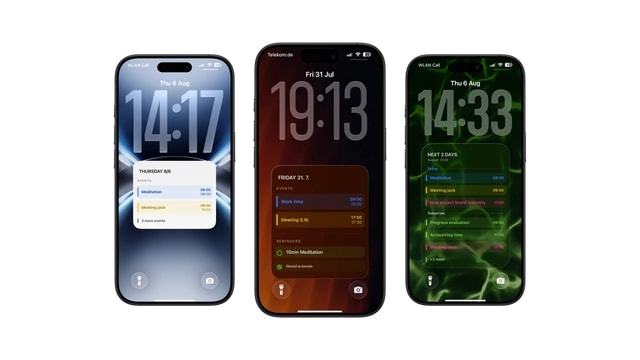
How to Put Apple Reminders on Your iPhone Lock Screen
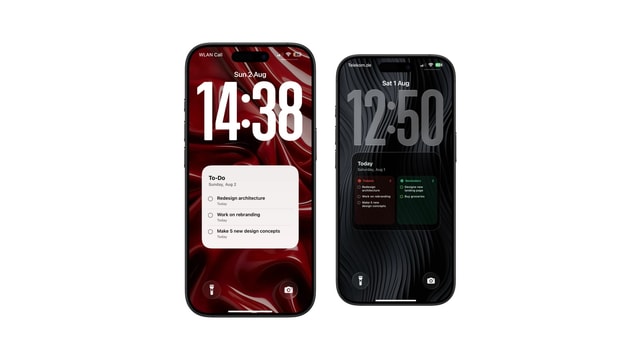
How to Put a To-Do List on Your iPhone Lock Screen
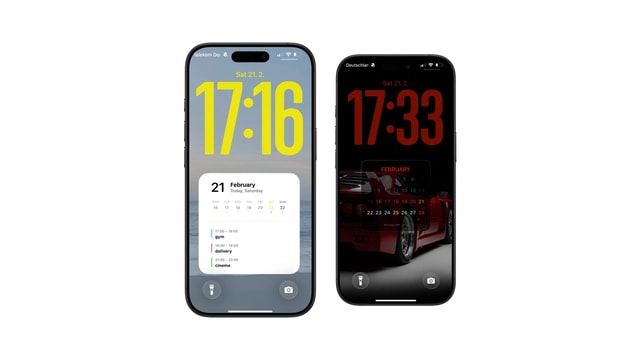
The Best iOS 27 Lock Screen Setup for Your Calendar
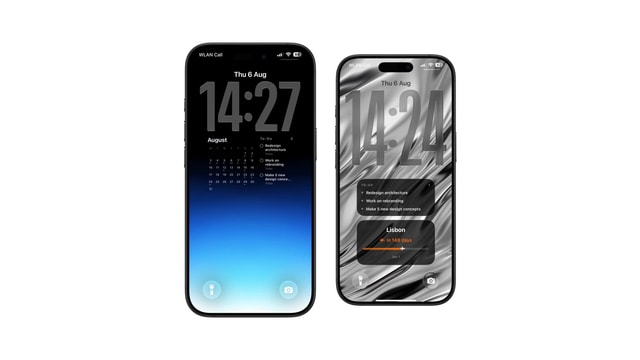
Todoist Lock Screen Widget vs Full Todoist Lock Screen
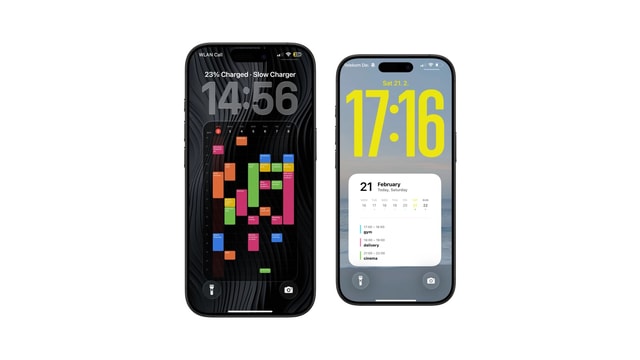
How to Put Your Class Schedule on Your iPhone Lock Screen
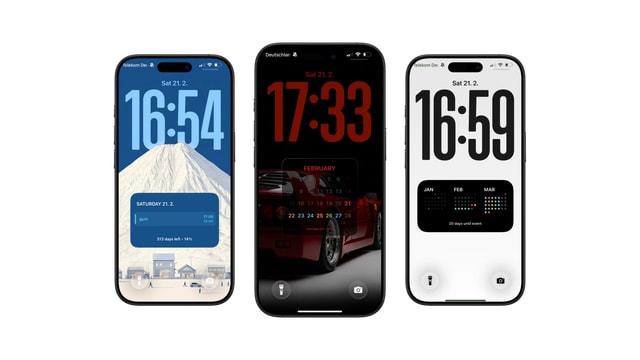
iPhone Calendar Wallpaper That Updates Automatically
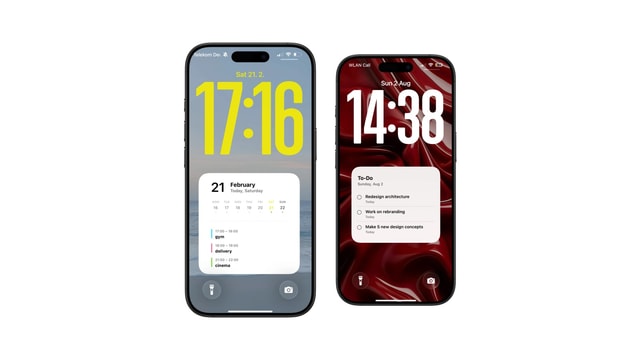
Best iPhone Lock Screen Setup for College Students
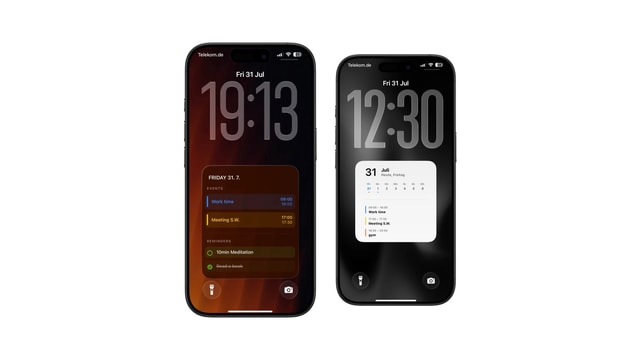
Calendar and Reminders on One iPhone Lock Screen
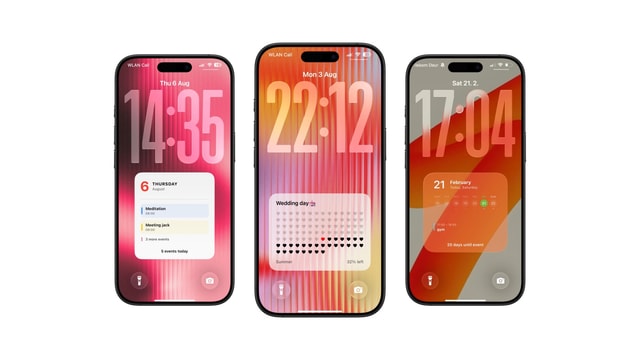
Aesthetic Calendar Wallpaper for iPhone: Ideas That Stay Current
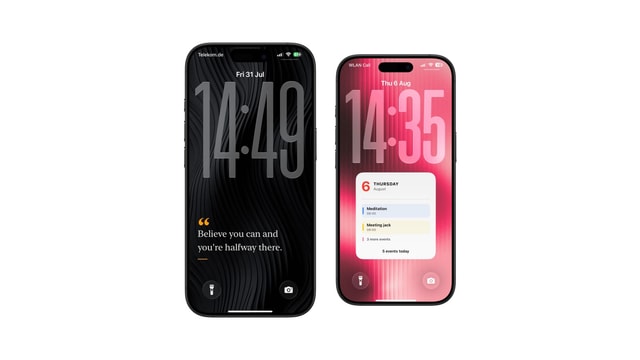
How to Put Notes on Your iPhone Lock Screen
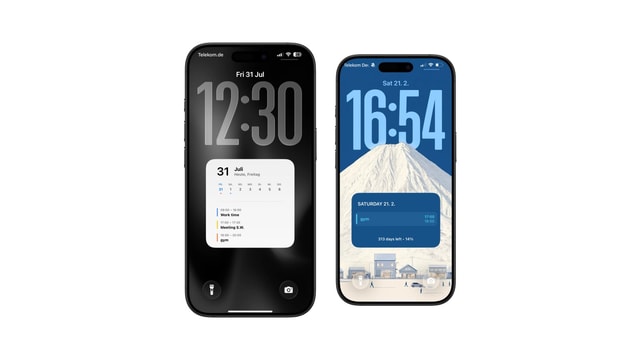
Daily Schedule Wallpaper for iPhone: Today, Hour by Hour
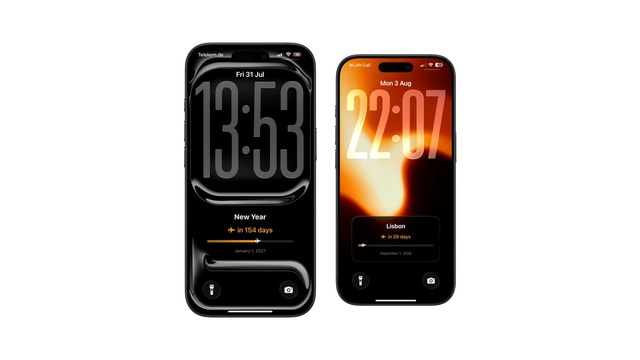
Year Progress Wallpaper for iPhone That Updates Automatically
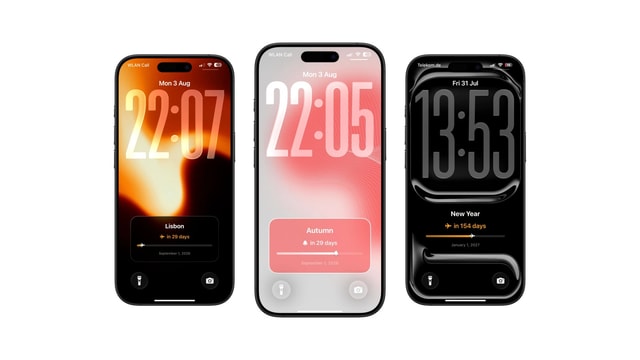
How to Add a Countdown to Your iPhone Lock Screen
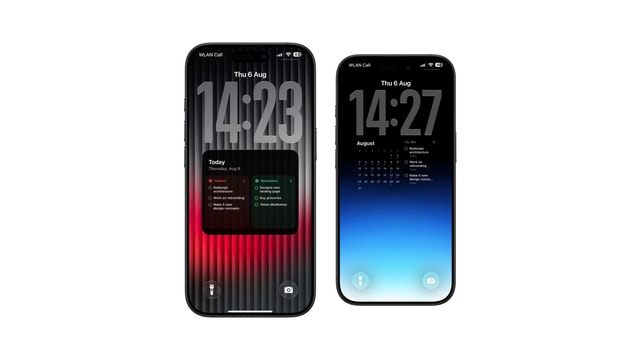
Best Todoist Lock Screen Setup for iPhone
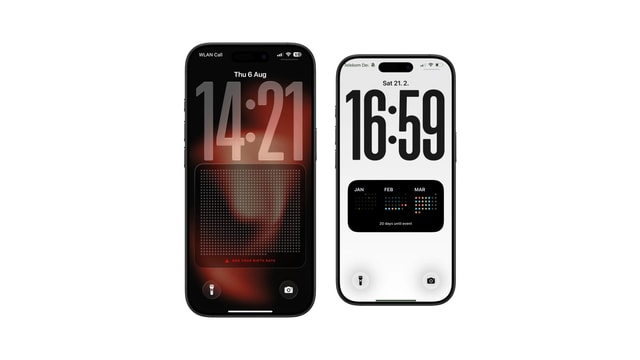
Life Calendar Wallpaper for iPhone: See Your Life in Weeks
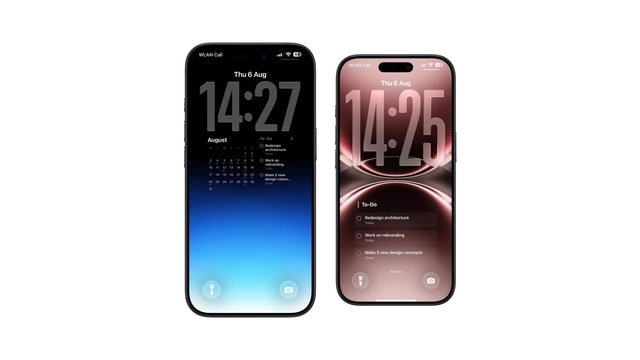
How to See Today's Todoist Tasks Without Opening Todoist
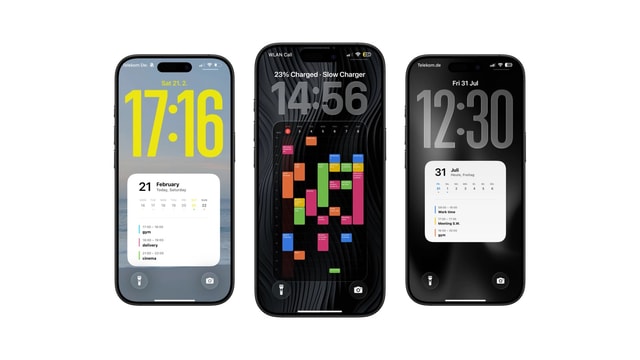
How to Put Your Weekly Schedule on Your iPhone Lock Screen
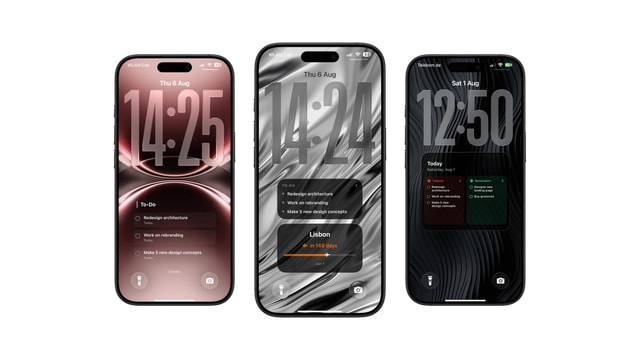
Todoist Lock Screen Ideas for a Minimal Productivity Setup
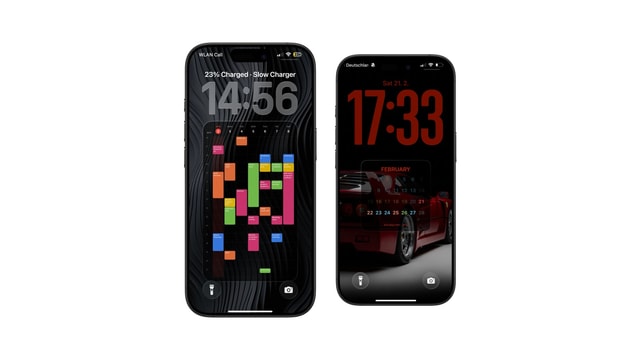
iPhone Lock Screen Calendar Widget Not Showing Events? Here's Why
Apple Reminders Lock Screen Widget: What It Can and Cannot Show
Can iPhone Wallpaper Change Automatically? Every Way That Works
Best Way to Keep Your To-Do List Always Visible on iPhone
How to Put a Sticky Note on Your iPhone Lock Screen
How to Put Text on Your iPhone Lock Screen
7 Useful Things to Keep as a Note on Your Lock Screen
Birthday Countdown on iPhone Lock Screen
Vacation Countdown on iPhone Lock Screen
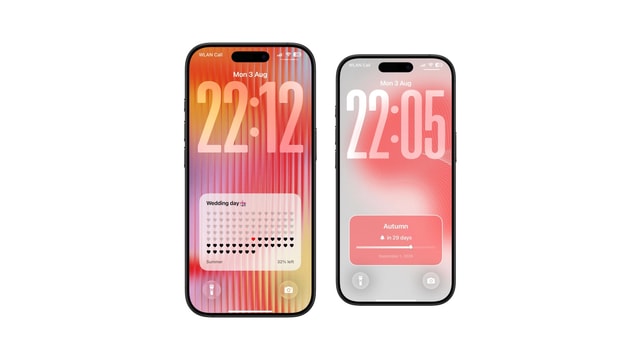
Wedding Countdown on iPhone Lock Screen
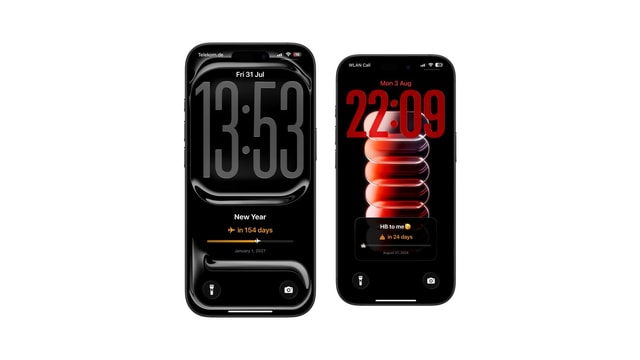
Exam Countdown on iPhone Lock Screen
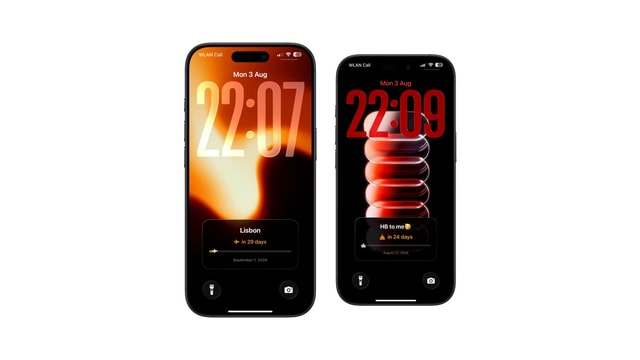
Days Since Counter on iPhone Lock Screen
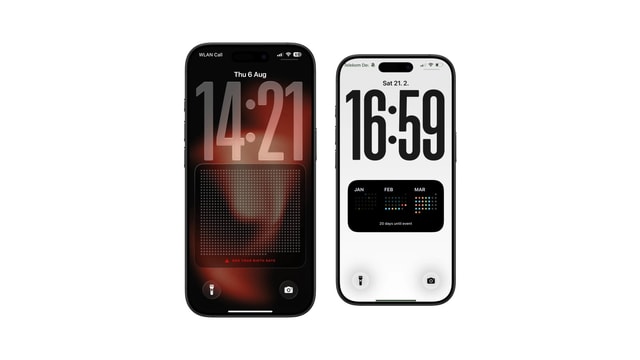
Life Calendar Wallpaper: Free Download vs One That Updates Itself
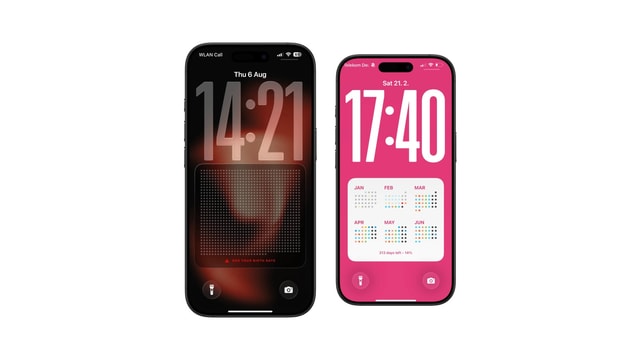
What Is a Life Calendar? The Chart of Weeks, Explained
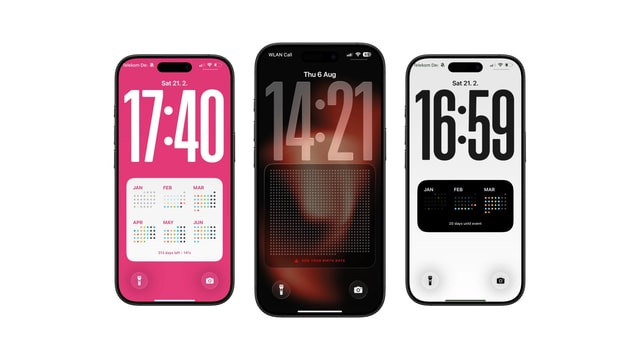
How Many Weeks Are in a Life?
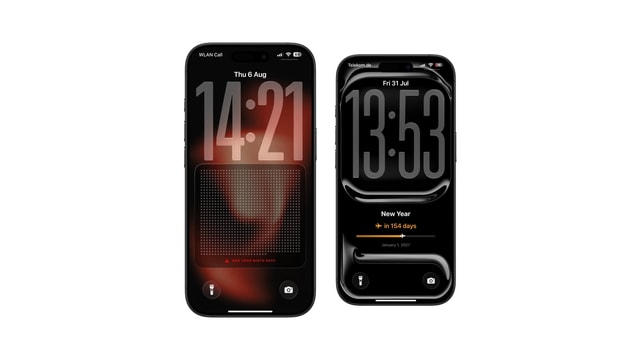
Life Calendar Wallpaper Not Updating? Here Is Why
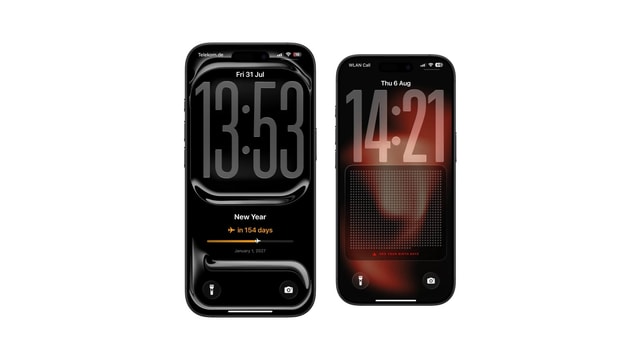
Memento Mori Wallpaper for iPhone
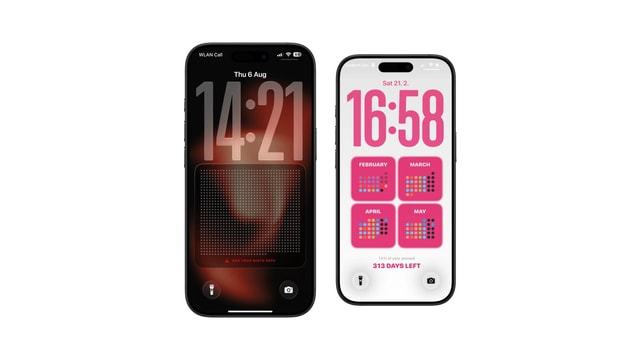
Life Calendar App for iPhone: What to Look For
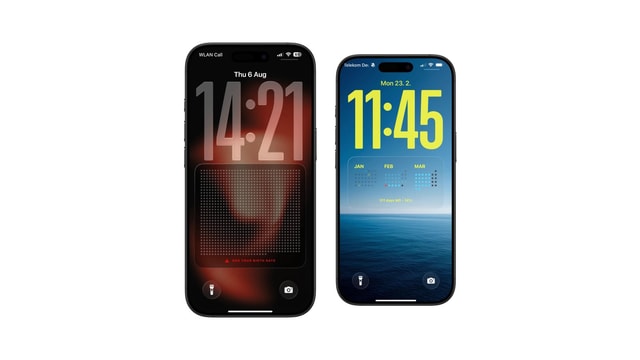
How to Set Up a Life Calendar on Your iPhone
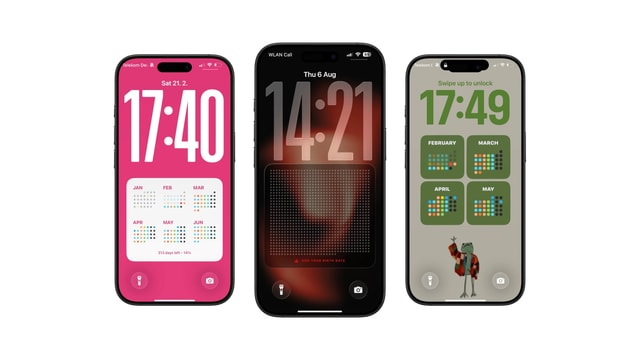
How to Make a Life Calendar: Printable, Spreadsheet or Phone
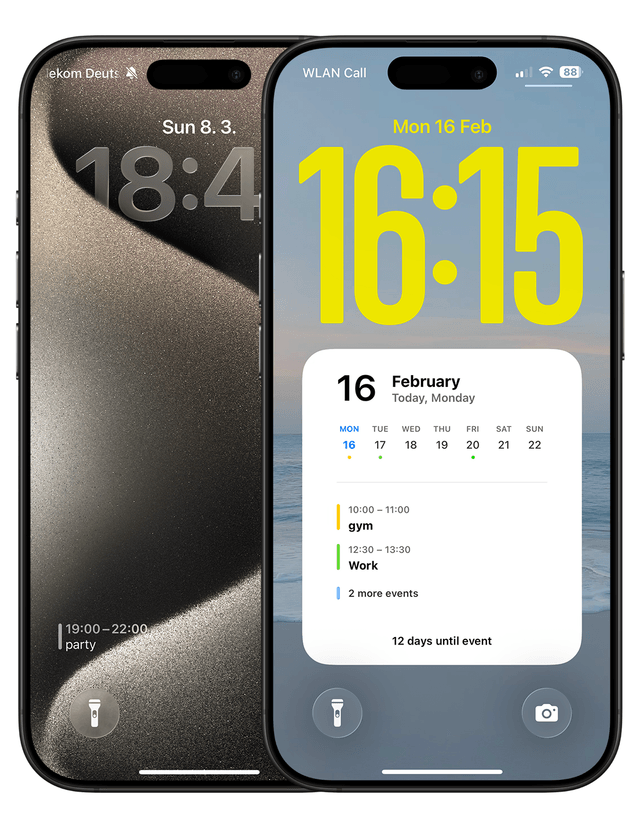
How to Show Your Calendar on the iPhone Lock Screen
Lock Screen Calendar vs Lock Screen Widgets: What’s Better?
5 Simple Tricks to Reduce Social Media Distractions