
To-do list wallpaper for your iPhone
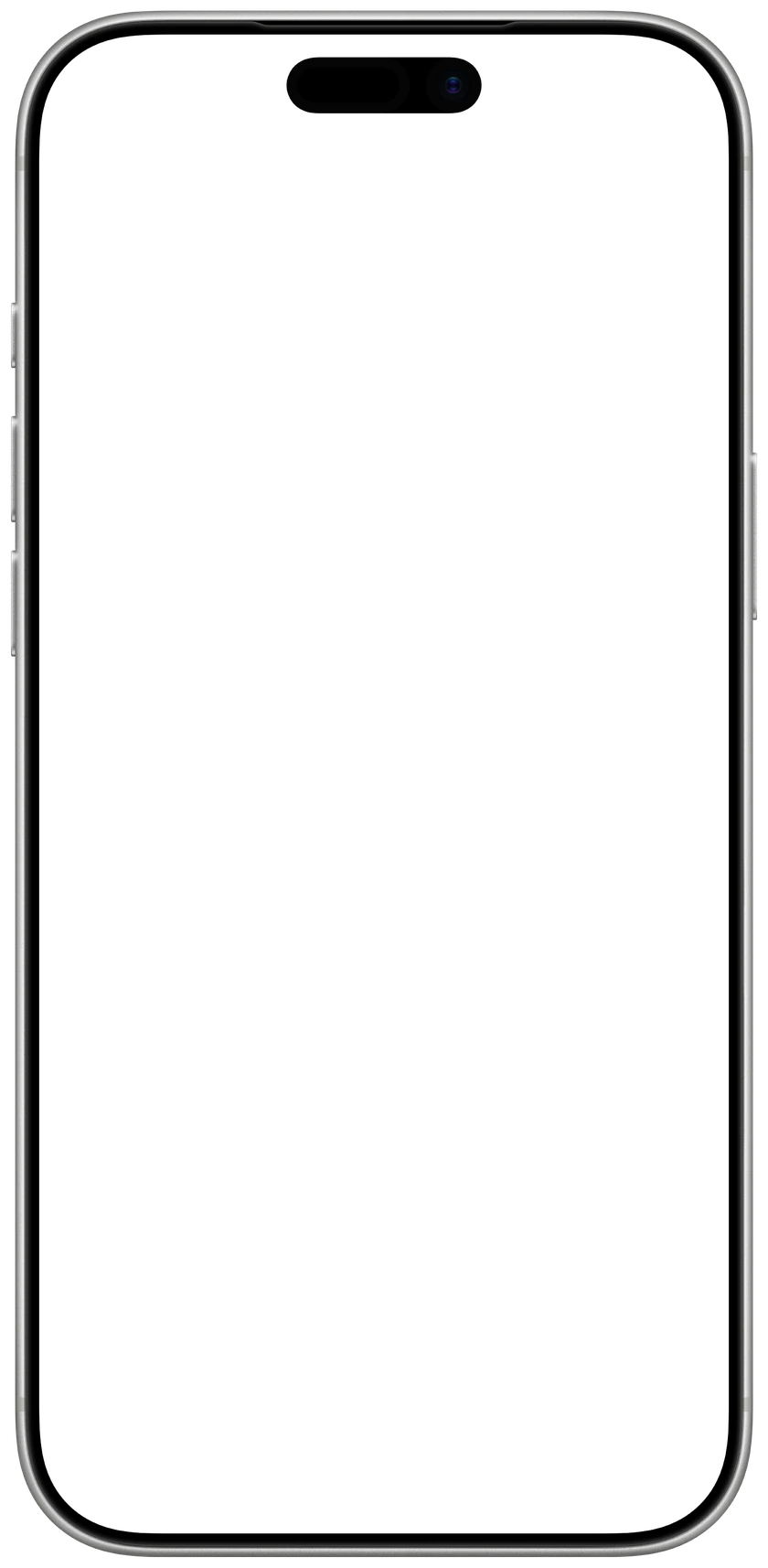
Type your tasks, pick a look and a background, and save the picture at your iPhone’s exact size. Set it as your Lock Screen and see the list every time you pick up your phone.

5 of 8
2Look
3Background
4Make it yours
1206 × 2622 px, made for iPhone 17 · 17 Pro · 16 Pro
 CalendarlyUpdates your Lock Screen every morningGet
Drawn in your browser. Nothing you type leaves your device.
How to set it as your wallpaper
- 1Tap Save wallpaper, then Save Image. It goes to Photos.
- 2In Photos, open the picture, tap Share and choose Use as Wallpaper.
- 3Tap Add, then Set as Wallpaper Pair.

Want a list that’s never out of date?
Calendarly keeps your real to-do list on your iPhone’s Lock Screen and redraws it every morning. Free.
Free on the App Store, for iPhone.
A list you can’t miss
A list inside an app is easy to forget. On the Lock Screen it is in front of you every time you pick up your phone, before you open anything else. Apple’s Reminders widget on the Lock Screen shows only a few tasks in a small box, so the simplest way to see the whole list is a wallpaper with the list on it.
Keep it short: three to five tasks read at a glance, and eight is the most a picture holds here. The list sits under the clock and your widgets, so nothing covers it.
Questions people ask
Type your tasks above and save the picture. In Photos, open it, tap Share, choose Use as Wallpaper and set it as your Lock Screen. To have the list update itself from Reminders or Todoist every morning, use the Calendarly app.
Yes. It runs in your browser, needs no sign-up and adds no watermark. Your list is drawn on your device and is never sent anywhere.
Every iPhone from the iPhone SE and 8 to the iPhone 17 Pro Max and iPhone Air. The page picks your model by itself when it can; you can choose another under iPhone.
A picture cannot change. Calendarly can: it puts your tasks from Reminders, Todoist, Google Tasks, Microsoft To Do or its own list on the Lock Screen and redraws it every morning through a Shortcuts automation. The app is free to download.