Best Way to Keep Your To-Do List Always Visible on iPhone
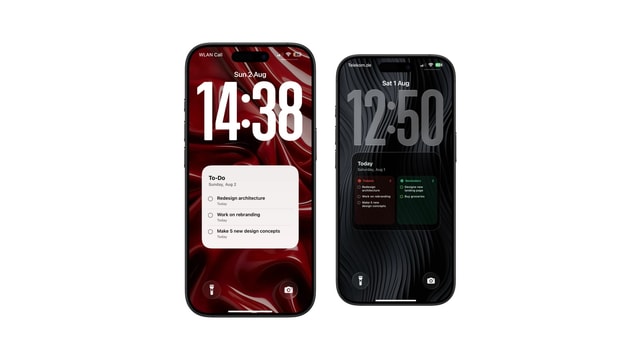
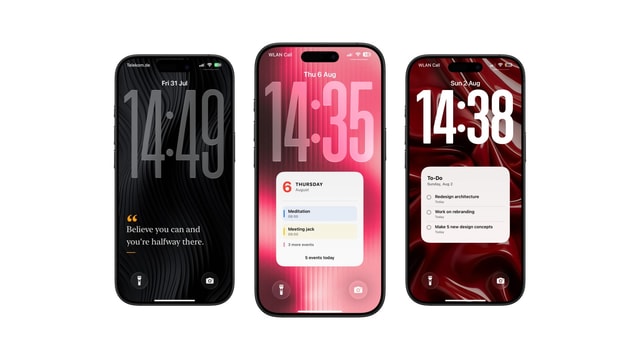
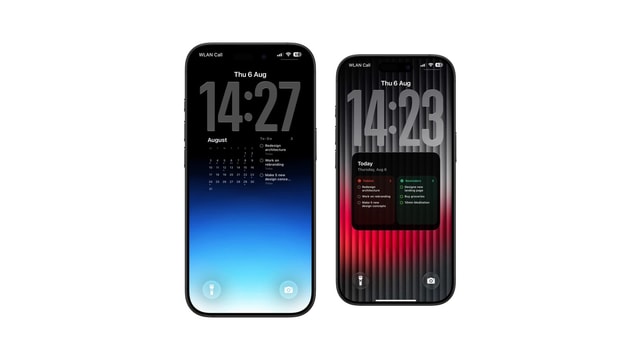
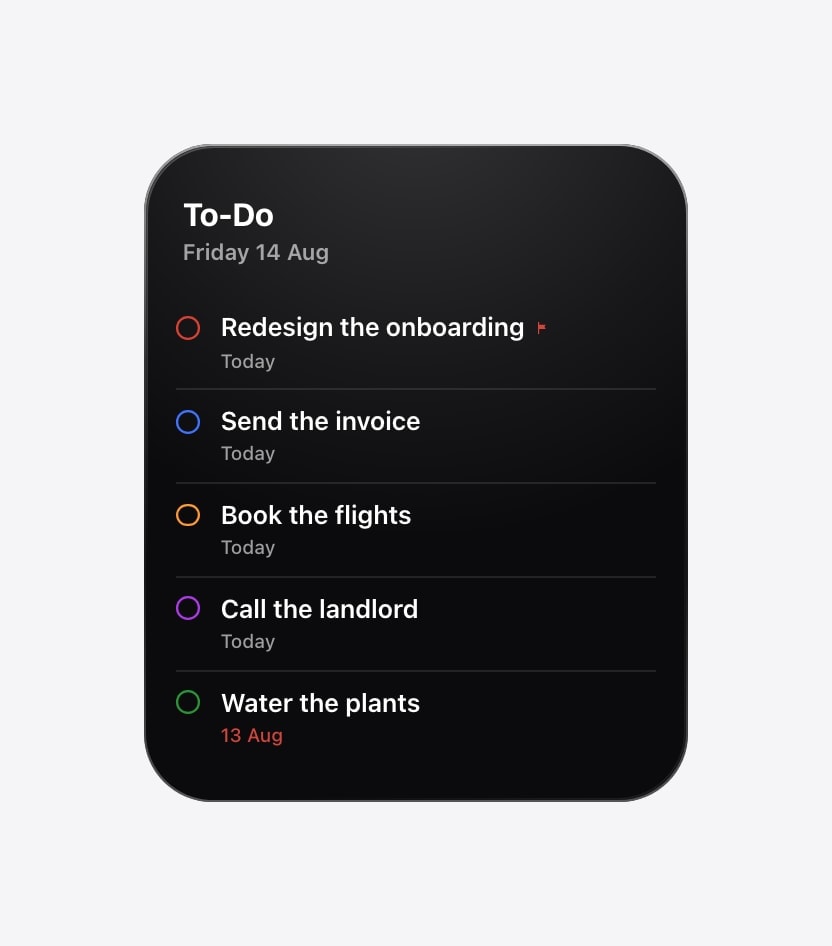
Widgets are best for quick actions. A task wallpaper trades interaction for more room and a list you can read at a glance.
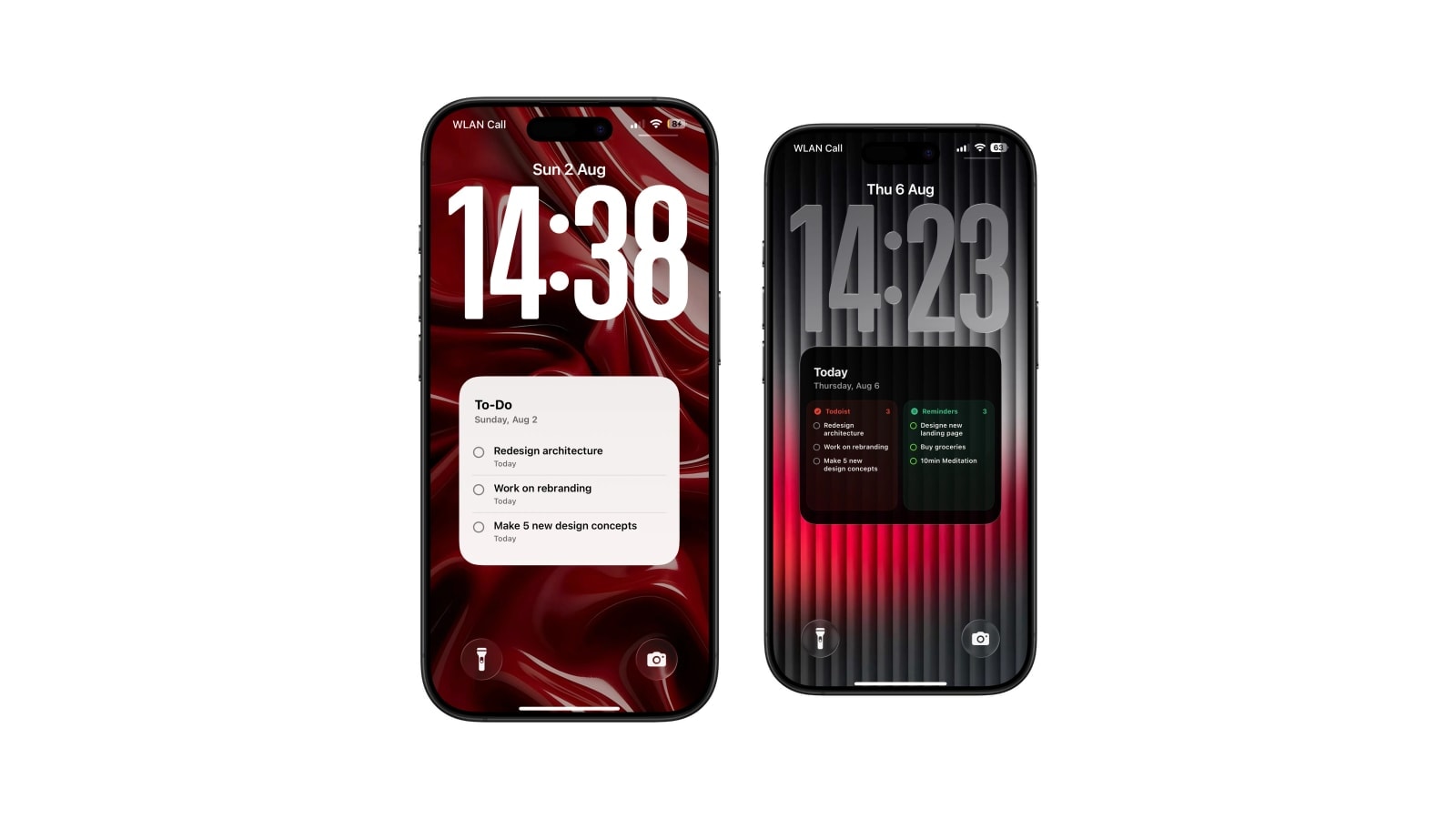
The most consistently visible place for a short list on an iPhone is the Lock Screen wallpaper, because it is the only surface you see before deciding to do anything. A Home Screen widget appears after you unlock, by which point you have already made the choice it was meant to inform.
That is the practical case, and it is worth being clear about what it does and does not do. Making a task visible improves the chance you remember it at a useful moment. It does not make you want to do it, and it does not fix a list that is too long to act on.
So the version of this that works is small: a handful of chosen actions on the Lock Screen, and the full system left where it belongs.
Why a visible list actually helps
A task inside an app relies on you deciding to go and look for it. That decision costs something, and it competes with everything else the phone offers, which is why the trip to the task app so often ends somewhere else entirely. A task on the Lock Screen skips the decision: you meet it during something you were already doing.
The effect depends completely on selection, and it collapses fast when there is too much. Three concrete actions stay readable for weeks. Fifteen items become a grey block within days, and once your eye has learned to skip the block, it will keep skipping it even after you trim the list. This is worth knowing in advance, because the natural instinct after setting it up is to add more.
Use the system you already have
If you use Apple Reminders, point this at a focused list such as Today or Work. If you use Todoist, use today and overdue, an upcoming range, or one project. What you should not do is move task systems in order to get a nicer wallpaper, because the wallpaper is a view and views are cheap to change while systems are not.
Calendarly reads either source and generates the image on the iPhone, with the Todoist connection requesting read-only access. A Shortcuts automation refreshes it before your day starts, which is the only part that needs setting up and takes about two minutes.
- 1Clean the source list first
Remove duplicates, vague someday entries, and anything that is actually waiting on somebody else. The wallpaper will faithfully show you whatever mess is there.
- 2Choose a small visible set
The next three to five actions. If you cannot pick, that is usually a sign the list needs a decision rather than a bigger screen.
- 3Pick a layout that suits the writing
A checklist for short tasks, a dated list when due time changes the priority, a large single line when there is really only one thing.
- 4Schedule one refresh
One morning run. Refresh by hand after a real change rather than scheduling something every hour.
What always visible does not mean
It is worth setting expectations properly, because most disappointment with this setup comes from expecting a live dashboard and receiving a printed page. A printed page is the correct mental model and, for this particular job, the better one.
- Not live
It is a snapshot. New and completed tasks show up at the next render, which is usually the following morning.
- Not interactive
Nothing responds to a tap. Complete work in the app, or keep a widget alongside for that.
- Not private
Anyone who can see the screen can read the titles, before the phone has been unlocked.
- Not a cure for having too much to do
A better surface cannot fix an unfiltered list. If the wallpaper feels oppressive, the list is the problem.
Would you write it on a note by your desk? If a task is too vague, too private, or too far away to belong on a paper note in a shared room, it does not belong on the Lock Screen either.
Keep it close, keep it short
The Lock Screen is valuable because you already look at it dozens of times a day, and that attention is not free. Spend it only on the actions that deserve to be encountered repeatedly.
Everything else can wait safely in the task app until it becomes the next thing.
Questions people ask
The Lock Screen, because it appears before you unlock. The wallpaper offers the most room; a widget offers live interaction in a smaller area.
A Home Screen widget only appears after unlocking, which is after you have already decided to open the phone for something else.
Calendarly generates a new image from the selected Reminders or Todoist tasks each time its Shortcuts automation runs.
No, it is an image. Complete them in the source app or in a widget, then refresh the wallpaper.
Three to five items. Add more only if you can still take the whole list in at a glance.