How to Put Apple Reminders on Your iPhone Lock Screen
Notifications for urgency, a live widget for action, or a wallpaper for a wider list. Three honest ways to keep reminders in sight.
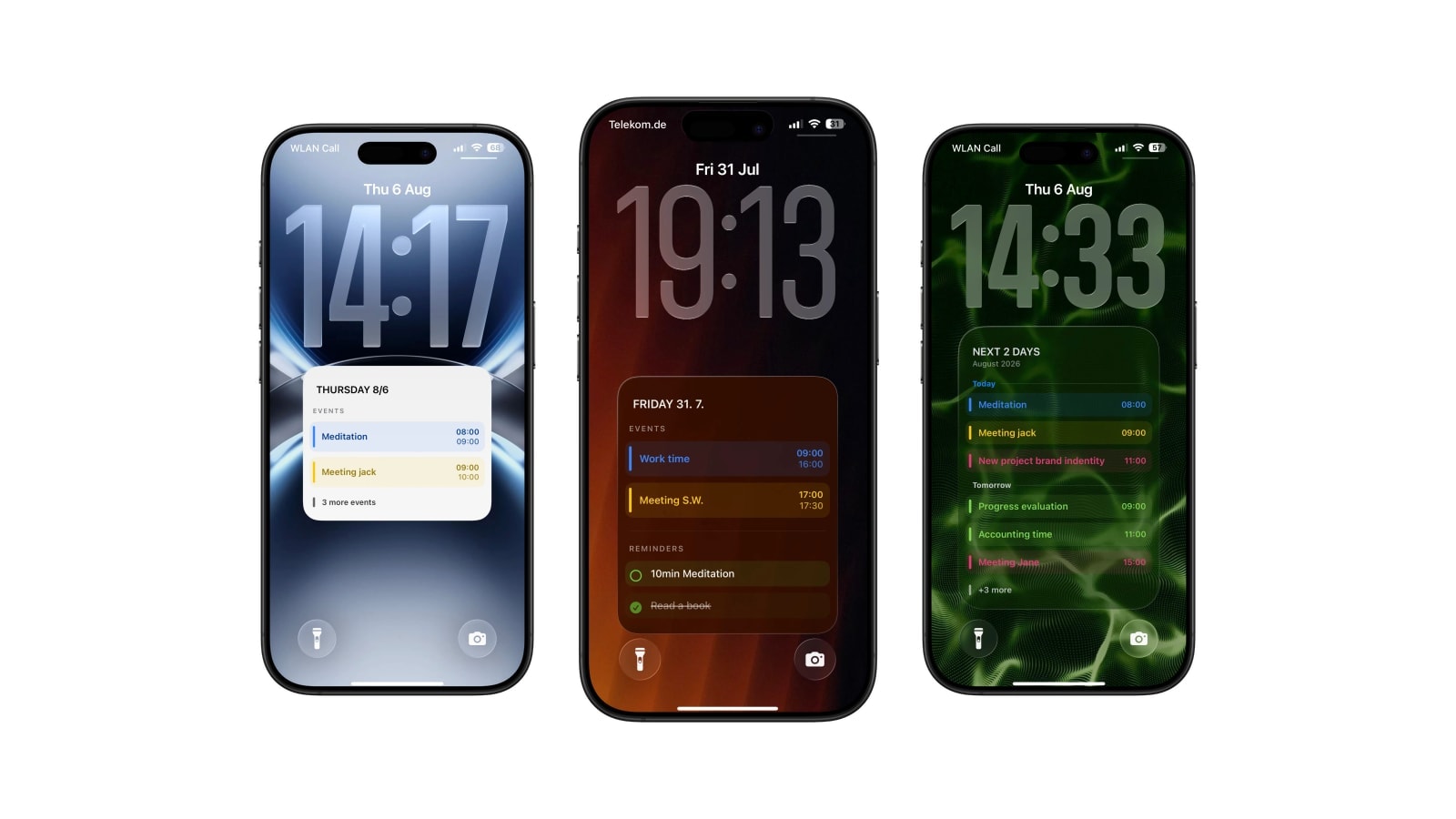
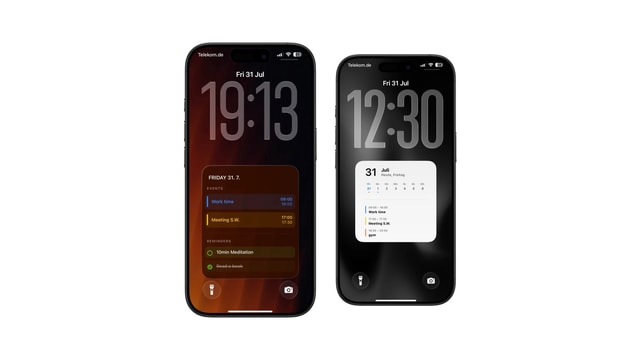
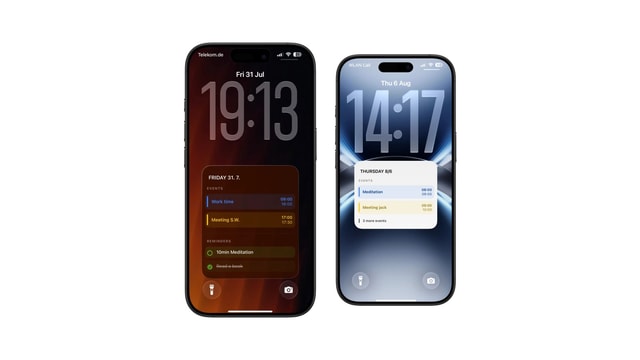
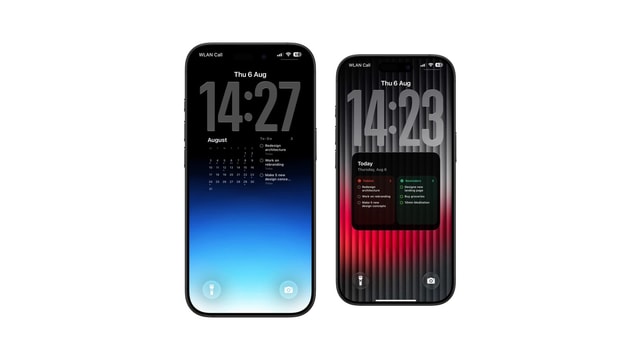
There are three genuinely different ways to get reminders onto the iPhone Lock Screen, and choosing between them is easier if you sort by urgency rather than by feature: notifications interrupt you, a widget invites a tap, and a wallpaper simply stays in sight.
Almost every bad Lock Screen setup comes from putting something on the wrong rung of that ladder. Give a genuinely time-critical reminder to a wallpaper and you will miss it. Give a vague someday task a notification and you have taught yourself to dismiss notifications without reading them.
Below is what each surface is for, how to set it up, and the small habit that decides whether any of it keeps working after the first week.
Notifications, for the things with a cost
A reminder with a real time or a real place belongs in a notification, because that is the only one of the three surfaces that can reach you when you are not looking at the phone. Medication at eight, the prescription before the pharmacy shuts, the call you have to make while the office is still open: all of those need an interruption, and no amount of visibility on a wallpaper substitutes for one.
The mistake worth avoiding is inventing times to force things into notifications. Once a third of your alerts are for tasks that were not actually due at that minute, the alerts stop meaning anything, and the genuinely urgent one arrives in a queue you have already learned to swipe away.
The widget, for one live thing you might tick off
Press and hold the Lock Screen, tap Customise, then Add Widgets, and pick Reminders. If the format lets you choose a list, choose a short one: Today, Errands, School. Pointing it at an unfiltered inbox is the most common way to make a perfectly good widget useless, because the item it surfaces is rarely the one you needed.
The widget’s advantage is that it stays connected. It reflects changes from the app, it opens into the right place, and on iOS 17 and later you can complete the visible item without unlocking. If nothing appears at all, check the list selection first, then account sync, then whether the reminder is still open.
- 1Point it at a focused list
Three to seven live items. A list with sixty entries surfaces something arbitrary and you stop trusting it.
- 2Use due dates honestly
Date something when the date changes its meaning, not to make it appear. Fake dates are how a task system loses its signal.
- 3Clear things as you finish them
The whole surface depends on completed work leaving. It is a ten-second habit that keeps the other two surfaces useful too.
The wallpaper, for the things you want to keep meeting
Some reminders are not urgent and not tappable, they just need to stay in front of you: the three things that would make today a good day, the errand you keep postponing, the call you will make when the right hour arrives. Notifications are too loud for those and a widget is too small.
Calendarly reads the Reminders lists you pick, draws them into a card on the wallpaper, and refreshes it through a Shortcuts automation. Everything happens on the iPhone and there is no account to make. What you give up is immediacy: completing something does not change the pixels already on the screen, and the item disappears at the next render.
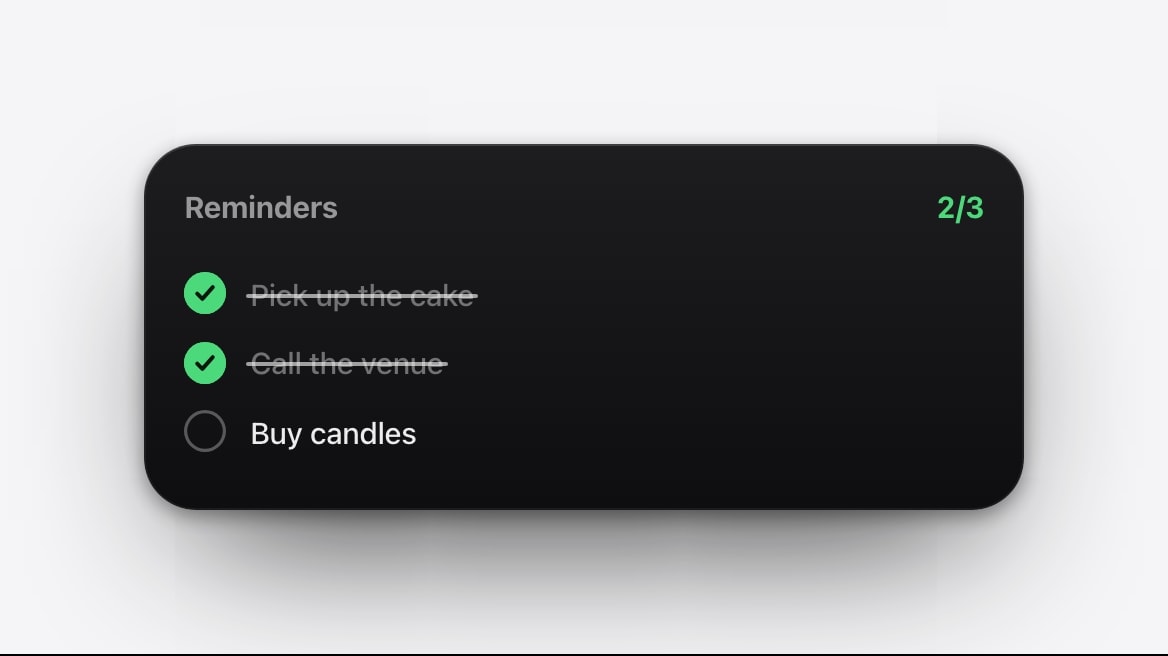
Live, connected to the app, and interactive on recent iOS. One item at a time.
Room for the short list, refreshed on your schedule, and quiet enough to live with all day.
The habit that makes it stick
Whichever surface you pick, the thing that determines whether it survives is how the list is written and how ruthlessly it is pruned. A visible list that is always full stops being read within about four days, and the eye learns to treat the whole block as texture. This is not a discipline problem, it is how attention works.
- Start with a verb
“Call dentist” tells you what to do. “Dentist appointment question” makes you reconstruct the task every time you read it.
- Keep the context in the app
Addresses, links, phone numbers and notes all belong inside Reminders. The Lock Screen only needs the decision.
- Show fewer items than you have
Three to five. If everything is visible, nothing is, and you will start ignoring the screen you built.
- Fix the list, not the layout
If the wallpaper looks chaotic, the list is chaotic. Tidying the source is faster than redesigning the card.
Questions people ask
Three ways: reminder notifications, Apple’s Reminders widget, or a generated wallpaper showing selected lists. They suit different levels of urgency.
Check which list the widget is set to, then account sync, Lock Screen access, any active Focus, and whether the reminder is still open.
No. The Lock Screen offers system-defined sizes only. Use a Home Screen widget or a wallpaper when you need a larger list.
No. The completed item disappears at the next scheduled or manual render.
No. It reads the lists you select in order to draw the wallpaper and leaves the source data untouched.