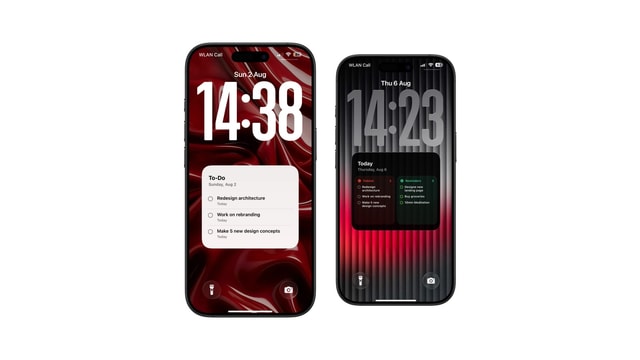
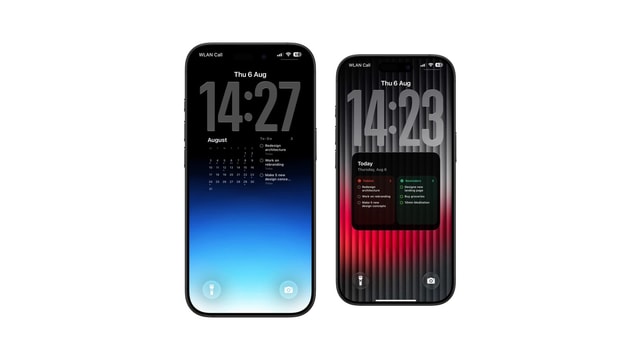
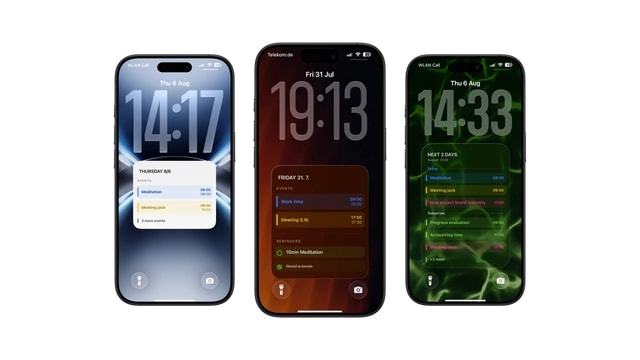
How to Put a To-Do List on Your iPhone Lock Screen
Three ways to keep your tasks in sight before you unlock: a widget, a photo, or a wallpaper that rewrites itself every morning.
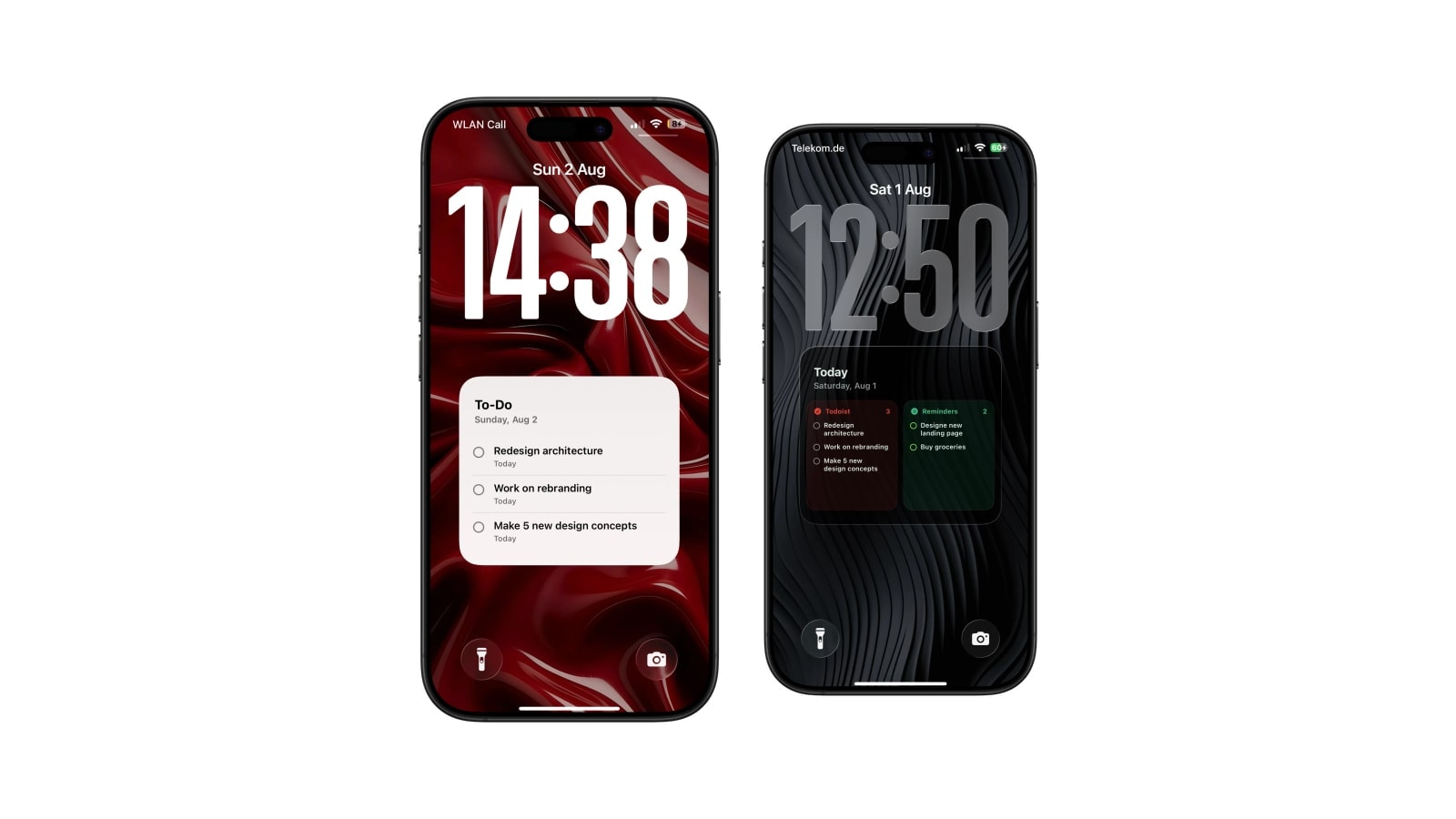
Three methods, and they are not variations of each other: a task widget, text written onto a photo, or a wallpaper generated from a real task list. Which one is right depends entirely on whether you need to tap the list, style it, or keep it current without touching it.
The widget is live and small. The photo is completely free-form and completely manual. The generated wallpaper has room and refreshes on schedule, but it is an image between refreshes and nothing in it responds to a tap.
None of them is best in general. The useful one is the lightest method that keeps the next few actions visible without turning your Lock Screen into a second inbox.
Option one: a task widget
Apple Reminders, Todoist, Things and most serious task apps ship Lock Screen widgets. Add one by pressing and holding the Lock Screen, tapping Customise, then Add Widgets. Because the widget belongs to the live app, it updates on its own and, on recent iOS versions, will often let you complete the item you can see.
The constraint is the row itself. iOS decides how many widgets fit and how large each one is, and no app can negotiate its way to more space. Point the widget at a short list and treat it as a single question rather than as a list view, and it is genuinely excellent. Ask it to be a project overview and it will disappoint you every day.
Option two: text on a photo
Open a photo in Markup or any photo editor, type the list, save a copy, and set it as the wallpaper. There is no app to install, no permissions to grant, and complete freedom over placement and type. For a packing list, a weekend plan, or three goals that will not change this month, it is genuinely the best method and nobody should feel bad about using it.
It stops making sense the moment the list changes. There is no connection to anything, so every edit means opening the editor, redoing the image, and setting it again. Two or three rounds of that is fine; twenty is a hobby.
Option three: a wallpaper drawn from the list
Calendarly reads Apple Reminders or a connected Todoist account, draws the tasks into a layout, and lets a Shortcuts automation refresh the wallpaper each morning. It exists for the specific gap between the other two: the widget hides too much, and editing an image by hand every day is not a plan.
It behaves like a scheduled snapshot rather than a live view. Finish something at lunch and it disappears at the next render, not immediately, though you can run the shortcut by hand any time you want the screen to catch up. In exchange you get several tasks at a readable size, priority and colour carried across from the source, and no maintenance at all on an ordinary day.
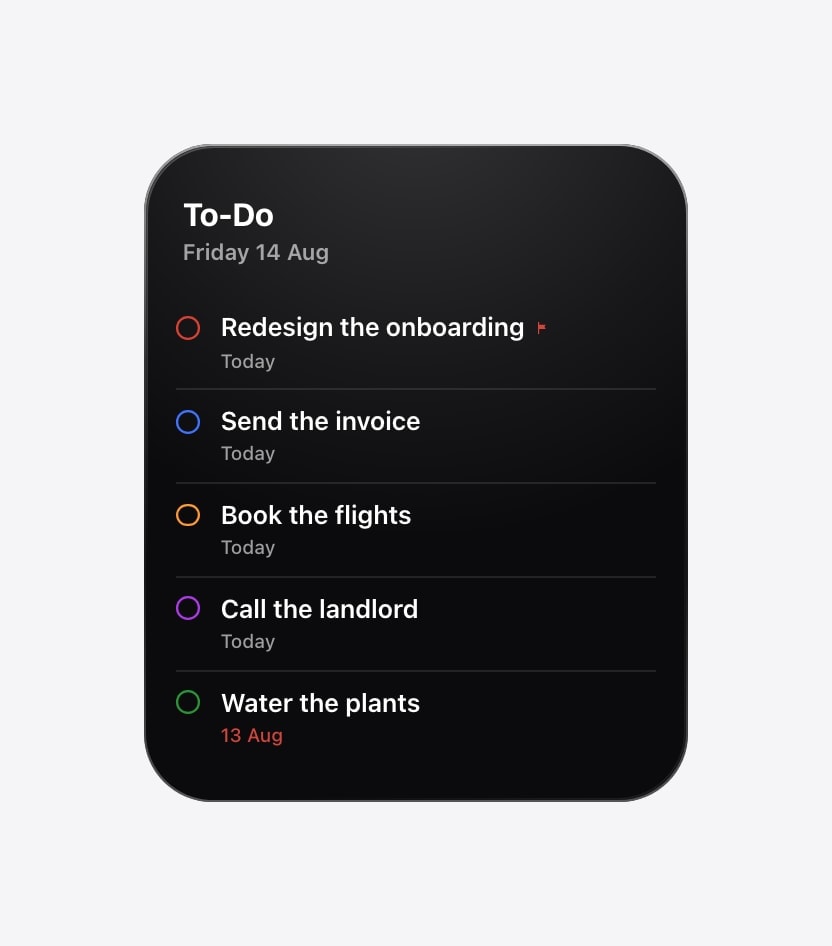
Best for the next task and for ticking things off. Sized and positioned by iOS.
Best for keeping a short plan in view. Refreshes on your schedule and cannot be tapped.
Making the list fit the place
Whichever method you land on, the writing matters more than the method. A Lock Screen is read in about a second, at arm’s length, often in bad light, and every rule below comes from that one fact.
- Show the next few, not the backlog
Three to five items. The rest of the system stays in the app, where it can be searched and sorted properly.
- Short verbs survive small type
“Book train” and “Send invoice” stay legible. “Follow up re: Q3 vendor onboarding” does not.
- Keep someday work out
Anything that cannot be done today is pushing today’s work off the screen, which is the opposite of the point.
- Assume other people can read it
Task titles are visible before Face ID. Use neutral wording for anything to do with work, health or other people.
Questions people ask
Yes. Use a task widget, write the list onto a wallpaper image manually, or generate a wallpaper from Apple Reminders or Todoist.
A widget. It is connected to the live app and, on recent iOS, interactive. A generated wallpaper updates when its shortcut runs.
Yes. Some Calendarly layouts combine calendar events with reminders or Todoist tasks in a single wallpaper.
No. The finished image costs nothing to display, and generating it is a brief operation once a day.
Three to five in most cases. Keep the full backlog in a task app and use the Lock Screen for what is next.