How to Show Todoist Tasks on Your iPhone Lock Screen
Use Todoist's live Lock Screen widgets or a larger read-only wallpaper view. Here is what each option does well, and how to combine them.
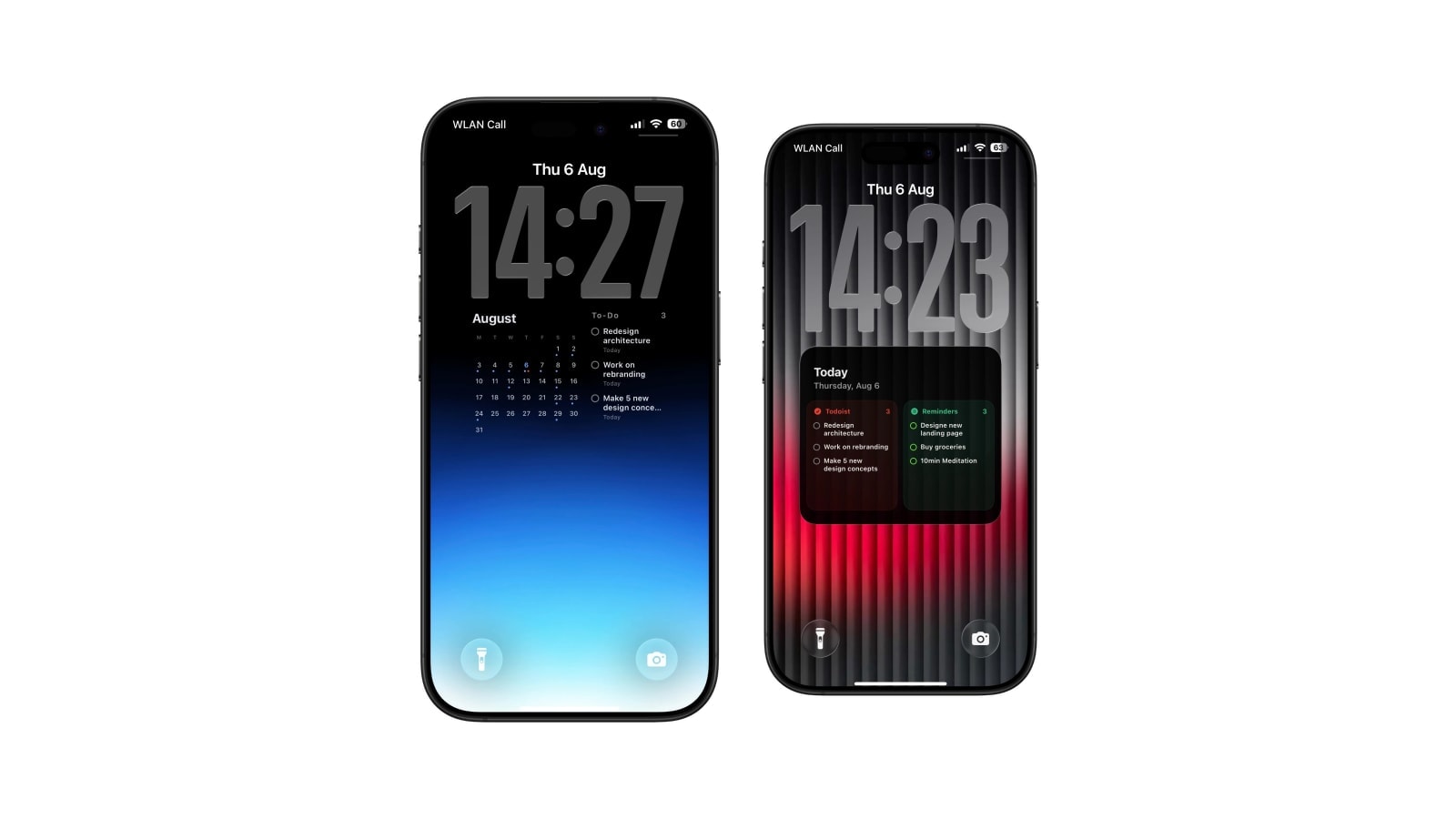
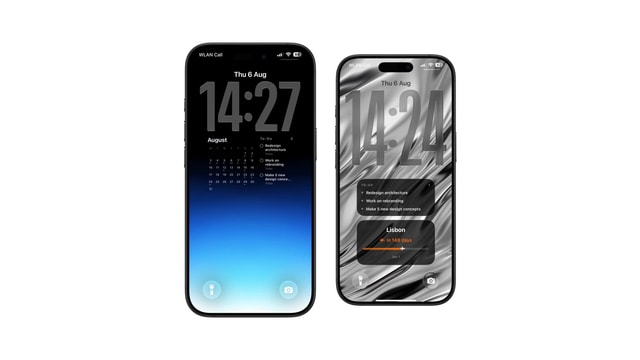
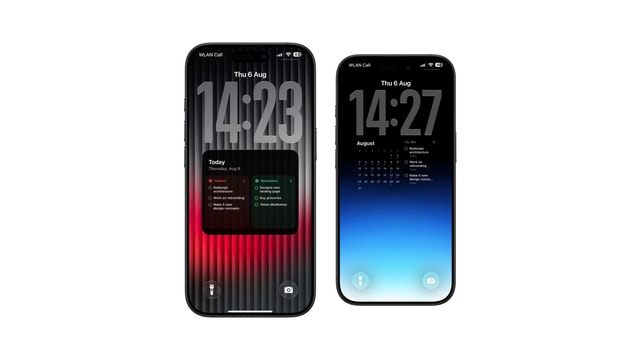
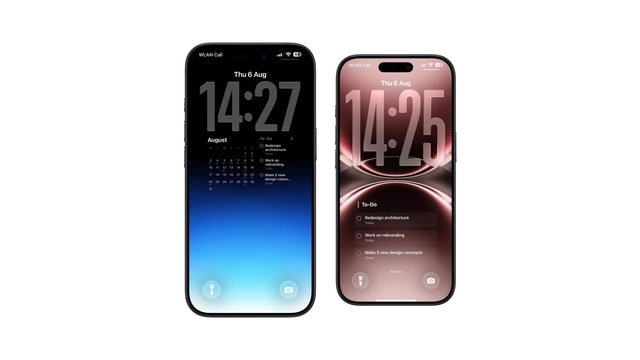
There are two ways to get Todoist onto the iPhone Lock Screen, and they are not competing versions of the same thing. Todoist’s own widgets are live, compact and tappable. A generated wallpaper is large, read-only, and can hold a whole list or a project.
Which you want depends on the verb. If the problem is that you need to act on a task from the Lock Screen, the widget is the answer and nothing else comes close. If the problem is that you keep opening the app just to look, the wallpaper solves it more completely, because it removes the unlock as well as the app.
Calendarly connects to Todoist with read-only access. It reads tasks and projects, draws the view you chose on the iPhone, and cannot complete, reschedule or delete anything in your account.
Start with Todoist’s own widget
Press and hold the Lock Screen, tap Customise, then Add Widgets, and pick Todoist. It takes about thirty seconds and costs nothing, which is why it is worth doing before deciding you need anything else. Todoist documents the available formats, including tasks, next task, today’s progress, add task, goals and productivity, in its widget guide.
Live and connected is a real advantage. The widget reflects a task you completed on your laptop a minute ago, and tapping it lands you in the right place in the app. What it will never be is spacious: iOS owns the widget row, decides the shapes, and is not going to hand a task app half the screen.
Use the wallpaper for the part you keep reading
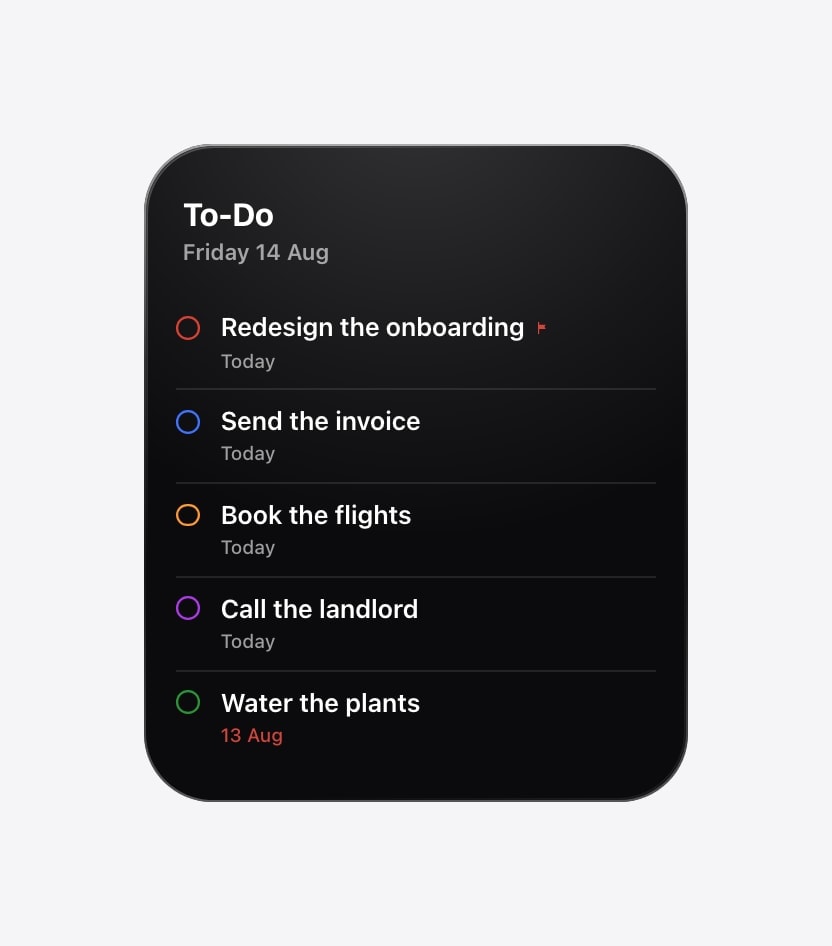
Calendarly offers several Todoist compositions, and the differences between them matter more than the styling. A checklist keeps your Todoist order and shows five or six tasks with priority and due information. A focus view shows fewer tasks in much larger type. A project card narrows to one project. An upcoming agenda groups by day. There are also mixed layouts that put tasks beside a month grid, beside Apple Reminders, or beside a countdown.
The source is a separate choice from the layout, and it is the one that decides whether the screen is useful. Today and overdue is the default for a reason: it is the only source that cannot fill your Lock Screen with work you are not allowed to do yet. Upcoming earns its place before a deadline-heavy week, and a single project earns it during a launch or a move.
- 1Connect Todoist
Open Calendarly’s settings and sign in through Todoist. The scope requested is read-only.
- 2Choose the source
Start with today and overdue. Switch to a project only when that project is the reason you wanted this at all.
- 3Cap the list
Five or six rows. Beyond that, task titles start losing their ends and the screen stops being scannable.
- 4Add the refresh
The guided Shortcuts setup takes about two minutes. Pick a time before you normally start planning.
What read-only actually means here
Calendarly asks Todoist for read access only. It can fetch your tasks and projects and it cannot create, complete, reschedule or delete them, which is worth knowing because a wallpaper generator has no business writing to your task system. The access token is kept in the iPhone’s Keychain, you can disconnect from inside Calendarly, and you can revoke the connection from Todoist’s own integrations settings whenever you want.
Fetching new tasks needs a connection, as you would expect. Calendarly keeps a small local cache per source so that a morning render on a train with no signal produces your last known list rather than an empty card. That fallback is genuinely useful and it is also the one place where the screen can be quietly out of date, so it is worth knowing it exists.
The wallpaper is a snapshot. Complete something in Todoist and the native widget can show it almost immediately. The wallpaper catches up at the next render, scheduled or manual.
Choosing by how you actually plan
Most people end up running both surfaces, and it works well as long as they are not showing the same thing. Let the widget carry the next task or the progress ring, and let the wallpaper carry the four or five tasks around it. Each glance then adds something instead of repeating the last one.
- Today and overdue
The best default. It keeps the screen limited to work you can actually start now.
- Upcoming
Best when deadlines are spread across the next several days and you need to see the slope rather than the ground.
- A single project
Best as a temporary mode during a launch, a move or an exam period. It hides everything outside that project, which is both the feature and the risk.
- Todoist beside Reminders
Worth it only when the two systems hold genuinely different things. If they overlap, you are showing duplicates in half the space.
Compact, live, connected to the app, and one tap from doing something about it.
Room for the plan, redrawn on your schedule, and nothing in it responds to a tap.
Keep Todoist as the system
Plan, capture, reschedule and complete inside Todoist, where all of that is well designed. Use the widget for the quick action and the wallpaper for the view you want to meet before you unlock.
The screen becomes useful when it removes a check, not when it tries to reproduce the app.
Questions people ask
Yes. Todoist documents several Lock Screen formats, including tasks, next task, today’s progress, add task, goals and productivity.
Yes. Calendarly can draw a larger wallpaper view from today and overdue, an upcoming range, or a single project.
No. It requests read-only access and cannot create, complete, reschedule or delete anything.
No. It updates when the Calendarly shortcut runs. Keep a Todoist widget if you need the immediate state.
Calendarly can render the last cached view for that source. Fetching newer tasks needs a connection.