Daily Schedule Wallpaper for iPhone: Today, Hour by Hour
Your day as the wallpaper: events in order, times on the right, gone by tomorrow. How to set it up once.
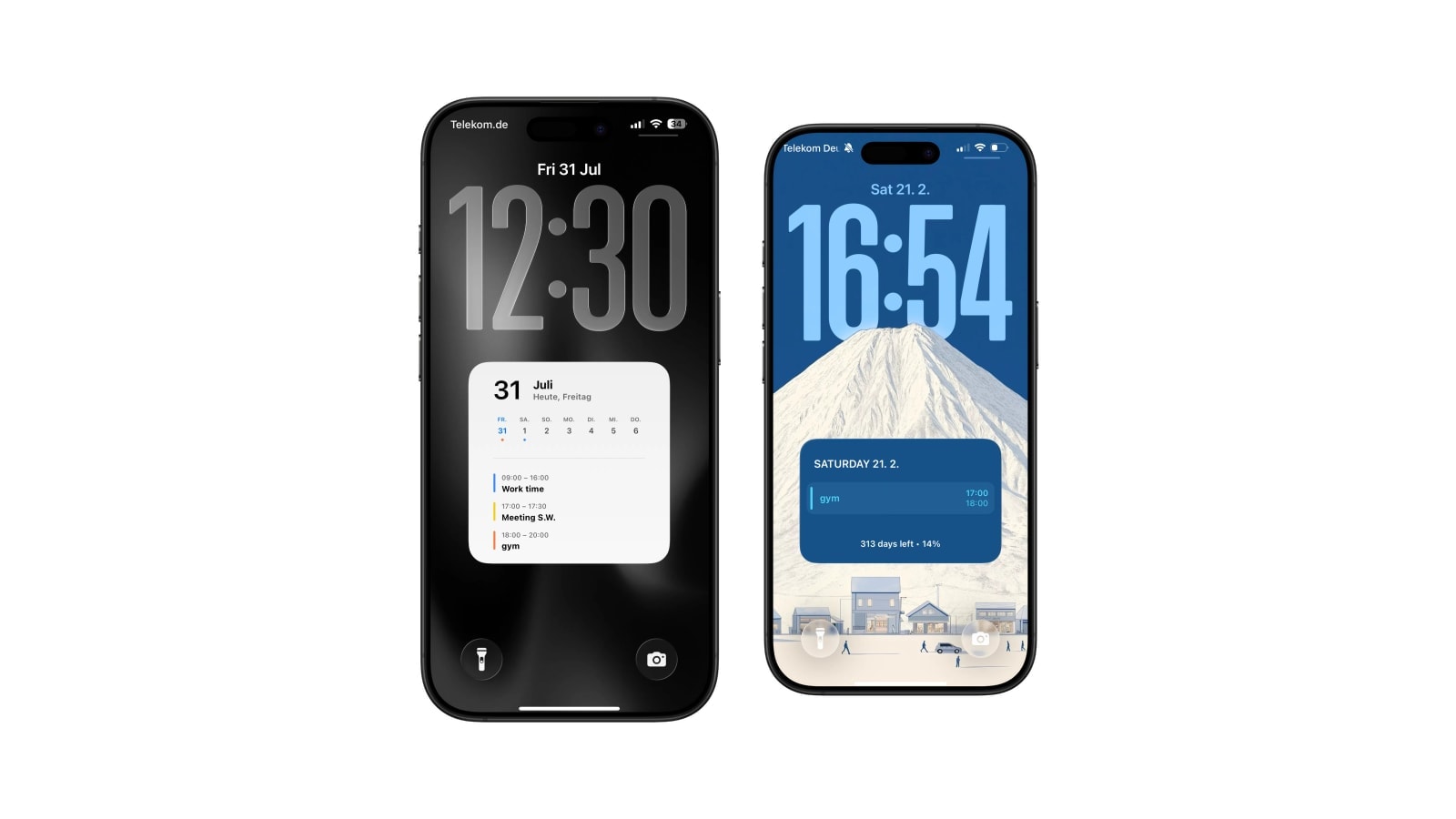
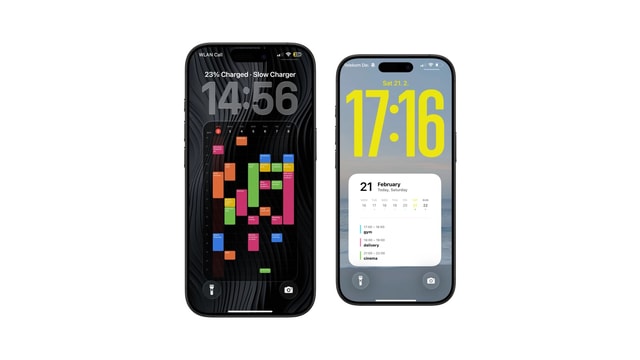
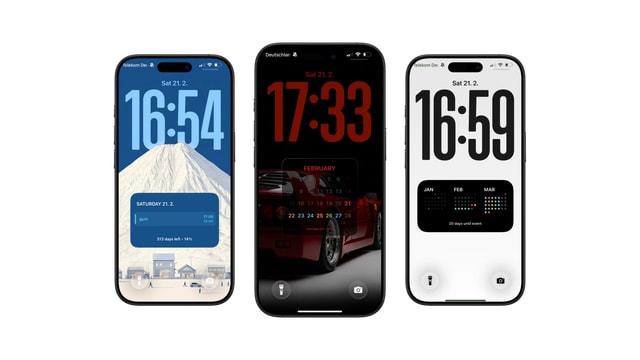
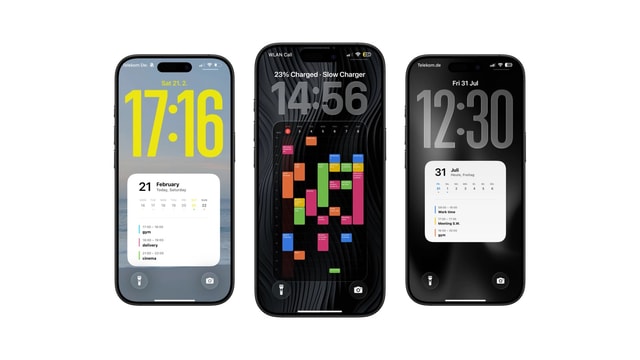
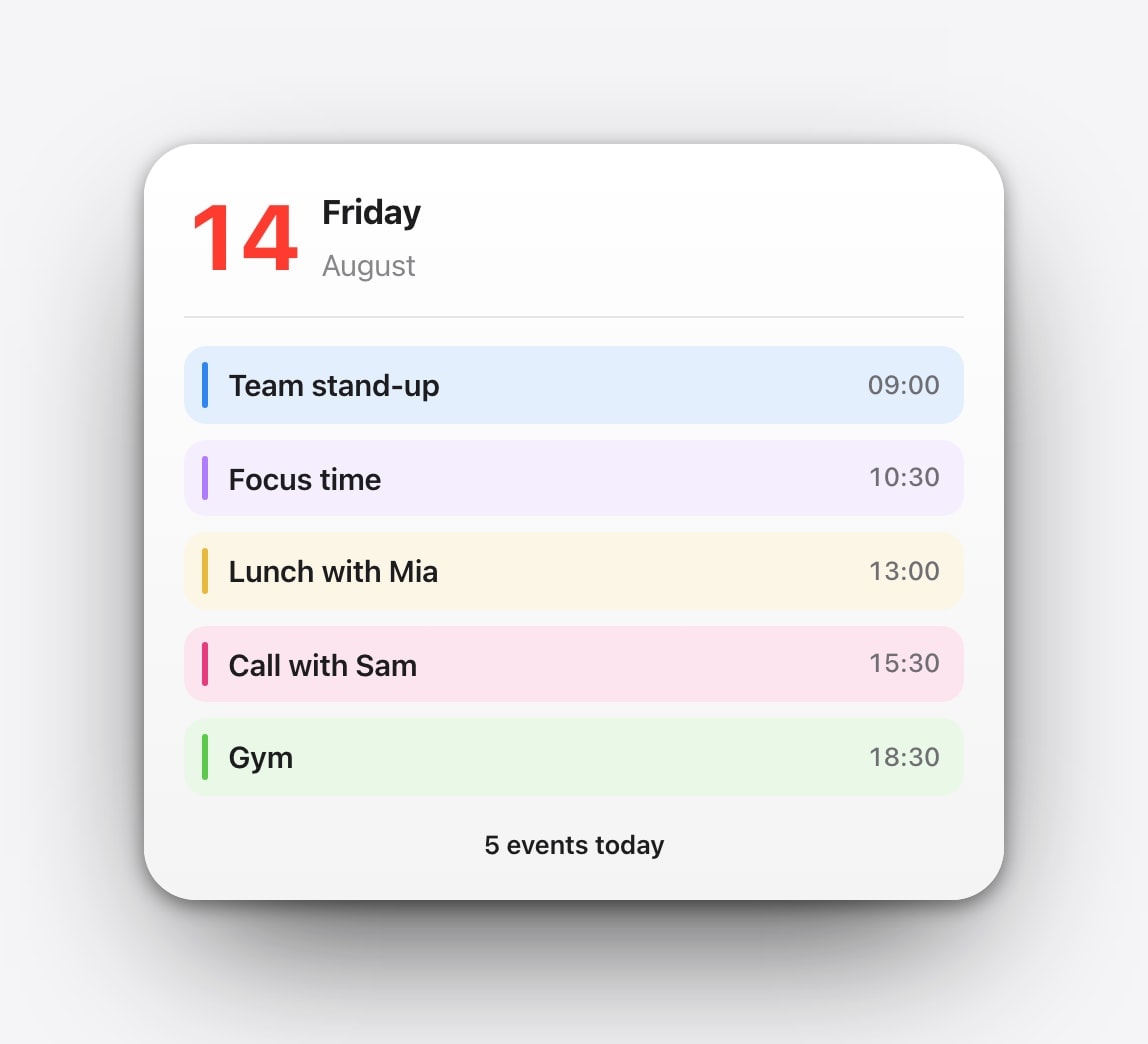
A daily schedule wallpaper puts today’s events on the Lock Screen in time order, which makes it the right choice when the question you keep asking is not what the date is but what happens next.
The events come from the calendars already on your iPhone, so there is nothing to type twice. Calendarly reads whichever calendars you select, draws them as a clean list, and a morning Shortcuts automation puts the result on the Lock Screen. Tomorrow’s image is built from tomorrow’s events without you doing anything.
The closest analogy is a page that reprints itself overnight. It is easy to scan and impossible to get lost in, and the price of that is that it does not react: the wallpaper is right as of the moment it was made.
The gap you keep unlocking the phone to find
Most people who install a daily layout are not trying to remember their meetings. They remember their meetings. What they cannot hold in their head is the shape of the space between them, and that is the thing a month grid physically cannot show.
When the day is laid out in time order, you can see that there are forty minutes between the eleven and the twelve, that lunch is real today, and that the afternoon is one long block rather than three short ones. That is usually the information behind the unlock, and it is the reason a daily view beats a month view for anyone whose calendar is busy rather than sparse.
It has a second effect that people mention more often than the first. A month grid tells you Tuesday is busy, which is mildly stressful and not actionable. A list tells you Tuesday is four things, which is finite.
Clean the calendar before you decorate the wallpaper
A daily layout is a magnifying glass pointed at your calendar, and if that calendar contains three subscribed holiday feeds and a sports fixture list, the wallpaper will show you three subscribed holiday feeds and a sports fixture list. This is the single most common reason a beautiful layout looks like noise on the first morning.
Open Apple Calendar, tap Calendars at the bottom, and untick anything you have never once acted on. Then pick the sources again inside Calendarly, which keeps its own selection rather than following whatever Calendar happens to be showing. Two or three sources is usually the right number; the moment you add a fourth, event titles start losing their tails.
- 1Choose the calendars
Work, personal, family, classes. Include the sources you act on and leave decorative feeds behind.
- 2Match the density to your titles
A compact agenda suits many short events. If your titles are long, choose the layout with fewer rows and more room per row.
- 3Keep the background quiet
A solid colour is the hardest thing to break. If you want a photo, pick one with a large calm area where the list will land.
- 4Schedule one run before the day starts
Choose a time you are reliably awake but not yet out of the door. Run it by hand on the rare day something big moves.
All-day events, and the thing that trips most layouts up
All-day events are stored differently from timed ones, and a layout that ignores that difference will either place them at midnight, where they look like a meeting nobody attends, or drop them entirely. Birthdays, travel days, deadlines and holidays are all all-day events, so this is not an edge case.
Calendarly keeps them separate from the timeline instead of inventing a start time for them, which means a day containing a flight and two meetings reads correctly rather than starting with a suspicious 00:00 entry. It is a small piece of behaviour, and it is the one that decides whether the wallpaper is trustworthy on the days that matter most.
The related detail worth knowing is what an empty day does. A well-built daily layout shows a quiet empty state rather than yesterday’s events, and if your empty days are frequent, that is a signal to switch to a week view where an empty Wednesday is information rather than a blank screen.
What it costs you
The honest limitation is freshness. The wallpaper is the calendar as it stood when the image was made, so an eleven o’clock that moves at ten past nine will keep saying eleven until the next run. For most personal calendars that is a non-issue, because personal calendars are mostly set the night before. For a calendar other people edit continuously, it is a genuine problem and a small live widget is a better tool.
The other cost is that nothing is tappable. You cannot press an event to open it, see its location, or join the call from the Lock Screen. Many people end up running both surfaces for exactly this reason: Apple’s small Calendar widget in the widget row for the next live item, and the wallpaper behind it for the shape of the whole day.
One item, updated continuously, and a tap straight into Calendar. Small by design and not going to get bigger.
The full day in one glance with room for real titles. Refreshes on your schedule rather than after every edit.
Small habits that keep it readable
- Shorten the titles in Calendar
“Design review” reads at a glance; “Weekly cross-functional design review meeting” becomes a grey smear. The detail can live in the event notes where there is room for it.
- Use three colours, not nine
One for work, one for personal, one for travel. Colour is only useful while you can still tell the colours apart on a bright pavement.
- Fix the source, not the font size
If the list is always overflowing, hide a calendar. Shrinking the type buys you two more rows and costs you the ability to read any of them.
- Leave the dashboard urge alone
Weather, battery, steps and a task list all want to join. The screen is strongest when it answers one question in one second.
Questions people ask
It is a Lock Screen wallpaper containing today’s calendar events in time order, regenerated from Apple Calendar on a schedule so that it always shows the current day.
From the calendars you select on the iPhone, including iCloud, Google and Exchange accounts that appear in Apple Calendar. The data is read and drawn on the device.
Yes, and it keeps them separate from timed appointments so that a birthday or a travel day does not appear as a midnight meeting.
No. The wallpaper is a snapshot and changes when the shortcut runs again, either on schedule or when you run it manually.
The layout shows a quiet empty state rather than stale events. If empty days are common for you, a week layout is usually a better fit.