How to Put Your Class Schedule on Your iPhone Lock Screen
Build the timetable once in September, and your week is on the wallpaper until the term ends.
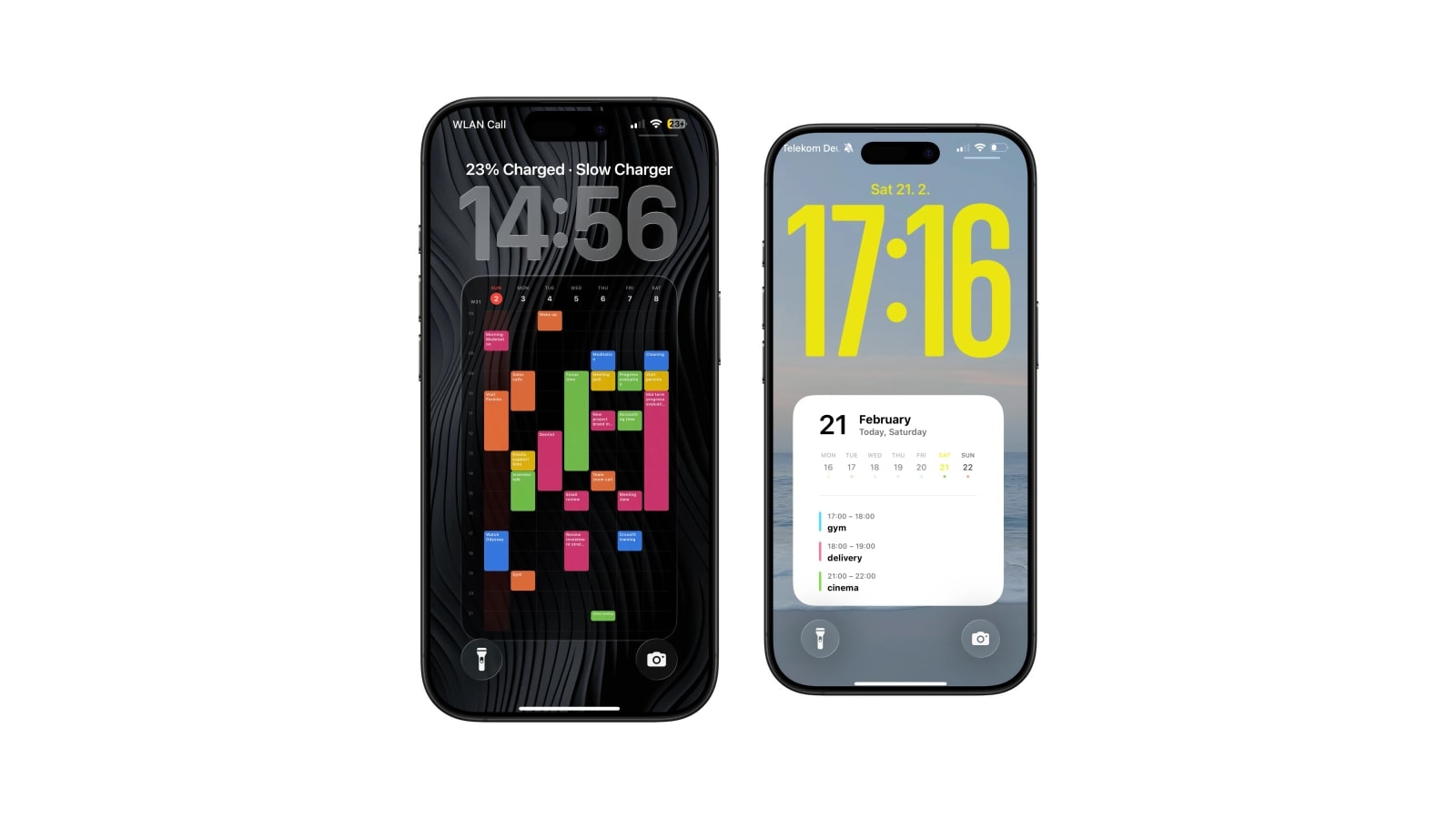
The cleanest way to put a class schedule on the iPhone Lock Screen is to build the timetable once in Apple Calendar and let the wallpaper draw the current week from it. You enter each class as a repeating event at the start of term and never touch it again.
That is the part worth insisting on, because the tempting alternative is to type the timetable into a wallpaper app directly, and it seems faster right up until reading week, when the timetable and the wallpaper disagree and only one of them is wrong in a way you can fix.
This works for lectures, seminars, labs, office hours and exams, and it works with a university calendar feed if your institution publishes one. What follows is the build order, the two places it usually breaks, and what to do about rooms.
Build a timetable that survives the term
Make a separate calendar for the semester before you add anything to it. It costs thirty seconds and it means you can colour the whole timetable at once, hide it during the holidays, and delete the entire term in one action in January instead of hunting down forty recurring events.
Then add one event per class, set it to repeat weekly, and give the repetition the last teaching date as its end. This is the step people skip, and skipping it is why so many phones still show Introduction to Statistics every Tuesday two years after graduation. When a class skips a week, delete that single occurrence rather than editing the series, which keeps the rest of the term intact.
- 1Create a term calendar
Name it for the semester. One colour for the whole timetable is easier to read than one colour per subject.
- 2Add each class as a weekly repeat
Correct weekday, correct start and end time, and an end date on the repetition.
- 3Handle the exceptions separately
Exams, cancelled sessions and one-off labs go in as their own events. Editing the series to accommodate them damages every other week.
- 4Put the detail in the event, not the title
Lecturer, building address, video link and reading list belong in the notes and location fields, where there is room for them.
Subscribe, do not import
If your student portal offers a calendar export, there are usually two options and they behave completely differently. Downloading an .ics file drops a frozen copy into your calendar, so when the department moves a lecture in week six, your phone keeps showing the old time forever. Subscribing to a URL keeps a live link, and the publisher’s changes arrive on their own.
The catch is that a subscription is only as reliable as the people maintaining it, and university timetable feeds have a mixed reputation. Check the first week against the official timetable before you trust it, and if it turns out to be neglected, rebuild the schedule by hand as repeating events. A wallpaper makes an unreliable source more visible, not more correct.
Look for the word Subscribe. Downloading a file gives you a snapshot of the timetable as it was that afternoon. Subscribing to the link lets the department push changes to your phone.
Rooms, and how much of one actually fits
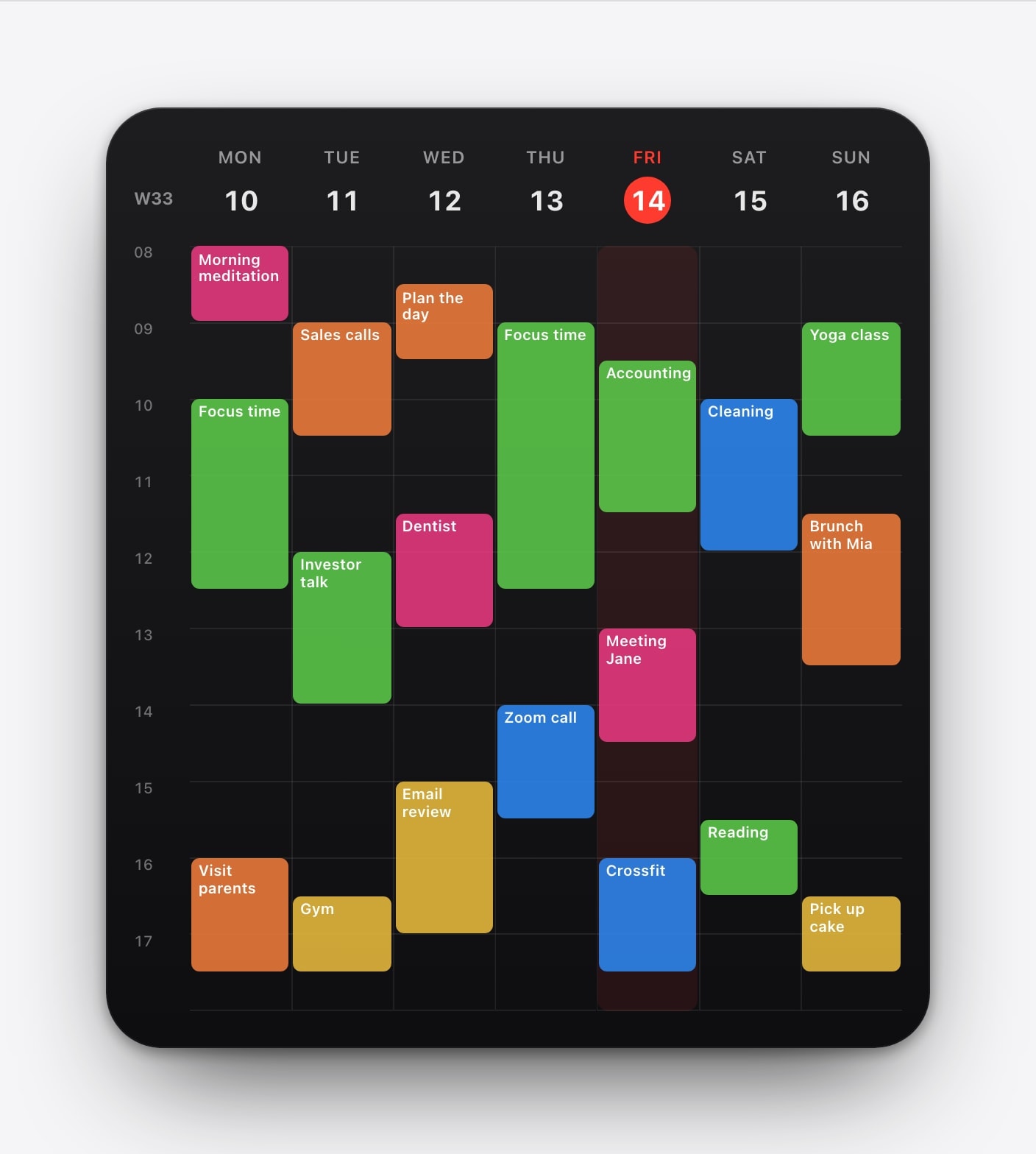
Room codes are the thing everybody wants on the Lock Screen and the thing most likely to be cut off. In a week grid, each day column is a few dozen pixels wide, so you get the first word of the title and very little else. “Economics · 2.14” fits; “Economics (Intermediate Macro) — Alan Turing Building, Room 2.14” becomes “Economics (Inte”.
Two ways out of this. Keep the room in the title but shorten everything else, which works when your room codes are short and your course names are not. Or switch to a list layout, which gives every class a full line and enough space for a building and a room together. The full address stays in the Calendar event either way, one tap from the widget row if you actually need to navigate to it.
Putting it on the wallpaper
Open Calendarly, choose a week layout, and select only the term calendar for the first version. Look at it for a day before adding your personal calendar; a timetable that is legible on its own often stops being legible once social plans are layered on top of it.
Keep the background restrained. A timetable already has structure, colour and small text, and a campus photograph behind it is competing with all three. A plain colour or a very soft gradient will make the schedule look more designed, not less, and it is much easier to read outside in daylight, which is where you will be reading it.
Finish with the automation. Set it to run before your earliest class rather than at some round number, allow it to run without asking, and test it once by hand. From then on, a moved lecture in the feed or a new one-off event shows up in the next morning’s image with no work from you.
Questions people ask
Yes. Add the classes to Apple Calendar, then use Calendarly to generate a week grid or list wallpaper from that calendar.
No. Set classes to repeat weekly with an end date, or subscribe to a timetable feed published by your school.
Short codes usually do. Keep the full address in the Calendar event, and switch to a list layout if your course titles are long.
Apple Calendar receives changes from a subscribed feed on its own, and the wallpaper picks them up the next time the shortcut runs.
No, it is part of the wallpaper. Open Calendar when you need to edit a class or see its full details.