The Best Daily Planner App for iPhone: Your Day, To-Dos and Habits on One Page
Four ways to plan the day on an iPhone compared, from a timeline you drag tasks onto to Calendarly’s Today page, where events from every calendar, to-dos, habits and the weather share one screen.
The best daily planner app for iPhone shows the whole day on one screen, wherever your events and tasks are kept. Calendarly does that on its Today page: the week, events from Apple Calendar, Google, Outlook and Notion, to-dos from Reminders, Todoist and other apps, your habits and the weather, with free widgets and a Lock Screen wallpaper of the same day. Structured is the better pick if you plan by dragging blocks onto a timeline, and TickTick if your planning starts from a long task list.
Planning on an iPhone usually takes three apps: Calendar for meetings, Reminders or a to-do app for tasks, and something else for habits, with the weather checked on the way out. Each works fine alone, and the trouble starts when you have to hold the day together in your head. A planner earns a place on the first Home Screen when one look tells you what is next, what is still open and what you promised yourself today.
Four ways to plan the day, compared
Every app here is free to download, and Apple’s two come with the iPhone. The details come from each app’s App Store page in the US store on 14 November 2026; plans change, so check the listing before you pay for anything.
| App | How it plans the day | Calendars and tasks | Paid tier | Needs |
|---|---|---|---|---|
| Calendarly | Today: the week, the day’s timeline, to-dos, habits and the weather on one page | Apple Calendar, Google Calendar, Outlook, Notion, Reminders, Todoist, Google Tasks, Microsoft To Do and TickTick | Pro is for wallpapers; Today, habits and widgets are free | iOS 26 for Today |
| Structured | A timeline you drag tasks onto, with an inbox and a Pomodoro timer | Its own tasks; your calendars and Reminders with Pro | Pro: monthly, yearly or lifetime | iOS 18.0 |
| TickTick | A to-do list first, with calendar views, habits and a Pomo timer | Its own lists; calendar subscriptions with Premium | Premium subscription | iOS 15.5 |
| Calendar and Reminders | Apple’s own apps, one for events and one for tasks | Any account added in Settings: iCloud, Google, Outlook, Exchange | Free, built in | Any iPhone |
Structured’s free version plans with the tasks you create in it; putting your calendars and Reminders on its timeline is part of Structured Pro, along with routines and its AI planning. TickTick’s free plan covers tasks, habits and countdowns, and Premium adds full calendar views, calendar subscriptions and higher limits. Apple’s two apps cost nothing and sync through iCloud, but they keep the day in two places.
What Calendarly’s Today page shows
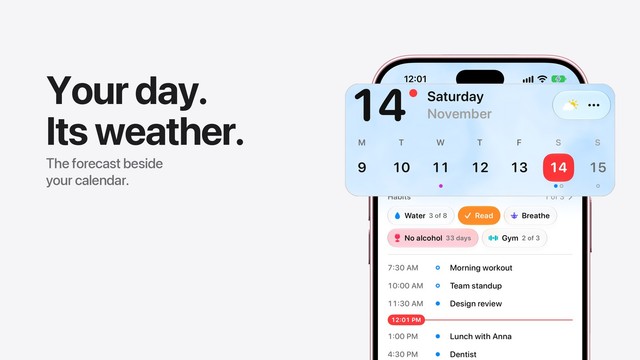
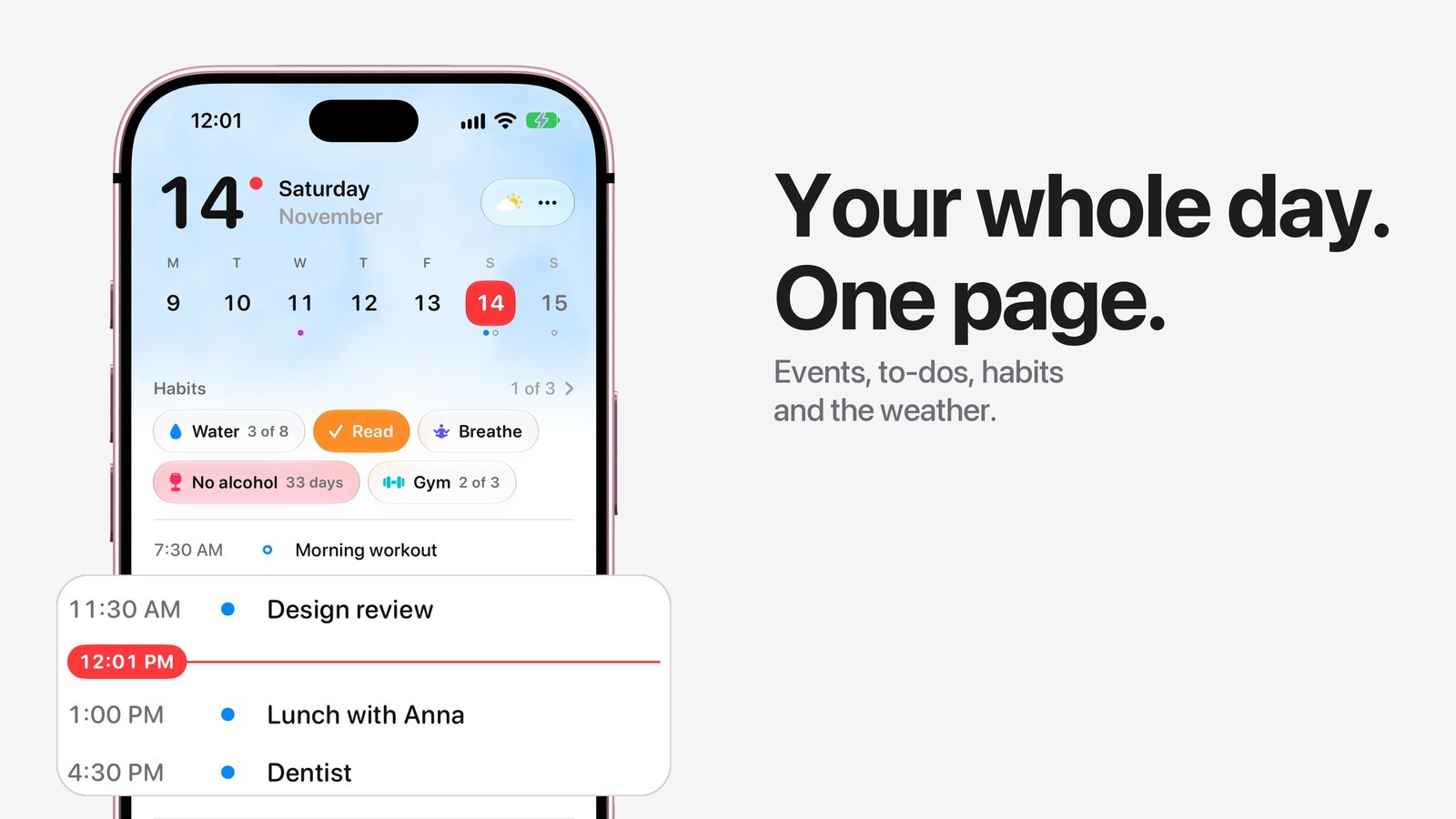
Today opens with the date in large type, the week under it and a weather capsule beside the date. Pull the week down and it opens into the whole month, with dots under the days that have something on them. Below sit your habits as capsules you tap to check in, then the day itself: every event at its time from every calendar you use, a red line marking the current minute, and the to-dos for the day with circles you tap to tick off.
A tap on an event opens it in place, with how soon it starts and its hours drawn on a scale of the day. The plus button in the corner opens one sheet for an event, a to-do or a habit, and it reads the time in what you type, so Lunch with Anna at 1pm fills in the day and the hour for you. The page follows the iPhone’s light or dark appearance.
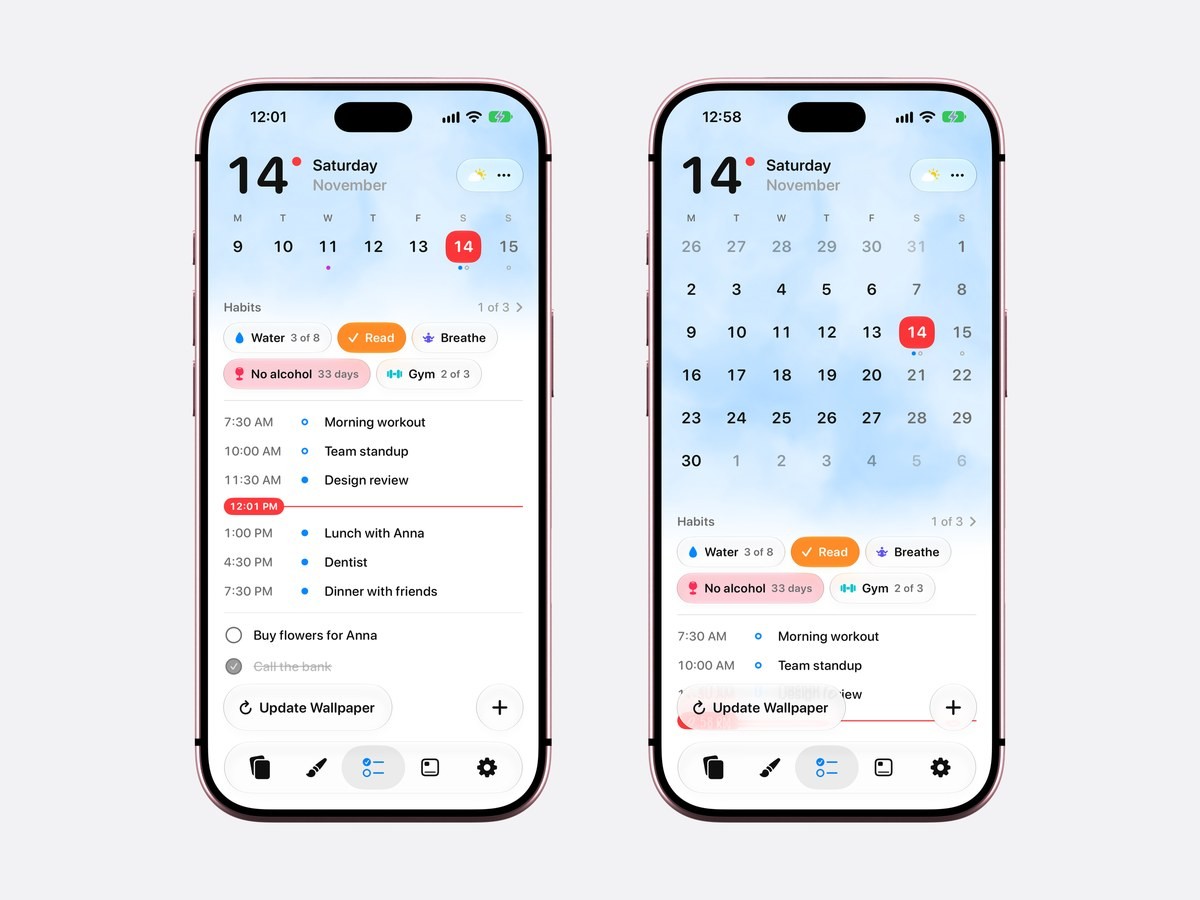
At the foot of the page, Update Wallpaper runs Calendarly’s shortcut, so the Lock Screen wallpaper picks up an event you just added without waiting for the next morning.
Every calendar and to-do list in one day
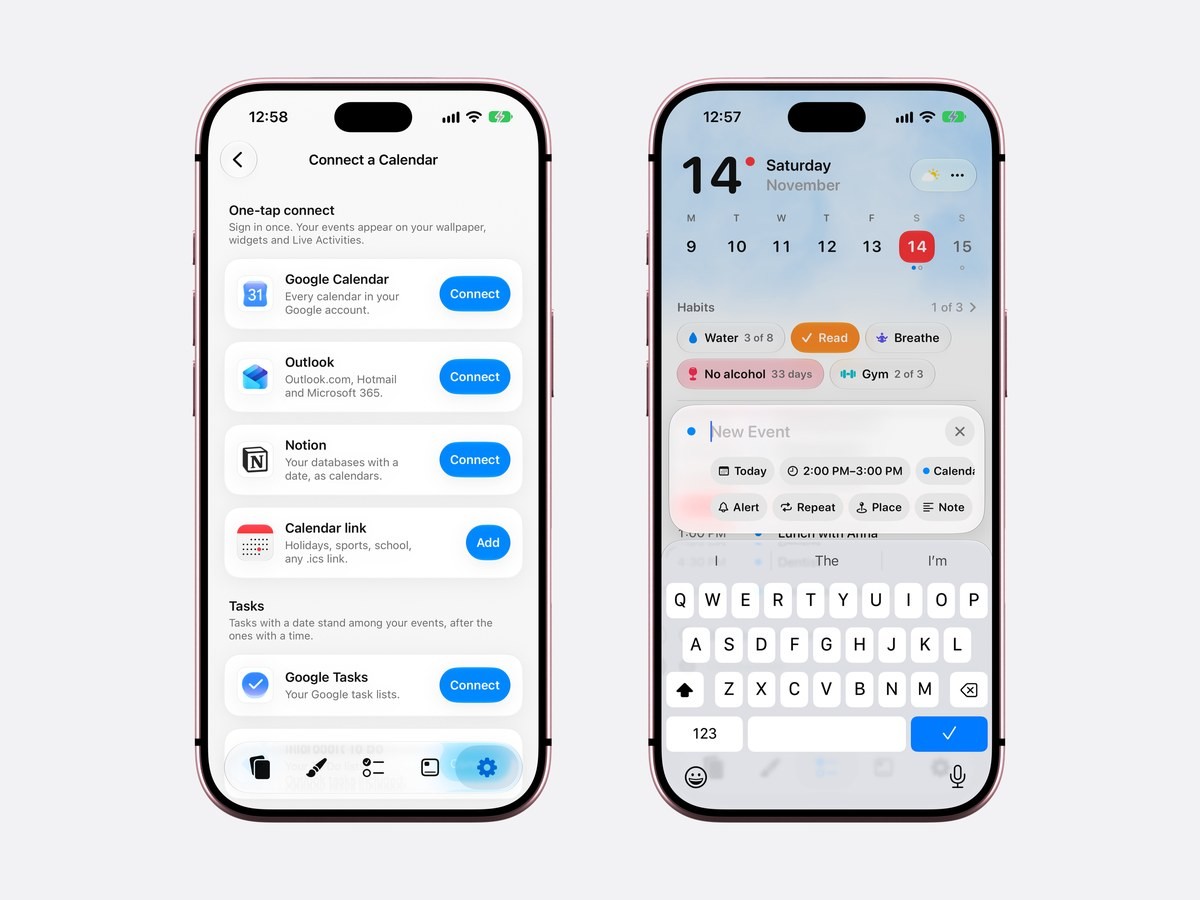
Calendarly reads the calendars already on your iPhone, so iCloud, Google, Outlook and Exchange accounts added in Settings show up as they are. It can also connect Google Calendar, Outlook and Notion with a sign-in of their own, read only, which helps when a work account is not on the phone. To-dos come together in My List: Apple Reminders, Todoist, Google Tasks, Microsoft To Do and TickTick land in one list with overdue tasks first, and the ones with a time stand among the events.
Without calendar access, Calendarly keeps the events you add in its own calendar on the iPhone, and when you allow access later, they move into Apple Calendar. With access, a new event goes into the calendar you pick, so Apple’s Calendar app shows it too. The guides to Google Calendar and Outlook on the Lock Screen go through those accounts step by step.
The weather next to the date
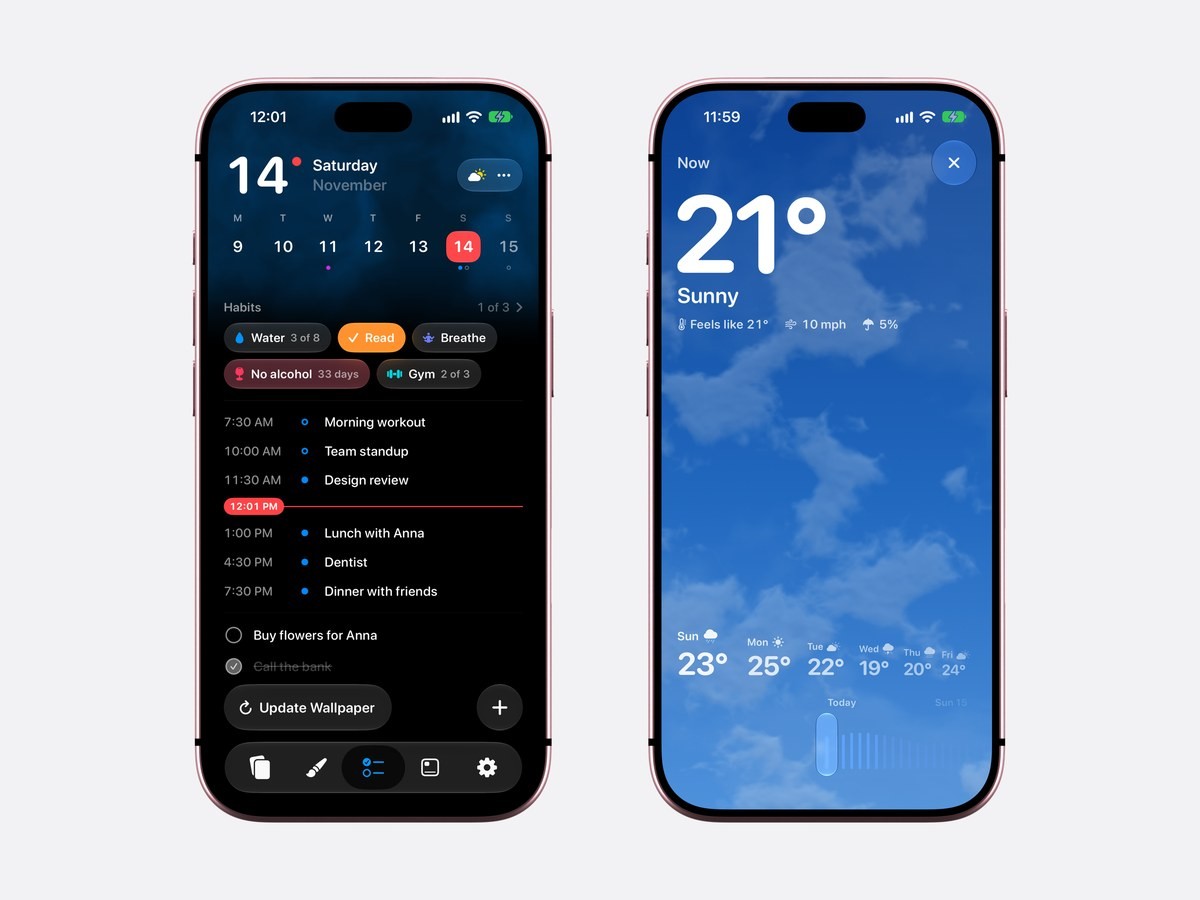
The capsule beside the date shows the weather now. Tap it and it grows into the full forecast: the temperature, what it feels like, the wind and the chance of rain, ten days of hours on a ruler you slide with a finger, and the days ahead. Behind the date, the sky on Today follows the real weather, with a few thin lines of rain or soft dots of snow when there is some.
The forecast comes from Apple Weather. Calendarly asks for your location only when you tap the weather, rounds it to about a kilometer on the iPhone and sends it only to Apple’s weather service. The weather also has two wallpapers of its own: Sky, which is free, and Forecast, the day’s events with the weather at their hours, which is part of Calendarly Pro. Both are shown in the guide to a calendar app with weather.
Habits inside the plan
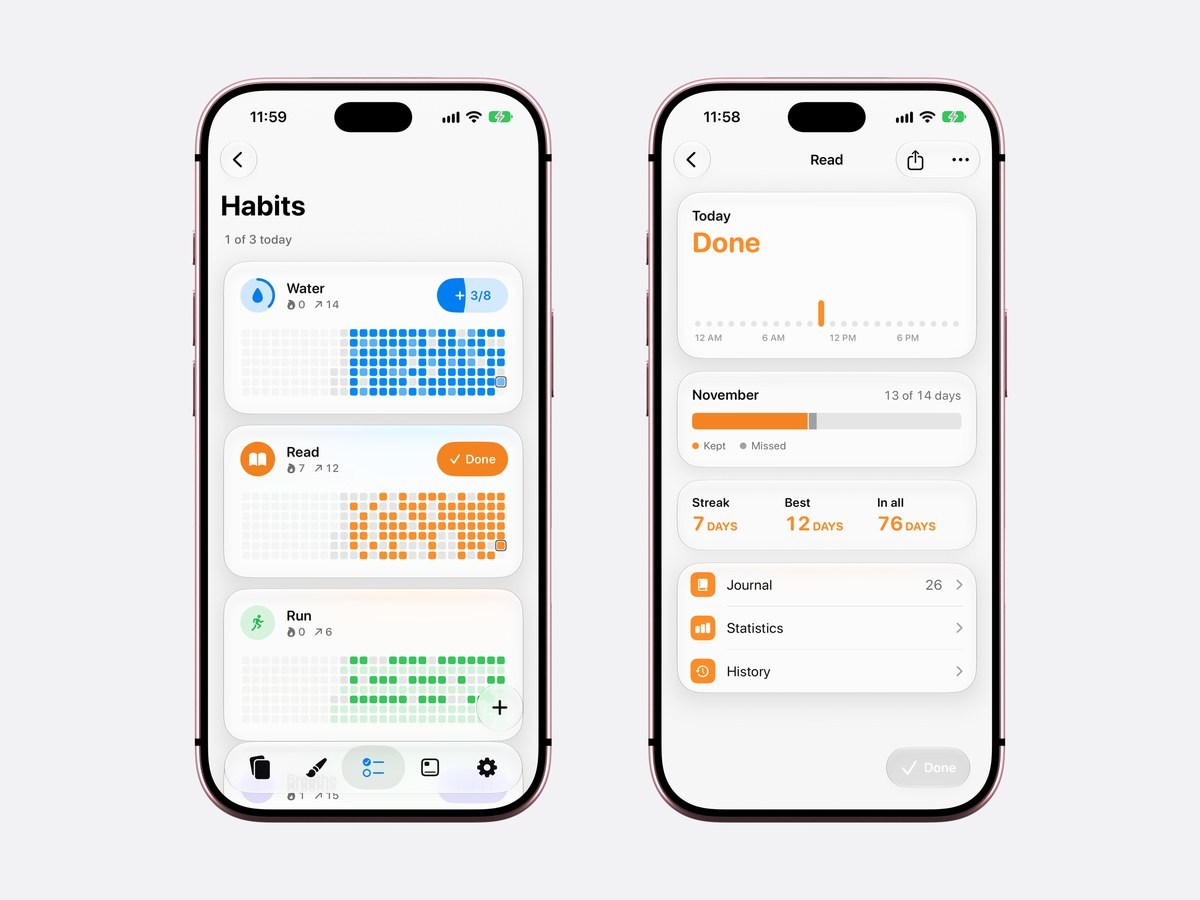
Habits sit at the top of Today because the day is where they get done or skipped. A habit can count several times a day, run on chosen weekdays or count the days since you quit something, and each one has a page with its streak, its month, a journal, statistics and history. Calendarly’s habits are compared with Streaks, HabitKit and others in the best habit tracker apps for iPhone.
How to plan your day with Calendarly
- 1Download Calendarly
Get Calendarly from the App Store. It is free, needs no account, and the Today page runs on iOS 26 or later.
- 2Open Today and allow your calendars
Calendarly opens on Today. Allow Calendar and Reminders access to see everything already on the phone, or skip it and start with Calendarly’s own calendar.
- 3Add your other accounts
Tap the button with three dots beside the date and choose Calendar Accounts to connect Google, Outlook or Notion; Settings ▸ Calendar Accounts opens the same page.
- 4Add with the plus button
One sheet makes an event, a to-do or a habit. Type the time in the title, such as Dentist on Friday at 4pm, and the day and the hour fill in.
- 5Put the day on the Lock Screen
Pick a layout in the Gallery and tap Use as Wallpaper. The first time, Calendarly adds the Update Calendarly Wallpaper shortcut and walks you through one morning automation; after that, Update Wallpaper on Today redraws it whenever the plan changes.
The day without opening the app
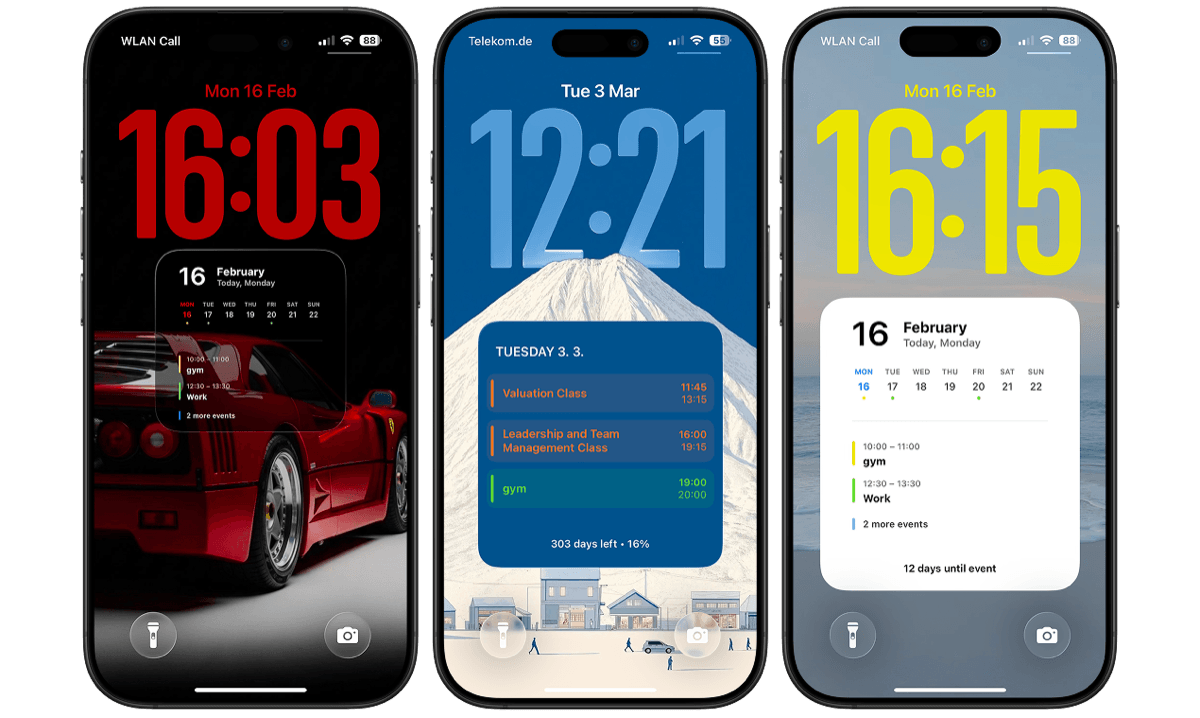
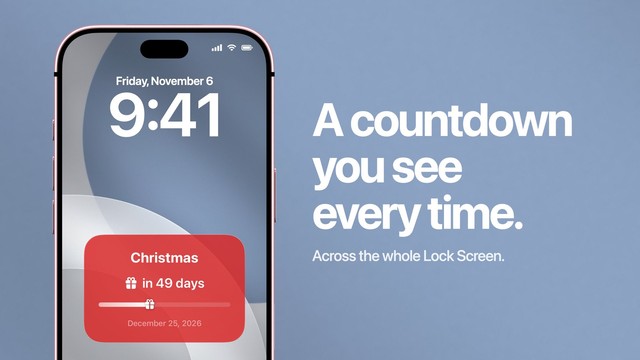
Calendarly also puts the day on the Lock Screen, so you see it every time you pick up the phone. It draws your day, week or month into the wallpaper and redraws it every morning through an Apple Shortcuts automation, because iOS lets no app change the Lock Screen by itself. The Lock Screen calendar guide shows the layouts, and a to-do list on the Lock Screen works the same way. On the Home Screen, the free widgets show the month, the next events, your to-dos or your habits, as described in calendar on the iPhone Home Screen.
What the iPhone does on its own
Apple’s Calendar and Reminders cover events and tasks and sync through iCloud, and both have Home Screen widgets. They stay two separate apps, there is nowhere to keep habits, and the Lock Screen Calendar widget leaves out all-day events, so a birthday or a day off never shows under the clock. If two apps and two widgets are enough for you, that is a fine free planner. Apple explains how to add widgets and how to add calendar accounts to the iPhone.
Sources
Questions people ask
For your events, to-dos, habits and the weather on one free page, Calendarly’s Today. Structured suits people who plan by dragging tasks onto a timeline, and TickTick people who start from a task list.
Yes. Calendarly’s Today page is free and shows events from Apple Calendar, Google, Outlook and Notion with to-dos from Reminders, Todoist, Google Tasks, Microsoft To Do and TickTick. Structured’s free version plans with its own tasks, and connecting your calendars is part of Structured Pro.
Yes. Accounts added in the iPhone’s Settings appear on their own, and Calendarly can also connect Google Calendar, Outlook and Notion directly with a read-only sign-in.
Yes. The plus button on Today adds events, to-dos and habits. With calendar access, events go into the calendar you pick, so Apple’s Calendar shows them too; without access, Calendarly keeps them in its own calendar on the iPhone.
Today and the habits need iOS 26 or later. On iOS 16.6 to iOS 18, Calendarly still draws your calendar and to-dos into the Lock Screen wallpaper and has free widgets.
Yes. The capsule beside the date shows the weather now, and a tap opens the forecast for the next ten days, from Apple Weather. Calendarly asks for your location only when you tap it.
Calendarly is free to download. The Today page, habits, the weather, every widget, every Live Activity and 99 of its 156 wallpaper layouts are free. Calendarly Pro unlocks every layout and your own photos as backgrounds.