iPhone Calendar Wallpaper That Updates Automatically
A calendar wallpaper is only useful if it shows this week, not the week you saved it. Here is how the automatic kind works.
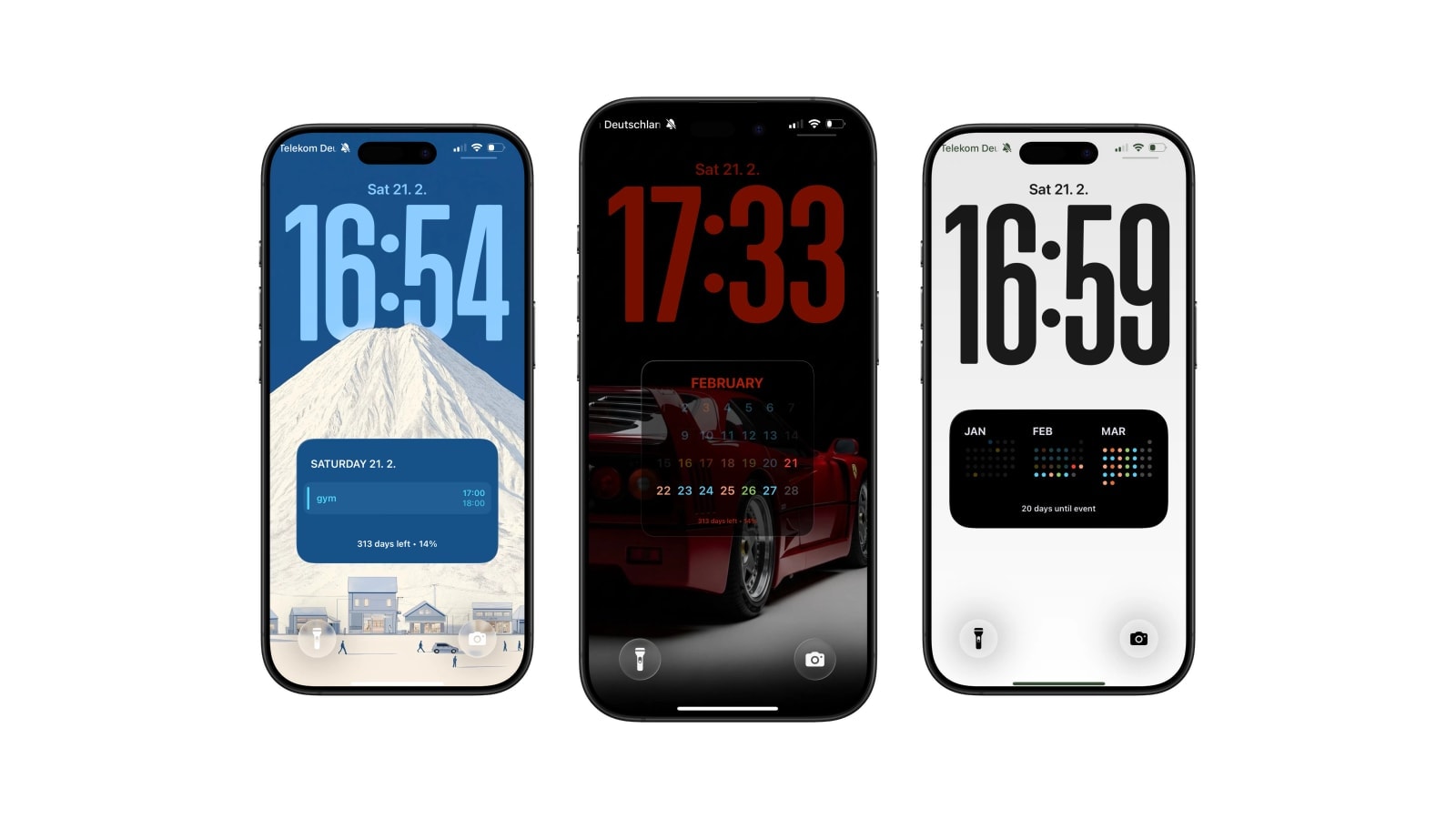
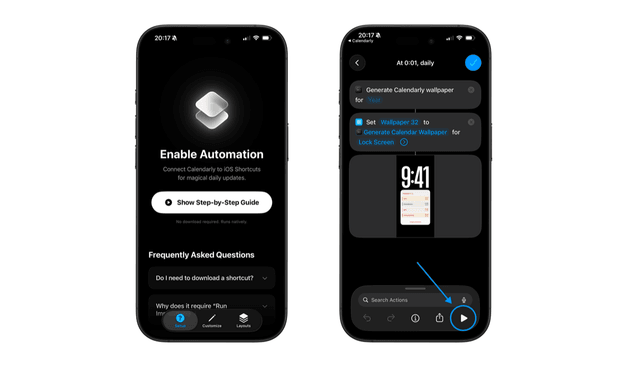
Yes, an iPhone calendar wallpaper can update itself every morning, and the machinery is smaller than it sounds: an app that draws the image, an Apple Shortcuts automation that applies it, and a time of day you choose once.
The thing that decides whether this works is which kind of wallpaper you start from. Almost every calendar wallpaper you can download is a finished picture with a month baked into the pixels, so it is correct for a few weeks and then quietly stops being true. A generated wallpaper starts from data instead. Each morning the phone reads the calendars you allowed, lays the dates and events out, and exports a brand new image, which is why it is never older than the last time it ran.
Everything below follows from that difference: what actually happens when the automation fires, how much of your day is worth putting on the screen, and the two situations where a wallpaper is the wrong answer entirely.
What actually happens at seven in the morning
Shortcuts can run a personal automation at a time of day, and when yours fires, iOS wakes a small background process and runs the Generate Wallpaper action inside it. That process asks the system for the events in whatever range your layout needs, draws them into an image at your iPhone’s exact pixel size, writes the file, and hands it to the wallpaper setter. It takes a second or two, and the phone can be face down in a pocket the entire time.
Two things follow from that, and both are worth knowing before you build a routine around it. Nothing is live, so if somebody moves the ten o’clock to half past eleven at nine, your wallpaper keeps saying ten until the next run. And the automation belongs to the device rather than to an account, which means it survives app updates and iOS updates but not a wiped phone, and you can switch it off in the Automation tab of Shortcuts in about two taps on the day you have had enough of it.
Most people settle on one run early in the morning. A second run after lunch is worth adding only if your calendar genuinely churns during the day, and even then it is often better to just open Shortcuts and run it by hand on the rare day something big moves.
Two pictures of the same Tuesday
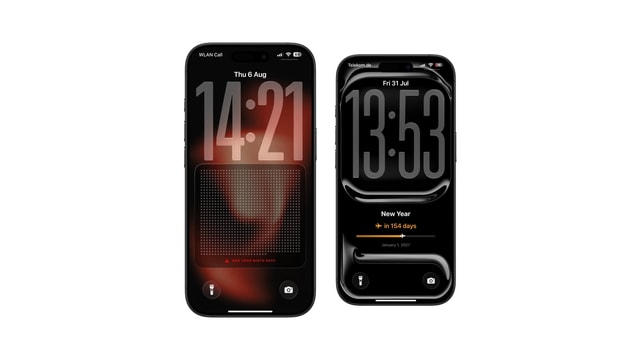
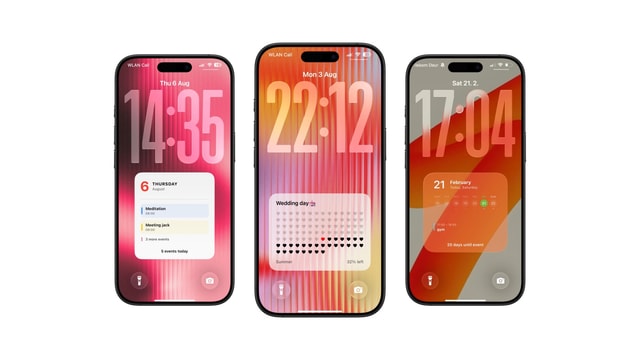
It helps to see what the two approaches actually produce. A downloaded August wallpaper shows a grid of August, beautifully set, with no idea which day is today and no idea that you have a dentist appointment. A generated one shows the same grid with the current day marked and your three events sitting on the days they belong to, and tomorrow it shows the same thing shifted by one square.
That is not an argument that downloads are bad. If you want a poster on your phone, a poster is exactly right, and it costs you nothing to set up. It is only that a poster answers a question you were not asking. Nobody unlocks their phone to find out what August looks like.
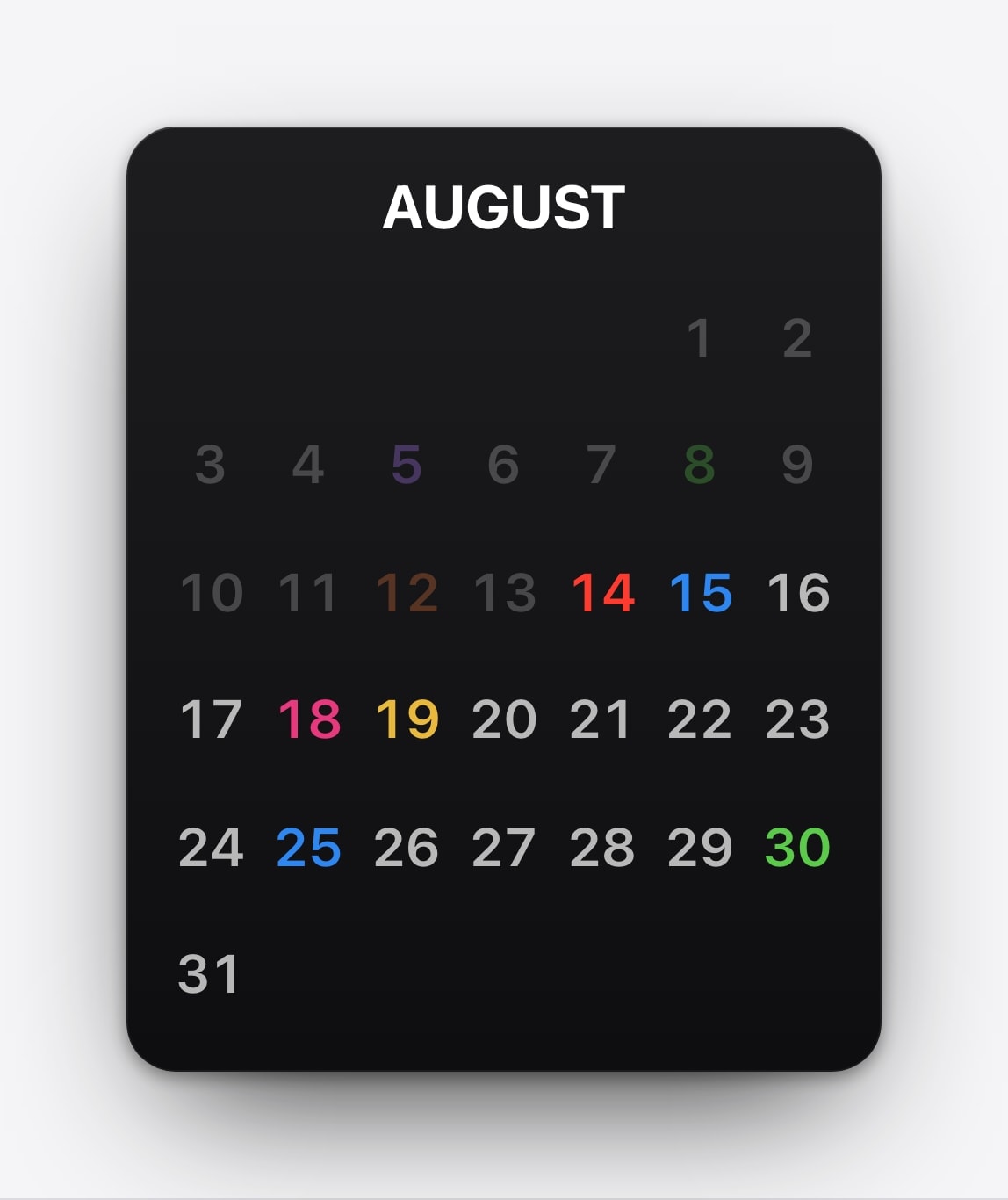
No setup, no permissions, no app. The month and the events are painted in, so replacing it is a monthly chore you will eventually stop doing.
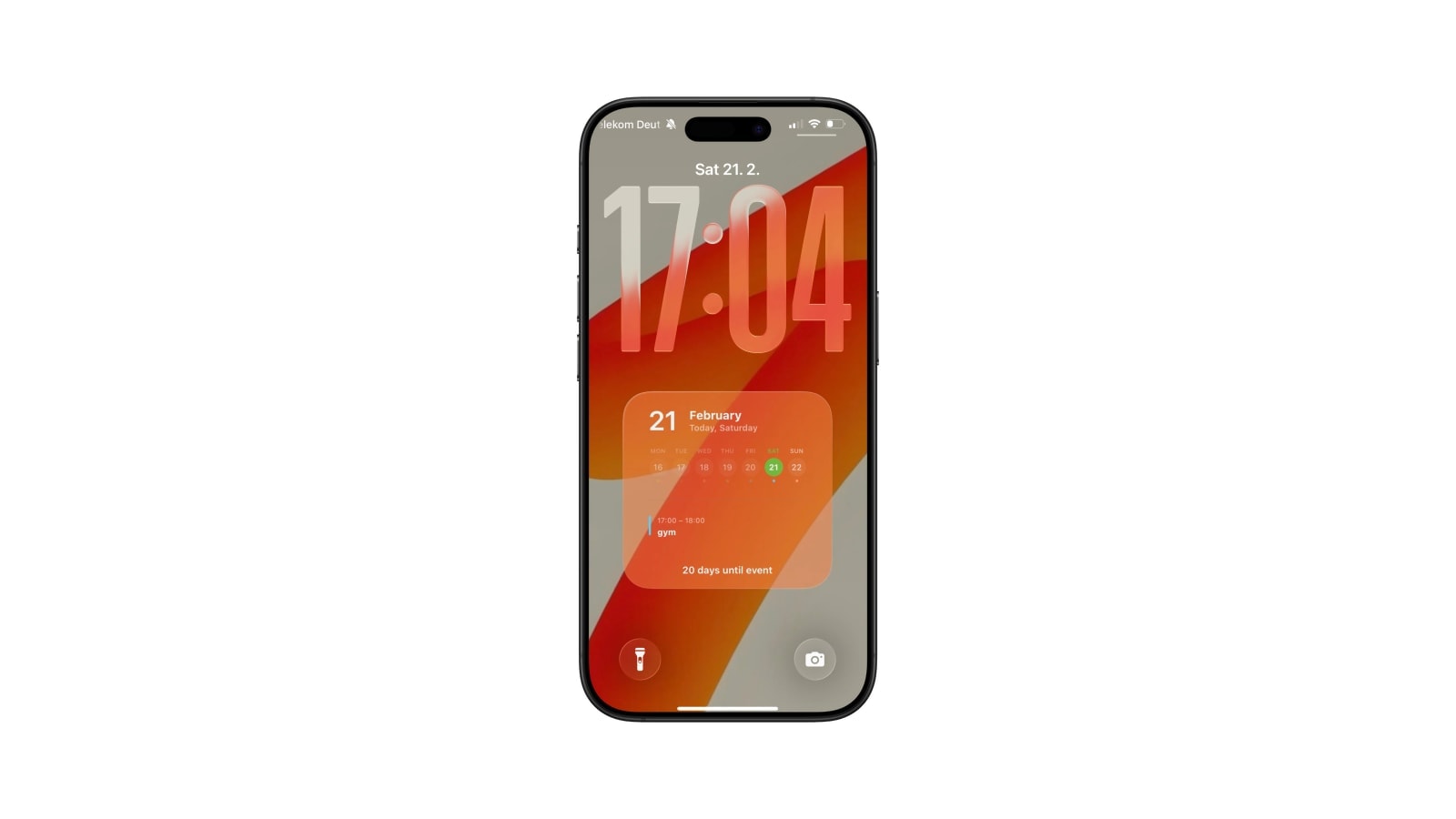
Two minutes of setup once. After that the date, the schedule and any countdown move on their own, including across month and year boundaries.
How much of the day is worth showing
The instinct is to put everything on there, and it is the wrong instinct, because a Lock Screen is read in about a second while you are walking. The useful question is which single thing you keep unlocking the phone to check, and then to show that.
A month grid is for orientation: which week you are in, when the trip falls, how far away the deadline is. A week is for shape: which days are heavy, where the free morning is, whether Thursday starts early enough to matter tonight. A daily agenda is for sequence: what is next, at what time, and how long the gap is before it. Pick the one that matches the question you actually ask, and resist adding the other two.
Density matters more than people expect. Long event titles die in a month grid, where each day is a few millimetres wide, and they survive comfortably in a list. If your calendar is mostly “Weekly cross-functional design review”, a list is the honest choice; if it is mostly birthdays and flights, the grid is enough.
The part of the screen you cannot use
The top quarter of an iPhone Lock Screen belongs to iOS. The clock sits there, the date sits above it, and the widget row sits under it, and none of that can be moved out of the way. On a modern iPhone that is roughly the top 280 points of the canvas, plus about 150 at the bottom for the home indicator and the flashlight and camera buttons.
Calendarly reserves both bands, which is why its layouts start lower down the screen than you would expect from a design tool. Your background does not know about them, though, and this is where most homemade calendar wallpapers fall apart: the interesting part of the photograph ends up directly behind the clock, and the calendar ends up in the busiest part of the picture.
Preview it with the clock on. A layout that looks perfect as a flat image can be unreadable the moment 09:41 and a notification land on top of it. Check the real Lock Screen before you commit, not the export.
When a wallpaper is the wrong answer
There are two cases where you should not bother. The first is a schedule that changes hour by hour because other people are editing it, which is common in shared work calendars and in hospital rotas. A snapshot taken at seven in the morning is worse than useless there, because it is confidently wrong rather than obviously empty. Use a widget, which stays connected to the live calendar, or just open Calendar.
The second is when what you need is an alert. A wallpaper cannot interrupt you, so anything with a real consequence for being missed belongs in a notification. Medication, a flight, a call at a specific minute: those are notification jobs, and putting them on a wallpaper instead is a downgrade dressed up as a design decision.
For everything else, which is most personal calendars most of the time, a scheduled snapshot is enough, and its refusal to buzz at you is a large part of why people keep it.
Set it up once and stop thinking about it
The best version of this is the one you forget you configured. Choose one layout, point it at the two or three calendars you actually act on, add the morning automation, and then leave it alone for a week before touching anything. Almost every refinement people make on day one gets reverted by day five.
You can see the layouts on the Calendarly home page. Twelve of them are free and there is no account to make, so the only real cost is the two minutes it takes to add the automation.
Questions people ask
Yes. An app generates a new image from your selected calendars and a personal automation in Apple Shortcuts applies it as the Lock Screen wallpaper at a time you choose.
No. It is a scheduled snapshot rather than a live widget. Run the shortcut again for an immediate refresh, or add a second scheduled run if your calendar changes during the day.
No. Each run uses the current date, so month, week, daily and countdown layouts roll forward on their own, including across the end of the year.
Yes. Pick one with an open area where the calendar will sit, and check the result with the iOS clock visible before you save it.
Calendarly reads Apple Calendar and Reminders on the iPhone and draws the image there. There is no Calendarly account.