How to Set Up a Life Calendar on Your iPhone
Choose the dates and design, add a two-minute Shortcuts automation, test the Lock Screen, and understand why the grid moves weekly.
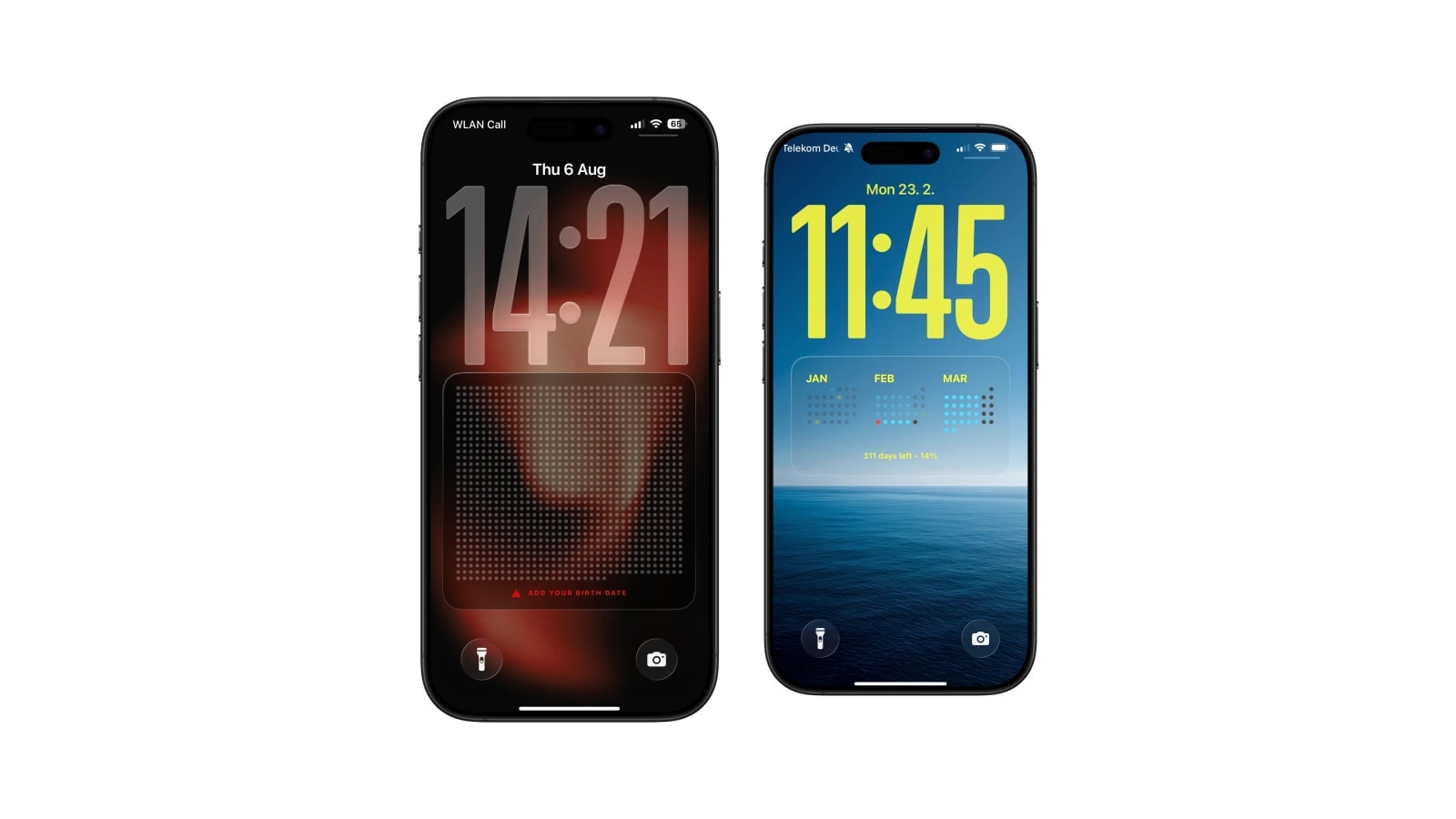
Setting one up takes about two minutes and has two halves: choose the dates and the design in Calendarly, then add a single Shortcuts automation so the wallpaper can refresh on its own.
You need a birth date, a horizon such as 80 or 90 years, and an ordinary photo or colour Lock Screen for the wallpaper to be applied to. The horizon is where the picture stops and is not a prediction of anything.
One expectation to set before you start: the grid moves about once a week. A daily automation is for reliability and for picking up any design changes, not because something visibly changes each morning.
Keep one plain Lock Screen for it. Generated wallpapers apply most predictably to a standard photo or colour Lock Screen rather than to a Photo Shuffle or a special dynamic style.
The five steps
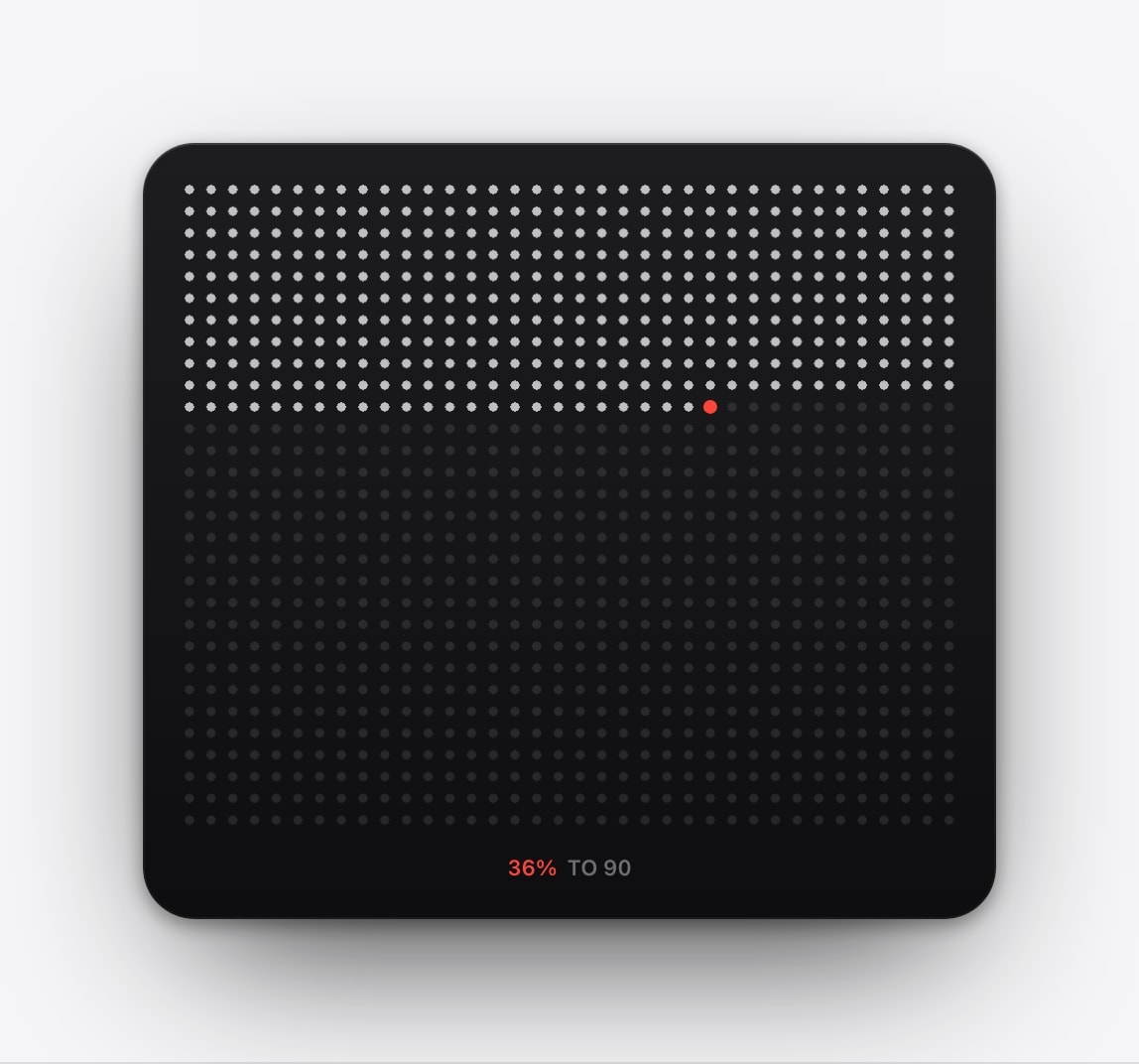
- 1Open a life calendar layout
In Calendarly, pick one from the Life section of the gallery.
- 2Enter the birth date
The local calendar date. The app uses it on the phone to work out how many weeks have elapsed.
- 3Choose the horizon and unit
80, 90 or another age as the boundary, and weeks, months or years as the cell size.
- 4Look at it as a Lock Screen
Check the grid against the real clock area, the background and the current-week marker before saving.
- 5Add the automation
Follow the guided Shortcuts steps, pick a time, and allow it to run without asking.
Test it once, properly
Run the shortcut by hand, lock the phone, and look at it. This is worth doing even though it feels unnecessary, because the two most common failures are silent: an automation that never fires, and one that fires and replaces a Lock Screen you do not use.
If iOS asks for permission during that first run, answer it rather than dismissing it, since a declined prompt is remembered and produces exactly the same silent failure later. Repeat the manual run after any major iOS update, when permissions and Lock Screen selections occasionally need attention even though nothing about your layout changed.
What happens after setup
The wallpaper stays an ordinary image and the shortcut generates a fresh one at your chosen time. The marked cell advances when a new week begins, and any change you make to the design shows up at the following render rather than immediately.
Everything remains reversible. You can turn the automation off in Shortcuts, change the horizon, switch units, or move to a completely different layout, and none of that requires undoing anything.
It is meant to look still most days. The position advances weekly, not like a clock. To confirm it is working mid-week, change something visual and run the shortcut by hand.
Questions people ask
Around two minutes, including the guided Shortcuts automation.
Only for automatic refreshes. You can generate and apply the wallpaper by hand without any automation at all.
The marked position advances about once a week, even when the wallpaper is generated daily.
No. It only sets where the grid ends.
Run the shortcut manually, check that the automation is enabled and allowed to run without asking, and confirm it targets a Lock Screen that still exists.