Life Calendar Wallpaper Not Updating? Here Is Why
A life calendar that never advances is almost always one of four things, and three of them are settings you can check in a minute.
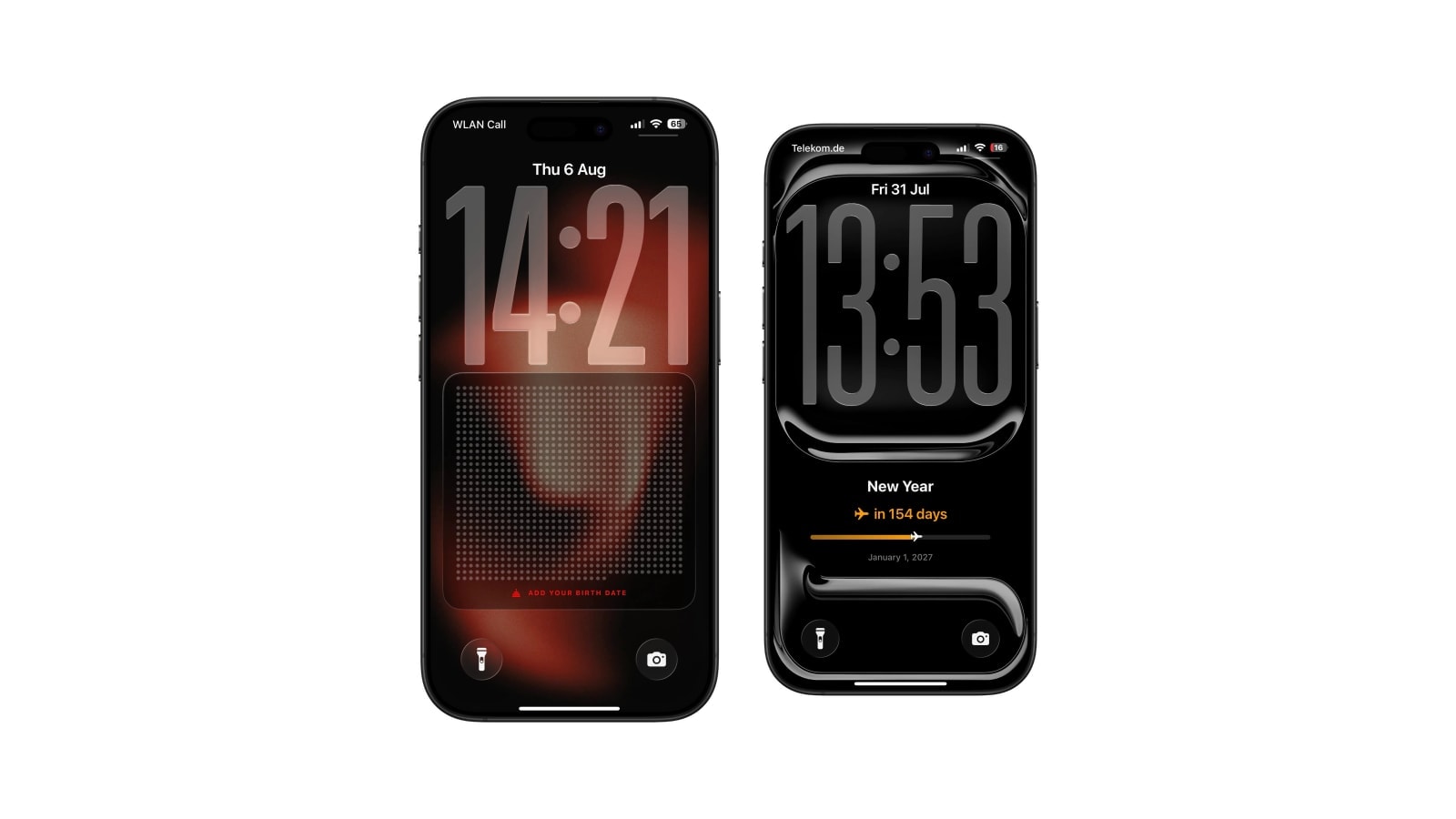
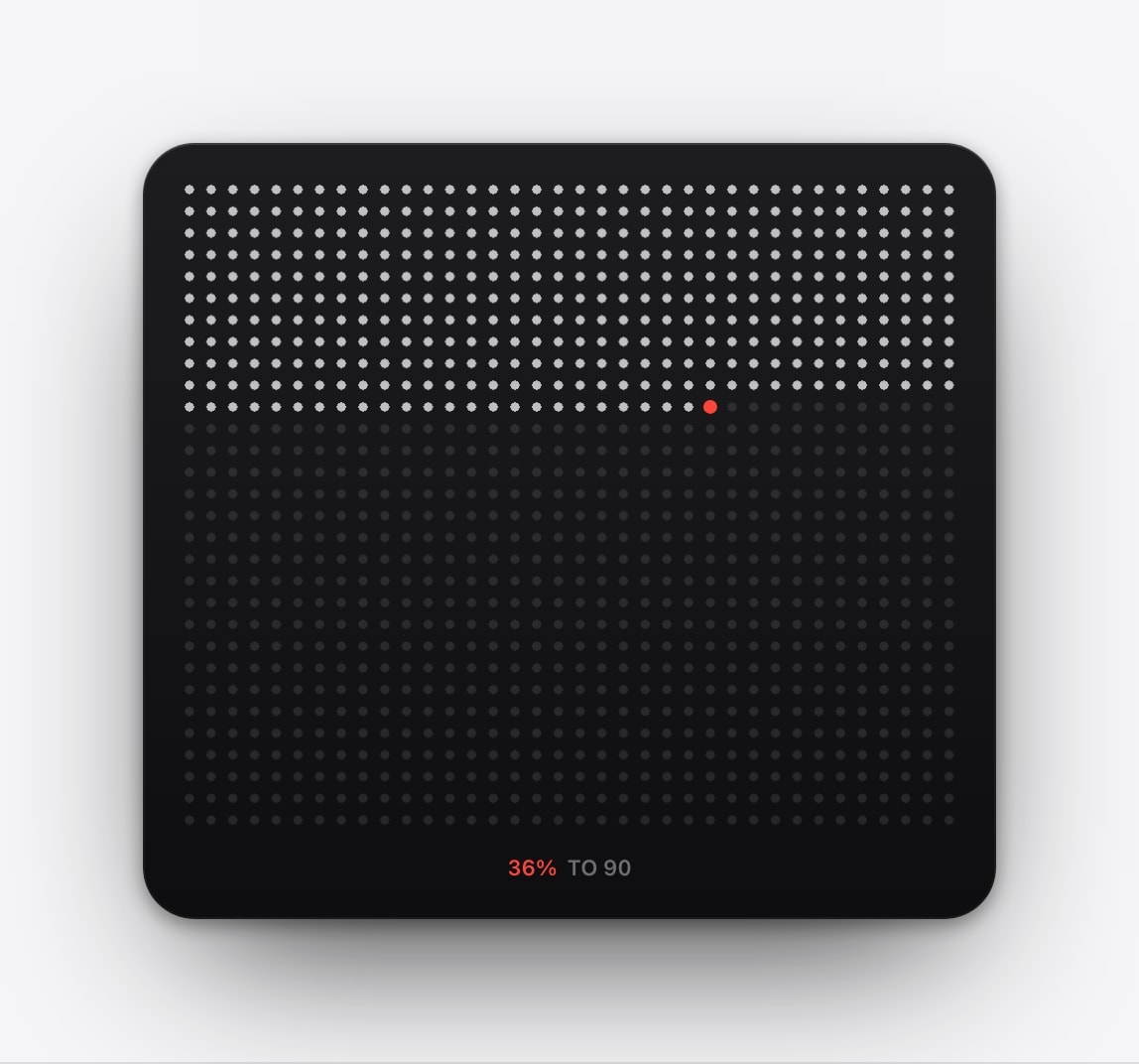
Before troubleshooting anything, check the expectation: a life calendar marks weeks, so the marker moves once a week and looks identical on the six days in between. A large proportion of “it is not updating” turns out to be a chart working exactly as designed.
If you are sure it should have changed, run the shortcut by hand before touching any settings. That single action splits the problem in two. A new image means the layout is fine and the automation is the fault; no new image means the problem is the target Lock Screen or a permission.
The checks below are in the order that finds the fault fastest, and none of them deletes your layout.
A daily refresh does not mean daily movement. The wallpaper is regenerated every day for reliability. The marked cell advances only when a new week starts.
Four checks
- 1Run it by hand
Open Shortcuts and run the Calendarly wallpaper shortcut, then lock the phone and look at the result.
- 2Check the automation
In the Automation tab, confirm it exists, is enabled, uses the time you expect, and is allowed to run without asking.
- 3Check the target Lock Screen
Confirm the shortcut points at an ordinary photo or colour Lock Screen that still exists. A deleted one fails silently.
- 4Open Calendarly once
Especially after an iOS update. Launching the app lets it re-ask for anything a system update reset.
Proving it works mid-week
There is a simple test for the case where you cannot tell whether anything is happening. Change something harmless in the layout, such as the accent colour or the background, then run the shortcut by hand. If the change appears, the whole chain is working and you were looking at a week that had not ended yet.
It is worth doing this once when you first set it up, because it establishes what a working system looks like. Without that reference point, an ordinary unchanged Tuesday and a genuinely broken automation are indistinguishable from the Lock Screen.
If the manual run fails too
Then the problem is in the chain rather than in the schedule, and there are only a few links. Open the automation and check that it still points at Calendarly and at a Lock Screen that exists. Major iOS updates, a deleted Lock Screen and a permission that was declined at some point are the three causes that account for nearly all of these.
Do not reinstall the app first. Reinstalling removes local choices, occasionally including the layout you were trying to rescue, and it almost never repairs a Shortcuts configuration, because the configuration lives in Shortcuts rather than in the app.
Note where it stops. Which step failed, which iOS version, and whether a manual run produces an image at all. That is a report somebody can act on, where “it does not update” is not.
Questions people ask
Because it represents weeks. The marker normally moves only once a week, so most days genuinely look identical.
No. Only a newly generated image can contain a new marker position.
The Lock Screen does not redraw while you are looking at another screen. Locking shows you the wallpaper that is currently applied.
Run the Calendarly shortcut manually. That separates a layout problem from an automation problem in one step.
Not first. Check the shortcut, the automation, the target Lock Screen and permissions before anything that removes local data.