iPhone Lock Screen Calendar Widget Not Showing Events? Here's Why
Check calendar selection, account sync, widget configuration and Lock Screen access, then decide whether the issue is a fault or limited space.
Before changing anything on the Lock Screen, open the Calendar app and check that the event is actually there, on the date you expect, in a calendar that is ticked. Roughly half of empty widgets are an empty calendar, and no amount of widget surgery fixes that.
Once you know the event exists, the causes narrow down quickly: a hidden calendar, an account that has stopped syncing, a stale widget instance, a Lock Screen access setting, or the widget quietly doing exactly what it was designed to do.
The checks below are ordered by how often they turn out to be the answer, and none of them deletes anything.
Start in Calendar, not on the Lock Screen. If the Calendar app itself does not show the event, the widget cannot. Fix the source before touching the widget.
The five checks, in order
- 1Confirm the event in Calendar
Go to the date. If it is missing here, the problem is the account or the calendar, not the widget.
- 2Check which calendars are visible
Tap Calendars at the bottom of the Calendar app. An unticked calendar is invisible to every widget on the phone.
- 3Check account sync
Settings, then Apps, then Calendar, then Calendar Accounts. On older versions of iOS this lives at Settings, then Calendar, then Accounts. Confirm the relevant iCloud, Google or Exchange account is enabled and fetching.
- 4Reconfigure the widget
Press and hold the Lock Screen, tap Customise, then tap the widget. Some calendar widgets let you choose a specific calendar, and that selection can end up pointing somewhere unexpected.
- 5Remove it and add it again
This gives iOS a fresh widget instance and clears a stale timeline. Restart the phone only if that does not help.
The settings people forget
Two settings outside Calendar can quietly empty a widget. The first lives in Settings under Face ID & Passcode, in the Allow Access When Locked section, which controls how much the Lock Screen is permitted to reveal before authentication. The second is Focus: a Focus can filter which apps and notifications reach you, and a filtered calendar behaves like a missing one.
It is worth resisting the obvious fix here. Turning off Lock Screen protections to make a widget populate is trading a real privacy boundary for a small convenience, and once you have done it, every event title on your calendar is readable by anyone who picks the phone up. If the titles are sensitive, the better answer is a less detailed widget or a layout you control.
A visible calendar is visible to everyone holding the phone. Use neutral titles for anything medical, legal or personal. The Lock Screen shows them before Face ID has decided who you are.
When nothing is broken
There is a category of this problem that no amount of troubleshooting solves, because the widget is working correctly and the expectation is wrong. Lock Screen widgets are sized for a single glanceable item. If yours reliably shows the next event and you were hoping for the next five, there is nothing to repair.
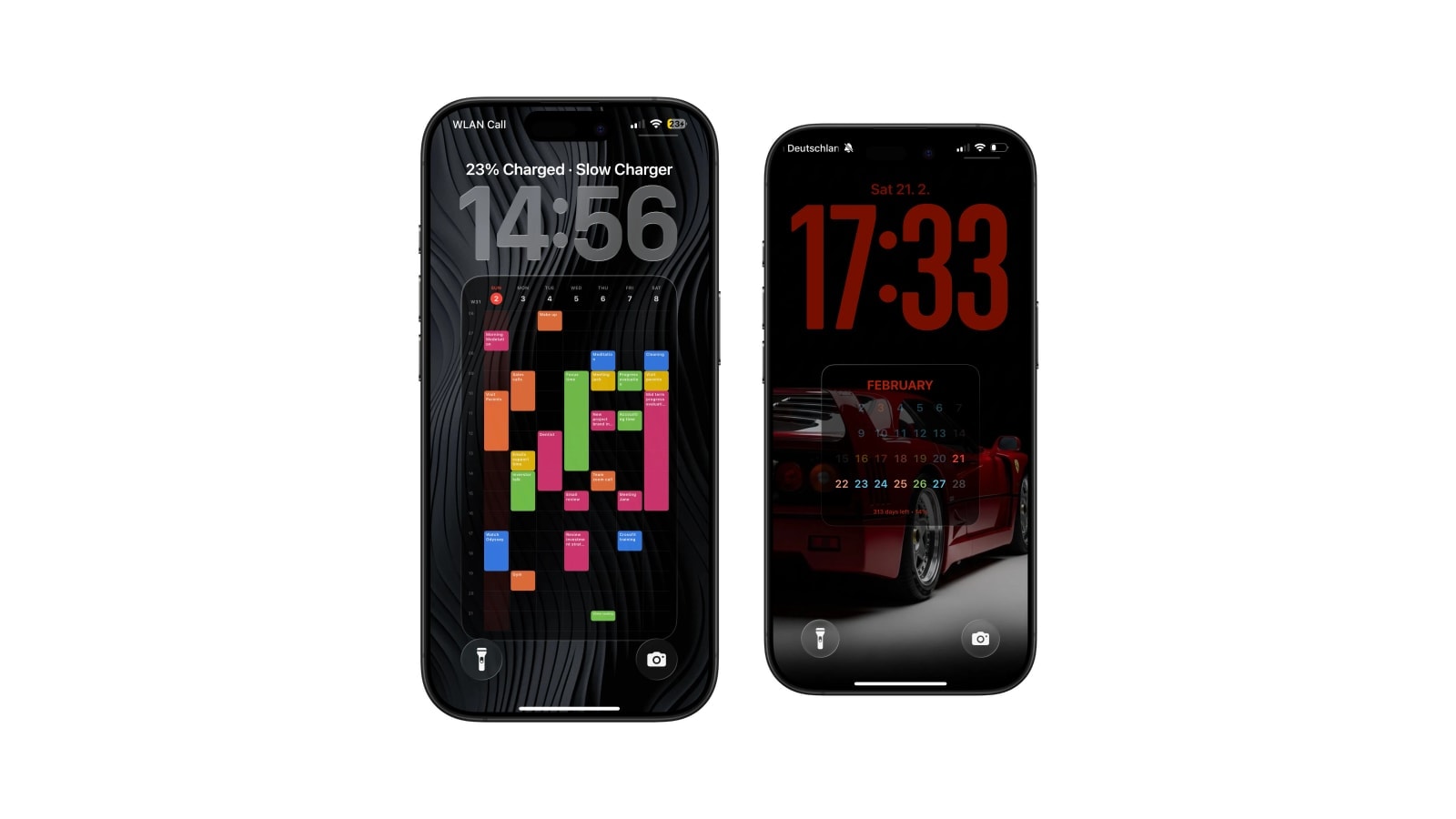
That is the point at which the useful question changes from how to fix the widget to which surface fits the job. A widget is right when you want one live item and a tap into Calendar. A generated wallpaper is right when you want the day or the week visible at once, and it has roughly twenty times the area to do it in.
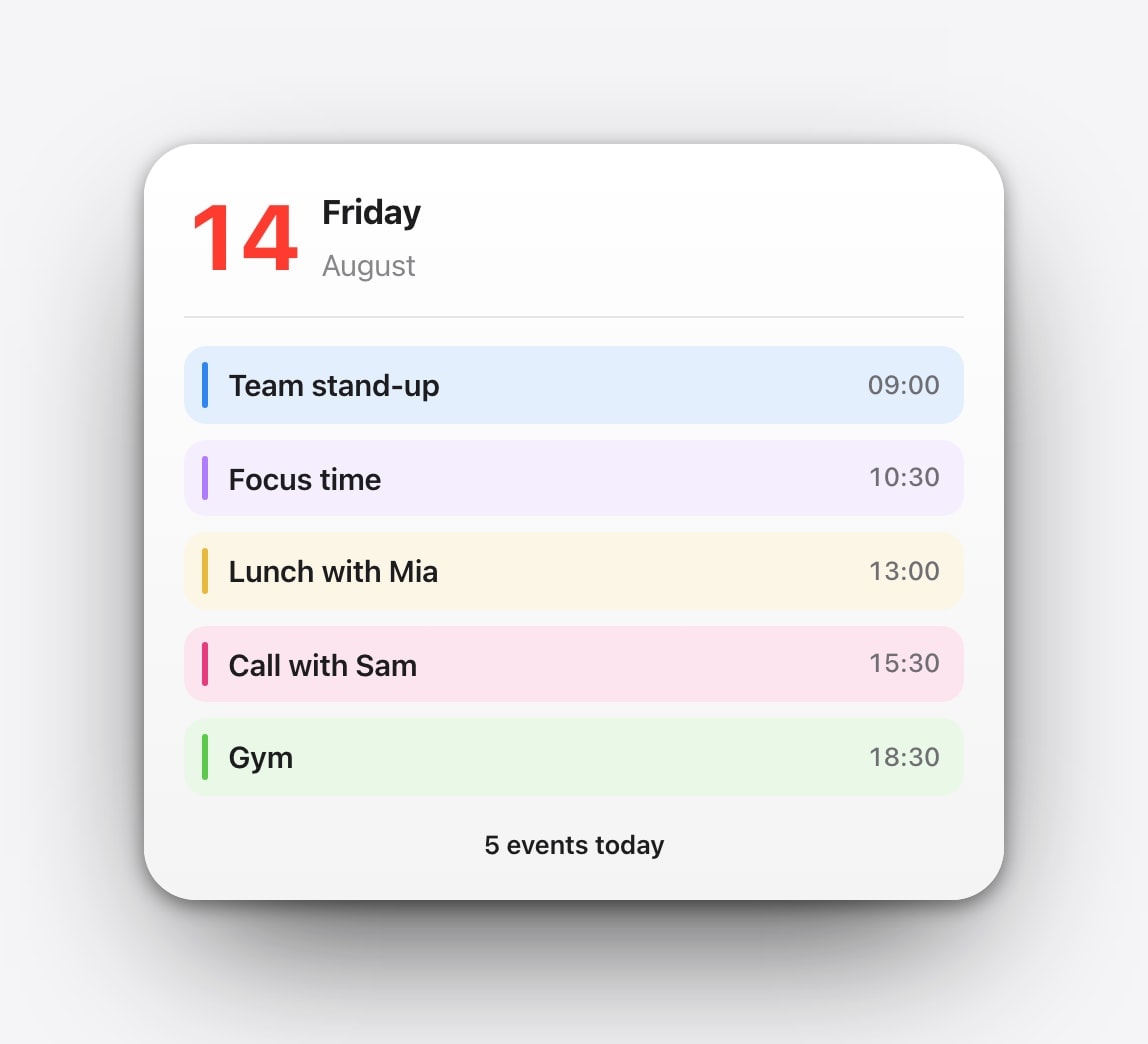
Check the source, sync, visible calendars, Lock Screen access and the widget instance, in that order.
The widget area is small on purpose. A larger surface is the fix, not a setting.
If you go the wallpaper route
A wallpaper is not live, and that is the trade. It shows the calendar as it stood when the image was generated, so a last-minute change needs another run of the shortcut. In return you get the whole day or week, room for real event titles, and control over what the screen looks like.
The combination most people end up with is both: Apple’s Calendar widget in the row for the next live event, and a generated wallpaper behind it for everything around that event. Each one is doing the job it is actually good at, and neither is being asked to be something it was not sized for.
Questions people ask
Usually the event is in a calendar that is unticked, the account has not synced, or the widget instance has gone stale. Occasionally the widget simply does not consider that event the next relevant item.
Not first. Confirm it appears in Calendar, check visible calendars and account sync, then remove and re-add the widget.
No. It is sized for compact, timely information. Use the Calendar app, a larger Home Screen widget, or a generated wallpaper for a full agenda.
No. A calendar wallpaper is a snapshot and changes when its shortcut runs. Keep a widget for anything that must stay current minute to minute.
Yes, and it is the most common setup. The widget carries the next live event and the wallpaper carries the day or week around it.