How to See Today's Todoist Tasks Without Opening Todoist
Every check of a task app is a chance to end up somewhere else. Put the list where checking is not an action.
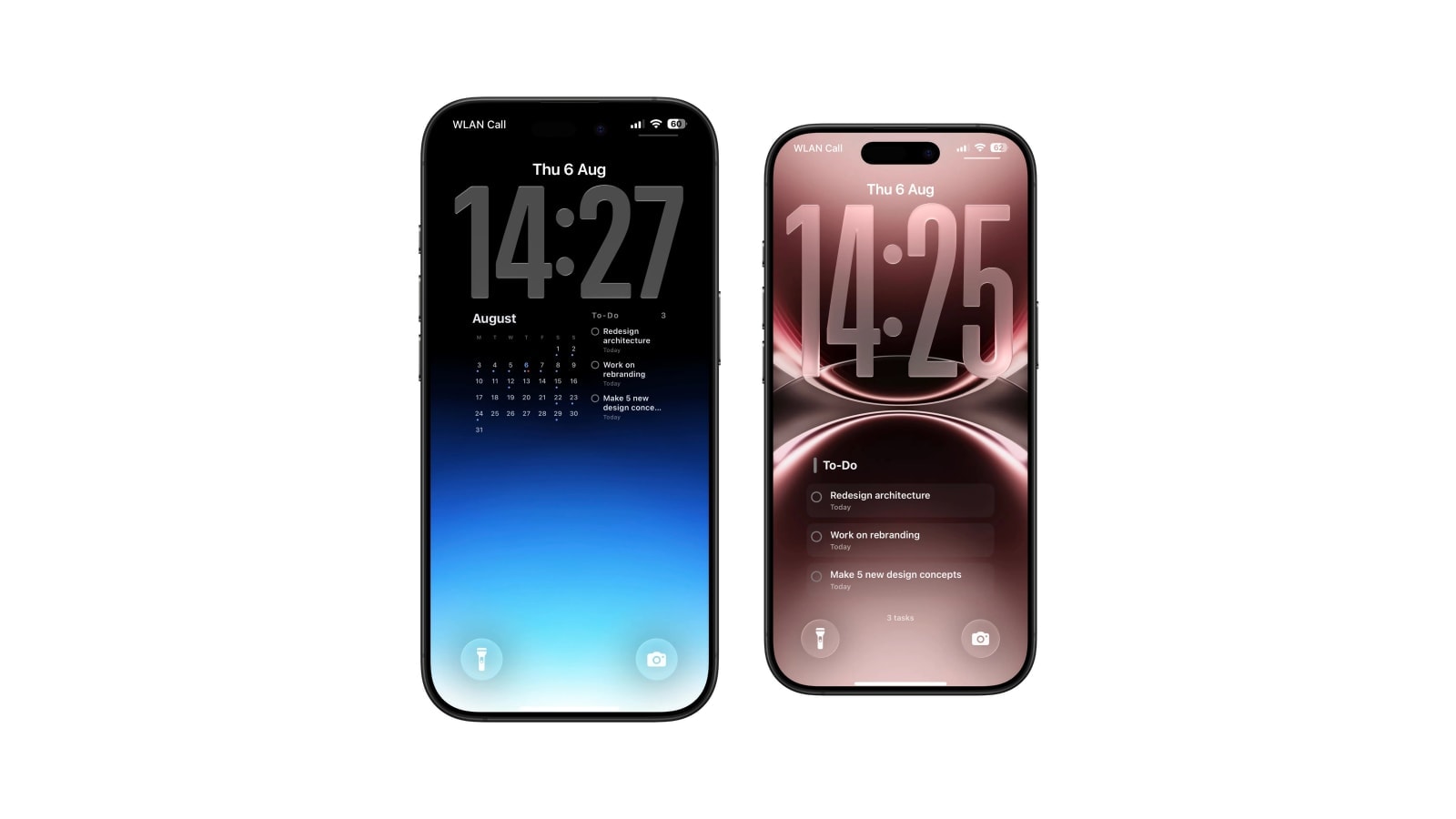
Three surfaces let you read Todoist without launching it: the Lock Screen widget, a Home Screen widget, and a wallpaper generated from your task list. The first two are live pieces of Todoist; the third is a larger snapshot you can read before unlocking.
The goal is not to avoid the app. You still need Todoist to plan, capture and complete, and nothing here changes that. The goal is to remove the specific loop where you unlock the phone to check one task, and reappear eleven minutes later having read three unrelated things.
Which surface fits depends on how much you need to see and whether you need to act from it.
Three levels of visibility
They are worth thinking of as a ladder rather than as alternatives, because each one trades interactivity for space in a predictable way.
- Lock Screen widget
Visible before unlocking, live, tappable, and about one line tall. Perfect for one task, a progress figure or a quick add.
- Home Screen widget
More room and full interactivity, but you have already unlocked the phone to see it, which is the exact moment the loop starts.
- Generated wallpaper
The most room before unlocking, and the least interactive. It shows the list as it stood at the last render.
It stays connected to Todoist and takes you straight into the task flow.
It keeps the short plan in front of you without opening anything at all.
Getting the right list onto the glance
In Calendarly, connect Todoist with read-only permission and start from today and overdue. That source is the one least likely to show you something you cannot do, which matters more here than anywhere else: the entire point of the glance is that it should not require a decision.
Set a visible cap and keep it low. A wallpaper list works when every row can be read in one relaxed look; the moment you have to focus, you have recreated the thing you were trying to avoid. The rest of the backlog is not missing, it is in Todoist where it can be sorted, filtered and searched properly.
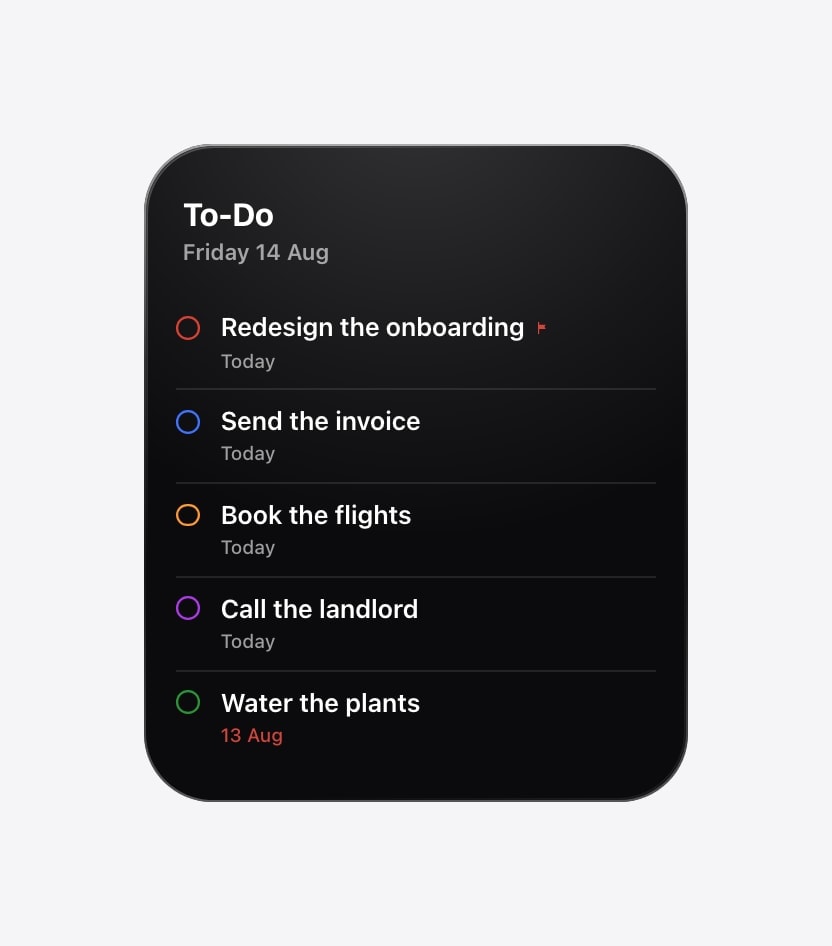
What happens after the morning snapshot
Complete a task and Todoist knows instantly; the wallpaper does not. It reflects the change at the next render, and you can force that by running the shortcut whenever you want the screen to catch up. In practice most people stop bothering, because a completed item lingering until tomorrow morning is a mild inconvenience rather than a problem.
Offline, Calendarly falls back to the last cached view for that source rather than drawing an empty card. Treat that as last known information: it prevents a blank screen on a flight, and it is not proof that your account looks like that right now.
Display in Calendarly, do in Todoist. Read-only access is what protects the source. Nothing on the wallpaper can complete, reschedule or delete a task.
Where this approach stops working
A wallpaper suits a plan that stays roughly stable for several hours, which describes most personal task lists and very few shared work projects. If tasks are assigned, reprioritised and closed by other people through the day, a morning snapshot will be misleading by lunchtime, and misleading is worse than absent because you will act on it.
For personal work, one morning refresh plus an optional manual run after lunch covers almost everything. The aim was never zero app opens. It was fewer of the ones that had no reason to happen.
Questions people ask
Yes. Use Todoist’s Lock Screen widget, or a task wallpaper generated from your Todoist data.
A wallpaper, by a large margin. The Todoist widget is smaller but live and interactive.
It shows the data as it was at the last scheduled or manual render.
No. Its Todoist access is read-only.
It can render the last cached view for that source. Fetching newer tasks needs a connection.