Google Tasks on iPhone: Your Tasks on the Lock Screen, in a Widget and on Today
iOS does not sync Google Tasks, so Calendarly connects to your Google task lists and shows today’s tasks behind the clock, in a free To-Do widget and next to your calendar, compared with Google’s own Tasks and Calendar apps.
Google Tasks can show up on the iPhone outside its own app, but iOS will not do it for you. Calendarly connects to your Google account once, reads the task lists you switch on and puts today’s tasks on the Lock Screen behind the clock, in a free To-Do widget for the Home Screen and the Lock Screen, and on its Today page next to your calendar.
The usual surprise comes when you add a Google account in the iPhone’s Settings. It brings over Mail, Contacts, Calendars and Notes, and the tasks stay behind, because Apple’s Reminders app does not read Google Tasks. So a task you made from an email in Gmail, or one you added in Google Calendar on your laptop, lives only inside Google’s apps on the phone, and you see it when you remember to open one of them.
Calendarly reads your lists and never changes them. You still tick tasks off in Google Tasks or Google Calendar, and the next refresh takes the finished ones off the Lock Screen and the widget. The Today page needs iOS 26 or later; the Lock Screen wallpapers work from iOS 16.6.
Ways to see Google Tasks on an iPhone, compared
Google’s two apps are the obvious place to start, and Calendarly is the way to get the same tasks onto the Lock Screen and next to events from every other calendar you use. The details of Google’s apps come from their pages in the US App Store on 20 November 2026.
| App | What it shows | Widgets | Tick tasks off | Cost and needs |
|---|---|---|---|---|
| Calendarly | Today’s Google Tasks with your reminders, Todoist and other lists in one list (My List), on the Lock Screen wallpaper and on Today | To-Do widget: small, medium, large and Lock Screen, free | No, read only; tick in Google’s apps | Free; iOS 26 for Today, iOS 16.6 for the wallpapers |
| Google Tasks | Your task lists, subtasks, details, due dates, tasks made from Gmail | Not named on the listing | Yes | Free; iOS 18.0 |
| Google Calendar | Tasks alongside your events in day, week and month views | Named on the listing | Yes | Free; iOS 18.0 |
| Reminders | Apple’s own lists only; it does not read Google Tasks | Home Screen and Lock Screen | Yes, for its own reminders | Built in |
If all you need is a place to manage tasks, Google Tasks does that well, with subtasks, notes on each task and notifications on the due date. Its App Store page does not describe a widget, so check its section of the widget gallery on your own phone after you install it. Google Calendar is the better pick if your tasks and meetings already share one Google calendar and you want both in a day view. Calendarly suits people who keep tasks in more than one place: it puts Google Tasks, Apple Reminders and Todoist into one list and keeps that list in sight all day.
Connect Google Tasks to Calendarly
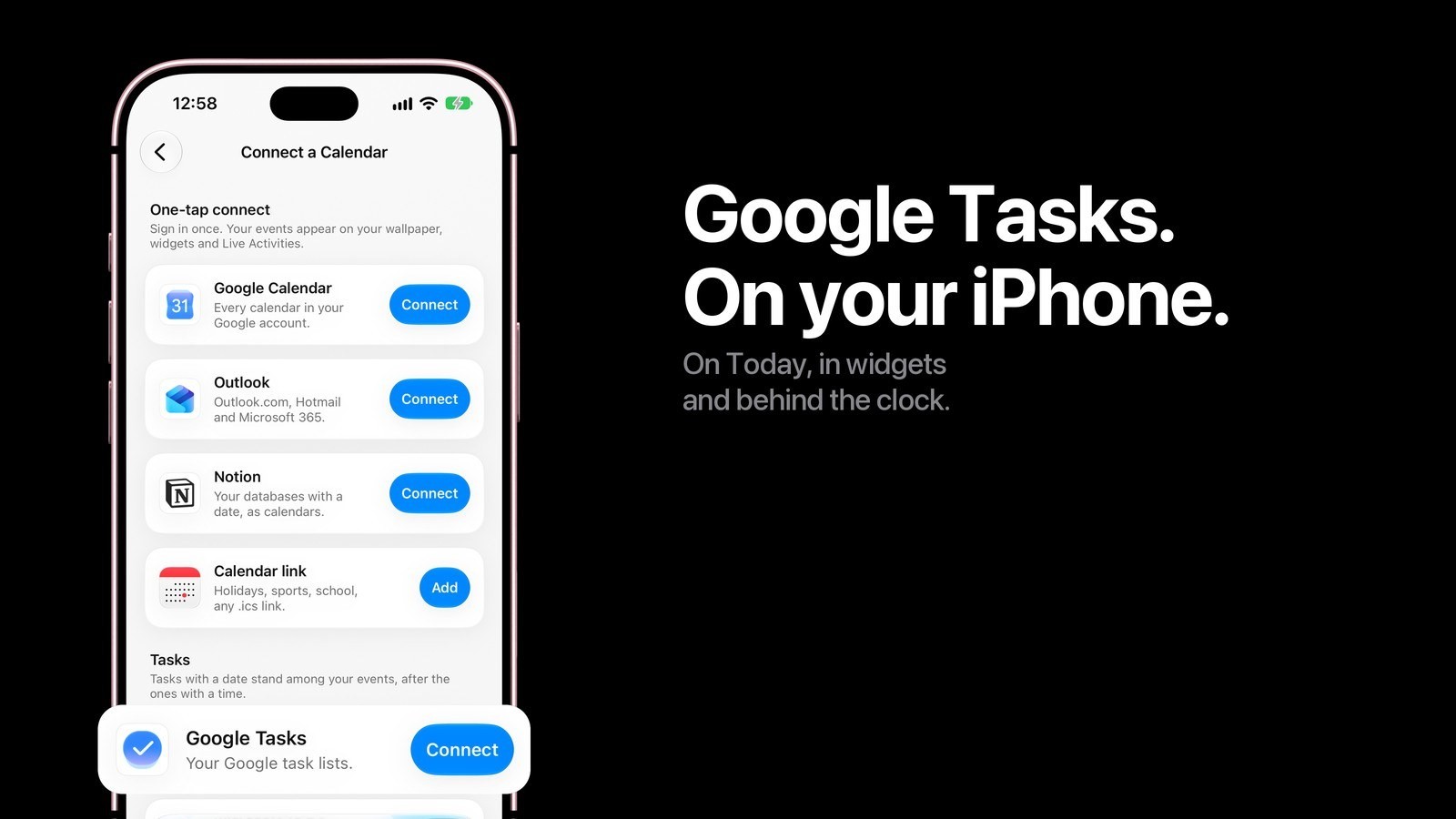
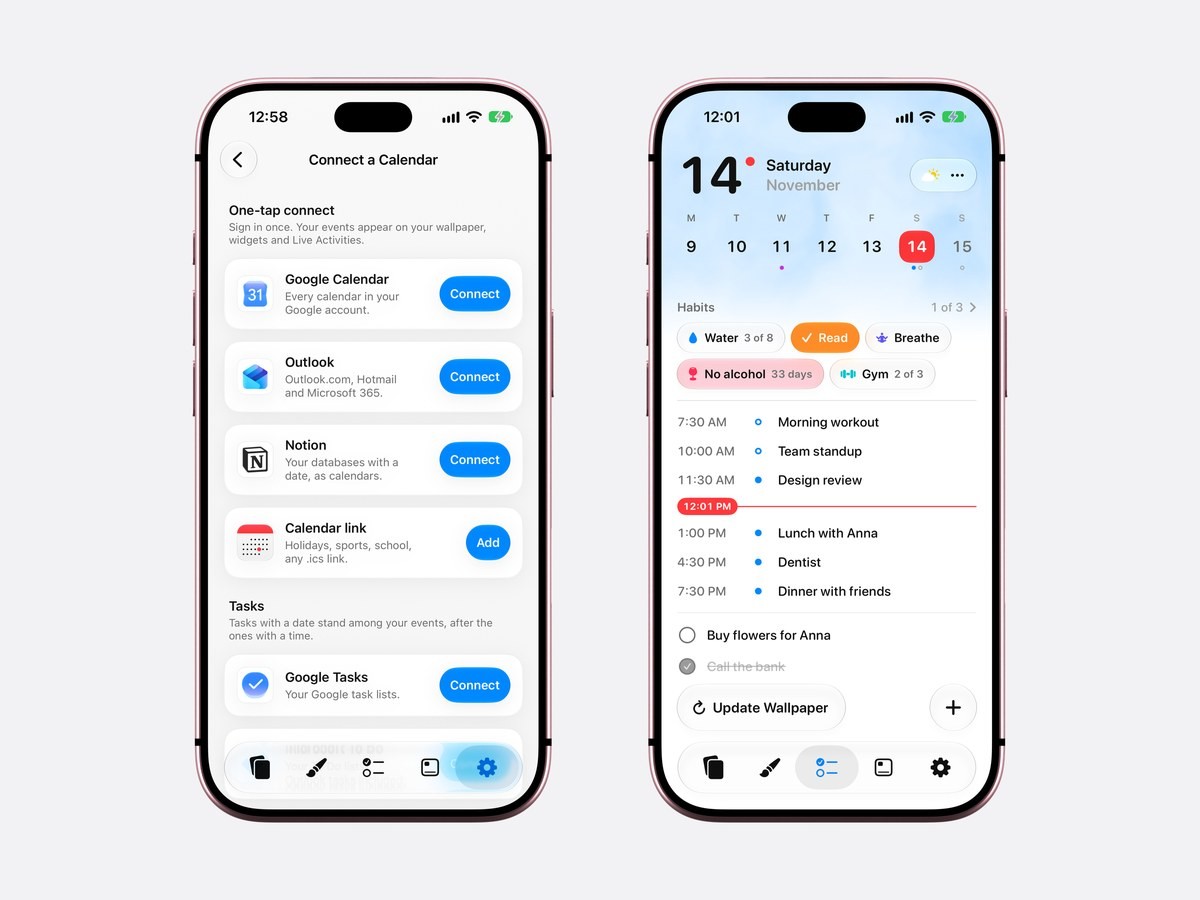
Open Calendarly’s Settings tab and tap Calendar Accounts. On iOS 26 the same page opens from the three dots next to the weather on Today. The page is called Connect a Calendar, and Google Tasks sits under Tasks, below Google Calendar, Outlook and Notion. Tap Connect, sign in with Google and allow Calendarly to see your task lists. Calendarly asks only to read them, so it cannot add, edit or delete anything in your account.
After sign-in, every list in the account appears with a switch, and the lists you turn on are the ones Calendarly reads. A work list and a shopping list can stay apart: turn on only the one you want behind the clock. Google Calendar is a separate connection on the same page, so you can bring in your events, your tasks or both. Disconnect takes the tasks off your wallpaper and widgets and changes nothing in the Google account itself.
What counts as today’s task
Calendarly gathers every list it reads into one list called My List: the tasks you add in Calendarly, the Reminders lists you chose, Todoist, and the task lists of Google Tasks, Microsoft To Do and TickTick. A task belongs to today if it is due today, if it is overdue, or if it has no date at all. Overdue tasks come first, oldest at the top, then the ones due today, then the undated ones, so the task you forgot on Tuesday stays in view until it is done.
Google shares a task’s due date with other apps but not its time; its own developer reference says the time part is discarded. So a Google task always appears as a task for the whole day. On a calendar layout, tasks with a date stand among your events after the ones with a time, and on Today they sit under the schedule with the rest of My List. A task with a date in the future waits for its day.
How to put Google Tasks on your iPhone Lock Screen
- 1Download Calendarly
Get Calendarly from the App Store. It is free and needs no account of its own.
- 2Connect Google Tasks
Settings, then Calendar Accounts, then Connect next to Google Tasks. Sign in with Google and switch on the lists you want.
- 3Pick a To-Do layout in the Gallery
To-Do and Reminders layouts read My List, so your Google tasks are already in the preview. The Studio opens, where you can change the background, the font and the size.
- 4Tap Use as Wallpaper
The first time, Calendarly adds the Update Calendarly Wallpaper shortcut and walks you through one morning automation in the Shortcuts app.
- 5Let the shortcut refresh it
Each run fetches your lists again before it draws, so a task you finished in Google Tasks leaves the wallpaper on the next update. Add a second run at lunch if your list changes during the day.
Google Tasks on the Lock Screen wallpaper
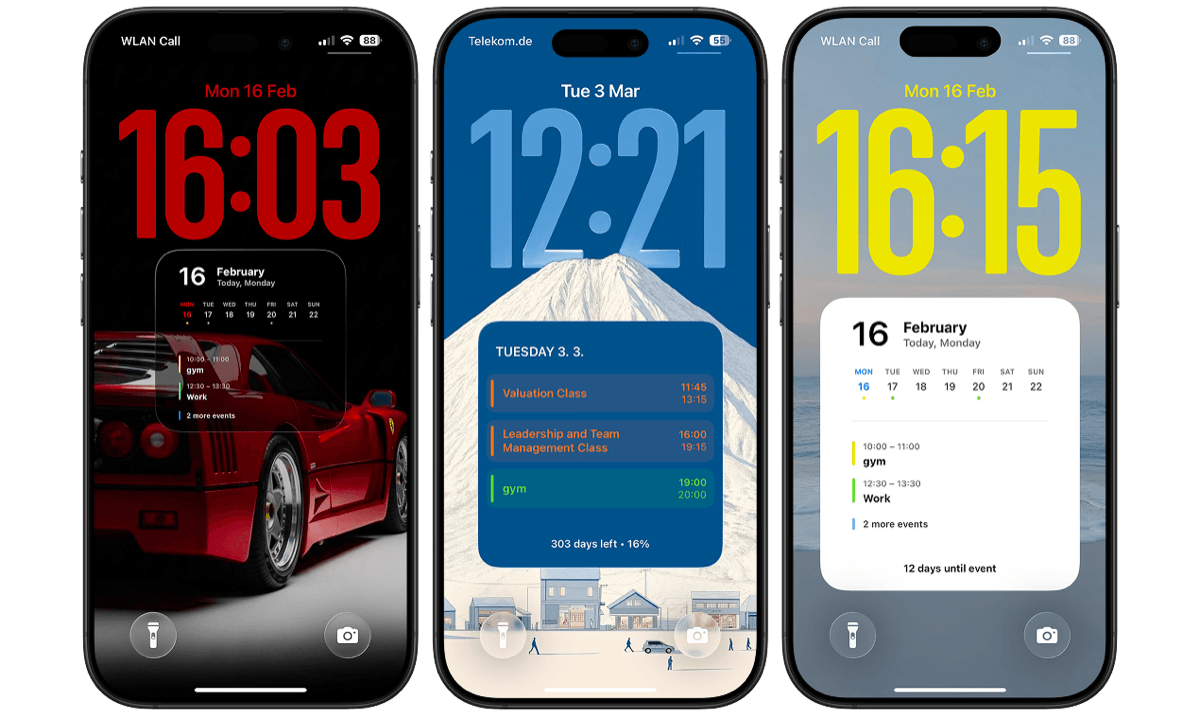
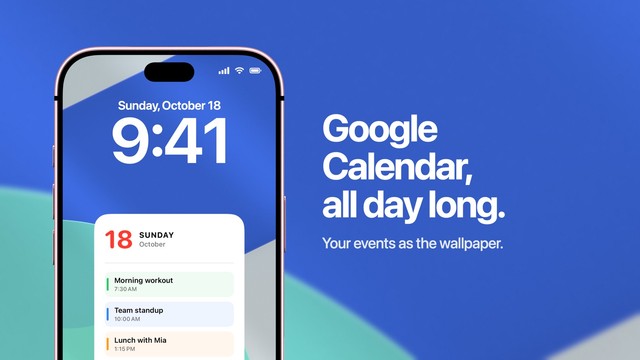
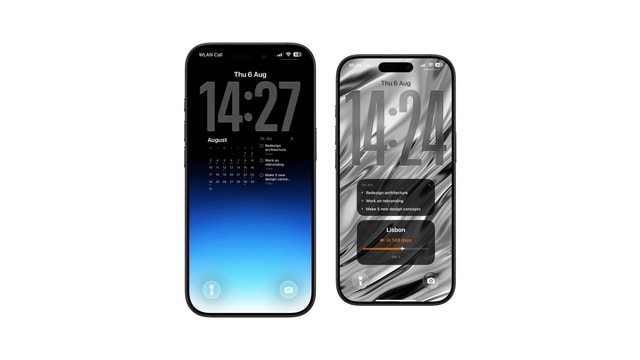
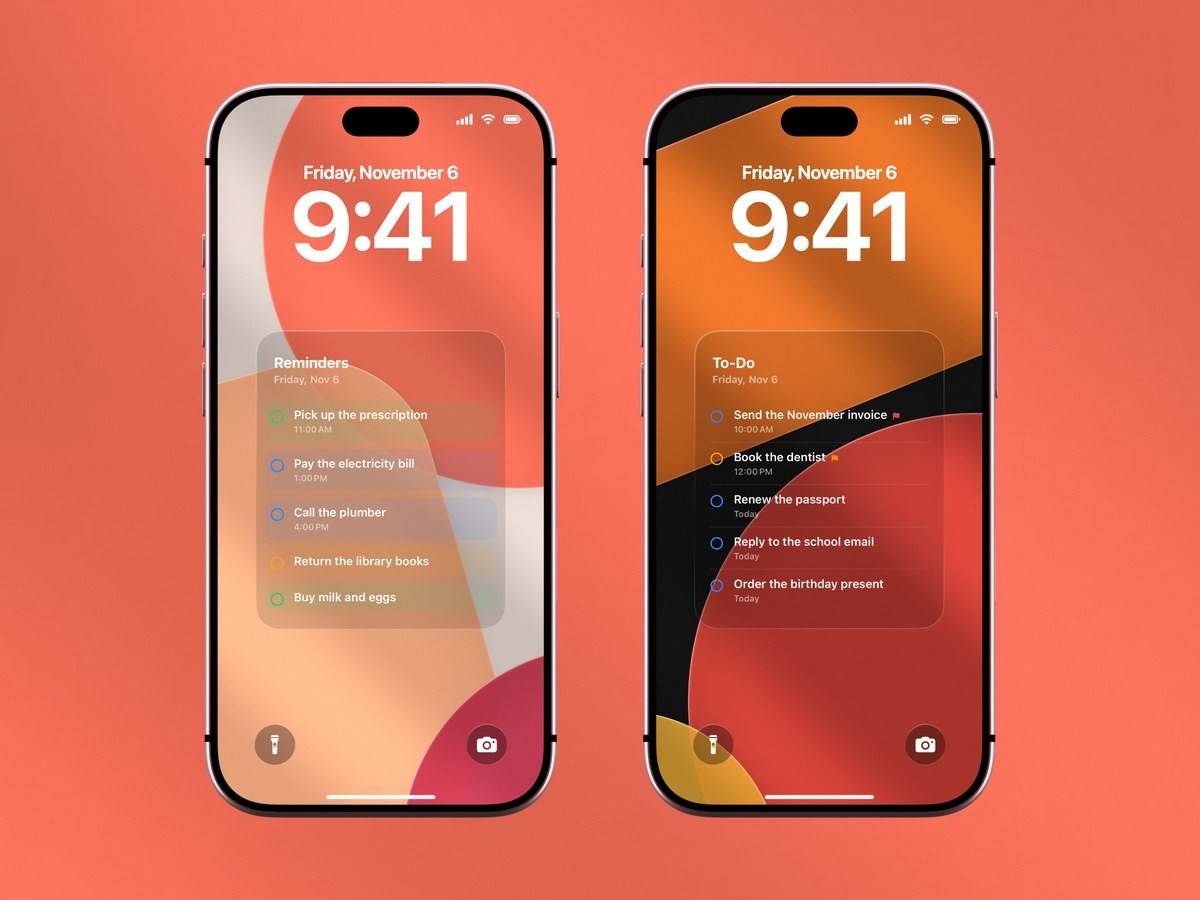
iOS gives an app no way to draw on the Lock Screen directly, so Calendarly makes a new wallpaper picture each time its shortcut runs. The list sits under the clock on a card wide enough for whole task names. The layouts differ in look, from a plain list on frosted glass to a ruled card, and some put the day’s events above the tasks, which helps when a Google task belongs to a meeting at 2 PM.
Because it is a wallpaper, it uses no widget slot. The row under the clock stays free for the battery, the weather or the Calendarly To-Do widget, and the wallpaper is redrawn only when the shortcut runs. The guide to a to-do list on the Lock Screen goes through every layout and when each one fits.
The To-Do widget and Today
Calendarly’s To-Do widget reads My List unless you pick another source, and it comes in small, medium and large for the Home Screen and as a Lock Screen widget with two rows. Widgets are free, and so are Live Activities: the Tasks banner keeps the same list on the Lock Screen while you work through it. A Google task has no tick button there, because Calendarly reads the list and cannot change it.
On iOS 26 and later, Today puts the whole day on one page: the week, your habits, the events with a red line at the current minute, and the to-dos under them. A Google task lands on its due date, so tapping Thursday in the week shows Thursday’s tasks. Undated tasks sit on today, and an overdue one moves to today with the day it was due written in red. On Today a Google task has a dashed circle, the sign of a row you finish in Google’s app. The daily planner comparison shows how Today compares with Structured, TickTick and Apple’s apps.
Privacy and what Calendarly can see
Calendarly reads your task lists on the iPhone and keeps the sign-in token in the iOS Keychain. Your tasks are not uploaded to Calendarly’s servers, and there is no Calendarly account to make. The permission asked from Google is read only, which is why the app cannot tick a task off for you.
Disconnect Google Tasks on the Calendar Accounts page and its tasks leave My List, the widget and the next wallpaper. To take back the permission on Google’s side as well, remove Calendarly in your Google account’s security settings.
What the iPhone does on its own
iOS can add a Google account for mail, contacts, calendars and notes, as Apple’s guide to setting up accounts shows, and Google Tasks is not among them. Your Google events reach Apple’s Calendar and its widget that way, while your tasks need Google’s own apps or an app that connects to Google Tasks directly.
| Google account in iOS Settings | Calendarly with Google Tasks | |
|---|---|---|
| Google Calendar events | In Apple’s Calendar and its widgets | In every calendar layout, widget and Today |
| Google Tasks | Not synced | In My List, with your other lists |
| On the Lock Screen | A small Calendar widget with the next event | The day’s tasks across the wallpaper, plus a Lock Screen widget |
| Undated and overdue tasks | Not shown | Shown on today until done |
| Cost | Free, built in | Free; Pro unlocks every wallpaper layout |
Apple’s guides to adding widgets and custom Lock Screens cover the iOS side of the setup. If your Google Calendar events also need to reach the Lock Screen, the Google Calendar guide explains both the iOS account and Calendarly’s direct connection.
Sources
Questions people ask
Google’s App Store page for Google Tasks does not describe one, so check the widget gallery after installing it. Calendarly’s free To-Do widget shows your Google tasks on the Home Screen and the Lock Screen once Google Tasks is connected.
Connect Google Tasks in Calendarly (Settings, then Calendar Accounts), pick a To-Do layout in the Gallery and tap Use as Wallpaper. The Update Calendarly Wallpaper shortcut redraws it with your current tasks.
No. iOS syncs a Google account’s mail, contacts, calendars and notes, and Reminders does not read Google Tasks. Calendarly shows both in one list, My List, without copying one into the other.
No. Calendarly reads Google Tasks only. Finish a task in Google Tasks or Google Calendar and it leaves Calendarly’s list on the next refresh.
Google shares only the date of a task with other apps and discards the time, so Calendarly shows each Google task on its day, after the events that have a time.
The ones you switch on after connecting. Tasks due today, overdue tasks and tasks without a date appear on today; tasks for a later day wait for that day.
Connecting Google Tasks, the To-Do widget, Live Activities and the Today page are free, and so are 99 of Calendarly’s 156 wallpaper layouts. Calendarly Pro unlocks every layout and your own photos as backgrounds.