How to Put a Thanksgiving Countdown on Your iPhone Lock Screen
The days left until Thursday, 26 November on your Lock Screen, redrawn every morning, plus what to change so it works again next year.
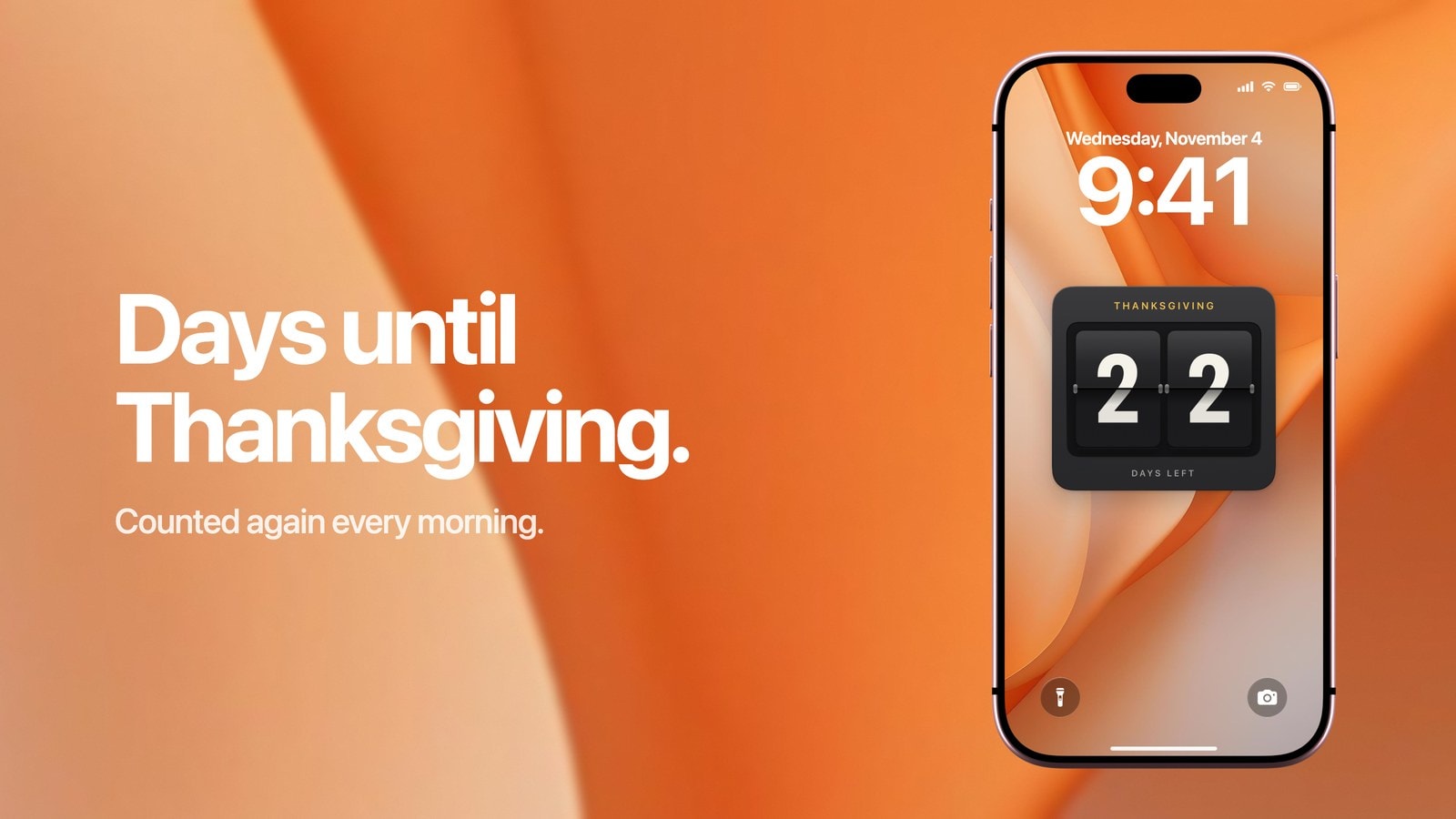
To put a Thanksgiving countdown on your iPhone Lock Screen, use a countdown wallpaper. Calendarly shows the days left until Thursday, 26 November 2026 across the whole Lock Screen and redraws it every morning through an Apple Shortcuts automation, so the number drops by one each day without you editing anything. iOS has no countdown to a date of its own, which is why this takes an app.
Thanksgiving is a good date to count down to because so much has to happen before it. Flights and drives get planned weeks ahead, and whoever is hosting starts thinking about the turkey long before anyone else does. A number you see every time you pick up the phone keeps the day in view, and in early November it is already in the low twenties, close enough to feel real.
Unlike Christmas, Thanksgiving has no fixed date. In the United States it falls on the fourth Thursday of November, so it can land anywhere from the 22nd to the 28th, and a countdown set up this year has to be pointed at next year’s Thursday once the day is over. That takes a few seconds, and it is covered further down.
How to put a Thanksgiving countdown on your Lock Screen
- 1Download Calendarly
Get Calendarly from the App Store. It is free and needs iOS 16.6 or later.
- 2Open a countdown layout
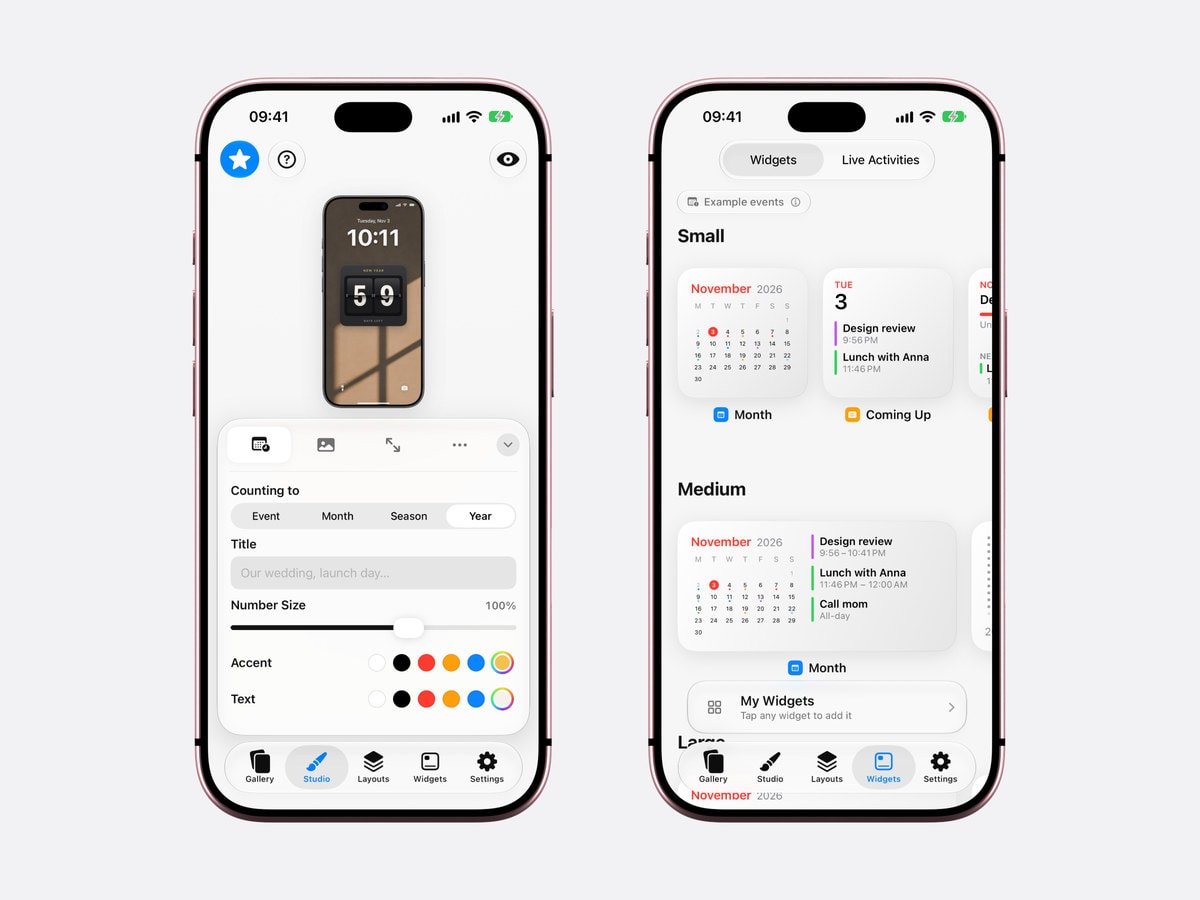
In the Gallery, open the Countdown row and tap a style. Every countdown layout in Calendarly is free.
- 3Set the date
In the Studio, set Counting to Event, the date to Thursday, 26 November, and the title to Thanksgiving. If you are travelling, the day you leave can be the date instead.
- 4Choose a start date
Start Date is the day the countdown’s progress is measured from. Today works, or the day the invitations went out, so the line shows how much of the planning time is already gone.
- 5Tap Use as Wallpaper
The first time, Calendarly adds its shortcut, Update Calendarly Wallpaper, and walks you through the one automation that redraws the countdown every morning.
From then on the wallpaper looks after itself. If the phone was switched off when the morning run was due, open the Shortcuts app and run Update Calendarly Wallpaper once by hand, and the number catches up.
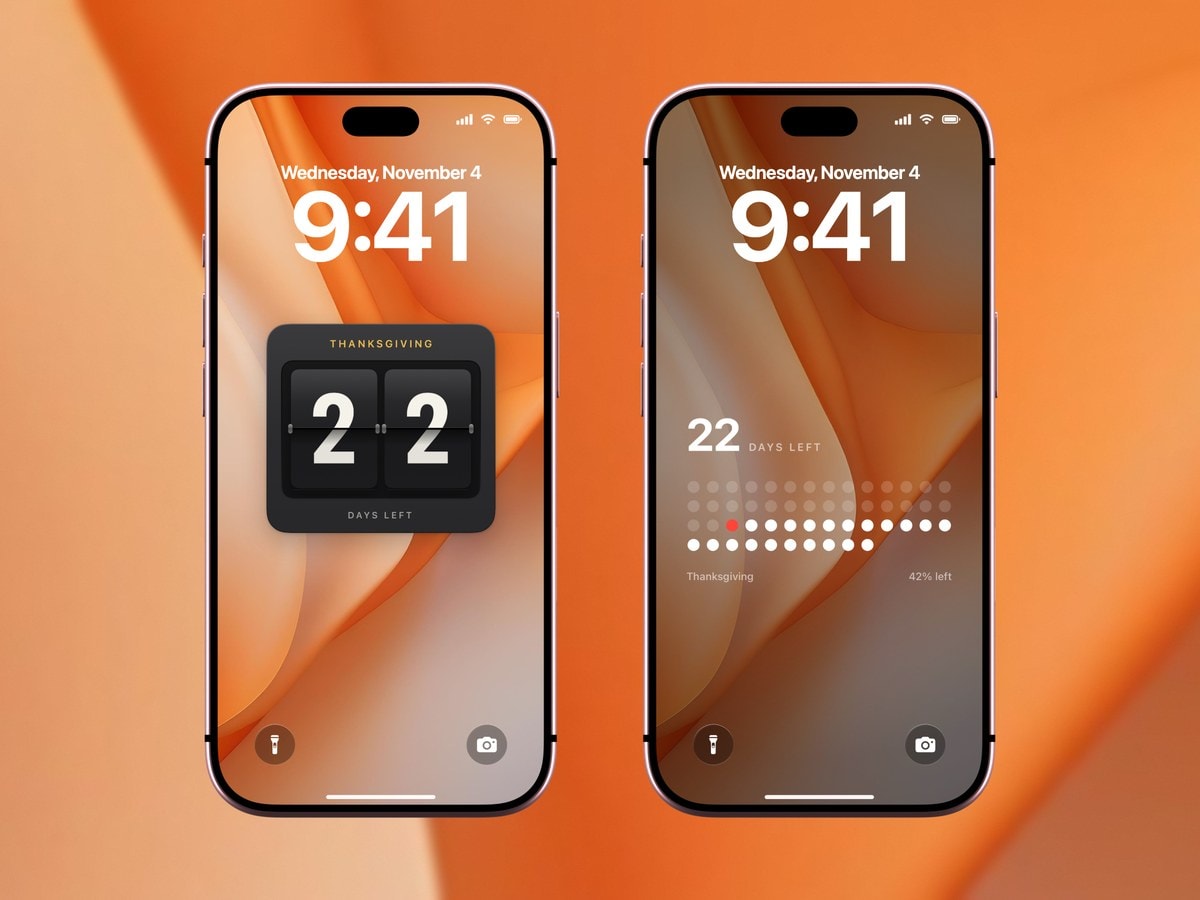
Flip board, dots or a progress line
Each style counts the same days, and each suits a different person in the house.
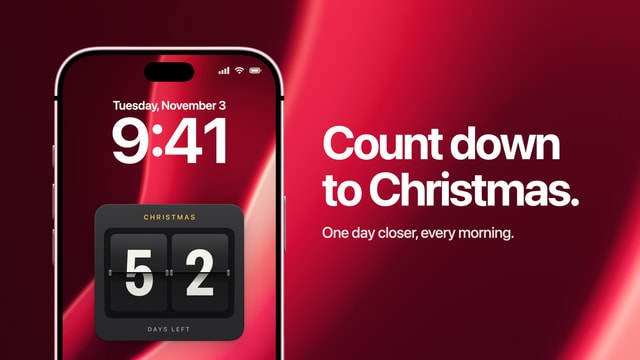
- Flip board
Two large numbers on dark tiles. It reads from the far side of the kitchen, which helps when the phone is propped up next to a recipe.
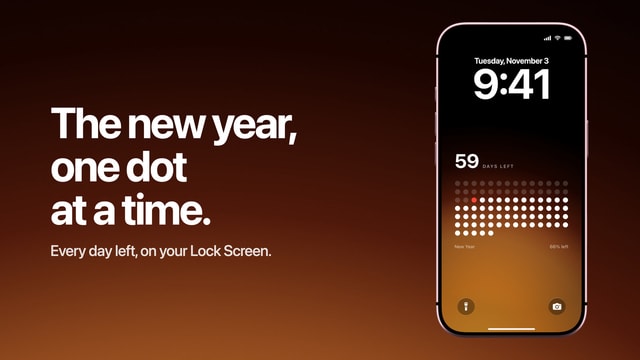
- One dot per day
Every day left is a dot, and one goes out each morning. Children understand it at once, and three weeks of dots is a satisfying amount to watch go.
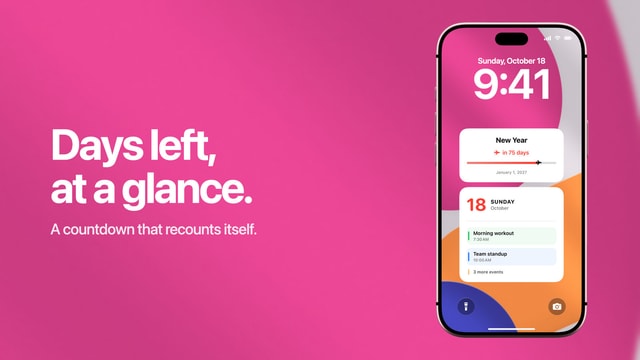
- Progress line
A line from your start date to Thanksgiving, with the date under it. The calmest of the three, and the one that sits best over a photo.
The Countdown row has more designs than these, and the countdown guide goes through all of them, along with what to do when you want to count to more than one date.
Getting the date right, this year and next
Calendarly counts to the date you give it, so the date has to be right. In the United States that is Thursday, 26 November 2026, and next year it is Thursday, 25 November 2027, both listed on the federal holidays page of the U.S. Office of Personnel Management. Because the Thursday moves, a Thanksgiving countdown needs its date changed once a year, which a Christmas countdown never does.
Canada has its own Thanksgiving on the second Monday of October. This year’s has passed, so a countdown started now would run to Monday, 11 October 2027. That is a long way off, and the dot styles are not much use at that distance, so pick the flip board or the progress line for it.
What iOS can do without an app
The iPhone knows when Thanksgiving is if the US Holidays calendar is switched on in the Calendar app, and Siri will tell you how many days are left. Neither puts the number on the screen. The Clock app’s timer does show on the Lock Screen while it runs, but it stops at 23 hours and 59 minutes, so it can only count the last day.
Apple’s Lock Screen Calendar widget can’t help either, because it never shows all-day events, and holidays are all-day events. Side by side:
| iOS on its own | Calendarly | |
|---|---|---|
| Days until a date | Siri says it, nothing on screen | On the wallpaper, redrawn every morning |
| Clock timer | Up to 23 h 59 min | Days, from weeks out |
| Thanksgiving in the Calendar widget | Not shown (all-day event) | The title and the days left, full screen |
| Space | A strip under the clock | The whole Lock Screen |
| Price | Built in | Free to download, every countdown layout free |
On the last evening the two work well together. Start a Clock timer for the hour the turkey has to go in, and it runs on the Lock Screen as a Live Activity on top of a countdown that says one day. Calendarly also has free countdown widgets, if a small number under the clock is all you want.
After Thanksgiving
On the Friday the countdown has nothing left to count. The obvious next job for it is Christmas, 29 days later: change the date to 25 December and the title to Christmas, and the Christmas countdown guide has ideas for the style. The New Year countdown needs no date at all.
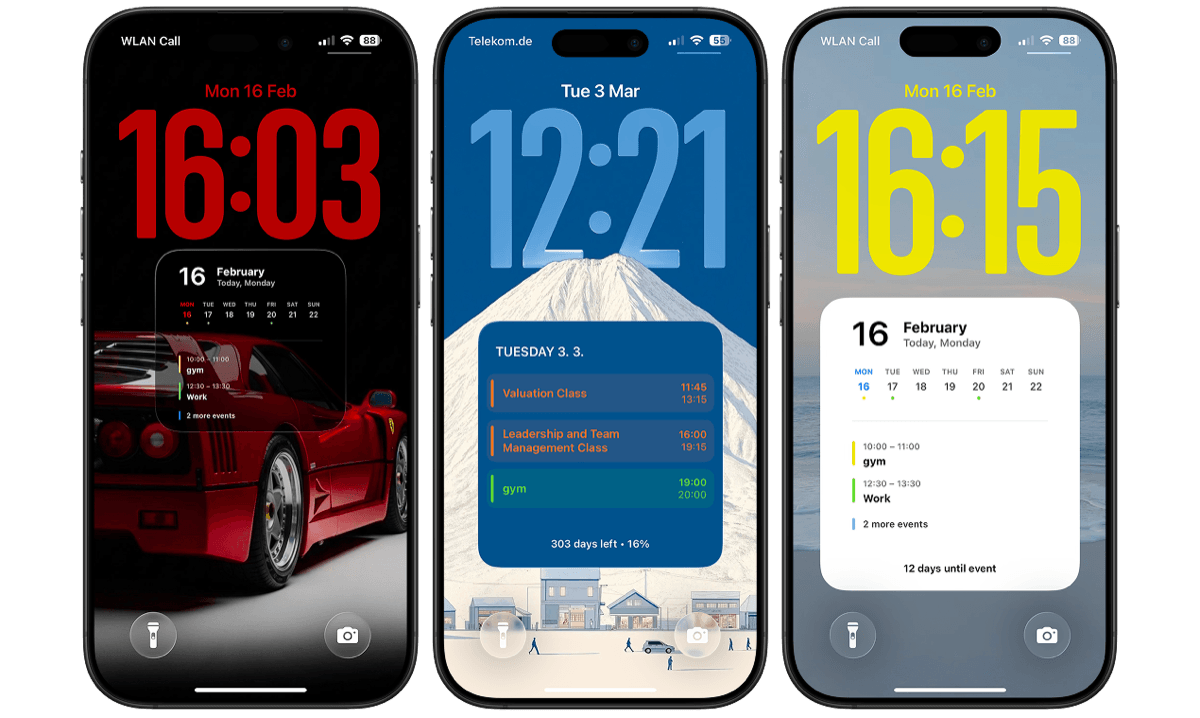
Before you change anything, save the Thanksgiving version to My Layouts. Next autumn it comes back in a few seconds, and the only thing to edit is the Thursday. When the holidays are over, your calendar on the Lock Screen is the usual layout to go back to.
Sources
Questions people ask
No. Siri can tell you how many days are left, and the Calendar app knows the date if the US Holidays calendar is on, but nothing in iOS shows a countdown on the Lock Screen. A countdown wallpaper such as Calendarly’s does.
In the United States, Thursday, 26 November 2026. Next year it is Thursday, 25 November 2027. Canadian Thanksgiving is on the second Monday of October.
Yes. Calendarly redraws the wallpaper every morning through an Apple Shortcuts automation, so the days left are always right.
Yes. Set the date to the second Monday of October, which for the next one is 11 October 2027.
Yes, with Calendarly Pro. The countdown layouts and the built-in backgrounds are free.
Point it at Christmas, 29 days later, or save it to My Layouts and switch back to your usual layout. Next year, change the date to the new Thursday.