How to Put a New Year Countdown on Your iPhone Lock Screen
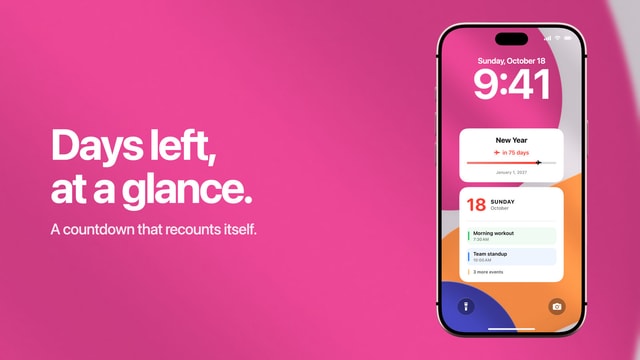
The days left until 1 January on your Lock Screen, redrawn every morning. No date to enter, and it starts again on New Year’s Day.
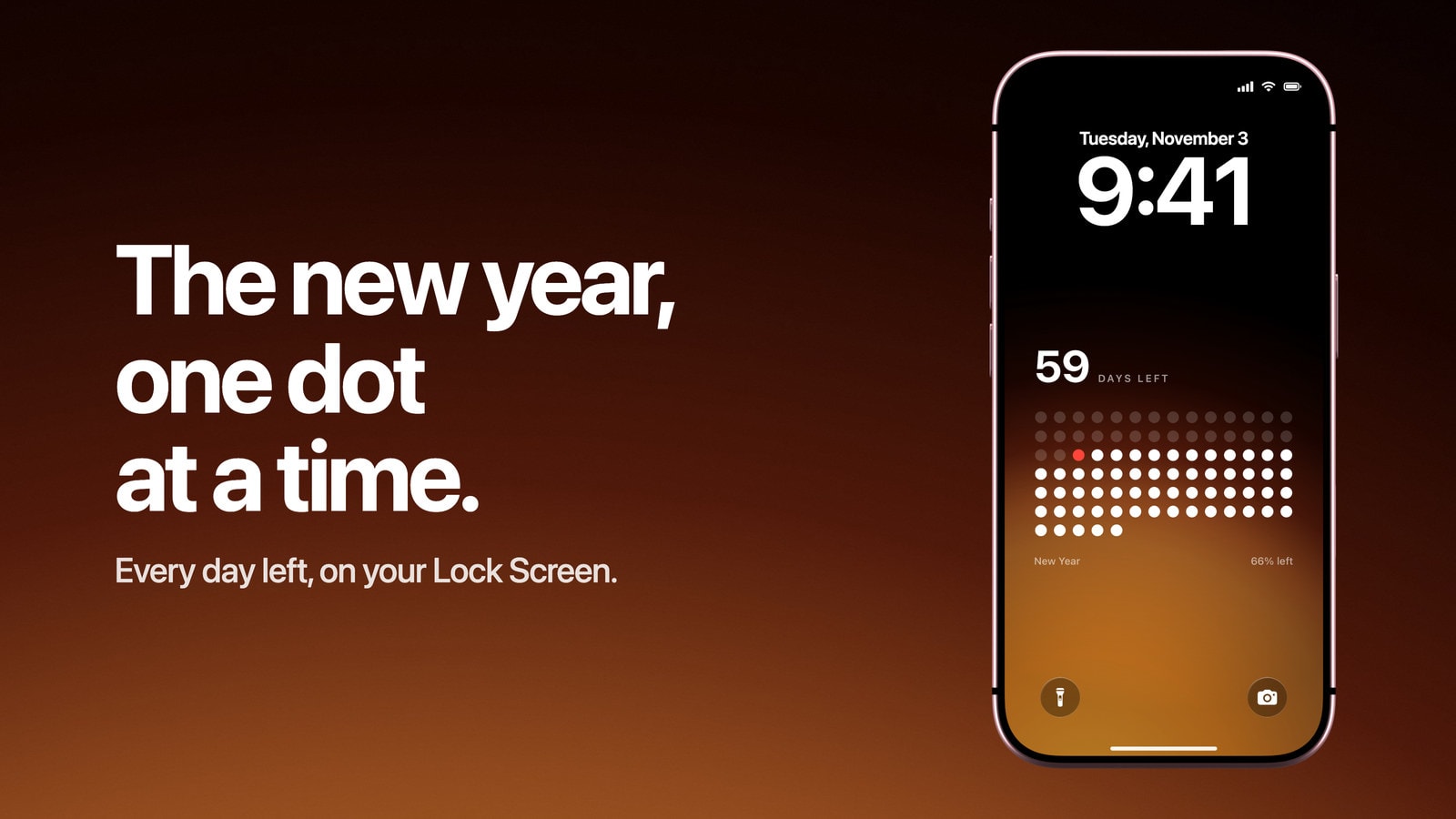
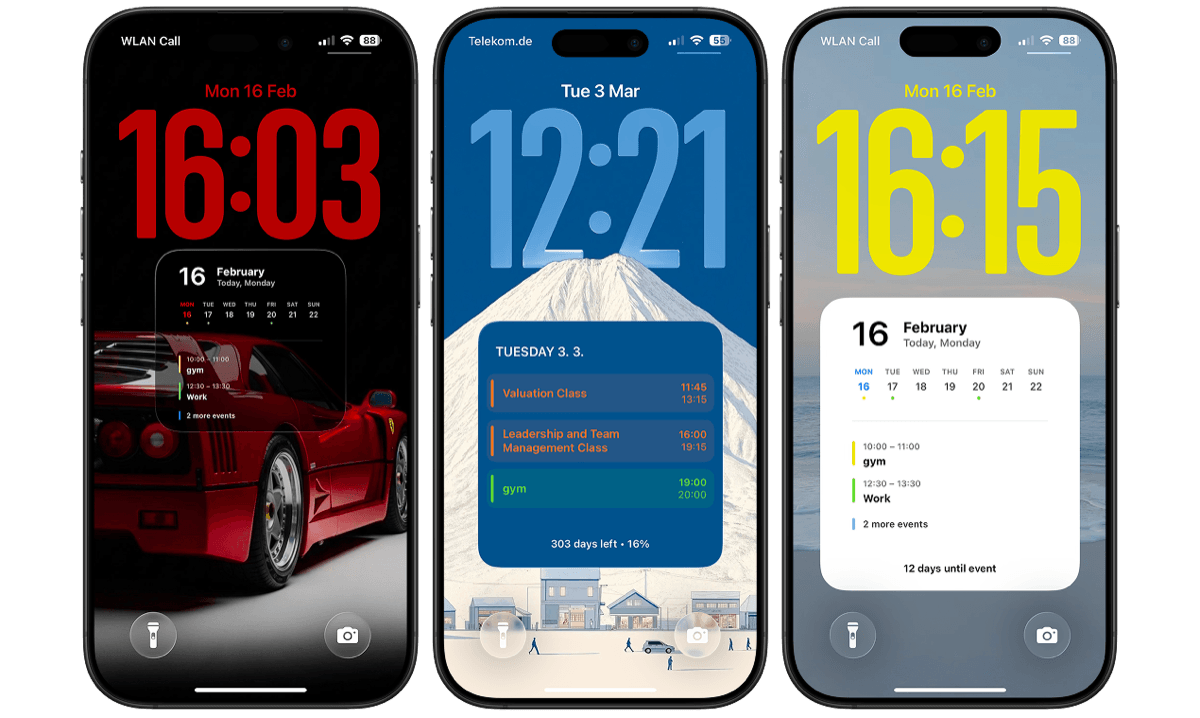
To put a New Year countdown on your iPhone Lock Screen, use a wallpaper that counts the days left in the year. In Calendarly it needs no date at all: open a countdown layout, set Counting to Year, and an Apple Shortcuts automation redraws the Lock Screen every morning with one day fewer until 1 January.
iOS has no countdown of its own for the Lock Screen. The Clock app’s timer stops short of a day, and Siri answers how many days are left without leaving anything on the screen. A wallpaper gives the end of the year the whole screen, and in the last weeks of December that is a nice thing to see every time you pick the phone up.
How to set up a countdown to New Year
- 1Download Calendarly
Get Calendarly from the App Store. It is free and needs iOS 16.6 or later.
- 2Open a countdown layout
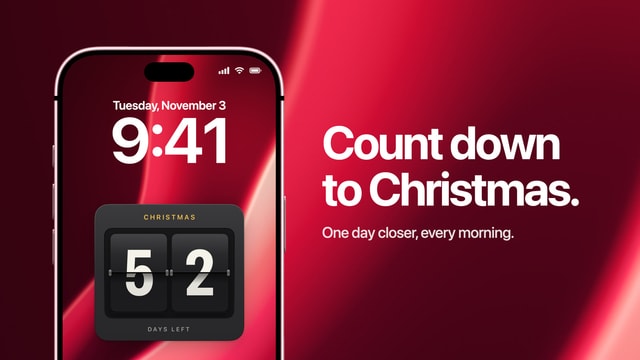
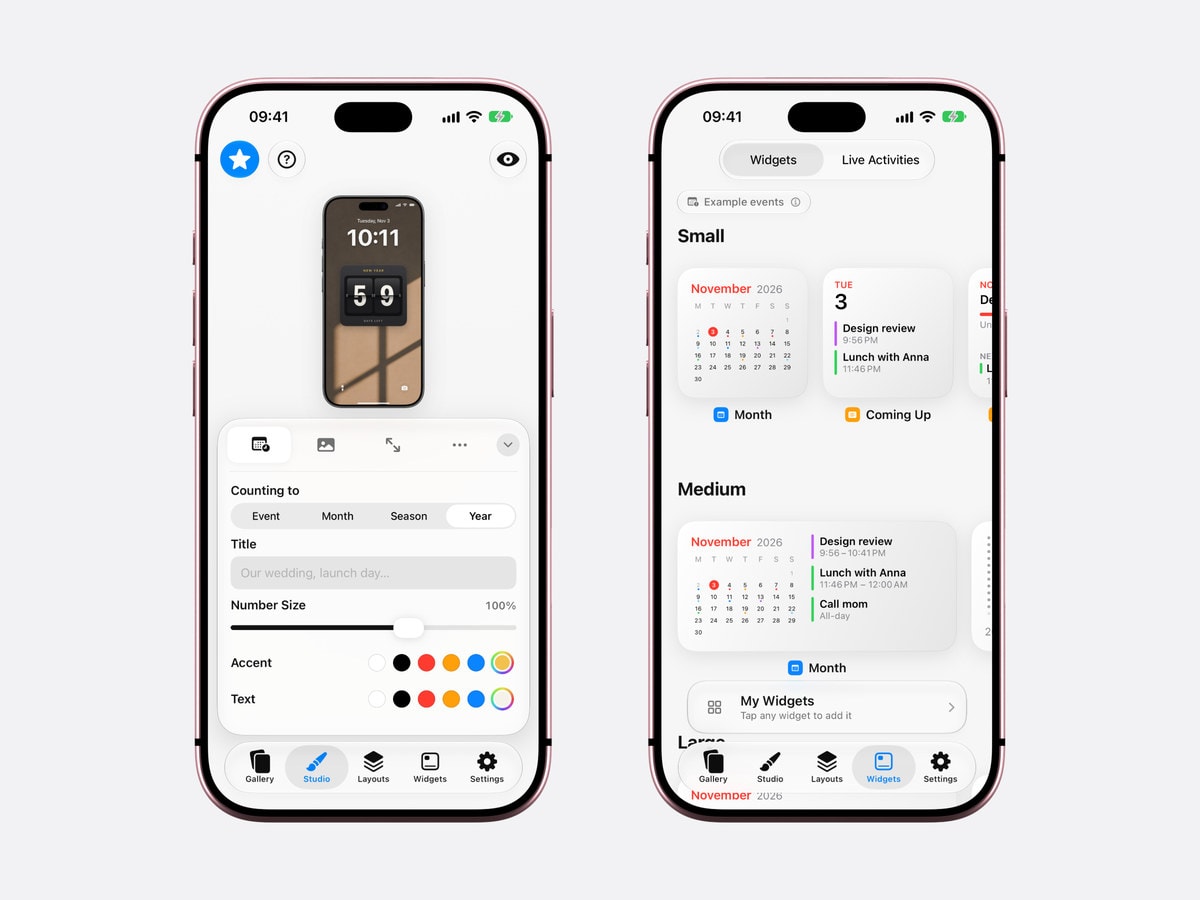
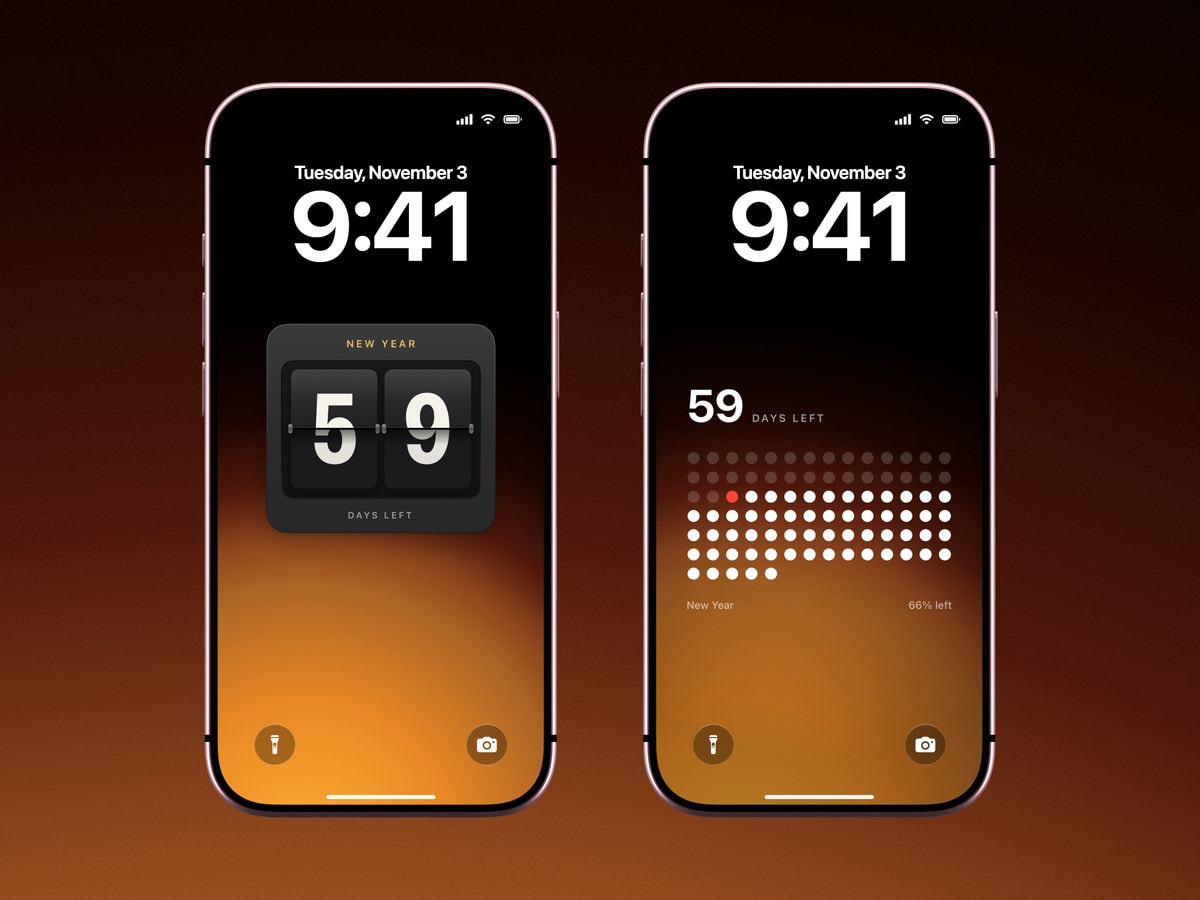
In the Gallery, open the Countdown row. A flip board shows the days as two big numbers. A dot grid gives each remaining day its own dot.
- 3Set Counting to Year
In the Studio, tap Year under Counting to. The countdown now runs to 1 January and starts from the first of this year, so its progress is the share of the year already gone. Title it New Year, or leave it as it is.
- 4Tap Use as Wallpaper
The first time, Calendarly adds its shortcut, Update Calendarly Wallpaper, and walks you through the one automation that runs it each morning.
Flip board or the year in dots
The flip board is the one to read from across a room: two numbers, nothing else. The dot grid is the one worth trying if you have never had it. Every day of the year is a dot, the days that have passed are filled in, and today is marked, so on any morning in December you can see how little of the year is left. It is the same idea as a year progress wallpaper, told as a countdown.
A dark ground suits both. On black or a deep blue the white dots look like a night sky that empties out as the year closes.
Days on the wallpaper, minutes on the last night
A wallpaper changes when it is redrawn, so it counts days. That suits the weeks before New Year better than a ticking clock would, because a number that moves once a morning is something you notice, and one that moves every second soon stops being looked at.
For the final evening, the Clock app does the rest. Start a timer that ends at midnight and it sits on the Lock Screen as a Live Activity, counting the hours and minutes above a countdown wallpaper that by then reads one day.
On 1 January
Because Counting to Year has no fixed date, the countdown starts again on New Year’s Day and counts down to the next one, 365 days away. Some people keep it all year for exactly that reason. Others switch to a calendar layout in January and bring the countdown back in November, along with the Christmas countdown.
Sources
Questions people ask
Yes. iOS has no built-in countdown, but a countdown wallpaper such as Calendarly’s shows the days left until 1 January and redraws itself every morning.
No. In Calendarly, set Counting to Year and the countdown runs to the end of the current year on its own, then starts again on 1 January.
The wallpaper counts days. For the final hours, start a timer in the Clock app, which shows on the Lock Screen while it runs.
Calendarly also has free countdown widgets, if you prefer a small number to a full-screen countdown.
Yes. A countdown set to Year rolls over on 1 January and counts to the next New Year’s Day.