How to Put a Christmas Countdown on Your iPhone Lock Screen
Count down to 25 December right on your iPhone Lock Screen, with a wallpaper that redraws itself every morning. Set up in a few minutes.
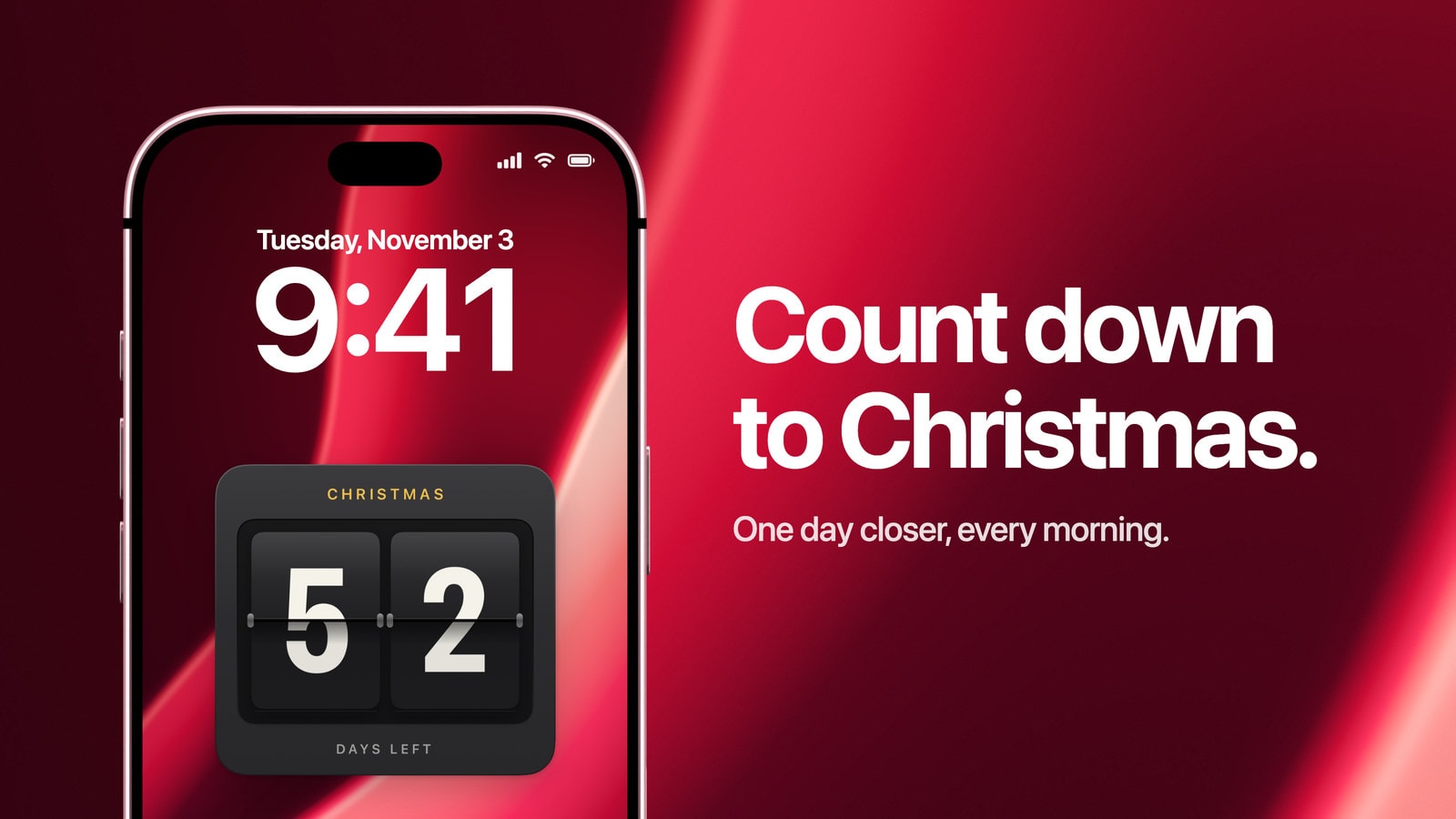
To put a Christmas countdown on your iPhone Lock Screen, use a countdown wallpaper. Calendarly draws the days left until 25 December across the Lock Screen and redraws it every morning through an Apple Shortcuts automation, so the number drops by one each day without you touching it. iOS has no countdown of its own, so this is how you get one that you see every time you pick up the phone.
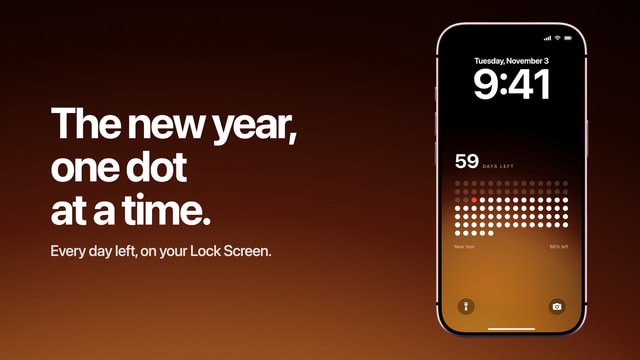
Started in early November, the number is still in the fifties, and watching it fall through December is half the fun. For children, try the dot version: twenty-four dots going out one a morning is easier to feel than a two-digit number.
Below is how to set it up in a few minutes, which style to pick, how to make it look like Christmas without making it hard to read, and what to do with it on Boxing Day.
How to put a Christmas countdown on your Lock Screen
- 1Download Calendarly
Get Calendarly from the App Store. It is free and needs iOS 16.6 or later.
- 2Open a countdown layout
In the Gallery, open the Countdown row and tap the style you like. Each one is shown on a real Lock Screen.
- 3Set the date to 25 December
In the Studio, set Counting to Event, the date to 25 December and the title to Christmas, or to whatever your family calls the morning you open presents.
- 4Pick a background
A deep red or a dark ground keeps the number readable from across the room.
- 5Tap Use as Wallpaper
The first time, Calendarly adds its shortcut, Update Calendarly Wallpaper, and walks you through the one automation that redraws the countdown every morning.
From then on the countdown looks after itself. If the phone happened to be off at the time of the morning run, open the Shortcuts app and run the shortcut once by hand, and the number catches up.
Flip board, dots or a progress line
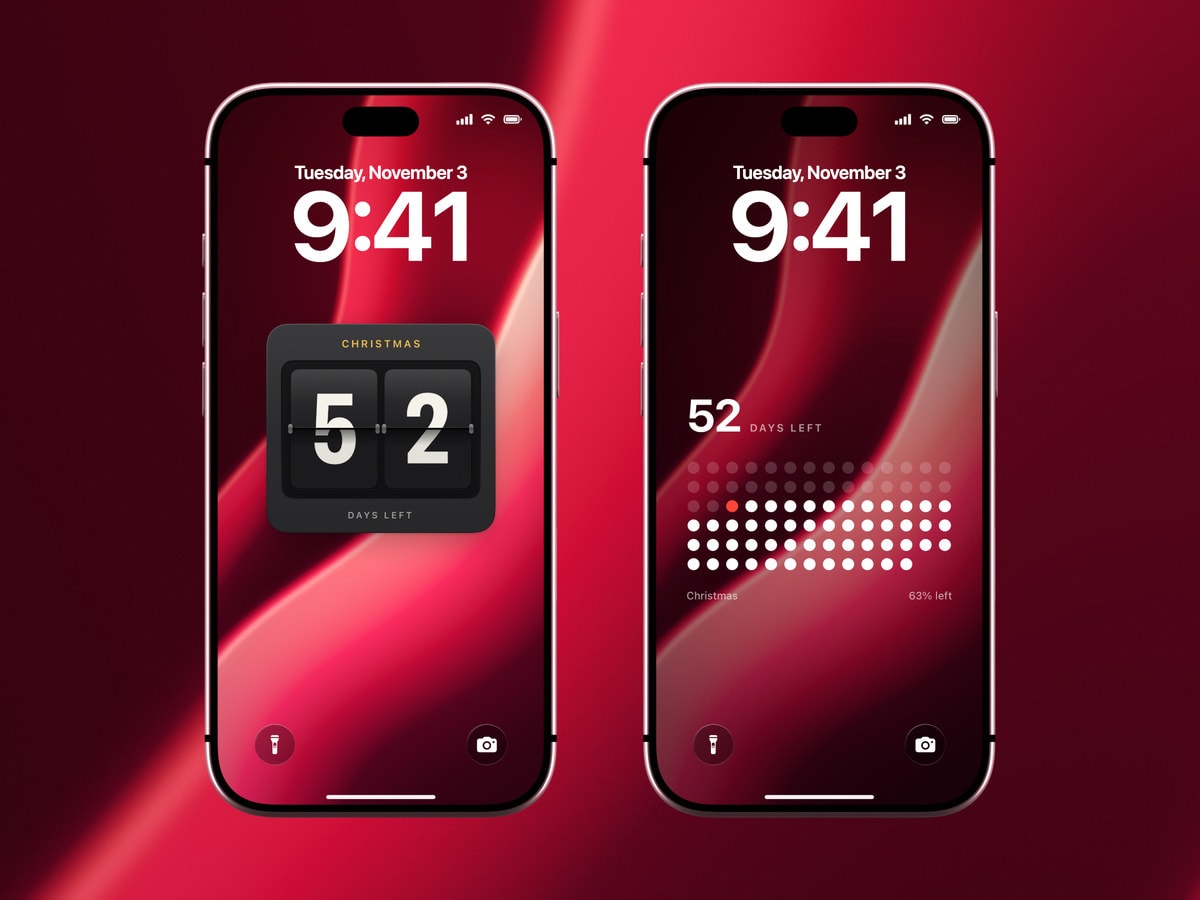
All three count the same days, and they feel different on the screen. Choose by who is going to look at it most.
- Flip board
Two big numbers on dark tiles, readable at a glance from the other side of the kitchen. The one adults usually keep.
- One dot per day
Every remaining day is a dot, and one goes out each morning. Set it up on 1 December and it works like an Advent calendar.
- Progress line
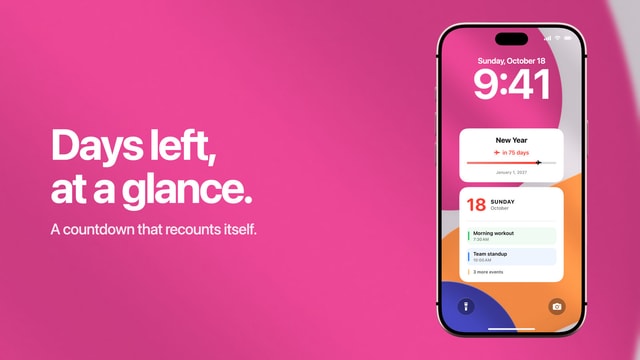
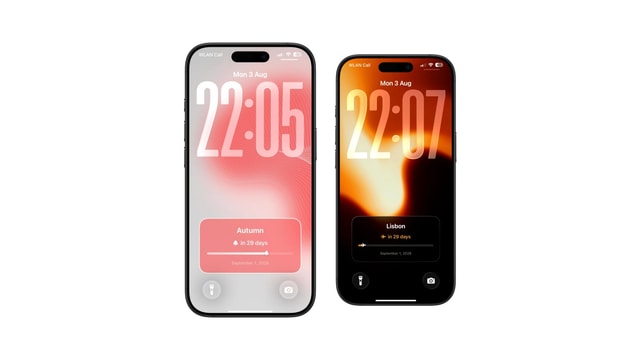
A line from the day you set it up to Christmas, with the date underneath. The calmest of the three, and the one that suits a photo background.
Making it feel like Christmas
The countdowns that look best are plain, because the number is the decoration. A single large figure on a deep red ground reads from across a room, and it still looks good the twentieth time you see it, which a wallpaper covered in snowflakes and baubles rarely does.
If you want more of the season on the screen, put it in the background and keep the area around the number empty. A photo with dark sky or a plain wall behind the tree gives the countdown somewhere to sit. Check it with the clock in place before you settle on it, since the iOS clock and date cover the top third of every wallpaper.
Why not a widget or a picture?
iOS itself can’t count down to a date. The Clock app’s timer stops at 23 hours and 59 minutes, and Siri will tell you how many days are left without putting anything on the screen. The Calendar app knows when Christmas is if a holiday calendar is switched on, but Apple’s Lock Screen Calendar widget never shows all-day events, and Christmas Day is one.
That leaves a countdown widget or a picture. A widget is a small number in the row under the clock, and Calendarly has free countdown widgets if that is all you want. A picture you made yourself is right for one day and wrong the next. A wallpaper that redraws itself is big, designed and still correct on 24 December.
After the 25th
On Boxing Day the countdown has nothing left to count, so give it a new job rather than leaving it at zero. The obvious next target is New Year’s Day a week later, and Calendarly can count to the end of the year without any date at all: set Counting to Year. The New Year countdown guide covers that version.
After that, switch back to your usual layout, such as your calendar on the Lock Screen. Save the countdown to My Layouts before you do, and next November it takes about ten seconds to bring back with next year’s date. Other dates work the same way: a birthday, a holiday or a wedding.
Sources
Questions people ask
No. Siri can tell you how many days are left, but nothing in iOS shows a countdown on the Lock Screen. A countdown wallpaper such as Calendarly’s, or a countdown widget, is needed.
Yes. Calendarly redraws the wallpaper every morning through an Apple Shortcuts automation, so the number of days left is always current.
Yes. Your own photo as the background is part of Calendarly Pro. The built-in backgrounds and free countdown layouts are free.
Yes. Calendarly’s countdown widgets are free, if you prefer a small number to a full-screen countdown.
Yes. The countdown is part of the wallpaper, so the clock, notifications and any Lock Screen widgets stay on top of it.
The countdown reaches the day. Point it at New Year’s Day or the end of the year, or switch back to your usual layout and keep the countdown in My Layouts for next year.