The Best Countdown App for the iPhone Lock Screen
Five countdown apps compared by what they put on the Lock Screen: a small number in the widget row, or the days left across the whole wallpaper, redrawn every morning.
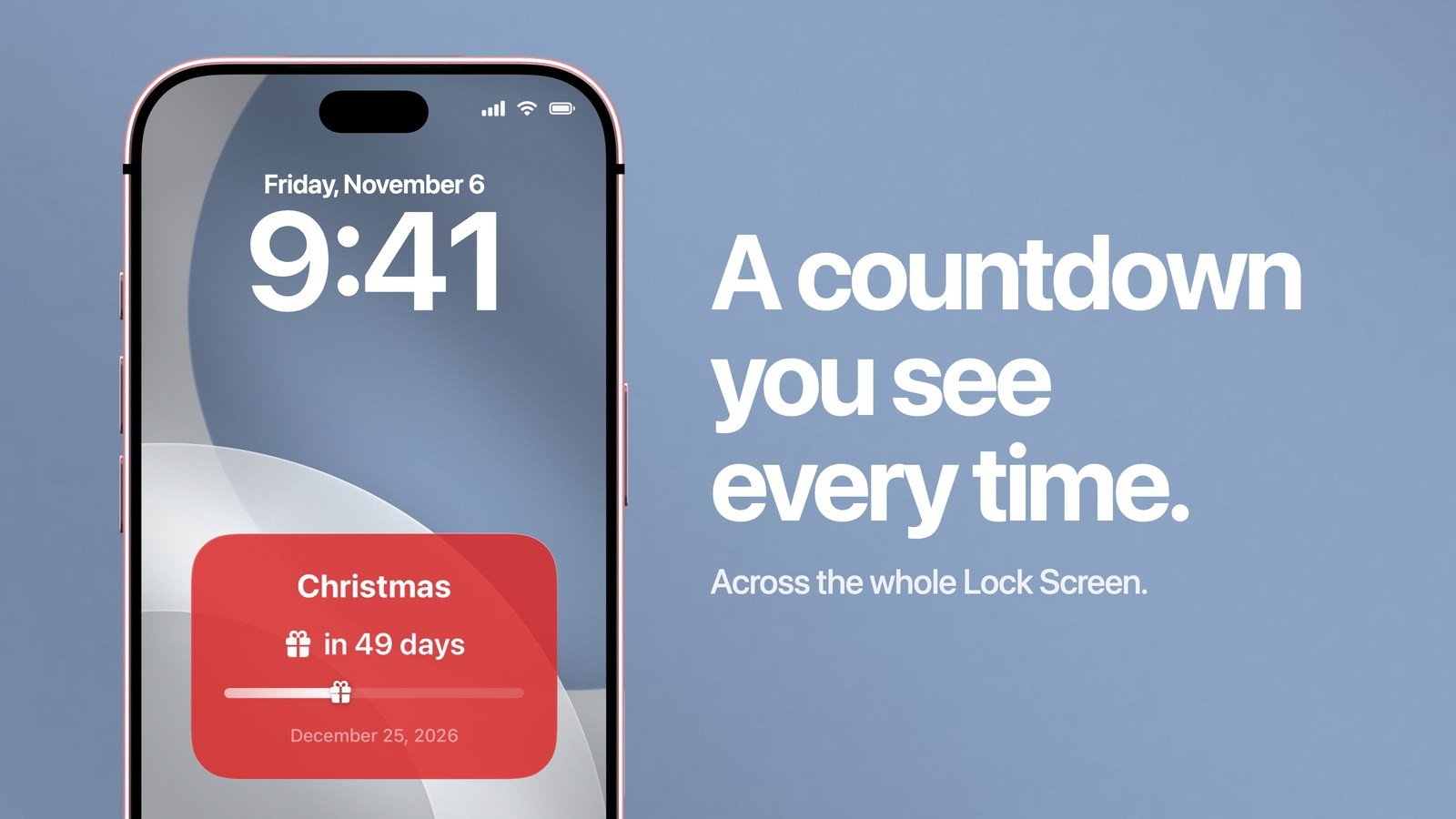
The best countdown app for the iPhone Lock Screen depends on how big you want the number. If you want it across the whole Lock Screen, Calendarly is the one to get: it draws the days left into the wallpaper itself and redraws it every morning, and it also has free countdown widgets for the row under the clock. If a small number in that row is all you need, a widget app such as DayCount, Pretty Progress or Countdown Widget Lock Screen+ will do.
Most lists of countdown apps compare widgets with widgets, and on the Lock Screen that comparison is narrow. A Lock Screen widget row is about 64 points tall on a screen of 932, so every widget app ends up showing a short title and a number in roughly the same space, whatever its designs look like inside the app. The real choice is between a number in that row and a countdown that takes the wallpaper. Below are the five apps that come up most for this search, what each one puts on the Lock Screen, and how to set up the wallpaper version.
Five countdown apps compared
All five are free to download, and each sells something inside. The details come from each app’s own App Store page in the US store on 14 November 2026; prices and plans change, so check the listing before you buy.
| App | Where the countdown shows | Free version | Paid | Needs |
|---|---|---|---|---|
| Calendarly | The whole Lock Screen wallpaper, plus Home Screen and Lock Screen widgets | Countdown wallpapers and every widget | Pro: every layout and your own photos | iOS 16.6 |
| DayCount | Home Screen and Lock Screen widgets | Yes; Premium has a 7-day free trial | Premium: yearly or lifetime | iOS 16.0 |
| Pretty Progress | Home Screen, Lock Screen and StandBy widgets, Apple Watch | Four countdown widgets in two designs | PRO: monthly, yearly | iOS 18.0 |
| Countdown Star | Home Screen widgets, Apple Watch | With ads | Remove Ads, or the ad-free version at $1.99 | iOS 17.0 |
| Countdown Widget Lock Screen+ | Lock Screen and Home Screen widgets | Yes | Not stated on the listing | iOS 14.0 |
Countdown Star’s listing names Home Screen widgets in three sizes and Apple Watch, with no Lock Screen widget among its features. Countdown Widget Lock Screen+ is the simplest of the five, and its last update in the store dates from October 2022. DayCount also tracks streaks, and Pretty Progress shows the progress of the day, week, month and year beside your own countdowns.
Why Calendarly comes first for the Lock Screen
A countdown works when you see it without trying. In the widget row the number shares a strip with the weather, the battery and the next alarm. Calendarly puts the countdown into the picture behind the clock, as large as you set it, with the title, the days left and a line that fills up from the day you started counting.
The wallpaper is redrawn by an Apple Shortcuts automation, because iOS lets no app change the Lock Screen on its own. Calendarly installs the shortcut, Update Calendarly Wallpaper, and walks you through the automation once. After that the number drops by one each morning while the phone is still on the nightstand. The count happens on the iPhone, so it works offline, and nothing about your dates leaves the phone.
Calendarly’s countdown widgets are free in small and medium sizes for the Home Screen and in a Lock Screen size for the row under the clock, so you can keep a small number there for a second date while the wallpaper holds the main one.
How to put a countdown on the Lock Screen with Calendarly
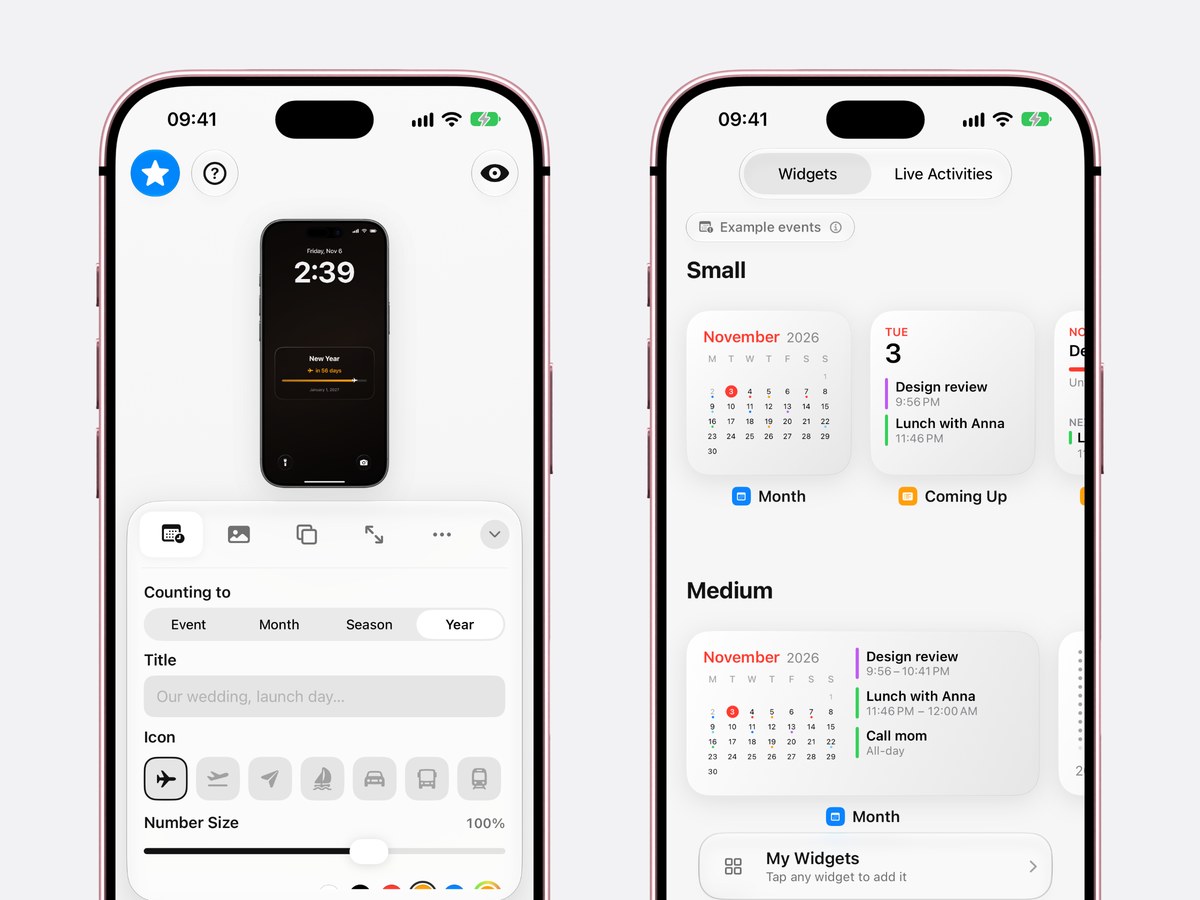
- 1Download Calendarly
Get Calendarly from the App Store. It is free, runs on iOS 16.6 or later and asks for no account.
- 2Open the Countdown row in the Gallery
Every layout is shown on a real Lock Screen. Journey is a card with the title, the days left and a progress line; Mosaic shows the days left as a big number.
- 3Set the date in the Studio
Under Counting to, choose Event and pick the date, then type a title such as Lisbon or Our wedding. Year counts to the end of the year with no date at all.
- 4Choose the icon, size and background
Pick an icon that rides along the progress line, make the number as large as you like with Number Size, and choose a ground that keeps it readable under the clock.
- 5Tap Use as Wallpaper
The first time, Calendarly adds Update Calendarly Wallpaper to Shortcuts and shows you the one Time of Day automation that redraws the countdown every morning.
If the phone was off at the time of the morning run, open Shortcuts and run Update Calendarly Wallpaper once, and the number catches up. The countdown guide goes deeper into choosing the start date and what day zero means.
Countdowns people set up most
- Holidays
Christmas, New Year, Thanksgiving and Hanukkah, each with its own guide. The Christmas countdown is in the forties in mid November.
- Trips
A vacation countdown with a plane or a train on the progress line, counted to the departure day.
- Birthdays
Yours or a child’s, set up as in the birthday countdown guide.
- Weddings and exams
Long countdowns where the progress line matters as much as the number: the wedding countdown and the exam countdown.
- Days since
The same layouts count up from a date in the past, as in the days since counter.
99 of Calendarly’s 156 layouts are free, the countdown layouts named here among them. Calendarly Pro unlocks the rest and your own photos as backgrounds.
When a widget app is the better choice
A widget app makes more sense if you follow many dates at once and want them in a list you can open, if you want hours, minutes and seconds ticking inside the app, or if the countdown should also sit on your Apple Watch. Pretty Progress and Countdown Star both list Apple Watch on their pages, and Countdown Star lists iCloud sync with the iPad. DayCount suits people who track streaks next to their dates.
Calendarly counts whole days, because the wallpaper is redrawn once a morning, so nine days stays nine days until the next morning. For a launch at a set minute a live timer is the better tool. You can also use both: the wallpaper for the date that matters most and a widget app’s number in the row under the clock.
What the iPhone does without an app
iOS has no countdown to a date. The Clock app’s timer stops at 23 hours and 59 minutes and shows on the Lock Screen while it runs, which is fine for the last evening before something and useless for the weeks before. Siri answers how many days are left until a date without putting anything on screen, and Apple’s Calendar widget never shows all-day events, so a holiday or a birthday entered as an all-day event does not appear there at all.
Apple explains how to add widgets to the Lock Screen and how to customize the Lock Screen. The automation that keeps a wallpaper current is described in the Shortcuts guide to automations.
Before you pick one
Read the In-App Purchases list on the App Store page before you download: it shows whether the app sells a subscription, a one-time unlock or both, and roughly what each costs in your country. Check the iOS version the app needs, since Pretty Progress asks for iOS 18 while Calendarly and DayCount run on iOS 16. The date of the last update says whether anyone still looks after the app.
Sources
Questions people ask
For a countdown across the whole Lock Screen, Calendarly: it draws the days left into the wallpaper and redraws it every morning, and its countdown widgets are free. For a small number in the widget row only, DayCount, Pretty Progress and Countdown Widget Lock Screen+ all offer Lock Screen widgets.
Yes. Calendarly’s countdown widgets are free, including the Lock Screen size, and so are its countdown wallpapers. Pretty Progress includes four countdown widgets in its free version, and DayCount and Countdown Widget Lock Screen+ are free to download.
Yes. Calendarly makes the countdown part of the wallpaper and redraws it each morning through an Apple Shortcuts automation, so the number of days left stays current without you editing anything.
No. The Clock timer goes up to 23 hours and 59 minutes, and Siri can tell you the days left without showing them. A countdown to a date on the Lock Screen needs an app.
Pretty Progress and Countdown Star both list Apple Watch on their App Store pages. Calendarly is for the iPhone only.
Yes, every one of them counts to any date. In Calendarly, set Counting to Event, choose 25 December and the gift icon; the [Christmas countdown guide](/blog/christmas-countdown-iphone-lock-screen) has the details.
Calendarly is free to download, and 99 of its 156 layouts are free, along with every widget, every Live Activity and the daily update. Calendarly Pro unlocks every layout and your own photos as backgrounds.