Hanukkah First candle at sundown, Friday, December 4, 2026
How to Put a Hanukkah Countdown on Your iPhone Lock Screen
The days until the first candle on Friday, 4 December on your Lock Screen, redrawn every morning, then a second countdown through the eight nights.
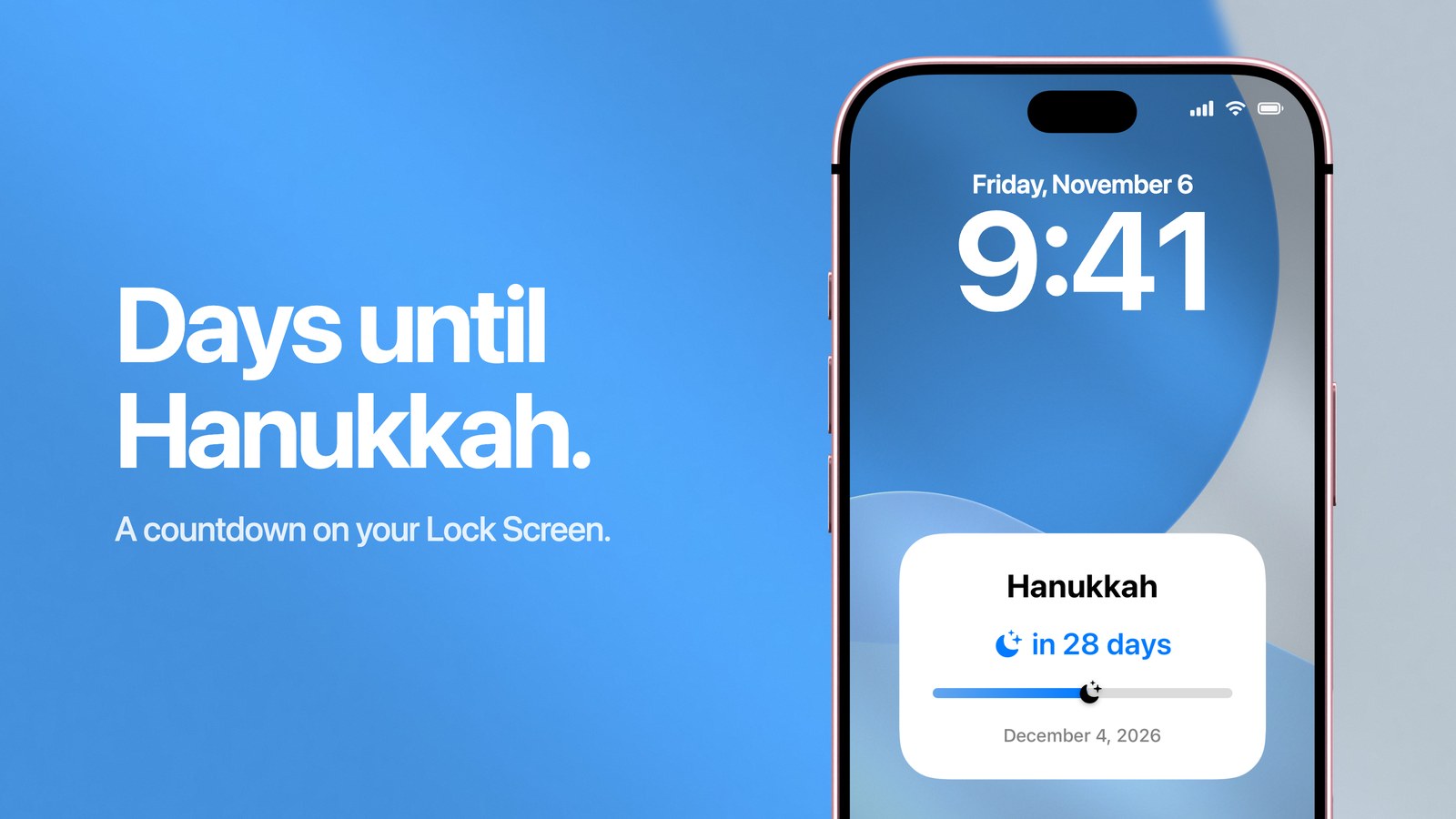
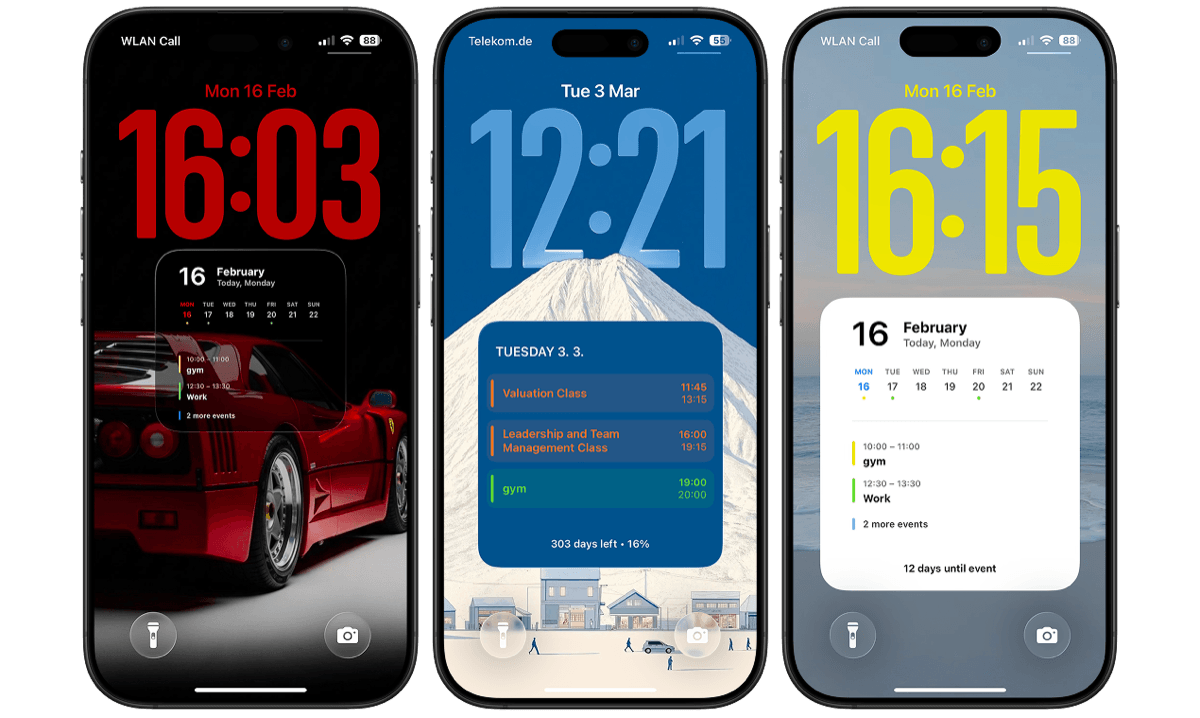
To put a Hanukkah countdown on your iPhone Lock Screen, use a countdown wallpaper. Calendarly shows the days left until the first candle, at sundown on Friday, 4 December 2026, across the whole Lock Screen, and redraws it every morning through an Apple Shortcuts automation. iOS has no countdown to a date of its own, so the number has to come from an app, and a wallpaper is the one place it is big enough to notice.
Hanukkah is easy to lose track of because it moves. It begins on the 25th of Kislev in the Hebrew calendar, which follows both the moon and the sun, so in the ordinary calendar the first night can fall anywhere from late November to late December. This year it is 4 December. Next year it is 24 December 2027, almost three weeks later and on Christmas Eve.
Four weeks out is a good time to start counting. The candles need buying, the menorah has been in a box since last year, and if there are presents for each night, that is eight of them to sort out. The setup takes a few minutes, and the title is plain text, so the wallpaper can say Hanukkah, Chanukah or Hanukah, whichever way your family writes it.
How to put a Hanukkah countdown on your Lock Screen
- 1Download Calendarly
Get Calendarly from the App Store. It is free and needs iOS 16.6 or later.
- 2Open a countdown layout
In the Gallery, open the Countdown row and tap Journey. The countdown layouts are free.
- 3Set the date to 4 December
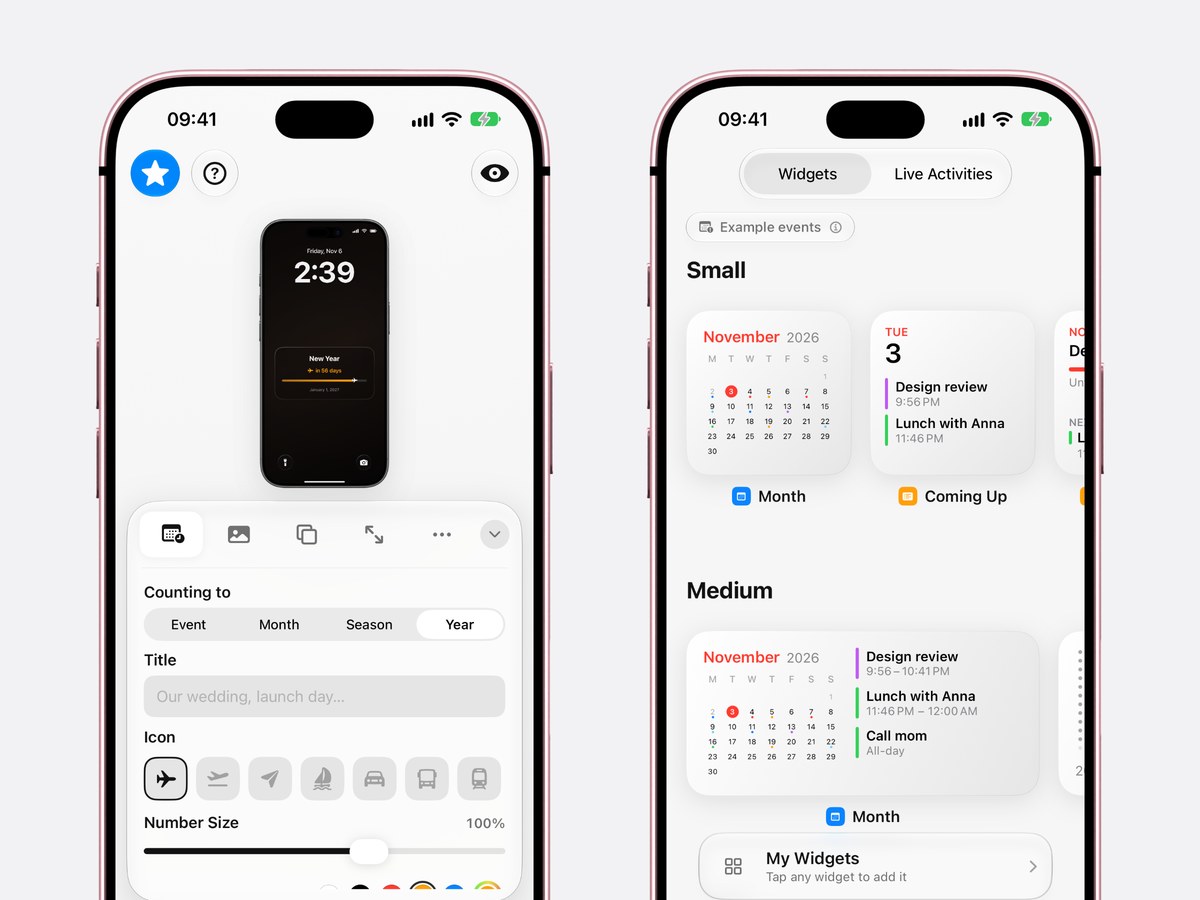
In the Studio, set Counting to Event, the date to Friday, 4 December, and the title to Hanukkah, or Chanukah if that is your spelling. Under Icon, the moon and stars suit an evening holiday.
- 4Choose a start date
Start Date is where the countdown’s progress begins. Today is fine. So is the day the menorah came out of the cupboard, and then the progress shows how much of the wait is behind you.
- 5Tap Use as Wallpaper
The first time, Calendarly adds its shortcut, Update Calendarly Wallpaper, and walks you through the one automation that redraws the countdown every morning.
After that the wallpaper looks after itself. If the phone was switched off when the morning run was due, open the Shortcuts app and run Update Calendarly Wallpaper once by hand, and the number catches up.
Which style for which household
The styles count the same days, and all of them are free. They differ in how far away you can read them.
- Journey
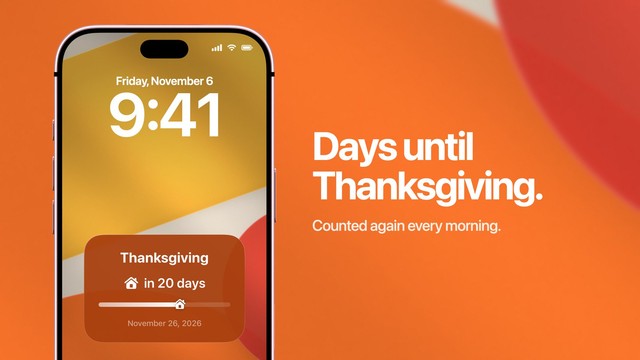
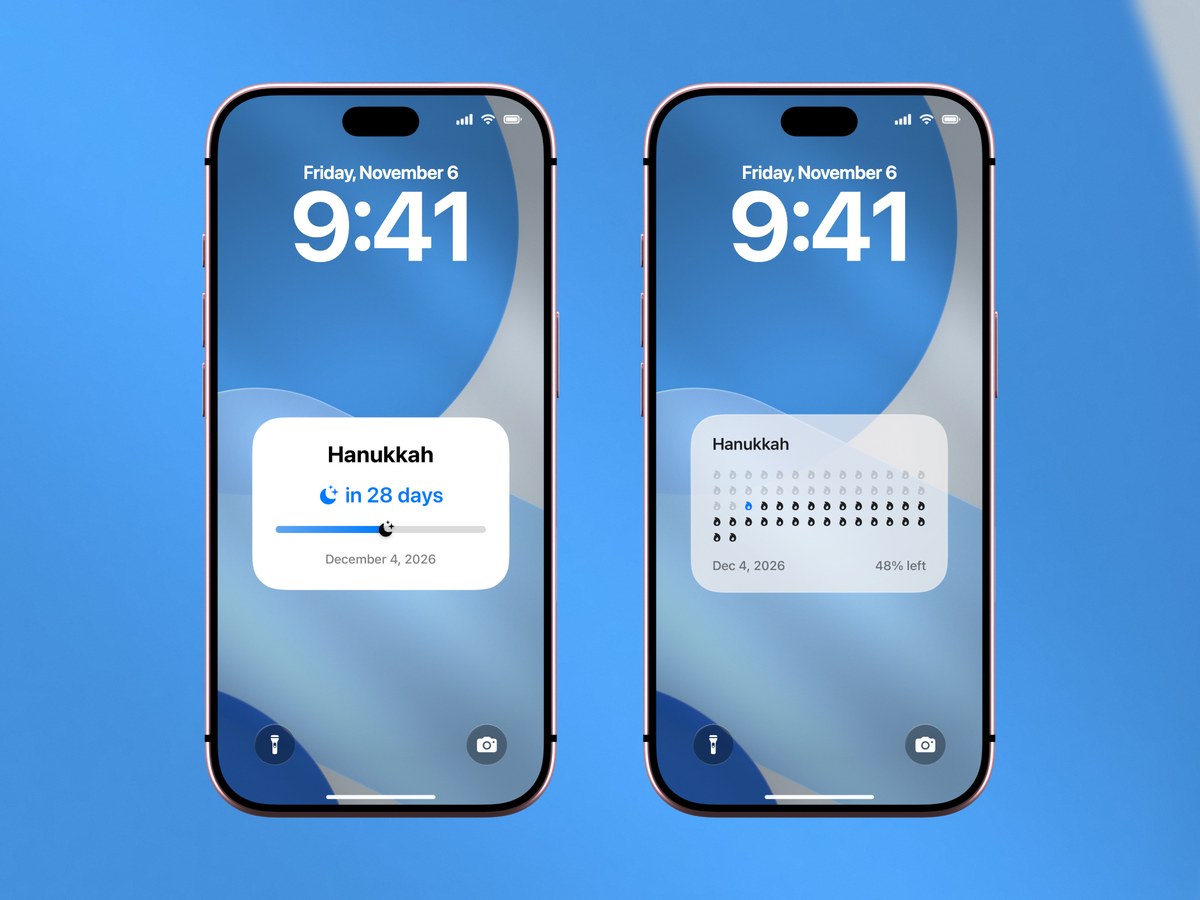
A card with the title, the days left and a line from your start date to the first night, with the moon and stars riding along it.
- Milestones
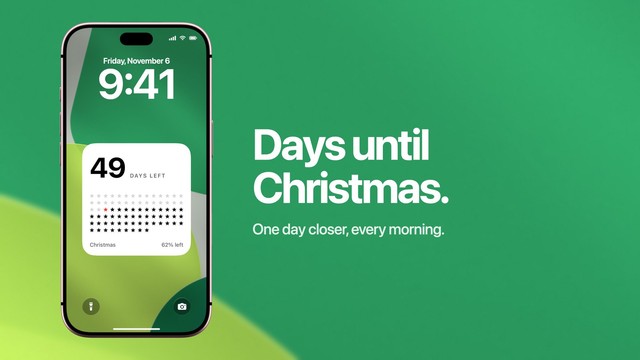
A small flame for every day of the wait, the days gone filled in and today in blue, so children can see how much of the wait is behind them. Choose the flame under Day Shape.
- Mosaic
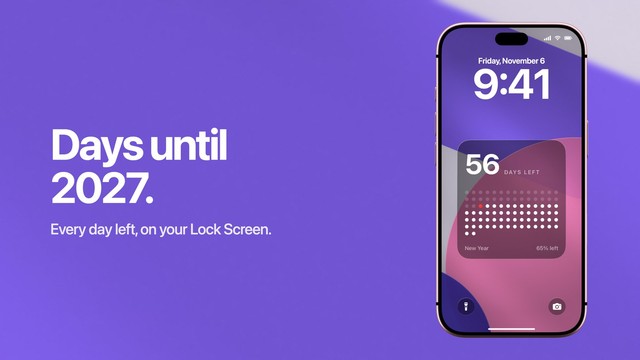
The same field under a big number of days left, readable from across the kitchen while the latkes fry.
The countdown guide explains what to do when there is more than one date you want to count to.
Counting the eight nights
On the evening of 4 December the countdown reaches the first candle and has nothing left to count. That is the moment to point it at the end of the festival instead. Set the date to Saturday, 12 December, the day Hanukkah ends at nightfall, and change the title to something like Nights of Hanukkah. On Friday the 4th, the first night, the wallpaper says 8, and on Friday the 11th, the eighth night, it says 1. The app counts days, and over Hanukkah the days left match the nights left.
Both of those evenings are Fridays this year, and that changes the timing. The custom is to light the Hanukkah candles before the Shabbat candles, which means a little before sunset rather than after dark. If you tend to forget, start a timer in the Clock app an hour before. It shows on the Lock Screen while it runs, right on top of the countdown.
Getting the date right, this year and next
Like every Jewish holiday, Hanukkah starts at sundown, so the evening of Friday, 4 December 2026 is the first night even though Saturday the 5th is the first full day. The eighth candle is lit on Friday, 11 December, and the festival ends at nightfall on Saturday, 12 December. Hebcal’s Chanukah 2026 page lists each night with its candle count.
Next year the first candle is on the evening of Friday, 24 December 2027. Because the date moves by weeks from one year to the next, a Hanukkah countdown needs its date changed once a year, which takes a few seconds in the Studio.
What iOS can do without an app
The iPhone has no way to show the days left until a date. The Clock app’s timer does appear on the Lock Screen while it runs, but it stops at 23 hours and 59 minutes, so it can only count the last day. Apple’s Lock Screen Calendar widget is no help either, because it never shows all-day events, and a holiday in a calendar is an all-day event. Side by side:
| iOS on its own | Calendarly | |
|---|---|---|
| Days until a date | Not on screen | On the wallpaper, redrawn every morning |
| Clock timer | Up to 23 h 59 min | Days, from weeks out |
| Hanukkah in the Calendar widget | Not shown (all-day event) | The title and the days left, full screen |
| The eight nights | Nothing | A second countdown, to 12 December |
| Price | Built in | Free to download, countdown layouts free |
If you only want a small number under the clock, Calendarly also has free countdown widgets.
After Hanukkah
On 12 December the countdown is finished. Christmas is 13 days later and New Year’s Day 20 days later, so in a home that marks either, the same wallpaper can carry on: change the date and the title, and the Christmas countdown or the New Year countdown has ideas for the style.
Before you change anything, save the Hanukkah version to My Layouts. Next autumn it comes back in a few seconds with one edit, the new date. Once the holidays are over, your calendar on the Lock Screen is the layout most people go back to.
Sources
Questions people ask
No. iOS has no countdown to a date, and the Lock Screen Calendar widget does not show all-day events such as holidays. A countdown wallpaper such as Calendarly’s shows the days left across the whole Lock Screen.
At sundown on Friday, 4 December 2026, when the first candle is lit. The eighth candle is lit on Friday, 11 December, and Hanukkah ends at nightfall on Saturday, 12 December.
The first candle is lit on the evening of Friday, 24 December 2027.
Yes. Calendarly redraws the wallpaper every morning through an Apple Shortcuts automation, so the days left are always right.
Yes. The title is plain text, so any spelling works.
Yes. Once Hanukkah starts, set the date to Saturday, 12 December. The wallpaper then shows 8 on the first night and 1 on the eighth.
Yes, with Calendarly Pro. The countdown layouts and the built-in backgrounds are free.