
Class schedule wallpaper for your iPhone
Type your classes a day at a time, pick a look and a background, and save your week at your iPhone’s exact size. Set it as your Lock Screen and your next class is one glance away.

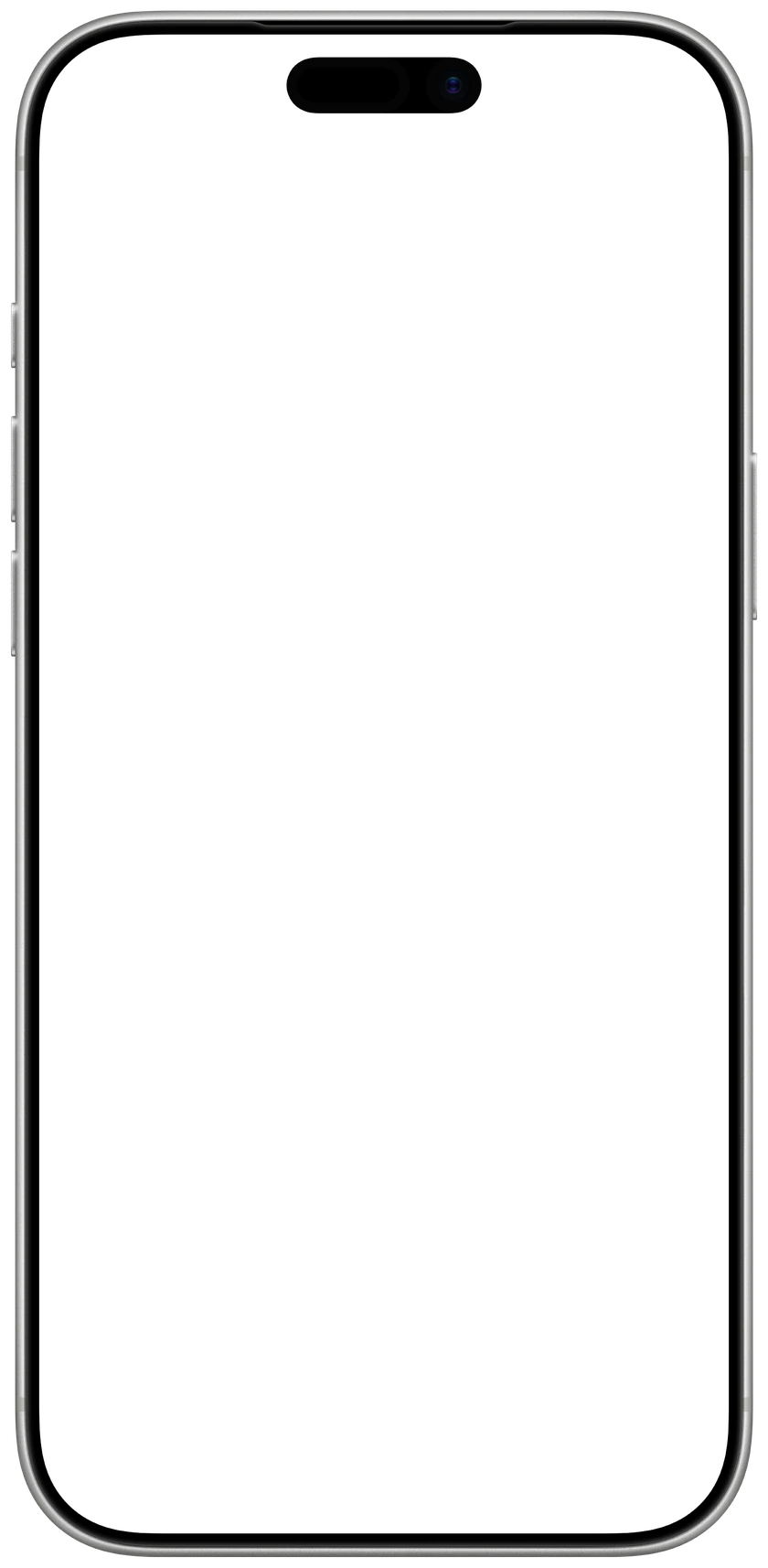
1Your timetable
5 of 8
One class a line: time, subject, then the room after a comma, like 8:00 Biology, Lab 2. A line without a time takes the next period.
2Look
3Background
4Make it yours
1206 × 2622 px, made for iPhone 17 · 17 Pro · 16 Pro
 CalendarlyUpdates your Lock Screen every morningGet
Drawn in your browser. Nothing you type leaves your device.
How to set it as your wallpaper
- 1Tap Save wallpaper, then Save Image. It goes to Photos.
- 2In Photos, open the picture, tap Share and choose Use as Wallpaper.
- 3Tap Add, then Set as Wallpaper Pair.

Want only today’s classes, every morning?
Calendarly puts today’s classes from your calendar on your iPhone’s Lock Screen and redraws it every morning. Free.
Free on the App Store, for iPhone.
Why your timetable belongs on the Lock Screen
In the first weeks of a semester you check your timetable many times a day: which room, what time, which building. On the Lock Screen it is there the moment you lift your phone, with no app to open and no screenshot to dig out of Photos. It works with no signal too, in a basement lab or on the train.
A full week fits if you keep it short. Use the names you say out loud, like Bio, Chem or Math, put the room after a comma, and leave out breaks you don’t need. The grid sits under the clock and your widgets, so nothing covers it.
Tips for your new semester’s timetable
- Save it once your schedule is final, after the add and drop period or the first week of school, so the rooms and times are right.
- Use the short names you already say, like Bio, Chem or Calc. A full week fits, and short names read faster than course titles.
- Put the room after a comma, with the building on a big campus: Chem, Sci 204.
- Leave free periods empty. A gap in the grid shows at once when you can eat, study or walk to the next building.
- When your days start at different times, as at most universities, type each class with its own time. Every start time gets its own row.
- If your school runs week A and week B, make a wallpaper for each. iOS keeps several Lock Screens, and a long press on the Lock Screen switches between them.
- Link the Lock Screen to a Focus. A School Focus scheduled for class hours switches to your timetable and silences notifications at the same time.
- Pick a background that is calm under the clock, or choose Card or Paper, so the grid reads on any photo.
- Keep exams, deadlines and one-off changes in your calendar. The picture shows the usual week and can’t warn you when a class moves.
Questions people ask
Type your classes above, a day at a time, and save the picture. In Photos, open it, tap Share, choose Use as Wallpaper and set it as your Lock Screen. To see only today’s classes, redrawn every morning from your calendar, use the Calendarly app.
Yes. It runs in your browser, needs no sign-up and adds no watermark. Your timetable is drawn on your device and is never sent anywhere.
Every iPhone from the iPhone SE and 8 to the iPhone 17 Pro Max and iPhone Air. The page picks your model by itself when it can; you can choose another under iPhone.
A picture cannot change. Calendarly can: put your classes in Apple Calendar as repeating events, or in Google Calendar or Outlook through your iPhone’s Calendar accounts, and the app shows today’s or this week’s classes on your Lock Screen, redrawn every morning by a Shortcuts automation. On iOS 26 or later you can also add them right in the app. The app is free to download.
Yes. Choose Mon to Sat under Days for a six-day week, and type the room after a comma, like 9:00 Physics, Lab 3. The room shows under the subject.