How to Put Your Weekly Schedule on Your iPhone Lock Screen
Shifts, classes and busy weeks on the wallpaper itself, so you stop opening the calendar to check which day you are on.
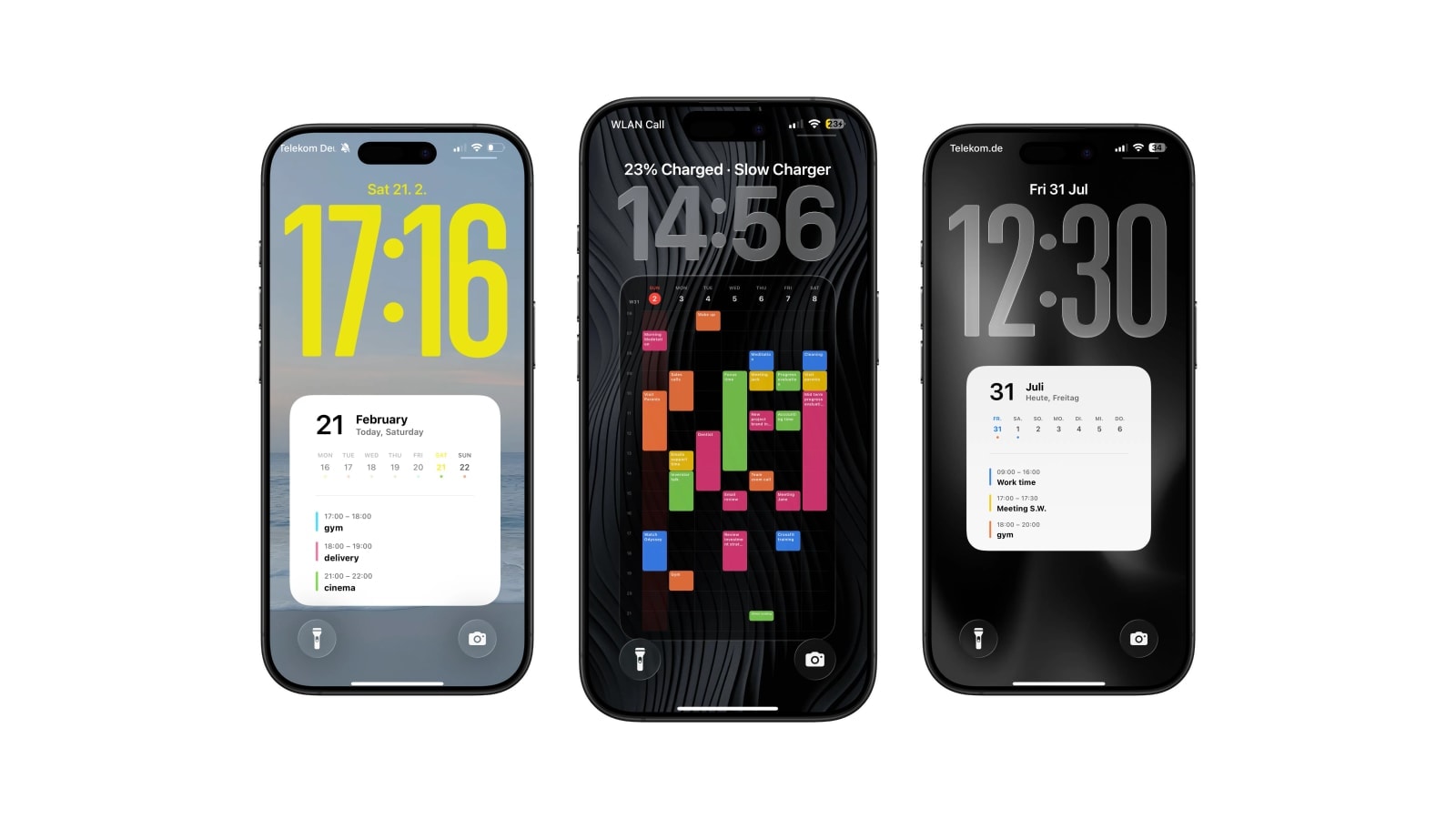
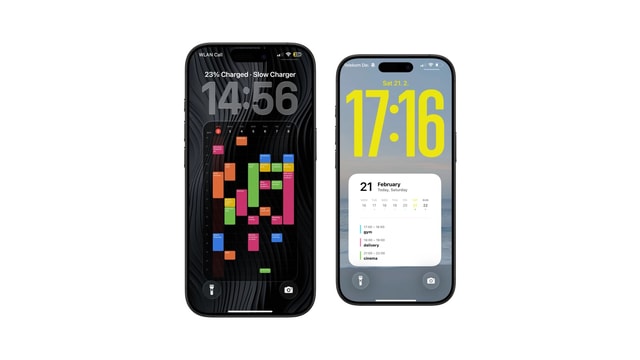
To put a weekly schedule on the iPhone Lock Screen, you keep the schedule in Apple Calendar and let an app draw the current week into the wallpaper. Calendarly reads the calendars you choose, renders the week as an image, and a Shortcuts automation replaces the wallpaper each morning.
The reason this works better than it sounds is that the repetition lives in Calendar rather than in the wallpaper. A class that happens every Tuesday is entered once as a repeating event, and every future week inherits it. You are never rebuilding a timetable in a design tool.
It is worth knowing what you are trading. A week grid gives you far more room than any widget, and in exchange it is a still image: an edit made at eleven appears the next time the shortcut runs, not immediately.
Who actually benefits from a week on the wallpaper
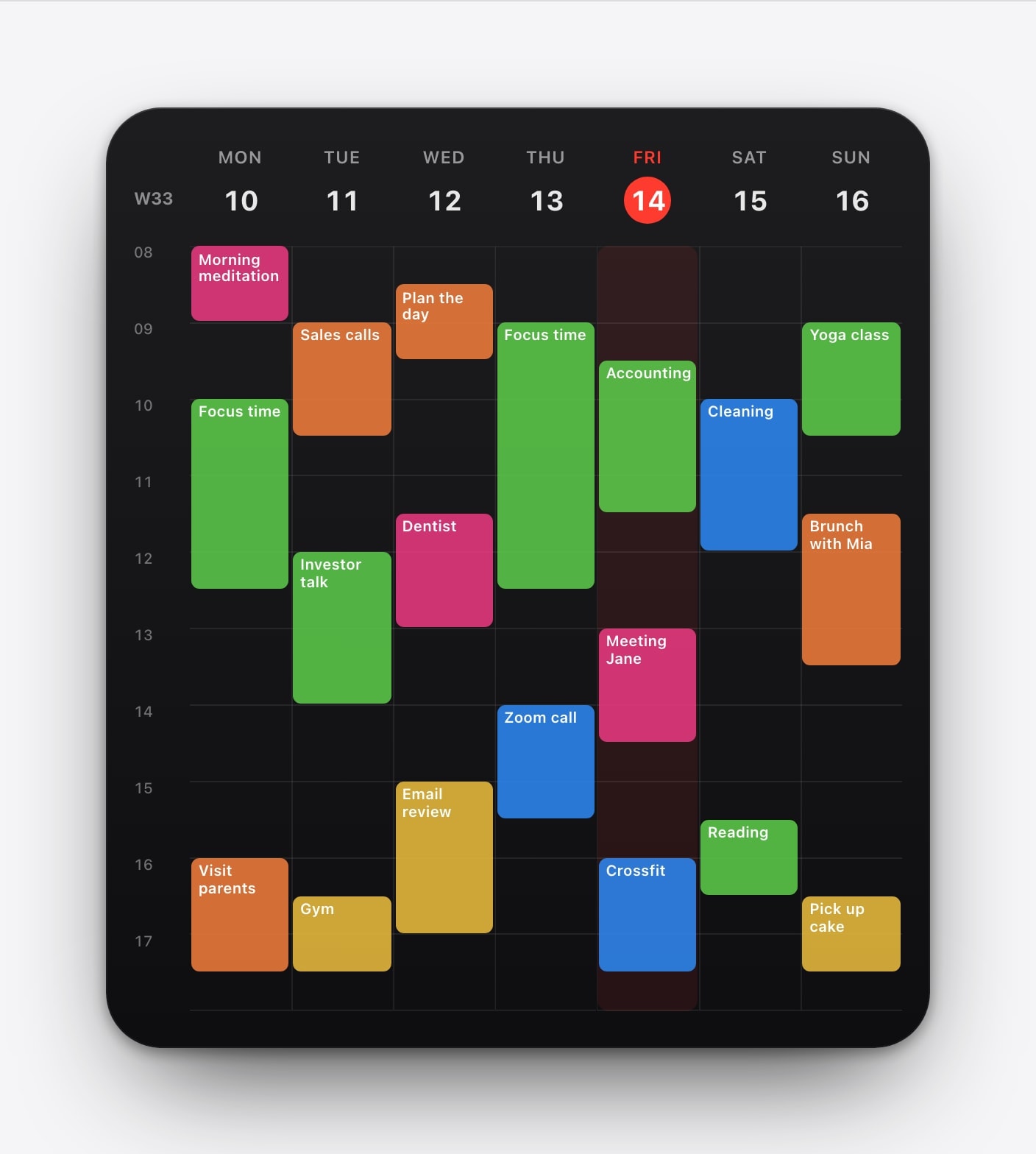
A week view earns its place when your days are not interchangeable. Students need to know which building and which hour. Shift workers need to see the early, the late and the off day in one shape. Parents need the overlap between school runs, work and whatever the weekend has turned into. In all three cases the useful information is the pattern, and a pattern needs several days visible at once to exist.
If your week is a straightforward nine to five with meetings inside it, a week grid is mostly empty scaffolding and a daily agenda will serve you better. The test is simple: if you can describe next Thursday without checking, you do not need a week view.
Get the week into Calendar once
If somebody else publishes your schedule, subscribe to their feed rather than copying dates by hand. Universities, sports clubs, some employers and most public timetables offer an ICS or webcal link, and a subscription can receive later changes where an imported file cannot. Look for wording like Subscribe or Add to calendar rather than Download.
If nobody publishes it, build it with repeating events and give the repetition an end date. An open-ended weekly repeat is fine for a habit and terrible for a term, because it will still be filling your calendar in two years. For rotating shifts, name events for what you need at a glance: “Early · 06:00” or “Night · Ward B” beats the official shift code every time, since the wallpaper only has room for the first few words.
- A published feed
Best when someone else owns the schedule. Changes flow into Apple Calendar without you noticing, which is exactly what you want from a timetable.
- Repeating events
Best for a stable pattern you control. Always set an end date, or you will be deleting occurrences from 2028 next spring.
- One-off events
Best for the things that break the pattern: exams, travel, appointments, the Tuesday the class moved.
Grid or list
A grid places events by time, so you can see the gaps, the early start and the free Wednesday afternoon as shapes rather than as text. It is the right choice when when something happens matters as much as what it is. Its weakness is density: a heavy week compresses each event into a coloured block with two words in it.
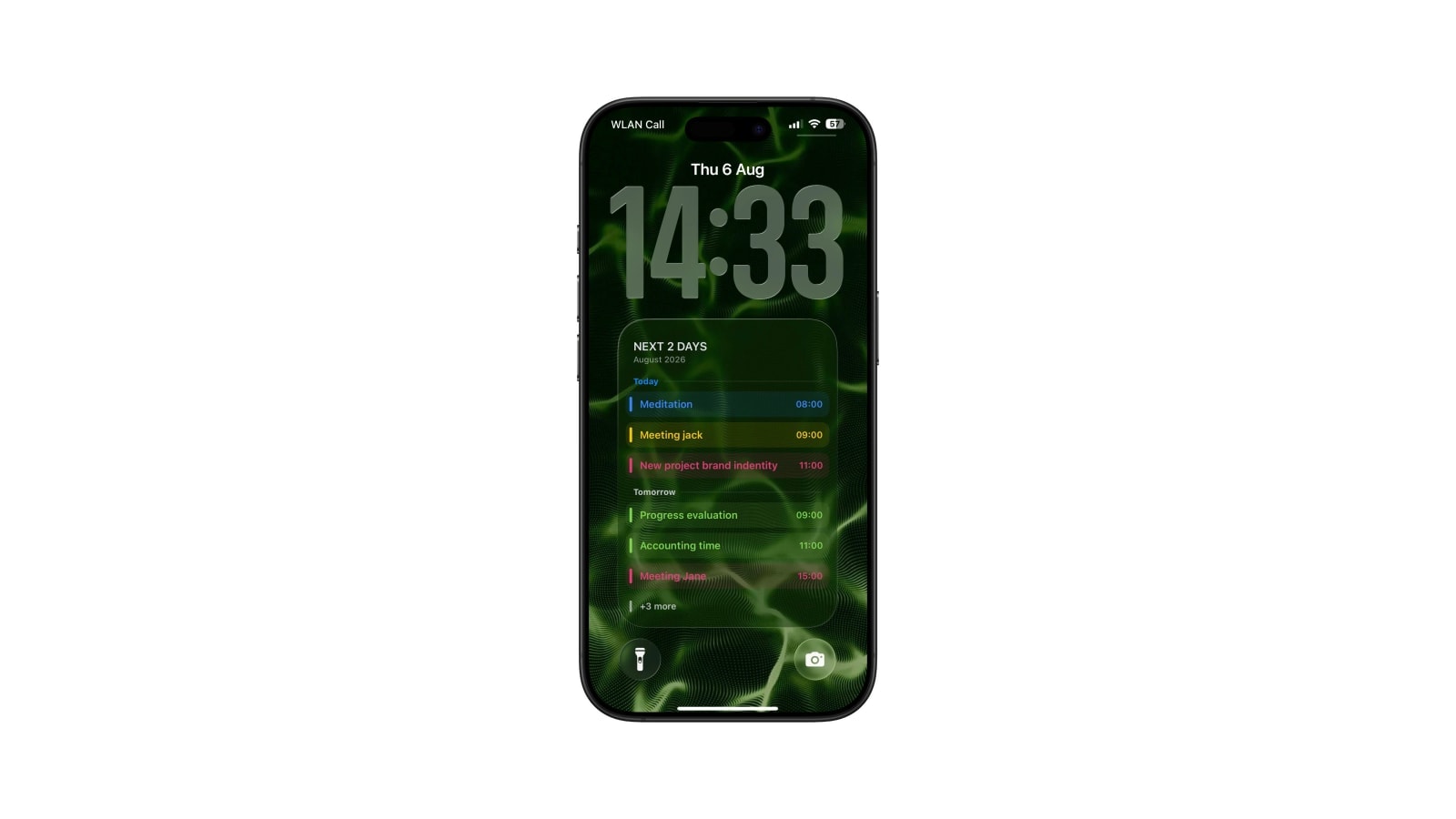
A list drops the hourly axis and gives every event a full line, which is the right choice when the names are long or the exact hour is less important than the order. Room numbers, lecturer names and location codes survive in a list and die in a grid.
Neither is permanently correct. Most people who use this seriously switch between them a couple of times a year, usually when a term or a rota changes shape.
This week or the next seven days
This is the setting people overlook and then quietly resent. A calendar week runs Monday to Sunday, so by Saturday morning it is showing you one and a half remaining days and a large area of history. A rolling window instead starts on today and always shows seven days forward, so the weekend looks like the week ahead rather than like the end of one.
Calendarly calls these This Week and Next 7 Days, and Next 7 Days is the default for exactly the reason above. This Week is the better choice if you think in calendar weeks, plan on Sunday evenings, or need the Monday-to-Friday block to hold still while you look at it. Both editors show the resolved dates next to the setting, so you can see “Jul 25 – 31” and decide with your eyes rather than by reasoning about it.
The two things that go wrong
The first is expecting live sync. Your calendar account might receive a room change at eleven, but a wallpaper generated at seven still shows the old room until it runs again. If that happens often enough to matter, add a midday refresh; if it happens twice a term, just run the shortcut by hand on those days.
The second is adding calendars. Every source you add takes space from the ones that brought you here, and the failure is gradual rather than obvious: the week stays technically correct while slowly becoming unreadable. Start with the one schedule you came for, live with it for a week, and only then decide whether the family calendar has earned a place.
The wallpaper should never be the only copy. Keep the rota in Calendar as repeating events or a subscribed feed. A schedule that exists only as pixels is a schedule you will lose.
Questions people ask
Yes. Calendarly can draw a week grid or a next-days list from selected Apple Calendar sources and set the result as the wallpaper.
No. Use repeating events or subscribe to a published feed, and the wallpaper is regenerated from whatever the calendar currently holds.
Yes, as long as the shifts are in Apple Calendar. Use recurring events for a simple pattern, or a subscribed feed if your employer publishes one.
Next 7 Days keeps a constant horizon and is better near the weekend. This Week suits people who plan in Monday-to-Sunday blocks.
No. It updates when the shortcut runs. Run it by hand after a change, or add a second scheduled refresh if changes are frequent.