
Goals wallpaper for your iPhone Lock Screen
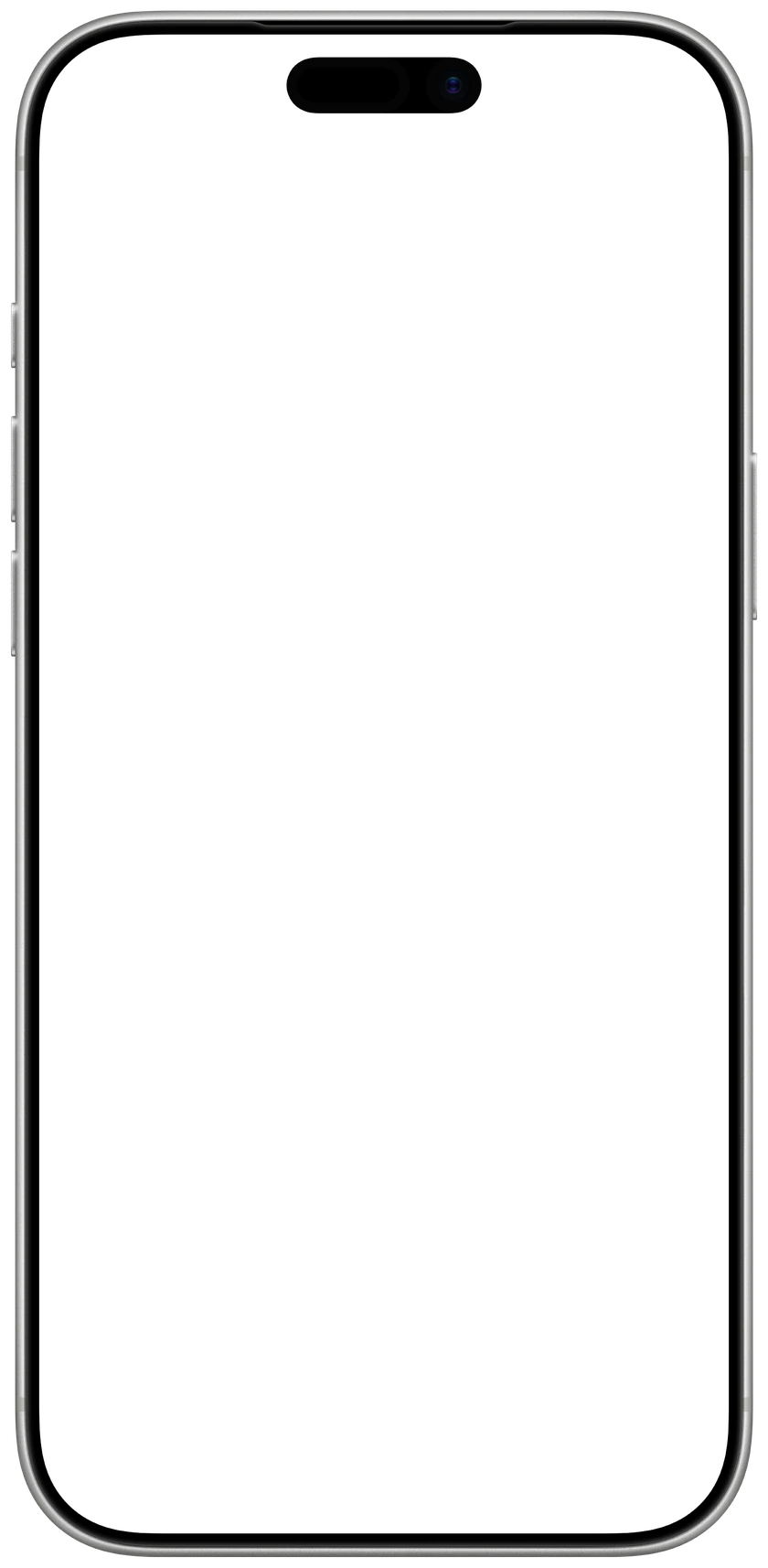
Write your goals for 2027, pick a look and a background, and save the picture at your iPhone’s exact size. Set it as your Lock Screen and you see your goals every time you pick up your phone.

1Your goals
4 of 6
2Look
3Background
4Make it yours
1206 × 2622 px, made for iPhone 17 · 17 Pro · 16 Pro
 CalendarlyUpdates your Lock Screen every morningGet
Drawn in your browser. Nothing you type leaves your device.
How to set it as your wallpaper
- 1Tap Save wallpaper, then Save Image. It goes to Photos.
- 2In Photos, open the picture, tap Share and choose Use as Wallpaper.
- 3Tap Add, then Set as Wallpaper Pair.

Want your goals to become habits?
Calendarly turns a goal into a habit you tick off and keeps your day on your iPhone’s Lock Screen, redrawn every morning. Free.
Free on the App Store, for iPhone.
Goals you see every day
A goal written down in January is easy to forget by March. On the Lock Screen you see it every time you pick up your phone, dozens of times a day, before you open anything else. Three to five goals read at a glance; this picture holds six at most, under the clock and your widgets, where nothing covers them.
Write each goal so you can check it. Put a number in it (read 24 books, save 10% of every paycheck), give it a date (run a half marathon by October) or make it a habit you can keep every week (cook at home five nights a week). At the end of the year you will know for sure whether you did it.
10 goals for 2027 you can check
- Read 24 books: two a month, about 20 pages a day.
- Run a half marathon by October, training three times a week.
- Save 10% of every paycheck into a separate account on payday.
- Learn a language to B1, with 15 minutes of practice a day.
- Walk 8,000 steps a day, at least five days a week.
- Go to bed before 11 pm on weeknights.
- Cook at home five nights a week.
- Pay off one credit card by June.
- Call your parents or a friend every Sunday.
- No phone for the first hour after you wake up.
Questions people ask
Type your goals above and save the picture. In Photos, open it, tap Share, choose Use as Wallpaper and set it as your Lock Screen. Your goals sit under the clock and your widgets, so nothing covers them.
Yes. It runs in your browser, needs no sign-up and adds no watermark. Your goals are drawn on your device and are never sent anywhere.
Every iPhone from the iPhone SE and 8 to the iPhone 17 Pro Max and iPhone Air. The page picks your model by itself when it can; you can choose another under iPhone.
Turn each goal into a habit. In the Calendarly app (iOS 26 or later), the Today page holds your habits to build or to quit, daily, weekly or monthly. A tap ticks one off, and streaks and statistics show how you are doing. Free habit widgets put them on your Home Screen and Lock Screen.
Yes. Choose 2027 above, type up to six resolutions and save the picture. Resolutions last longer when you write them as goals you can check: with a number, a date or a habit.