
Weekly planner wallpaper for your iPhone
Type each day’s plans, pick a look and a background, and save the picture at your iPhone’s exact size. Set it as your Lock Screen and the whole week is there every time you pick up your phone.

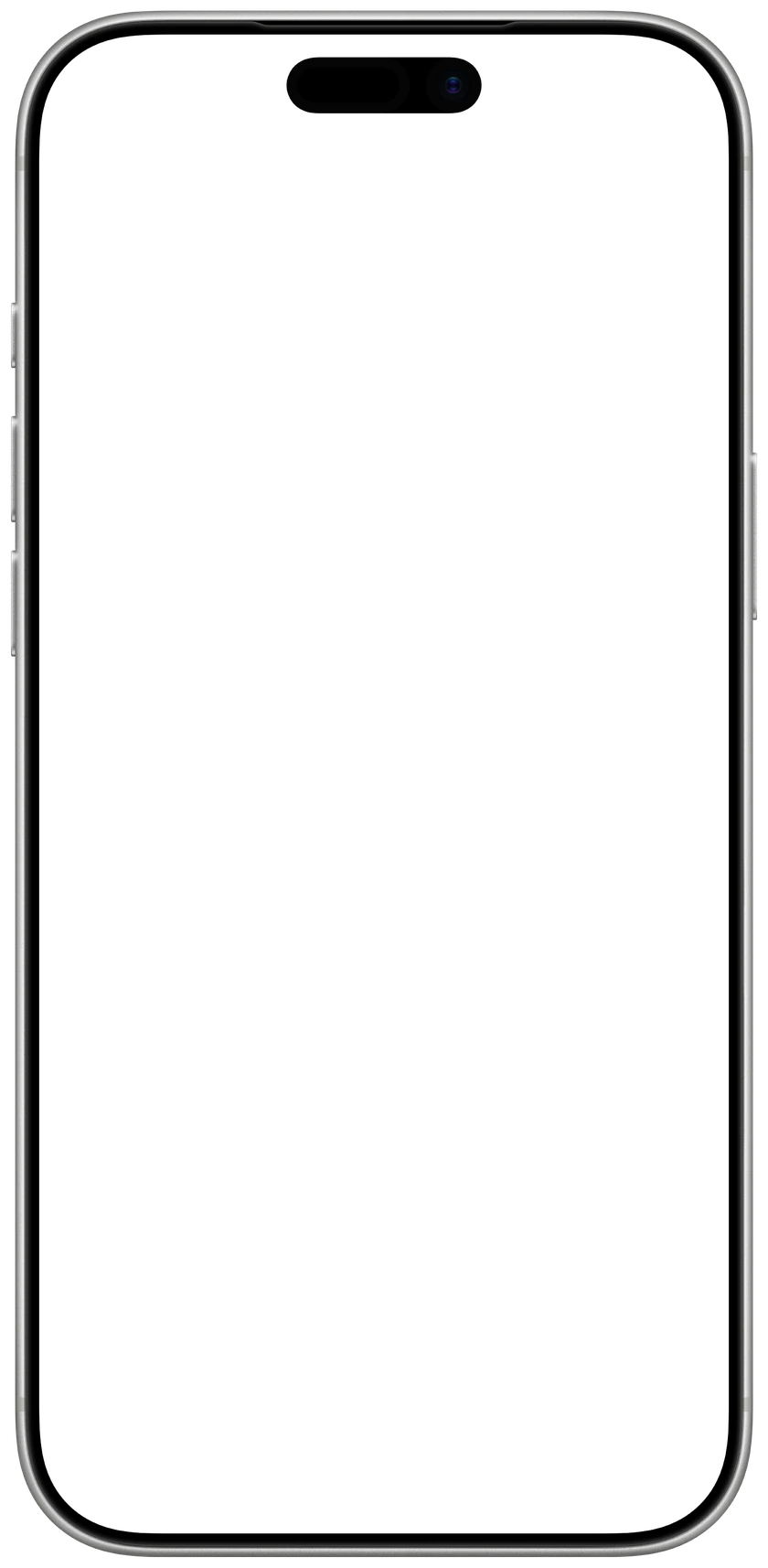
1Your week
2 of 3
Up to 3 plans a day. Type a time at the end, like 4:30 PM, and it lines up on the right.
2Look
3Background
4Make it yours
1206 × 2622 px, made for iPhone 17 · 17 Pro · 16 Pro
 CalendarlyUpdates your Lock Screen every morningGet
Drawn in your browser. Nothing you type leaves your device.
How to set it as your wallpaper
- 1Tap Save wallpaper, then Save Image. It goes to Photos.
- 2In Photos, open the picture, tap Share and choose Use as Wallpaper.
- 3Tap Add, then Set as Wallpaper Pair.

Want a week that updates itself?
Calendarly puts your real week from your calendar and reminders on your iPhone’s Lock Screen and redraws it every morning. Free.
Free on the App Store, for iPhone.
Why your week belongs on the Lock Screen
Most weeks go wrong in small ways: a dentist appointment you forgot, a call that runs into the gym. With the week on your Lock Screen you see what is coming every time you pick up your phone, before you open anything, and you notice a crowded Thursday on Monday. The Calendar widget on the Lock Screen shows only what is next; a wallpaper shows all seven days.
Planning the week takes about ten minutes on Sunday. Copy the fixed appointments from your calendar first, add the three things that must get done this week, then give each one a day and, where it helps, a time. Leave one evening free for whatever slips. Type the result above, save the picture, and your plan is waiting on the Lock Screen on Monday morning.
Weekly planning tips that work
- Plan on Sunday evening or Friday afternoon, while the week ahead is still open.
- Start with what cannot move: appointments, classes, flights, deadlines.
- Pick three priorities for the week and give each of them a day.
- Write a time next to anything that has one, so you see how full each day is at a glance.
- Keep it to one to three plans a day. A day with more usually needs to be split.
- Leave one block of the week free for what runs over or comes up late.
- Group errands into one trip: the post office, the pharmacy and groceries on the same afternoon.
- Put workouts and rest in the plan like appointments, or they are the first to go.
- Look at the plan for ten seconds each morning and move what has to move.
- On Sunday, look back at what got done and carry over only what still matters.
Questions people ask
Type your plans for each day above and save the picture. In Photos, open it, tap Share, choose Use as Wallpaper and set it as your Lock Screen. To have the week drawn from your calendar every morning, use the Calendarly app.
Yes. It runs in your browser, needs no sign-up and adds no watermark. Your plans are drawn on your device and never sent anywhere.
Every iPhone from the iPhone SE and 8 to the iPhone 17 Pro Max and iPhone Air. The page picks your model by itself when it can; you can choose another under iPhone.
A picture cannot change. Calendarly can: its weekly layouts draw your week from Apple Calendar and Reminders, Todoist, Google Tasks or Microsoft To Do, and a Shortcuts automation redraws your Lock Screen every morning. The app is free to download.
Choose the one your calendar uses; you can switch above. In the US and Brazil the week usually starts on Sunday, in most of Europe on Monday. The week number is the ISO week either way.