The Best Habit Tracker App for iPhone, With Widgets and Real Statistics
Five habit trackers compared by where your habits show up, what they can track and what they cost, with Calendarly’s free habits, widgets and quit counters on its Today page.

The best habit tracker app for iPhone is one you see without going looking for it. Calendarly puts your habits at the top of its Today page, above the day’s events and to-dos, with free widgets for the Home Screen and the Lock Screen, statistics for every habit and a day counter for each habit you are quitting. If you want an Apple Watch app and Apple Health, Streaks is the better fit, and HabitKit suits people who keep going for a grid of colored squares.
Habit apps tend to fail the same way. You install one in January, check in for nine days, and by February it sits on the third Home Screen page while the habit fades. A habit survives when you see it at the moment you would act on it: the glass of water next to the morning meeting, the run on the days you planned it, the number of clean days when you are tempted. So the five apps below are compared by where your habits show up, what each app can track and what it costs.
Five habit tracker apps compared
Four of the five are free to download, and Streaks costs $5.99 up front. The details come from each app’s own App Store page in the US store on 14 November 2026. Prices and plans change, so read the listing before you buy.
| App | What it is | Widgets | Free to use | Needs |
|---|---|---|---|---|
| Calendarly | Habits on one page with your calendar and to-dos, plus calendar wallpapers for the Lock Screen | Home Screen and Lock Screen, all free | Up to 30 habits, statistics and every widget | iOS 26 for habits |
| Streaks | A habit tracker built around days in a row | Home Screen and Lock Screen, interactive | Paid app, $5.99 | iOS 17.6 |
| HabitKit | A grid of tiles for every day you show up, quitting included | Small, medium and multi-habit Home Screen widgets | Yes; Pro adds unlimited habits, charts and statistics, and the widgets | iOS 15.0 |
| Atoms | The official Atomic Habits app, with lessons from James Clear | Not named on the listing | Free to download | iOS 16.0 |
| Finch | A self-care pet that grows as you complete check-ins | Not named on the listing | Free to download | iOS 15.6 |
Streaks lists up to 24 habits, an Apple Watch app and Apple Health, and handles bad habits as negative tasks. HabitKit can count clean days for a habit you are quitting and measures amounts in your own units, such as liters of water or kilometers run. Atoms is built around guided habit creation and short lessons, while Finch wraps mood checks and small self-care exercises in looking after a pet, which works for people who find plain tracking dry.
Why Calendarly comes first
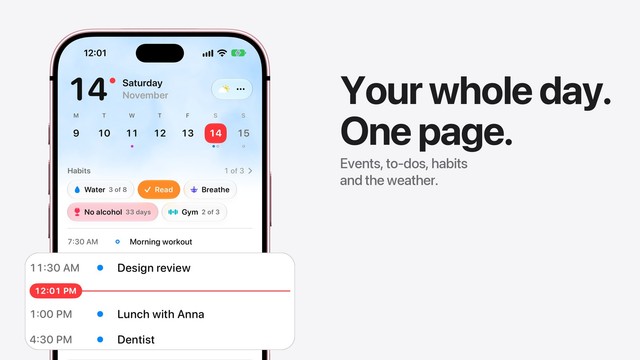
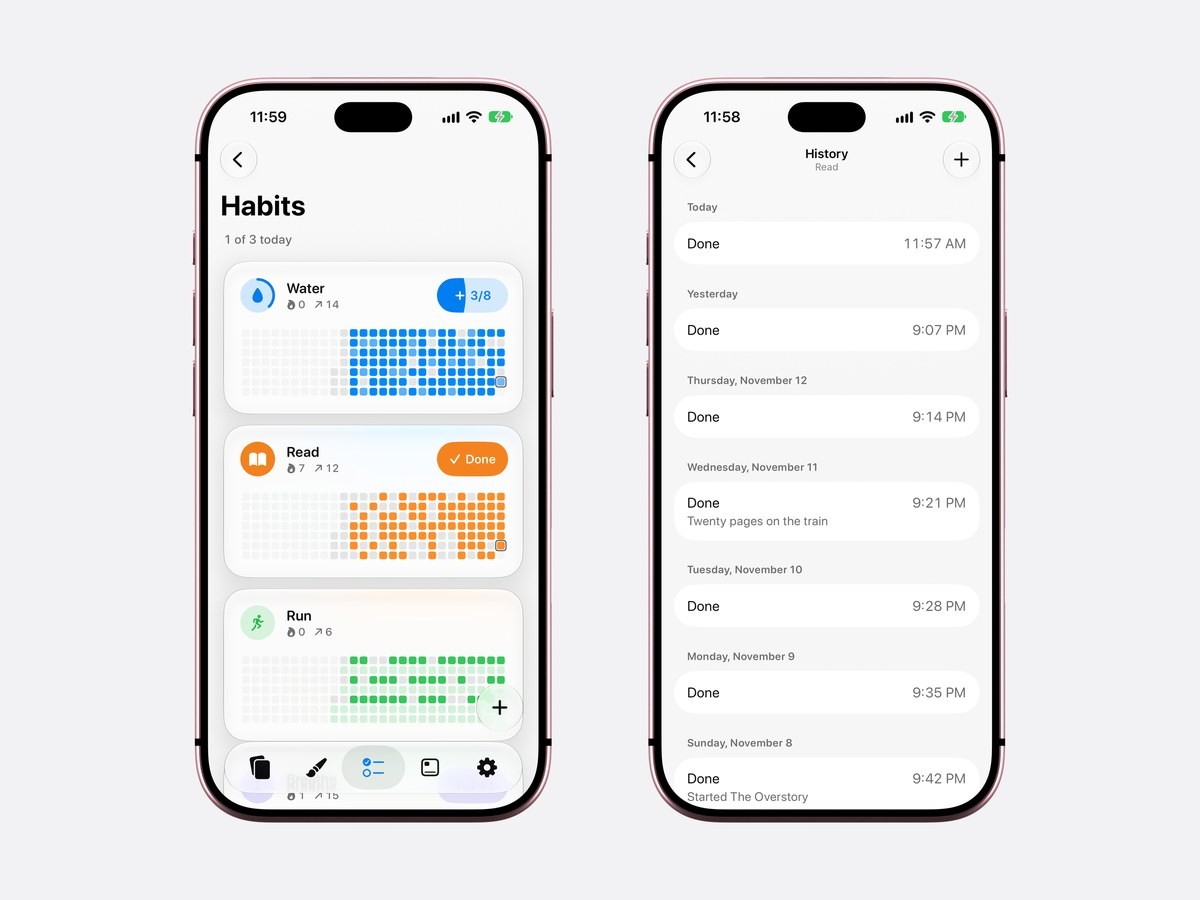
Calendarly keeps a habit inside the day it belongs to. On iOS 26 and later the app opens on Today: the date, the week, your habits as a row of capsules, and below them the whole day, with every event at its time, a red line at the current minute and your to-dos at the end. Tap Water and it counts one more glass, 3 of 8. Tap Read and the capsule fills orange with a check. The habit you are building sits right above the meetings it has to fit between.
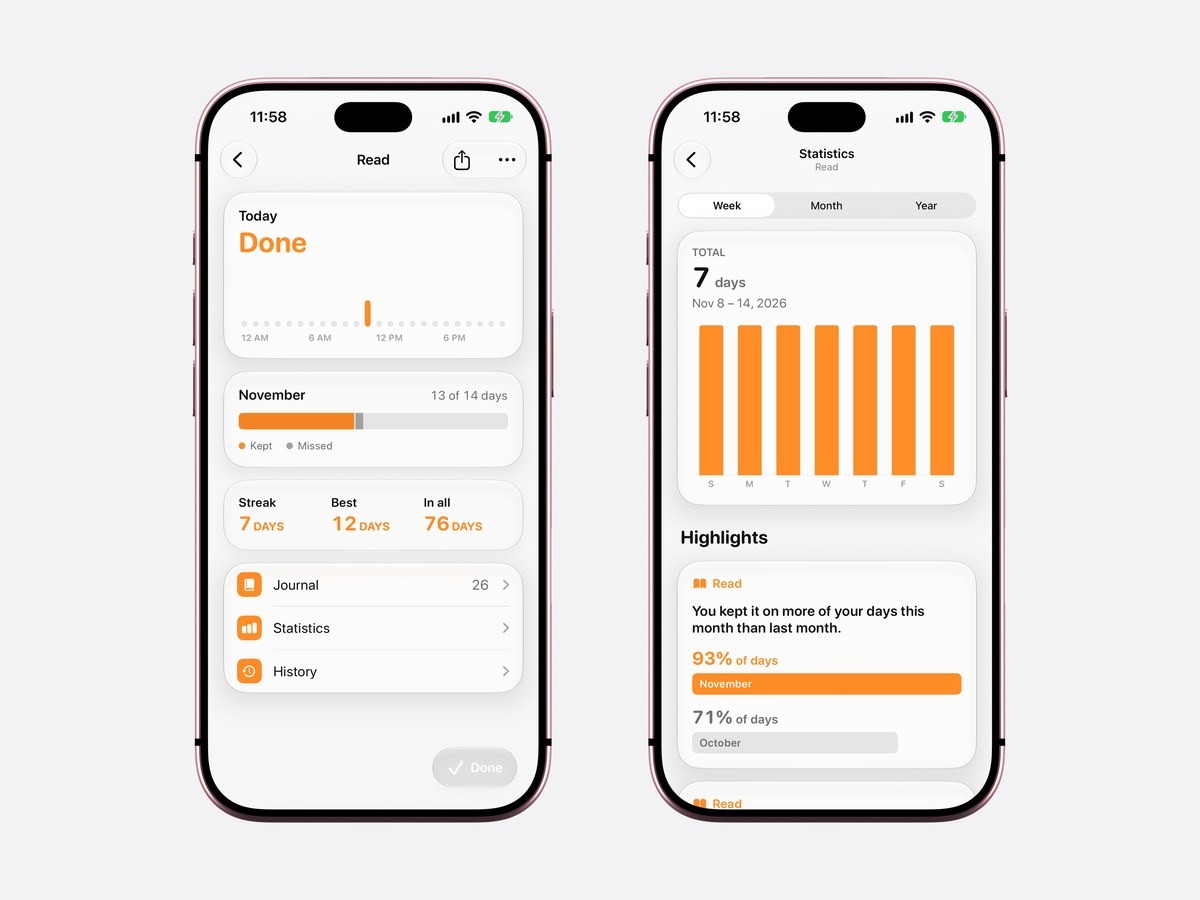
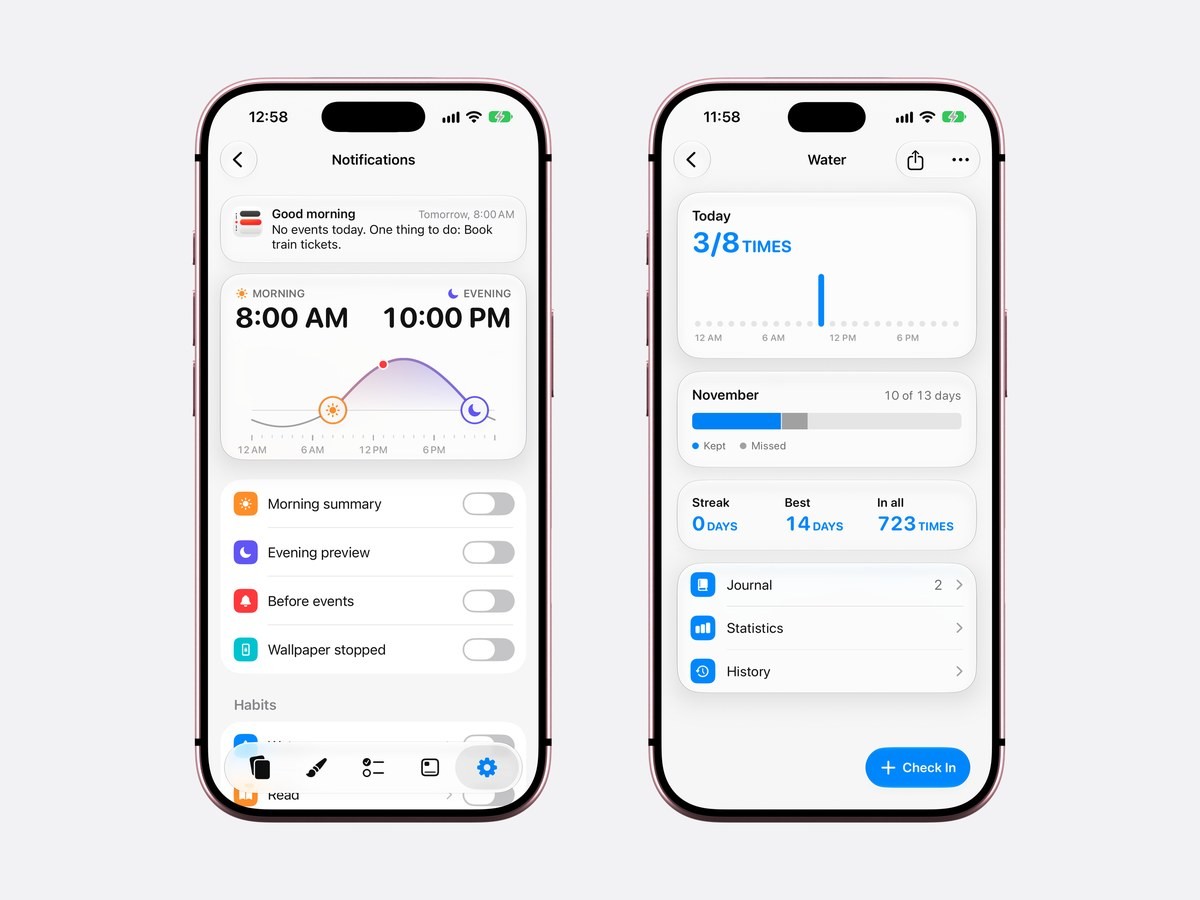
Each habit has a page of its own. The top shows today against the hours of the day, so after a few weeks you can see when you tend to do it. Under that, the month fills in with kept and missed days, followed by three numbers: the current streak, the best one and the total. Journal keeps the notes you add to check-ins, Statistics charts the week, the month or the year and sums it up in plain sentences, and History lists every check-in with its time.
Habits, the Today page and the habit widgets are free, for up to 30 habits. Calendarly Pro is about the wallpapers: every layout and your own photos as backgrounds.
Build a habit or quit one
A habit to build can be daily, weekly or monthly. A daily one can count up to 20 times a day, such as eight glasses of water, and can skip days, like a gym habit on Monday, Wednesday and Friday. A weekly or monthly habit asks for a number of days, three runs a week or ten days of practice a month. You pick its color, an icon and as many reminders as it needs.
A habit to quit counts up from a date and time, so No alcohol shows 33 days the moment you open the app. If you slip, I Slipped starts the count again from now, and you can write down when it happened and why. Add what the habit used to cost you each day, in money and in minutes, and its page shows the money saved and the hours won back, along with the next milestone and the days left until you reach it.
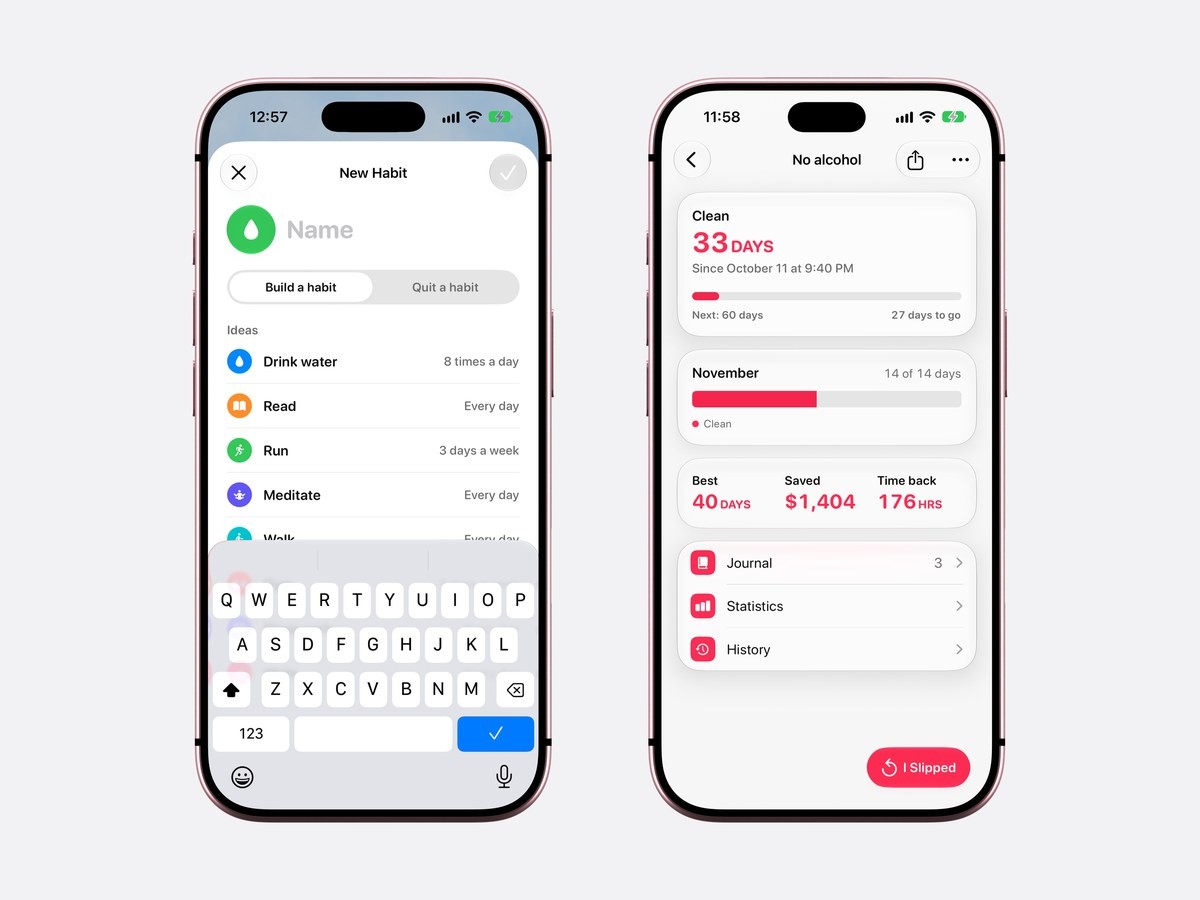
Counting the days since you stopped works like any days since counter, with the slips and the savings kept beside the number.
Statistics you can read at a glance
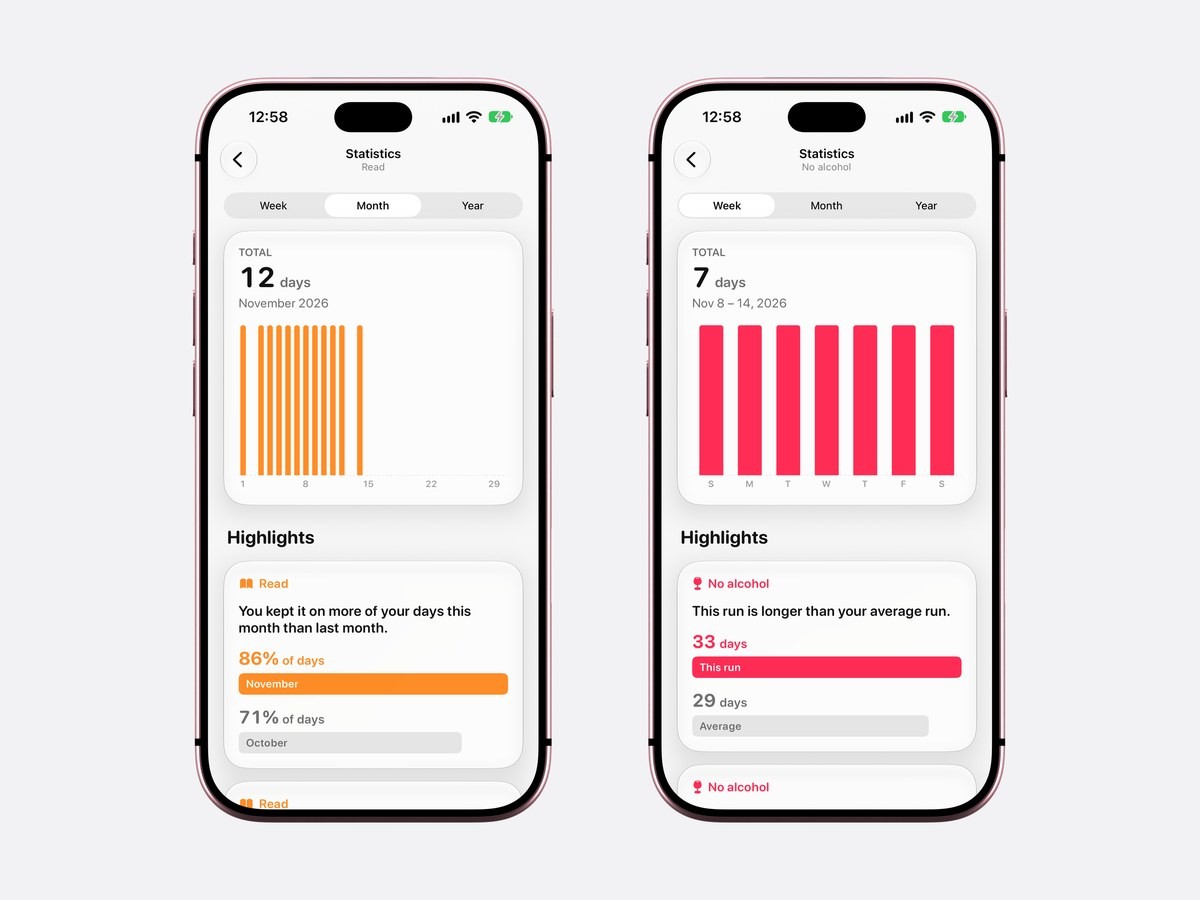
Statistics shows a habit by the week, the month or the year as a bar chart, with the total above it: 12 days of reading in November, for example. Below the chart, Highlights puts the trend into a sentence, such as You kept it on more of your days this month than last month, with 86% of days in November against 71% in October. For a habit you are quitting, the same page compares the current run with your average, so you can see that 33 days is already longer than your usual 29. Every number and chart on these pages is explained in habit tracker with statistics.
Habit widgets for the Home Screen and the Lock Screen
Calendarly’s habit widgets are free and come in nine kinds. For habits you build there are Habits (today’s list), Tubes, Level, Board, Week and Run; for habits you quit there are Days Clean, What You Saved and Next Milestone. Depending on the kind, they come in small, medium and large sizes for the Home Screen, and three of them, Habits, Run and Days Clean, also fit the Lock Screen under the clock.
A tap on a habit in a widget counts it without opening the app, the same as a tap on the Today page. The widgets need iOS 26 or later, like Today itself. Apple explains how to add widgets to the Home Screen and the Lock Screen, and the habit tracker widget guide shows all nine with their sizes.
Reminders you can answer from the notification
Habit reminders stay off until you turn them on in Settings ▸ Notifications. A habit can remind you at more than one time of day, which suits water or medication, and each notification has two buttons, Done and In an Hour, so you can check the habit in or push the reminder back without opening anything. The same page can also send a morning summary of the day, an evening preview of tomorrow, an alert before each event and a note when a quit habit reaches a milestone.
How to start tracking habits in Calendarly
- 1Download Calendarly
Get Calendarly from the App Store. It is free and asks for no account. Habits and the Today page need iOS 26 or later.
- 2Open Today
Calendarly opens on Today. Calendar access is optional: without it, the events you add stay in Calendarly’s own calendar on the iPhone.
- 3Tap the plus button and choose Habit
Name it, choose Build or Quit, how often, the color and the icon. For a habit to quit, set when you stopped and, if you like, what it cost you a day.
- 4Tap the capsule when you do it
One tap is one check-in. Tap Habits above the capsules for every habit’s grid of days, and a habit there for its page with the streak, the month, Journal, Statistics and History.
- 5Add a habit widget
Open the widget gallery on the Home Screen or the Lock Screen and choose one of Calendarly’s habit widgets, so the next check-in is one tap from wherever you are.
Your day on the Lock Screen as well
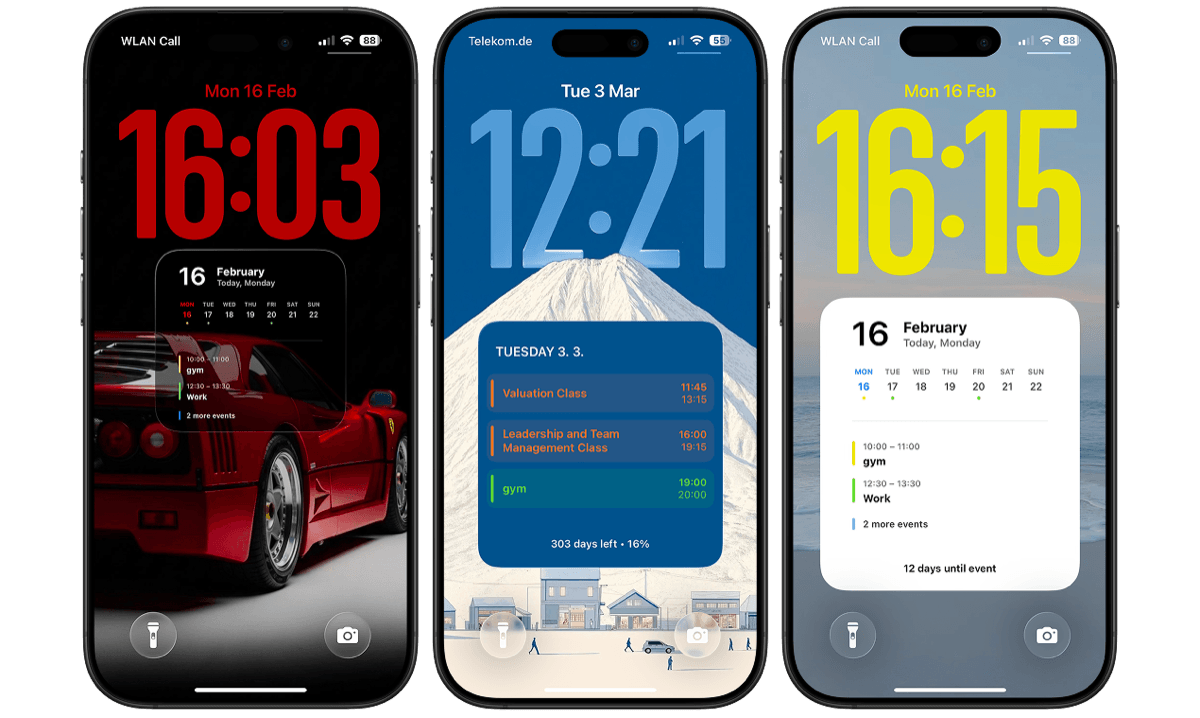
Calendarly began as a Lock Screen app, and the habits now live in the same place as everything else it shows. It draws your calendar into the wallpaper and redraws it every morning through an Apple Shortcuts automation, so the day is there before you unlock the phone, and the Update Wallpaper button at the foot of Today redraws it after a change. The Lock Screen calendar guide shows the layouts, and a to-do list on the Lock Screen works the same way. If what you want is a planner more than a tracker, the best daily planner apps for iPhone are compared in a guide of their own.
Which one to choose
If your habits live on your wrist, Streaks makes the most sense: it has a full Apple Watch app, reads Apple Health and costs one payment. HabitKit is the one for people motivated by a grid of tiles who are happy to pay for Pro to get charts and widgets. Atoms teaches James Clear’s method step by step, and Finch makes check-ins feel like caring for something. For habits next to your calendar, free widgets on both screens and a counter for what you are quitting, start with Calendarly.
Sources
Questions people ask
For habits next to your calendar and to-dos, with free widgets and statistics, Calendarly. Streaks is the pick for Apple Watch and Apple Health, HabitKit for a grid of tiles, Atoms for the Atomic Habits method and Finch for a self-care pet.
Yes. Calendarly’s habits and all nine habit widgets are free, on the Home Screen and the Lock Screen, for up to 30 habits. HabitKit is free to download, with its Home Screen widgets in Pro.
Yes, as a widget under the clock. Calendarly’s Habits, Run and Days Clean widgets fit the Lock Screen, and a tap counts the habit. Streaks also lists Lock Screen widgets.
Yes. In Calendarly a habit to quit counts from the date and time you stopped, starts again when you tap I Slipped, and shows the money and hours saved if you enter what the habit cost you.
No. Reminders can repeat a task every day and the Fitness app tracks your activity rings, but iOS keeps no streaks for habits of your own.
No. Calendarly keeps your habits on the iPhone and does not read Apple Health. Streaks lists Apple Health on its App Store page.
Habits, the Today page and the habit widgets need iOS 26 or later. On iOS 16.6 to iOS 18, Calendarly still puts your calendar, reminders and to-dos on the Lock Screen as a wallpaper.
Calendarly is free to download. Habits, the Today page, every widget, every Live Activity and 99 of its 156 wallpaper layouts are free. Calendarly Pro unlocks every layout and your own photos as backgrounds.