How to Put Notes on Your iPhone Lock Screen
Use a small widget for a shortcut, or put the words directly into a wallpaper when the note itself needs to stay visible.
Apple Notes cannot put a note on the Lock Screen. There is no Notes widget for that surface and no setting that pins a note there, which surprises people often enough that it is worth stating before anything else.
What you can do is get the same result three other ways: a third-party text widget in Apple’s widget row, text written into the wallpaper image by hand, or a wallpaper generated with the note designed into it. They differ in how easily the words can change and how much room they get.
The one thing they share is a constraint on the writing itself. A Lock Screen note is read in the second before you unlock, so a single sentence almost always beats a paragraph, and a paragraph almost always goes unread.
Option one: a text widget
Several small apps exist purely to put a line of text into a Lock Screen widget slot. This is the right choice when the words change often, because editing is a couple of taps and the widget can be tapped to open the app for more detail.
Two things to check before installing one. The first is size: the widget row is a strip, so anything longer than a short phrase gets truncated, and no app can change that. The second is where the text goes. Some of these apps sync through their own servers, and a note visible before authentication is a strange place to route through a third party, so read what the app actually does with what you type.
Option two: write it onto a photo
Open a photo, use Markup or any photo editor, type the words into an open area, save a copy and set it as the Lock Screen. It takes two minutes, needs no app, grants no permissions, and gives you complete control over where the words sit and how they look.
The placement is the part people get wrong, because a photo editor shows you a clean canvas and the real Lock Screen does not. Put the text below the clock and above the notification area, then look at the finished screen with an actual notification on it. Text that lands in the notification zone will be invisible for most of the day, which is exactly when you needed it.
Option three: a note designed into the wallpaper
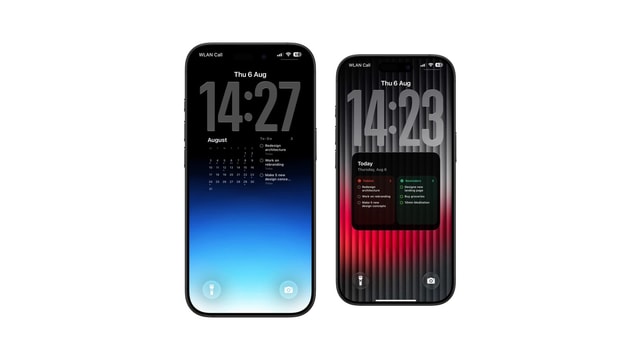
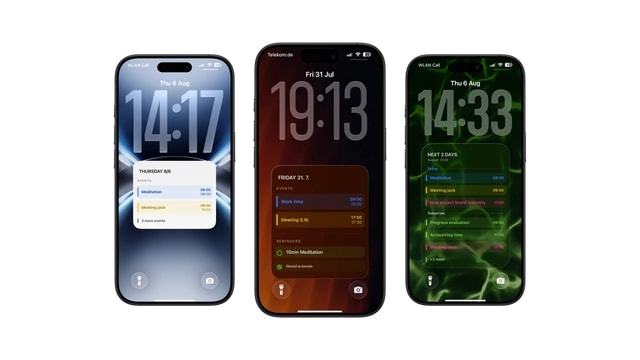
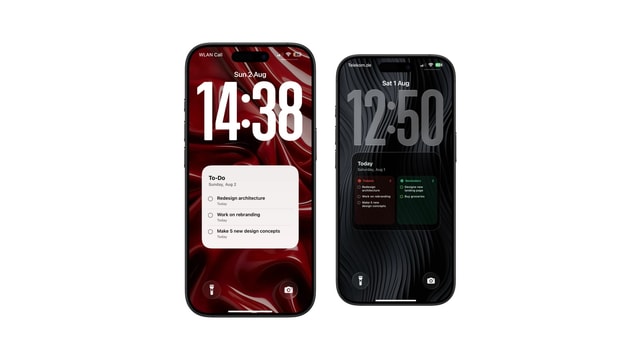
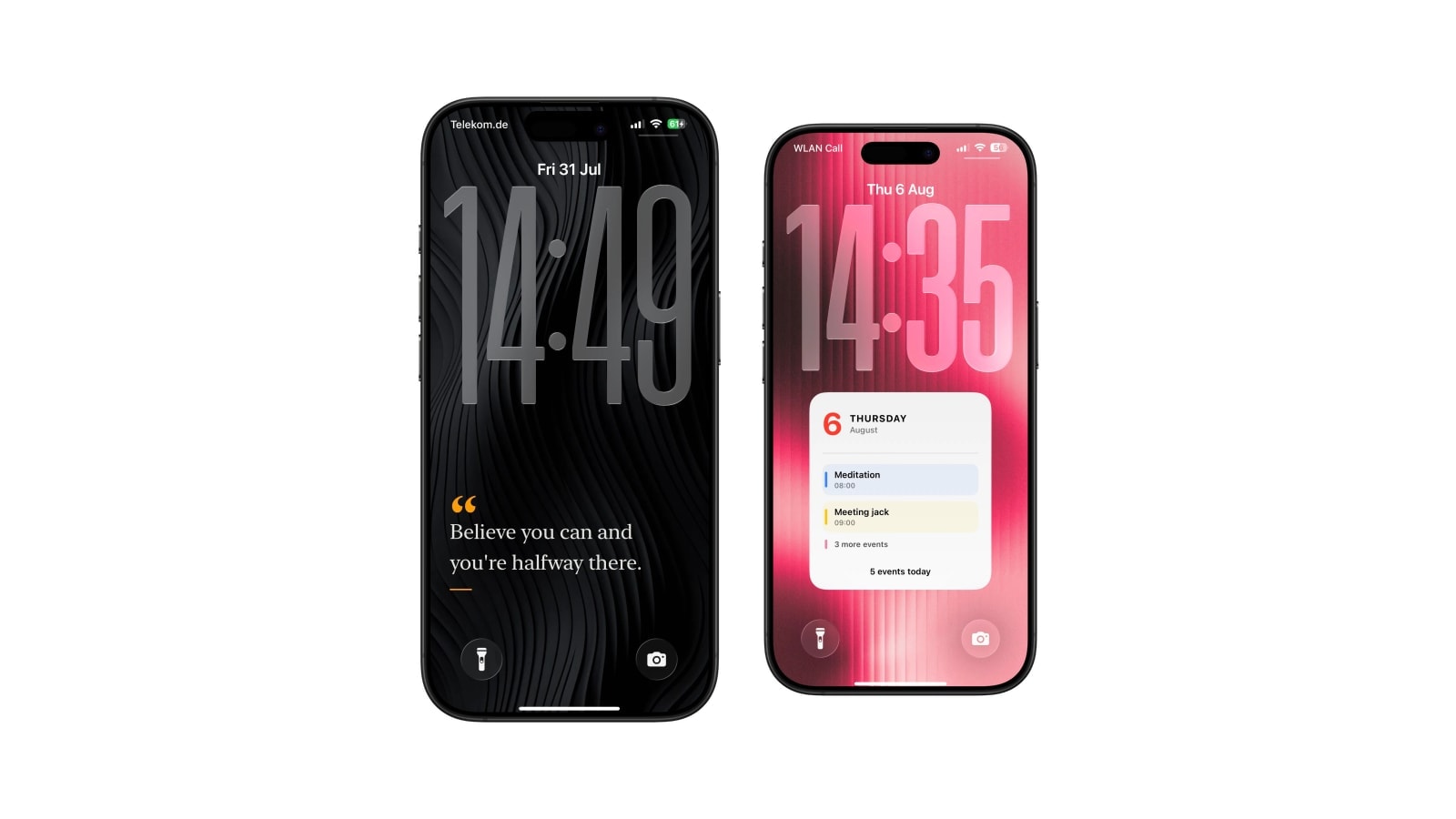
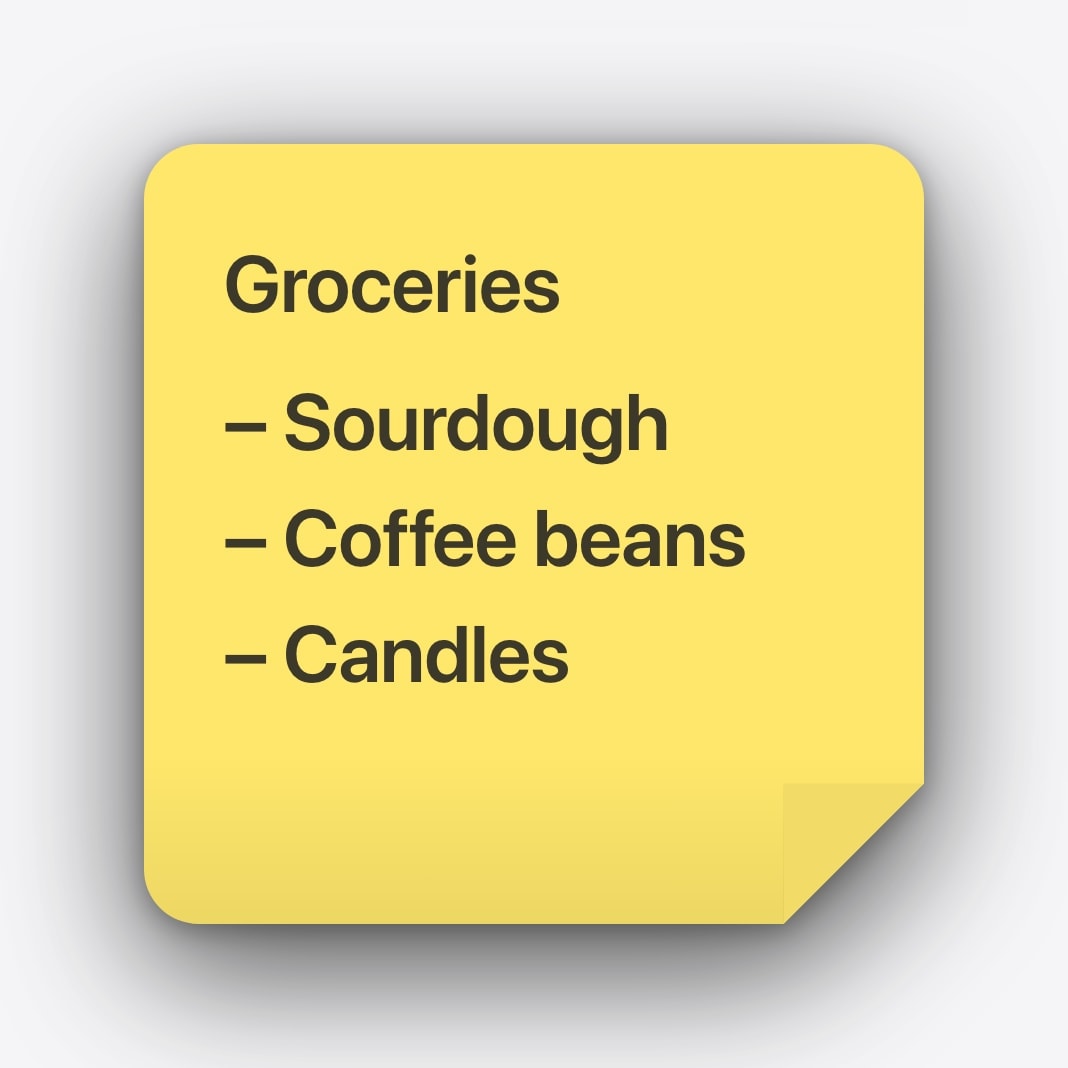
Calendarly includes note layouts that look like a paper sticker, an editorial page, a ruled notepad or a translucent glass card. You type the words in the app, see the exact Lock Screen in the preview, and the normal automation regenerates the wallpaper with the current text. It is still a wallpaper, so nothing is tappable and the words change only when you change them.
The reason to use this rather than the photo route is that the note can share the layout with something that does move: a date, a countdown, the day’s schedule. When the sentence is the point, give it the whole screen. When the calendar is the point, keep the note down to a few words so it reads as a label rather than as competition.
Best when the text changes constantly and you want to tap through to more detail.
Best for a phrase or short list that should stay quietly present, with room to look considered.
Writing something that keeps working
Most Lock Screen notes fail for one of two reasons: they were too abstract to act on, or they were left up long after the moment passed. Both are writing problems rather than setup problems.
- Say the thing plainly
“Call Mum after work” does something. “Remember what matters” has already stopped being read by Thursday.
- Give it an expiry
A note that stays for three weeks becomes part of the background. Change it or remove it when the moment passes.
- Keep secrets out of it
The Lock Screen shows its contents before Face ID has authenticated anyone. No passwords, no card details, no access codes with enough context to be useful to a stranger.
- Check the contrast outdoors
Pale grey on cream looks refined at your desk and disappears entirely on a sunny street.
Questions people ask
No. Apple Notes has no Lock Screen widget for that. Use a third-party text widget, write the text into the wallpaper, or generate a note wallpaper.
Yes. Add it to a photo with Markup or any photo editor, then set that image as your wallpaper.
It should not if the layout was designed for the Lock Screen. Always check the result with the real clock and a notification visible.
The wallpaper can be regenerated on a schedule, but the words themselves change only when you edit them or switch layout.
No. Anything on the Lock Screen may be read before the phone is unlocked. Use a password manager.