75 Hard Tracker App for iPhone: Every Task as a Habit, With Lock Screen Widgets
Track 75 Hard on your iPhone with Calendarly’s free habits: the gallon of water counted bottle by bottle, a streak for every task, reminders and a Lock Screen checklist, compared with the 75 Hard app, BeHard and Reset75.

A 75 Hard tracker has one job: show which of the day’s tasks are still open before midnight, because a single missed task sends you back to day one. Calendarly does this for free on iOS 26 and later. Each task becomes a habit on its Today page, the gallon of water counts as eight bottles, the streak shows how many days in a row you have kept it, and a widget on the Lock Screen keeps the list in view. If you want the program’s own app with its progress pictures and every attempt saved, the 75 Hard app from 44Seven Media is the one to look at, and the table below shows where each fits.
75 Hard is Andy Frisella’s 75-day program. As it is usually summed up, every day you follow a diet with no cheat meals and no alcohol, do two 45-minute workouts with one of them outside, drink a gallon of water, read 10 pages of a book and take a progress picture. The rule that makes it hard is on his own page: if you fail, you start over on Day 1. A half-done day tends to show up late in the evening, two bottles of water short or with the 10 pages still unread, and by then there is not much time left to fix it.
What a 75 Hard tracker needs to do
The tasks are the same every day, so the tracker does not need to be clever. It needs to show all of them at once, count the ones that happen several times a day, like water, and make an unfinished day obvious while there is still time to finish it. After a few weeks it also helps to see the run itself, the number of days in a row so far.
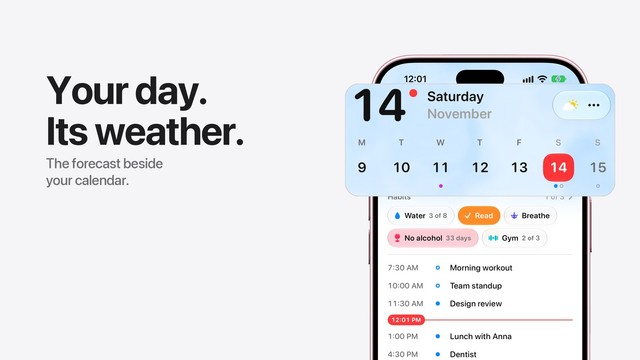
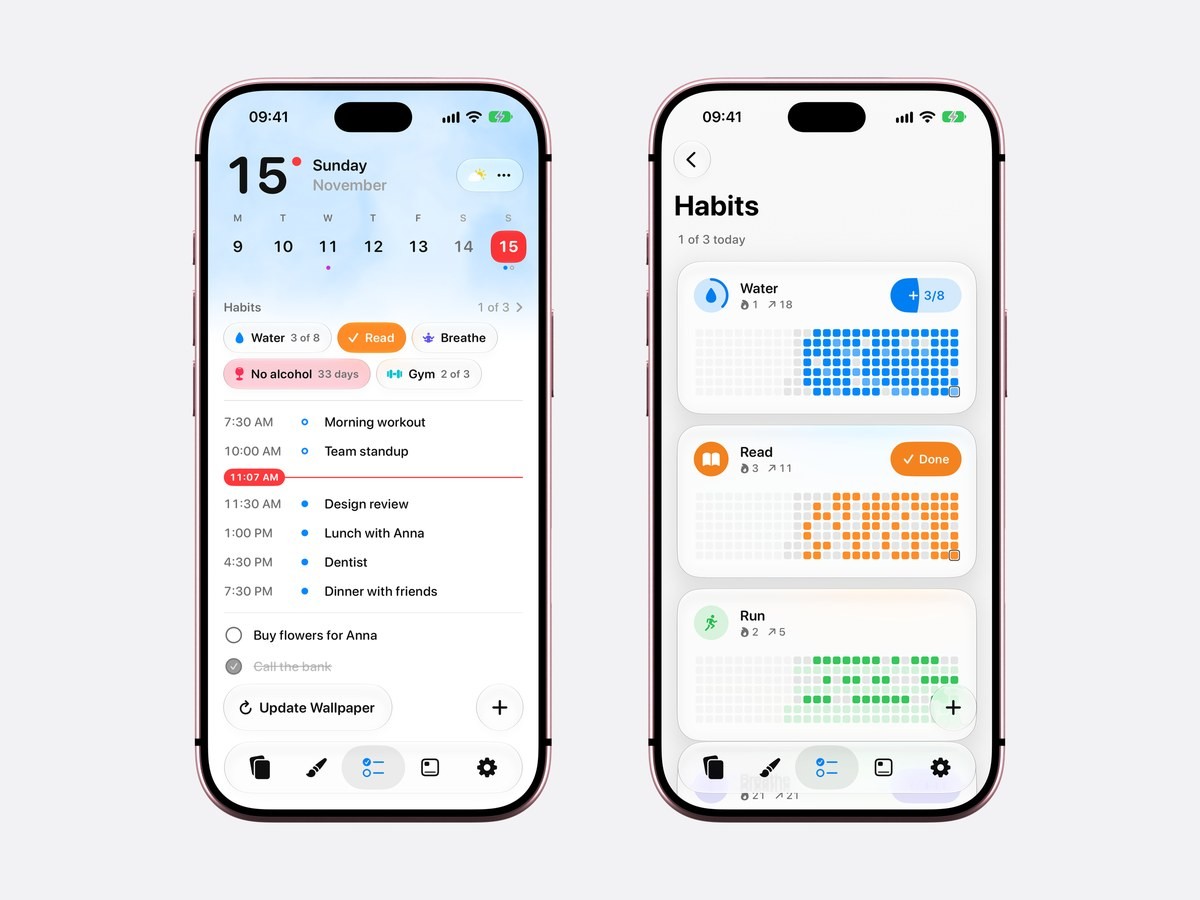
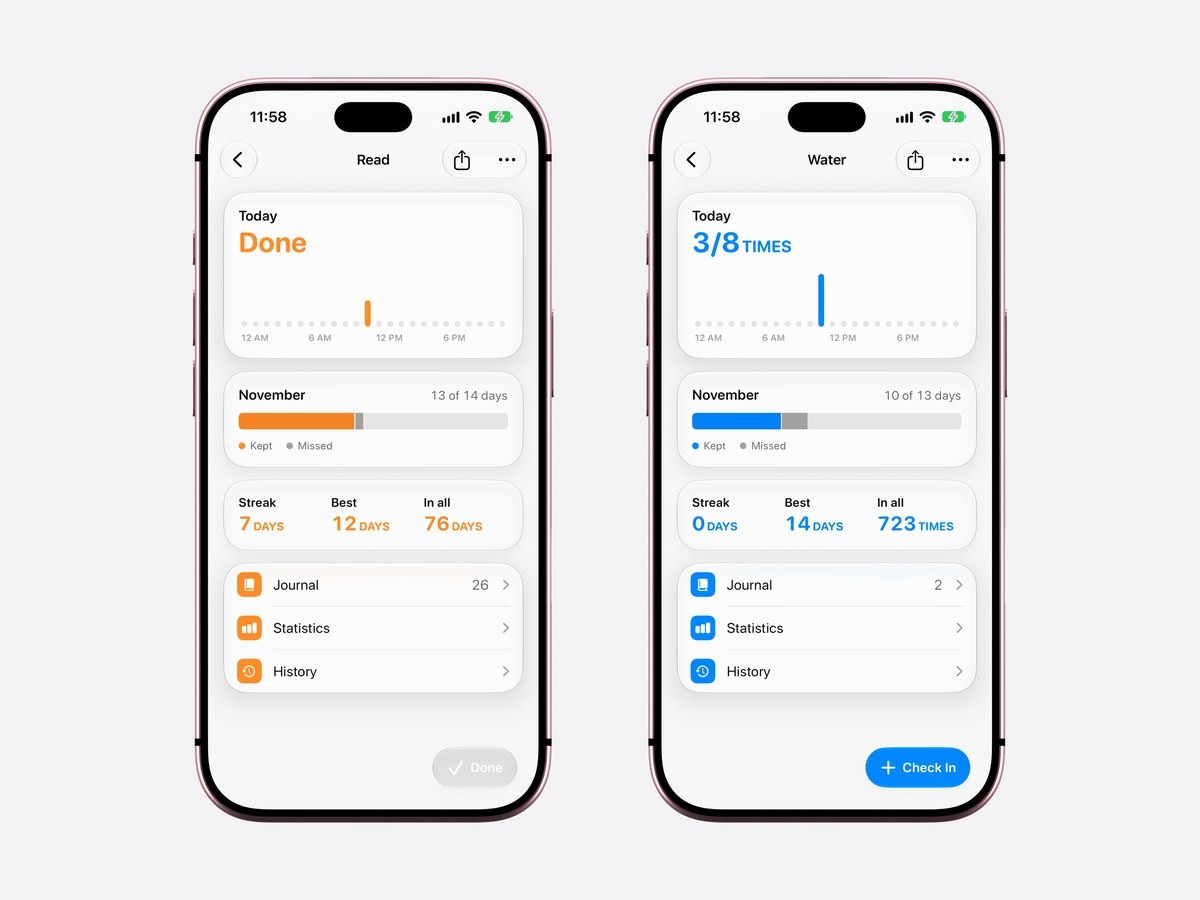
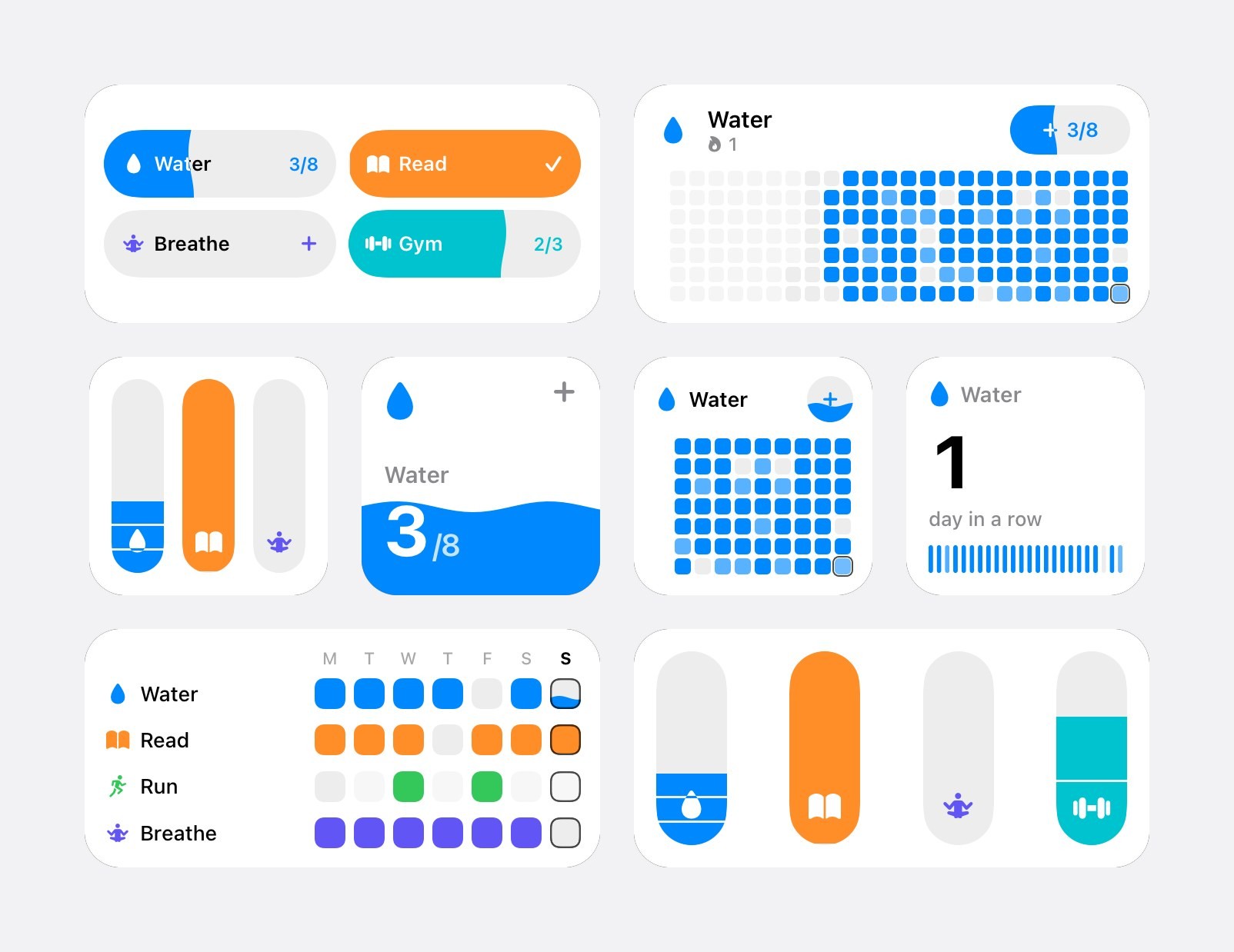
In Calendarly the tasks sit as capsules at the top of Today, above the day’s meetings and to-dos, so the list is the first thing on the page you already open to see your day. A capsule fills with its color when the task is done. Water reads 3 of 8 until the eighth tap, and the Habits page says how many of today’s habits are done, such as 4 of 6 today.
How to set up 75 Hard on iPhone with Calendarly
- 1Download Calendarly
Get Calendarly from the App Store. It is free, needs no account, and its habits need iOS 26 or later.
- 2Add the water
On Today, tap the plus button, choose Habit and pick the Drink water idea. It is set to 8 times a day: with 16-ounce bottles, eight of them make a gallon. A daily habit can count up to 20 times, so 500 ml glasses or any other size works too.
- 3Add the workouts
Add a habit named Workout and set it to 2 times a day, or add two habits, Workout and Outdoor workout, if you want the outdoor one to stand on its own. Both stay Every day.
- 4Add reading, the diet and the photo
Pick the Read idea for the 10 pages, and add two habits of your own, Diet and Progress photo, each once a day. For alcohol you can add No alcohol as a habit to quit instead, which counts days clean.
- 5Put the list on the Lock Screen
Touch and hold the Lock Screen, tap Customize, tap the space under the clock and choose Calendarly’s Habits widget. A tap on a habit in the widget counts it without opening the app.
How the streak follows the rule of Day 1
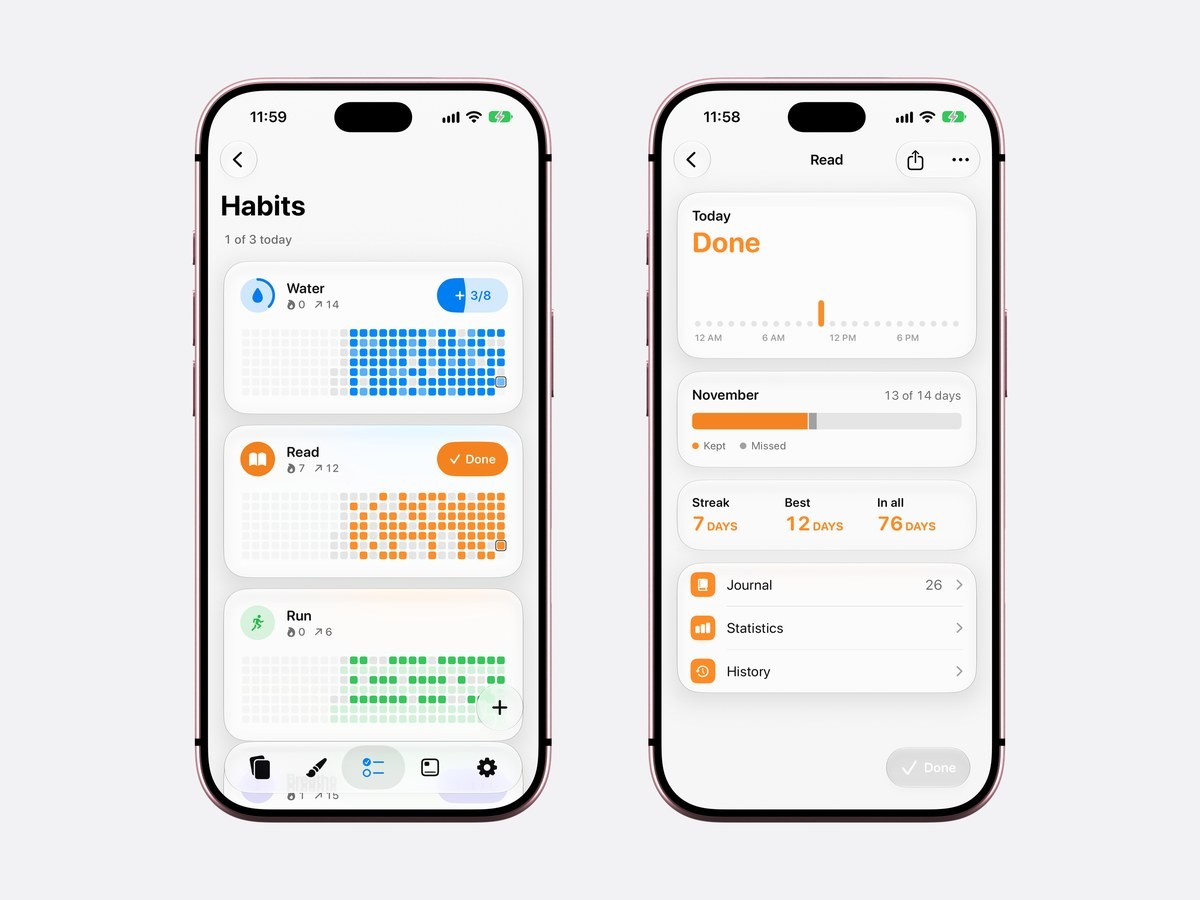
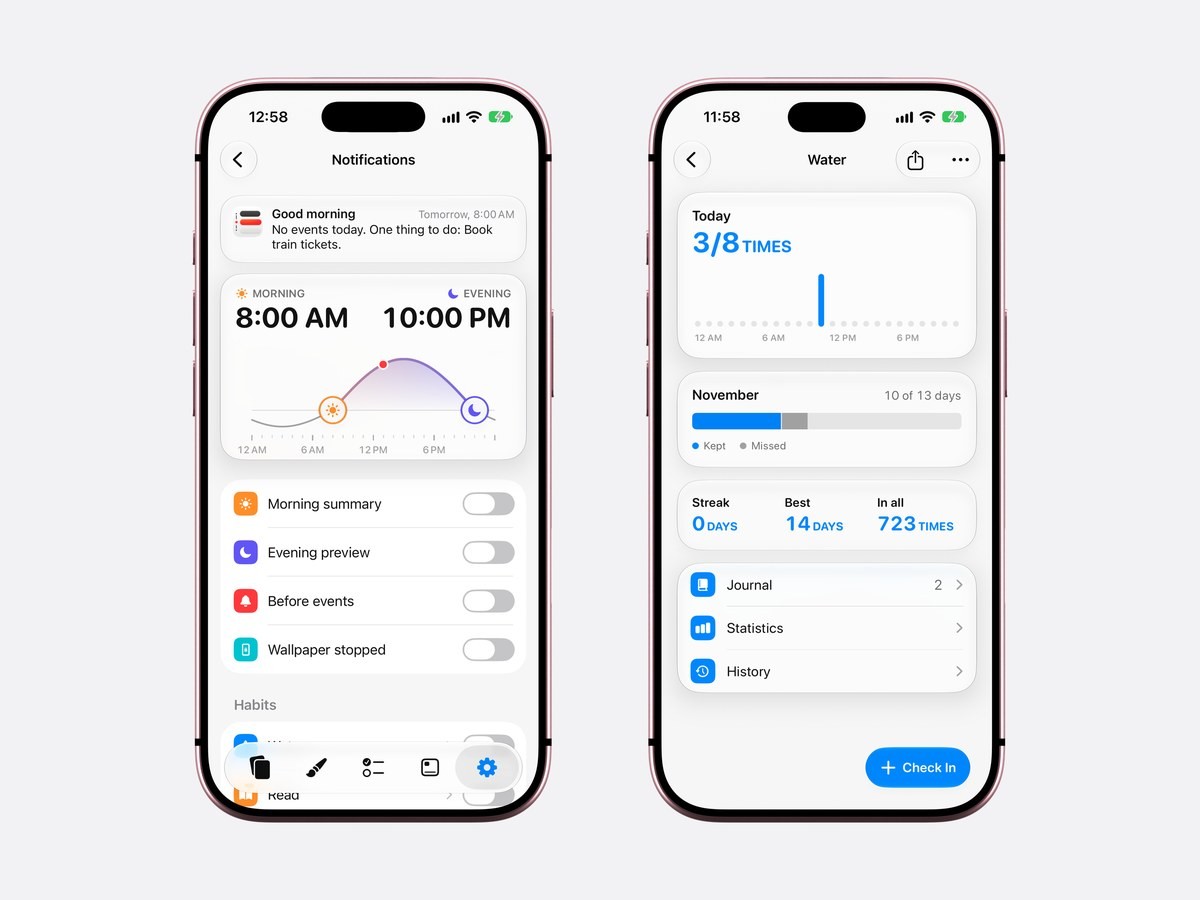
Every habit in Calendarly has a streak, the flame number beside its name. A day counts only when the habit reached its full number: seven bottles out of eight is shown as Partly on the habit’s page and does not count as kept, which is the same line 75 Hard draws. The day you are in never breaks a streak while it is still going, so at 9 p.m. a half-done day shows as open, and the streak breaks only once the day is over and the task was not done.
Each task keeps its own streak, and Calendarly has no single 75 Hard counter that resets all six tasks together. In practice the six streaks move as one while you keep every task. When one of them falls to zero, the program has started over, and that habit’s page shows the exact day it happened. Best keeps your longest run, so an attempt that ended on day 41 is not lost.
Reminders for the water and the reading
Notifications in Calendarly are all off until you turn them on. Each habit can have its own reminders, up to 12 a day, spread over the hours of your day as set in Settings ▸ Notifications, so eight bottles of water get eight reminders between morning and evening. A reminder stays quiet while you are on track, for example after the third bottle by the third reminder, and it has two buttons, Done and In an Hour, so a bottle can be counted from the notification itself.
For the reading, one reminder in the evening, an hour or two before bed, leaves time to read 10 pages if the day got away from you.
75 Hard on the Lock Screen and the Home Screen
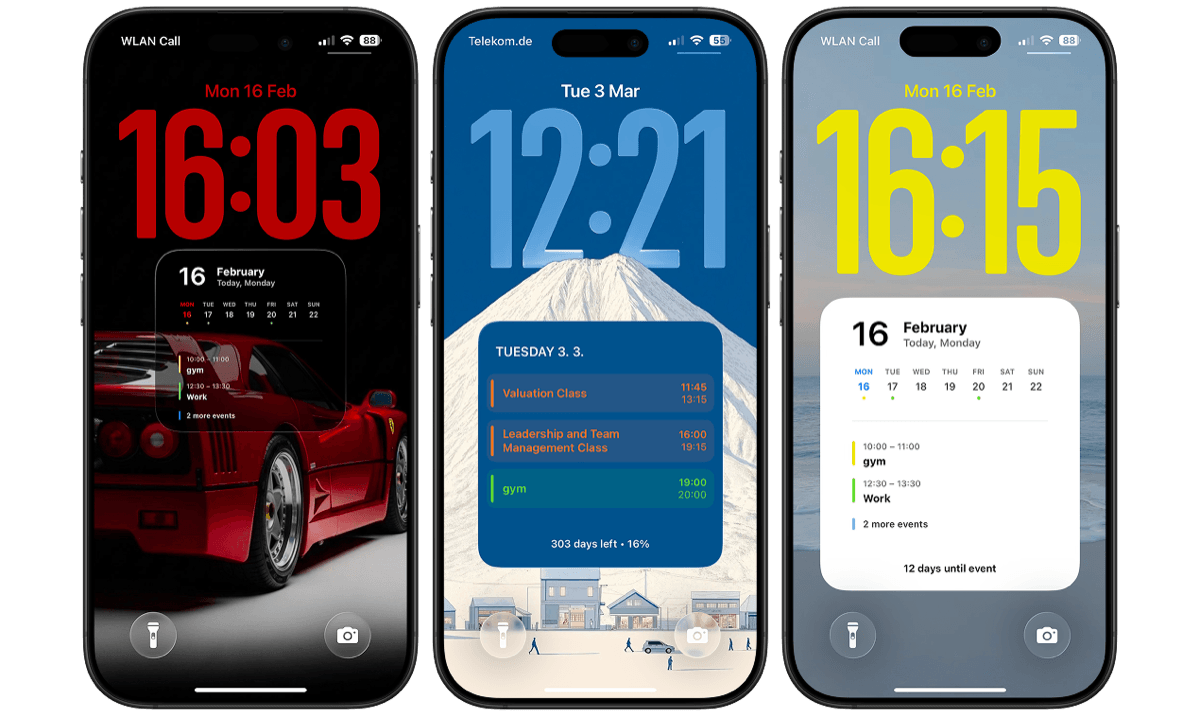
Calendarly’s habit widgets are free. Habits lists today’s habits with a tap to count each one, and it fits the Lock Screen under the clock as well as the Home Screen. Habit Tubes shows every habit as a tube that fills with its color as the day goes on, which makes an empty one hard to miss at 8 p.m. Habit Run shows one habit’s run in days, and Habit Board draws one habit’s days as squares, a column for every week, so 75 days of water read as a block of blue.
Apple explains how to add widgets on both screens. The habit tracker widget guide shows all nine of Calendarly’s widgets with their sizes.
Calendarly against 75 Hard apps
These three come up for a 75 Hard search in the US App Store. The facts come from each app’s App Store page, read on 24 November 2026. Not named means the listing does not mention it; the app may still have it.
| App | What it is | Price in the listing | Progress photos | Widgets in the listing | Needs |
|---|---|---|---|---|---|
| Calendarly | Habits to build and to quit next to your day’s calendar and to-dos; each task a habit with its streak | Free; habits and widgets free | No; tick a Progress photo habit and keep the pictures in Photos | Habits, Tubes, Run, Board and five more; Lock Screen | iOS 26 for habits |
| 75 Hard (44Seven Media) | The 75 Hard program: daily progress, custom reminders, notes on every day, every attempt, and the year-long Live Hard program after it | Free to download; the listing says it requires a subscription | Yes, with sharing to Instagram Story | Not named | iOS 15.6 |
| 75 Days Challenge Tough & Soft (BeHard) | 75-day challenges with progress tracking and a community | Free; Pro $12.99 a month or $39.99 a year for reminders, insights and the AI coach | Not named | Not named | iOS 15.0 |
| Reset75 | Challenge templates (75 Tough, 75 Soft and others) or your own tasks; data stays on the phone | Free to download | Yes, with a timelapse video | Home Screen: a calendar grid and today’s tasks | iOS 15.0 |
If the progress picture matters to you, an app built for the program is the better fit: the 75 Hard app and Reset75 both keep the daily photos, and Reset75 turns them into a timelapse. The 75 Hard app also carries on into Live Hard once the 75 days are done. BeHard keeps its reminders in the paid plan.
Calendarly suits people who want the challenge inside the day they already plan. The tasks sit above the meetings and to-dos on Today, the water can be counted from the Lock Screen, and when the 75 days end, the same habits carry on without a new app. Other trackers are compared in the best habit tracker apps for iPhone.
Doing it with Apple’s own apps
An iPhone can get part of the way. Reminders can repeat a task every day and the Lock Screen has a Reminders widget, but a ticked reminder simply comes back the next day: there is no count of days in a row and no way to see a broken day. The Fitness app records workouts with an Apple Watch, and Health can log water you enter, yet neither knows about the other four tasks.
| Reminders | Calendarly | |
|---|---|---|
| All tasks in one list | Yes | Yes, at the top of Today |
| Water counted bottle by bottle | No | Up to 20 times a day |
| Days in a row | No | A streak for every task, with your best run |
| A partly done day | Not shown | Partly, and it breaks the streak |
| Lock Screen | Reminders widget | Habits widget, a tap counts |
| Cost | Free | Free |
After day 75, and the rest of the year
Calendarly keeps counting after day 75: the streaks go on, Statistics shows each habit by week, month and year, and History lays the 75 days out as a calendar of months. If you keep some of the tasks afterwards, say the water and the reading, delete the others and the ones you keep carry their whole history with them. The habit statistics guide explains what each number means.
If January is your start, 75 Hard and a Dry January overlap: a No alcohol habit to quit counts the days clean and the money saved beside the build habits. Calendarly holds up to 30 habits, all free, kept on the iPhone, with no account and nothing written to Apple Health.
Sources
Questions people ask
Yes. Calendarly tracks every 75 Hard task as a habit for free on iOS 26 and later, with streaks, statistics and Lock Screen widgets. Reset75 and BeHard are free to download; the 75 Hard app’s listing says it requires a subscription.
As usually summed up: follow a diet with no cheat meals and no alcohol, do two 45-minute workouts with one outside, drink a gallon of water, read 10 pages and take a progress picture, every day for 75 days. Andy Frisella’s page says that if you fail, you start over on Day 1.
In Calendarly, add the Drink water habit and keep it at 8 times a day for 16-ounce bottles. Each tap counts one, and the day is kept only at 8 of 8.
Yes. Calendarly’s Habits widget fits under the clock and lists today’s habits, and a tap counts one without opening the app.
Each task has its own streak, and a task not fully done by the end of the day breaks that streak. There is no single counter that resets all of them together, but a streak at zero shows exactly where the run ended.
No. Add a Progress photo habit to tick each day and keep the pictures in the Photos app. The 75 Hard app and Reset75 keep progress photos in the app.
Yes. The habits are yours to name and set, so any version works: fewer bottles, one workout, or rest days chosen by weekday.
Calendarly is free to download. Habits, the Today page, every widget, every Live Activity and 99 of its 156 wallpaper layouts are free. Calendarly Pro unlocks every layout and your own photos as backgrounds.