Dry January Tracker App for iPhone: Days Dry, Money Saved and a Lock Screen Count
Track Dry January on your iPhone with Calendarly’s free quit counter: the days dry, the money and hours saved, slips kept without losing the month, and Days Clean on the Lock Screen, compared with Try Dry, Reframe and Sober January.

A Dry January tracker counts the days you have gone without a drink, adds up what you did not spend and stays in sight on the evenings when it matters. Calendarly does this for free on iOS 26 and later: add a habit to quit called No alcohol on New Year’s Day, and it counts the days dry on its Today page, in a Days Clean widget on the Lock Screen and on a page with the money saved, the hours back and the next milestone. Try Dry, the official app of the challenge, is the pick if you want its coaching emails and drink logging, and this guide says where each one fits.
Dry January is a 31-day break from alcohol, run by the UK charity Alcohol Change UK. The hard evenings often come in the second or third week, at a birthday dinner or after a long Friday, and a number you can see without opening an app helps more then than one kept in a folder you stopped opening on January 6.
What a Dry January tracker should show
The day count comes first, so you know you are on day 17 of 31. Next is the money you would have spent on drinks. A tracker also needs a way to record a slip without throwing the month away, since one drink on January 14 does not cancel thirteen dry days, and it needs something on the Lock Screen, the screen you see every time you pick up the phone.
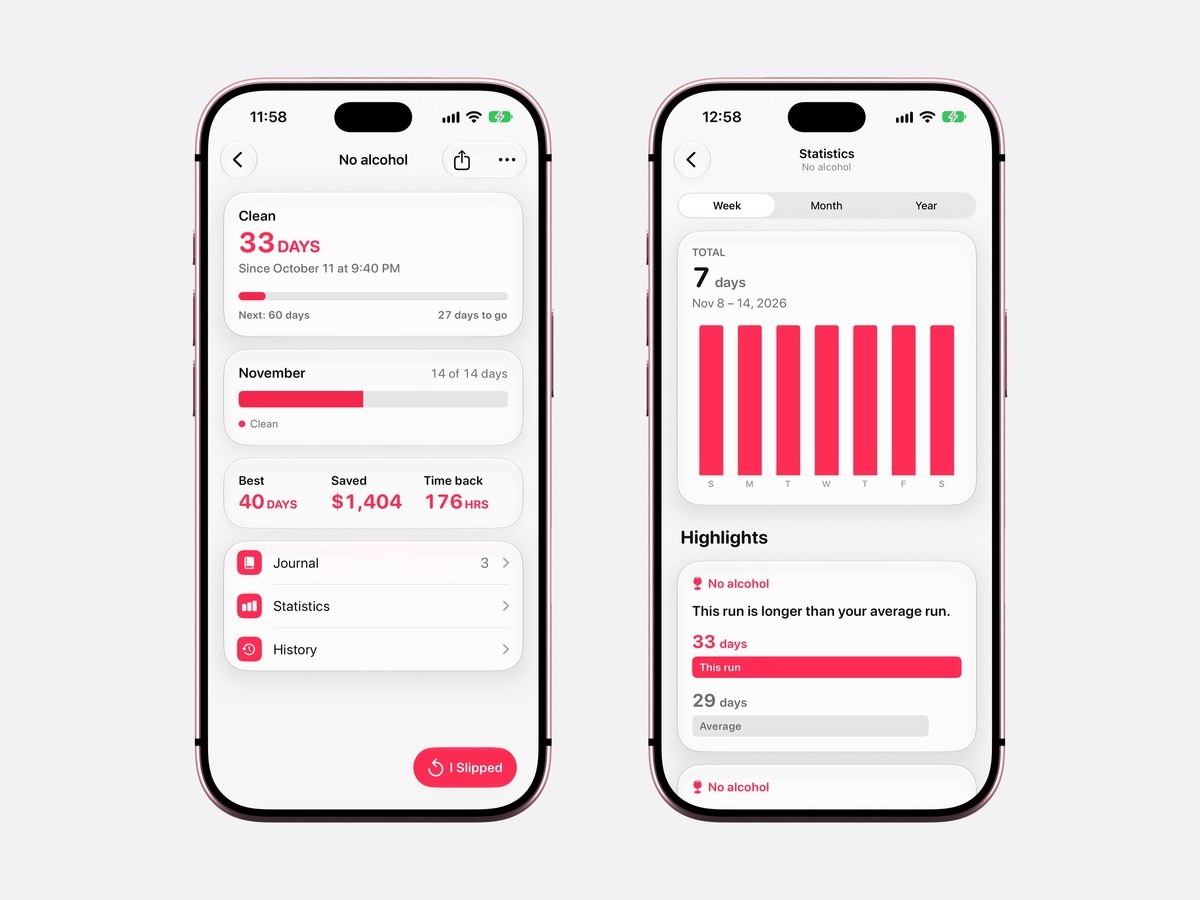
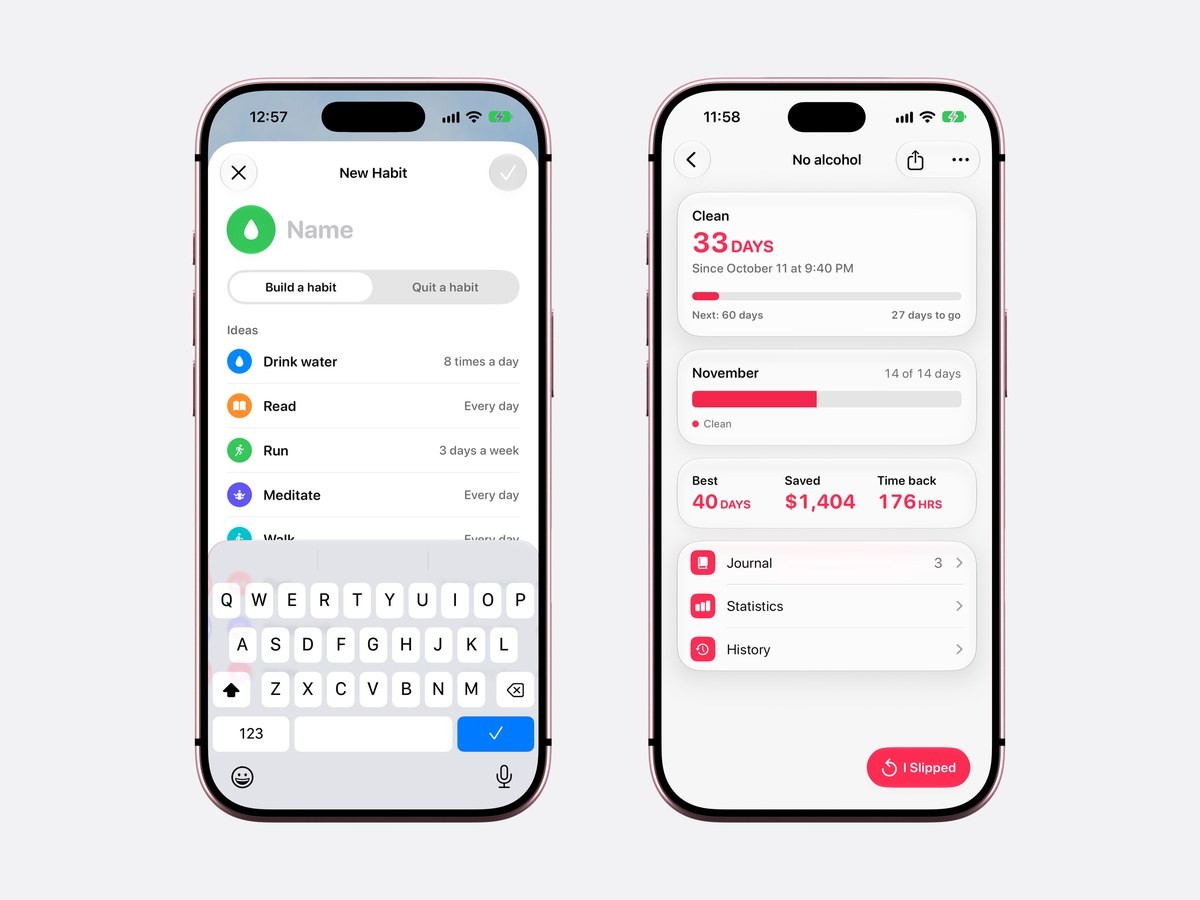
Calendarly’s habit to quit covers all four. The top of the habit’s page shows the days clean in large type, the date and time you started, and a bar toward the next milestone. Below it, the month shows how many of its days were clean, and a row of three numbers gives your best run, the money saved and the time back. The money and time need one thing from you when you add the habit: what drinking used to cost you a day, in money, in minutes, or both.
How to track Dry January on iPhone with Calendarly
- 1Download Calendarly
Get Calendarly from the App Store. It is free, asks for no account, and its habits need iOS 26 or later.
- 2Add a habit to quit on New Year’s Day
Calendarly opens on Today. Tap the plus button, choose Habit, then Quit a habit, and pick the No alcohol idea or type a name of your own.
- 3Set when the month started
Choose January 1 at 12:00 AM, or the time of your last drink on New Year’s Eve. The picker only takes a moment that has already passed, so a date in January set in December becomes now: add the habit on the day.
- 4Add what a drinking day cost
Enter what a typical day of drinking cost you, in money, minutes or both. Skip it and the page simply leaves the money and hours out.
- 5Put Days Clean on the Lock Screen
Touch and hold the Lock Screen, tap Customize, tap the space under the clock and choose Calendarly’s Days Clean. On the Home Screen, touch and hold, tap Edit, then Add Widget.
Days dry on the Lock Screen
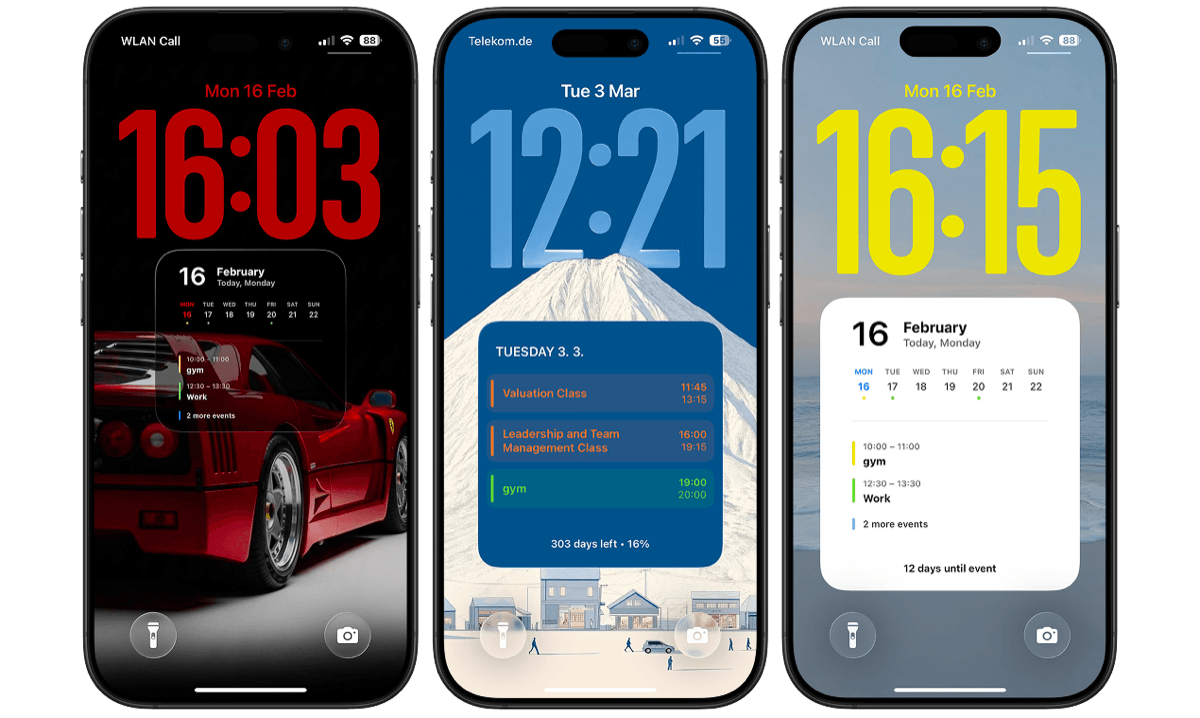
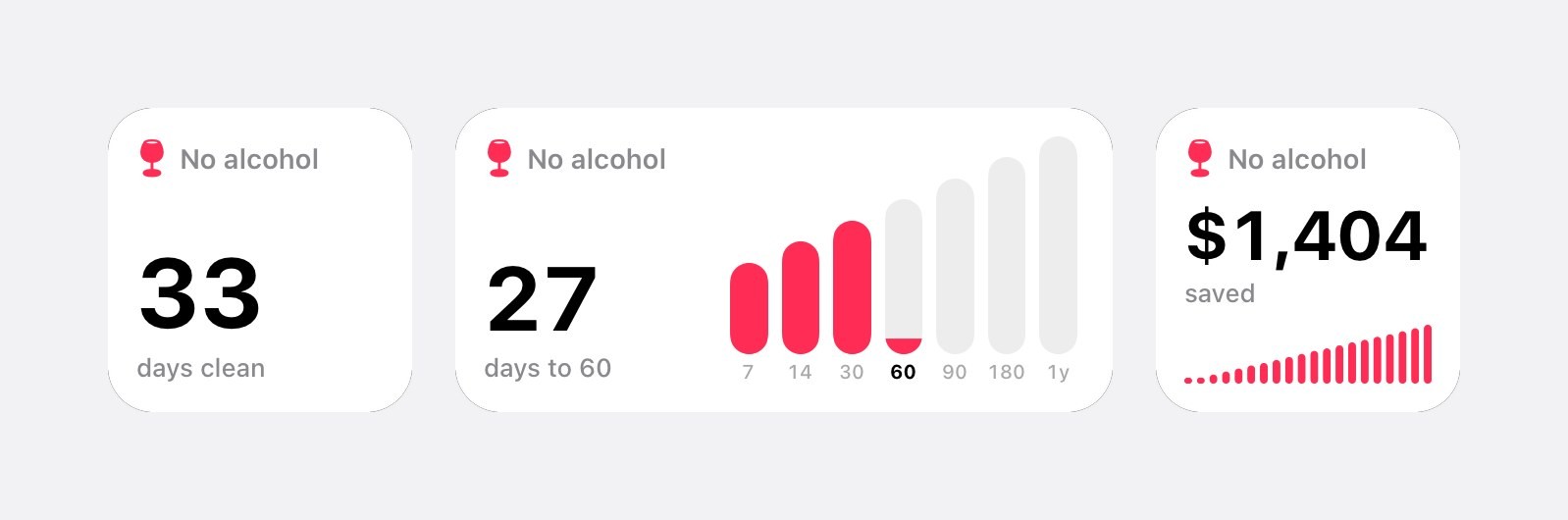
Three free widgets belong to habits you quit. Days Clean is the number alone: small or medium on the Home Screen, and a rectangle under the clock or one line above it on the Lock Screen. Next Milestone draws the milestones as bars and says how many days are left to the next one. What You Saved adds up the money, with a small bar for every clean day. Apple’s guide to making a custom Lock Screen shows where widgets go.
A Lock Screen is seen by whoever sits next to you at dinner. The widget shows the name you gave the habit, so if No alcohol says more than you want, call it Dry, January or anything only you will read. If you would rather see the whole month at a glance, a countdown wallpaper set to count to February 1 puts the days left across the Lock Screen, as the countdown guide explains; it sits well next to the Days Clean widget.
If you have a drink in the middle of January
The red I Slipped button sits at the foot of the habit’s page. It asks When, with the time filled in, Why, with six reasons to pick from (Stress, With people, Boredom, Tired, Craving and Celebrating), and What happened?, a line in your own words. None of it is required. Save it and the count starts again from that moment, on the page and in every widget.
The days before the slip are not erased. Your best run stays on the page, Statistics compares the run you are on with your average one, and the Journal keeps every slip with its note, so January can end with 29 dry days out of 31 and a record of what happened on the other two. Once there are a few slips, Statistics names the most common reason and the time of day they tend to come.
Milestones through the month
The milestones of a habit to quit are 1, 3, 7, 14 and 30 days, then 60 and 90 days, half a year and on to ten years. A month that starts at midnight on January 1 reaches 30 days on January 31, so the last milestone of Dry January lands on its last day. Notifications in Calendarly are all off until you turn them on; in Settings ▸ Notifications, Milestones sends one message on each of those days, such as A whole week clean, with the money saved so far when the habit has a cost.
The count does not stop on February 1. If you carry on, the number keeps growing from the same start, and if you go back to drinking, the habit’s page stays as a record of the month. More on the quit counter, including the statistics after a slip, is in the sobriety counter guide.
Calendarly against Dry January apps
The three apps below come up for a Dry January search in the US App Store. The facts come from each app’s App Store page, read on 23 November 2026. Not named means the listing does not mention it; the app may still have it.
| App | What it is | Price in the listing | Money saved | Widgets in the listing | Needs |
|---|---|---|---|---|---|
| Calendarly | Habits to build and to quit next to your day’s calendar and to-dos | Free; habits and widgets free | Yes, money and time | Days Clean, Next Milestone, What You Saved; Lock Screen | iOS 26 for habits |
| Try Dry | The official app of the Dry January challenge, from Alcohol Change UK: drink logging, goals, badges, charts, a daily reminder, coaching emails | Free, no ads, funded by the charity | Yes, with units and calories | Not named | iOS 16.4 |
| Reframe | An alcohol reduction program of 160 days with a community, tools and paid coaching | Free 7-day trial, then a subscription | Not named | Not named | iOS 16.4 |
| Sober January: Dry Day Tracker | A tracker made for the month, with daily motivation, statistics and streaks | Free, no ads | Not named | Not named | iOS 15.0 |
Try Dry is the one to choose if you want to log what you drink rather than just whether you drank, since it counts units and calories and lets you plan drinking days if your goal is to cut down. It also comes with the charity’s coaching emails. Reframe is a longer program for people who want to change their drinking for good, with a coach if you pay for one. Sober January keeps it to the month.
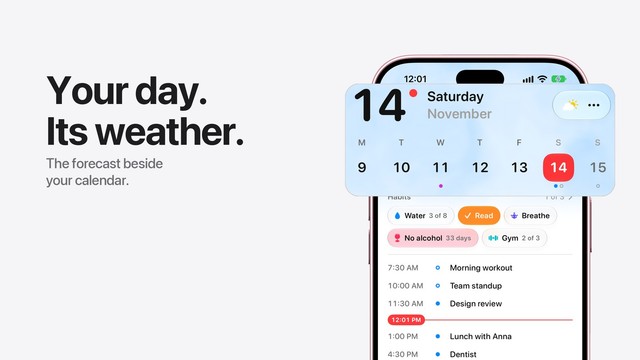
Calendarly fits people who want the count in front of them without opening another app. The days dry sit at the top of Today, above the day’s meetings and to-dos, next to habits you are building alongside it, such as a run three times a week, and the Days Clean widget puts the number under the clock. Every habit app is compared in the best habit tracker apps for iPhone.
Doing it with Apple’s own apps
An iPhone has no Dry January counter of its own. The nearest things are a recurring reminder in Reminders, which nags but never counts, and a Calendar event on January 31, which shows only the end. Apple Health logs alcoholic drinks you enter by hand, but it does not count dry days or put a number on the Lock Screen.
| Reminders or Calendar | Calendarly | |
|---|---|---|
| Counts the days dry | No | Yes, from the moment you set |
| Money and time saved | No | Yes, from what a day used to cost |
| A slip | Nothing to record | I Slipped, with when, why and a note |
| Lock Screen | A reminder alert | Days Clean widget |
| Cost | Free | Free |
Privacy
Habits stay on your iPhone. Calendarly has no account and no community, so nobody sees your count, your slips or your notes unless you share a picture of them with the Share button on the habit’s page. They are not written to Apple Health. Up to 30 habits fit, all free.
Where to find help
If a month without alcohol turns out harder than you expected, talking to someone helps more than any counter. Alcohol Change UK’s Dry January page lists support options for the challenge, the NHS has alcohol advice in the UK, and in the US the National Institutes of Health’s Rethinking Drinking helps you look at your drinking and find ways to cut down or stop.
Sources
Questions people ask
Yes. Calendarly counts the days dry, the money and time saved and the milestones for free on iOS 26 and later, with a Days Clean widget for the Lock Screen. Try Dry, the official Dry January app, and Sober January are free to download too.
Try Dry, made by Alcohol Change UK, the charity that runs Dry January. Its App Store page lists drink logging, goals, badges, charts, a daily reminder and coaching emails, all free.
Yes. Add a habit to quit in Calendarly, then choose its Days Clean widget under the clock or as one line above it. The widget shows the name you gave the habit.
Not ahead of time. Calendarly takes only a start moment that has already passed, so add the habit on New Year’s Day and set it to 12:00 AM, or to your last drink on New Year’s Eve.
Tap I Slipped and the count starts again from that moment. Your best run, your average run and every slip with its reason and note are kept, so the month still shows every dry day.
No. It keeps counting until you slip or remove the habit, so a dry February carries on from the same number.
Yes. Calendarly holds up to 30 habits, to build or to quit, all on the Today page with their own widgets and statistics.
Calendarly is free to download. Habits, the Today page, every widget, every Live Activity and 99 of its 156 wallpaper layouts are free. Calendarly Pro unlocks every layout and your own photos as backgrounds.