Habit Tracker Widgets for iPhone: Nine Free Widgets You Tap to Check In
Calendarly’s nine habit widgets for the Home Screen and the Lock Screen, from today’s list to days clean, how to add them, and how they compare with Streaks, HabitKit and Habitify.

A habit tracker widget lets you check a habit in from the iPhone Home Screen or Lock Screen without opening the app. Calendarly has nine of them, all free: six for habits you build, such as Habits, Habit Board and Habit Run, and three for habits you quit, such as Days Clean. A tap on the widget counts the habit right there, and the widgets need iOS 26 or later.
Most habit apps get opened for a week or two and then end up on the third page of the Home Screen, and the habit goes with them. A widget keeps the habit where your thumb already goes, and tapping it is quicker than finding the app. Many trackers keep their widgets behind a subscription, though, or offer one small square with a single streak in it. This guide goes through all nine of Calendarly’s widgets with what each shows and the sizes it comes in, how to add them, and how they compare with the widgets of Streaks, HabitKit and Habitify.
The nine habit widgets
Each widget has a page of its own in the iPhone’s widget gallery, so you can swipe through them and see every size before you add one. Six are for habits you are building:
- Habits
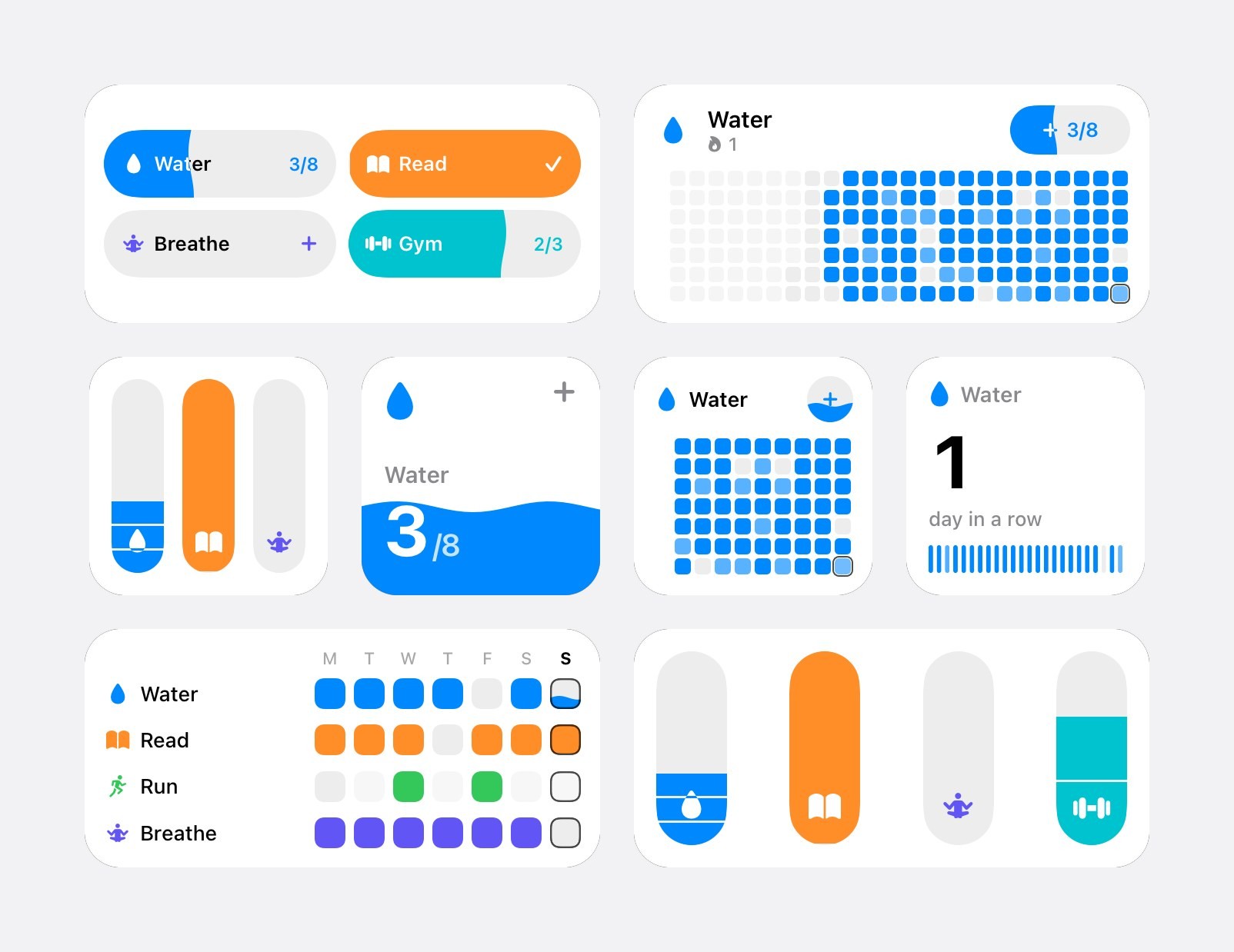
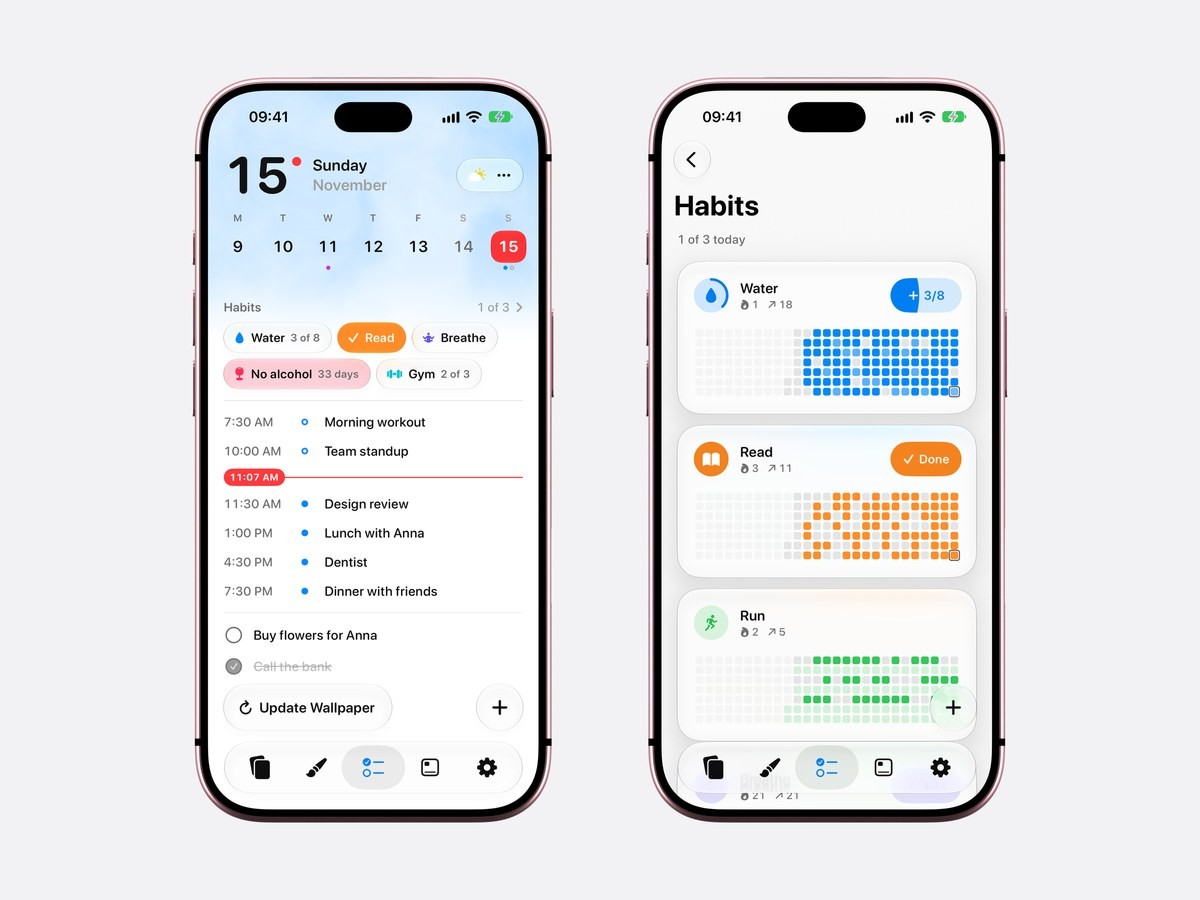
Today’s habits with their counts, such as Water 3 of 8. Small, medium and large on the Home Screen, and on the Lock Screen. Tap a habit to count it.
- Habit Tubes
Every habit as a tube that fills with its color as you keep it during the day. Small, medium and large.
- Habit Level
One habit filling the whole widget, rising like water as the day goes on. Small.
- Habit Board
One habit’s days as squares, a column for every week, each square as deep in color as that day was kept. Small, medium and large.
- Habit Week
Every habit against the seven days of this week. Medium and large.
- Habit Run
How long you have kept one habit going, drawn over a month of thin sticks. Small, and on the Lock Screen.
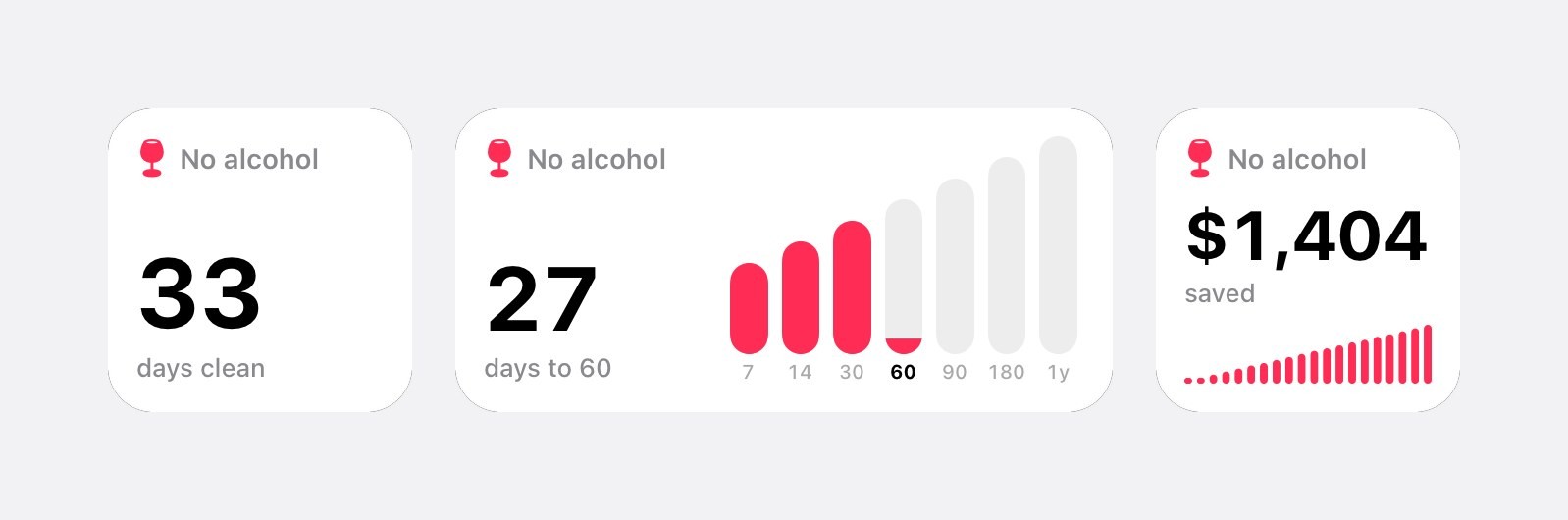
The other three are for a habit you are quitting. Days Clean counts the days since you stopped (small, medium and the Lock Screen), What You Saved shows the money and the time the habit has given back (small and medium), and Next Milestone shows how far it is to the next one (small and medium).
Habit Level, Habit Board and Habit Run draw one habit, so Edit Widget asks you which; the three quit widgets list only the habits you are quitting. Every widget also has an Appearance setting in Edit Widget: Automatic, Light or Dark.
Widgets for a habit you quit
A habit to quit counts up from the date and time you stopped, so the widget always has a number to show. Days Clean is that number and nothing else. Next Milestone sets it against the milestones ahead, such as 30, 60 and 90 days, and says how many days are left to the next one. What You Saved needs one thing from you: what the habit used to cost a day, in money and in minutes. Enter it when you add the habit, and the widget adds it up for every clean day.
If you slip, tap I Slipped on the habit’s page in the app. The count starts again from that moment, and every widget of that habit follows.
A tap on the widget counts the habit
The habit widgets are interactive. Tap Water in the Habits widget and 3 of 8 becomes 4 of 8 straight away; tap today’s square on Habit Board and the color pours into it. The count happens inside the widget, so nothing opens and you stay on the Home Screen. When you next open Calendarly, the Today page and the habit’s statistics already have the new check-in, and if the habit had a reminder waiting later that day, that reminder is taken away.
A habit you do several times a day, like water or stretching, counts up toward its target with each tap, up to 20 times a day. Apple added buttons inside widgets in iOS 17, and Calendarly’s habit widgets need iOS 26 or later, like the Today page where the habits live. On an older iPhone they do not appear in the widget gallery at all.
Habit widgets on the Lock Screen
Three of the nine fit the Lock Screen: Habits, Habit Run and Days Clean. Each comes as a rectangle under the clock or as one line of text above it. The Lock Screen draws every widget in a single tint, so the habits lose their colors there and keep their counts. Days Clean is the one many people want there: the days since the last drink or cigarette, seen every time the screen lights up.
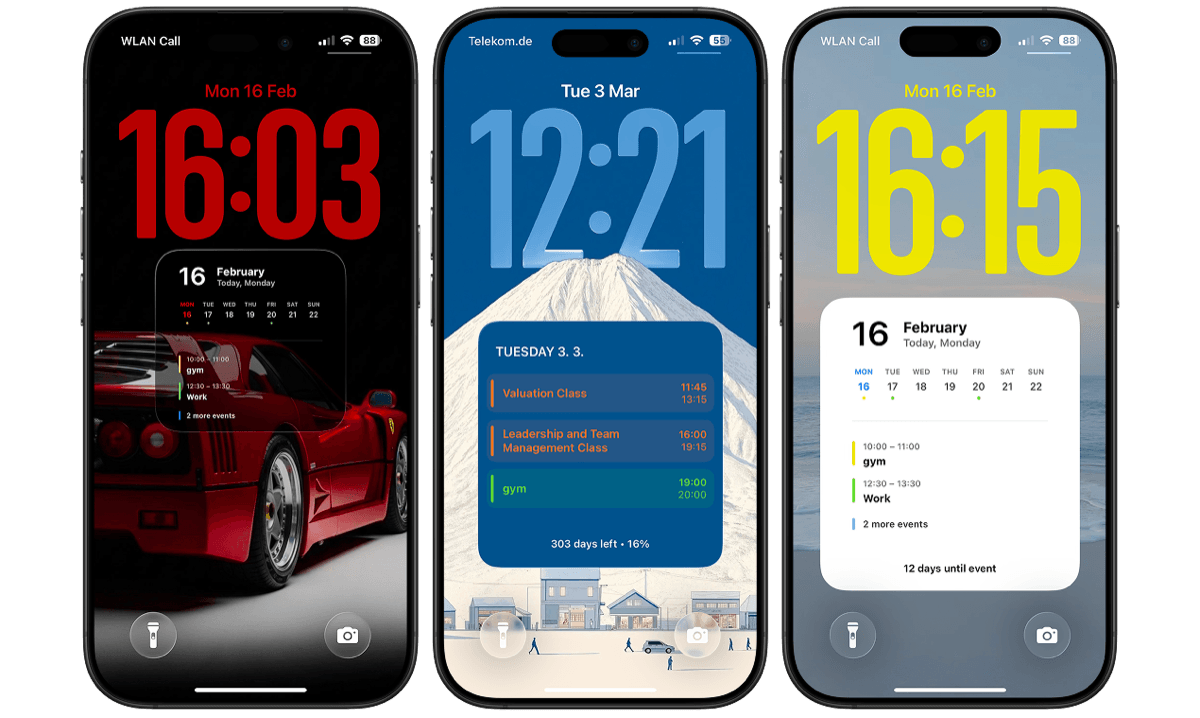
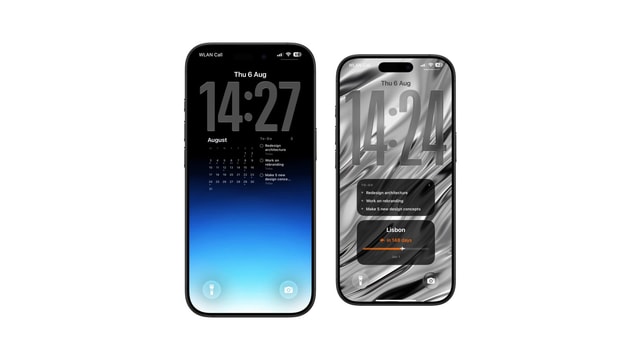
Apple’s guide to making a custom Lock Screen shows where widgets go. Calendarly can also draw your day into the Lock Screen wallpaper itself, so a habit widget under the clock and the day’s events below it share one screen. The Lock Screen calendar guide shows how that works.
How to add a habit tracker widget on iPhone
- 1Download Calendarly
Get Calendarly from the App Store. It is free and asks for no account. Habits and their widgets need iOS 26 or later.
- 2Add a habit
Calendarly opens on Today. Tap the plus button, choose Habit, then give it a name, Build or Quit, how often, a color and an icon.
- 3Open the widget gallery
Touch and hold an empty spot on the Home Screen until the apps jiggle, tap Edit, then Add Widget, and search for Calendarly.
- 4Pick a widget and a size
Swipe to Habits, Habit Board, Days Clean or another, choose small, medium or large, and tap Add Widget.
- 5Choose the habit
For Habit Level, Habit Board, Habit Run and the quit widgets, touch and hold the widget, tap Edit Widget and pick the Habit. For the Lock Screen, touch and hold the Lock Screen, tap Customize, then the space under the clock.
Calendarly against other habit tracker widgets
The facts below come from each app’s App Store page in the US store on 15 November 2026. Not named means the listing does not mention it; the app may still have it.
| App | Home Screen widgets | Lock Screen widgets | Check in from the widget | Widgets free |
|---|---|---|---|---|
| Calendarly | Nine kinds, small to large | Habits, Habit Run, Days Clean | Yes | Yes, all nine |
| Streaks | Interactive widgets | Yes | Yes | Paid app, $5.99 |
| HabitKit | Small, medium and multi-habit | Not named | Not named | No, the widgets come with Pro |
| Habitify | Not named | Not named | Not named | Free to download, with Plus and Pro plans |
Streaks also has a full Apple Watch app with complications and a Live Activity for habits you time, so it suits people who track on the wrist. HabitKit’s widgets follow its theme down to pure black and show its grid of colored tiles. The apps themselves, beyond their widgets, are compared in the best habit tracker apps for iPhone.
What the iPhone can do without a habit app
iOS has no habit tracker and no habit widget of its own. The nearest thing is a reminder that repeats every day, with the Reminders widget on the Home Screen or the Lock Screen. You can tick it off from the widget, but then it leaves the list until tomorrow, and nothing keeps a count, a streak or a history. The Fitness app’s rings measure movement only.
| Reminders widget | Calendarly habit widgets | |
|---|---|---|
| Count a habit several times a day | No | Yes, up to 20 times |
| Streak and best streak | No | Yes |
| Days since you quit | No | Yes, Days Clean |
| This week or month at a glance | No | Habit Week and Habit Board |
| Price | Built in | Free |
If a plain checklist is enough, reminders on the Lock Screen covers the built-in way and its limits. To count the days since something in the Lock Screen wallpaper itself, there is the days since counter.
When a habit widget does not show up
Check the iOS version first, in Settings ▸ General ▸ About: below iOS 26 the habit widgets are not offered, even though Calendarly’s calendar and to-do widgets are. Then open Calendarly once after installing or updating it, so iOS learns about its widgets. In the gallery the habit widgets show example habits until you have your own. A placed widget with no habits yet says Add your first habit, and a quit widget says Add a habit to quit.
Sources
Questions people ask
Yes. Calendarly’s nine habit widgets are free on the Home Screen and the Lock Screen, for up to 30 habits. HabitKit is free to download, but its Home Screen widgets come with Pro.
Yes. A tap on a habit in Calendarly’s widget counts it on the spot, and the app shows the check-in the next time you open it. Streaks also lists interactive widgets.
Yes. Calendarly’s Habits, Habit Run and Days Clean widgets fit under the clock, or as one line above it.
Yes. Add a habit to quit in Calendarly, and the Days Clean widget shows the days since you stopped on the Home Screen or the Lock Screen. What You Saved shows the money and time won back. The [sobriety counter guide](/blog/sobriety-counter-app-iphone) shows the whole quit counter.
Yes. Habits, Habit Tubes and Habit Week show every habit. Habit Level, Habit Board and Habit Run show the one you pick in Edit Widget.
Habit Run shows how long you have kept one habit going, and Days Clean counts a habit you quit. The full statistics, with week, month and year charts and highlights, are on the habit’s page in the app, as [habit tracker with statistics](/blog/habit-tracker-with-statistics-iphone) shows.
They need iOS 26 or later. On iOS 26, open Calendarly once, then search for Calendarly in the widget gallery.
No. A repeating reminder in the Reminders widget is the closest, with no count, streak or history.
Calendarly is free to download. Habits, the Today page, every widget, every Live Activity and 99 of its 156 wallpaper layouts are free. Calendarly Pro unlocks every layout and your own photos as backgrounds.