Calendar App With Weather for iPhone: The Forecast Next to Your Day
Calendarly puts Apple Weather’s forecast beside the date on its free Today page and on the Lock Screen, where the Forecast wallpaper gives every event the weather at its hour. Compared with Fantastical, Timepage and Apple’s own apps.
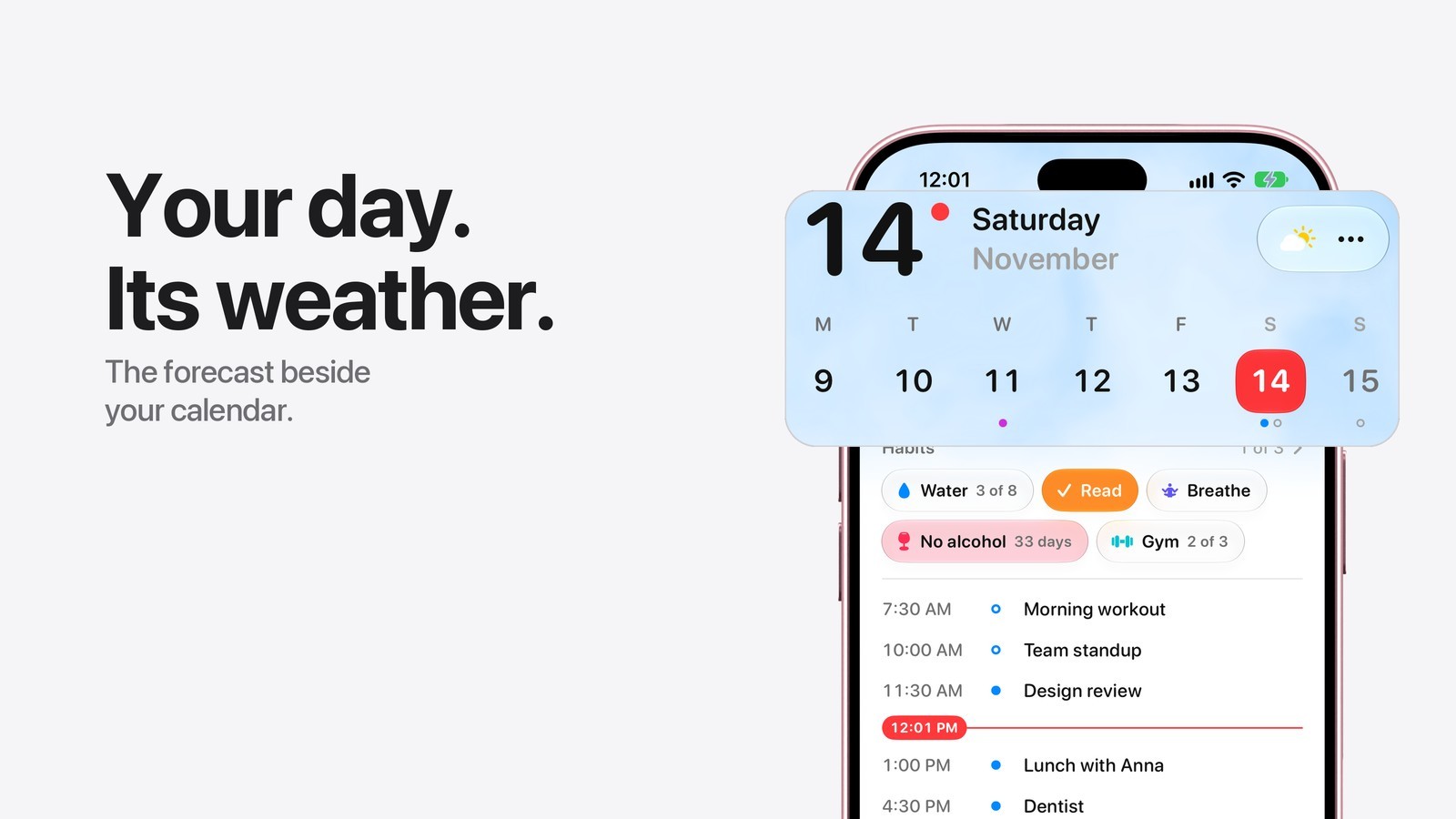
A calendar app with weather puts the forecast next to the plans it changes, so you see the rain at 6 PM on the same screen as the dinner at 7:30. Calendarly does this for free on iPhone: its Today page has the weather beside the date and opens into a ten-day forecast, and two Lock Screen wallpapers draw the weather into the picture behind the clock, one of them with the temperature at the hour of each event.
On a stock iPhone the two live in separate places. Calendar has no weather at all, and the Weather app knows nothing about your meetings, so the usual routine is to check one, then the other, and work out in your head whether the run at 7 AM still makes sense. Widgets help a little, because a Weather widget and a Calendar widget can sit side by side, but they still answer two questions separately and the Lock Screen has room for only a few small ones.
Calendarly’s Today page needs iOS 26 or later. The two weather wallpapers work on every iPhone the app runs on, from iOS 16.6, so an older phone can still have the forecast and the day behind the clock.
Calendar apps with weather, compared
Few calendar apps show the weather at all, and the ones that do often keep the longer forecast for paying users. These details are from each app’s page in the US App Store on 19 November 2026; plans change, so read the listing before you pay.
| App | Weather in it | Weather on the Lock Screen | Paid tier | Needs |
|---|---|---|---|---|
| Calendarly | Beside the date on Today, a tap opens ten days of hours; data from Apple Weather | Two wallpapers: Sky (free) and Forecast, your events with the weather at their hours (Pro) | Pro for every wallpaper layout; Today and the weather are free | iOS 26 for Today, iOS 16.6 for the wallpapers |
| Fantastical | A 3-day forecast free, from AccuWeather | Widgets | Flexibits Premium: a 10-day forecast with RealFeel and MinuteCast | iOS 17.6 |
| Timepage | Weather alongside events, plus a weather widget | Widgets | A membership with a free trial; when it ends the app is read only, without weather | iOS 16.6 |
| Calendar and Weather | Two separate Apple apps | Separate Weather and Calendar widgets | Free, built in | Any iPhone |
Fantastical suits people who want one full calendar on the iPhone, iPad and Mac, with tasks and, in Premium, tools for scheduling meetings. Timepage lays the day out as a timeline with its own weather widget, though the weather stops when the membership ends. Calendarly is the one that also draws the weather and the day into the Lock Screen wallpaper, and its Today page keeps your habits and to-dos with the forecast, as the daily planner comparison shows in more detail.
The weather on Calendarly’s Today page
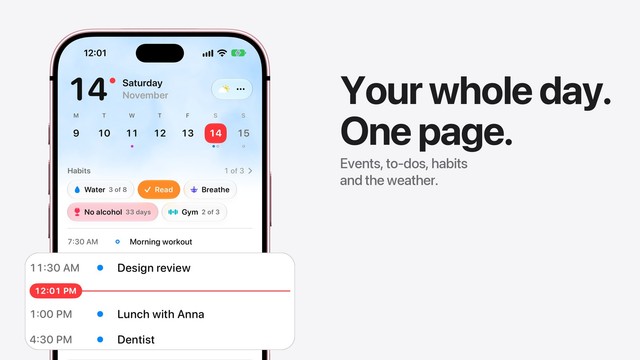
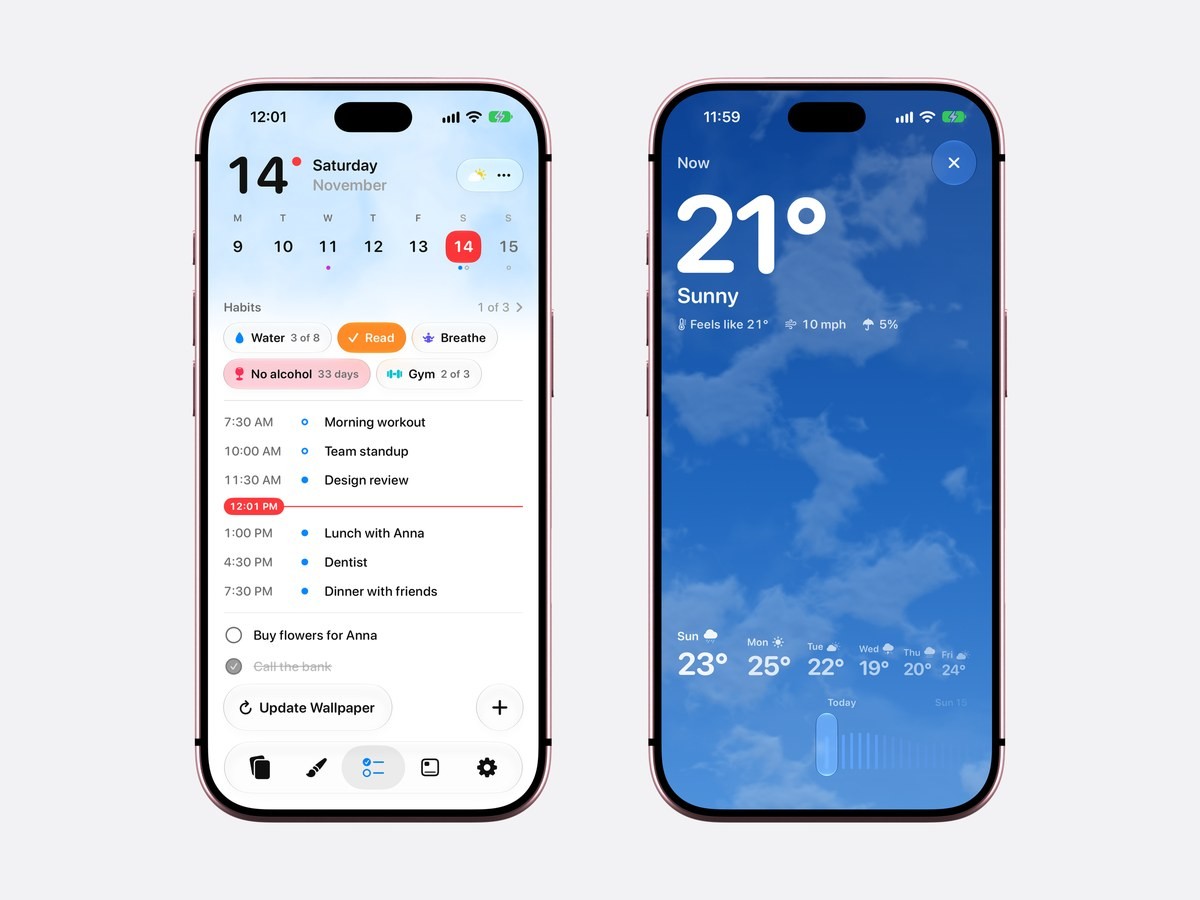
Today opens with the date in large type, the week under it and a small weather capsule on the right. The capsule shows the condition as Apple Weather draws it, and the sky behind the date follows the real weather: clear blue on a sunny morning, grey cloud on an overcast one, a few thin lines when it rains and soft dots when it snows. At night the sky turns dark. Below the header sits the rest of the day, your events at their times, the to-dos and your habits, so the forecast and the plan are read in one look.
Tap the capsule and it grows into the full forecast. The large number is the temperature now, with the condition under it, how warm it feels, the wind and the chance of rain. Along the bottom run the next six days, and under them ten days of hours as a row of thin sticks, each as tall as that hour is warm; slide a finger along them and the sky above changes to the weather of that hour. Apple Weather’s mark sits at the foot, with a link to its data sources.
Weather on the Lock Screen: the Sky and Forecast wallpapers
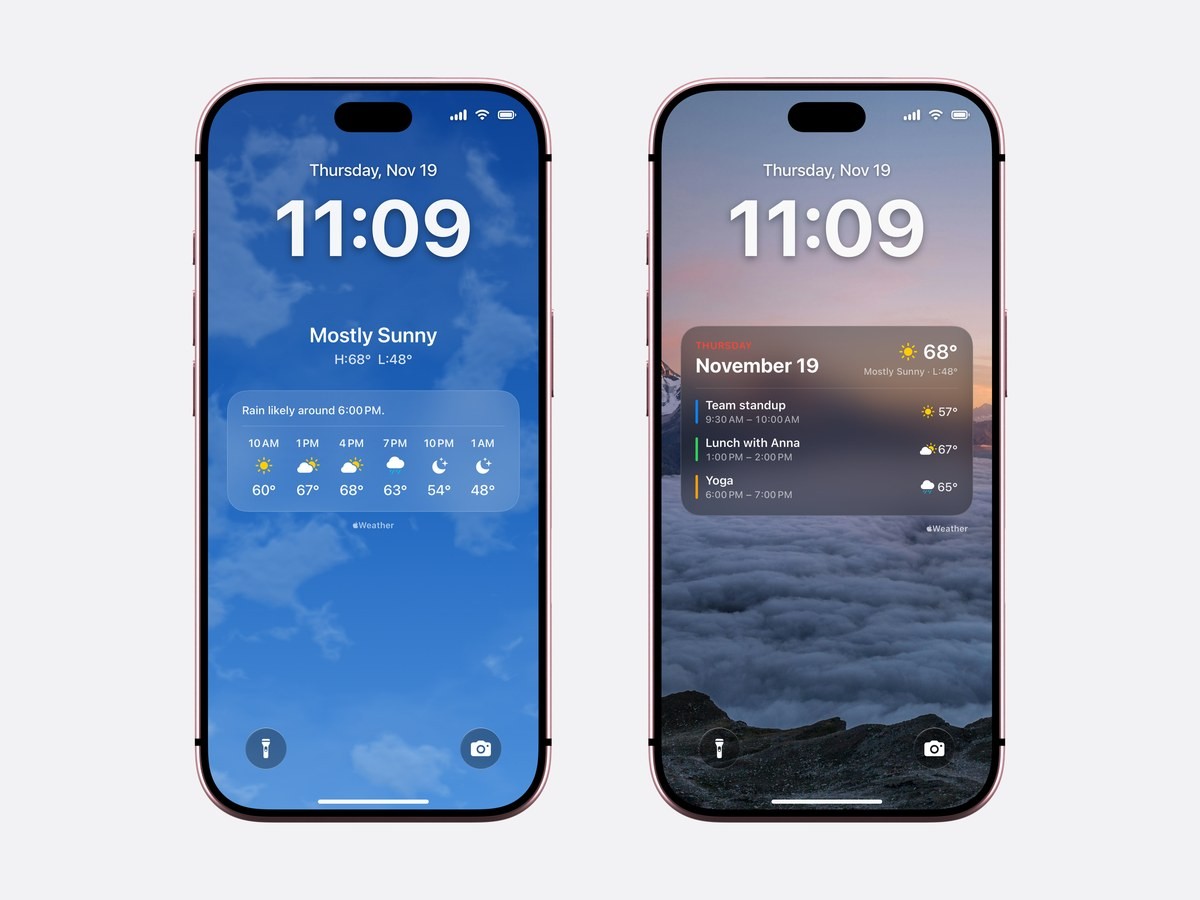
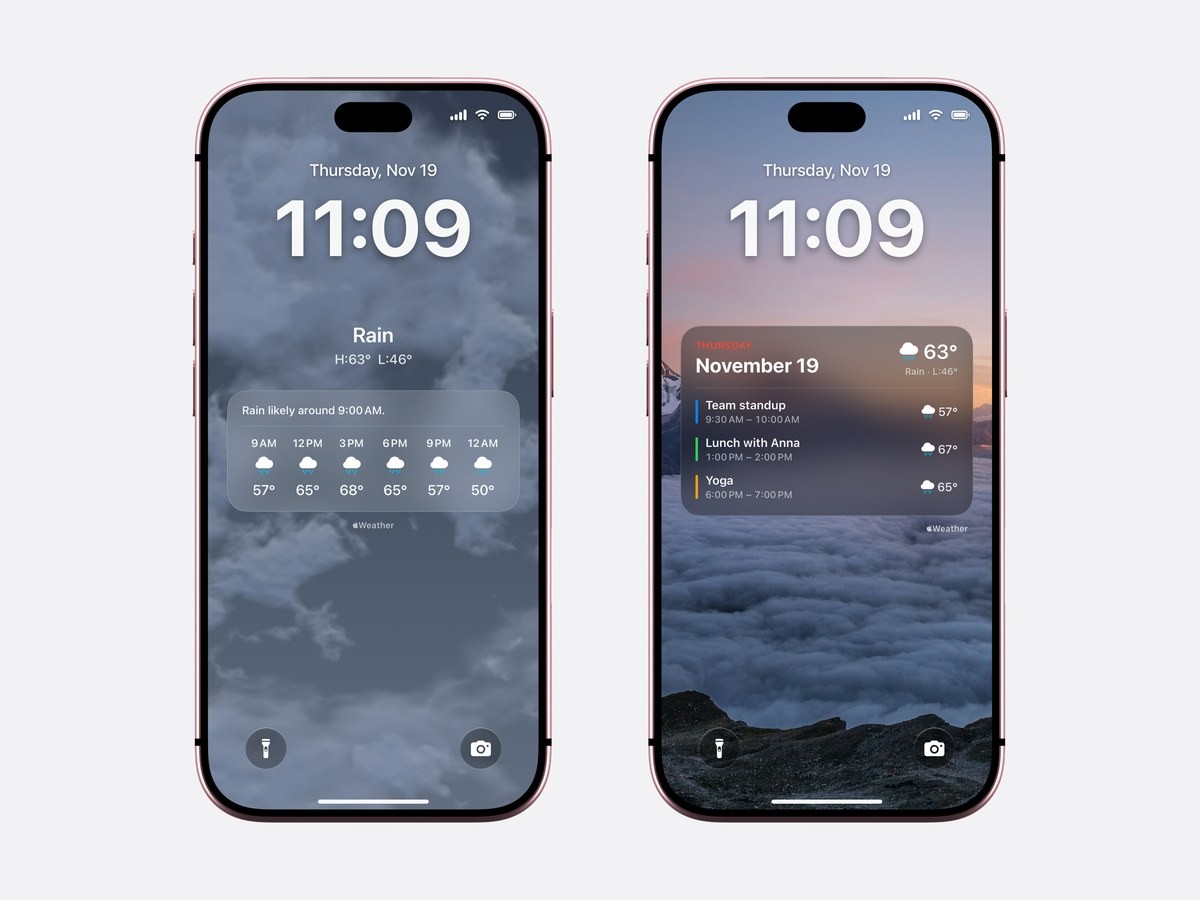
Calendarly draws Lock Screen wallpapers from your calendar, and two of them are built around the weather. Sky is free and needs no calendar at all. The wallpaper is the day’s sky, and under the clock it writes the condition and the high and low, such as Mostly Sunny with H:68° and L:48°. A frosted card below gives one plain sentence, such as Rain likely around 6:00 PM, or Sunny today, and the next six hours three hours apart, each with its symbol and temperature.
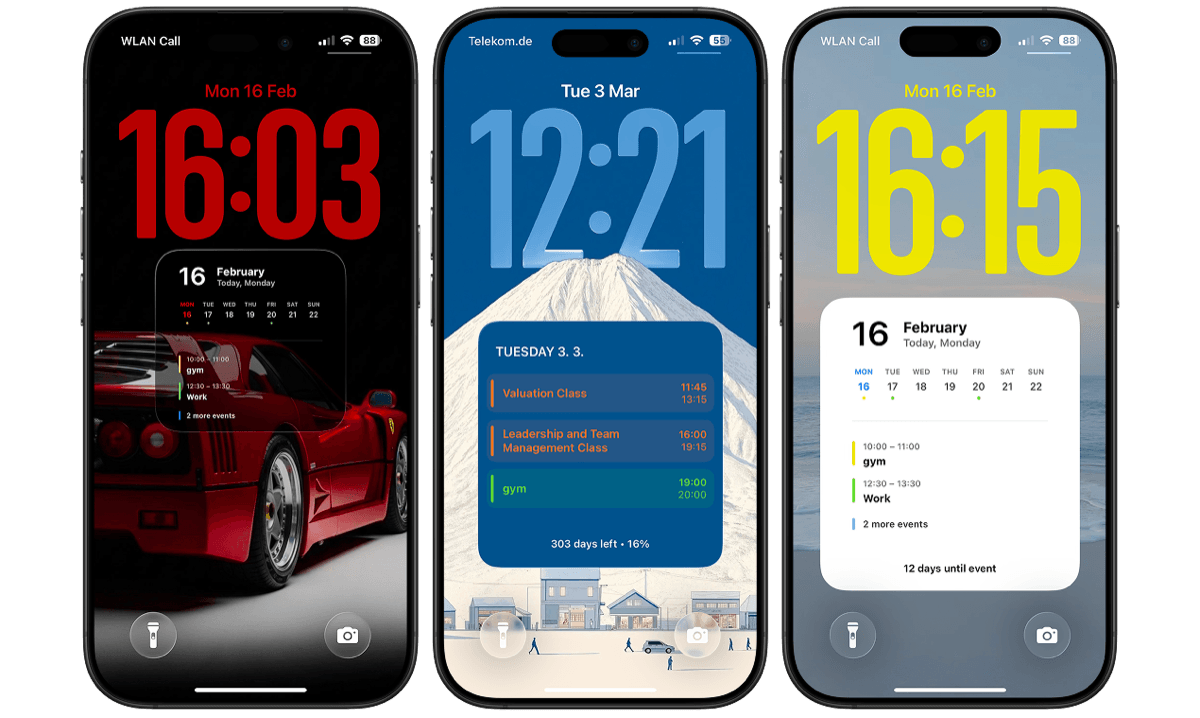
Forecast is the calendar version, and it is part of Calendarly Pro. One frosted card carries the weekday and the date, the day’s symbol and high, and then your events, each with the weather at its own hour: a standup at 9:30 AM under a sun at 57°, lunch at 1 PM at 67°, yoga at 6 PM under a rain cloud at 65°. An all-day event gets the day’s weather. It reads like Apple’s Calendar and Weather widgets merged into one card, and the card spans the width of the screen, where a widget gets a small slot under the clock.
Both sit in the Gallery’s Astronomy row next to the Moon layouts. Other calendar wallpapers, from a full month to a daily schedule, leave the weather out and keep the space for the calendar.
How to get the weather and your calendar together
- 1Download Calendarly
Get Calendarly from the App Store. It is free and needs no account.
- 2Open Today and tap the weather
On iOS 26 or later the app opens on Today. Tap the capsule beside the date, allow location while using the app, and the forecast appears there from then on.
- 3Pick a weather wallpaper
In the Gallery, open the Astronomy row and tap Sky or Forecast. The Studio opens; on its Style page, Show the Weather asks iOS for your location if Today has not already.
- 4Tap Use as Wallpaper
The first time, Calendarly adds the Update Calendarly Wallpaper shortcut and walks you through one morning automation in the Shortcuts app.
- 5Let the mornings update it
Each run of the shortcut fetches a fresh forecast and draws a new wallpaper. Update Wallpaper on Today runs it by hand when the plan or the sky changes.
How the weather wallpaper stays current
iOS does not let an app change the Lock Screen on its own, so Calendarly draws a new picture whenever its shortcut runs. A morning automation in Shortcuts is the usual way: at 7 AM the shortcut runs, Calendarly asks Apple Weather for the forecast at the place it last saw, waits up to eight seconds for an answer, and draws the day. Several runs in quick succession reuse a forecast that is less than two hours old, and the app also refreshes it when you open it.
If the phone is offline when the shortcut runs, the wallpaper uses the forecast it already has, for up to three days, so the wallpaper still shows the right day. After that the Sky wallpaper falls back to its own picture with the date and a line asking you to open Calendarly, and Forecast becomes a plain day card with your events. More runs during the day keep it closer to the sky outside, and the guide to calendar wallpapers that update themselves shows how to add a second or third time.
Your location and privacy
Calendarly asks for your location only when you tap the weather on Today or choose Show the Weather in the Studio, never when the app starts. The place is rounded to about a kilometer on the iPhone before it is used, and it goes only to Apple’s weather service. To keep the morning wallpaper current, that rounded place is kept on the phone, so the shortcut can fetch a forecast without asking again in the background.
Turn location off for Calendarly in Settings and the app forgets the place and the kept forecast. Calendarly needs no account for any of this: the forecast comes straight from Apple Weather, and the wallpaper is drawn on the iPhone.
What the iPhone does on its own
Apple’s Weather app has widgets for the Home Screen and the Lock Screen, and iOS also has a live Weather wallpaper that shows the conditions behind the clock. Next to them you can place the Calendar widget, so a Lock Screen can show the next event and the temperature at once. Apple explains both in its guides to Weather widgets and adding widgets.
| Weather and Calendar widgets | Calendarly Forecast wallpaper | |
|---|---|---|
| Events shown | The next one or two | The whole day |
| All-day events | Not shown on the Lock Screen | Shown, with the day’s weather |
| Weather per event | No, one reading for now | Yes, at each event’s hour |
| Space used | A small row under the clock | The wallpaper itself; the widget row stays free |
| Cost | Free, built in | Calendarly Pro; the Sky wallpaper is free |
The live Weather wallpaper is one of the styles Calendarly cannot replace: iOS lets an app swap a photo wallpaper and nothing else, so switch that Lock Screen to a photo first. Apple’s guide to custom Lock Screens shows where.
Sources
Questions people ask
Yes. Calendarly shows the weather beside the date on its Today page and opens a ten-day forecast with a tap, for free. Fantastical shows a 3-day forecast free and 10 days with Premium, and Timepage shows the weather with a membership.
Calendarly’s Forecast wallpaper lists the day’s events with the weather symbol and temperature at each event’s hour, on the Lock Screen. It is part of Calendarly Pro.
Add Apple’s Weather and Calendar widgets under the clock, or use a Calendarly wallpaper: Sky shows the day’s weather for free, and Forecast shows your events with their weather. Both are redrawn each morning by the Update Calendarly Wallpaper shortcut.
No. On the iPhone, Calendar and Weather are separate apps; their widgets can sit next to each other on the Home Screen or the Lock Screen.
From Apple Weather. Your location is asked only when you tap the weather or choose Show the Weather, rounded to about a kilometer and sent only to Apple’s weather service.
Yes. The weather on Today, the ten-day forecast and the Sky wallpaper are free. The Forecast wallpaper, with events and their weather, is part of Calendarly Pro.
The Today page and its weather need iOS 26 or later. The Sky and Forecast wallpapers work on iOS 16.6 and later.