Habit Tracker With Statistics for iPhone: Streaks, Charts and Highlights
What Calendarly’s free habit statistics show, from the streak and best run to week, month and year charts, monthly highlights and your usual time, compared with Streaks, HabitKit, Habitify and Way of Life.

A habit tracker with statistics tells you more than whether you kept a streak. It shows how often you really do the habit, on which weekdays and at what time, and whether this month went better than the last one. Calendarly does this for free on iOS 26 and later: every habit has its own page with the streak, the best run and the total, and a Statistics page with week, month and year charts, Highlights written in plain sentences and a short list of numbers.
Most people look for statistics after the first month, when the streak has broken once and the number at the top starts to feel unfair. Thirteen days out of fourteen is a good month even if the streak reads 7. A tracker that only counts days in a row hides that, and the habit gets dropped on the day the count goes back to zero. This guide walks through what each part of Calendarly’s habit pages shows, how the streak is counted, and how its statistics compare with Streaks, HabitKit, Habitify and Way of Life.
The habit page: today, the month and three numbers
Tap a habit on Calendarly’s Habits page and its own page opens. The top card is today. A daily habit says Done or Not yet, a habit counted several times a day shows how far along it is, such as 3/8 times for water, and a day the habit is not planned for says Rest day. Under that line, the 24 hours of the day are drawn as a row of dots, and every hour with a check-in becomes a bar in the habit’s color, taller when you checked in more than once. After a few weeks this little chart shows whether you read at night or at lunch without any setting.
The second card is the month: a bar split into Kept and Missed, plus Partly for a counted habit that got some of its times, and the score in words, such as 13 of 14 days. Below it sit three numbers. Streak is the current run, Best is the longest run you ever had, and In all is the total, in days, or in times for a habit you count several times a day. A water habit on eight glasses a day can show 723 times in all while its streak is 0 because yesterday came up short.
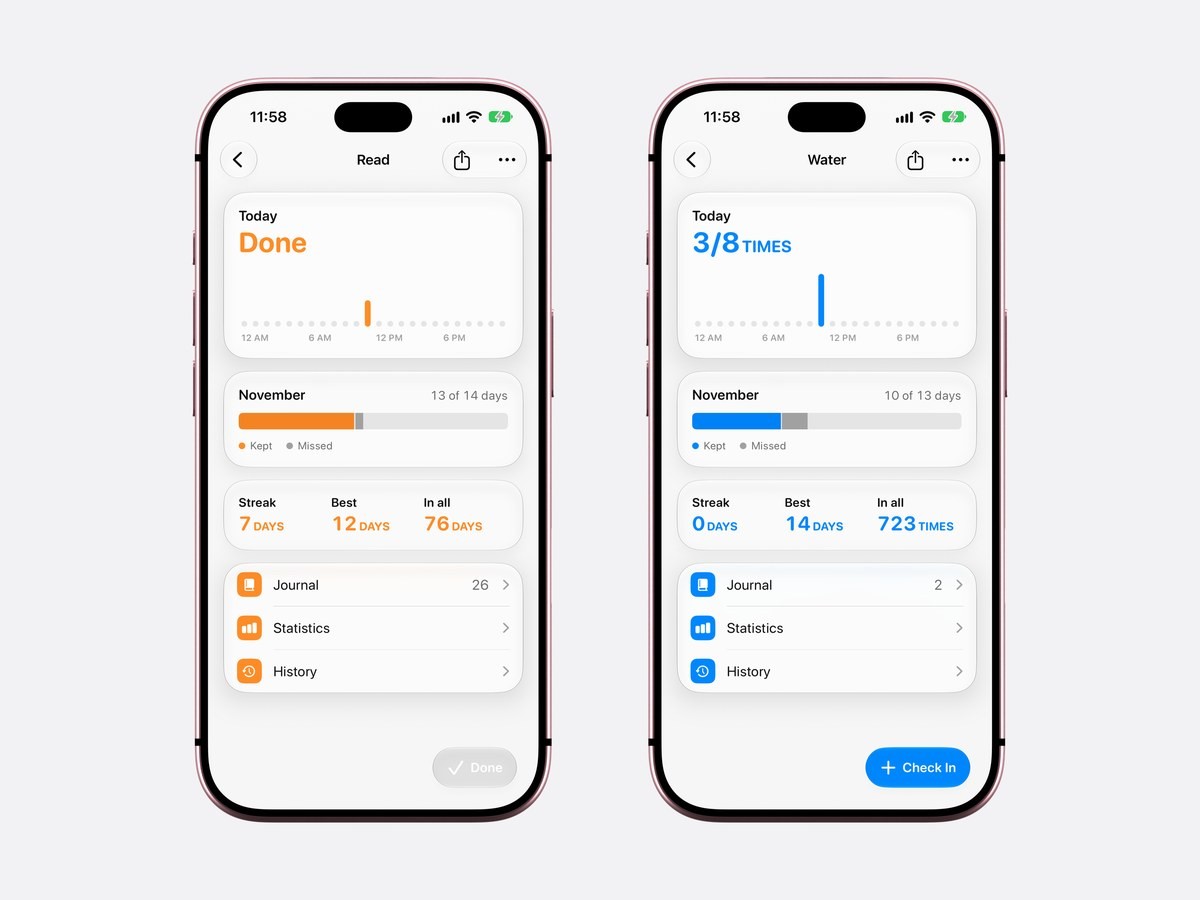
Three rows lead further: Journal, Statistics and History. The Journal row shows how many notes you have written, and the Share button at the top turns the streak into a picture you can send or post.
How the streak is counted
Every day you do the habit adds one to the streak. A day the habit is not planned for leaves the streak where it is, so a gym habit on Monday, Wednesday and Friday keeps its run over Tuesday and the weekend. Only a planned day that passes without a check-in breaks it. Today never breaks it while there is still time, so the number at 9 in the morning is the same one you had last night. Doing the habit on a day off counts as well, since doing more never hurts.
Weekly and monthly habits count their days too. Three runs a week add three days to the run each week, and the run stops only when a week ends with fewer runs than you asked for. The best run is counted with the same rule from the first day you started, so the two numbers can be compared. For a habit you are quitting, the streak is the number of whole days clean since the last slip, as the sobriety counter guide explains in detail.
Statistics by week, month and year
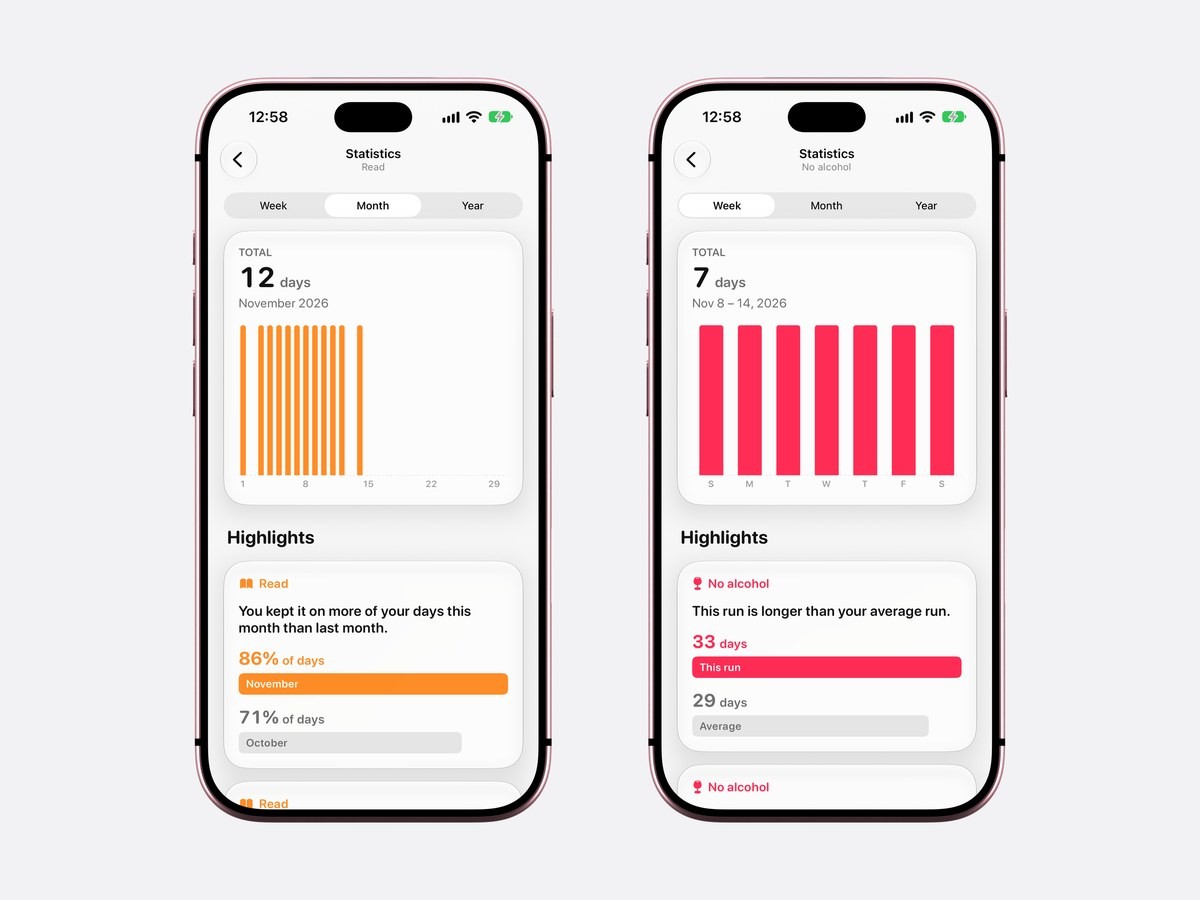
Statistics opens with a Week, Month and Year switch over one chart. In Week and Month every day is a bar, with the total above it, for example 12 days in November 2026. In Year every month is a bar, so a habit that slipped every summer shows it. A habit you count several times a day gets an average instead of a total: the bars show how many times you checked in each day, the line across them is your average, and the scale ends at your daily goal, so a day at 8 of 8 reaches the top.
Below the chart comes Highlights. The first card compares this month with the last one and puts the result into a sentence: You kept it on more of your days this month than last month, with 86% of days in November against 71% in October. A habit counted several times a day compares how often you checked in, and a weekly habit compares the number of days. The second card looks at the last twelve weeks and names your strongest weekday, such as You keep it most often on Sunday, with a small bar for each day of the week.
The numbers under the chart
At the foot of Statistics a list gives the figures that do not fit a chart. A daily habit shows This month and All time as percentages of the days it was planned for, then Days kept, Times in all for a counted habit, Usual time and Started, the day you added it. A weekly habit shows Weeks met over the last twelve weeks, and a monthly one Months met over the last year, in place of the two percentages.
Usual time is the middle of your check-in times over the last 60 days, and it appears once there are at least five of them. It is useful for reminders: if your reading habit says 9:20 PM, a reminder at 7 in the morning is doing little. Habit reminders stay off until you turn them on in Settings ▸ Notifications, where a habit can have several times a day, and each one has Done and In an Hour buttons.
Journal and History
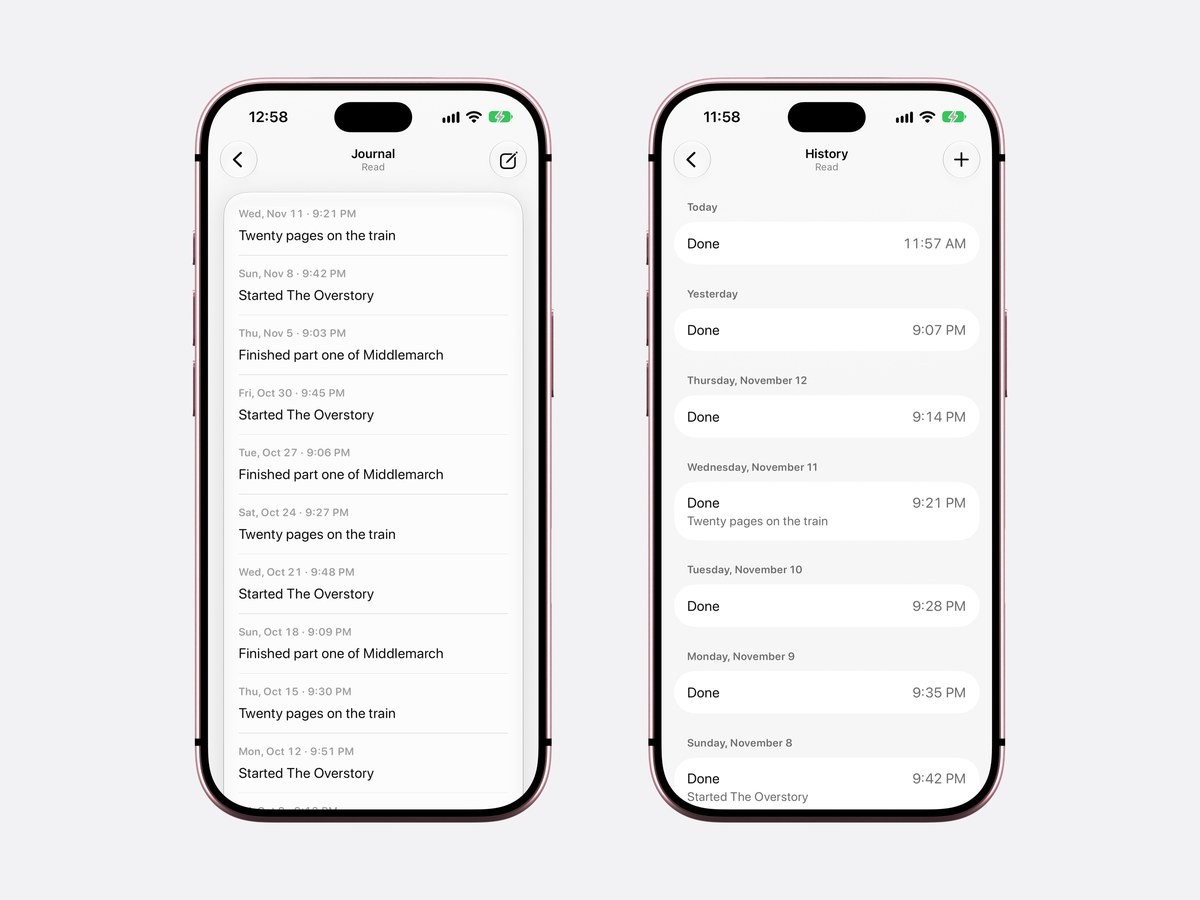
A note can go with any check-in: Note in the habit’s menu, or the compose button on the Journal page. The Journal lists every note with its day and time, newest first, so a reading habit turns into a list of the books you started and finished. History lists every check-in day by day with its time, and a note under it when you wrote one.
History is also where you fix the record. The plus button adds a check-in for a past day and time, with a note, for the evening you read but forgot to tap. If that day already has every check-in the habit asks for, the sheet says Already done that day and saves nothing. A check-in tapped by mistake can be deleted, and the streak and every chart follow at once.
Statistics for a habit you quit
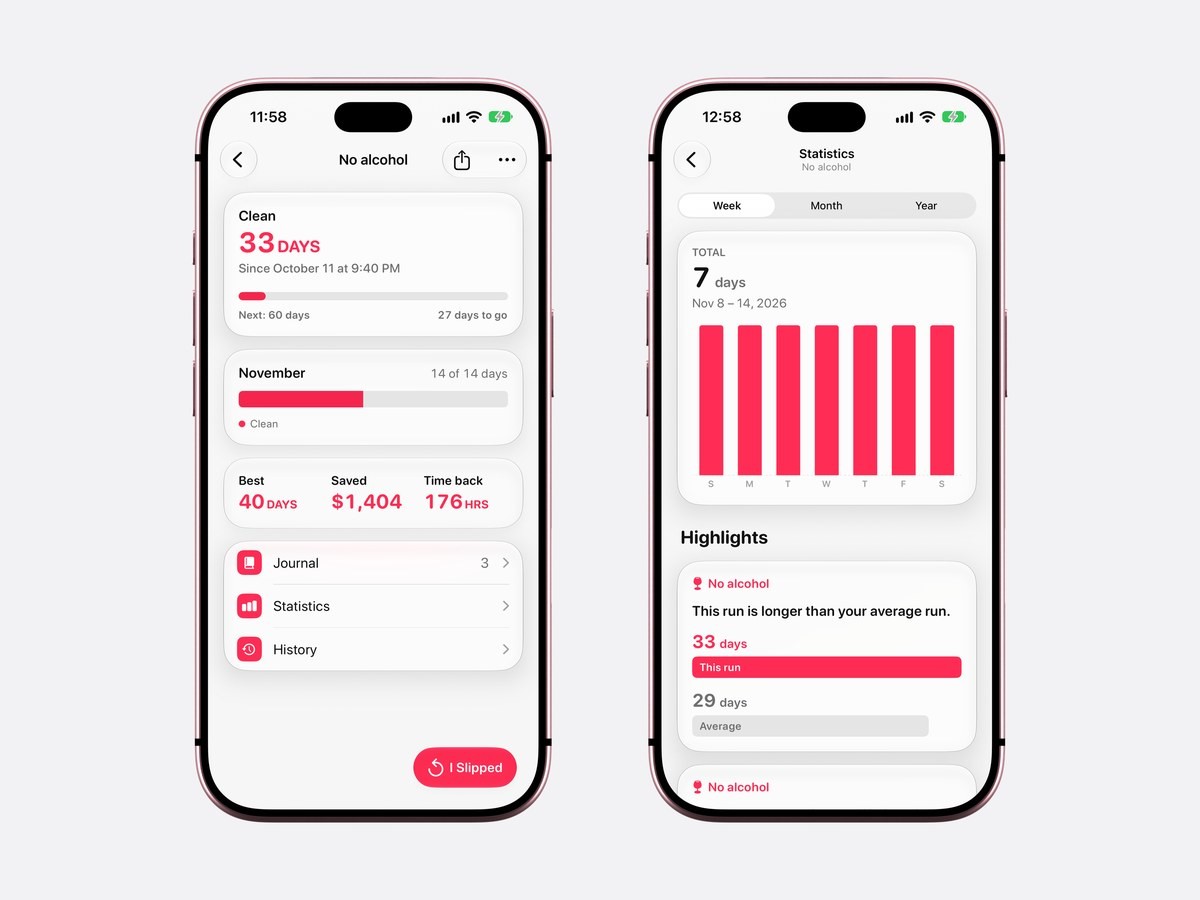
A habit to quit has its own set of numbers. The page shows the days clean, the next milestone and your best run, and, when you entered what the habit cost a day, the money saved and the hours back. In Statistics, Highlights compares the run you are on with your average one: This run is longer than your average run. The list underneath gives Best run, Average run, Clean, last 30 days, Slips, Slips usually at, Most common reason and Started, so after a few slips you can see whether they come at night, on Fridays or with people.
How to see your habit statistics in Calendarly
- 1Download Calendarly
Get Calendarly from the App Store. It is free and asks for no account. Habits and the Today page need iOS 26 or later.
- 2Add a habit
Calendarly opens on Today. Tap the plus button, choose Habit, then pick how often: every day, chosen weekdays, a number of days a week or a month, or up to 20 times a day.
- 3Check in from Today
Tap the habit’s capsule above your day each time you do it. A habit widget on the Home Screen or the Lock Screen counts the same tap.
- 4Open the habit’s page
Tap Habits above the capsules, then the habit. Its page shows today, the month, the streak, the best run and the total.
- 5Open Statistics
Tap Statistics and switch between Week, Month and Year. Scroll down for Highlights and the numbers, and open History to add a day you forgot.
Calendarly against habit trackers known for statistics
The details below come from each app’s App Store page in the US store, read on 18 November 2026. Not named means the listing does not mention it; the app may still have it.
| App | Statistics in the listing | Notes | Free to use | Needs |
|---|---|---|---|---|
| Calendarly | Streak, best run and total; week, month and year charts; month against month; strongest weekday; usual time | A note with any check-in, Journal, History | Every habit feature, up to 30 habits | iOS 26 for habits |
| Streaks | Current and best streaks, completion rates and history | A note for any day | Paid app, $5.99 | iOS 17.6 |
| HabitKit | Current and best streak, streak goals, completion statistics, monthly charts | A short note for any day | A few habits with streaks; charts and statistics are in Pro | iOS 15.0 |
| Habitify | Charts, streaks, progress views, completion history and a progress calendar | Notes and mood tracking | Free to use; Plus adds unlimited habits | iOS 16.2 |
| Way of Life | Chains, pie charts, bar graphs with trend lines, frequency distribution, weekly and monthly scoreboard | Notes | Premium adds unlimited habits | iOS 17.6 |
Way of Life has the most charts of the five and exports your data as CSV, Excel or JSON, which suits people who like to analyze their habits on a computer. Streaks has a full Apple Watch app and reads Apple Health, Habitify syncs across iPhone, iPad, Mac and Apple Watch, and HabitKit is built around a grid of tiles for every day you show up. Calendarly keeps the statistics free and puts the habits on its Today page next to your calendar and to-dos, so you see them while you plan the day. Every habit app is compared more broadly in the best habit tracker apps for iPhone.
What the iPhone tracks on its own
iOS has no habit tracker of its own. Reminders can repeat a task every day, but a completed repeat leaves no streak and no chart, and the Fitness app keeps statistics only for its activity rings. The table shows the difference.
| Reminders, repeating task | Calendarly habits | |
|---|---|---|
| Streak and best run | No | Yes |
| Week, month and year charts | No | Yes |
| Several times a day | No | Up to 20 |
| Days off that keep the streak | No | Chosen weekdays, weekly and monthly habits |
| Add a day you forgot | No | Yes, from History |
| Widget with a tap to check in | Apple’s Reminders widget | Nine habit widgets, Home Screen and Lock Screen |
Calendarly’s habit widgets are listed with their sizes in habit tracker widgets for iPhone, and Apple explains how to add widgets. If you plan the whole day and not only the habits, the best daily planner apps for iPhone are compared in a guide of their own.
Privacy
Habits, check-ins and notes stay on your iPhone. Calendarly has no account and does not write habits to Apple Health, so the statistics are worked out on the phone from your own check-ins. Up to 30 habits fit, and all of it is free.
Sources
Questions people ask
Yes. Calendarly’s habits, streaks, charts and Highlights are free for up to 30 habits on iOS 26 and later. HabitKit is free to download with its charts and statistics in Pro, and Way of Life includes its charts with unlimited habits in Premium.
For charts by week, month and year with plain-sentence comparisons and your usual time, Calendarly, free. Way of Life lists the most chart types and data export, and Streaks lists completion rates with an Apple Watch app.
In Calendarly a planned day without a check-in ends the current streak, while a day the habit is not planned for keeps it. Your best run and every total stay, and History can add a day you did but forgot to tap.
Every day you do it adds one, and the run continues as long as each week reaches the number of days you set. It stops only at a week that ended short.
Yes. The habit’s page draws today’s check-ins by the hour, and Statistics shows Usual time, the middle of your check-in times over the last 60 days, once you have five check-ins.
Yes. Write a note with any check-in; the Journal lists them all, and History shows each check-in with its time and note.
No. Reminders can repeat a task but keeps no streaks or charts, and the Fitness app tracks only its activity rings.
Calendarly is free to download. Habits, the Today page, every widget, every Live Activity and 99 of its 156 wallpaper layouts are free. Calendarly Pro unlocks every layout and your own photos as backgrounds.