iPhone Reminders Not Showing on the Lock Screen? 8 Fixes
Eight settings that hide reminder alerts or leave the Reminders widget blank, in the order worth checking, and a way to keep the list in sight all day.
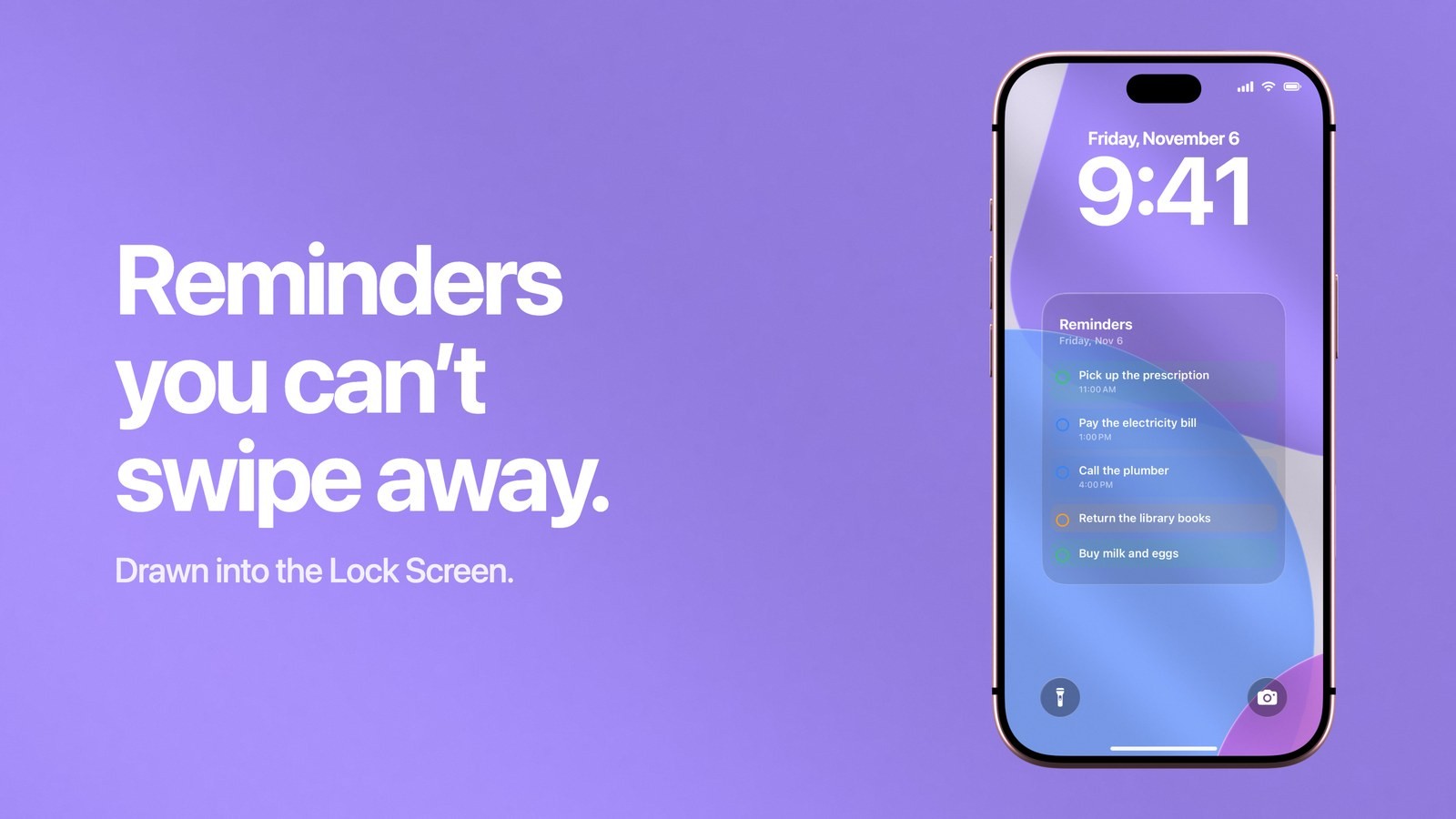
When reminders stop showing on your iPhone Lock Screen, one of eight settings is usually behind it. Notifications for Reminders are off or kept away from the Lock Screen, a Focus is holding them back, they wait for a Scheduled Summary, the reminder has a date and no time, previews are hidden, Lock Screen widgets are switched off, the widget points at another list, or the list has stopped syncing. All eight take a few minutes to check. If you would rather have the list in view all day with no alert to miss, Calendarly draws your Reminders lists into the Lock Screen wallpaper and redraws it every morning.
This search covers two separate problems. For some people, the alert never arrives: the dentist reminder was due at three and the screen stayed dark. For others, the alert works and the Reminders widget under the clock is blank or shows the wrong list. The two have different causes, so start with the half that matches what you see.
If the reminder alert never appears
A reminder alert is an ordinary notification, so everything that can hide a notification can hide it. Go through these in order.
- 1Allow Reminders on the Lock Screen
Open Settings, tap Notifications, then Reminders. Allow Notifications has to be on, and under Alerts the Lock Screen option has to be ticked. It is possible to leave banners on and the Lock Screen off, which gives you alerts while you use the phone and nothing when it is locked.
- 2Check the Focus you are in
Do Not Disturb, Sleep, Work and every other Focus silence apps you have not allowed. Open Settings, tap Focus, tap the one that is on, then tap Apps and add Reminders. If the Reminders notification page offers Time Sensitive Notifications, turn that on as well, so a reminder due right now can come through.
- 3Take Reminders out of the Scheduled Summary
With a Scheduled Summary set up, the apps in it deliver their notifications in batches at the times you chose. In Settings, Notifications, Reminders, look under Notification Delivery and choose Immediate Delivery.
- 4Give the reminder a time
A reminder with no date never alerts. A reminder with a date and no time is an all-day reminder, and it alerts once, at the hour set in Settings, Apps, Reminders, Today Notification. If that switch is off, all-day reminders produce no alert at all. Add a time to anything you need at a certain hour.
- 5Show the text of the alert
If the alert arrives and only says that there is a notification, previews are hidden. In Settings, Notifications, Reminders, tap Show Previews and choose Always. With When Unlocked, the title appears only after Face ID has recognised you.
Apple lists every one of these switches in its guide to changing notification settings, and the Focus options in Set up a Focus. One more setting can shift alerts by hours: in Settings, Apps, Reminders there is a Time Zone option, and if it is fixed to a city you no longer live in, every reminder fires on that city’s clock.
If the Reminders widget is blank
A blank widget under the clock has three causes of its own, all of them outside the notification settings.
- 1Allow widgets on a locked phone
Open Settings, tap Face ID & Passcode, enter your passcode and scroll to Allow Access When Locked. Lock Screen Widgets has to be on. With it off, widgets stay hidden or empty while the phone is locked.
- 2Check which list the widget shows
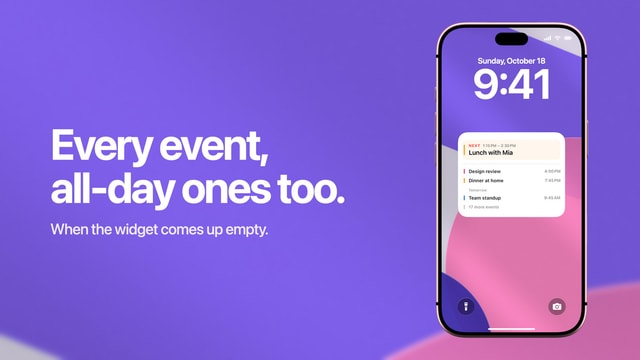
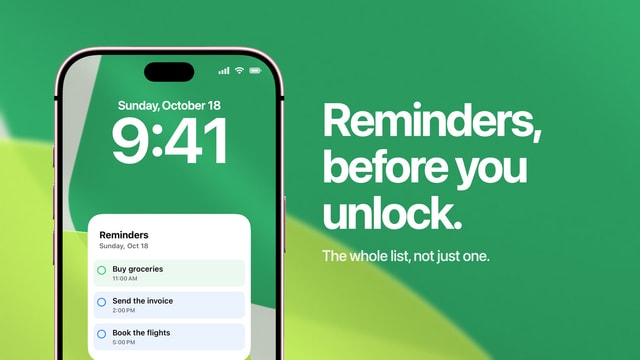
Each Reminders widget shows one list. Touch and hold the Lock Screen, tap Customize, tap the Lock Screen, then tap the widget itself and look at List. An empty list gives an empty widget, however full your other lists are.
- 3Check that the list still syncs
For iCloud lists, open Settings, tap your name, tap iCloud, tap See All and make sure Reminders is on. For Exchange, Yahoo and other accounts, the switch is under Settings, Apps, Reminders, Reminders Accounts.
Reminders on the iPhone Lock Screen explains how to choose the list in more detail, and the Reminders widget guide covers what the widget can and cannot show. If it is the Calendar widget that has gone empty, the causes are different, and they are in calendar widget not showing events.
How to keep reminders on the Lock Screen with Calendarly
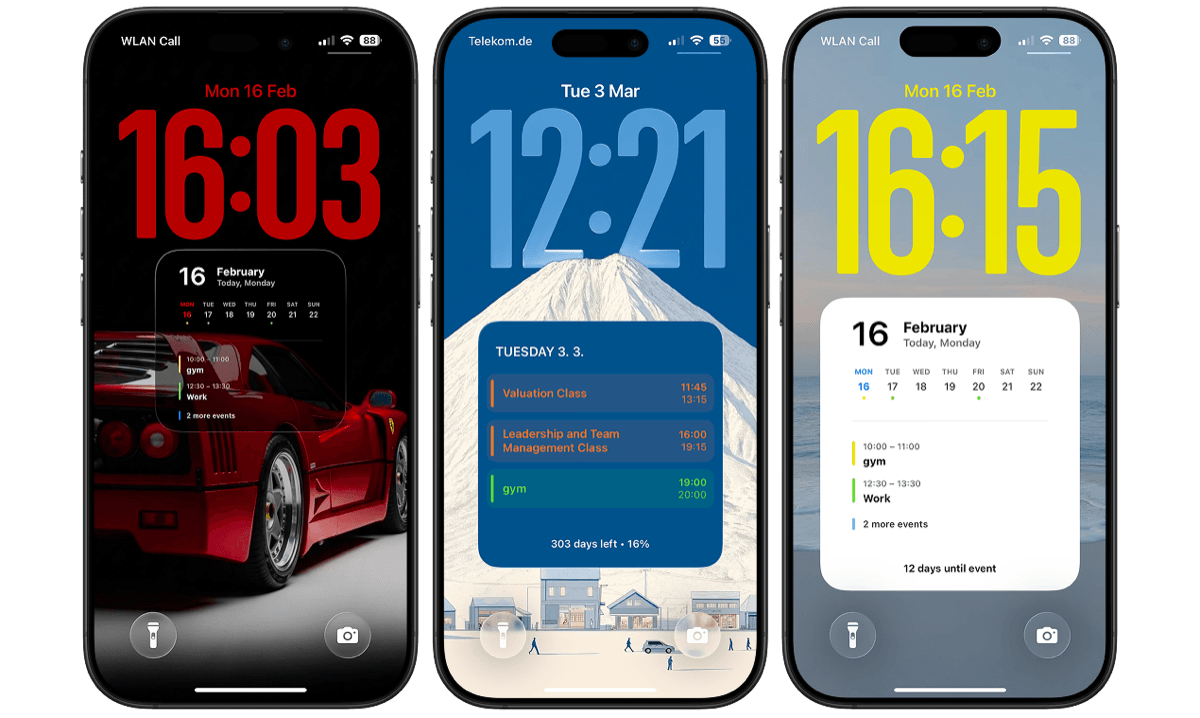
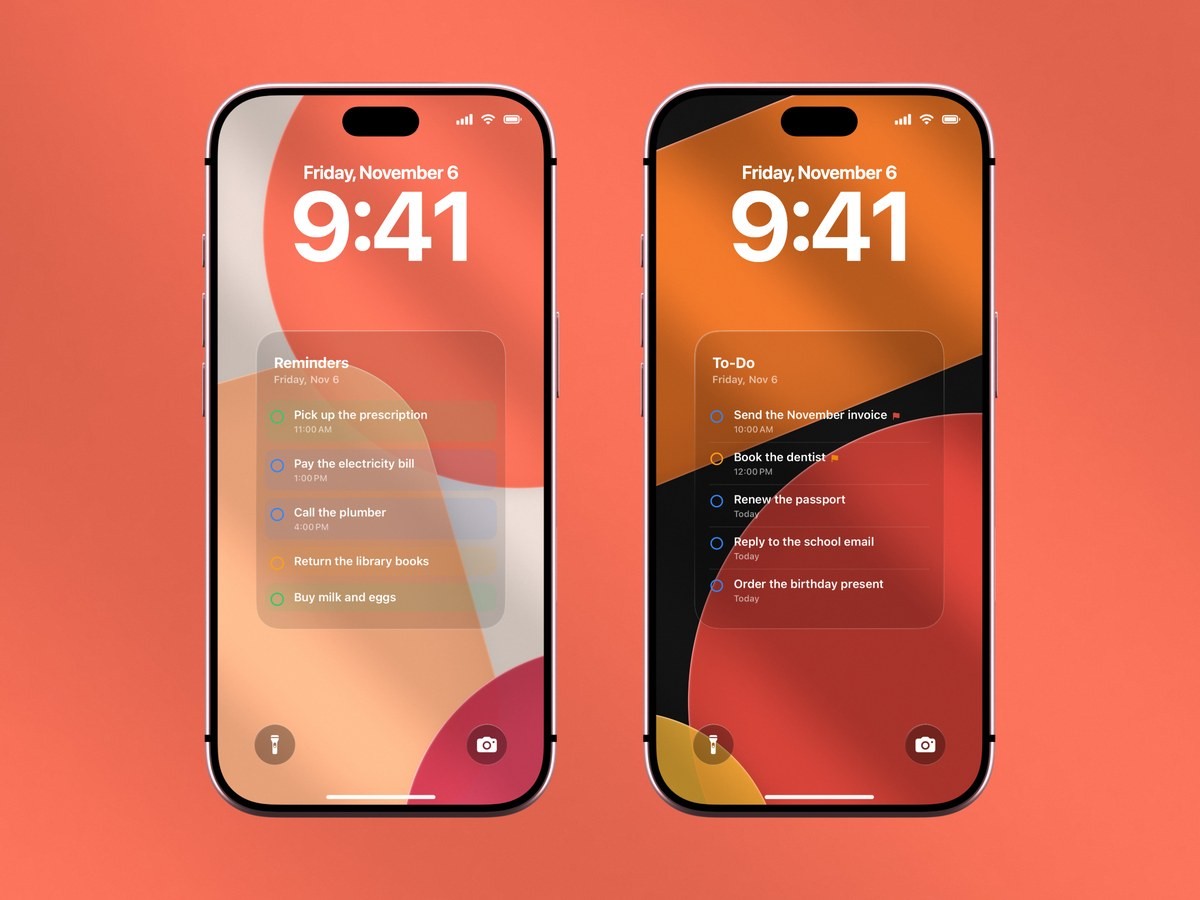
Even when every setting is right, an alert is on the screen for a moment and then joins the stack with everything else. The widget shows the top of one list. If you want today’s reminders readable every time you pick up the phone, put them in the wallpaper. A wallpaper is a picture, so no Focus, summary or notification setting can remove it.
- 1Download Calendarly
Get Calendarly from the App Store. It is free to download, runs on iOS 16.6 or later and has no account to create.
- 2Allow access to Reminders
The app asks when you first pick a layout that uses them. You then choose which lists appear, so a shared shopping list can stay out of sight.
- 3Pick a Reminders layout in the Gallery
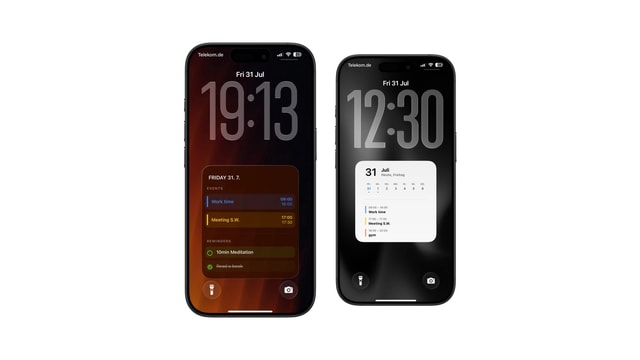
The Gallery shows each layout on a real Lock Screen. Some are a plain list, and others place your reminders under the day’s events.
- 4Adjust it in the Studio
Change the background, the colours and the size. The preview redraws with your own reminders as you go.
- 5Tap Use as Wallpaper
The first time, Calendarly adds its shortcut, Update Calendarly Wallpaper, to the Shortcuts app and walks you through the one automation that runs it each morning.
The wallpaper is redrawn every morning with whatever is still open, and you can run the shortcut by hand when you want it to catch up sooner. It cannot interrupt you, though. A pill at eight or a call at four still needs a reminder with a time and working notifications, so the notification settings above are still worth getting right. The to-do list guide goes through the layouts, and calendar and reminders on one Lock Screen shows the ones that combine both.
Alerts, the widget and the wallpaper compared
The three ways of seeing a reminder on a locked iPhone do different jobs, and they can all be on at once.
| Reminder alert | Reminders widget | Calendarly wallpaper | |
|---|---|---|---|
| What you see | One reminder, when it is due | The top of one list | The lists you pick, about five items |
| Can be silenced by | Notification settings, Focus, Scheduled Summary | The Lock Screen Widgets switch | Nothing, it is the wallpaper |
| Stays on screen | Until you clear it | Yes | Yes |
| Can interrupt you | Yes | No | No |
| Tick off from the Lock Screen | Yes, touch and hold the alert | Yes | No |
| Cost | Built in | Built in | Free to download, 96 of 152 layouts free |
Calendarly also has free widgets and Live Activities of its own, where a reminder can be ticked off and is marked complete in Apple’s Reminders. Your reminders are read and drawn on the iPhone and are not sent to a server.
If none of this helped
Open the Reminders app and find the reminder itself. It may already be marked complete, or it may sit in a list that belongs to an account you have signed out of. Then restart the iPhone, which often clears a widget that has stopped refreshing. Finally, check for an iOS update under Settings, General, Software Update. Apple’s page on Reminders settings lists the remaining options, including the default list that Siri saves new reminders to. That list is worth a look when a reminder you dictated seems to have vanished.
Sources
Questions people ask
Most often Reminders notifications are not allowed on the Lock Screen, or a Focus such as Do Not Disturb is silencing them. Check Settings, Notifications, Reminders first, then the Focus that is on, then whether the reminder has a time.
Open Settings, tap Notifications, tap Reminders, turn on Allow Notifications and tick Lock Screen under Alerts. Set Show Previews to Always if you want to read the reminder without unlocking.
Either Lock Screen Widgets is off under Settings, Face ID & Passcode, or the widget is set to a list with nothing open in it, or the list’s account has stopped syncing. Tap the widget in the Lock Screen editor to change its list.
A reminder with a date and no time alerts once, at the hour set in Settings, Apps, Reminders, Today Notification. A reminder with no date never alerts.
Yes, unless Reminders is on the Focus’s list of allowed apps or time-sensitive notifications are allowed. Add Reminders under Settings, Focus, Do Not Disturb, Apps.
Yes, as a wallpaper. Calendarly draws the Reminders lists you choose into the Lock Screen wallpaper and redraws it every morning, so the list stays visible whatever your notification settings are.
Calendarly is free to download, and 96 of its 152 layouts are free, along with every widget, every Live Activity and the daily update. Calendarly Pro unlocks every layout and your own photos as backgrounds.