Apple Reminders Lock Screen Widget: What It Can and Cannot Show
What Apple's Reminders Lock Screen widget does well, how to fix an empty view, and when a larger reminder wallpaper makes sense.
Apple Reminders does have Lock Screen widgets, and on iOS 17 and later they are interactive, so you can tick an item off without unlocking the phone. That single capability is the reason to keep one even if you also use something larger.
What the widget cannot do is show a list. The Lock Screen widget row is a narrow strip that Apple sizes and positions, and it holds roughly one line of useful text per slot. Most complaints about it being empty or useless turn out to be complaints about that shape rather than about a bug.
So this guide splits the problem in two: the checks for a widget that is genuinely broken, and what to do instead when the widget is working exactly as designed and still not enough.
What the widget is actually for
Add it by pressing and holding the Lock Screen, tapping Customise, then Add Widgets, and choosing Reminders. Apple keeps the current instructions in its widget guide, and the available shapes shift a little between iOS versions.
Its strength is that it stays connected to the app. It updates when Reminders updates, it opens straight into the right list, and on supported formats it can complete a visible item in place. Nothing that is drawn into a wallpaper can do any of that, which is why the widget is worth its slot even when it only holds one thing.
- Use it for
The next reminder, a small live list, or the one task you want to be able to tick off from the Lock Screen.
- Do not expect
A project list, notes, or anything approaching the density of a Home Screen widget. The row is a strip, not a panel.
- Remember who else can read it
Whatever the widget shows is legible to anybody holding the phone, before Face ID has decided anything.
If it looks empty
Work through these in order rather than jumping to reinstalling anything. The first two account for most cases, and the whole sequence takes about a minute.
- 1Open Reminders
Confirm the item is in the list you think it is in, is not completed, and has not been moved by a smart list rule.
- 2Check which list the widget is showing
Press and hold the widget. If iOS offers Edit Widget, the list selection is in there and is frequently pointing at something unexpected.
- 3Check account sync
Settings, then Apps, then Reminders, then the account section. If the list lives in iCloud or an Exchange account, that account has to be enabled and reachable.
- 4Check Lock Screen access
Settings, then Face ID & Passcode, then Allow Access When Locked. A Focus can also filter what appears, so check any Focus that is currently active.
- 5Remove and re-add the widget
A fresh instance clears a stale timeline. This is the last cheap step before anything drastic.
When the widget is fine and still not enough
There is a specific moment where this becomes obvious: you have a good widget, it shows the correct next task, and you keep unlocking the phone anyway to see the other four. At that point no setting will help, because the thing you want is area.
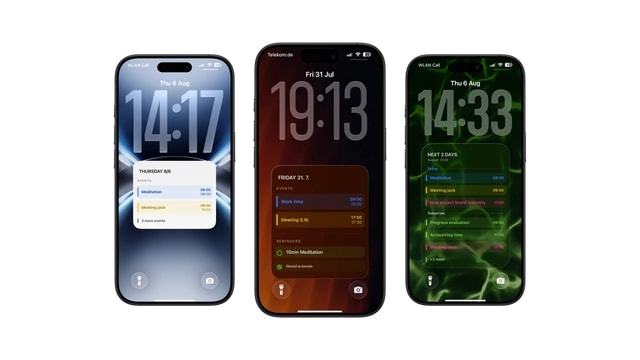
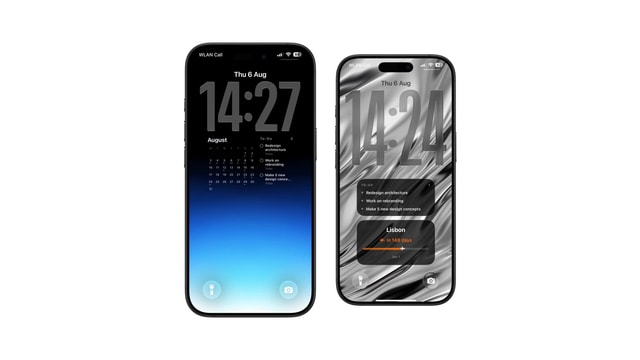
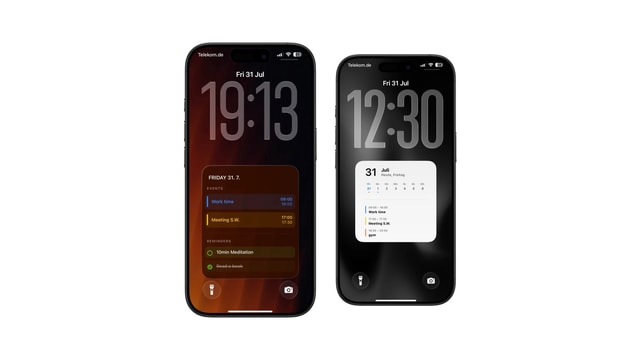
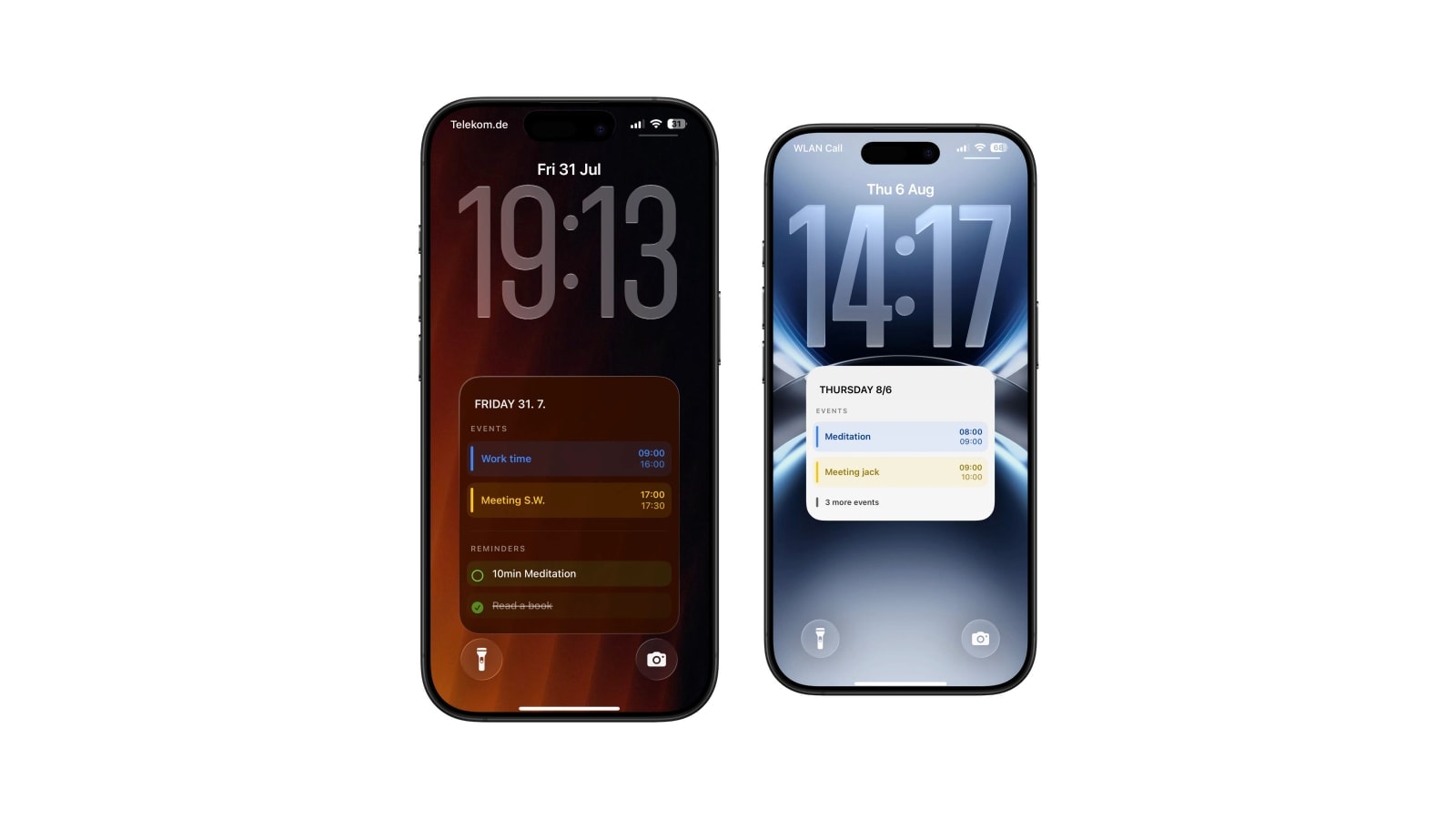
Calendarly reads the Reminders lists you choose and draws several items into a card on the wallpaper, which has roughly twenty times the space of a widget slot. A morning Shortcuts automation redraws it. The cost is that it is a picture: nothing is tappable, and completing something does not remove it until the next render.
Running both is not a compromise, it is the arrangement that actually works. The widget keeps the live edge and the tap; the wallpaper carries the plan behind it. Just avoid showing the same item in both, or you are spending two surfaces on one piece of information.
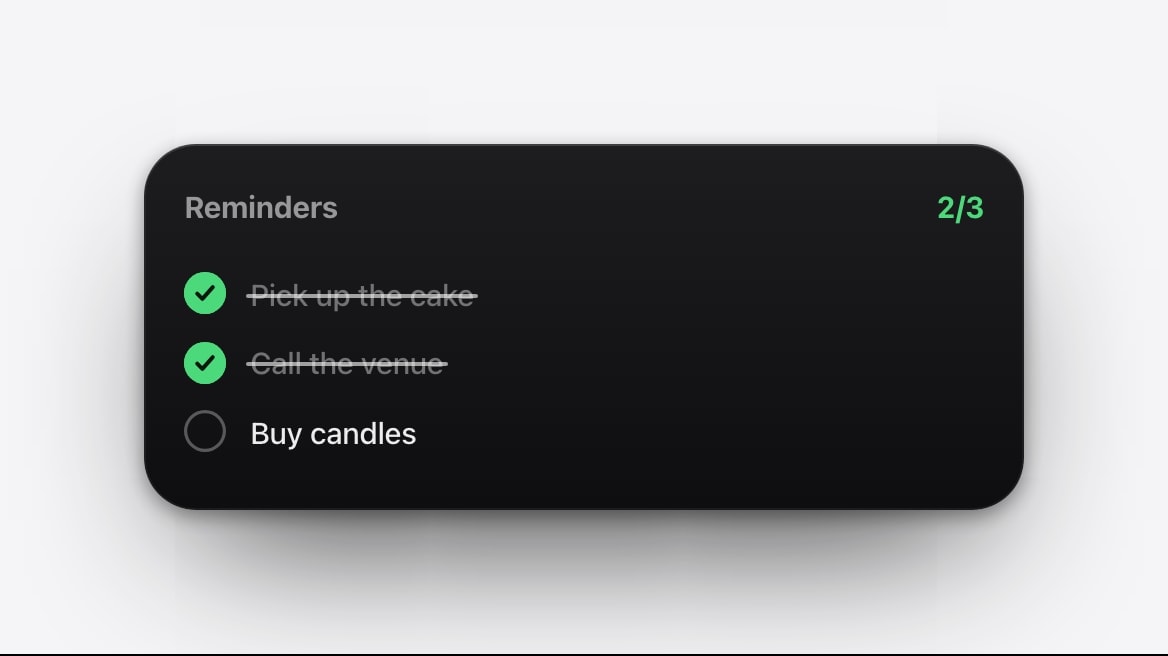
One item, always current, and you can complete it without unlocking. Small on purpose and staying that way.
Several items with room to read them. Refreshed on a schedule or by hand, and nothing responds to a tap.
Questions people ask
Yes. Add it from Lock Screen customisation. On iOS 17 and later it is interactive, so a visible item can be completed in place.
Yes, on supported interactive widget formats. Tapping the circle marks it done without opening the app.
Check the selected list, account sync, Lock Screen access, any active Focus, and whether the item is still open. Re-adding the widget clears a stale timeline.
No. The Lock Screen widget area is a narrow strip. Use a Home Screen widget, the app, or a generated wallpaper when you need several items visible.
No, it is an image. It updates when Calendarly generates it again.