How to Put a Calendar on Your iPhone Home Screen
Add a free calendar widget with the whole month and your events beside it, or bring the Calendar app back from App Library. Steps for Apple’s widgets and Calendarly’s.
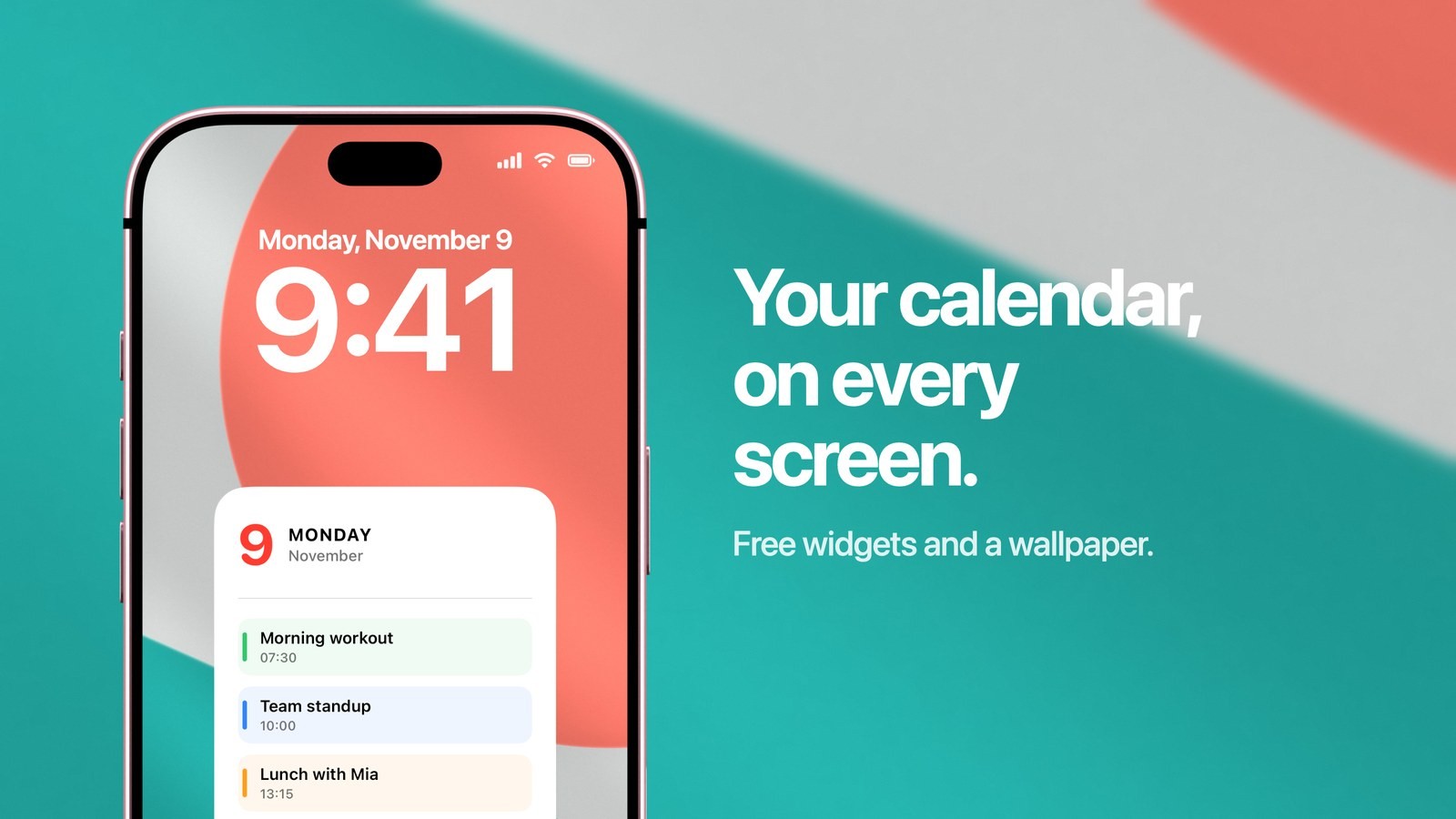
To put a calendar on your iPhone Home Screen, add a calendar widget: touch and hold an empty spot, tap Edit, tap Add Widget and pick one. Calendarly has free Home Screen widgets that show the whole month with your events beside it, or the next things on your schedule, and they stay current through the day. If it is the Calendar app’s icon that went missing, it is almost certainly still in App Library, and the steps to bring it back are further down.
People type this search with different things in mind. Some want the month in view every time they unlock the phone. Others want to see what is next without opening an app, and a fair number swiped the Calendar icon off the screen by accident and want it back. Apple’s own widgets handle the simplest version of the first two. They run short when you want the month and your events inside one widget, or a calendar that looks like the rest of your Home Screen.
How to add a calendar widget to the Home Screen with Calendarly
This takes a couple of minutes. Calendarly has no account to create, and every widget in it is free.
- 1Download Calendarly
Get Calendarly from the App Store. It runs on iOS 16.6 or later.
- 2Open the Widgets tab
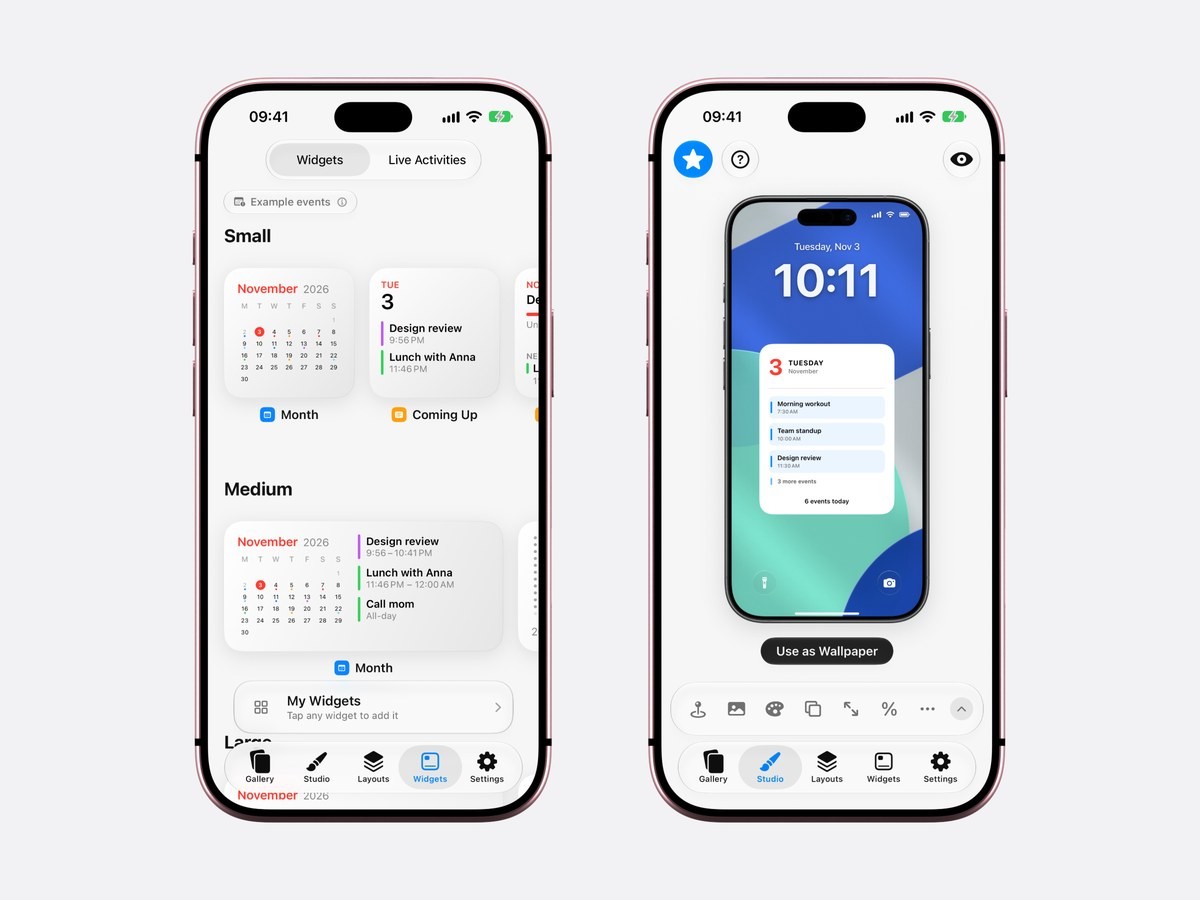
The widgets are sorted by size: Small, Medium and Large. Until you allow calendar access the previews are drawn with example events, and a label at the top of the tab says so.
- 3Tap the widget you want
Month is the grid with today marked. Coming Up lists the next events with their times. Tapping a widget opens it, where you can change its look, colours and font, and it is kept under My Widgets from then on.
- 4Add it to the Home Screen
Touch and hold an empty spot on the Home Screen, tap Edit, then Add Widget. On older iOS versions, tap the + in the corner. Search for Calendarly and add the size you want.
- 5Choose which widget it shows
Touch and hold the widget on the Home Screen, tap Edit Widget and pick yours from the list.
The widgets refresh on their own through the day and whenever you open Calendarly. They read the same calendars as Apple’s Calendar app, so iCloud, Google and Outlook accounts that are set up on the phone are all included. To move a widget later, touch and hold it, tap Edit Home Screen and drag it. Apple’s page on adding and editing widgets has the same gestures with pictures.
Which calendar widget to pick
A small widget takes the room of four app icons, a medium one takes eight, and a large one takes sixteen. The size mostly decides whether you see dates or events, so it helps to know which of the two you look for more often.
- Month, small
The month as a grid with today circled and a dot under each day that has an event. It answers what date next Friday is and which days are already taken.
- Month, medium
The same grid on the left and your next events on the right, with their times. All-day events are listed too.
- Coming Up
Today’s date and the next events as a list, each with the colour of its calendar. Pick it when meetings matter more to you than dates.
- Countdown
The days left until one date, for a trip or a deadline. The countdown guide covers the Lock Screen version of the same idea.
Two small widgets fit side by side, so Month next to Coming Up gives you the dates and the schedule in one row. You can also drag one widget onto another of the same size to make a stack and swipe between them. If your week starts on Sunday, or on any other day, set it once in Calendarly’s Settings and the grids follow.
What Apple’s Calendar widgets do on their own
The Calendar app comes with three widgets. Up Next shows the next event or two. Month is a small square with the dates of this month and nothing about your events. List shows the events ahead as a longer list. You add them the same way: touch and hold the Home Screen, tap Edit, tap Add Widget and choose Calendar. Apple describes each step in the iPhone User Guide under adding widgets.
For a quick look at the next meeting, Up Next is enough, and it costs nothing to try. The limits show when you want more than one thing from the same spot. Apple’s Month has no medium size and never marks which days are busy, so it works as a date reference only. Here is how the two sets compare:
| Apple’s Calendar widgets | Calendarly widgets | |
|---|---|---|
| Month grid | Small only, dates without events | Small with event dots, medium with events beside it |
| Next events | Up Next and List | Coming Up |
| Look | Apple’s design | Your choice of look, colours and font |
| Lock Screen | The next event in the row under the clock | Widgets, plus a full calendar as the wallpaper |
| Cost | Built in | Free |
The two can share a page. Some people keep Apple’s Up Next for its link into the Calendar app and add Calendarly’s Month beside it for the grid.
How to put the Calendar app back on the Home Screen
If the icon with today’s date on it has disappeared, the app was most likely removed from the Home Screen and left in App Library. Your events are untouched either way, because they live in your iCloud, Google or Outlook account.
- 1Open App Library
Swipe left past your last Home Screen page.
- 2Search for Calendar
Tap the search field at the top and type Calendar.
- 3Add it back
Touch and hold the Calendar icon and tap Add to Home Screen. If that option is not in the menu, the icon is already on one of your pages, often inside a folder.
- 4If it is not in App Library
The app was deleted. Open the App Store, search for Calendar by Apple and download it again. Your calendars return as soon as it opens.
Whether new apps land on the Home Screen at all is a setting. Open Settings, tap Home Screen & App Library and choose Add to Home Screen or App Library Only. Apple’s guide to App Library explains both.
Google Calendar and Outlook on the Home Screen
There are two ways to see a Google or Outlook calendar in a widget. The first is the widget that comes with the Google Calendar or Outlook app, which shows that one account. The second is to add the account to the iPhone itself, so every calendar widget can read it, Apple’s and Calendarly’s included.
On iOS 18 and later, open Settings, tap Apps, then Calendar, then Calendar Accounts, and add the account there. On earlier versions the path is Settings, Calendar, Accounts. Apple lists the steps in its guide to setting up calendar accounts. Once the account is on the phone, work and personal events appear together in one widget, each in its own colour.
When the widget shows no events
An empty calendar widget usually has one of two causes. The first is permission. For a Calendarly widget, open Settings, tap Privacy & Security, then Calendars, and check that Calendarly has full access. The second is a calendar that is turned off. In Apple’s Calendar app, tap Calendars at the bottom and make sure the ones you expect are ticked, since Apple’s widgets hide whatever is unticked there.
If the widget looks a few hours old, open the app it belongs to once and it will redraw. The Lock Screen has a problem of its own with all-day events, which is covered in why the Lock Screen calendar widget shows no events.
The Home Screen or the Lock Screen
A Home Screen widget is one unlock away, which suits anything private: nobody sees it until Face ID has let you in. The cost is that you have to unlock, and the phone tends to offer other things to do once you have. A calendar on the Lock Screen is readable the moment the screen lights up, by you and by anyone standing next to you.
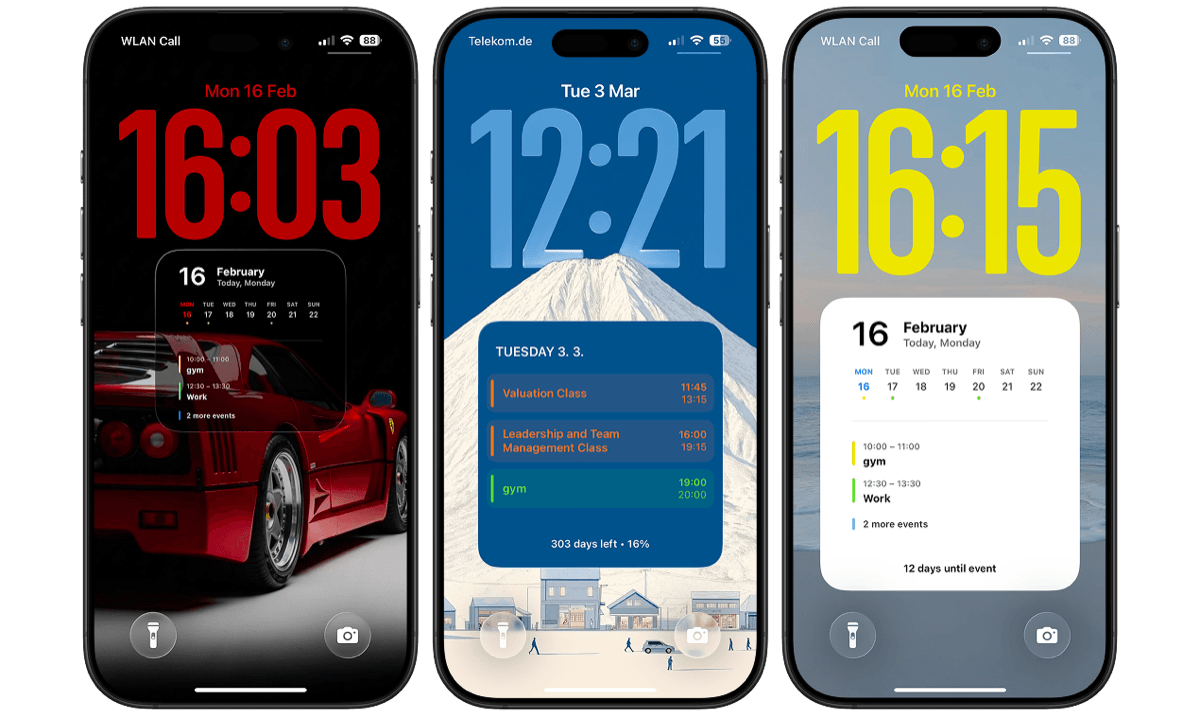
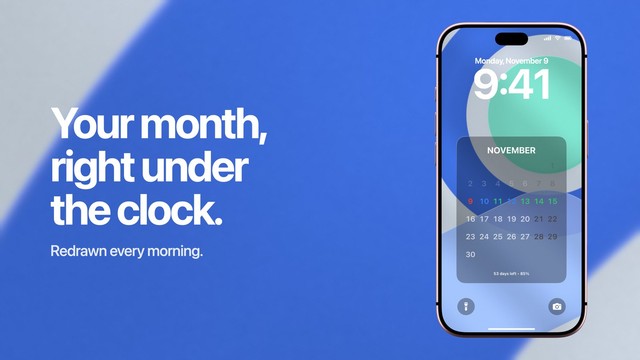
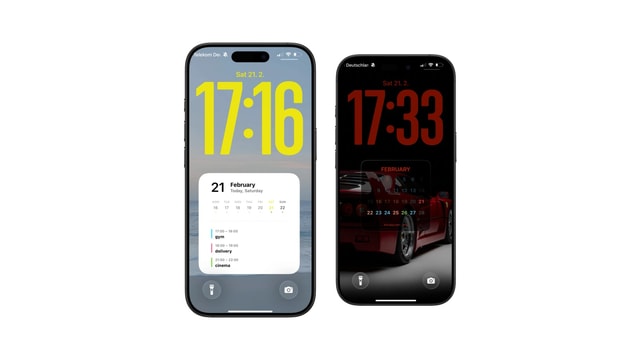
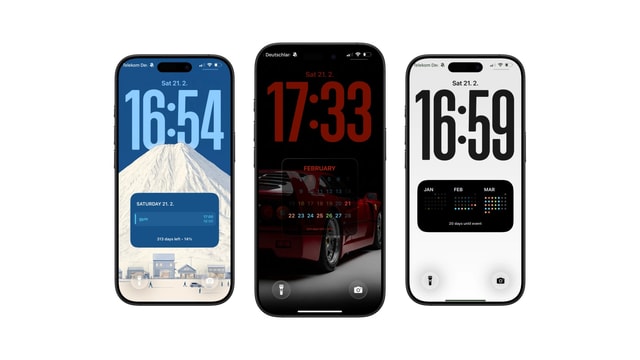
Calendarly does both. Its main job is the Lock Screen, where it draws your month, week or day into the wallpaper and redraws it every morning. The Lock Screen calendar guide walks through that setup, and the guide to self-updating wallpapers explains what runs each morning. 96 of the 152 wallpaper layouts are free. If the phone spends the night on a charger on its side, the same widgets also appear in StandBy, described in the clock and calendar guide.
Sources
Questions people ask
Touch and hold an empty spot on the Home Screen, tap Edit, then Add Widget, and choose a calendar widget. Calendarly’s free Month widget shows the whole month with your events, and Apple’s Calendar app has Up Next, Month and List.
Swipe left past your last Home Screen page to open App Library, search for Calendar, touch and hold the icon and tap Add to Home Screen. If the app is not there, download Calendar again from the App Store.
Yes. Apple’s Month widget shows dates only, in one small size. Calendarly’s Month widget marks the days that have events, and its medium size lists the next events beside the grid.
Use the widget of the Google Calendar app, or add your Google account under Settings, Apps, Calendar, Calendar Accounts. After that, Apple’s and Calendarly’s widgets show your Google events too.
Check that the app behind the widget has calendar access under Settings, Privacy & Security, Calendars, and that the calendar is ticked in the Calendar app’s Calendars list. Then open the app once so the widget redraws.
Yes. Every Calendarly widget and Live Activity is free, along with 96 of its 152 wallpaper layouts and automatic updates. Calendarly Pro adds every layout and your own photos.
Yes. Calendarly draws a month, week or day into the Lock Screen wallpaper and redraws it every morning, and it also has Lock Screen widgets for the row under the clock.