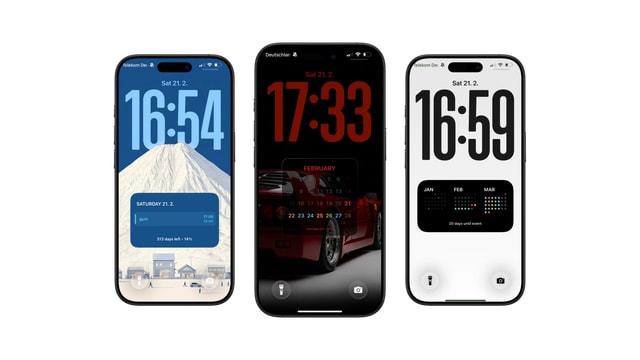
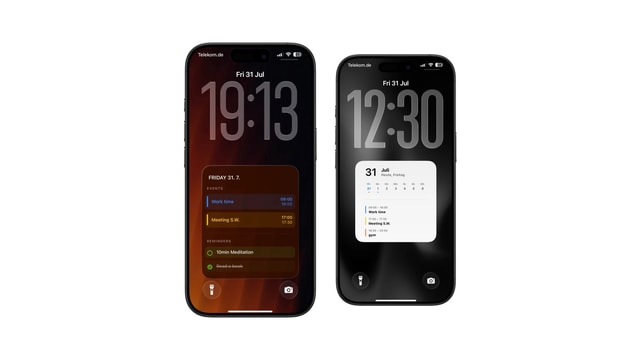
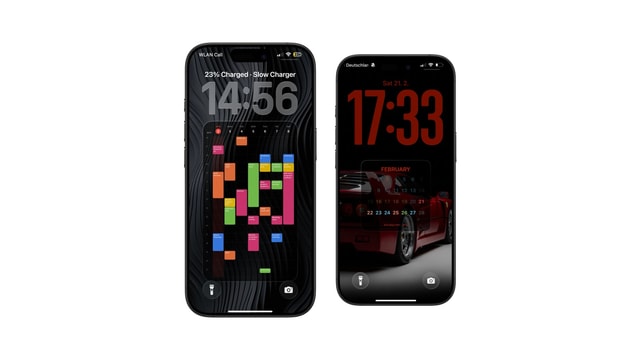
The Best iOS 27 Lock Screen Setup for Your Calendar
Calendar wallpapers still work in the iOS 27 preview. What is confirmed, what may change before fall, and how to keep your setup reliable.
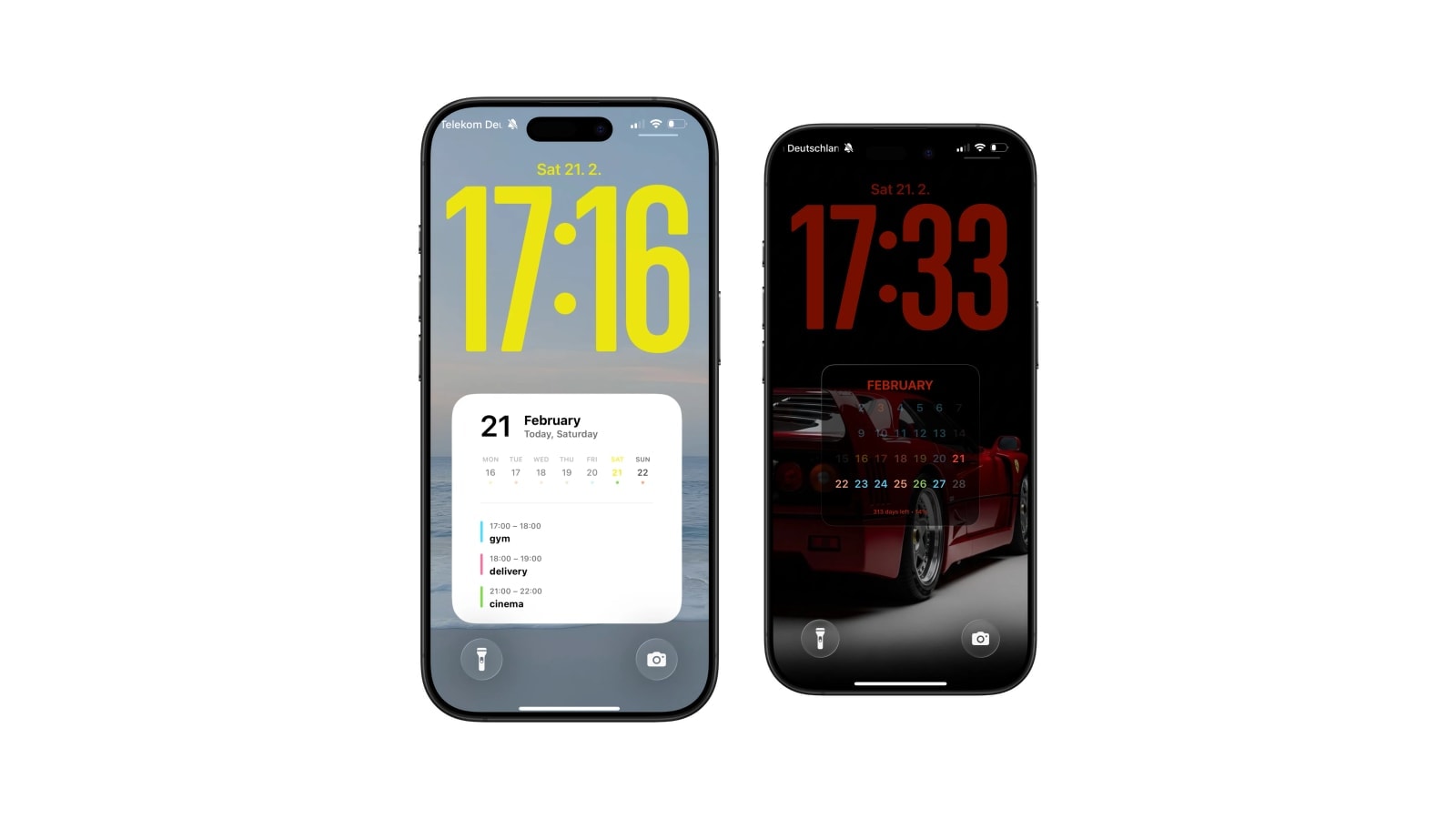
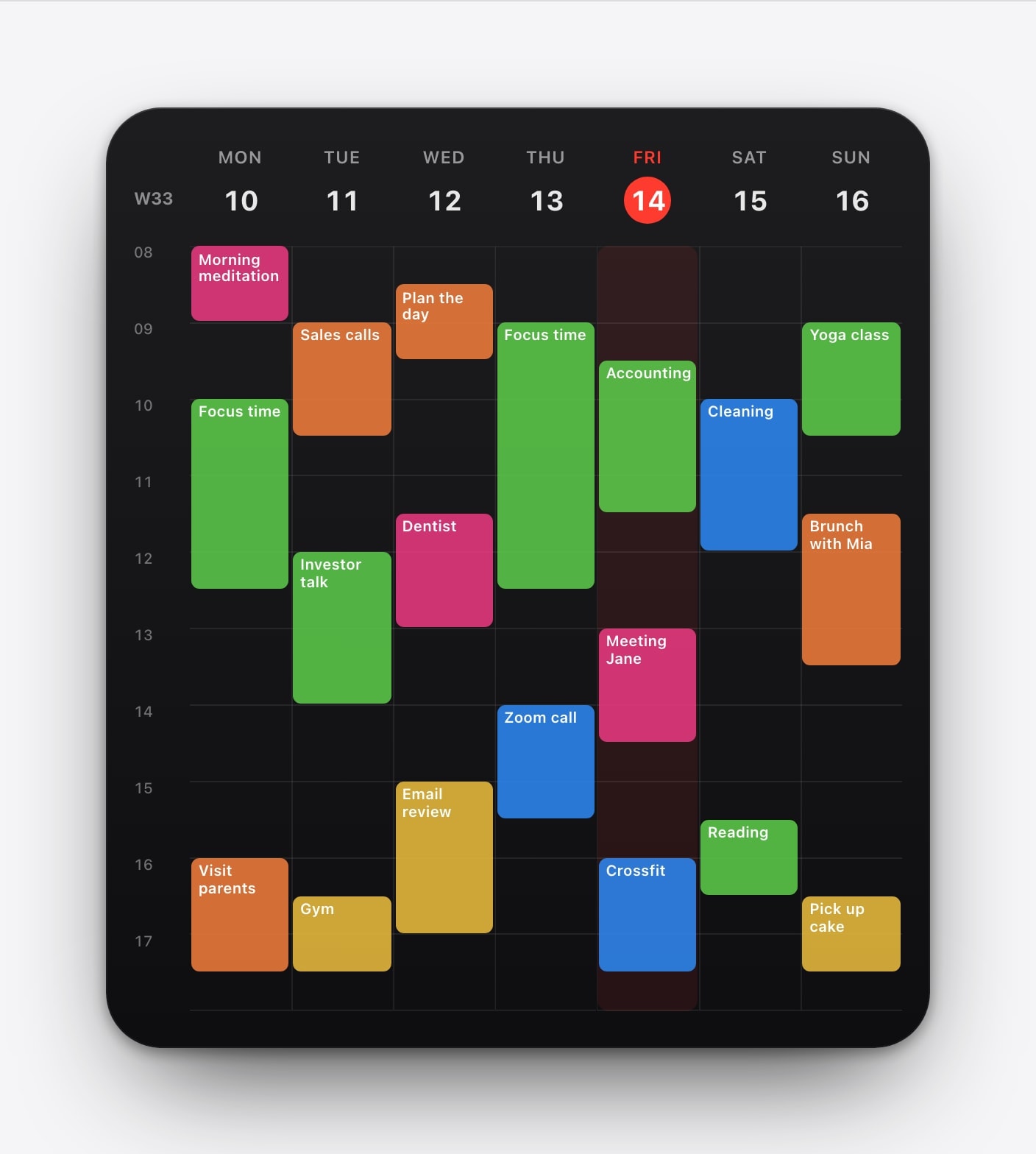
A calendar wallpaper works on iOS 27 for the same reason it worked on iOS 16: the calendar is part of the wallpaper image, so it does not depend on a widget size, an API or anything Apple might redesign this year.
That is worth saying plainly, because a lot of what gets written about a new iOS is speculation about features that have not shipped. As of August 2026, iOS 27 is preview software and Apple describes the public release as coming in the autumn. Interface details can and do move during a beta.
So this is less a guide to iOS 27 and more a guide to building a Lock Screen that does not care which iOS you are on. There is a short section at the end for people already running the beta.
Widgets move between releases. Wallpapers do not.
Every widget on your Lock Screen lives inside a frame Apple owns. Apple decides how many fit, what shapes they come in, how much text each can hold and what happens when they cannot render. Those decisions change between major releases, which is why a Lock Screen you carefully arranged in one September sometimes looks subtly different the next.
A wallpaper sits underneath all of that on a canvas whose only rule is the resolution of your screen. When Calendarly draws a week grid, it is drawing pixels, and iOS applies those pixels exactly as it would apply a photograph of a beach. There is no widget contract to break, which is the whole reason this approach ages well.
The trade you make for that stability is real and should not be glossed over. The image is a snapshot, so it cannot repaint when an event moves, and nothing in it is tappable. If you want to press a calendar entry and land in Calendar, you want a widget, and you should keep one.
Best for the single next thing. Its size and position belong to iOS, and both can change in a major release.
Best for a day, a week or a month at once. It updates when its shortcut runs rather than continuously.
What to do on the day you update
Major iOS updates occasionally reset permissions, and they can leave an automation pointing at a Lock Screen that no longer exists. Neither failure announces itself: the wallpaper simply stops changing, and you notice a week later that the date is stale.
The fix is a thirty second check rather than a rebuild, and it is worth doing the same afternoon you update rather than the following week.
- 1Open Calendarly once
Launching the app after a major update lets iOS re-ask for calendar access if it dropped it, instead of silently returning nothing.
- 2Run the shortcut by hand
Open Shortcuts, run Update Calendarly Wallpaper, then lock the phone and look. A successful manual run proves the app, the action and the target screen are still connected.
- 3Check the automation is still enabled
In the Automation tab, confirm the entry exists, still shows the right time, and is set to run without asking.
- 4Confirm the target Lock Screen
If you have several Lock Screens, make sure the one being replaced is the one you actually use.
Should you install the beta for this?
No, and it is worth being blunt about it. A calendar wallpaper is not a reason to put preview software on the phone you depend on. Betas cost battery life, break third-party apps in ways that are hard to predict, and occasionally lose data. Everything described here works on the iOS you are running today.
If you are already on the beta for other reasons, this setup is pleasantly boring. It uses a wallpaper, an app and a Time of Day trigger, all of which are old and stable parts of the system, and it does not rely on anything Apple has announced for the autumn. Apple lists the release timing on its official iOS page. Until then, treat beta behaviour as provisional and keep a copy of your layout saved.
The calendar is not an iOS 27 feature. It works because the app draws the information into an image and Shortcuts applies that image. The same approach runs on every supported version back to iOS 16.6.
Questions people ask
Yes. The calendar is drawn into a normal wallpaper image and applied by Shortcuts, so it does not depend on any iOS 27 feature or widget.
As of August 2026, Apple describes iOS 27 as coming in the autumn. Preview builds are available for testing and details may still change before release.
No. Calendarly supports iOS 16.6 and later, so you can set up an updating Lock Screen calendar without installing beta software.
Usually, but run it manually once afterwards. Major updates can re-ask for permissions or leave an automation pointing at a Lock Screen that was deleted.
No. It is drawn into the wallpaper. That gives it far more room than a widget, but it is a snapshot and nothing in it responds to a tap.