How to Get the Clock and Calendar on Your iPhone Lock Screen
A full month right under the iOS clock with Calendarly, redrawn every morning. Plus StandBy, the sideways clock and calendar, and how to turn it off.
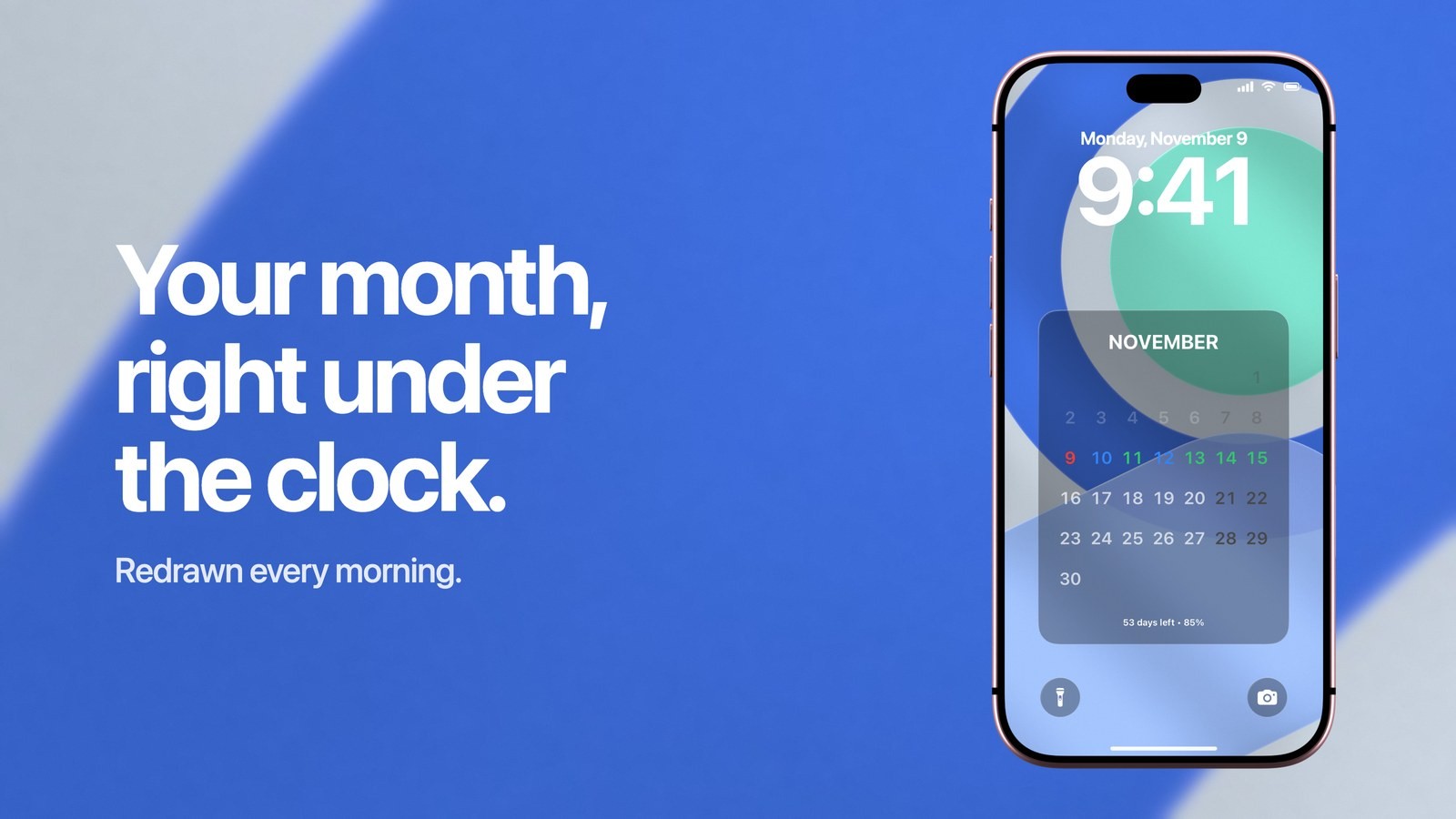
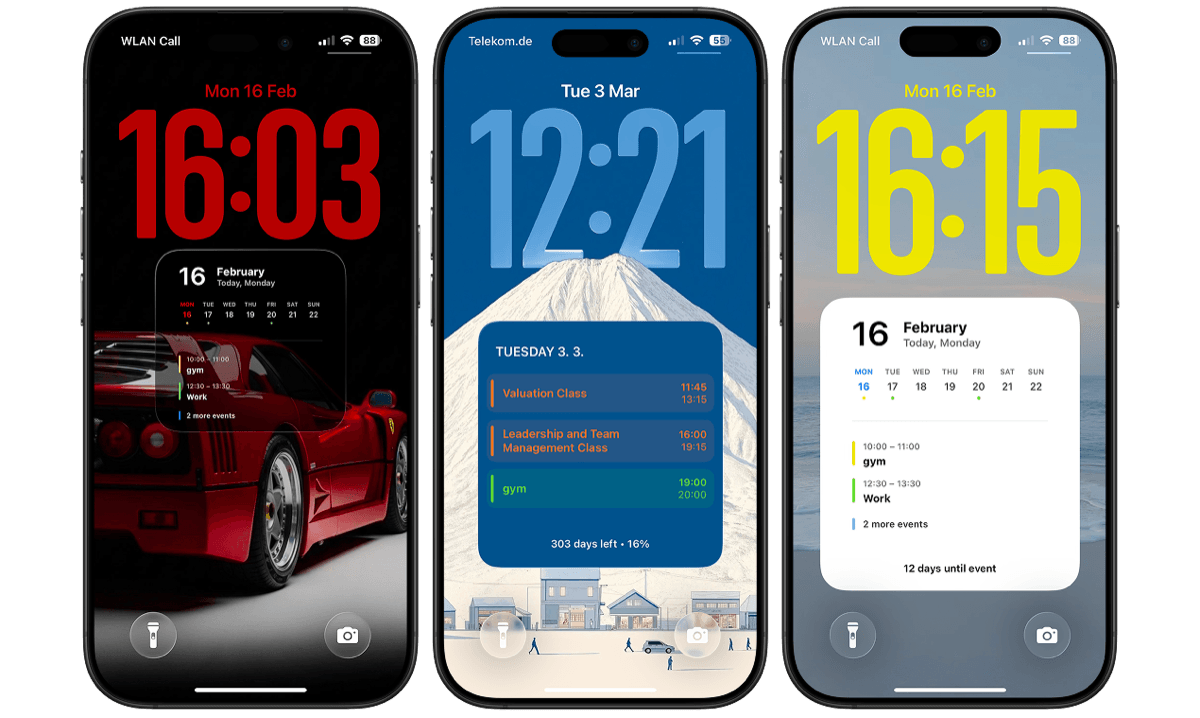
To get the clock and a full calendar on your iPhone Lock Screen, put the calendar in the wallpaper. Calendarly draws your month, week or day below the iOS clock and redraws it every morning, so the time stays live on top and the dates under it stay correct. If your iPhone is on its side on a charger and you want the big clock beside a calendar, that is StandBy, a separate iOS feature covered further down.
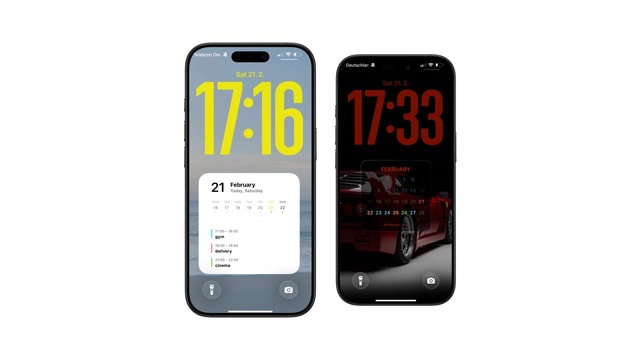
The two are easy to confuse, since both put the time and a month on the same screen. Held upright, the phone is on the Lock Screen, where iOS gives the calendar one small strip under the time. Lying sideways and charging, it is in StandBy, which usually fills the screen with a clock on the left and a month on the right, and goes away when you pick the phone up.
How to put a calendar under the clock with Calendarly
Setup takes about five minutes, and you do it once. Calendarly has no account to create and draws the picture on your phone.
- 1Download Calendarly
Get Calendarly from the App Store. It is free and runs on iOS 16.6 or later.
- 2Allow calendar access
Calendarly reads the same calendars as Apple’s Calendar app, so iCloud, Google and Outlook accounts on the phone are all included. You can leave any of them off the wallpaper later.
- 3Choose a calendar layout in the Gallery
Tap Single Month View among the calendar layouts. It puts the whole month in one grid right below the time, with today marked.
- 4Adjust it in the Studio
Top Spacing moves the calendar down, away from the clock, and Scale makes the whole layout larger or smaller. Background and colours are on the same screen, and the preview redraws as you go.
- 5Tap Use as Wallpaper
The first time, Calendarly adds its shortcut, Update Calendarly Wallpaper, and walks you through the automation that runs it each morning.
From then on the clock is the ordinary iOS clock, ticking as usual, and only the picture behind it changes once a day. iOS lets an app replace a photo wallpaper and nothing else, so if your Lock Screen uses Astronomy, Weather or another live style, switch to a photo first. Apple’s guide to custom Lock Screens shows where that is. The font and colour of the time are still yours to change: touch and hold the Lock Screen, tap Customize, then tap the time.
Which calendar works best under the clock
The clock takes the top of the screen and notifications arrive from the bottom, which leaves a large block in the middle. How much of your schedule fits there depends on what you check the phone for. A month answers what date next Friday is and which days are taken, while a day layout tells you where you need to be at two o’clock.
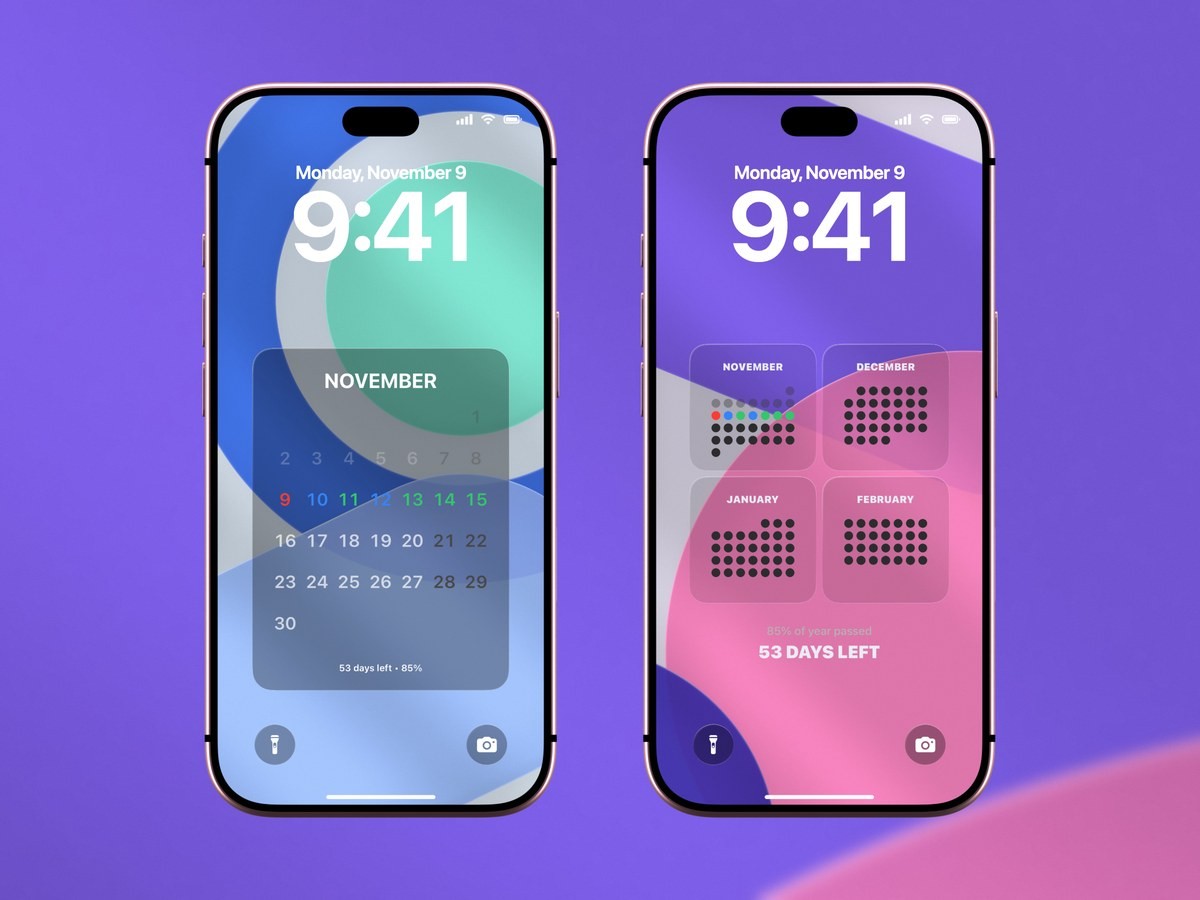
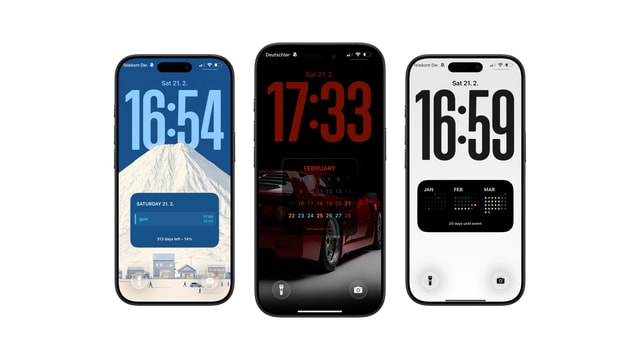
- Single Month View
One month as a grid with today marked. It is free, and it is the layout to start with if you came here for a calendar under the time.
- Quarter View
This month and the next three, as dots, also free. Useful when deadlines and trips sit further out than a few weeks.
- A day or the next events
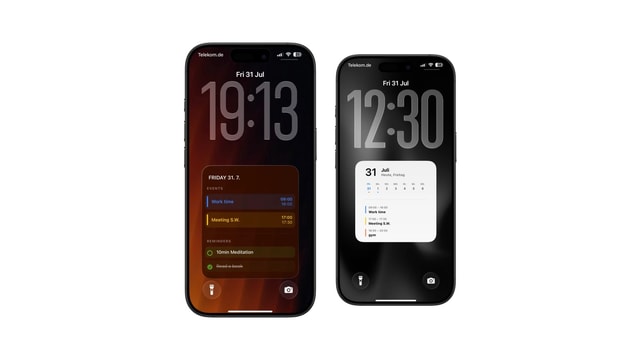
Times and titles instead of a grid, with all-day events included. Pick this if meetings matter more than dates. The calendar on the Lock Screen guide goes through each kind.
- A week
Seven days side by side for shifts and classes, covered in the weekly schedule guide.
If you want your to-dos on the same screen, a calendar and reminders layout stacks them. 96 of the 152 layouts are free. Calendarly Pro adds the rest and your own photos as backgrounds.
What iOS can show next to the clock on its own
Without an app, the Lock Screen has two places for calendar information. The line above the time can hold a short widget beside the date, and the row under the time can hold Calendar’s Up Next widget, which names your next event, or a small date tile. To add one, touch and hold the Lock Screen, tap Customize, choose Lock Screen, then tap the row under the clock and pick Calendar. Apple has the same steps with pictures.
Either one covers a single meeting. There is no month widget for the Lock Screen, and all-day events never appear in Calendar’s widgets there, which is why the widget so often looks empty. Here is how the three options compare:
| Lock Screen widget | StandBy | Calendarly wallpaper | |
|---|---|---|---|
| Phone position | Any | On its side, charging | Any |
| Calendar shown | The next event | A month, or a widget stack | Month, week, day or several months |
| Your events on it | One | A few, in a small widget | As many as the layout holds |
| All-day events | No | Depends on the widget | Yes |
| Updates | Live | Live | Each morning, or when you run it |
| Cost | Built in | Built in, iOS 17 or later | Free to download, 96 layouts free |
A widget and a wallpaper also work together. Keep Up Next in the row for a live answer about the next meeting, and let the wallpaper hold the rest of the month behind it. For a closer look at that trade-off, see wallpaper calendars against Lock Screen widgets.
The sideways clock and calendar: StandBy
If you meant the view with a large clock on one half of the screen and the month on the other, you are looking for StandBy. It needs iOS 17 or later, and it has nothing to do with your wallpaper. On most models the phone has to be locked, connected to a charger and set down on its side without moving. On iPhone Duo you partly fold the phone and set it down, with no charger needed.
- 1Check that StandBy is on
Open Settings, tap StandBy and make sure the switch is on.
- 2Set the phone down
Lock the iPhone, connect it to power and rest it on its long edge so it stays still.
- 3Pick what it shows
Swipe left or right to move between widgets, photos and clocks. Swipe up or down to change the style, which is how you get the analog clock.
The first page is two stacks of widgets, normally a clock and a calendar. Touch and hold a stack, unlock with Face ID, and you can add or reorder what is in it. Calendarly’s free widgets are available there too, so a small Month or Coming Up widget can stand beside the clock. iOS removes a widget’s background in StandBy and places it on black.
If the screen turns red at night, that is Night Mode, which dims the display and tints everything red in low light. It lives in Settings under StandBy, along with Show Notifications and the Display setting that decides when the screen sleeps. To stop the clock and calendar appearing whenever you charge the phone on its side, turn off the StandBy switch on that same page. Apple’s StandBy guide lists every option.
Keeping the date right through the day
The clock is drawn by iOS and is always correct. The calendar in a wallpaper is a picture, so it is as current as its last update, and Calendarly’s automation makes that update every morning at a time you pick. Today’s mark moves forward with that run, and an event you added since the last one appears at the same time.
If your day changes a lot, add a second time to the automation in Shortcuts, or run Update Calendarly Wallpaper by hand when something big moves. Apple explains how Shortcuts automations work if you want to see what is running. The guide to self-updating wallpapers has more on what happens at that moment.
When the calendar and clock get in each other’s way
A calendar that sits too close to the time usually comes down to a large clock font or a row of widgets under it. Raise Top Spacing in the Studio until there is a clear gap, or lower Scale if the bottom of the month reaches the notification area. The preview shows the iOS clock in place, so you can judge this before setting the wallpaper.
Anything on the Lock Screen can be read without Face ID, so give private events neutral titles or keep that calendar off the wallpaper in Calendarly. If you link different Lock Screens to Focus modes, the wallpaper you updated may also not be the one on the screen at that moment.
Sources
Questions people ask
Install Calendarly, choose Single Month View or another calendar layout, and tap Use as Wallpaper. The calendar sits below the iOS clock and is redrawn every morning. For one event only, add Apple’s Calendar widget under the clock.
That is StandBy. It starts when a locked iPhone is charging and resting on its side. It shows a clock and calendar by default, and you can swipe to photos or other clocks.
If the view appears while charging on its side, open Settings, tap StandBy and turn off the switch. If it is a wallpaper from Calendarly, choose a different wallpaper or delete the automation in Shortcuts.
StandBy’s Night Mode tints the screen red in low light so it is easier on the eyes. You can turn it off in Settings under StandBy.
In StandBy, yes: swipe to the clock page, then swipe up or down until you reach the analog style. The clock on the normal Lock Screen is digital and iOS does not offer an analog version.
No. Apple’s Lock Screen widgets show the date or the next event, and none of them is a month. Calendarly’s month layouts draw the whole month into the wallpaper, and Single Month View is free.
No, iOS keeps the time in its place at the top. You can change its font and colour, and in Calendarly you can move the calendar with Top Spacing.
Calendarly is free to download, with 96 of its 152 layouts, every widget, every Live Activity and automatic updates included. Calendarly Pro adds every layout and your own photos.