Can iPhone Wallpaper Change Automatically? Every Way That Works
Photo Shuffle, Focus, dynamic styles and Shortcuts. What each one can do, and which one changes what the wallpaper says.
Yes, and iOS gives you four separate ways to do it, which is exactly why the question keeps coming up: people who want different things are all told the same answer and half of them end up disappointed.
Photo Shuffle changes which photograph is shown. Focus-linked Lock Screens change the whole screen depending on what you are doing. Apple’s own dynamic styles change how a wallpaper looks as conditions change. And a Shortcuts automation can change what the wallpaper actually says, which is the only one of the four that can make tomorrow’s wallpaper contain tomorrow’s date.
Below is what each one does, where to find it, and the section people usually arrive for: why the wallpaper changed when nobody asked it to.
Photo Shuffle: the picture changes
Open Settings, go to Wallpaper, add a new one and choose Photo Shuffle. You can point it at People, Nature, Cities, Pets, an album, or a hand-picked set of photos, and then choose how often it rotates: on tap, on lock, hourly, or daily. Daily is the setting most people mean when they say they want their wallpaper to change automatically.
It is genuinely good at what it does and it costs nothing to run, since it is a built-in system feature with no app and no automation behind it. What it cannot do is change anything inside the image. Your photos are your photos; shuffling them does not make one of them know today’s date.
Focus: the whole screen changes with the context
Press and hold the Lock Screen, add a second one, and while it is selected you can attach it to a Focus. From then on, turning on Work brings its Lock Screen with it, and Sleep or Personal bring theirs. Because a Focus can be scheduled or triggered by location, this ends up being an automatic wallpaper change that most people never think of as one.
This is the right tool when the same information should look different at different times of day, or when you want a plain screen in the evening and a busier one at work. It is the wrong tool if you want variety for its own sake, because you have to build and maintain each Lock Screen by hand.
When the information has to change, not the picture
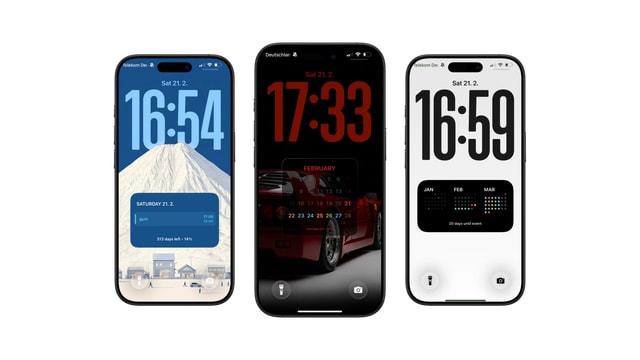
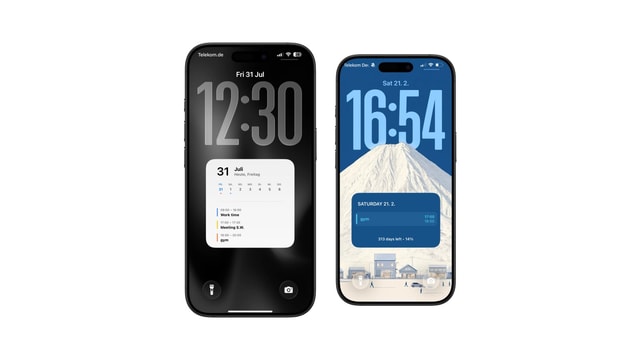
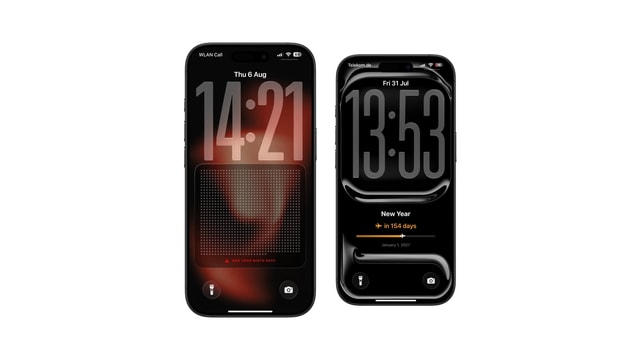
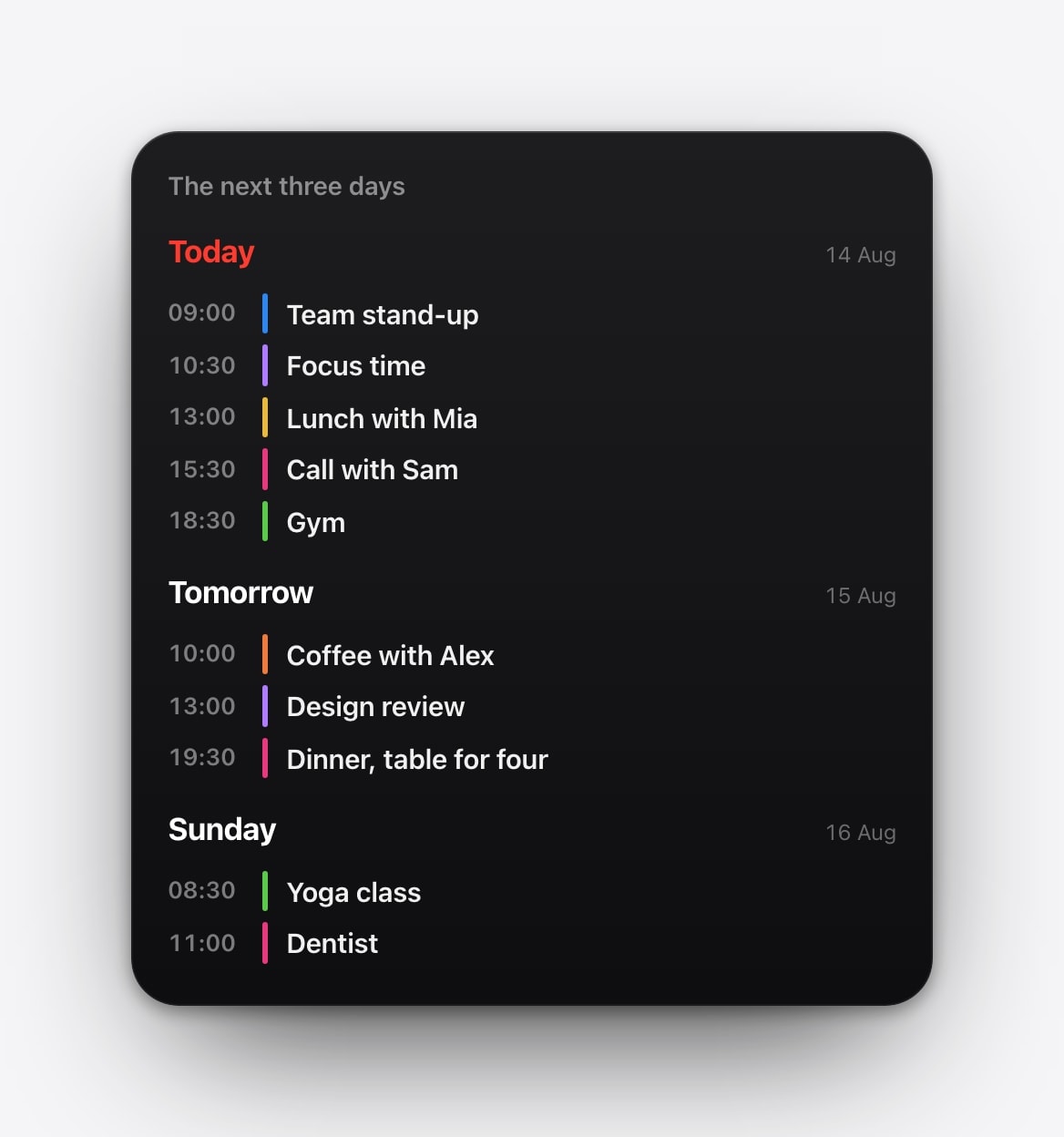
None of the built-in options can help with a date, a countdown, a task list or a calendar, because all three of them only choose between images you already have. To change what a wallpaper says, something has to make a new image first, and that is what a Shortcuts automation plus a generator app does.
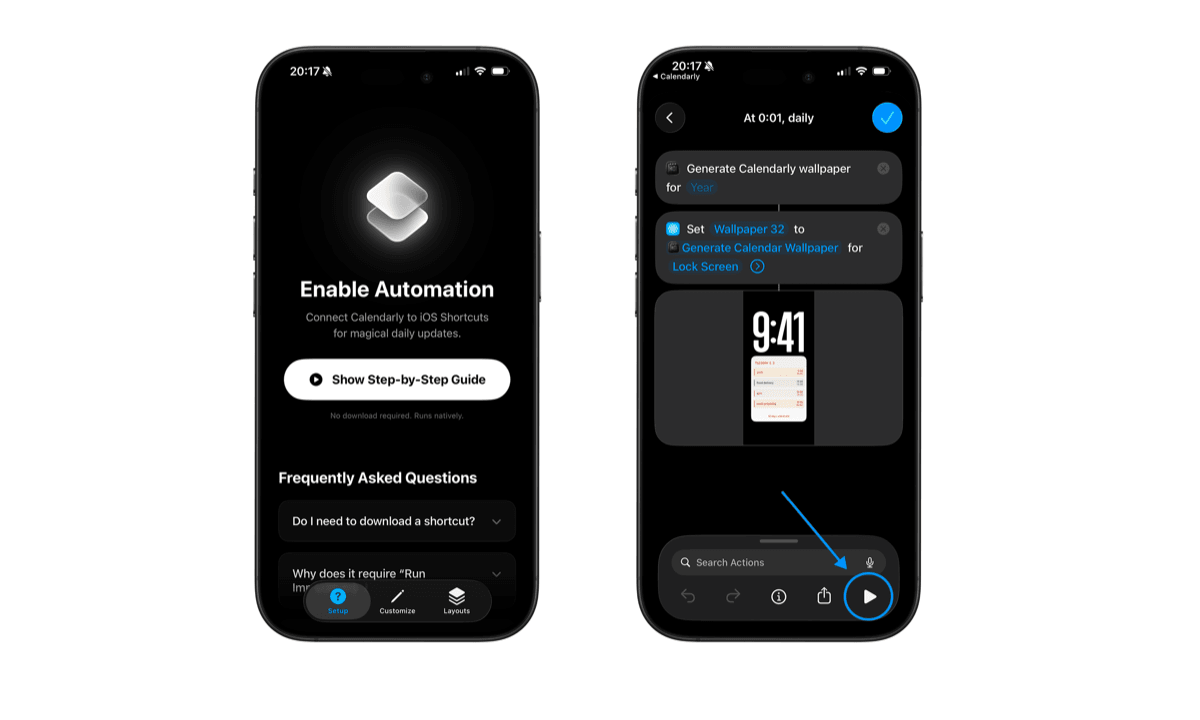
Calendarly provides a Generate Wallpaper action to Shortcuts. You add a personal automation with a Time of Day trigger, point it at that action, and every morning it draws a fresh image from your calendars, reminders, Todoist tasks, notes or countdown and sets it. Apple documents the trigger side of this in its Shortcuts automation guide; the drawing side is what the app is for.
Built into iOS, no setup beyond choosing a source and a frequency. The content of each picture is fixed forever.
Needs an app and one automation. In exchange, tomorrow’s wallpaper can contain tomorrow’s schedule and a smaller number on the countdown.
Why your wallpaper changed and you did not do it
This is nearly always one of three things, and they are worth checking in order because the first is by far the most common. Photo Shuffle set to On Lock will change the picture every single time the phone locks, which people experience as the phone behaving randomly rather than as a setting they chose during setup.
The second is a Focus. A Sleep schedule, a work location trigger or a Do Not Disturb timer will quietly swap in whatever Lock Screen is attached to it, and the wallpaper change is a side effect of a schedule you set up weeks ago and forgot. The third is an old personal automation still sitting enabled in Shortcuts, which is especially likely if you have ever experimented with wallpaper automations before.
Disable rather than delete while you are diagnosing. A disabled automation is one tap away from coming back; a deleted one has to be rebuilt from memory.
- 1Look at the Lock Screen itself
Press and hold it. A Focus name under the screen tells you it is linked, and a shuffle badge tells you it is a Photo Shuffle.
- 2Check the shuffle frequency
If it is a Photo Shuffle, tap through to its frequency. On Lock is the setting that surprises people.
- 3Check Focus schedules
Settings, then Focus. Look at each one for a schedule, a location trigger or an attached Lock Screen.
- 4Check Shortcuts
Open the Automation tab and read every entry. Turn off anything you do not recognise before deleting it.
The battery question
Changing a wallpaper once a day is not a meaningful power cost. Photo Shuffle and Focus switching are system operations that happen anyway; a generated wallpaper adds a brief read of your calendar and one image render, which finishes in a second or two and then stops. None of it keeps the display awake or holds a process running in the background.
Reliability is the thing actually worth worrying about. Automations quietly fail when they point at a Lock Screen that has since been deleted, when a permission was declined after an iOS update, or when the shortcut needs confirmation and never gets it. Run yours by hand once after setting it up, lock the phone, and look. If it worked, leave it alone; a wallpaper routine that needs supervision is not a routine.
Questions people ask
Yes. Photo Shuffle, Focus-linked Lock Screens and Apple’s dynamic wallpaper styles are all built into iOS and need no third-party app.
For photos, add a Photo Shuffle Lock Screen and set the frequency to Daily. For information that changes, such as a calendar or a countdown, use a Time of Day personal automation in Shortcuts.
Photo Shuffle is almost certainly set to On Lock. Check the shuffle frequency first, then Focus schedules, then old automations in Shortcuts.
Yes. A Time of Day personal automation runs at the minute you choose. A scheduled Focus can also switch to its linked Lock Screen at a set time.
No. One change a day is a brief operation, and the finished wallpaper is an ordinary image that uses no power of its own.