Microsoft To Do Widget on iPhone: What It Does, Fixes, and Your Tasks on the Lock Screen
Microsoft To Do’s widget shows one list on the Home Screen and cannot tick tasks off. Here is how to fix a blank one, and how Calendarly puts today’s To Do tasks on the Lock Screen, in a free widget and next to your calendar.
Microsoft To Do has its own widget on the iPhone Home Screen, and it shows one list and lets you add a task, but it cannot tick anything off and it says nothing about the Lock Screen. Calendarly connects to Microsoft To Do once, reads the lists you switch on and puts today’s tasks behind the clock on the Lock Screen, in a free To-Do widget for the Home Screen and the Lock Screen, and on its Today page next to your calendar.
Most people who search for a To Do widget already have one and want it to do more, or have one that went blank. A blank widget usually comes back with one of five small fixes. Getting To Do onto the Lock Screen takes Calendarly, where it shares one list with Apple Reminders, Google Tasks and Todoist.
Calendarly reads your To Do lists and never changes them, so you still finish tasks in Microsoft’s app or in Outlook. The Today page needs iOS 26 or later; the Lock Screen wallpapers work from iOS 16.6.
What the Microsoft To Do widget can do
Microsoft’s help page on iOS widgets describes Home Screen widgets that show the tasks of one list, add a new task to it and open any list in the app. The same page says you cannot mark a task as complete in the widget, so every tick still means opening To Do. To change which list a widget shows, press and hold it, choose Edit Widget and pick another list.
The widget is a window into one list. If your day is spread over Tasks, a work list and a shopping list, you need a widget for each, or you rely on My Day, which lives inside the app. Microsoft’s help page does not mention a Lock Screen widget, so look for To Do in the Lock Screen’s widget picker on your own phone before you count on one; a Lock Screen widget would be a small row under the clock in any case, with room for a task or two.
When the To Do widget is not working
A To Do widget that shows nothing, an old list, or a spinning placeholder usually needs one of a few small fixes. Start with the first and stop when the tasks come back.
- 1Open To Do, then close it
Microsoft’s own advice when To Do is missing from the widget gallery is to close the app and open it again. It also wakes a widget that stopped refreshing after an update.
- 2Choose the list again
Press and hold the widget, tap Edit Widget and pick the list. A list that was renamed, deleted or moved to another account leaves the widget pointing at nothing.
- 3Check you are signed in
Open To Do and see that your lists load. If the app asks you to sign in again, for example after a password change at work, the widget stays empty until you do.
- 4Remove the widget and add it back
Press and hold the Home Screen, remove the To Do widget, then add it again from the widget gallery.
- 5Update To Do and iOS
Install the latest To Do from the App Store and the latest iOS, then restart the iPhone. Widgets are drawn by the system, and a restart clears a stuck one.
If To Do still shows nothing, Calendarly is a second way to see the same lists. It fetches your tasks from Microsoft itself, so it does not depend on the To Do widget at all.
Microsoft To Do, Calendarly and Reminders, compared
The details of Microsoft To Do come from its US App Store page and Microsoft’s help page, both read on 21 November 2026.
| Microsoft To Do | Calendarly | Apple Reminders | |
|---|---|---|---|
| Where your tasks show | In the app and its Home Screen widget | Lock Screen wallpaper, To-Do widget, Today page | In the app and its widgets |
| Lists in one view | One list per widget; My Day inside the app | To Do with Reminders, Google Tasks, Todoist and TickTick in My List | Its own lists |
| Tick off from the widget | No | No for To Do tasks (read only) | Yes |
| Lock Screen | Not described by Microsoft | The whole list behind the clock, plus a Lock Screen widget | Small widget under the clock |
| Cost and needs | Free; iOS 17.6 | Free; iOS 26 for Today, iOS 16.6 for the wallpapers | Built in |
To Do is still the place to plan: My Day, steps inside a task, files on a task, shared lists and recurring due dates are all in Microsoft’s app. Calendarly does the part To Do leaves out, which is keeping the list in view on the Lock Screen and putting it next to your meetings. If your meetings are in Outlook, the Outlook calendar guide covers the calendar half.
Connect Microsoft To Do to Calendarly
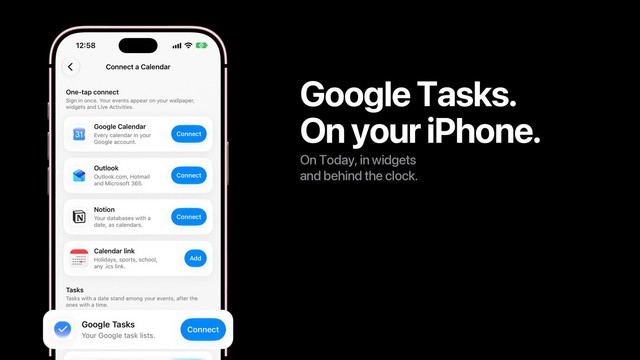
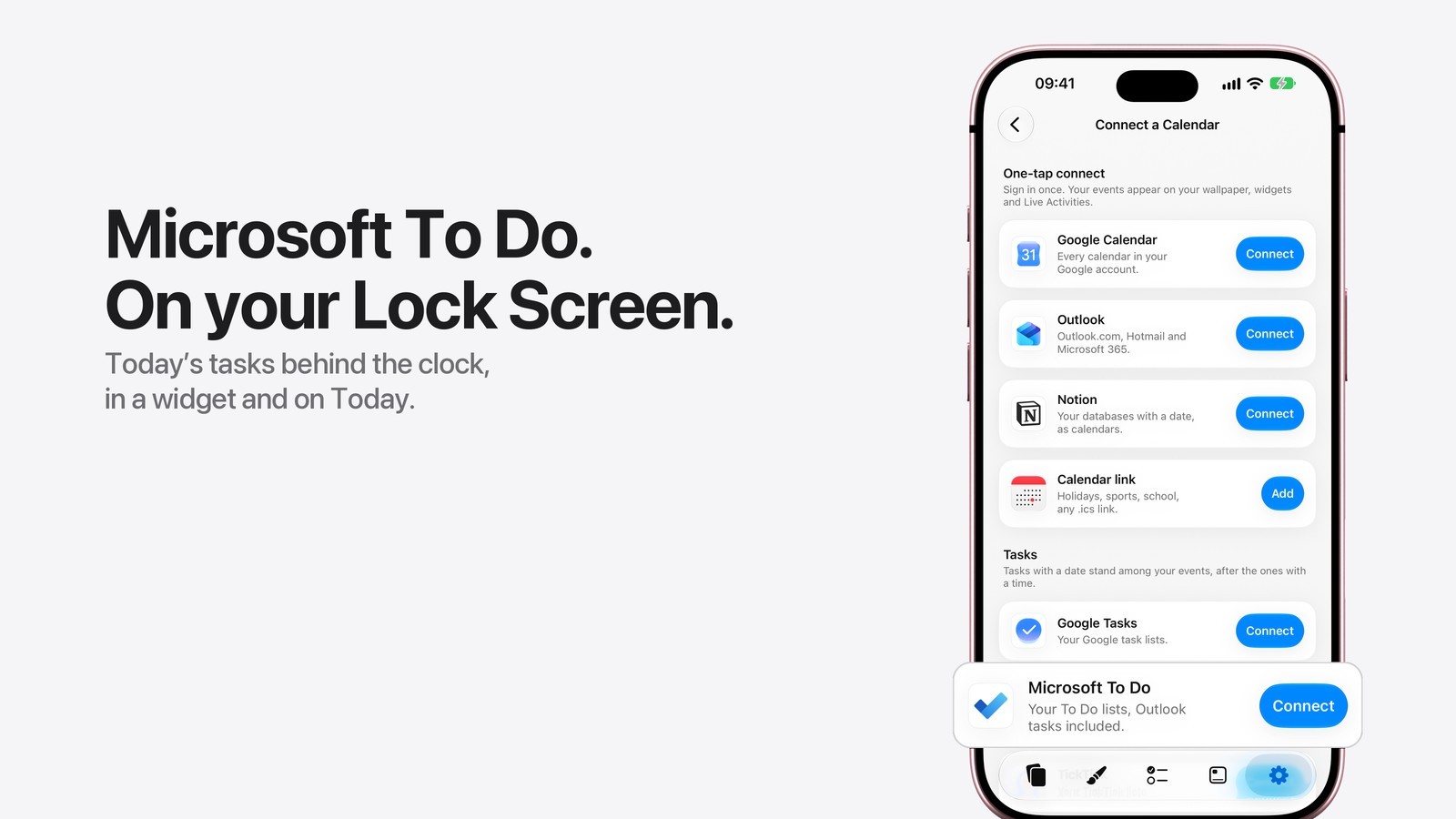
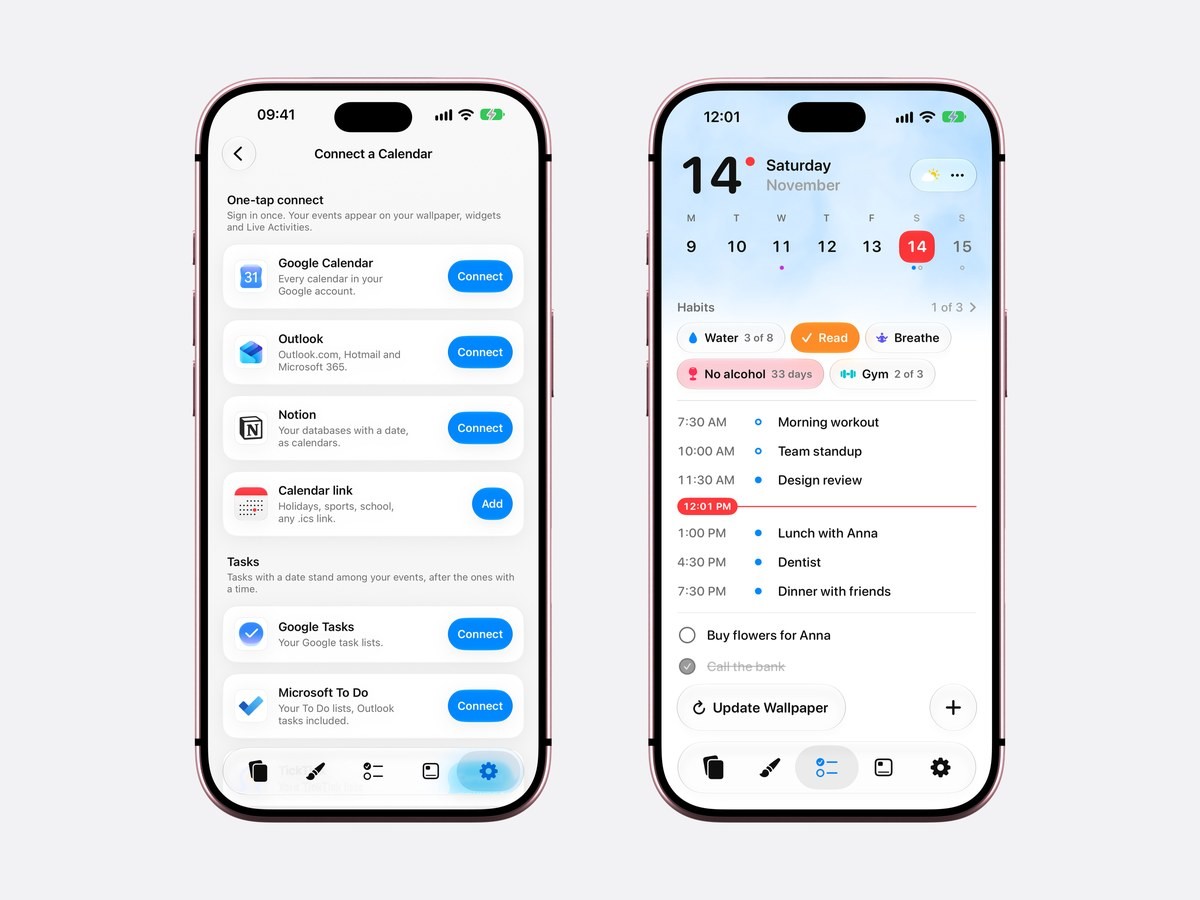
Open Calendarly’s Settings tab and tap Calendar Accounts. On iOS 26 the same page opens from the three dots next to the weather on Today. On Connect a Calendar, scroll past the calendars to Tasks, where Microsoft To Do sits under Google Tasks with the line “Your To Do lists, Outlook tasks included.” Tap Connect and sign in on Microsoft’s page. Calendarly asks only to read your tasks, so it cannot add, rename, finish or delete anything.
Every list in the account appears with a switch, and all of them start switched on. Turn off the ones that should stay off your Lock Screen, a shared family list for example. The Flagged email list is left out on purpose, because those rows are emails you flagged in Outlook, and a wallpaper full of subject lines helps nobody.
A personal Microsoft account, the kind with an Outlook.com or Hotmail address, connects straight away. A work or school account can show a screen asking for an administrator’s approval, depending on the organization’s settings, and only its IT team can give that. Outlook is a separate connection on the same page, so you can bring in your meetings, your tasks or both.
Which To Do tasks count as today
Calendarly puts every list it reads into one list called My List: the tasks you add in Calendarly, the Reminders lists you chose, Todoist, Google Tasks, TickTick and your To Do lists. A task belongs to today when it is due today, when it is overdue, or when it has no due date. Overdue tasks come first, oldest at the top, then today’s, then the ones with no date, so a task that slipped on Monday keeps its place until you finish it.
To Do’s My Day is a plan you make inside Microsoft’s app each morning, and Calendarly does not read it; it goes by due dates. To Do keeps a due date as a day, and the reminder time you set on a task is a separate field Calendarly does not use, so a To Do task always shows as a task for the whole day. On a calendar layout it stands among your events after the ones with a time. A task due next week waits for its day.
How to put Microsoft To Do on your iPhone Lock Screen
- 1Download Calendarly
Get Calendarly from the App Store. It is free and needs no account of its own.
- 2Connect Microsoft To Do
Settings, then Calendar Accounts, then Connect next to Microsoft To Do under Tasks. Sign in with Microsoft and leave on the lists you want to see.
- 3Pick a To-Do layout in the Gallery
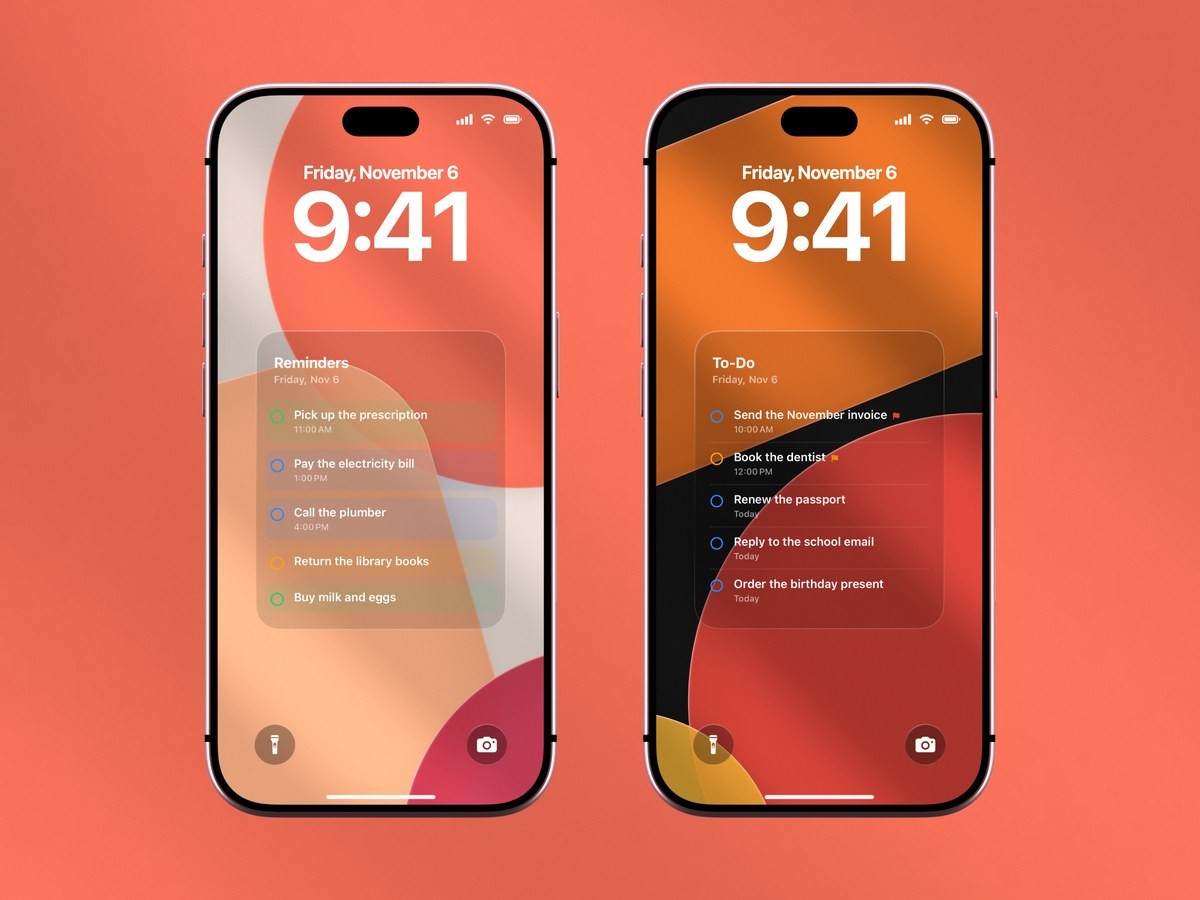
To-Do and Reminders layouts read My List, so your To Do tasks are already in the preview. The Studio opens, where you change the background, the font and the size.
- 4Tap Use as Wallpaper
The first time, Calendarly adds the Update Calendarly Wallpaper shortcut and sets up one morning automation in the Shortcuts app with you.
- 5Let the shortcut redraw it
Each run fetches your lists from Microsoft before it draws, so a task you finished in To Do leaves the wallpaper on the next update. A second run after lunch keeps a busy list current.
Your To Do list on the Lock Screen
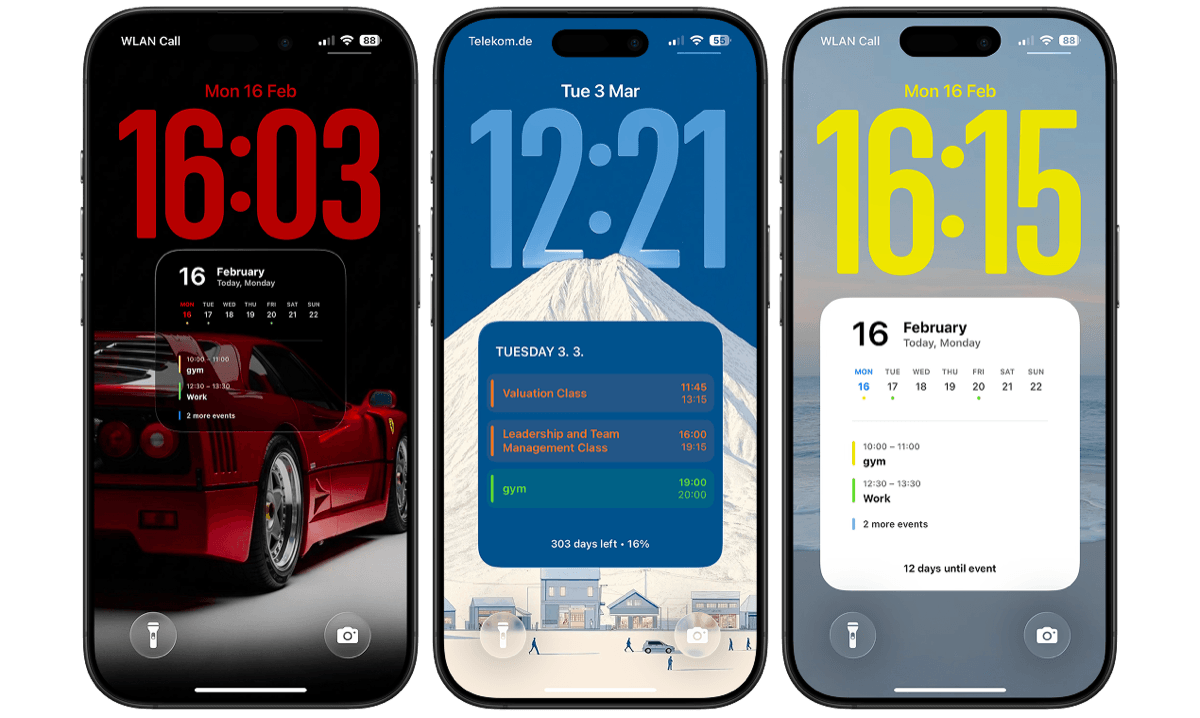
iOS does not let an app draw on the Lock Screen whenever it likes, so Calendarly makes a new wallpaper picture each time its shortcut runs. The list sits under the clock on a card wide enough for whole task names, from a plain list on frosted glass to a ruled card, and some layouts put the day’s events above the tasks. That last kind suits To Do users who also live in Outlook: the 10 AM meeting and the report due today are on the same screen.
A wallpaper takes no widget slot, so the row under the clock stays free for the battery, the weather or Calendarly’s own Lock Screen To-Do widget. The to-do list guide goes through every list layout and when each one fits.
The To-Do widget and Today
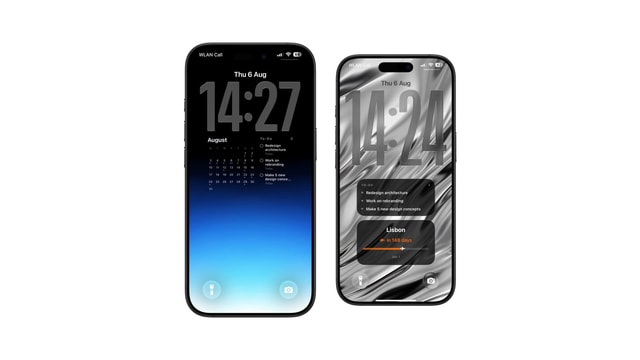
Calendarly’s To-Do widget reads My List unless you pick another source. It comes in small, medium and large for the Home Screen and as a Lock Screen widget, all free, so one widget can show To Do and Reminders together where Microsoft’s needs one widget per list. The Tasks Live Activity, also free, keeps the same list on the Lock Screen while you work through it. A To Do task has no tick button in either, because Calendarly only reads Microsoft’s lists.
On iOS 26 and later, Today puts the day on one page: the week, your habits, the events with a red line at the current minute, and the to-dos under them. A To Do task lands on its due date, so tapping Friday in the week shows Friday’s tasks, and an overdue one moves to today with the day it was due in red. Its dashed circle marks a row you finish in Microsoft’s app. The daily planner comparison sets Today beside Structured, TickTick and Apple’s apps.
What the iPhone does on its own
Apple’s Reminders app can use a Microsoft Exchange account next to iCloud, as Apple’s page on Reminders accounts says, and Microsoft’s older help pages describe using that to send Siri reminders to To Do. In Microsoft’s own community answers the result depends on the account, and many people find their To Do lists never appear in Reminders. Calendarly avoids the question: it reads To Do directly and shows it beside your Reminders lists without copying one into the other.
| Exchange account in Reminders | Calendarly with Microsoft To Do | |
|---|---|---|
| Setup | Settings, add the account, turn on Reminders | One Connect button, Microsoft’s sign-in |
| Your To Do lists | Depends on the account type | Every list you switch on |
| On the Lock Screen | Reminders’ small widget | The day’s tasks across the wallpaper, plus a Lock Screen widget |
| Tick tasks off | In Reminders, for synced lists | In To Do or Outlook |
| Cost | Free, built in | Free; Pro unlocks every wallpaper layout |
Apple’s guide to adding widgets covers the iOS side of placing any widget. Keep tasks in Google’s apps too? The Google Tasks guide shows the same setup for Google, and both land in one My List.
Sources
Questions people ask
Yes, for the Home Screen. Microsoft’s help page says it shows a list’s tasks, adds new ones and opens lists, but cannot mark tasks complete. Calendarly adds a free To-Do widget and a Lock Screen wallpaper with your To Do tasks.
Close and reopen To Do, then press and hold the widget, tap Edit Widget and choose the list again. If it is still blank, remove the widget, add it back, update To Do and restart the iPhone.
Yes, with Calendarly. Connect Microsoft To Do under Settings, then Calendar Accounts, pick a To-Do layout in the Gallery and tap Use as Wallpaper. The Update Calendarly Wallpaper shortcut redraws it with your current tasks.
No. Calendarly reads Microsoft To Do only. Finish the task in To Do or Outlook and it leaves Calendarly’s list on the next refresh.
No. My Day is planned inside Microsoft’s app. Calendarly shows tasks due today, overdue tasks and tasks without a due date.
A personal Outlook.com or Hotmail account connects straight away. A work or school account may ask for an administrator’s approval first, depending on the organization’s settings.
Not reliably. An Exchange account in Reminders works for some accounts and not others. Calendarly shows To Do and Reminders together in My List without syncing them.
Connecting Microsoft To Do, the To-Do widget, Live Activities and the Today page are free, and so are 99 of Calendarly’s 156 wallpaper layouts. Calendarly Pro unlocks every layout and your own photos as backgrounds.