How to Put Your Outlook Calendar on the iPhone Lock Screen
Add your Outlook or Microsoft 365 account to the iPhone once, then see your meetings under the clock as a widget or across the whole Lock Screen as a wallpaper that redraws every morning.
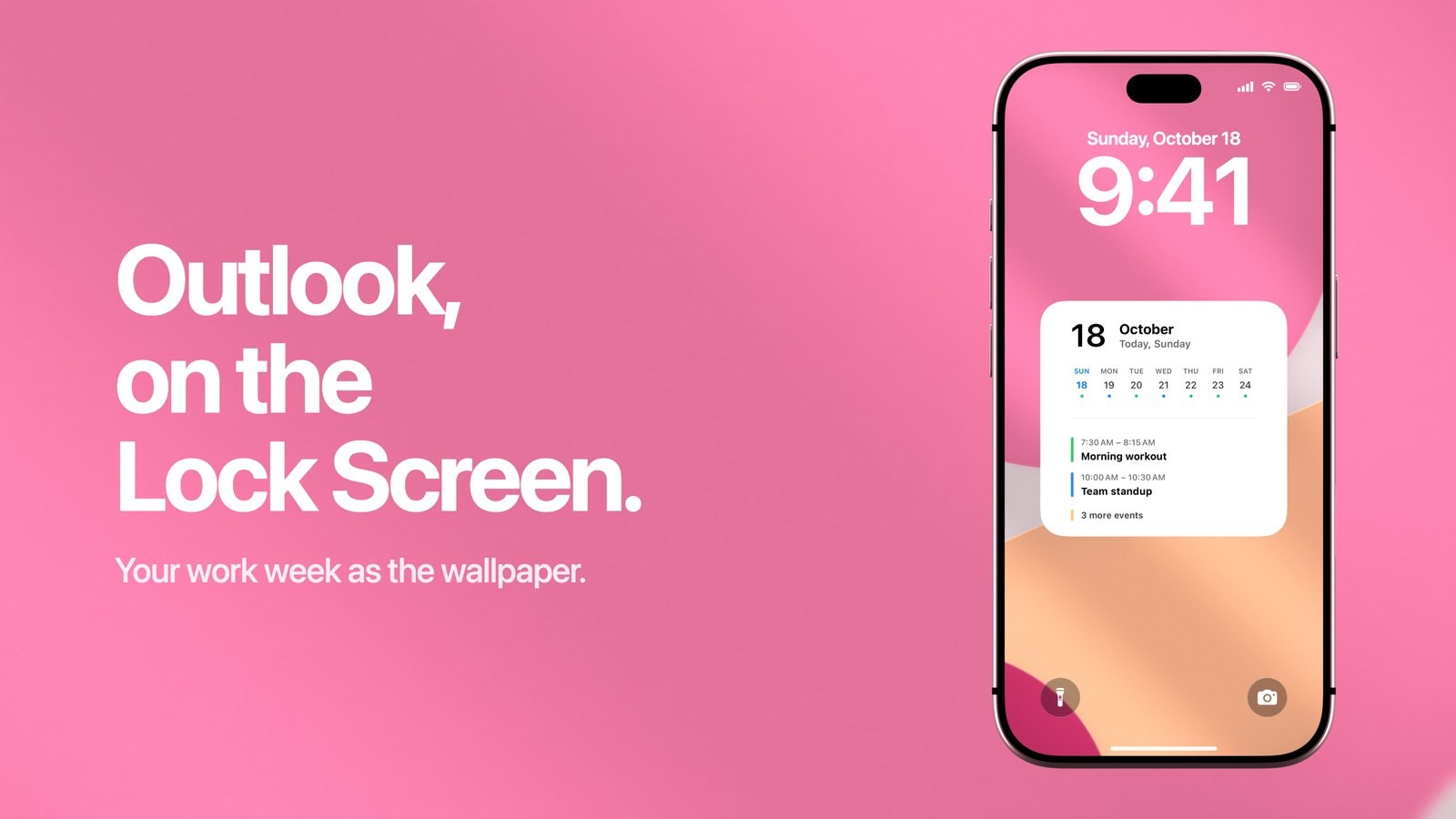
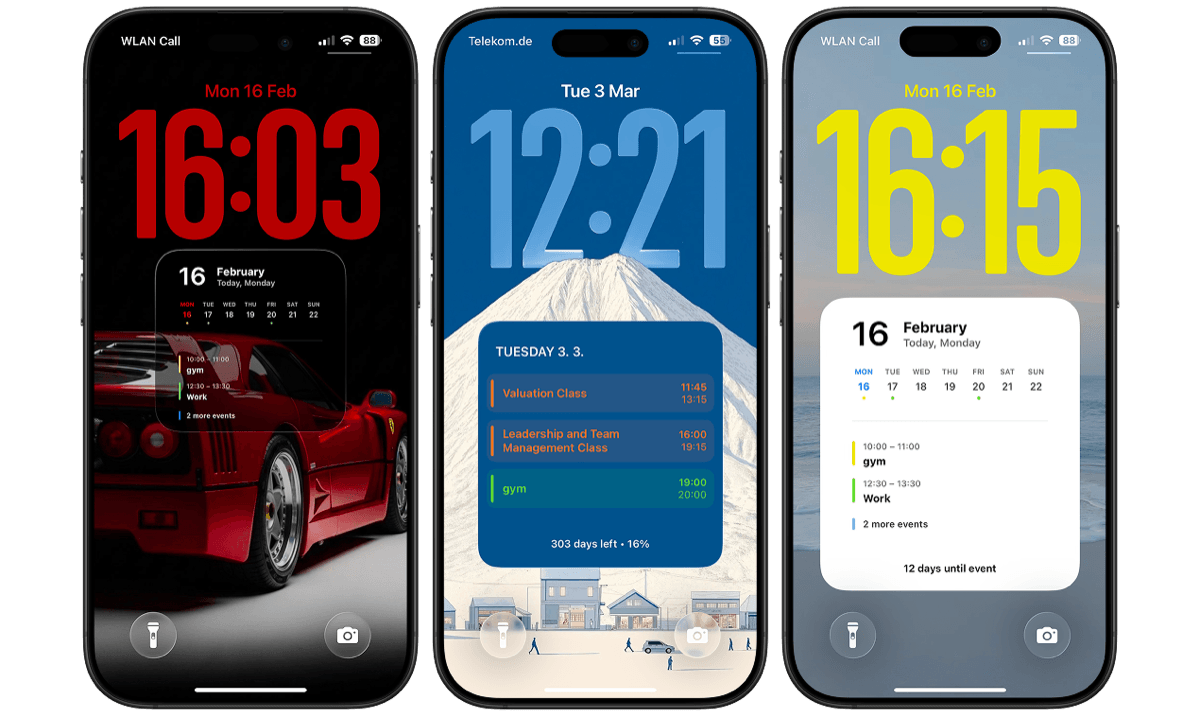
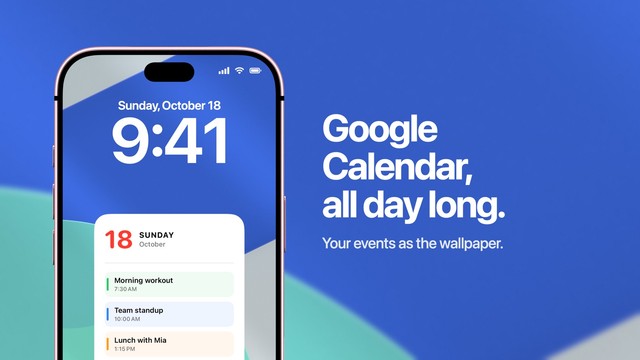
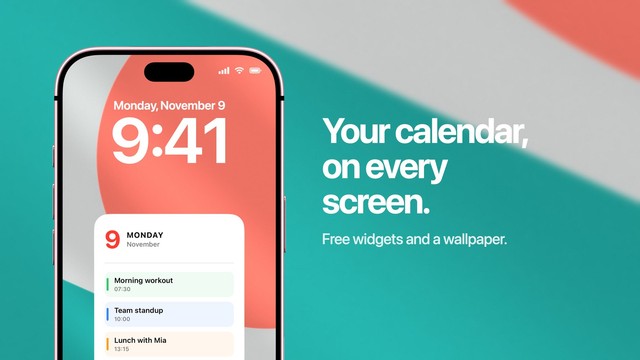
To put your Outlook calendar on the iPhone Lock Screen, add the Outlook account to the iPhone itself as a Microsoft Exchange account, then pick how its events should appear. Calendarly draws them into the Lock Screen wallpaper, the whole day, week or month at once, and redraws the picture every morning. Apple’s Calendar widget under the clock can show the next Outlook meeting as well. Nothing changes in Outlook: you keep adding and answering invites on the computer as before.
Many people search for this with the Outlook app already installed and a full calendar inside it, while the Lock Screen shows nothing from it. Events inside the Outlook app stay inside the Outlook app. Apple’s widgets and every calendar app on the iPhone read one shared calendar store, and an Outlook account reaches that store only when it is added in iOS Settings. Once it is there, the rest takes a few minutes.
Add the Outlook account to the iPhone
This works the same for a personal Outlook.com or Hotmail address and for a Microsoft 365 work or school account. Microsoft’s own instructions use the Exchange option for all of them, and the sign-in happens on Microsoft’s page inside Settings, so no other app sees your password.
- 1Open Calendar Accounts
Go to Settings, then Apps, then Calendar, then Calendar Accounts, and tap Add Account. On iOS 17 and earlier the path is Settings, then Calendar, then Accounts.
- 2Choose Microsoft Exchange
Pick Microsoft Exchange rather than Outlook.com, type your email address and a short description such as Work, and tap Next, then Sign In.
- 3Sign in and accept
Enter your password on Microsoft’s page. A work account may ask for a code from the Authenticator app and show a permissions screen; tap Accept.
- 4Turn on Calendars and save
On the list of services, make sure Calendars is on and tap Save. Mail and Contacts can stay off if you only want the events.
Microsoft lists these steps in Set up an Outlook account on the iOS Mail app, and Apple covers every provider in its guide to calendar accounts. Open Apple’s Calendar app afterwards and tap Calendars at the bottom: the Outlook calendars sit under the account’s description, and a meeting you accept on the laptop shows up there after the next sync.
When a work account will not add
Some companies allow their mail and calendar only inside the Outlook app. Then adding the account in Settings fails at sign-in, or the phone is asked to install a management profile first. That is the company’s rule, and only the Microsoft 365 admin or IT desk can change it, which Microsoft says on the same help page. Ask them whether the built-in Calendar app is allowed for your account.
If the answer is no, the Outlook app’s own widgets are the only way to see those meetings outside the app. Look for them in the widget list after installing Outlook. A personal Outlook.com calendar is never blocked this way, so a second account for family plans can still go on the wallpaper.
How to put Outlook on the Lock Screen with Calendarly
With the account on the phone, Calendarly reads the Outlook calendars like any other. You set it up once, and from then on the picture follows your calendar each morning.
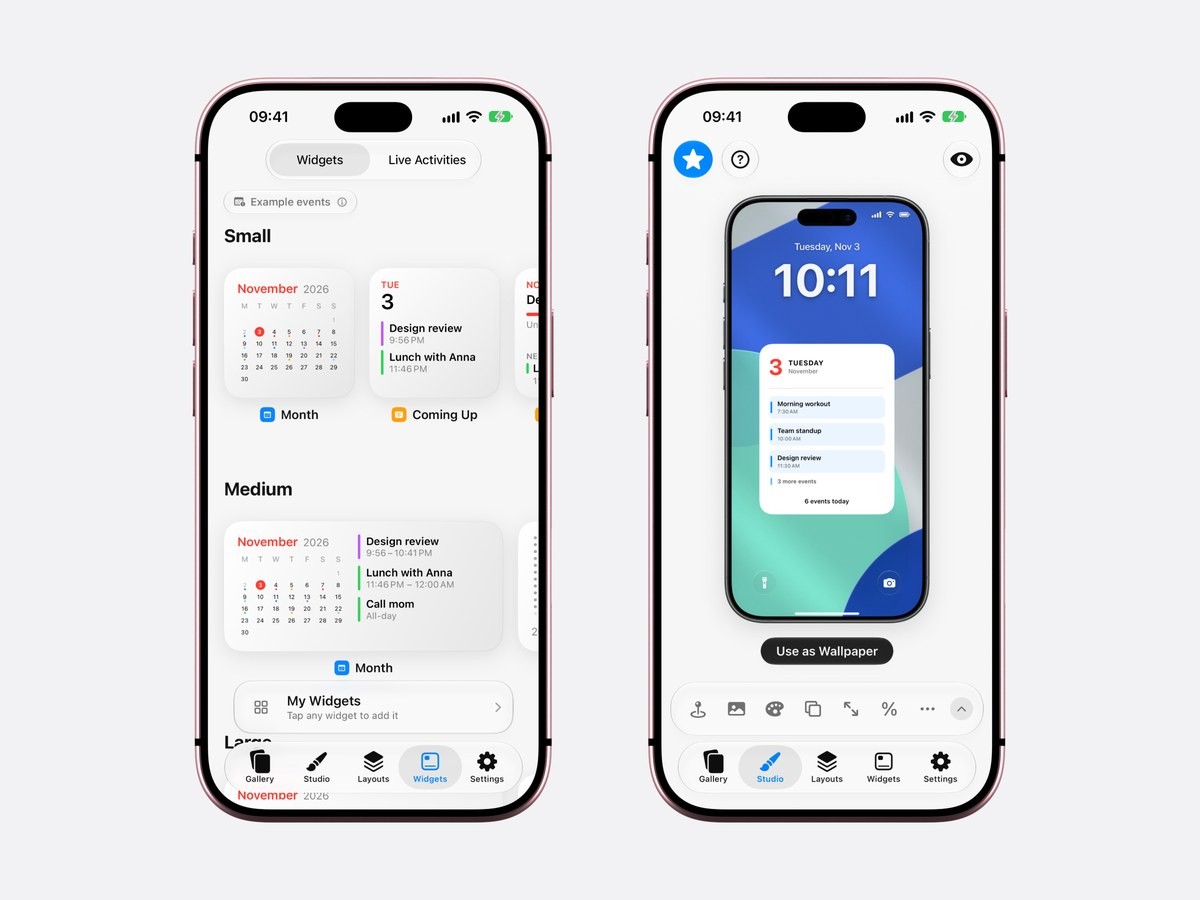
- 1Download Calendarly
Get Calendarly from the App Store. It is free, runs on iOS 16.6 or later and needs no account of its own.
- 2Allow calendar access
Calendarly asks when you set up your first calendar layout. It reads the calendars Apple’s Calendar app shows, so the Outlook ones are included.
- 3Choose which calendars to draw
Turn on your Outlook calendar and leave out the ones you don’t need in the morning, such as a room booking calendar or a colleague’s shared one.
- 4Pick a layout in the Gallery
Every layout is shown on a real Lock Screen. A day with times suits a calendar of calls; a week suits shift work and travel.
- 5Adjust it in the Studio
Change the background, the colours, the size and the space under the clock. The preview uses your own Outlook meetings as you go.
- 6Tap Use as Wallpaper
The first time, Calendarly adds its shortcut, Update Calendarly Wallpaper, and walks you through the Shortcuts automation that runs it each morning.
The automation runs at the time you choose, early in the morning for most people, and sets the new picture while the phone is still on the nightstand. Each event keeps its calendar’s colour, so work meetings and family plans are easy to tell apart, and all-day events such as a day off are drawn too. The calendar on the Lock Screen guide walks through the same setup screen by screen.
Layouts that work for a work calendar
- The day with times
Start and end times beside each title, so the first glance answers what is next and when it ends. A daily schedule wallpaper goes further into it.
- The week
Seven days side by side for rotas, travel and on-call weeks, as in the weekly schedule guide.
- The month
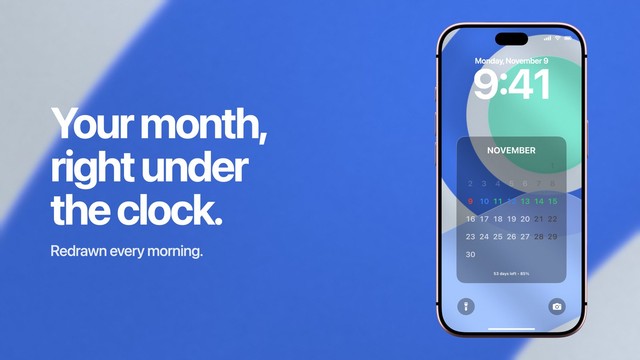
Single Month View is free and marks the days with something on them, which helps when deadlines matter more than meeting times.
- Meetings and tasks together
Outlook events with an Apple Reminders list or Todoist tasks under them, described in calendar and reminders on one Lock Screen.
96 of the 152 layouts are free. Calendarly Pro unlocks the others along with your own photos as backgrounds. The Month and Coming Up widgets for the Home Screen are free too, and they read the same Outlook calendars.
What the widget under the clock can do
Apple’s Calendar widget is quick to add: touch and hold the Lock Screen, tap Customize, choose Lock Screen, tap the row under the clock and pick Calendar. With the Outlook account on the phone, its Up Next widget shows the next timed meeting. Apple has the steps with pictures and a guide to customizing the Lock Screen.
The row is small, though. It fits one meeting in a few words, and Apple’s widget leaves out all-day events, so an out-of-office day or a deadline never appears there. That is the usual reason the calendar widget looks empty.
| Calendar widget | Calendarly wallpaper | |
|---|---|---|
| Outlook meetings shown | The next one | The whole day, week or month |
| All-day events | No | Yes |
| Work and personal together | Yes, once both accounts are added | Yes, and you pick the calendars |
| Updates | Live | Each morning, or when you run the shortcut |
| Space | One row under the clock | The screen behind the clock |
| Cost | Built in | Free to download, 96 of 152 layouts free |
Both can stay on the screen at once: Up Next in the widget row tells you about the meeting that starts in ten minutes, and the wallpaper holds the rest of the day. For Outlook on the Home Screen, the Home Screen calendar guide covers the widgets there.
If Outlook meetings are missing
Open Apple’s Calendar app first. If a meeting is missing there as well, the gap is between Microsoft and the iPhone, and one of these usually closes it.
- 1Check the Calendars switch
Settings, Apps, Calendar, Calendar Accounts, then the Exchange account. If the account was first added for Mail, Calendars is often off.
- 2Tick the calendar
In Apple’s Calendar app, tap Calendars at the bottom. An unticked calendar is hidden, and its events are skipped everywhere, the wallpaper included.
- 3Look at Fetch New Data
On the Calendar Accounts page, tap Fetch New Data and check the Exchange account. Push sends changes as they happen; Manual waits until you open the Calendar app.
- 4Sign in again after a password change
A new work password or an expired sign-in stops the sync without much warning. Settings shows a prompt on the account; sign in there.
- 5Run the shortcut
The wallpaper is a picture made in the morning. After a meeting moves, open Shortcuts and run Update Calendarly Wallpaper, or add a midday time to the automation.
A meeting that a colleague added to a shared calendar comes through only if that calendar is shared with your account in Outlook. If one calendar of the account is missing, check it in Outlook on the web first. More update times are explained in the guide to a wallpaper that updates on its own.
Is it all right to put work meetings on the Lock Screen?
Anyone who picks up a locked phone can read what the Lock Screen shows, and that includes meeting titles. If your calendar holds client names or interview slots, leave that calendar off the wallpaper and keep only a personal one, or let the widget show just the next meeting. Calendarly itself asks iOS for the events, draws the picture on the phone and hands it to Shortcuts. The events are not sent to a server, and nothing in your Outlook calendar is changed. Turning off calendar access under Settings, Apps, Calendarly stops it reading anything.
Sources
Questions people ask
Yes. Add the Outlook account under Settings, Apps, Calendar, Calendar Accounts as Microsoft Exchange. Then a Calendar widget under the clock shows the next meeting, and Calendarly can draw the whole day, week or month into the Lock Screen wallpaper.
Apple’s Calendar widget shows Outlook meetings once the account is added to the iPhone, and the Outlook app has widgets of its own. Either way the row under the clock fits a single meeting. For the whole day the events have to be in the wallpaper.
Usually the account was added for Mail with Calendars switched off, the calendar is unticked in Apple’s Calendar app, or the sign-in expired after a password change. Some companies also allow their calendar only inside the Outlook app.
No. The events reach the iPhone through the account in Settings. You can keep the Outlook app for mail and invites; the Lock Screen shows the same meetings either way.
Yes. Add both accounts in Calendar Accounts, and choose in Calendarly which calendars from each appear on the wallpaper. [Google Calendar on the iPhone Lock Screen](/blog/google-calendar-on-iphone-lock-screen) covers the Google side.
It is redrawn by the morning automation and whenever you run Update Calendarly Wallpaper. You can add more times to the automation if your day changes often.
Calendarly is free to download, and 96 of its 152 layouts are free, along with every widget, every Live Activity and the daily update. Calendarly Pro unlocks every layout and your own photos as backgrounds.