Notion Calendar Widget on iPhone: What It Shows, and Your Notion Dates on the Lock Screen
Notion Calendar has six Home Screen widgets and one for the Lock Screen, but Notion database dates never reach Apple’s Calendar. Here is what the widgets do, and how Calendarly puts every database with a date on the Lock Screen, in free widgets and next to your day.
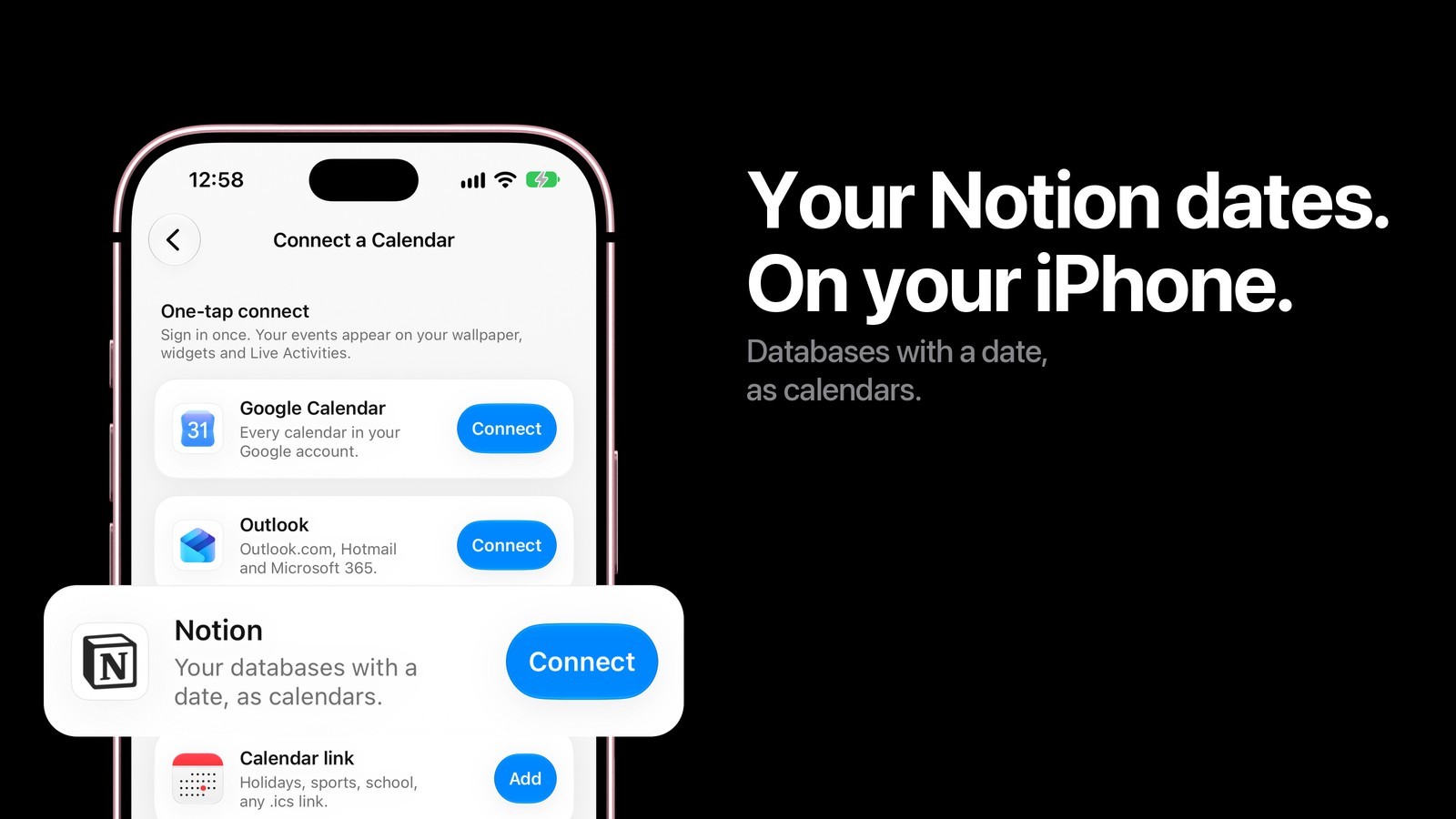
Notion Calendar has its own iPhone widgets: six for the Home Screen and one for the Lock Screen, all showing the events of the calendar accounts you sign in to. Dates kept in your Notion databases are harder to see, because Notion keeps them out of Apple’s Calendar. Calendarly connects to Notion directly, turns every database with a date into a calendar, and puts those dates on the Lock Screen wallpaper, in free widgets and on its Today page next to the rest of your day.
People who search for a Notion calendar widget usually mean one of two things. Some use Notion Calendar, the separate app Notion made for meetings, and want its widget set up properly. Others plan in a Notion database, a content calendar or a task board with due dates, and want those dates in view without opening Notion.
Calendarly reads Notion and never changes it, so pages are still edited in Notion. Its Today page needs iOS 26 or later; the Lock Screen wallpapers and widgets work from iOS 16.6.
What the Notion Calendar widgets show
Notion Calendar’s App Store page lists six Home Screen widgets, with upcoming events, a month overview and buttons to add an event quickly, plus one Lock Screen widget. Notion’s help page on its apps says the Home Screen widgets need iOS 14 and the Lock Screen widget iOS 16. In the app’s settings you choose how many days of events the widgets cover, whether all-day events appear, which calendars stay out, and whether the Lock Screen widget hides event titles for privacy.
The events come from the accounts Notion Calendar is signed in to. Notion’s help lists Google, iCloud and Microsoft Outlook calendars, and adds that Outlook support on mobile is still coming. Notion databases join the calendar too, but only on the desktop or web app: a database is added there, it needs a date property, and up to 20 can be added. The help page does not say whether database dates appear in the widgets, so check on your own phone before you rely on them.
The app itself has limits on the iPhone. Notion’s help says the mobile app shows one, two or three days at a time, with no week or month view, and cannot be made the default calendar app. That is fine for checking the next meeting and less handy for seeing what a whole week of database dates looks like.
Why Notion dates never reach Apple’s Calendar
Every calendar widget on the iPhone that is not made by Notion, Apple’s own included, reads the calendar store that iOS keeps. Google, iCloud and Exchange accounts added in Settings land there. Notion databases do not, and Notion’s help says so plainly: a database connected to Notion Calendar can be viewed in Notion Calendar, not in Google or iCloud calendar.
Subscribing to the Google calendar behind Notion Calendar brings your meetings, while a project database with due dates stays invisible. Copying dates by hand into Apple’s Calendar works until the first date moves. Seeing them on the Lock Screen takes an app that reads Notion itself, which is what the Notion card in Calendarly does.
Notion Calendar, Calendarly and Apple Calendar, compared
The Notion Calendar details come from its US App Store page and Notion’s help center, both read on 22 November 2026.
| Notion Calendar | Calendarly | Apple Calendar | |
|---|---|---|---|
| Notion database dates | In the app, added on desktop or web | Every shared database with a date, as its own calendar | No |
| Other calendars | Google, iCloud; Outlook on desktop and web | Everything on the iPhone, plus Google Calendar and Outlook by sign-in | Accounts added in Settings |
| Home Screen widgets | Six | Free Month, Coming Up and To-Do widgets, among others | Several |
| Lock Screen | One small widget | The whole day, week or month behind the clock, plus Lock Screen widgets | Small widget |
| Edit Notion pages | Yes, for databases you can edit | No, read only | No |
| Cost and needs | Free; iOS 18.0 | Free; iOS 16.6, iOS 26 for Today | Built in |
Notion Calendar stays the better tool for scheduling: dragging a database item onto a day, changing its status, adding meeting notes. Calendarly keeps the dates you planned in Notion on the screen you look at most, beside the meetings in your other calendars, and leaves the editing to Notion.
Connect Notion to Calendarly
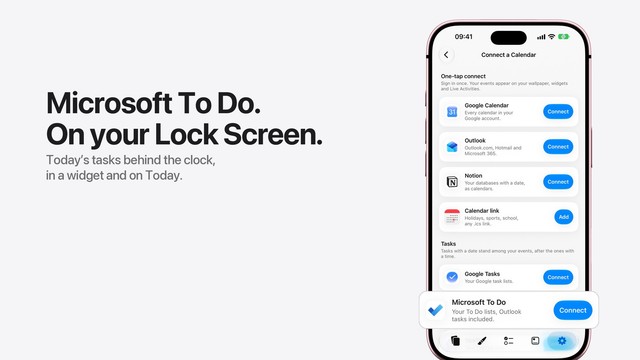
Open Calendarly’s Settings tab and tap Calendar Accounts. On iOS 26 the same page opens from the three dots next to the weather on Today. Under One-tap connect, Notion sits below Google Calendar and Outlook with the line “Your databases with a date, as calendars.” Tap Connect and sign in to Notion.
Notion then asks which pages Calendarly may see. Pick the databases you want on your Lock Screen, or the pages that hold them. Calendarly asks to read content only, so it cannot edit, comment on or delete anything, and it never sees the pages you leave out. Back in Calendarly, every shared database that has a date property appears under Show on wallpaper with a switch of its own, all on to begin with. Turn off the ones that would crowd the screen, a reading list for example.
If a database is missing later, add Calendarly to it in Notion: open the database page, tap the three dots, then More, then Add connections under Connections, and choose Calendarly. Notion’s help page on connections goes through the same menu. Calendarly looks for new databases every few hours while it is open.
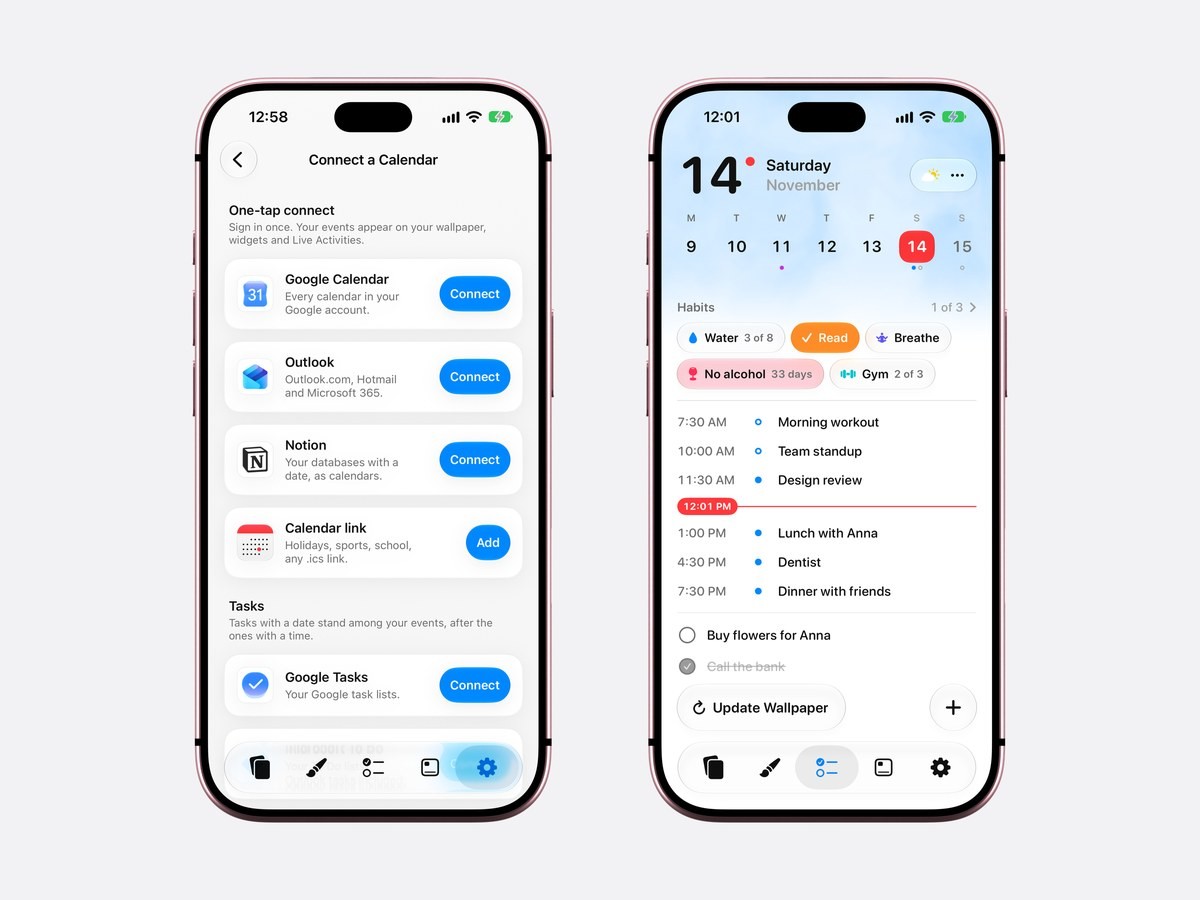
How Calendarly reads a Notion database
A database needs at least one Date property to become a calendar, the same rule Notion Calendar uses. When there are several, Calendarly takes the one whose name says it is a date: Date, Due or When, in English and in several other languages. Without such a name it takes the first date property in alphabetical order, so the choice stays the same every time.
Each page with a date becomes an entry named after the page’s title. A date without a time is an all-day entry, and a range from Monday to Wednesday covers all three days. A date with a time shows at that time, and a time with no end shows as a single moment. Finished pages leave the screen: a checkbox called Done or Completed, ticked, hides a page, and so does a Status property set to an option in its Complete group.
How to put Notion dates on your iPhone Lock Screen
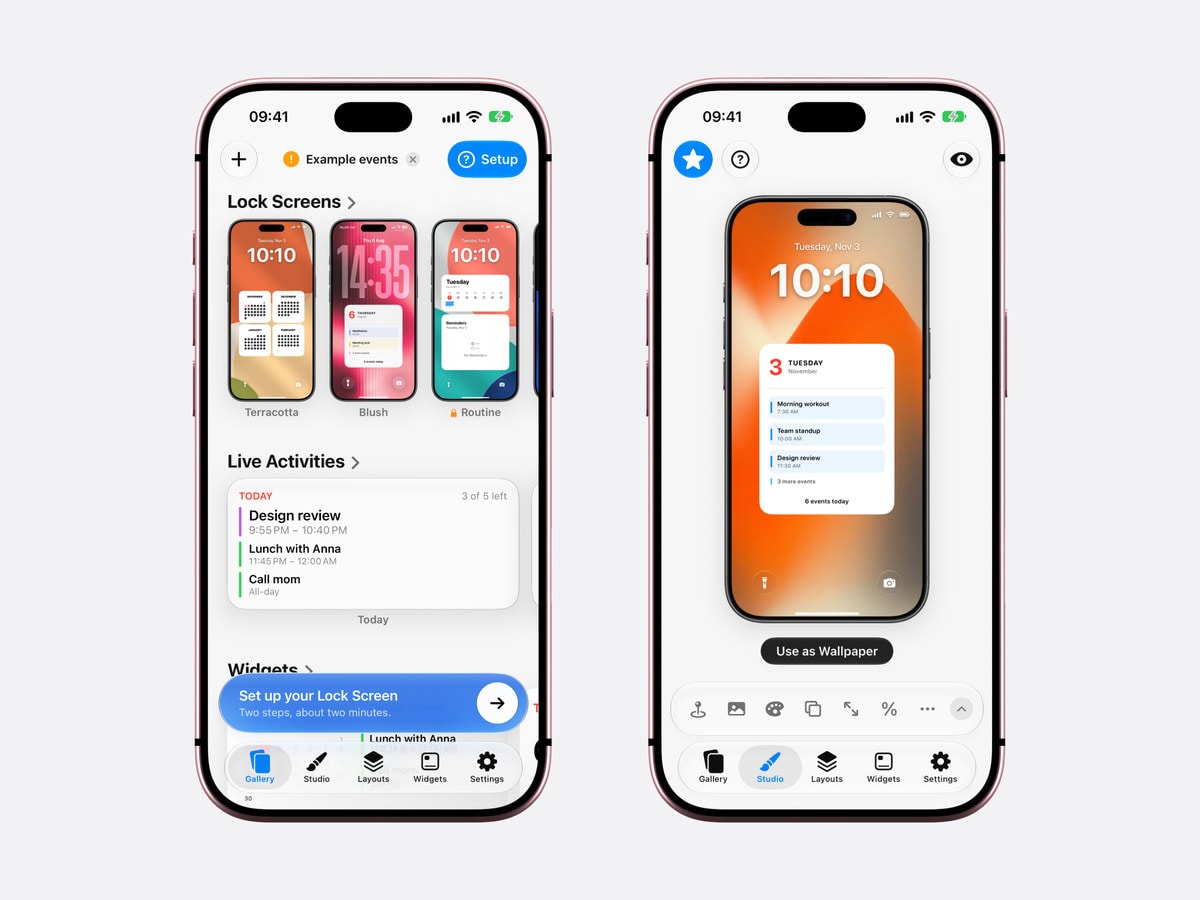
- 1Download Calendarly
Get Calendarly from the App Store. It is free and needs no account of its own.
- 2Connect Notion
Settings, then Calendar Accounts, then Connect next to Notion. Share the databases with a date when Notion asks, and leave on the ones you want to see.
- 3Pick a calendar layout in the Gallery
Agenda, week and month layouts read your calendars, so the Notion dates are already in the preview. The Studio opens, where you change the background, the font and the size.
- 4Tap Use as Wallpaper
The first time, Calendarly adds the Update Calendarly Wallpaper shortcut and sets up one morning automation in the Shortcuts app with you.
- 5Let the shortcut redraw it
Each run fetches your databases from Notion before it draws, so a date you moved in Notion moves on the wallpaper with the next update.
Your Notion dates on the Lock Screen
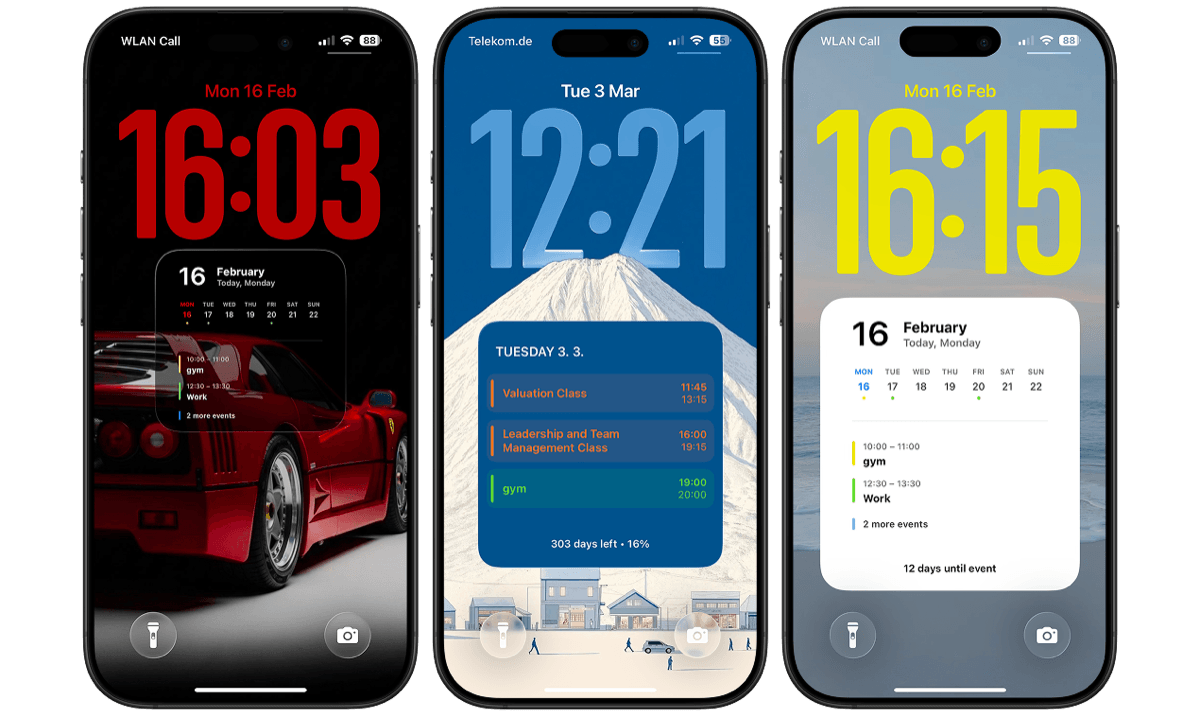
iOS does not let an app draw on the Lock Screen whenever it likes, so Calendarly makes a new wallpaper picture each time its shortcut runs. An agenda layout lists the day’s entries under the clock with their times, and week and month layouts show what is coming. A Notion content calendar suits a week layout, where the Tuesday post and the Friday newsletter sit next to the meetings from your work calendar.
A wallpaper takes no widget slot, so the row under the clock stays free for the battery, the weather or one of Calendarly’s Lock Screen widgets. The calendar on the Lock Screen guide goes through the layouts and when each one fits.
Widgets and the Today page
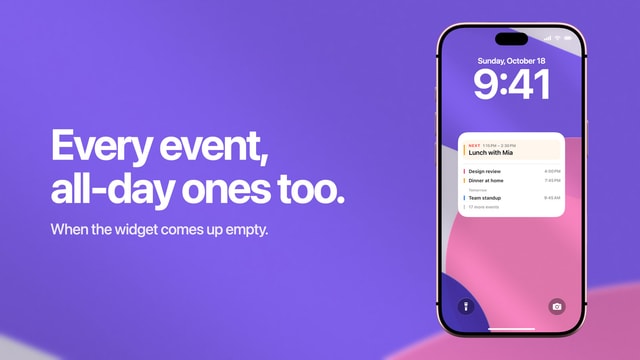
Calendarly’s Month and Coming Up widgets for the Home Screen read the same calendars as the wallpaper, Notion included, and they are free. The Home Screen calendar guide shows which widget fits which size. Calendarly’s free Live Activities keep the day’s next events on the Lock Screen while you work.
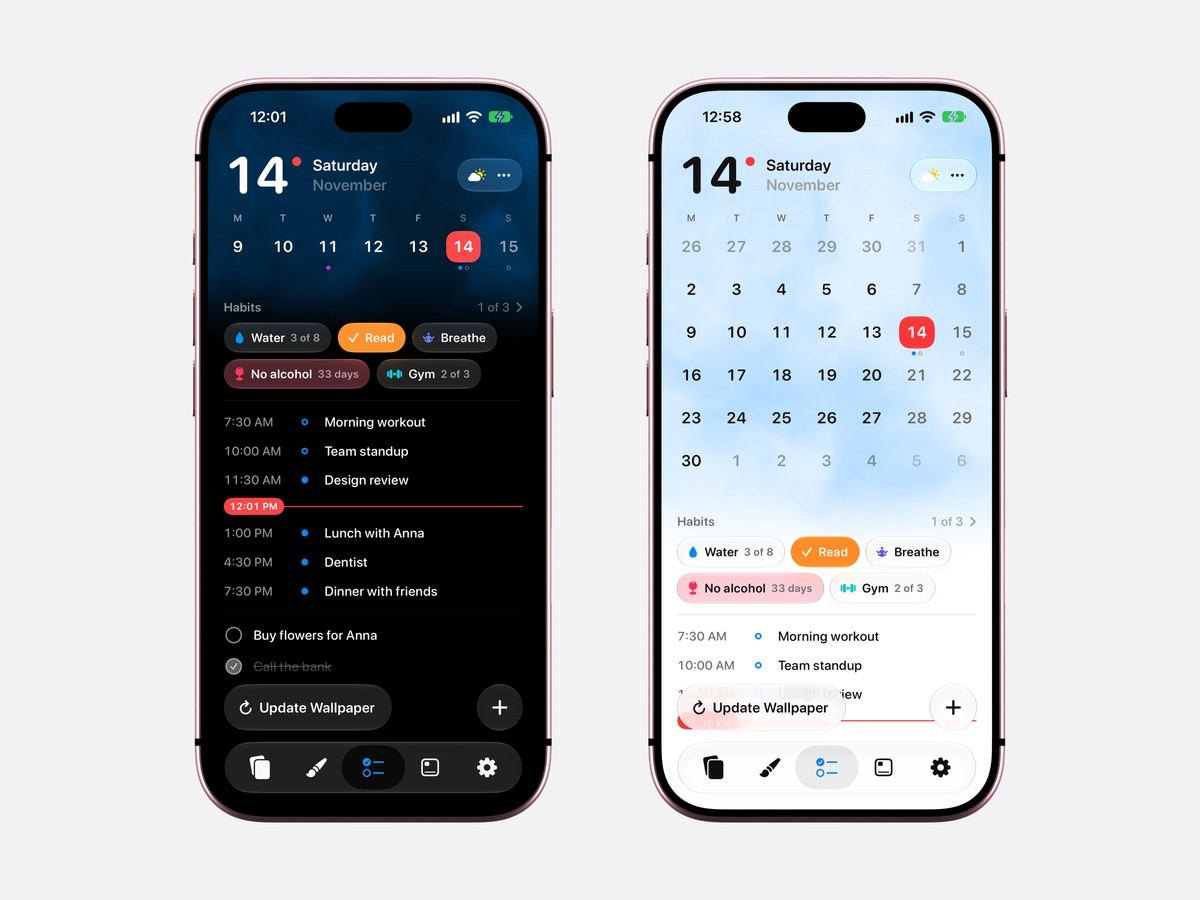
On iOS 26 and later, Today puts the day on one page: the week that opens into the month, your habits, the events in time order with a red line at the current minute, and the to-dos under them. A Notion entry lands on its date, so tapping Thursday in the week shows Thursday’s deadlines with Thursday’s meetings. The daily planner comparison sets Today beside Structured, TickTick and Apple’s apps.
Keeping Notion calendars private
A Lock Screen can be read by anyone at the next desk, and a work database can hold names you would rather not show. Switch such a database off under Show on wallpaper and it stays out of the wallpaper and the widgets. Calendarly keeps the Notion token in the iPhone’s Keychain and draws everything on the phone; your pages are not sent to a server of Calendarly’s. To cut the connection, open the Notion account in Calendar Accounts and disconnect it, or remove Calendarly under Settings, then Connections, in Notion.
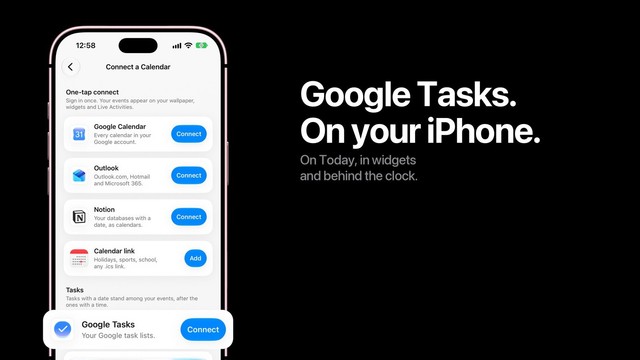
Apple’s guide to adding widgets covers the iOS side of placing any widget, Notion Calendar’s included. Keep tasks in Google’s or Microsoft’s apps too? The Google Tasks guide shows how those join the same day.
Sources
Questions people ask
Yes. Its App Store page lists six Home Screen widgets and one Lock Screen widget. They show events from the accounts you sign in to, and the settings choose the days, all-day events and calendars shown.
Install Notion Calendar and sign in, then press and hold the Home Screen, tap Edit, then Add Widget, and search for Notion Calendar. For the Lock Screen, press and hold it, tap Customize and add the widget under the clock.
Yes, with Calendarly. Connect Notion under Settings, then Calendar Accounts, share the databases that have a date, pick a calendar layout in the Gallery and tap Use as Wallpaper.
Notion keeps database dates inside Notion and Notion Calendar; its help says they cannot be viewed in Google or iCloud calendar. Apple’s widgets read only Apple’s calendar store, so they never see them. Calendarly reads Notion directly.
Every database you shared with Calendarly that has a Date property, each as its own calendar with a switch. Pages ticked Done or set to a Complete status are left out.
No. Calendarly asks Notion for read access only. Edit the page in Notion or Notion Calendar, and the change appears with the next refresh.
Connecting Notion, the widgets, Live Activities and the Today page are free, and so are 99 of Calendarly’s 156 wallpaper layouts. Calendarly Pro unlocks every layout and your own photos as backgrounds.