Habit Tracker for Students: Study Habits on Your iPhone, Next to Your Classes
Track study habits on your iPhone with Calendarly’s free habits: revision, flashcards and reading with streaks and statistics, beside your timetable and on the Lock Screen, compared with Forest, Study Bunny, YPT and Habitify.

A habit tracker for students is most useful for the small daily work that decides an exam: an hour of revision, twenty flashcards, the set chapter, bed before midnight. Calendarly tracks these for free on iPhones with iOS 26 or later. Each study habit sits on its Today page above the day’s classes and to-dos, with a streak, a chart for the week, the month and the year, and a widget that keeps it on the Lock Screen.
Most students already have a timetable and a list of deadlines. What tends to go missing is the part in between, the revision nobody checks on until the week before the exam. A tracker helps once each habit has a clear size, like 45 minutes of maths or 20 cards of vocabulary, so that any given day is either done or still open.
Focus timers such as Forest and Study Bunny, compared further down, time each study session while it runs. Calendarly records whether the session happened at all, on the same page as the lectures and deadlines from your calendar, so the study habits are in front of you every time you check what is next today.
Study habits you can tick off in a day
Start with two or three habits, and word each one so that a single day can be marked done. “Study more” has no finish line on a Tuesday night, while “Revise 45 minutes”, “Flashcards, 20 cards” and “Read the set chapter” do. If a subject only needs work on some days, put that into the habit itself, so the other days do not count against it.
Calendarly takes all of these shapes. A habit to build can repeat every day, on chosen weekdays, a number of days a week or a month, or up to 20 times a day, and a habit to quit counts from the moment you stopped. Its icons have a Study and work group with books, a graduation cap, a pencil and ruler, a laptop and a globe, so each subject can look different on Today. Up to 30 habits fit, which leaves room for one per module.
- Revise every day
A habit of your own, every day or on weekdays only, with a note in its Journal about what you covered.
- Flashcards or vocabulary
A number of times a day, up to 20, one tap for each set of cards.
- The set reading
The Read idea, once a day. The Journal can hold the title of each book or paper.
- Sleep before midnight
The Sleep early idea, ticked on the nights you make it.
- Less phone while studying
A habit to quit, such as No doomscrolling or No gaming, which counts the days without it. The sobriety counter guide explains how habits to quit work.
- Exercise between lectures
Gym or Run at 3 days a week from the ideas, so the rest days do not break the streak.
How to set up a student habit tracker on iPhone with Calendarly
- 1Download Calendarly
Get Calendarly from the App Store. It is free, needs no account, and its Today page and habits need iOS 26 or later.
- 2Add the first study habit
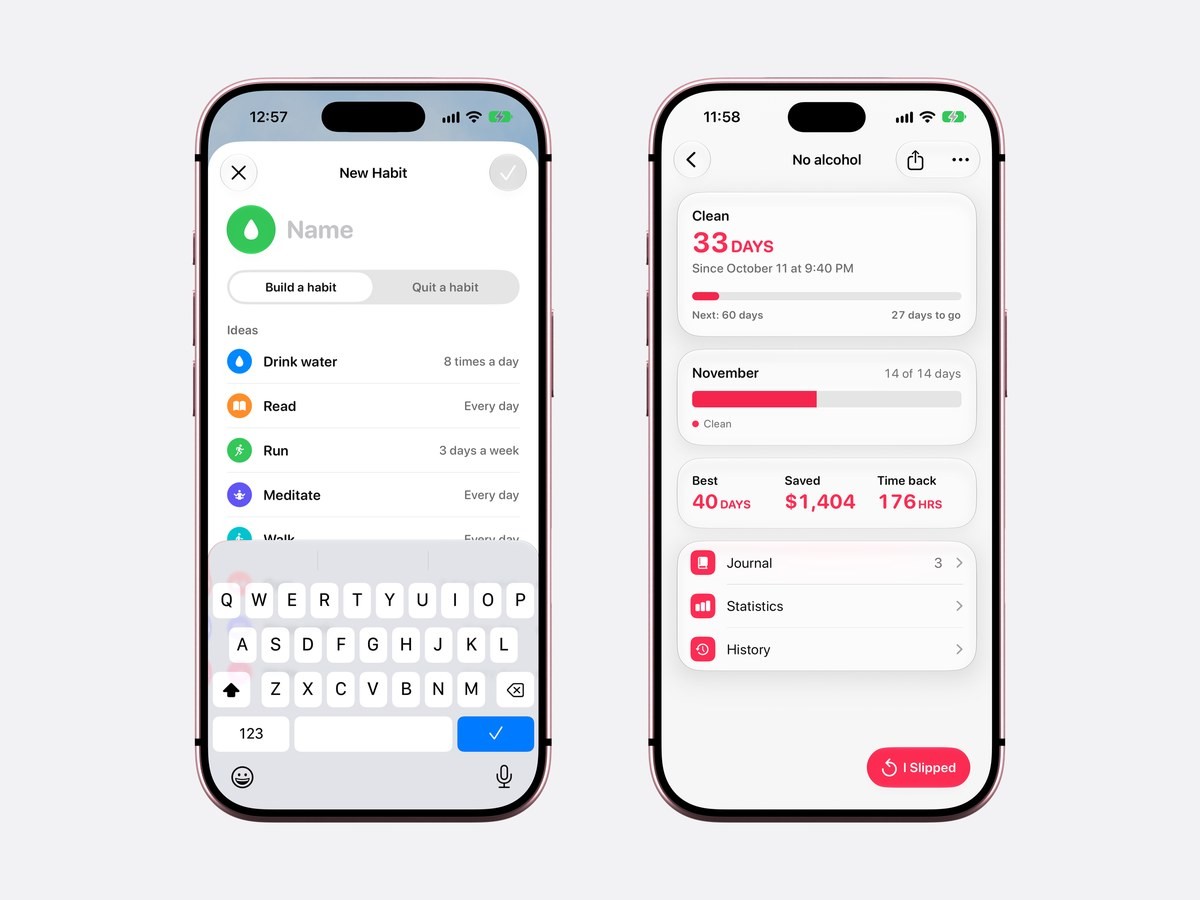
On Today, tap the plus button and choose Habit. Type a name under Build a habit, such as Revise biology, or pick an idea such as Read or Sleep early.
- 3Set how often
Choose every day, chosen weekdays, a number of days a week or a month, or a number of times a day. Then pick a color and an icon from Study and work.
- 4Add a habit to quit
Tap the plus button again, choose Habit, switch to Quit a habit and set when you stopped, for example scrolling late at night.
- 5Put the habits on the Lock Screen
Touch and hold the Lock Screen, tap Customize, tap the space under the clock and add Calendarly’s Habits widget. A tap on a habit there checks it in.
Your classes and your study habits on one page
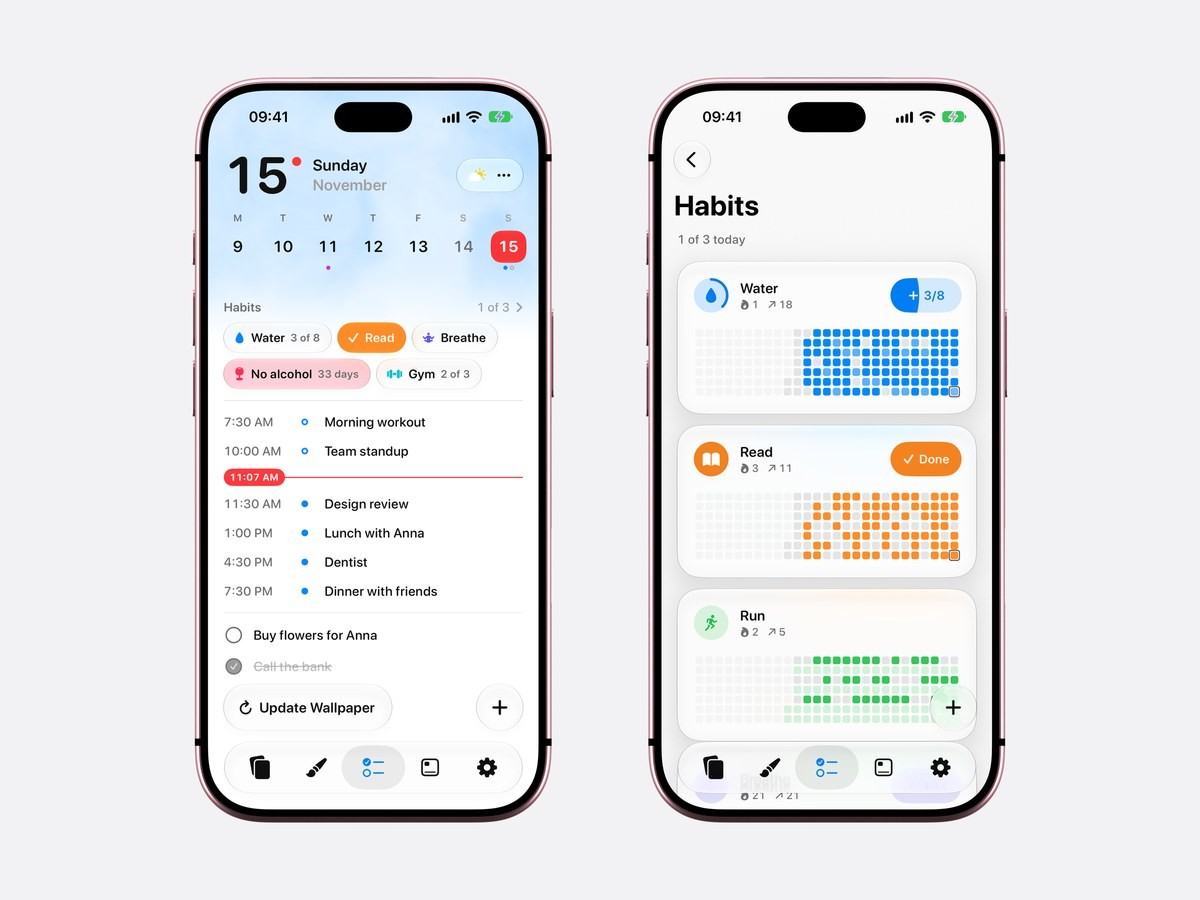
Today shows the habits as capsules at the top and the day’s schedule under them: events from Apple’s Calendar, Google Calendar, Outlook or Calendarly’s own calendar, and to-dos from Reminders, Todoist, Google Tasks, Microsoft To Do and TickTick. If your timetable already lives in a calendar, the classes show up there by themselves. A capsule fills with its color once the habit is done, so a grey Revise capsule above an afternoon of lectures tells you the revision is still waiting.
Tap Habits above the capsules and every habit shows its days as a grid of squares, one column a week. By the middle of term the grid shows which subject has the most empty squares.
The class schedule guide shows how to build the timetable in Apple Calendar so it lasts the whole term.
Streaks and statistics before the exam
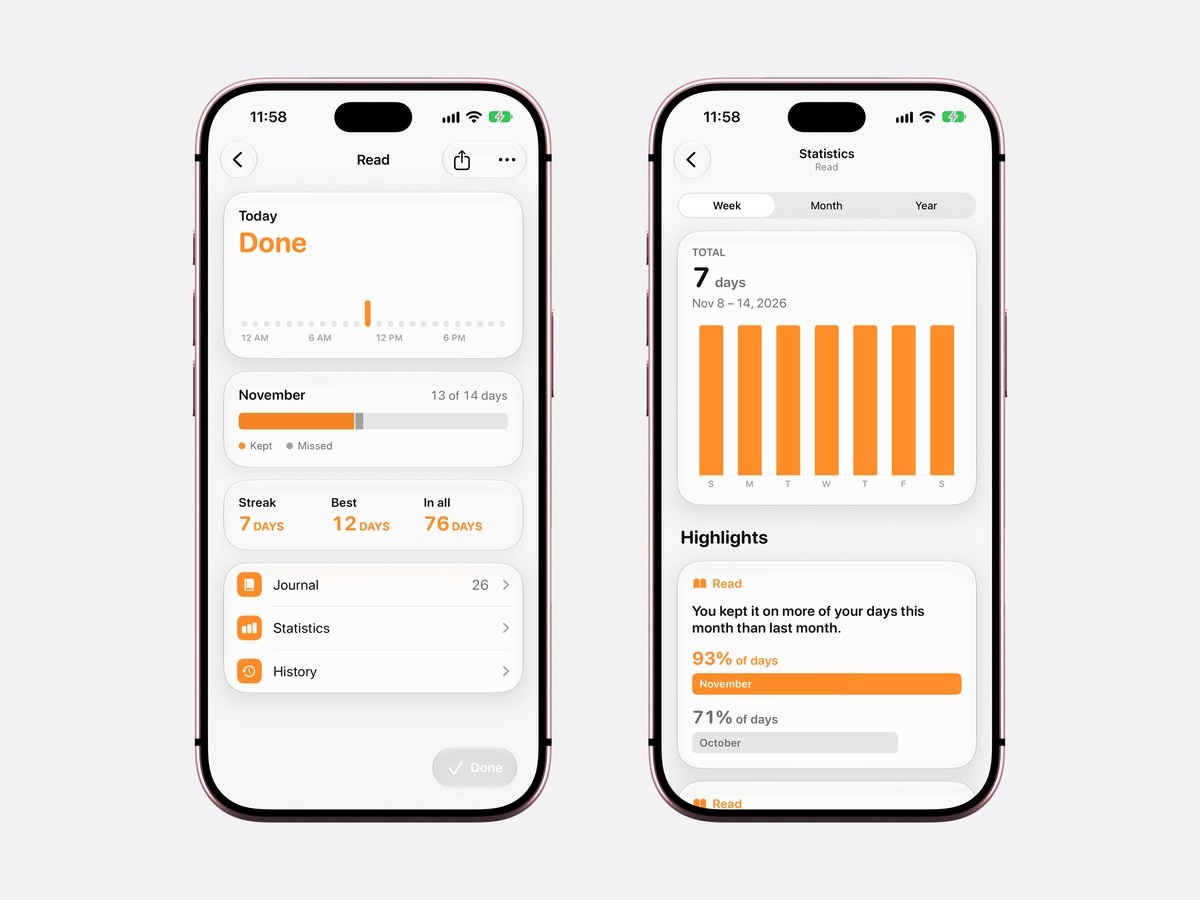
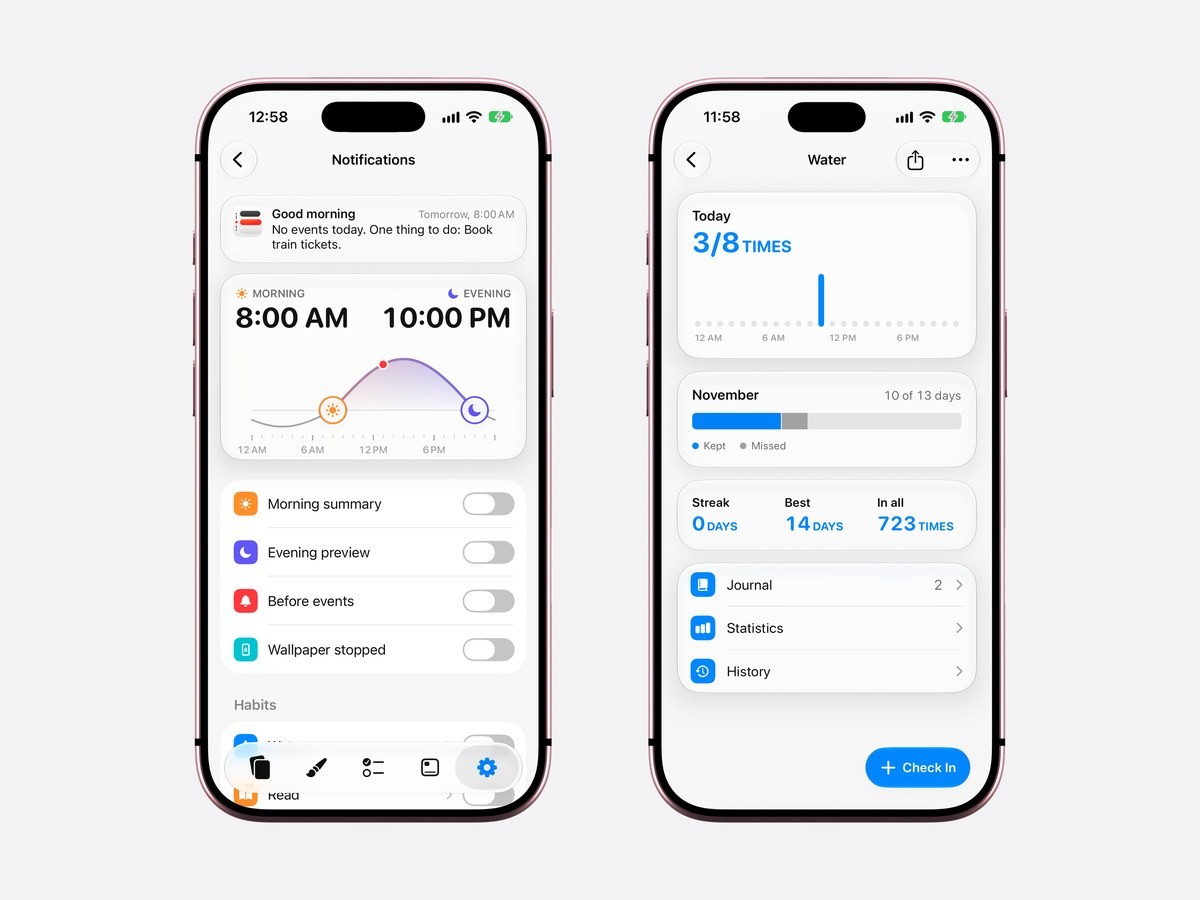
Each habit has its own page with today’s state, the month so far and three numbers: the streak in days, your best run and how many times in all. A habit set to a number of days a week keeps its streak as long as each week reaches that number, so revising five days a week leaves the weekend free without sending the streak back to zero.
Statistics has a Week, Month and Year switch over one chart. A week before an exam, the Month view shows how many days you actually revised. Highlights compares this month with the last one in a sentence, and History lists every check-in with its time. A day you studied but forgot to tick can be added in History.
Every number on these pages is explained in the habit statistics guide.
Reminders that fit around lectures
Notifications in Calendarly are all off until you turn them on in Settings ▸ Notifications. Each habit can then have its own reminders, more than one if you like, such as 4 PM after lectures and 9 PM as a last call, and a reminder stays quiet once the habit is on track for the day. The same page can send a morning summary of the day and an evening preview of tomorrow, which on a day with an early seminar is the one worth turning on.
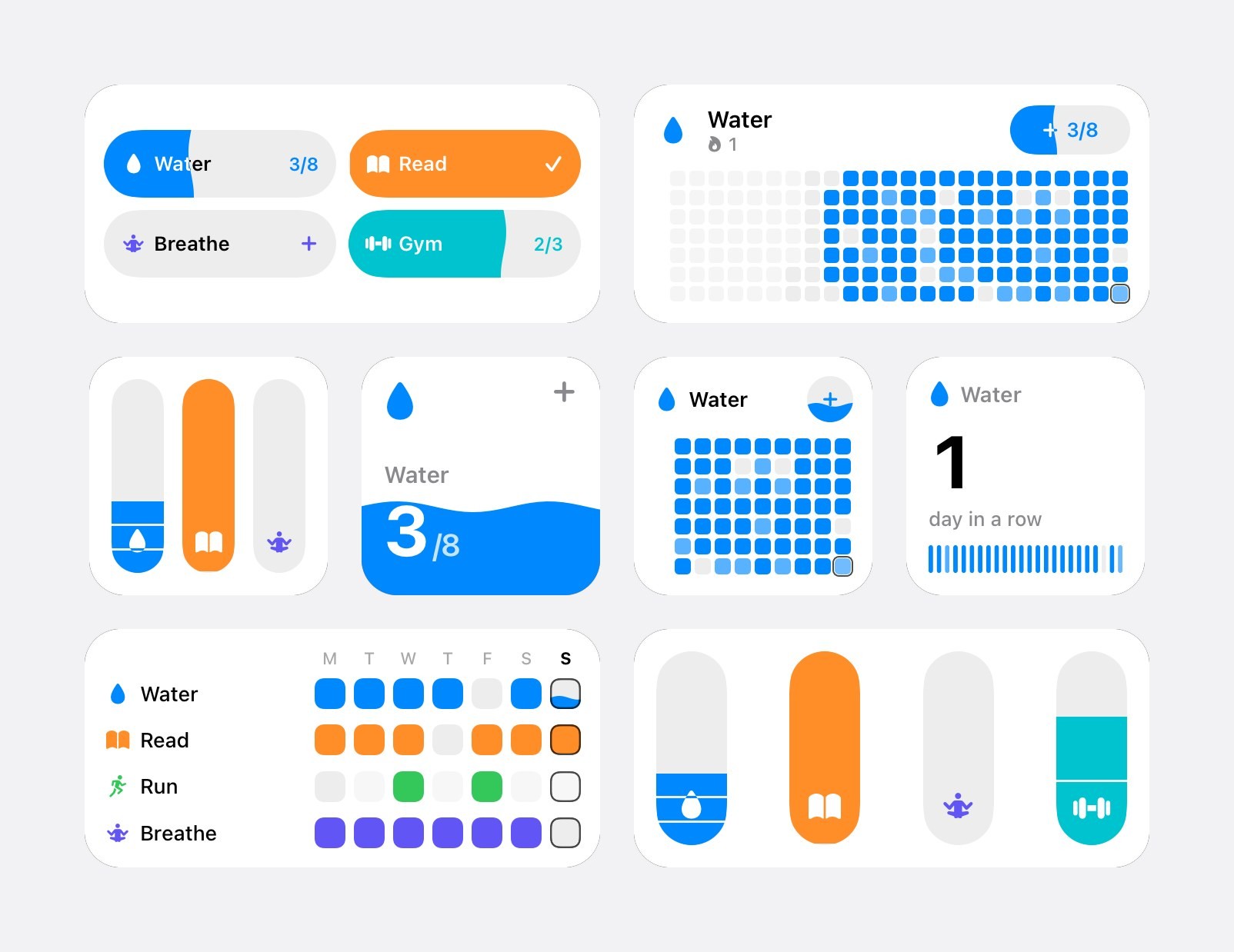
Study habits on the Lock Screen and the Home Screen
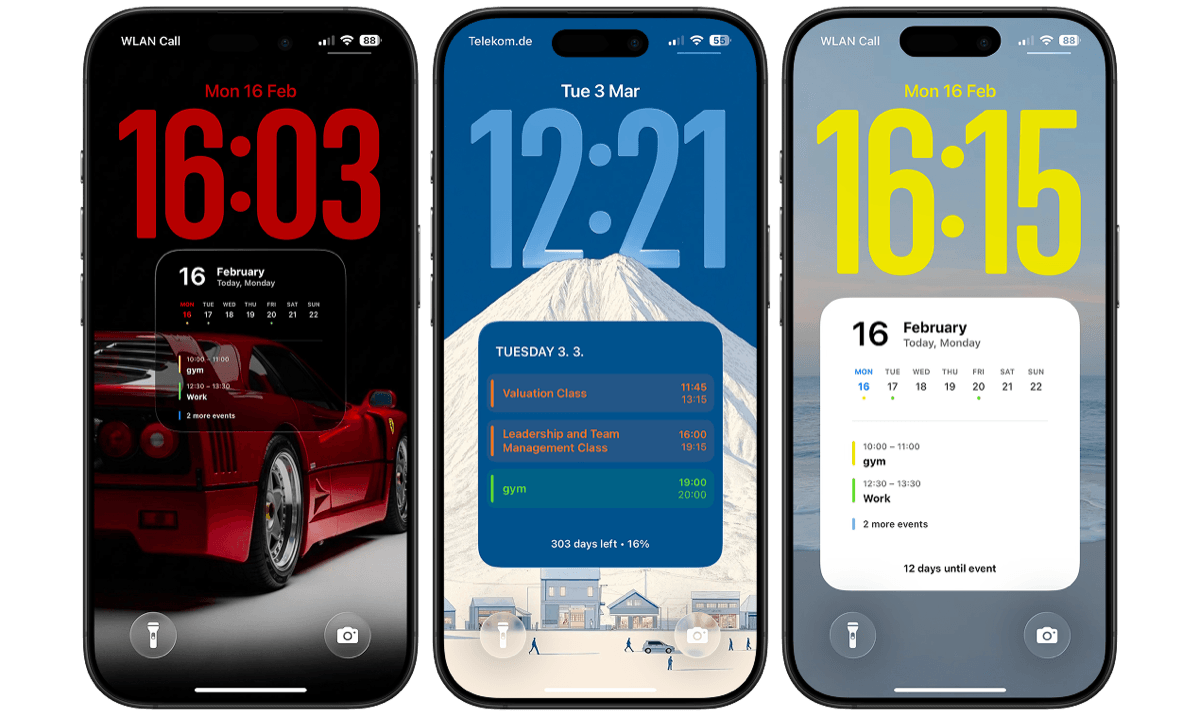
Calendarly has nine habit widgets, all free. Habits lists today’s habits and fits under the clock on the Lock Screen, where a tap checks one in without opening the app. Habit Week shows several habits from Monday to Sunday, Habit Board draws one habit’s days as squares, and Habit Run shows how long one habit has kept going. For habits to quit, Days Clean, What You Saved and Next Milestone count the time without it.
Apple explains how to add widgets to both screens, and the habit tracker widget guide shows Calendarly’s nine with their sizes. For the exam date itself, the exam countdown guide puts the days left on the Lock Screen.
Calendarly against the study apps students use
These come up when you search the US App Store for a study or habit tracker. The facts come from each app’s App Store page, read on 26 November 2026. Not named means the listing does not mention it; the app may still have it.
| App | What it does | Price in the listing | Widgets in the listing | Needs |
|---|---|---|---|---|
| Calendarly | Study habits to build or quit, beside your classes and to-dos; streaks, Statistics by week, month and year, a Journal | Free; habits, statistics and widgets free | Nine habit widgets, three on the Lock Screen | iOS 26 for habits |
| Forest: Focus for Productivity | A focus timer that grows a tree while you stay off the phone, Allow Lists to block distracting apps, statistics | Free, with in-app purchases | Not named | iOS 16.0 |
| Study Bunny: Focus Timer | A study timer that earns coins for a store, a to-do list, flashcards and a customizable study tracker | Free, with in-app purchases | Not named | iOS 12.0 |
| YPT: Study Timer & Tracker | Study time per subject, a planner in 10-minute blocks, study groups and rankings, daily to monthly stats | Free, with in-app purchases | Not named | iOS 15.0 |
| Habitify: Habit Tracker | Habits on daily, weekly or custom schedules, charts and streaks, logging from Apple Health and Screen Time | Free, with in-app purchases | Not named | iOS 16.2 |
If you want a timer that runs while you study and keeps the phone out of your hand, Forest is made for that, and YPT adds study time by subject and groups with friends. Study Bunny puts a timer, flashcards and a to-do list in one app. Habitify can log some habits by itself from Apple Health or Screen Time.
Calendarly suits students who want the study habits next to the timetable and the deadlines, on the page they check every morning and on the Lock Screen, at no cost. It has no study timer, so the two kinds of app work well side by side: time the session in one and tick the habit in Calendarly. More trackers are compared in the best habit tracker apps for iPhone.
What an iPhone does without an app
Reminders can repeat “Revise chemistry” every day, and its widget fits the Lock Screen. A ticked reminder simply comes back the next day, though, with no count of the days you kept it and no view of the month. Screen Time can limit apps during study hours; it measures time on the phone and keeps no record of the revision itself.
| Reminders | Calendarly | |
|---|---|---|
| A daily study task | Repeating reminder | Habit every day, on chosen weekdays, or a number of days a week |
| Days in a row | No | A streak for each habit, with the best run |
| The month before an exam | No | Statistics by week, month and year, History |
| Classes on the same page | In the Calendar app | Today, with events and to-dos |
| Lock Screen | Reminders widget | Habits widget, a tap checks in |
| Cost | Free | Free |
Privacy, holidays and the next term
Calendarly keeps habits on the iPhone. There is no account, and nothing is written to Apple Health. Nothing resets when the term ends: during the holidays a habit can be deleted or left alone, and the others keep their whole history. A new term can start with new habits beside the ones that worked, and the Year view of Statistics will already hold the term before. The student Lock Screen guide covers the rest of the screen, from the week’s classes to the next deadline.
Sources
Questions people ask
For study habits that sit next to your classes and deadlines, Calendarly is free on iOS 26 and later, with streaks, statistics and Lock Screen widgets. For timing each study session, Forest and YPT are focus timers.
Yes. Calendarly’s habits, statistics and widgets are free for up to 30 habits. Forest, Study Bunny, YPT and Habitify are free to download, with in-app purchases.
Two or three that can be finished in a day: revision time, flashcards, the set reading and sleep before midnight. A habit to quit can count the days without gaming or scrolling.
Yes. Add the habits in Calendarly, then touch and hold the Lock Screen, tap Customize and add the Habits widget under the clock. A tap on a habit checks it in.
Yes. A habit can repeat on chosen weekdays or a number of days a week, and its streak holds as long as each week reaches that number.
No. Calendarly counts whether a study habit was done. A focus timer such as Forest or Study Bunny can time the session, and the habit is then ticked in Calendarly.
Calendarly runs on iOS 16.6 and later for its Lock Screen wallpapers, but the Today page, habits and habit widgets need iOS 26 or later.
Calendarly is free to download. Habits, the Today page, every widget, every Live Activity and 99 of its 156 wallpaper layouts are free. Calendarly Pro unlocks every layout and your own photos as backgrounds.