How to Put Google Calendar on Your iPhone Lock Screen
Add your Google account to the iPhone once, then show its events under the clock as a widget or across the whole Lock Screen as a wallpaper that redraws every morning.
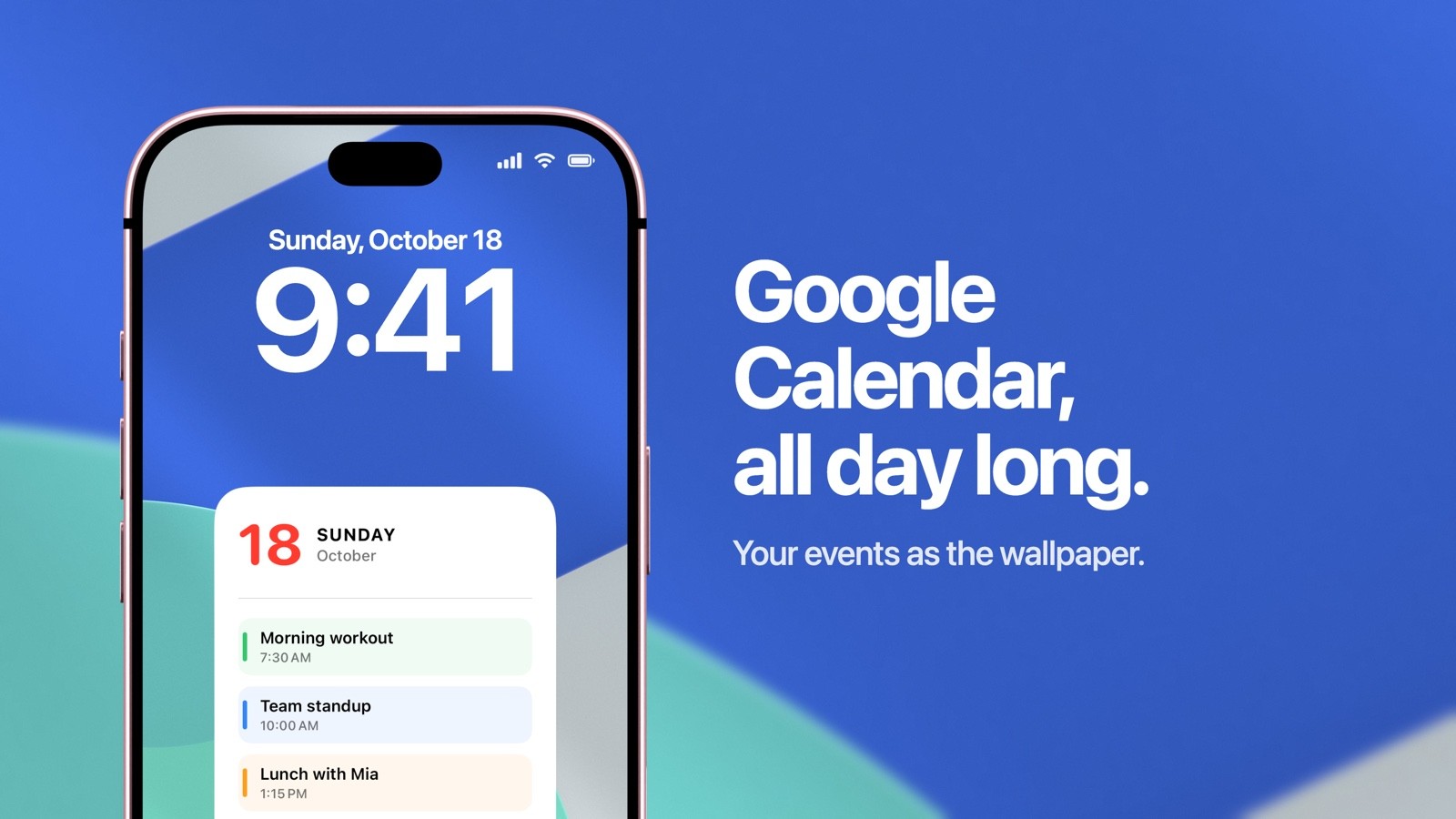
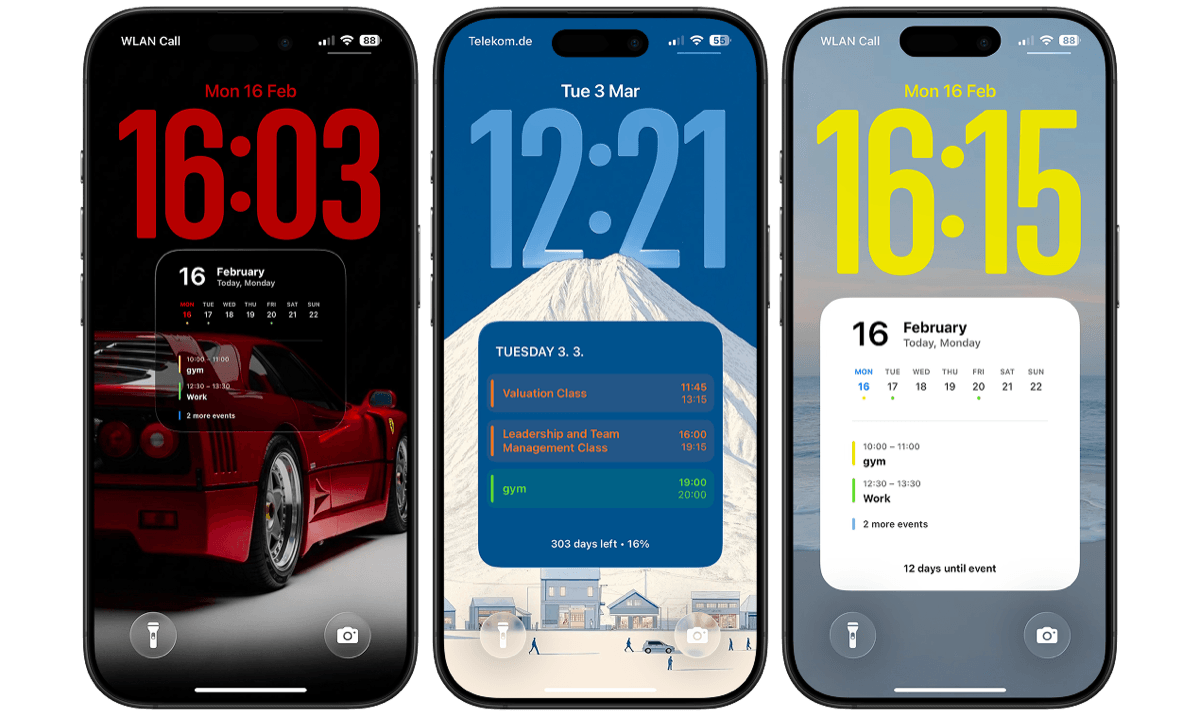
To put Google Calendar on your iPhone Lock Screen, add your Google account to the iPhone under Settings, Apps, Calendar, Calendar Accounts, then choose how the events should appear. Calendarly draws them into the Lock Screen wallpaper, a whole day or a whole month at a time, and redraws the picture every morning. Apple’s Calendar widget under the clock can show the next event from the same account. You keep using Google Calendar exactly as before, on the phone and on the computer.
Most people who search for this have already tried the obvious route. They installed the Google Calendar app, opened the Lock Screen editor and found either one small widget or nothing they wanted. The Lock Screen gives a widget very little room, so even a good one holds a single meeting. The larger space is the wallpaper behind the clock, and iOS lets an app draw there once the events are on the phone.
First, add your Google account to the iPhone
Everything below depends on this step, and it takes about a minute. Signing in happens inside iOS Settings, on Google’s own sign-in page, so no other app sees your password.
- 1Open Calendar Accounts
Go to Settings, then Apps, then Calendar, then Calendar Accounts. On iOS 17 and earlier the path is Settings, then Calendar, then Accounts.
- 2Add the Google account
Tap Add Account, choose Google and sign in. If the account is already listed because you use it for Mail, tap it instead.
- 3Turn on Calendars
Make sure the Calendars switch is on. Mail, Contacts and Notes can stay off if you only want the events.
- 4Check the Calendar app
Open Apple’s Calendar app and tap Calendars at the bottom. Your Google calendars are listed under the account’s address, each with its colour.
Google describes the same steps in Add Google Calendar events to Apple Calendar, and Apple covers every provider in its guide to calendar accounts. The sync runs both ways. An event you add in Google Calendar on a laptop reaches the iPhone, and one you add on the iPhone to a Google calendar shows up in Google.
How to put Google Calendar on the Lock Screen with Calendarly
With the account on the phone, Calendarly can read its events like any other calendar. Setup takes about five minutes, and you do it once.
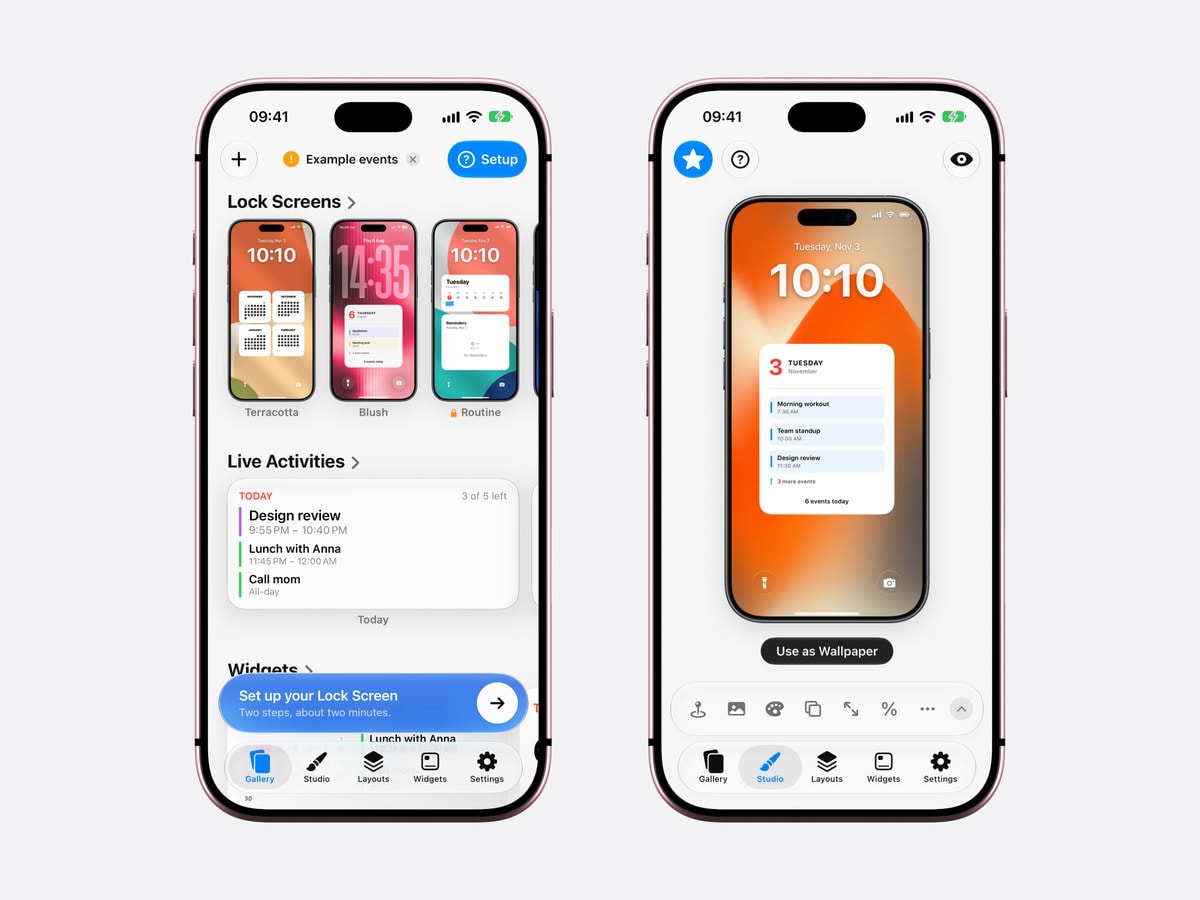
- 1Download Calendarly
Get Calendarly from the App Store. It is free to download, runs on iOS 16.6 or later and has no account of its own to create.
- 2Allow calendar access
Calendarly asks for it when you set up your first calendar layout. It reads the calendars that Apple’s Calendar app shows, which now includes the Google ones.
- 3Choose your calendars
Switch on the Google calendars you want on the wallpaper and leave the rest off. A shared team calendar with forty events a week can stay in the app and off your Lock Screen.
- 4Pick a layout in the Gallery
The Gallery shows each layout on a real Lock Screen. Take a day layout if meetings fill your calendar, or Single Month View if dates matter more.
- 5Adjust it in the Studio
Change the background, the colours, the size and how far the layout sits below the clock. The preview redraws with your own Google events as you go.
- 6Tap Use as Wallpaper
The first time, Calendarly adds its shortcut, Update Calendarly Wallpaper, to the Shortcuts app and walks you through the automation that runs it each morning.
From then on the automation runs at the time you set, usually early in the morning. It asks Calendarly for a new picture and sets it as the wallpaper while the phone is still on the nightstand. Events keep the colour of the calendar they belong to, all-day events are included, and a day with nothing booked is drawn as a free day. The calendar on the Lock Screen guide goes through the setup screen by screen.
Which layout suits a Google calendar
The right layout depends on what your Google Calendar is used for. A work account full of calls needs times and titles. A family calendar with school events and trips reads better as dates on a grid.
- A day of meetings
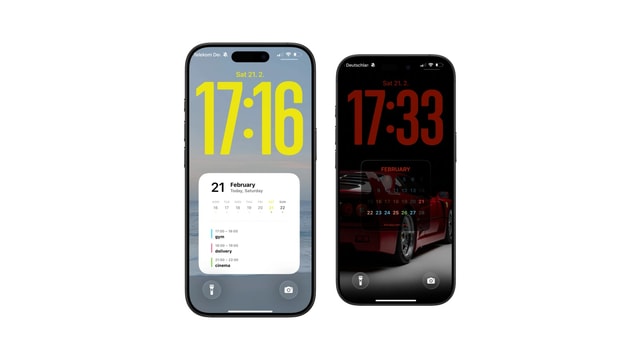
Times down the side and titles in the calendar’s colour, with all-day events at the top. This is the one for a work account, because it answers where you have to be at two o’clock.
- Single Month View
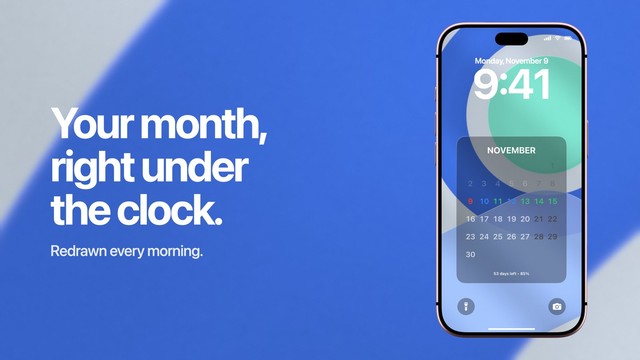
The month as one grid with today marked. It is free, and the clock and calendar guide shows it under the iOS clock.
- A week
Seven days side by side, which suits shifts and classes kept in Google Calendar. The weekly schedule guide covers it.
- Events and reminders together
Your Google events with an Apple Reminders list or Todoist tasks under them, as in calendar and reminders on one Lock Screen.
96 of the 152 layouts are free, and that includes calendar layouts of every kind. Calendarly Pro unlocks the rest, along with your own photos as backgrounds.
What iOS and the Google Calendar app can do on their own
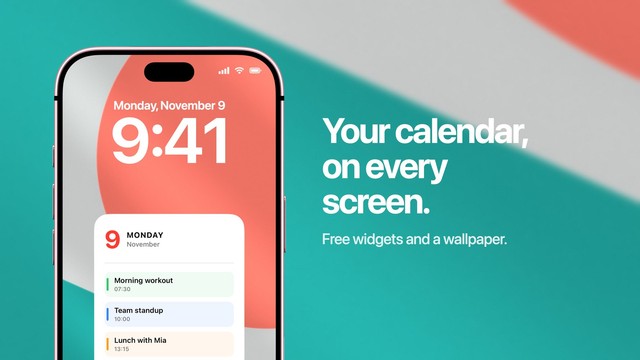
Apple’s Calendar widget is the one most people end up using. Touch and hold the Lock Screen, tap Customize, choose Lock Screen, tap the row under the clock and pick Calendar. With the Google account added to the iPhone, its Up Next widget shows the next timed event from your Google calendars as well. Apple has the steps with pictures.
The Google Calendar app brings widgets of its own, and you will find them in the same list if the app is installed. They show only the accounts signed in to that app. Whichever you choose, the row under the clock fits one event in a few words. Apple’s widget also leaves out all-day events, which is the usual reason the calendar widget looks empty on a day that has a birthday or a deadline on it.
| Lock Screen widget | Calendarly wallpaper | |
|---|---|---|
| Where it sits | The row under the clock | The whole screen behind the clock |
| Google events shown | The next one | The day, the week or the month |
| All-day events | Not in Apple’s widget | Yes |
| Several Google accounts | Yes, once each is added in Settings | Yes, and you choose the calendars |
| Updates | Live | Each morning, or when you run the shortcut |
| Cost | Built in | Free to download, 96 of 152 layouts free |
A widget and a wallpaper can share the screen: keep Up Next in the widget row for a live answer about the next meeting, and let the wallpaper carry the rest of the day. If you want Google events on the Home Screen as well, the Home Screen calendar guide covers the widgets there.
If your Google events are missing or out of date
When an event is in Google Calendar and not on the Lock Screen, check Apple’s Calendar app first. If the event is missing there too, the problem sits between Google and the iPhone, and one of these usually fixes it.
- 1Check the Calendars switch
Settings, Apps, Calendar, Calendar Accounts, then the Google account. Calendars has to be on. An account added for Mail often has it off.
- 2Tick the calendar in the Calendar app
Tap Calendars at the bottom of Apple’s Calendar app. A calendar without a tick is on the phone and hidden, and its events are skipped everywhere.
- 3Turn on shared calendars at Google
Calendars that other people shared with you are not always sent to the iPhone. Sign in at calendar.google.com/calendar/syncselect, tick the ones you want and save. They appear on the phone after the next sync.
- 4Look at Fetch New Data
On the Calendar Accounts page, tap Fetch New Data. It sets how often the iPhone asks Google for changes. If it says Manually, new events arrive only when you open the Calendar app.
- 5Run the shortcut again
The wallpaper is a picture taken in the morning. After a change during the day, open the Shortcuts app and run Update Calendarly Wallpaper, or add a second time to the automation.
Entries from Google Tasks are not calendar events, so they do not travel with the calendar. If you colour single events by hand in Google Calendar, the iPhone still shows each event in the colour of its calendar. For a wallpaper that should follow a busy day more closely, the guide to a wallpaper that updates on its own explains how to add more update times.
What happens to your Google data
Your Google account is held by iOS, the same way it is for Mail. Calendarly asks iOS for the events on the phone, draws the picture on the phone and hands it to Shortcuts. The events are not sent to a server, and Calendarly does not change or delete anything in your Google Calendar. If you ever want to stop, turn off calendar access under Settings, Apps, Calendarly, and the app can read nothing more.
Sources
Questions people ask
Yes. Add your Google account under Settings, Apps, Calendar, Calendar Accounts. Then either add a Calendar widget under the clock, which shows the next event, or use Calendarly to draw the whole day or month into the Lock Screen wallpaper.
The Google Calendar app has its own widgets, and Apple’s Calendar widget shows Google events once the account is added to the iPhone. Either way the Lock Screen row fits one event. For more than that, the events have to be in the wallpaper.
Use a calendar wallpaper. Calendarly reads the Google calendars that sync to your iPhone, draws today’s events into the Lock Screen wallpaper and redraws it every morning through a Shortcuts automation.
No. The events reach the iPhone through the Google account in Settings. You can keep the Google Calendar app for editing, or use Apple’s Calendar app, and the Lock Screen shows the same events.
Usually the Calendars switch for the Google account is off, the calendar is unticked in Apple’s Calendar app, or it is a shared calendar that Google has not been told to sync. Apple’s widget also never shows all-day events.
Yes. Add each account under Calendar Accounts. In Calendarly you then choose which calendars from which account appear on the wallpaper.
Yes, in the same way. Add the Outlook or Exchange account under Calendar Accounts, and its events appear in Apple’s Calendar app, in the widgets and in Calendarly.
Calendarly is free to download, and 96 of its 152 layouts are free, along with every widget, every Live Activity and the daily update. Calendarly Pro unlocks every layout and your own photos as backgrounds.