
Goal Tracker App for iPhone: Every Goal as Daily Steps, With the Deadline on Your Lock Screen
Track goals on your iPhone with Calendarly’s free habits: targets like 3 runs a week, streaks, statistics by year and a countdown to the deadline on the Lock Screen, compared with Strides, Progress and Goal Tracker.

A goal tracker app for iPhone works best when it breaks the goal into something you do on a given day and then counts those days for you. Calendarly does that for free on iOS 26 and later: each goal becomes a habit on its Today page, with a target such as 3 runs a week or 8 glasses of water a day, a streak, statistics by week, month and year, and a widget that keeps it on the Lock Screen. A goal with a deadline can also count down on the Lock Screen wallpaper itself, so the date stays in front of you every time you pick up the phone.
“Run a half marathon in April” sounds clear in January, but it has no single day on which it is done, so there is no moment when you notice it slipping. It becomes trackable once it turns into a rhythm, such as three runs a week with the long one on Sunday, and a race date that gets closer every morning.
Some goals are a number to reach rather than something to repeat, like saving $2,000 or losing 5 kg. Calendarly does not track an amount toward a target, and two of the apps compared below, Progress and Strides, are made for exactly that. For goals you reach by doing something regularly, Calendarly keeps them on the page with your calendar and to-dos, which is the page you already open in the morning.
Turn a goal into steps you can tick
Start with the goal and ask what you would do in a normal week if it were going well. A half marathon in April means running three days a week now. Reading 24 books this year comes to roughly 20 pages a night. Learning Spanish becomes 15 minutes of practice on weekdays, and a healthier spring becomes 8 glasses of water a day and a phone left outside the bedroom. Each of these has a day on which it is done or not done, so a tracker can count it.
Calendarly takes every one of these shapes. A habit can be every day, on chosen weekdays, a number of days a week or a month, or up to 20 times a day, and a habit to quit counts from the moment you stopped. A big goal often needs two or three habits under it, and Calendarly holds up to 30, so each goal can have its own small set without the list getting crowded.
- A fitness goal
Run 3 days a week from the ideas, or Gym on Monday, Wednesday and Friday as chosen weekdays, so the rest days never break the streak.
- A reading goal
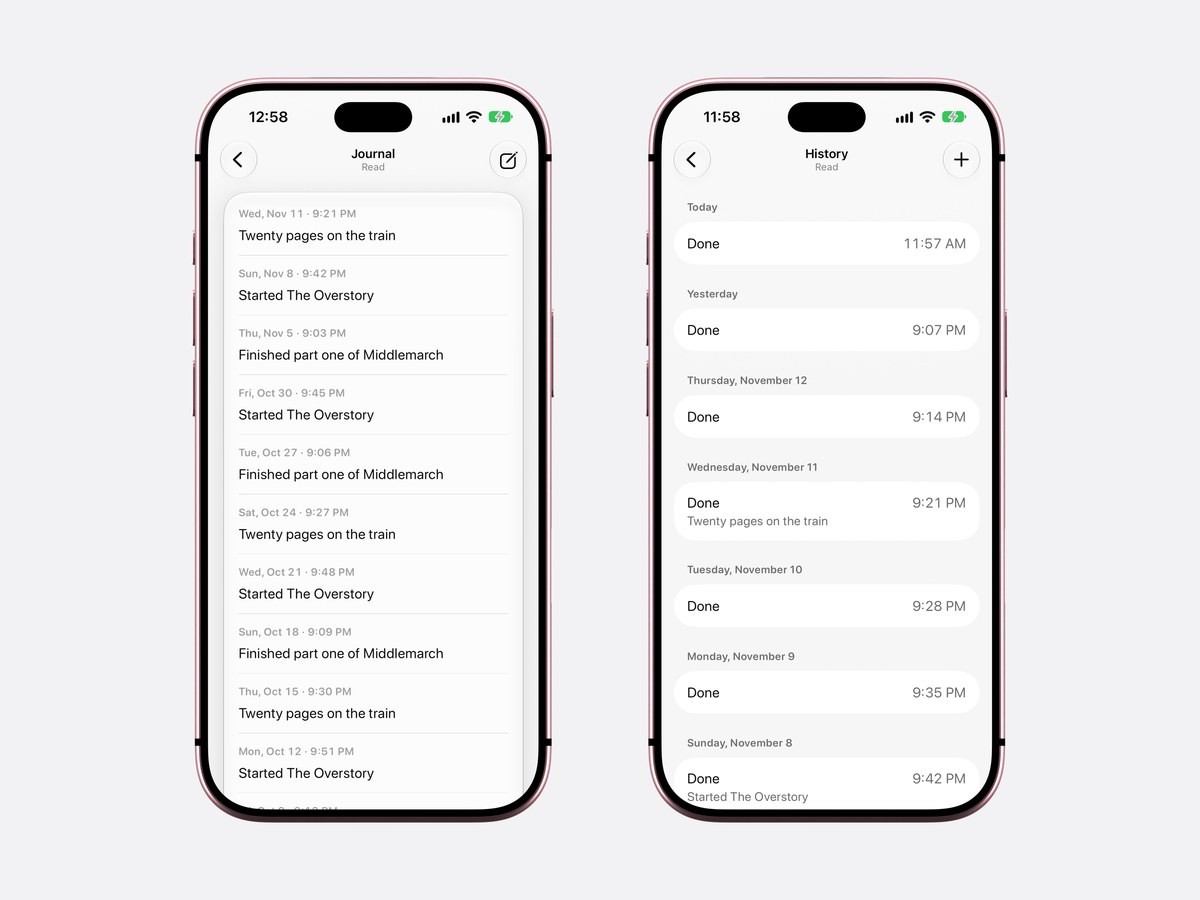
Read once a day. The Journal under the habit can hold the title of each book as you finish it.
- A health goal
Drink water at 8 times a day, one tap a glass. The habit page shows each tap on a line through the day.
- A goal to stop something
A habit to quit for smoking, alcohol or sugar counts days clean and the money or minutes saved. The sobriety counter guide covers it in detail.
- A goal for the new year
Resolutions work the same way; the New Year’s resolution tracker guide sets up a few for January.
How to set up a goal tracker on iPhone with Calendarly
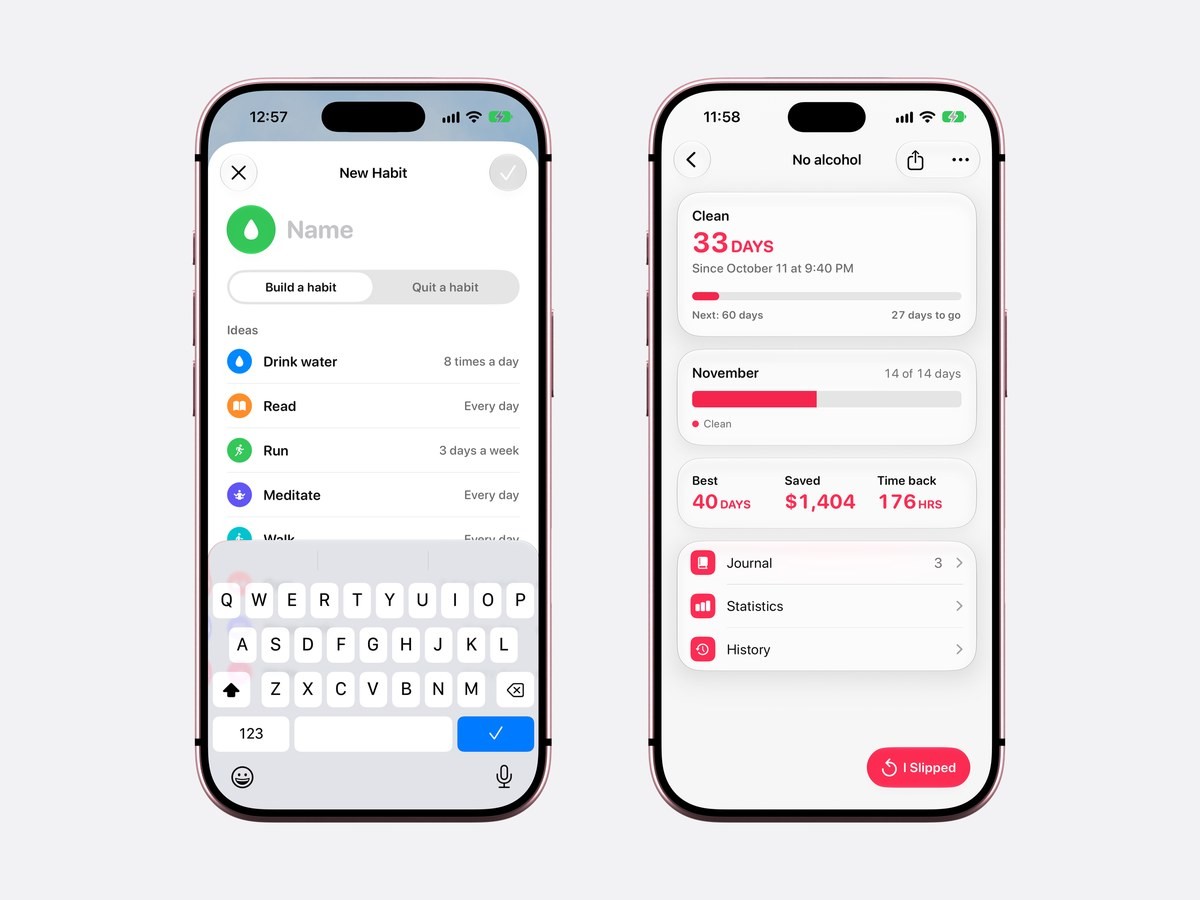
- 1Download Calendarly
Get Calendarly from the App Store. It is free and needs no account. The Today page and habits need iOS 26 or later.
- 2Add the first step of the goal
On Today, tap the plus button and choose Habit. Pick an idea such as Run, Read or Drink water, or type your own name under Build a habit.
- 3Set the target
Choose how often: every day, chosen weekdays, a number of days a week or a month, or a number of times a day. Give it a color and an icon so it is easy to find on Today.
- 4Add the other steps
Repeat for each habit the goal needs. For something you want to stop, switch to Quit a habit and set when you stopped.
- 5Keep it on the Lock Screen
Touch and hold the Lock Screen, tap Customize, tap the space under the clock and add Calendarly’s Habits widget. A tap on a habit there checks it in without opening the app.
See the goals next to your day
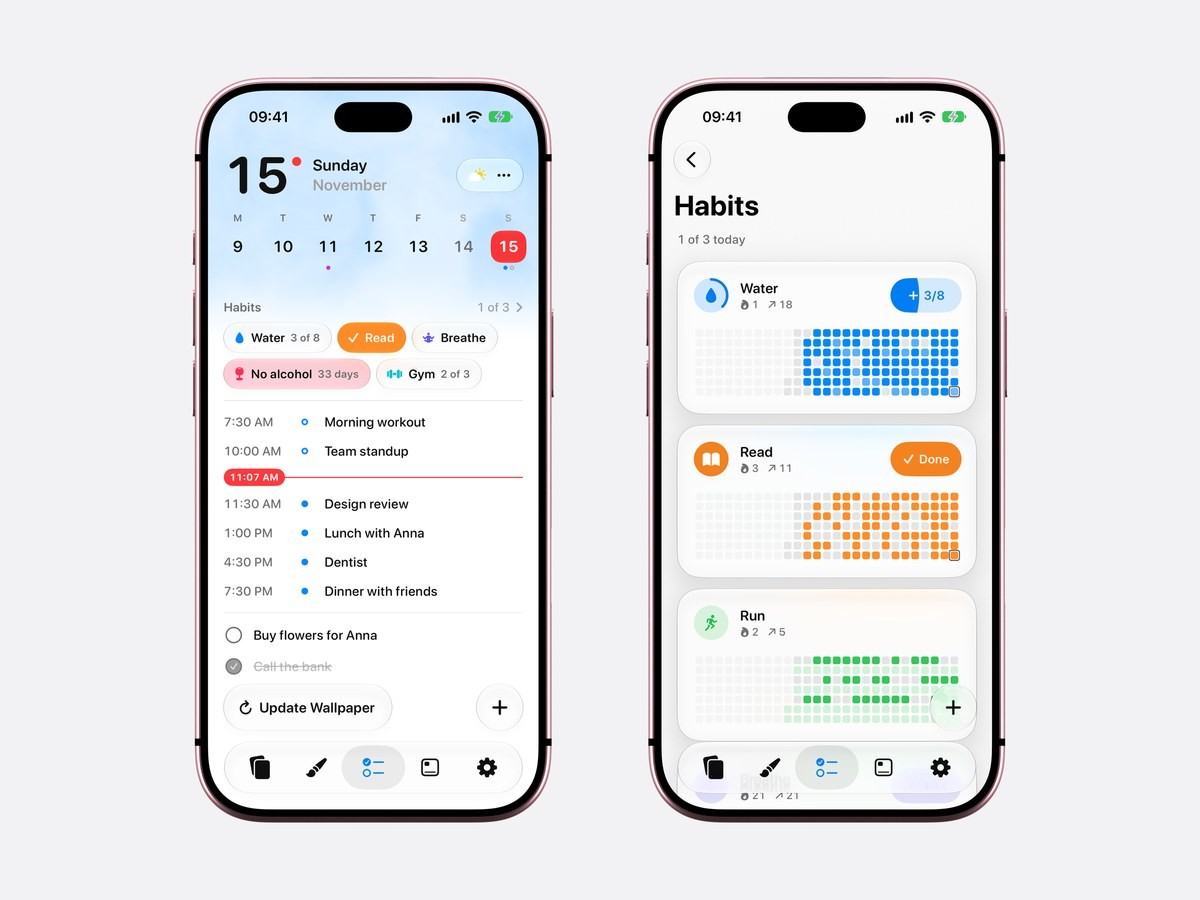
In Calendarly the habits sit as capsules at the top of Today, above the day’s events and to-dos from Apple’s Calendar, Google Calendar, Outlook or Calendarly’s own calendar. A capsule fills with its color once the habit is done for the day. On a Thursday with four meetings, an empty Run capsule above the schedule is a reminder to find the half hour for it before the evening fills up.
Tap Habits above the capsules and each habit shows its days as a grid of squares, one column a week. After a month you can see which goals are moving: full columns where a week went well, gaps where it did not.
Track progress: streaks, Statistics and Highlights
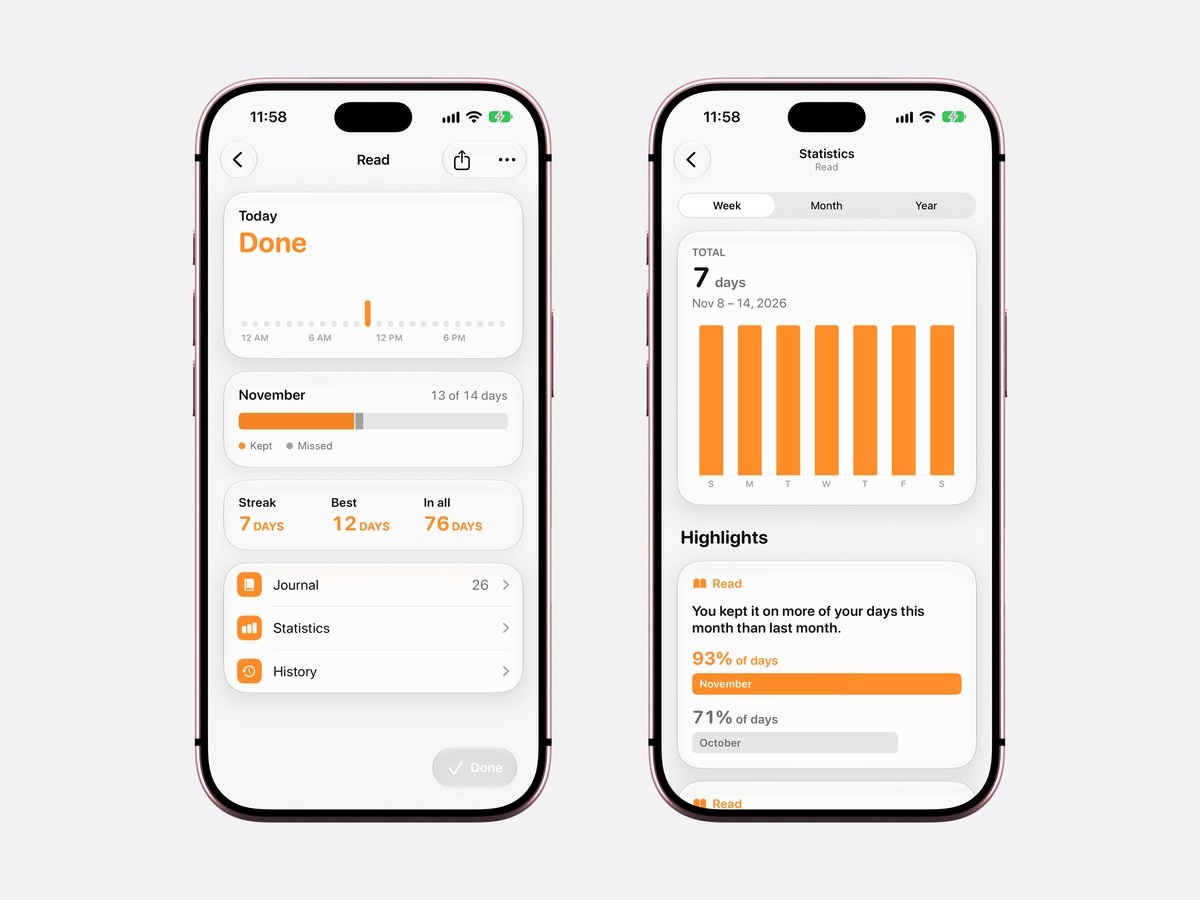
Each habit has its own page with today’s state, the current month as days kept and missed, and three numbers: the streak, the best streak and the total. A weekly habit keeps its streak as long as each week reaches the number of days you set, so three runs a week can carry a streak through months of training without a run on rest days.
Statistics has a Week, Month and Year switch over one chart. The Year view draws each month as a bar, so you can see in which month a goal started to slip. Under the chart, Highlights puts the trend into a sentence, such as You kept it on more of your days this month than last month, with the share of days for both months. History lists every check-in with its time, and a day you forgot to tick can be added there.
The habit statistics guide explains every number on these pages.
Count down to the goal’s deadline on the Lock Screen
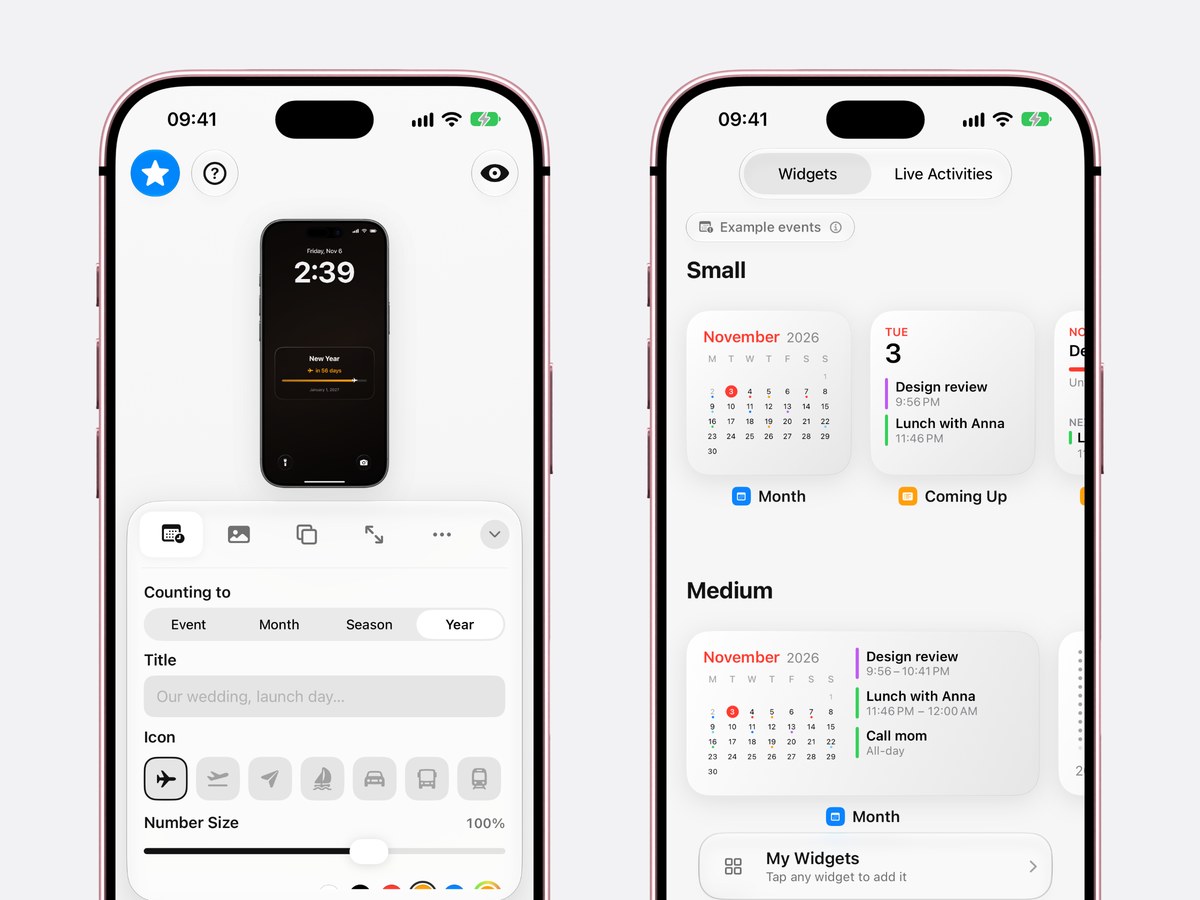
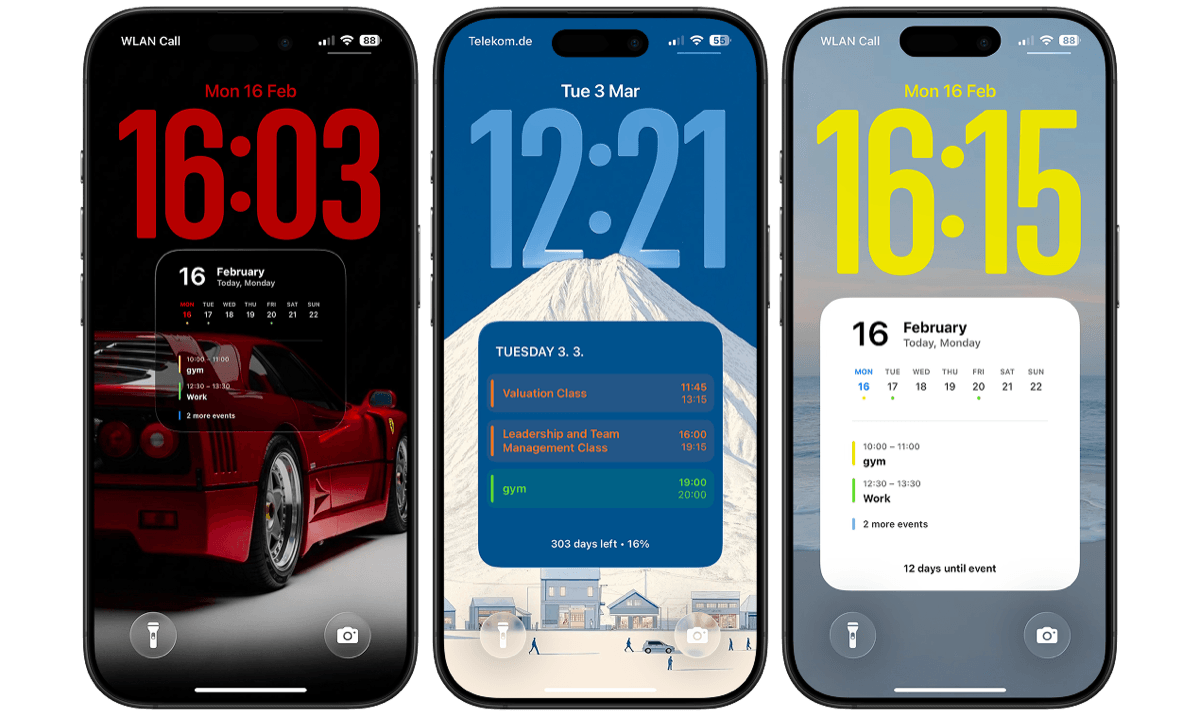
Many goals have a date: the race, the exam, the trip you are saving for, the end of a 90-day plan. Calendarly can put that date on the Lock Screen as a countdown wallpaper. Journey draws a card with your title, the days left and a line that fills up from the day you started counting, and Mosaic shows the days left as a big number. The countdown wallpapers are free and work on iOS 16.6 and later.
In the Gallery, open the Countdown row and pick a layout. In the Studio, under Counting to, choose Event, pick the date and type a title such as Half marathon. Then tap Use as Wallpaper. iOS lets no app change the Lock Screen by itself, so the first time Calendarly adds a shortcut called Update Calendarly Wallpaper and walks you through one Shortcuts automation that redraws the picture every morning. From then on the number drops by one each day, with the Habits widget under the clock for the daily steps.
The countdown guide goes into choosing the start date, and the best countdown apps for the Lock Screen compares the options.
Write down what helped and what got in the way
A note can go with any check-in, from Note in the habit’s menu or the compose button on the Journal page. Notes like Ran 8 km, knee fine or Skipped, late meeting are short, but a month of them tells you what was going on in the weeks where the chart dips.
For a habit to quit, I Slipped records a slip with its date, time and reason. Once there are a few, Statistics names the most common reason, the time of day slips usually happen and the weekday they come most often. The count of days clean starts again from the slip, and the Journal keeps every attempt.
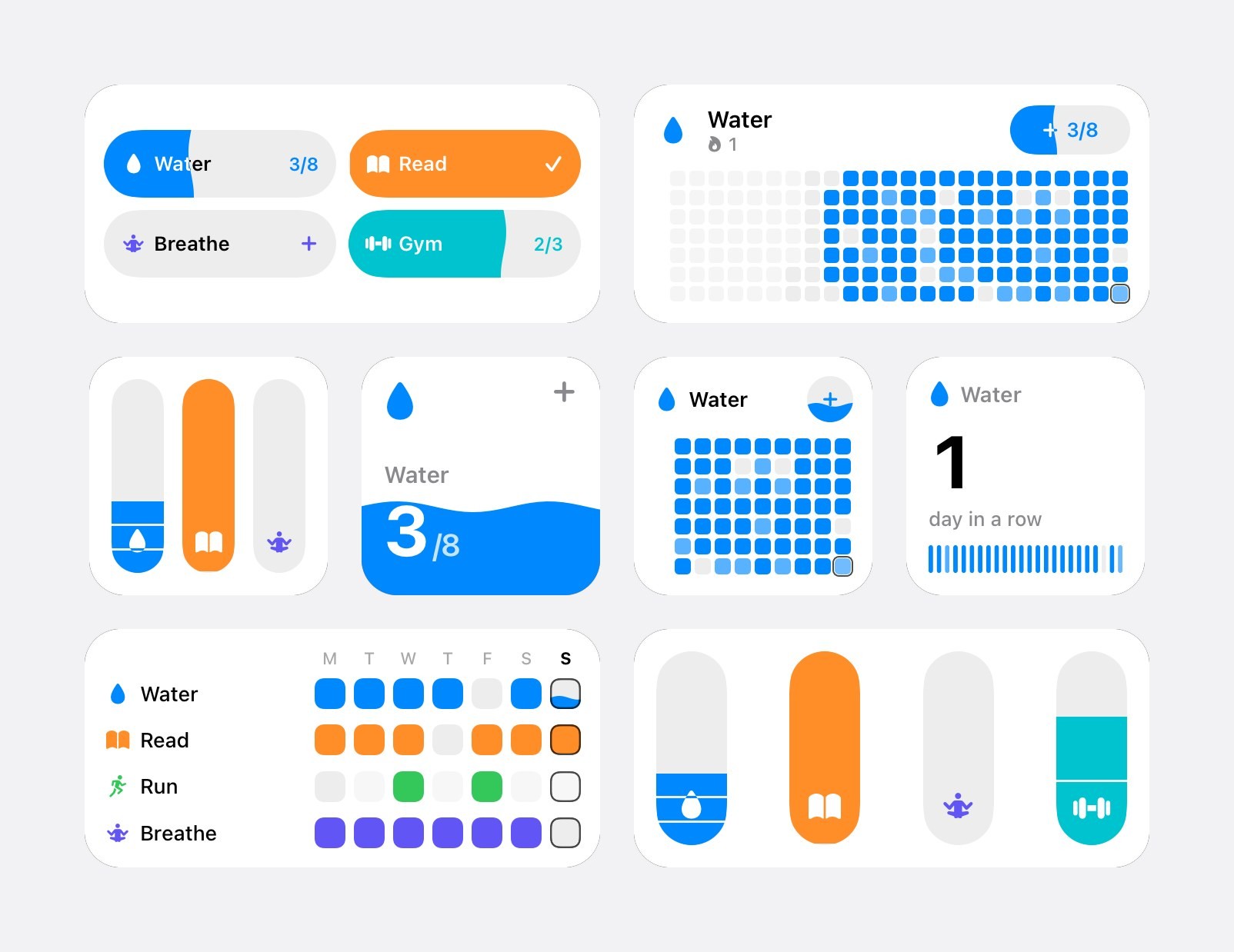
Goal tracker widgets for the Home Screen and Lock Screen
Calendarly has nine habit widgets, all free. Habits lists today’s habits and also fits under the clock on the Lock Screen, where a tap checks one in. Habit Level shows how far a habit with several times a day has come, such as 3 of 8, Habit Week shows several habits from Monday to Sunday, Habit Board draws one habit’s days as a block of squares, and Habit Run shows how long one habit has kept going. For habits to quit there are Days Clean, What You Saved and Next Milestone, which counts toward 7, 14, 30, 60, 90 and 180 days and a year.
Apple explains how to add widgets to both screens, and the habit tracker widget guide shows each of Calendarly’s nine with its sizes.
The best goal tracker apps for iPhone compared
These three come up first when you search the US App Store for a goal tracker, next to Calendarly. The facts come from each app’s App Store page, read on 27 November 2026. Not named means the listing does not mention it; the app may still have it.
| App | Best for | Price in the listing | Widgets in the listing | Needs |
|---|---|---|---|---|
| Calendarly | Goals reached by doing something regularly: habits with targets, streaks, Statistics by week, month and year, a deadline counting down on the Lock Screen | Free; habits, statistics, widgets and countdown wallpapers free | Nine habit widgets, three on the Lock Screen | iOS 26 for habits, iOS 16.6 for wallpapers |
| Strides: Habit Tracker + Goals | Habits and SMART goals with four tracker types, among them a Target tracker for a goal by a date; 150+ templates, Apple Health | Free; Strides Plus monthly, yearly or lifetime for unlimited trackers and sync | Not named | iOS 17.0 |
| Progress: Goal & Habit Tracker | Amounts toward a target, such as distance, money, time or weight, with history charts and projected completion dates | Free for up to 5 trackers; Premium subscription or lifetime | Home Screen and Lock Screen | iOS 17.0 |
| Goal Tracker - Plan Setting | Long-term goals with progress, tasks and planning, such as a first book or a house by 30 | Free | Not named | iOS 13.0 |
If the goal is an amount, like $2,000 saved or 500 miles run this year, Progress is the closest fit: it formats currencies, distances and weights, and estimates when you will reach the target. Strides suits people who track many kinds of goals at once and want them on an iPad and a Mac too, which needs Strides Plus. Goal Tracker - Plan Setting is a plain list of big life goals broken into tasks.
Calendarly is the better choice when the goal comes down to things you do every day or every week. It puts those steps on the page where your day already is, lets you tick them from the Lock Screen and keeps the deadline in view, all for free. More habit apps are compared in the best habit tracker apps for iPhone.
What an iPhone does without a goal app
Reminders can repeat a step every day or every week, and its widget fits the Lock Screen. That is a good nudge, but a ticked reminder just comes back the next day, so there is no record of how many days you kept it. The Fitness app tracks move, exercise and stand goals for activity, and Notes can hold a list of goals without saying anything about how they are going.
| Reminders | Calendarly | |
|---|---|---|
| A step every day or week | Repeating reminder | Habit every day, on chosen weekdays, or a number of days a week or a month |
| Several times a day | Several reminders | Up to 20 times a day, one tap each |
| Days in a row | No | A streak for each habit, with the best one |
| Progress over months | No | Statistics by week, month and year, Highlights, History |
| The deadline | A due date | A countdown wallpaper with the days left |
| Lock Screen | Reminders widget | Habits widget, a tap checks in |
| Cost | Free | Free |
Privacy and reminders
Calendarly keeps habits on the iPhone. There is no account, and nothing is written to Apple Health. Notifications are all off until you turn them on in Settings ▸ Notifications. Each habit can then have its own reminders, and a reminder stays silent once you are on track for the day.
When a goal is reached, its habits can stay to keep the result, or be deleted while the others keep their history. A new goal starts beside the old ones, and the Year view of Statistics keeps the whole year of every habit that stayed.
Sources
Questions people ask
For goals you reach through regular steps, Calendarly tracks each step as a free habit on iOS 26 and later, with streaks, yearly statistics, Lock Screen widgets and a deadline countdown on the wallpaper. For an amount toward a target, such as money or weight, Progress and Strides have trackers made for that.
Yes. Calendarly’s habits, statistics, widgets and countdown wallpapers are free, for up to 30 habits. Strides is free with Strides Plus as an upgrade, Progress is free for up to 5 trackers, and Goal Tracker - Plan Setting is free.
Yes. Calendarly has nine free habit widgets; Habits, Habit Run and Days Clean also fit on the Lock Screen, and a tap on Habits checks a step in. Progress lists Home Screen and Lock Screen widgets in its App Store page as well.
Track the daily or weekly steps as habits in Calendarly, then put the date on the Lock Screen with a countdown layout such as Journey, which shows the days left and a line that fills up from your start date.
Yes. A Calendarly habit can count up to 20 times a day, such as 8 glasses of water, and Habit Level shows how far you are.
No. A weekly habit keeps its streak as long as each week reaches the number of days you set, and a habit on chosen weekdays only counts those days.
Not as an amount toward a target. A habit to quit shows the money and minutes saved by not doing something, but for a savings total or a weight goal, Progress or Strides is the better tool.
Calendarly runs on iOS 16.6 and later for its Lock Screen wallpapers, including the countdowns. The Today page, habits and habit widgets need iOS 26 or later.
Keep reading

New Year’s Resolution Tracker App for iPhone: Every Resolution as a Habit, With a Year of Numbers

75 Hard Tracker App for iPhone: Every Task as a Habit, With Lock Screen Widgets
